
Upgrade Windows Server 2016 to Windows Server 2019
Pre-Upgrade
Upgrade path:
Windows Server 2016 can be upgraded to Windows 2019 in a single upgrade process.
Support:
In-place Upgrade is supported for Windows Server 2016 on physicaL hardware, and in Virtual Machines. Public and private cloud companies also support In-place Upgrade on Windows Server 2016 Virtual Machines to upgrade to Windows Server 2019 – check with your cloud provider.
Alternative:
Migrate (re-deploy) applications and data on a clean install of Windows Server 2019.
Limitations:
- For the smoothest upgrade experience, if you've deployed software-defined datacenter (SDDC) features like Software-Defined Networking (SDN) or Storage Spaces Direct, you are encouraged to wait for validated hardware from the Windows Server Software-Defined (WSSD) program to become available. The first wave of validated hardware is expected very soon; in mid-January 2019. Until then, please evaluate Windows Server 2019 using the Windows Insider edition, or call Microsoft support for recommendations on how to proceed.
- Windows Servers configured to “Boot from VHD” cannot be upgraded using In-place Upgrade.
Planning for In-place Upgrade
Before proceeding with In-place Upgrade, collect the following information:
Is there a target or goal timeframe for upgrading this server?
Is this a production-critical server?
Is there a maintenance window for upgrading this server?
Is there enough time for a test upgrade on an identical or similar non-production server?
Who uses this server? Internal users, external users, or both? Have they been informed of the upgrade or maintenance?
Is there an inventory of what is running on the server? Check the following:
Windows Server Roles and Features
Microsoft applications: SQL Server, SharePoint Server, Exchange Server, etc.
3rd-Party applications: SAP, Oracle, DB2, etc.
Is the server joined to an Active Directory domain?
Are any of the server disks BitLocker protected?
Is the server part of a Failover Cluster?
Note that Cluster OS Rolling Upgrade can be used to upgrade Windows Server 2016 Failover Clusters to Windows Server 2019.
How often is the server backed-up? Have backups ever been successfully restored (applied) to the server or applications?
What backup software is used?
If In-place Upgrade is not successful and the server needs to be rebuilt, are the Windows Server and application install media available?
Although it is rare, In-place Upgrade can fail and there should be a plan in-place for this possibility, to minimize server downtime and maintain SLAs.
Is the server fully patched? It is strongly recommended that the server is fully patched prior to In-place Upgrade.
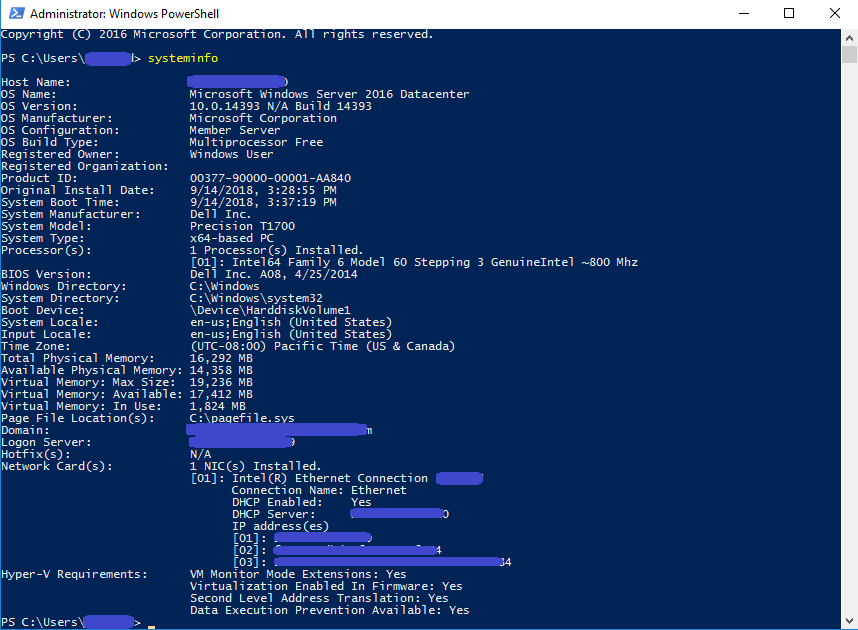
Run systeminfo.exe and save the output:
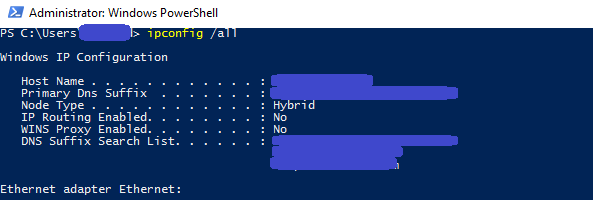
Run ipconfig /all and save the output:
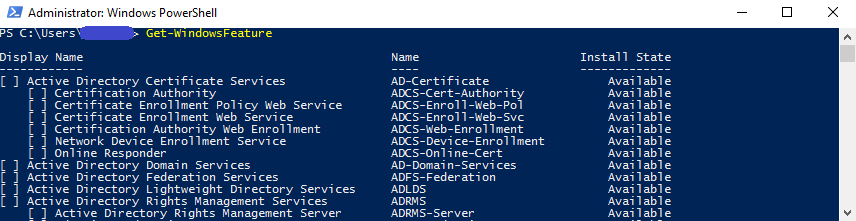
Run Get-WindowsFeature and save the output:
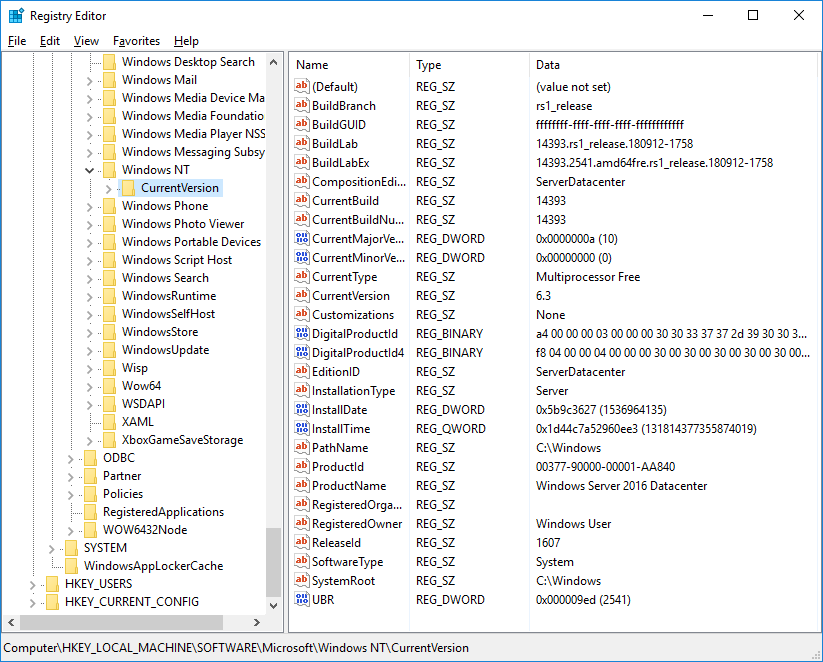
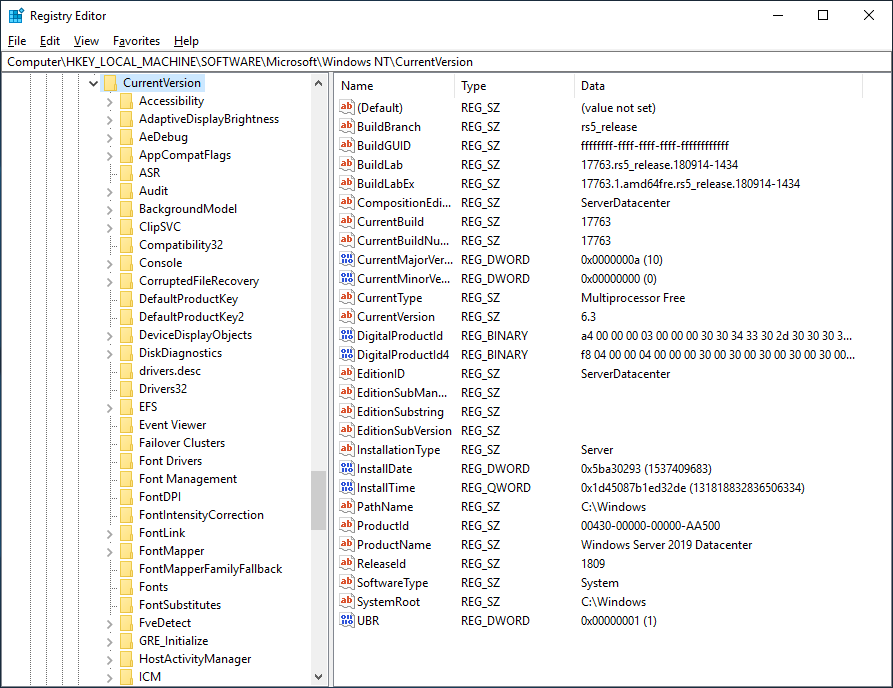
Run RegEdit and capture the value of the the HKEY_LOCAL_MACHINE\SOFTWARE\Microsoft\WindowsNT\CurrentVersion hive – this will show the exact version (BuildLabEx) and edition (EditionID) of Windows Server:
Before proceeding with the In-place Upgrade
Backup the Operating System, Applications, and Virtual Machines.
Shutdown, Quick Migrate, or Live Migrate all Virtual Machines running on the server - Virtual Machines cannot be running on the server during In-place Upgrade.
Upgrade
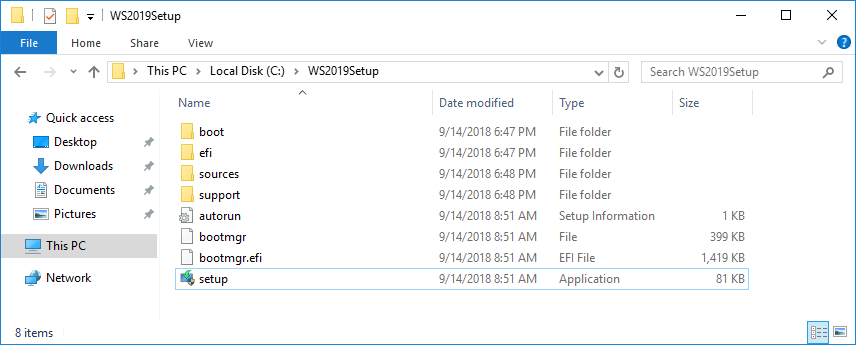
Locate the setup media for Windows Server 2019
Run setup.exe by double-clicking it:
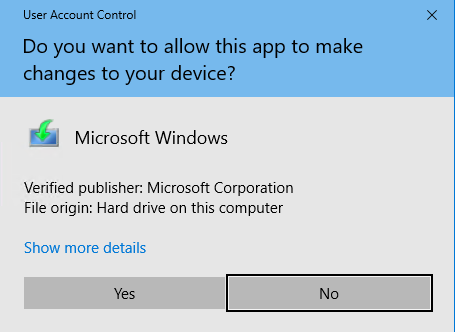
Click Yes to enable setup to proceed:
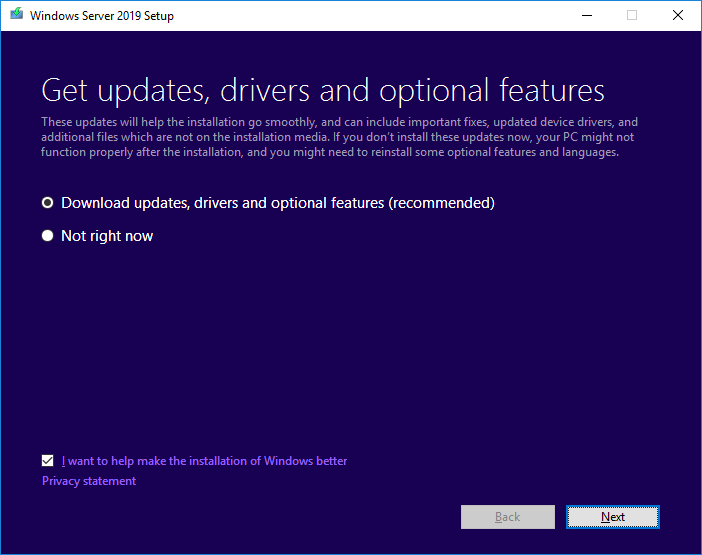
For internet-connected devices, we recommend the Download updates, drivers and optional features option. Click Next:
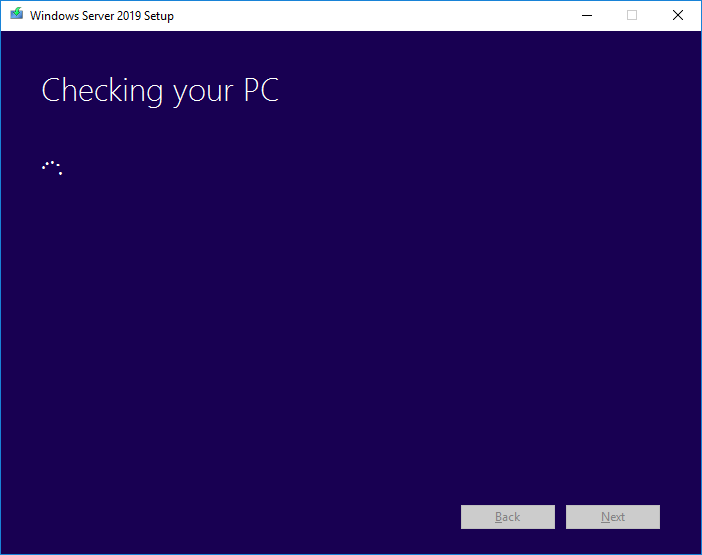
Setup will check the configuration of your computer – please wait:
Depending on the distribution channel that you received Windows Server media from (Retail, Volume License, OEM, ODM, etc.) and the license for the server, you may be prompted to enter a licensing key to proceed.
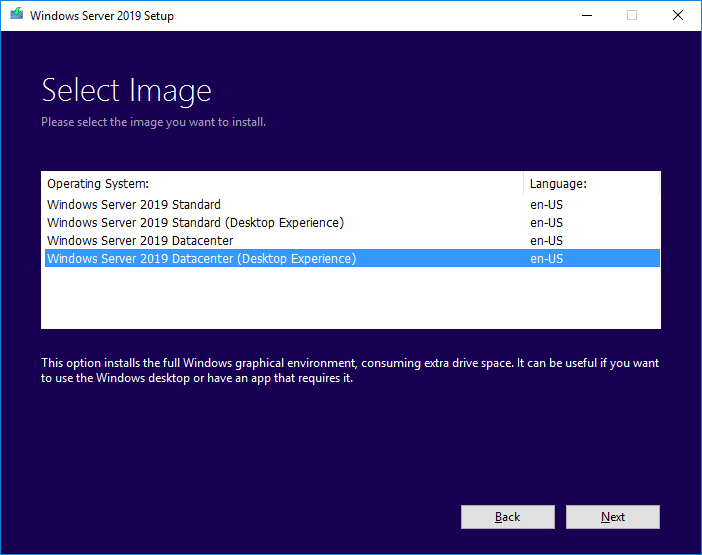
You will be prompted to select the image of the Edition to upgrade to. Then click Next:
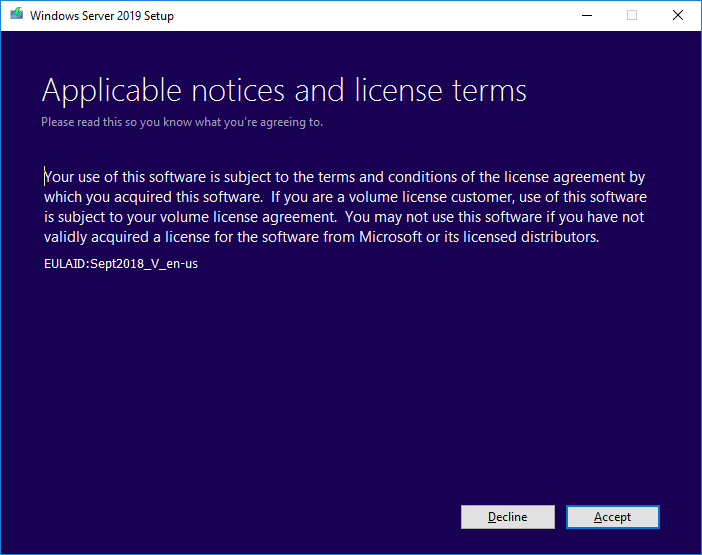
Depending on the distribution channel that you received Windows Server media from (Retail, Volume License, OEM, ODM, etc.) you may be presented with different license agreements. Click Accept:
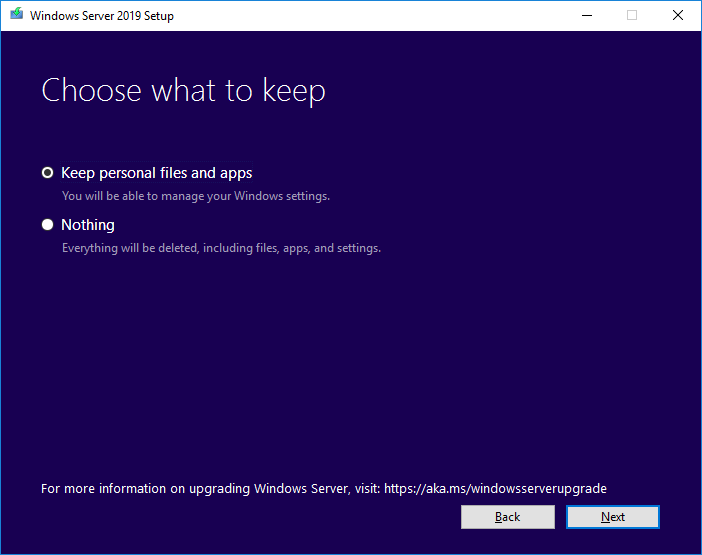
For In-place Upgrade, select Keep personal files and apps, and then click Next:
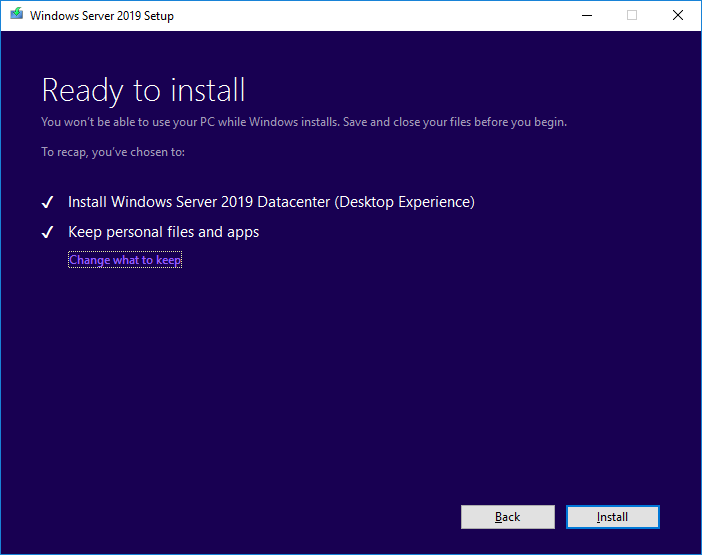
When the analysis phase is complete, setup will prompt you to click Back to change choices, or to proceed with the In-place Upgrade. Click Install:
Setup will proceed with the In-place Upgrade, and then the server will reboot:
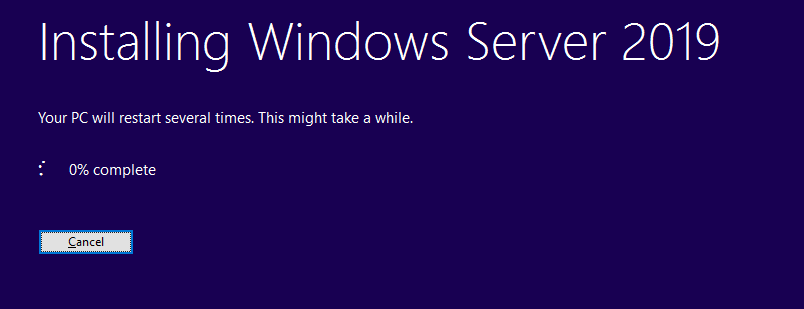
- Setup will complete and the server will reboot.
Post-upgrade
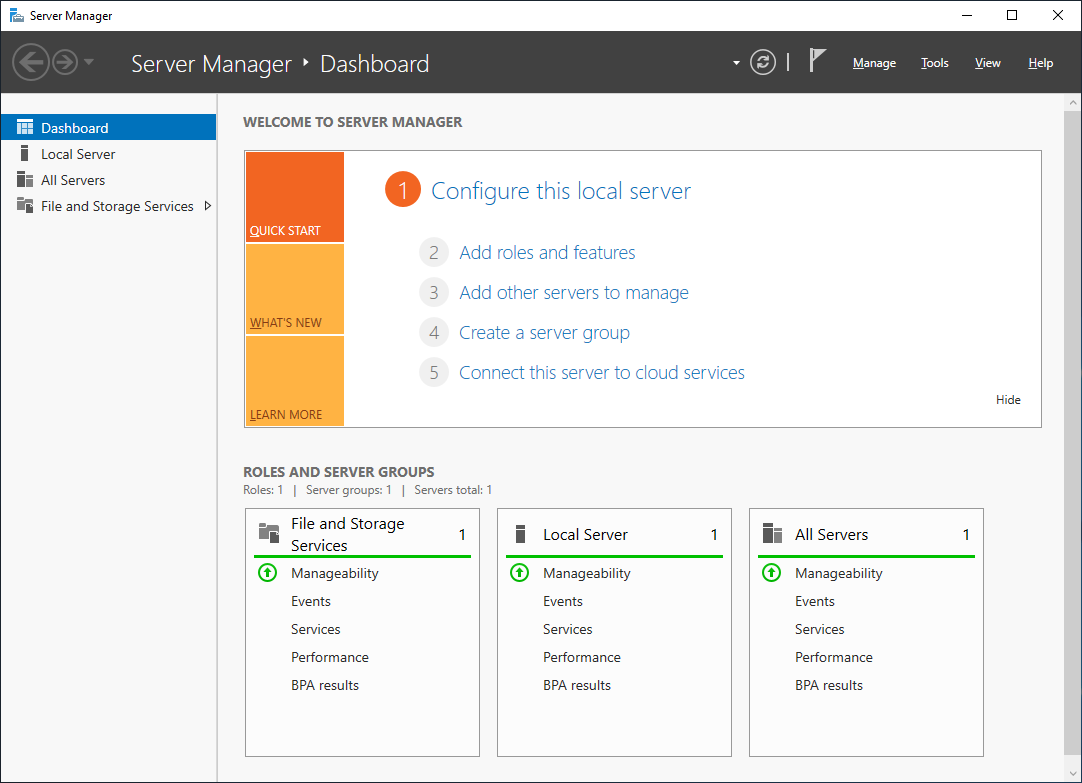
After Setup has completed installing and rebooted the sever, login to check that the server has been successfully upgraded. If you selected Windows Server 2019 Standard or Datacenter Desktop Edition, you should see the Server Manager window:
Run RegEdit and check the value of the HKEY_LOCAL_MACHINE\SOFTWARE\Microsoft\WindowsNT\CurrentVersion hive – the version should be successfully updated to Windows Server 2019.
Check that applications are running and that client connections to the applications succeed.
If you believe that there has been an issue upgrading you server, you should copy and Zip the %SystemRoot%\Panther (usually C:\Windows\Panther) directory and contact support.
Upgrade Windows Server 2016 to Windows Server 2019的更多相关文章
- Win server 2016 升级 Win server 2019 [测试验证]
. 给win server 2016 挂在 win server 2019 的安装盘 2. 点击setup 直接进行安装操作 选择不下载更新, 然后到达输入序列号的界面 序列号为: WMDGN-G9 ...
- SQL Server 2016 在Windows Server 2012 R2 上的初步安装与远程连接实战(一):初步配置
1.安装过程没有什么说头 2.下载并安装SSMS(SQLServer Management Studio),目前已更新到2017.1 3.使用SSMS登陆数据库 第一次选择Windows 身份验证,可 ...
- Prepare and Deploy Windows Server 2016 Active Directory Federation Services
https://docs.microsoft.com/en-us/windows/security/identity-protection/hello-for-business/hello-key-t ...
- SQL Server 2008在Windows 10上不支持
https://support.microsoft.com/en-us/kb/2681562 For SQL Server 2008 R2 SQL Server 2008 R2 is not supp ...
- Server 2012使用Windows PowerShell cmdlet安装角色和角色服务功能
Server 2012使用Windows PowerShell cmdlet安装角色和角色服务功能 Windows Server 2012 安装 SQL server 2008 出现了如下错误: 解 ...
- Windows Server 2012搭建SQL Server Always On踩坑全记录
Windows Server 2012搭建SQL Server Always On踩坑全记录 环境信息: Windows Server 2012 R2 Sql Server 2012 整个搭建集群的过 ...
- sql server 2016 AlwaysOn实现无域高可用全教程
一.简介环境:小编使用的服务器是windows server 2016(系统服务器) + sql server 2016(数据库服务器)(windows server 2016 + sql serve ...
- BizTalk Server 2016
10月28日微软正式发布BizTalk第十个版本BizTalk Server 2016,陆续发布了Azure VM镜像.MSDN版本.开发者版本等.以下为BizTalk Server 2016 新特性 ...
- 在WIN SERVER 2016上安装DOCKER(带过坑)
目录 1 概要 1 1.1 主要优势 1 2 在Windows Server上部署Docker 2 概要 博客使用Word发博,发布后,排版会出现很多问题,敬请谅解 ...
随机推荐
- 容器docker快速入门
一.概述 什么是docker docker是一个应用容器引擎,通俗的讲,docker和我们的vm虚拟机有很多相似的地方,当然也有很多不同的地方 Docker理念是将应用及依赖包打包到一个可移植的容器中 ...
- FileHelper-文件操作工具
import java.io.File; import java.io.FileInputStream; import java.io.FileOutputStream; import java.io ...
- 在 Python 中使用定时器
今天看到一个比较人性化的定时模块 schedule,目前 star 数为 6432,还是非常的受欢迎,这个模块也是秉承这 For Humans 的原则,这里推荐给大家.地址 https://githu ...
- iOS - NSURLConnection finished with error - code -1002
网络请求会异常,比如报错:Error domain: 在回调的地方打一个断点,然后用命令行查看下什么错误: po error 当错误是:**[Error Domain=NSURLErrorDomain ...
- JAVA中用StopWatch计算代码耗时的方法
StopWatch翻译过来的意思就是秒表,其作用也就像我们平时使用的秒一样.spring中就有提供这个工具类(org.springframework.util.StopWatch). 日常开发中,经常 ...
- .NET HttpWebRequest应用
提供基于HttpWebRequest的请求的应用类,其中包含:get请求(带参或不带参).post请求.文件传输请求 方法的具体说明: PostHttp:post请求,支持三种提交模式:FROM.JS ...
- tracking.js实现前端人脸识别
1.下载https://trackingjs.com/ 2.运行例子 纳总一下 发现效果 里面的代码为 <!doctype html><html><head> &l ...
- php删除目录及目录下的内容
今天遇到一个问题: java写的API,ppt转图片生成的目录和文件 在使用php调用API完成后,再使用php进行删除时,遇到了删除失败的问题 部署的环境是Ubuntu 导致删除失败的原因是权限的问 ...
- ES6学习小结
ES6(ES2015)--IE10+.Chrome.FireFox.移动端.NodeJS 编译.转换 1.在线转换 2.提前编译 babel = browser.js ES6: 1.变量 var 重复 ...
- SQL Server 中日志的的作用(Redo和Undo)
简介 之前我已经写了一个关于SQL Server日志的简单系列文章.本篇文章会进一步挖掘日志背后的一些概念,原理以及作用. 数据库的可靠性 在关系数据库系统中,我们需要数据库可靠,所谓的可靠就是当遇见 ...