
QQ5.0侧滑
package com.example;

import android.os.Bundle;

import android.support.v7.app.ActionBarActivity;

import android.view.View;

public class MainActivity extends ActionBarActivity {

    private SlidingMenu mMenu;

    @Override

    protected void onCreate(Bundle savedInstanceState) {

        super.onCreate(savedInstanceState);

        setContentView(R.layout.activity_main);

        mMenu = (SlidingMenu) findViewById(R.id.id_menu);

    }

    public void toggleMenu(View view)

    {

        mMenu.toggle();

    }

}
package com.example;

import android.app.Activity;

import android.content.Context;

import android.graphics.Bitmap;

import android.graphics.Rect;

import android.util.DisplayMetrics;

import android.view.View;

import android.view.WindowManager;

/**

 * Created by tuhao-pc on 2015/12/28.

 * 获取屏幕相关的辅助类

 */

public class ScreenUtils {

    private  ScreenUtils() {

    }

    /**

     *获取屏幕的高度

     * @param context

     * @return

     */

    public static  int getScreenWidth(Context context){

        WindowManager wm = (WindowManager) context.getSystemService(Context.WINDOW_SERVICE);

        DisplayMetrics outMetrics = new DisplayMetrics();

        wm.getDefaultDisplay().getMetrics(outMetrics);

        return outMetrics.widthPixels;

    }

    /**

     * 获取屏幕的高度

     * @param context

     * @return

     */

    public static int getScreenHeight(Context context){

        WindowManager wm = (WindowManager) context.getSystemService(Context.WINDOW_SERVICE);

        DisplayMetrics outMetrics = new DisplayMetrics();

        wm.getDefaultDisplay().getMetrics(outMetrics);

        return outMetrics.heightPixels;

    }

    /**

     * 获取手机状态栏的状态

     * @param context

     * @return

     */

    public static int getStatusHeight(Context context){

        int statusHeight = -1;

        Class<?> clazz = null;

        try {

            clazz = Class.forName("com.android.internal.R$dimen");

            Object object = clazz.newInstance();

            int height = Integer.parseInt(clazz.getField("status_bar_height").get(object).toString());

            statusHeight = context.getResources().getDimensionPixelSize(height);

        } catch (ClassNotFoundException e) {

            e.printStackTrace();

        } catch (NoSuchFieldException e) {

            e.printStackTrace();

        } catch (InstantiationException e) {

            e.printStackTrace();

        } catch (IllegalAccessException e) {

            e.printStackTrace();

        }

        return statusHeight;

    }

    /**

     * 获取当前屏幕截图,包含状态栏

     *

     * @param activity

     * @return

     */

    public static Bitmap snapShotWithStatusBar(Activity activity)

    {

        View view = activity.getWindow().getDecorView();

        view.setDrawingCacheEnabled(true);

        view.buildDrawingCache();

        Bitmap bmp = view.getDrawingCache();

        int width = getScreenWidth(activity);

        int height = getScreenHeight(activity);

        Bitmap bp = null;

        bp = Bitmap.createBitmap(bmp, 0, 0, width, height);

        view.destroyDrawingCache();

        return bp;

    }

    /**

     * 获取当前屏幕截图,不包含状态栏

     *

     * @param activity

     * @return

     */

    public static Bitmap snapShotWithoutStatusBar(Activity activity)

    {

        View view = activity.getWindow().getDecorView();

        view.setDrawingCacheEnabled(true);

        view.buildDrawingCache();

        Bitmap bmp = view.getDrawingCache();

        Rect frame = new Rect();

        activity.getWindow().getDecorView().getWindowVisibleDisplayFrame(frame);

        int statusBarHeight = frame.top;

        int width = getScreenWidth(activity);

        int height = getScreenHeight(activity);

        Bitmap bp = null;

        bp = Bitmap.createBitmap(bmp, 0, statusBarHeight, width, height

                - statusBarHeight);

        view.destroyDrawingCache();

        return bp;

    }

}
package com.example;

import android.content.Context;

import android.content.res.TypedArray;

import android.util.AttributeSet;

import android.util.TypedValue;

import android.view.MotionEvent;

import android.view.ViewGroup;

import android.widget.HorizontalScrollView;

import android.widget.LinearLayout;

import com.nineoldandroids.view.ViewHelper;

/**

 * Created by tuhao-pc on 2015/12/28.

 */

public class SlidingMenu  extends HorizontalScrollView{

    private int mScreenWidth;

    private int mMenuRightPadding;

    private int mMenuWidth;

    private int mHalfMenuWidth;

    private boolean isOpen;

    private boolean once;

    private ViewGroup mMenu;

    private ViewGroup mContent;

    public SlidingMenu(Context context) {

        this(context,null);

    }

    public SlidingMenu(Context context, AttributeSet attrs) {

        this(context, attrs, 0);

    }

    public SlidingMenu(Context context, AttributeSet attrs, int defStyleAttr) {

        super(context, attrs, defStyleAttr);

        mScreenWidth = ScreenUtils.getScreenWidth(context);

        TypedArray a = context.getTheme().obtainStyledAttributes(attrs,R.styleable.SlidingMenu,defStyleAttr,0);

        int count = a.getIndexCount();

        for(int i = 0;i < count;i++){

            int attr = a.getIndex(i);

            switch (attr){

                case R.styleable.SlidingMenu_rightPadding:{

//                    默认是50

                    mMenuRightPadding = a.getDimensionPixelSize(attr, (int) TypedValue.applyDimension(TypedValue.COMPLEX_UNIT_DIP,50f,getResources().getDisplayMetrics()));

                    break;

                }

            }

        }

        a.recycle();

    }

    @Override

    protected void onMeasure(int widthMeasureSpec, int heightMeasureSpec) {

        /**

         * 显示设置一个宽度

         */

        if(!once){

            LinearLayout wrapper = (LinearLayout) getChildAt(0);

            mMenu = (ViewGroup) wrapper.getChildAt(0);

            mContent = (ViewGroup) wrapper.getChildAt(1);

            mMenuWidth = mScreenWidth - mMenuRightPadding;

            mHalfMenuWidth = mMenuWidth/2;

            mMenu.getLayoutParams().width = mMenuWidth;

            mContent.getLayoutParams().width = mScreenWidth;

        }

        super.onMeasure(widthMeasureSpec, heightMeasureSpec);

    }

    @Override

    protected void onLayout(boolean changed, int l, int t, int r, int b) {

        super.onLayout(changed, l, t, r, b);

        if(changed) {

//            将菜单隐藏

            this.scrollTo(mMenuWidth, 0);

            once = true;

        }

    }

    @Override

    public boolean onTouchEvent(MotionEvent ev) {

        int action = ev.getAction();

        switch (action){

            // Up时,进行判断,如果显示区域大于菜单宽度一半则完全显示,否则隐藏

            case MotionEvent.ACTION_UP:{

                int scrollX = getScrollX();

                if(scrollX > mHalfMenuWidth){

                    this.smoothScrollTo(mMenuWidth,0);

                    isOpen = false;

                }

                else{

                    this.smoothScrollTo(0,0);

                    isOpen = true;

                }

                return true;

            }

        }

        return super.onTouchEvent(ev);

    }

    /**

     * 打开菜单

     */

    public void openMenu()

    {

        if (isOpen)

            return;

        this.smoothScrollTo(0, 0);

        isOpen = true;

    }

    /**

     * 关闭菜单

     */

    public void closeMenu()

    {

        if (isOpen)

        {

            this.smoothScrollTo(mMenuWidth, 0);

            isOpen = false;

        }

    }

    /**

     * 切换菜单状态

     */

    public void toggle()

    {

        if (isOpen)

        {

            closeMenu();

        } else

        {

            openMenu();

        }

    }

    @Override

    protected void onScrollChanged(int l, int t, int oldl, int oldt)

    {

        super.onScrollChanged(l, t, oldl, oldt);

        float scale = l * 1.0f / mMenuWidth;

        float leftScale = 1 - 0.3f * scale;

        float rightScale = 0.8f + scale * 0.2f;

        ViewHelper.setScaleX(mMenu, leftScale);

        ViewHelper.setScaleY(mMenu, leftScale);

        ViewHelper.setAlpha(mMenu, 0.6f + 0.4f * (1 - scale));

        ViewHelper.setTranslationX(mMenu, mMenuWidth * scale * 0.7f);

        ViewHelper.setPivotX(mContent, 0);

        ViewHelper.setPivotY(mContent, mContent.getHeight() / 2);

        ViewHelper.setScaleX(mContent, rightScale);

        ViewHelper.setScaleY(mContent, rightScale);

    }

}
布局文件和资源文件(xml)
<?xml version="1.0" encoding="utf-8"?>

<LinearLayout

    xmlns:android="http://schemas.android.com/apk/res/android"

    xmlns:tu = "http://schemas.android.com/apk/res-auto"

    android:layout_width="match_parent"

    android:layout_height="match_parent">

    <com.example.SlidingMenu

        android:id="@+id/id_menu"

        android:layout_width="match_parent"

        android:layout_height="match_parent"

        android:background="@mipmap/img_frame_background"

        tu:rightPadding="20dp">

        <LinearLayout

            android:layout_width="wrap_content"

            android:layout_height="fill_parent"

            android:orientation="horizontal" >

            <include layout="@layout/layout_menu" />

            <LinearLayout

                android:layout_width="fill_parent"

                android:layout_height="fill_parent"

                android:background="@mipmap/qq" >

                <Button

                    android:layout_width="wrap_content"

                    android:layout_height="wrap_content"

                    android:onClick="toggleMenu"

                    android:text="切换菜单" />

            </LinearLayout>

        </LinearLayout>

    </com.example.SlidingMenu>

</LinearLayout>
<?xml version="1.0" encoding="utf-8"?>

<RelativeLayout xmlns:android="http://schemas.android.com/apk/res/android"

    android:layout_width="match_parent"

    android:layout_height="match_parent"

    android:background="#0000" >

    <LinearLayout

        android:layout_width="match_parent"

        android:layout_height="wrap_content"

        android:layout_centerVertical="true"

        android:orientation="vertical" >

        <RelativeLayout

            android:layout_width="match_parent"

            android:layout_height="wrap_content" >

            <ImageView

                android:id="@+id/one"

                android:layout_width="50dp"

                android:layout_height="50dp"

                android:layout_centerVertical="true"

                android:layout_marginLeft="20dp"

                android:layout_marginTop="20dp"

                android:src="@mipmap/img_1" />

            <TextView

                android:layout_width="fill_parent"

                android:layout_height="wrap_content"

                android:layout_centerVertical="true"

                android:layout_marginLeft="20dp"

                android:layout_toRightOf="@id/one"

                android:text="第1个Item"

                android:textColor="#f0f0f0"

                android:textSize="20sp" />

        </RelativeLayout>

        <RelativeLayout

            android:layout_width="match_parent"

            android:layout_height="wrap_content" >

            <ImageView

                android:id="@+id/two"

                android:layout_width="50dp"

                android:layout_height="50dp"

                android:layout_centerVertical="true"

                android:layout_marginLeft="20dp"

                android:layout_marginTop="20dp"

                android:src="@mipmap/img_2" />

            <TextView

                android:layout_width="fill_parent"

                android:layout_height="wrap_content"

                android:layout_centerVertical="true"

                android:layout_marginLeft="20dp"

                android:layout_toRightOf="@id/two"

                android:text="第2个Item"

                android:textColor="#f0f0f0"

                android:textSize="20sp" />

        </RelativeLayout>

        <RelativeLayout

            android:layout_width="match_parent"

            android:layout_height="wrap_content" >

            <ImageView

                android:id="@+id/three"

                android:layout_width="50dp"

                android:layout_height="50dp"

                android:layout_centerVertical="true"

                android:layout_marginLeft="20dp"

                android:layout_marginTop="20dp"

                android:src="@mipmap/img_3" />

            <TextView

                android:layout_width="fill_parent"

                android:layout_height="wrap_content"

                android:layout_centerVertical="true"

                android:layout_marginLeft="20dp"

                android:layout_toRightOf="@id/three"

                android:text="第3个Item"

                android:textColor="#f0f0f0"

                android:textSize="20sp" />

        </RelativeLayout>

        <RelativeLayout

            android:layout_width="match_parent"

            android:layout_height="wrap_content" >

            <ImageView

                android:id="@+id/four"

                android:layout_width="50dp"

                android:layout_height="50dp"

                android:layout_centerVertical="true"

                android:layout_marginLeft="20dp"

                android:layout_marginTop="20dp"

                android:src="@mipmap/img_4" />

            <TextView

                android:layout_width="fill_parent"

                android:layout_height="wrap_content"

                android:layout_centerVertical="true"

                android:layout_marginLeft="20dp"

                android:layout_toRightOf="@id/four"

                android:text="第一个Item"

                android:textColor="#f0f0f0"

                android:textSize="20sp" />

        </RelativeLayout>

        <RelativeLayout

            android:layout_width="match_parent"

            android:layout_height="wrap_content" >

            <ImageView

                android:id="@+id/five"

                android:layout_width="50dp"

                android:layout_height="50dp"

                android:layout_centerVertical="true"

                android:layout_marginLeft="20dp"

                android:layout_marginTop="20dp"

                android:src="@mipmap/img_5" />

            <TextView

                android:layout_width="fill_parent"

                android:layout_height="wrap_content"

                android:layout_centerVertical="true"

                android:layout_marginLeft="20dp"

                android:layout_toRightOf="@id/five"

                android:text="第5个Item"

                android:textColor="#f0f0f0"

                android:textSize="20sp" />

        </RelativeLayout>

    </LinearLayout>

</RelativeLayout>
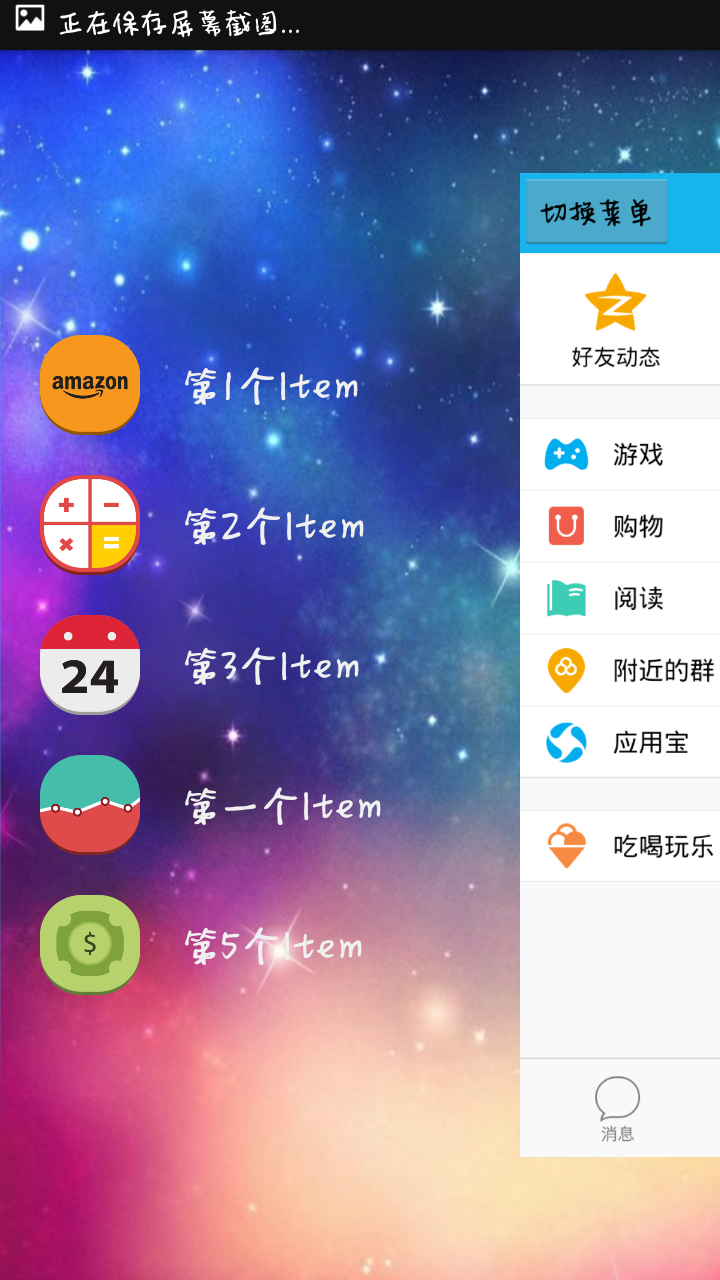
运行效果截图

QQ5.0侧滑的更多相关文章
- 安卓开发笔记——关于开源项目SlidingMenu的使用介绍(仿QQ5.0侧滑菜单)
记得去年年末的时候写过这个侧滑效果,当时是利用自定义HorizontalScrollView来实现的,效果如下: 有兴趣的朋友可以看看这篇文件<安卓开发笔记——自定义HorizontalScro ...
- 仿QQ5.0侧滑菜单
一.概述 侧滑菜单现在已经非常流行了,目前大概有这么几种:最普通的侧滑,抽屉侧滑,QQ侧滑 注:本文来自慕课网 二.最普通的侧滑 先上图 代码如下: public class MainActivity ...
- 安卓开发笔记——自定义HorizontalScrollView控件(实现QQ5.0侧滑效果)
对于滑动菜单栏SlidingMenu,大家应该都不陌生,在市场上的一些APP应用里经常可以见到,比如人人网,FaceBook等. 前段时间QQ5.0版本出来后也采用了这种设计风格:(下面是效果图) 之 ...
- 【转】仿QQ5.0侧滑菜单ResideMenu
本文由孙国威 原创.如需转载,请注明出处! 原文:http://blog.csdn.net/manoel/article/details/39013095 为了后续对这个项目进行优化,比如透明度动画. ...
- DragLayout: QQ5.0侧拉菜单的新特效
一.项目概要 1.1 项目效果如图: 1.2 需要使用到的技术 ViewDragHelper: 要实现和QQ5.0侧滑的特效,需要借助谷歌在2013年I/O大会上发布的ViewDragHelper ...
- QQ5.0左侧滑动显示效果
前三篇为大家介绍了如何实现简单的类QQ5.0左侧的侧滑效果,本篇我将带领大家一起探讨一下如何真正实现QQ5.0左侧的侧滑效果,对于本篇的内容与之前的三篇关联性很强,如果前三篇你已经完全掌握,对于这一篇 ...
- Android音乐播放器源码(歌词.均衡器.收藏.qq5.0菜单.通知)
一款Android音乐播放器源码,基本功能都实现了 qq5.0菜单(歌词.均衡器.收藏.qq5.0菜单.通知) 只有向右滑动出现,菜单键和指定按钮都还没有添加. 源码下载:http://code.66 ...
- 使用DrawerLayout实现QQ5.0侧拉菜单效果
在上一篇文章中,我们介绍了怎么使用DrawerLayout来实现一个简单的侧拉菜单(使用DrawerLayout实现侧拉菜单),也就是我们常说的抽屉效果,GitHub上类似效果的实现方式非常多,实现出 ...
- Android 自定义View修炼-仿QQ5.0 的侧滑菜单效果的实现
有一段时间没有写博客了,最近比较忙,没什么时间写,刚好今天有点时间, 我就分享下,侧滑菜单的实现原理,一般android侧滑的实现原理和步骤如下:(源码下载在下面最后给出哈) 1.使用ViewGrou ...
随机推荐
- 转】Neo4j集群安装实践
原博文出自于: http://blog.fens.me/category/%E6%95%B0%E6%8D%AE%E5%BA%93/page/2/ 感谢! Posted: Oct 29, 2013 Ta ...
- VS打包后生成快捷方式:目标指向错误、Icon图标分辨率有误问题解决方案
1.目标指向错误: 在安装***.msi文件后,对快捷方式-->右键-->属性: 发现目标并非指exe文件. 于是我新建了一个快捷方式,将目标-->指向exe文件,位置Ctrl+v. ...
- OAuth 开放授权 Open Authorization
http://oauth.net/ http://tools.ietf.org/html/rfc6749 http://reg.163.com/help/help_oauth2.html 网易通行证O ...
- .net 字符串和JSON格式的互换
近期又做了个问卷调查,问卷调查一次性要保存一二十个题目和答案!所以嘞,博主为了偷懒,就直接把答卷内容保存成了Json格式! 好处当然是很多啦! 只需一个字段就能保存整个答卷的内容! 想想都刺激!哈哈~ ...
- [BZOJ1009][HNOI2008]GT考试 DP+矩阵快速幂+KMP
题目链接:http://www.lydsy.com/JudgeOnline/problem.php?id=1009 我们令$dp(i,j)$表示已经填了$i$位,而且后缀与不幸运数字匹配了$j$位,那 ...
- UVALive 4128 Steam Roller 蒸汽式压路机(最短路,变形) WA中。。。。。
题意: 给一个由n*m个正方形格子组成的矩形,其中每个格子的边都是可以走的,长度给定,规定:如果在进入该路前需要拐弯,或者走完该路需要拐弯,都是需要付出双倍距离的(每条路最多算2倍).问从起点到终点的 ...
- CAD交互绘制多段线(com接口)
多段线又被称为多义线,表示一起画的都是连在一起的一个复合对象,可以是直线也可以是圆弧并且它们还可以加不同的宽度. 主要用到函数说明: _DMxDrawX::DrawLine 绘制一个直线.详细说明如下 ...
- freenas iscsi initiator 配置
1.加载Iscsi Initiator 模块 freebsd从7.0开始已经包含了Iscsi Initiator ,不需要安装后再使用,但在使用前,需要加载模块. # kldload -v iscsi ...
- 三个层面学playbook(核心)
三个层面学playbook(核心) ansible-playbook是ansible工具中的核心,对比ad-hoc(ansible)命令,可以把playbook理解为一系列动作的组成,结果传递.判断等 ...
- 第3节 hive高级用法:14、hive的数据压缩
六.hive的数据压缩 在实际工作当中,hive当中处理的数据,一般都需要经过压缩,前期我们在学习hadoop的时候,已经配置过hadoop的压缩,我们这里的hive也是一样的可以使用压缩来节省我们的 ...