
python爬虫---从零开始(六)Selenium库
什么是Selenium库:
自动化测试工具,支持多种浏览器。支持的浏览器包括IE(7, 8, 9, 10, 11),Mozilla Firefox,Safari,Google Chrome,Opera等。
爬虫中主要用来解决JavaScript渲染的问题。用于驱动浏览器,并且给予浏览器动作。
安装Selenium库:pip3 install selenium
Selcnium库的使用详解:
在使用之前我们需要安装webDriver驱动,具体安装方式,自行百度,切记版本对应。
基本使用:
#!/usr/bin/env python

# -*- coding: utf-8 -*-

# 基本用法

from selenium import webdriver

from selenium.webdriver.common.by import By

from selenium.webdriver.common.keys import Keys

from selenium.webdriver.support import expected_conditions as EC

from selenium.webdriver.support.wait import WebDriverWait

browser = webdriver.Chrome()

try:

    browser.get("http://www.baidu.com")

    input = browser.find_element_by_id('kw')

    input.send_keys('Python')

    input.send_keys(Keys.ENTER)

    wait = WebDriverWait(browser, 10)

    wait.until(EC.presence_of_element_located((By.ID,'content_left')))

    print(browser.current_url)

    print(browser.get_cookies())

    print(browser.page_source)

finally:

    browser.close()
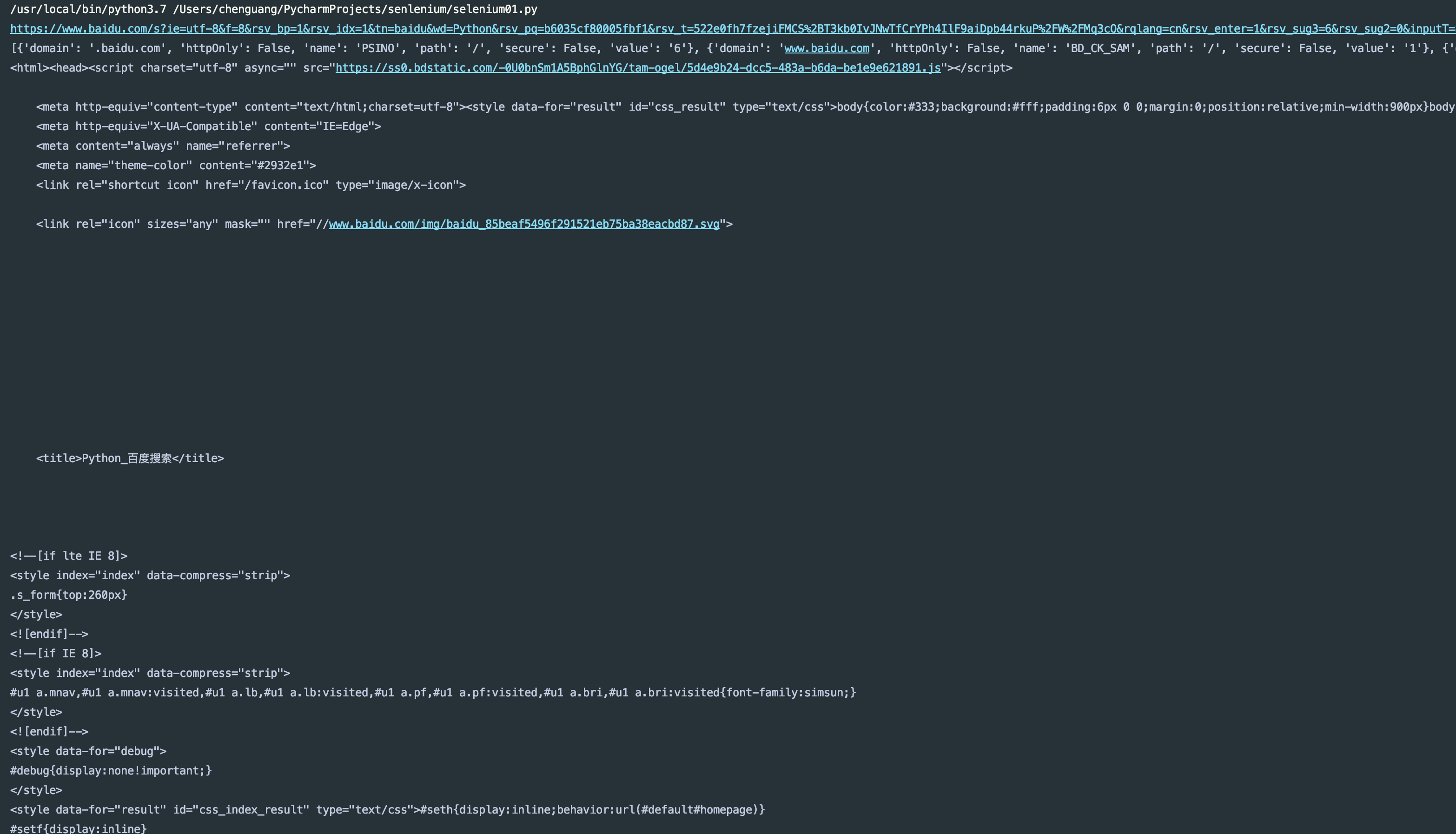
如果这段代码可以运行,说明你的webDriver版本正确(需要安装Google浏览器)
运行结果:
声明浏览器对象:
刚才我们说了Selenium支持多浏览器,下面我看下分别怎么进行声明
#!/usr/bin/env python

# -*- coding: utf-8 -*-

# 声明浏览器对象

from selenium import webdriver

browser = webdriver.Chrome()

browser = webdriver.Safari()

browser = webdriver.Edge()

browser = webdriver.Firefox()

browser = webdriver.PhantomJS()
我这里没有安装那些浏览器,就不给大家运行代码了,建议使用Chrome浏览器(Google谷歌浏览器)
访问页面:
#!/usr/bin/env python

# -*- coding: utf-8 -*-

# 访问页面

from selenium import webdriver

browser = webdriver.Chrome()

browser.get("http://baidu.com")

print(browser.page_source)

browser.close()
运行结果:

查找元素:
单个元素:
#!/usr/bin/env python

# -*- coding: utf-8 -*-

# 查找元素,单个元素

from selenium import webdriver

browser = webdriver.Chrome()

browser.get("http://taobao.com")

input_first = browser.find_element_by_id('q')

input_second = browser.find_element_by_css_selector('#q')

input_three = browser.find_element_by_xpath('//*[@id="q"]')

print(input_first)

print(input_second)

print(input_three)

browser.close()
运行结果:

find_element_by_name
find_element_by_xpath
find_element_by_link_text
find_element_by_partial_link_text
find_element_by_tag_name
find_element_by_class_name
find_element_by_css_selector
这些都为查找方式
也可以用通用方式来查找:
#!/usr/bin/env python

# -*- coding: utf-8 -*-

# 查找元素,单个元素

from selenium import webdriver

from selenium.webdriver.common.by import By

browser = webdriver.Chrome()

browser.get("http://taobao.com")

input_first = browser.find_element(By.ID,'q')

print(input_first)

browser.close()
运行结果:

多个元素:
#!/usr/bin/env python

# -*- coding: utf-8 -*-

# 查找元素,多个元素

from selenium import webdriver

from selenium.webdriver.common.by import By

browser = webdriver.Chrome()

browser.get("http://taobao.com")

input_first = browser.find_elements_by_css_selector('.service-bd li')

for i in input_first:

    print(i)

browser.close()
运行结果:

还有很多方法和find_elment用法完全一致,返回一个列表数据。
元素交互操作:
对获取的元素调用交互方法:
#!/usr/bin/env python

# -*- coding: utf-8 -*-

# 元素交互操作

from selenium import webdriver

from selenium.webdriver.common.by import By

browser = webdriver.Chrome()

browser.get("http://baidu.com")

input_first = browser.find_element(By.ID,'kw')

input_first.send_keys('python从入坑到放弃')

button = browser.find_element_by_class_name('bg s_btn')

button.click()
运行代码我们会看到打开Chrome浏览器,并且输入要搜索的内容,然后点击搜索按钮。更多操作访问地址:https://selenium-python.readthedocs.io/api.html#module-selenium.webdriver.remote.webelement
交互操作:
将动作附加到动作链中串行执行
#!/usr/bin/env python

# -*- coding: utf-8 -*-

# 交互操作

from selenium import webdriver

from selenium.webdriver import ActionChains

browser = webdriver.Chrome()

url = 'https://www.runoob.com/try/try.php?filename=jqueryui-api-droppable'

browser.get(url)

browser.switch_to.frame('iframeResult')

source = browser.find_element_by_id('draggable')

target = browser.find_element_by_id('droppable')

actions = ActionChains(browser)

actions.drag_and_drop(source, target)

actions.perform()
运行代码我们会看到内部的滑块进行了拖拽操作。更多详细的操作可以访问:https://selenium-python.readthedocs.io/api.html#module-selenium.webdriver.common.action_chains
执行Javascript:⭐️⭐️⭐️⭐️⭐️
#!/usr/bin/env python

# -*- coding: utf-8 -*-

# 执行javascript

from selenium import webdriver

browser = webdriver.Chrome()

browser.get('https://www.zhihu.com/explore')

browser.execute_script('window.scrollTo(0,document.body.scrollHeight)')

browser.execute_script('alert("弹出")')
运行代码我们可以看到,滚动条被下拉,并且给予了弹出框。
获取元素信息:
获取属性:
#!/usr/bin/env python

# -*- coding: utf-8 -*-

# 获取元素信息:获取属性

from selenium import webdriver

browser = webdriver.Chrome()

url = "http://www.zhihu.com/explore"

browser.get(url)

logo = browser.find_element_by_id('zh-top-link-logo')

print(logo)

print(logo.get_attribute('class'))
运行结果:

获取文本值:
#!/usr/bin/env python

# -*- coding: utf-8 -*-

# 获取文本值

from selenium import webdriver

browser = webdriver.Chrome()

url = "http://www.zhihu.com/explore"

browser.get(url)

question = browser.find_element_by_class_name('zu-top-add-question')

print(question.text)
运行结果:

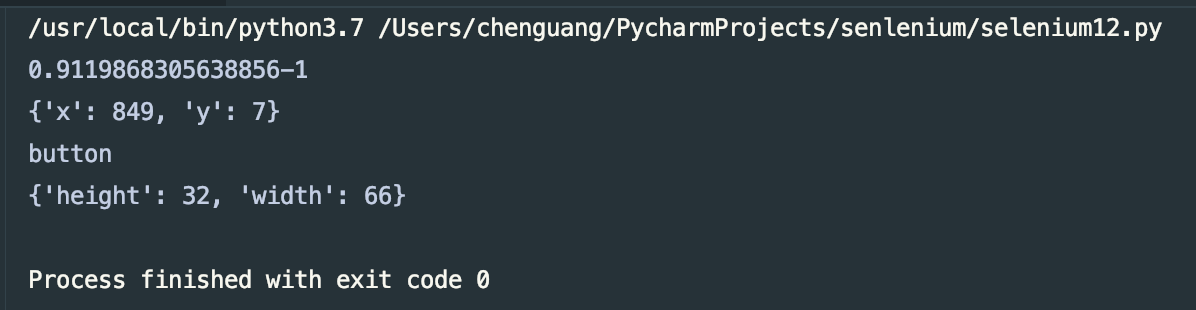
获取ID,位置,标签名,大小:
#!/usr/bin/env python

# -*- coding: utf-8 -*-

# 获取ID,位置,标签名,大小

from selenium import webdriver

browser = webdriver.Chrome()

url = "http://www.zhihu.com/explore"

browser.get(url)

question = browser.find_element_by_class_name('zu-top-add-question')

print(question.id)

print(question.location)

print(question.tag_name)

print(question.size)
运行结果:
Frame:
#!/usr/bin/env python

# -*- coding: utf-8 -*-

# Frame

from selenium import webdriver

from selenium.common.exceptions import NoSuchElementException

browser = webdriver.Chrome()

url = 'https://www.runoob.com/try/try.php?filename=jqueryui-api-droppable'

browser.get(url)

browser.switch_to.frame('iframeResult')

source = browser.find_element_by_id('draggable')

print(source)

try:

    logo = browser.find_element_by_class_name('logo')

except NoSuchElementException:

    print("NO LOGO")

browser.switch_to.parent_frame()

logo = browser.find_element_by_class_name('logo')

print(logo)

print(logo.text)
运行结果:

等待:
隐式等待 :
当使用了隐式等待执行测试的时候,如果WebDriver没有在DOM中找到元素,将继续等待,超出设定时间则抛出找不到元素的异常,换句话来说,当元素或查找元素没有立即出现的时候,隐式等待将等待一段时间再查找DOM,默认时间是0
#!/usr/bin/env python

# -*- coding: utf-8 -*-

# 隐式等待

from selenium import webdriver

browser = webdriver.Chrome()

url = "http://www.zhihu.com/explore"

browser.get(url)

input = browser.find_element_by_class_name('zu-top-add-question')

print(input)
运行结果:

显示等待:比较常用
#!/usr/bin/env python

# -*- coding: utf-8 -*-

# 显示等待

from selenium import webdriver

from selenium.webdriver.common.by import By

from selenium.webdriver.common.keys import Keys

from selenium.webdriver.support import expected_conditions as EC

from selenium.webdriver.support.wait import WebDriverWait

browser = webdriver.Chrome()

browser.get("http://www.taobao.com")

wait = WebDriverWait(browser, 10)

wait.until(EC.presence_of_element_located((By.ID,'q')))

button = wait.until(EC.element_to_be_clickable((By.CSS_SELECTOR,'.btn-search')))

print(input,button)
- title_is 标题是某内容
title_contains 标题包含某内容
presence_of_element_located 元素加载出,传入定位元祖,如(By.ID,'p')
visibility_of_element_located 元素可见,传入定位元祖
visibility_of 可见,传入元素对象
presence_of_all_elements_located 所有元素加载出
text_to_be_present_in_element 某个元素文本包含某文字
text_to_be_present_in_element_value 某个元素值包含某文字
frame_to_be_available_and_switch_to_it 加载并切换
invisibility_of_element_located 元素不可见
element_to_be_clickable 元素可点击
staleness_of 判断一个元素是否仍在DOM,可判断页面是否已经刷新
element_to_be_selected 元素可选择,传元素对象
element_located_to_be_selected 元素可以选择,传入定位元祖
element_selection_state_to_be 传入元素对象以及状态,相等返回True,否则返回False
element_located_selection_state_to_be 传入定位元祖以及状态,相等返回True,否则返回False
alert_is_present 是否出现Alert
详细内容,可以阅读官方地址:https://selenium-python.readthedocs.io/api.html#module-selenium.webdriver.support.expected_conditions
前进和后退:
#!/usr/bin/env python

# -*- coding: utf-8 -*-

# 前进和后退

from selenium import webdriver

browser = webdriver.Chrome()

browser.get("http://www.taobao.com")

browser.get("http://www.baidu.com")

browser.get("http://www.zhihu.com")

browser.back()

browser.forward()
运行代码我们会看到优先大家taobao.com然后打开baidu.com,最后打开zhihu.com,然后执行退回动作和前进动作
Cookies:
#!/usr/bin/env python

# -*- coding: utf-8 -*-

# Cookies

from selenium import webdriver

browser = webdriver.Chrome()

browser.get("http://www.zhihu.com")

print(browser.get_cookies())

browser.add_cookie({'name':'admin','domain':'www.zhihu.com','value':'cxiaocai'})

print(browser.get_cookies())

browser.delete_all_cookies()

print(browser.get_cookies())
运行结果:

选项卡管理:
#!/usr/bin/env python

# -*- coding: utf-8 -*-

# 选项卡管理

from selenium import webdriver

browser = webdriver.Chrome()

browser.get("http://www.baidu.com")

browser.execute_script('window.open()')

print(browser.window_handles)

browser.switch_to.window(browser.window_handles[1])

browser.get('http://www.taobao.com')

browser.switch_to.window(browser.window_handles[0])

browser.get('http://www.zhihu.com')
也可以使用浏览器的快捷方式的操作键位来打开窗口(不建议这样使用,建议使用上面的方式来管理选项卡)
异常处理:
#!/usr/bin/env python

# -*- coding: utf-8 -*-

# 异常处理

from selenium import webdriver

from selenium.common.exceptions import TimeoutException,NoSuchElementException

browser = webdriver.Chrome()

try:

    browser.get("http://www.baidu.com")

except TimeoutException:

    print("请求超时")

try:

    browser.find_element_by_id('hello')

except NoSuchElementException:

    print("NoSuchElementException")
运行结果:

由于异常处理比较复杂,异常也有很多,在这里不在一一列举了,建议大家去官网查看,地址:https://selenium-python.readthedocs.io/api.html#module-selenium.common.exceptions
上述代码地址:https://gitee.com/dwyui/senlenium.git
到这里Selenium库的使用就说完了,python用于爬虫的库就说了这么多,前面的urllib,Requests,BeautfuliSoup,PyQuery还有今天的Selenium库,明天开始直接讲解真实案例,最近我会整理几个简单的小爬虫案例。
python爬虫---从零开始(六)Selenium库的更多相关文章
- python爬虫笔记----4.Selenium库(自动化库)
4.Selenium库 (自动化测试工具,支持多种浏览器,爬虫主要解决js渲染的问题) pip install selenium 基本使用 from selenium import webdriver ...
- PYTHON 爬虫笔记七:Selenium库基础用法
知识点一:Selenium库详解及其基本使用 什么是Selenium selenium 是一套完整的web应用程序测试系统,包含了测试的录制(selenium IDE),编写及运行(Selenium ...
- PYTHON 爬虫笔记六:PyQuery库基础用法
知识点一:PyQuery库详解及其基本使用 初始化 字符串初始化 html = ''' <div> <ul> <li class="item-0"&g ...
- Python爬虫利器六之PyQuery的用法
前言 你是否觉得 XPath 的用法多少有点晦涩难记呢? 你是否觉得 BeautifulSoup 的语法多少有些悭吝难懂呢? 你是否甚至还在苦苦研究正则表达式却因为少些了一个点而抓狂呢? 你是否已经有 ...
- Python爬虫实战六之抓取爱问知识人问题并保存至数据库
大家好,本次为大家带来的是抓取爱问知识人的问题并将问题和答案保存到数据库的方法,涉及的内容包括: Urllib的用法及异常处理 Beautiful Soup的简单应用 MySQLdb的基础用法 正则表 ...
- Python爬虫入门六之Cookie的使用
大家好哈,上一节我们研究了一下爬虫的异常处理问题,那么接下来我们一起来看一下Cookie的使用. 为什么要使用Cookie呢? Cookie,指某些网站为了辨别用户身份.进行session跟踪而储存在 ...
- Python爬虫之设置selenium webdriver等待
Python爬虫之设置selenium webdriver等待 ajax技术出现使异步加载方式呈现数据的网站越来越多,当浏览器在加载页面时,页面上的元素可能并不是同时被加载完成,这给定位元素的定位增加 ...
- Python 爬虫十六式 - 第六式:JQuery的假兄弟-pyquery
PyQuery:一个类似jquery的python库 学习一时爽,一直学习一直爽 Hello,大家好,我是 Connor,一个从无到有的技术小白.上一次我们说到了 BeautifulSoup 美味 ...
- Python 爬虫十六式 - 第七式:正则的艺术
RE:用匹配来演绎编程的艺术 学习一时爽,一直学习一直爽 Hello,大家好,我是 Connor,一个从无到有的技术小白.上一次我们说到了 pyquery 今天我们将迎来我们数据匹配部分的最后一位 ...
- Python 爬虫十六式 - 第五式:BeautifulSoup-美味的汤
BeautifulSoup 美味的汤 学习一时爽,一直学习一直爽! Hello,大家好,我是Connor,一个从无到有的技术小白.上一次我们说到了 Xpath 的使用方法.Xpath 我觉得还是 ...
随机推荐
- typeof操作符返回一个字符串,表示未经计算的操作数的类型。
typeof操作符返回一个字符串,表示未经计算的操作数的类型. 语法 typeof运算符后跟操作数: typeof operand or typeof (operand) 参数 operand 是 ...
- 从ao神处偷取的头文件
#include<bits/stdc++.h> using namespace std; #define ll long long #define ull unsigned long lo ...
- [官方教程] Unity 5 BLACKSMITH深度分享 - 汇总帖
BLACKSMITH深度分享系列 相信此大片在Unite上的惊艳亮相,让许多人至今无法忘却它所带来的震撼,Unity的大师们为了让更多Unity开发者了解此大片是如何用Unity5诞生的,深度分享了多 ...
- adb相关
--------------------------------------------- adb logcat |find "nafio" >c:/logcat.txt 另 ...
- PHP gd 库添加 freetype
gd 库未安装 freetype 可能导致验证码图片加载不出来等问题. 先到 PHP 的扩展目录里面找到 gd 扩展文件夹 最好先 make clean 清除之前编译的可执行文件及配置文件,运行/us ...
- java实训 :异常(try-catch执行顺序与自定义异常)
关键字: try:执行可能产生异常的代码 catch:捕获异常 finally:无论是否发生异常代码总能执行 throws:声明方法可能要抛出的各种异常 throw:手动抛出自定义异常 用 try-c ...
- SpringBoot的配置文件加载顺序以及如何获取jar包里的资源路径
一.读取配置文件的四种方式 这四种配置文件放置方式的读取优先级依次递减,具体可以查看官方文档. 1.1jar包同级目录下的config文件夹里的配置文件 其实我以前就见过这种方式了,只是不知道怎么做的 ...
- hdu 2189 悼念512汶川大地震遇难同胞——来生一起走 基础母函数
#include <iostream> #include <algorithm> #include <cstring> using namespace std; ] ...
- JDBC全部分析
2.1.搭建实验环境 1.在mysql中创建一个库,并创建user表和插入表的数据. SQL脚本如下: 1 create database jdbcStudy character set utf8 c ...
- qconbeijing2018
https://2018.qconbeijing.com/schedule 会议 · 第一天 (2018/04/20 周五) 时间 日程 上午 主题演讲 大数据下的软件质量建设实践 黄闻欣 出品 人工 ...