
IIS Modules Overview
Introduction
The IIS 7 and above Web server feature set is componentized into more than thirty independent modules.
A module is either a Win32 DLL (native module) or a .NET 2.0 type contained within an assembly (managed module).
Similar to a set of building blocks, modules are added to the server in order to provide the desired functionality for your applications.
Likewise, all IIS modules can be removed, or replaced with custom modules developed using the IIS C++ APIs, or the familiar ASP.NET 2.0 APIs.
This article describes common IIS module management tasks,
and details each module including its configuration settings and the potential effect a module removal has on the Web server.
The management examples are given using both the graphical IIS Manager and the AppCmd command line tool.
Prerequisites
首先要安装IIS
Getting Started with Modules
In order to add a module to the server, you must perform two steps:
- Install a module on the server (native modules only).
- Enable the module in an application.
The first step registers the module globally with the server, making it available within each server worker process.
It is necessary only for native modules due to the trusted nature of native code, and is available only to administrators.
Note:
A native module has unrestricted access to any resource available to the server worker process, just like an ISAPI filter or extension in previous versions.
Because of this unrestricted access, you should install only native modules that come from a trusted source.
The second step enables the module to execute within a particular application and effectively allows the application administrator to control the server features enabled for the application.
This step allows both installed native modules and managed modules to be enabled for each application.
To Install a Native Module
In order to install a native module, it must be registered with the server using one of the options below:
- Manually editing the IIS configuration store. In IIS 7.5 and later you can use the Configuration Editor in the IIS Manager.
- Using the IIS Manager
- Using the AppCmd.exe command line tool
All three of these options result in the module entry being added to the <globalModules> IIS configuration section, which can be set only at the server level.
To examine the contents of this section, open the root configuration file located in %windir%\system32\inetsrv\config\applicationhost.config, and search for the string "<globalModules>".
After a full IIS installation, this section contains an entry for each of the native modules shipped with IIS, specifying a name and the path to the module DLL:
<globalModules>

    <addname="DefaultDocumentModule"image="%windir%\system32\inetsrv\defdoc.dll"/>

    <addname="DirectoryListingModule"image="%windir%\system32\inetsrv\dirlist.dll"/>

    <add name="StaticFileModule"image="%windir%\system32\inetsrv\static.dll"/>

    ...

</globalModules>
All of these modules are described in detail later in this document.
在IIS Manager中,按照如下步骤可以找到对应的Modules
1.打开IIS,在Features View中,找到Management,然后打开Configuration Editor

2.在Configuration Editor中,点击Search

3.输入globalModules进行搜索

3.1搜索页面,有两种视图,默认为Hierarchy View,直接显示出所有的config文件

FlatView,直接列出config文件,看起来比较直观,一下子就看到有几个文件
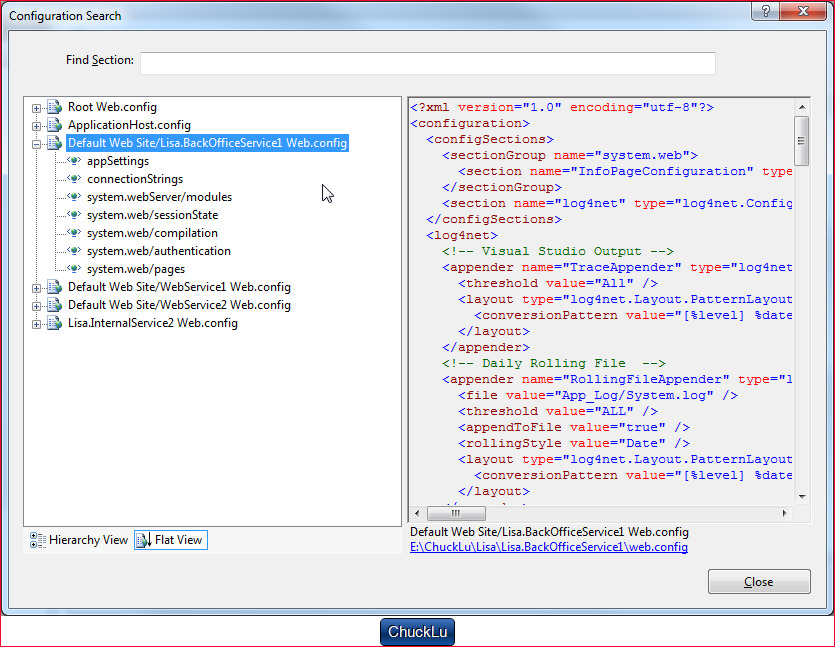
4.在第三步定位到globalModules的位置后,关闭搜索界面
5.在Configuration Editor下的Section中找到globalModules

6.在显示出来的Collection上的空白处点击一下,右侧出现浏览按钮。最右侧还有一个EditItems的按钮

7.找到对应的Module就可以进行remove

8.左侧的导航栏,可以选中Site处理Site的config;处理Application的config,需要单独选中Application,然后再选择Config Editor
Enabling a Module for an Application
A module must be enabled before it can provide service for a particular application. In order to enable a native module, it must first be installed on the server (see the previous section, To Install a Native Module).
A managed module does not require installation, and can be enabled directly for each application. This allows applications to include their managed modules directly within the application by registering them in the application's web.config file, and providing the implementation in /BIN or /App_Code directories.
To enable a module, do one of the following:
- Manually edit the IIS configuration store, either globally to enable the module for all applications on the server, or in a particular web.config file located within each application for which you would like to enable this module. In IIS 7.5 or above you can use the Configuration Editor.
- Use the IIS Manager
- Use the AppCmd.exe command line tool
All three of these options add the module entry to the <modules> IIS configuration section, which is can be set at both the server level and application level. Examine the contents of this section by opening the root configuration file located in %windir%\system32\inetsrv\config\applicationhost.config, and searching for the string "<modules>".
Unlike native modules, a managed module does not require adding an entry to the <globalModules> configuration section.
After a full IIS installation, the configuration section contains an entry for each of the modules (both managed and native) that shipped with IIS. The entry indicates that all these modules are enabled by default for all applications on the server. Each entry in this section specifies either the name of a native module that was previously installed on the server, or the name and .NET type of a managed module:
Preconditions
There is another attribute on a module entry called precondition. The IIS core engine uses preconditions to determine when to enable a particular module.
Performance reasons, for example, might determine that you only want to execute managed modules for requests that also go to a managed handler.
The precondition in the following example (precondition="managedHandler") only enables the forms authentication module for requests that are also handled by a managed handler, such as requests to .aspx or .asmx files:
<addname="FormsAuthentication"type="System.Web.Security.FormsAuthenticationModule" preCondition="managedHandler" />
If you remove the attribute precondition="managedHandler", Forms Authentication also applies to content that is not served by managed handlers, such as .html, .jpg, .doc, but also for classic ASP (.asp) or PHP (.php) extensions.
See "How to Take Advantage of IIS Integrated Pipeline" for an example of enabling ASP.NET modules to run for all content.
You can also use a shortcut to enable all managed (ASP.NET) modules to run for all requests in your application, regardless of the "managedHandler" precondition.
To enable all managed modules to run for all requests without configuring each module entry to remove the "managedHandler" precondition, use the runAllManagedModulesForAllRequests property in the <modules> section:
<modules runAllManagedModulesForAllRequests="true"/>
When you use this property, the "managedHandler" precondition has no effect and all managed modules run for all requests.
https://autofaccn.readthedocs.io/en/latest/integration/webforms.html
 <system.webServer>

    <!-- This section is used for IIS7 -->

    <modules>

      <add

        name="ContainerDisposal"

        type="Autofac.Integration.Web.ContainerDisposalModule, Autofac.Integration.Web"

        preCondition="managedHandler"/>

      <add

        name="PropertyInjection"

        type="Autofac.Integration.Web.Forms.PropertyInjectionModule, Autofac.Integration.Web"

        preCondition="managedHandler"/>

    </modules>

  </system.webServer>
IIS Modules Overview的更多相关文章
- <modules runAllManagedModulesForAllRequests="true" />(转1)
最近在使用 MVC 开发的时候,遇到一个对我来说“奇怪的问题”,就是使用 BundleTable 进行 CSS.JS 文件绑定,然后使用 Styles.Render.Scripts.Render 进行 ...
- 塞翁失马,焉知非福:由 Styles.Render 所引发 runAllManagedModulesForAllRequests="true" 的思考
最近在使用 MVC 开发的时候,遇到一个对我来说"奇怪的问题",就是使用 BundleTable 进行 CSS.JS 文件绑定,然后使用 Styles.Render.Scripts ...
- AspNet Mvc 路由解析中添加.html 等后缀 出现404错误的解决办法
使用Mvc 有时候我们希望,浏览地址以.html .htm 等后缀名进行结尾. 于是我们就在RouteConfig 中修改路由配置信息,修改后的代码如下 routes.IgnoreRoute(&quo ...
- IIS 7.0 的 ASP.NET 应用程序生命周期概述(转载)
IIS 7.0 的 ASP.NET 应用程序生命周期概述更新:2007 年 11 月本主题介绍在 IIS 7.0 集成模式下运行以及与 IIS 7.0 或更高版本一起运行的 ASP.NET 应用程序的 ...
- Install Typical IIS Workloads
原文 Install Typical IIS Workloads Introduction The IIS 7.0 and above modular architecture is designed ...
- Installing IIS 8.5 on Windows Server 2012 R2
原文 Installing IIS 8.5 on Windows Server 2012 R2 Introduction This document describes how to install ...
- Asp.net core 学习笔记 ( IIS, static file 性能优化 )
更新 : 2019-02-06 最后还是把 rewrite 给替换掉了. 所以 rewrite url 也不依赖 iis 了咯. refer : https://docs.microsoft.com/ ...
- NET项目发布到IIS上报错:HTTP 错误 403.14
NET项目发布到IIS上报错:HTTP 错误 404.0 - Not Found 原因:由于本机开发环境是Net4.5,所以虽然创建项目时选择的是net framework4.5的,但是webconf ...
- iis深入学习资源
iis站点:https://www.iis.net/overview/reliability/richdiagnostictools 感兴趣可以深入学习下iis
随机推荐
- 洛谷2055 [ZJOI2009]假期的宿舍
题目描述 学校放假了 · · · · · · 有些同学回家了,而有些同学则有以前的好朋友来探访,那么住宿就是一个问题.比如 A 和 B 都是学校的学生,A 要回家,而 C 来看B,C 与 A 不认识. ...
- 仿射变换(Affine Transformation)
转自:https://www.cnblogs.com/bnuvincent/p/6691189.html http://www.cnblogs.com/ghj1976/p/5199086.html 变 ...
- 《Craking the Coding interview》python实现---02
###题目:翻转一个字符串###思路:从字符串的最后一位开始,依次取###实现:伪代码.函数.类实现#伪代码: #01string=sNew_s=""for i in range( ...
- 洛谷 P1088 火星人 (全排列)
直接调用next_permutation即可,向前的话可以调用prev_permutation #include<cstdio> #include<cctype> #inclu ...
- Linux gcc中的LIBRARY_PATH 和 LD_LIBRARY_PATH
1. GNU 上关于LIBRARY_PATH的说明: LIBRARY_PATH The value of LIBRARY_PATH is a colon-separated list of direc ...
- C语言中数据类型的字节数
类型 16位 32 位 64位 char 1 1 1 short int 2 2 2 int 2 4 4 unsigned int 2 4 4 float 4 4 4 double 8 8 8 lon ...
- 【BZOJ 1083】 [SCOI2005]繁忙的都市
[链接] 我是链接,点我呀:) [题意] 在这里输入题意 [题解] 很明显的最小生成树了. 输出最后选的那条边就好了. [代码] #include <bits/stdc++.h> usin ...
- OCUI界面设计:滚动视图与分页控件初探
滚动视图(UIScrollView) 简单介绍 1.UIScrollView滚动视图能够排列并显示超出自身显示范围的内容. 2.UIScrollView内部整合了多种手势来达到丰富的界面展示效果. 3 ...
- APP-午饭去哪吃
走到这个快节奏的城市中.部门聚餐.朋友吃饭这些都是日常生活中时有发生的事情,往往吃的东西都是千篇一律,图的也仅仅剩下的是环境了.那么.非常纠结常常去的地方,怎么办呢?来吧.我们随机摇一个吧! wate ...
- 公布Qt Widgets桌面应用程序的方法
公布Qt Widgets桌面应用程序的方法 Qt是一款优秀的跨平台开发框架,它能够在桌面.移动平台以及嵌入式平台上执行.眼下Qt 5介绍程序公布的文章帖子比較少.大家又很想要知道怎样公布Qt应用程序, ...