
编辑datagridview单元格
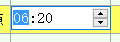
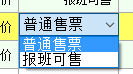
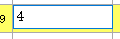
以这3种为例,最简单的是第三种,直接让单元格处于可编辑状态,当完成编辑后触发CellEndEdit事件,最后对输入的数据进行处理。
 private DateTimePicker dtp = new DateTimePicker();

 private ComBox sellstyle = new ComBox ();//设置全局变量
 public PlanVindicateForm()

         {

             InitializeComponent();

             dgvReaschResult.Controls.Add(dtp);//在窗体的构造函数里将datetimepicker控件加入

             this.dgvReaschResult.Controls.Add(this.sellstyle);//combox控件

             this.sellstyle.Visible = false;//设置是否显示

             this.dtp.Visible = false;

             this.dtp.Format = DateTimePickerFormat.Custom;//设置显示格式

             this.dtp.CustomFormat = "HH:mm";

             this.dtp.KeyDown += new KeyEventHandler(dtp_KeyDown);//注册控件用到的事件

             this.sellstyle.cbTypeBox.SelectedIndexChanged += new EventHandler(cbTypeBox_SelectedIndexChanged);

         }
 private void dgvReaschResult_CellClick(object sender, DataGridViewCellEventArgs e)

         {

             if ((e.RowIndex > -) && (e.ColumnIndex > -))

             {

                 string dataPropertyName = this.dgvReaschResult.Columns[e.ColumnIndex].DataPropertyName;

                 switch (dataPropertyName)

                 {

                     case "CanSellSeatCount":

                         this.dgvReaschResult.BeginEdit(true);

                         this.Original = int.Parse(this.dgvReaschResult.Rows[this.dgvReaschResult.CurrentCell.RowIndex].Cells[e.ColumnIndex].Value.ToString());

                         return;

                     case "DrvTime":

                         this.dgvReaschResult.BeginEdit(true);

                         this._Rectangle = this.dgvReaschResult.GetCellDisplayRectangle(e.ColumnIndex, e.RowIndex, true);

                         this.dtp.Size = new Size(this._Rectangle.Width, this._Rectangle.Height);

                         this.dtp.Location = new Point(this._Rectangle.X, this._Rectangle.Y);

                         this.dtp.Visible = true;

                         this.dtp.ShowUpDown = true;

                         this.dtp.Value = DateTime.Parse(this.SelectSchedule.DrvTime);

                         this.dtp.Focus();

                         this.originaTime = this.dtp.Value;

                         return;

                     case "SellStyleName":

                     this.dgvReaschResult.BeginEdit(true);

                     this._Rectangle = this.dgvReaschResult.GetCellDisplayRectangle(e.ColumnIndex, e.RowIndex, true);

                     this.sellstyle.Size = new Size(this._Rectangle.Width, this._Rectangle.Height);

                     this.sellstyle.Location = new Point(this._Rectangle.X, this._Rectangle.Y);

                     this.sellstyle.Visible = true;

                     this.sellstyle.SelectedText = this.SelectSchedule.SellStyleName;

                     this.sellstyle.Focus();

                     this.sellStyleName = this.SelectSchedule.SellStyleName;

                     return;

                 }

                 this.dtp.Visible = false;

                 this.sellstyle.Visible = false;

             }

         }
  private void dgvReaschResult_CellEndEdit(object sender, DataGridViewCellEventArgs e)

         {

             if ((e.RowIndex > -) && (e.ColumnIndex > -))

             {

                 try

                 {

                     string dataPropertyName = this.dgvReaschResult.Columns[e.ColumnIndex].DataPropertyName;//获取选中单元格的数据源的名称,即列名

                     int seats = ;

                     int num2 = ;

                     switch (dataPropertyName)

                     {

                         case "CanSellSeatCount";//第3种

                             {

                                 //对获取到的数据进行处理

                                 break;

                             }

                         case "DrvTime"://第1种

                              //对获取到的数据进行处理

                             break;

                         case "SellStyleName"://第2种

                             //对获取到的数据进行处理

                             break;

                     }

                 }

                 catch (Exception exception)

                 {

                     this.ShowError("执行失败!");

                 }

             }

         }
编辑datagridview单元格的更多相关文章
- WinForm笔记1:TextBox编辑时和DataGridView 单元格编辑时 的事件及其顺序
TextBox 编辑框 When you change the focus by using the mouse or by calling the Focus method, focus event ...
- DataGridView单元格内容自动匹配下拉显示
页面显示数据使用的控件是ComponentFactory.Krypton.Toolkit中的KryptonDataGridView控件.在指定“商品”单元格中需要根据用户输入内容自动匹配数据库中商品信 ...
- DataGridView 单元格自动填充
在DataGridView单元格中,当输入指定字符时,自动完成填充. 通过 TextBox实现 AutoCompleteMode AutoCompleteMode.Suggest: AutoCompl ...
- winform中dataGridView单元格根据值设置新值,彻底解决绑定后数据类型转换的困难
// winform中dataGridView单元格在数据绑定后,数据类型更改困难,只能迂回实现.有时候需要将数字变换为不同的文字描述,就会出现int32到string类型转换的异常,借助CellFo ...
- Cxgrid获取选中行列,排序规则,当前正在编辑的单元格内的值
Delphi Cxgrid获取选中行列,排序规则,当前正在编辑的单元格内的值 cxGrid1DBTableView1.Controller.FocusedRowIndex 当前行号 cxGrid1DB ...
- DataGridView单元格合并
本文章转载:http://www.cnblogs.com/xiaofengfeng/p/3382094.html 图: 代码就是如此简单 文件下载:DataGridView单元格合并源码 也可以参考: ...
- DataGridView单元格显示GIF图片
本文转载:http://home.cnblogs.com/group/topic/40730.html DataGridView单元格显示GIF图片 gifanimationindatagrid.ra ...
- Winfrom设置DataGridView单元格获得焦点(DataGridView - CurrentCell)
设置DataGridView单元格获得焦点 this.dgv_prescription.BeginEdit(true);
- Winform Datagridview 单元格html格式化支持富文本
Winform Datagridview 单元格html格式化支持富文本 示例: 源码:https://github.com/OceanAirdrop/DataGridViewHTMLCell 参考: ...
随机推荐
- python基础之迭代器与生成器
一.什么是迭代器: 迭代是Python最强大的功能之一,是访问集合元素的一种方式. 迭代器对象从集合的第一个元素开始访问,直到所有的元素被访问完结束. 迭代器是一个可以记住遍历的位置的对象. 迭代器的 ...
- window下tomcat的内存溢出问题
打开注册表:https://jingyan.baidu.com/article/49ad8bce09d6085835d8fa63.html Tomcat 内存溢出对应解决方式 Windows平台,使用 ...
- postMan测试https接口
一.如何安装postman? Postman下载地址https://www.getpostman.com/ 我下载的版本是Postman-win64-5.0.0-Setup.exe 这是免安装的,可以 ...
- python 全栈开发,Day71(模型层-单表操作)
昨日内容回顾 1. {% include '' %} 2. extend base.html: <html> ..... ..... ..... {% block content%} {% ...
- OpenCV trackbar 避免使用全局变量
OpenCV trackbar 避免使用全局变量 在OpenCV中使用trackbar是交互式地图像处理的一种方式,例如用于图像阈值分割,用户可以一边调整阈值一边看效果.但是很不幸,绝大多数教程上使用 ...
- mongodb 安装时错误
1.安装MongoDB进度条长时间不动 根据在网上搜的步骤安装mongoDB到这步,就基本上卡死不动,在网上查到的办法是死等,等了半个小时,但运气不好半个小时也不一定安装成功. 如果进行到这步,卡死在 ...
- yarn的安装与使用及与npm对应的命令
在Nodejs环境下,通过npm install -g yarn 命令进行全局安装 例如:yarn versionyarn inityarn installyarn add vueyarn add v ...
- 【BZOJ3514】Codechef MARCH14 GERALD07加强版 LCT+主席树
题解: 还是比较简单的 首先我们的思路是 确定起点 然后之后贪心的选择边(也就是越靠前越希望选) 我们发现我们只需要将起点从后向前枚举 然后用lct维护连通性 因为强制在线,所以用主席树记录状态就可以 ...
- drone的pipeline原理与代码分析
最近的一个项目,需要实现一个工作任务流(task pipeline),基于之前CICD的经验,jenkins pipeline和drone的pipeline进入候选. drone是基于go的cicd解 ...
- Netty断线重连
Netty断线重连 最近使用Netty开发一个中转服务,需要一直保持与Server端的连接,网络中断后需要可以自动重连,查询官网资料,实现方案很简单,核心思想是在channelUnregistered ...