
Launching Teamviewer remotely through SSH
Launching Teamviewer remotely through SSH
When you need to manage your Server remotely, but you can not sure that you will always be able to see the graphical, especially when the server system failure, you may have to restart your server.And then, how to launch Teamviewer remotely through command line? Maybe you can try SSH, now follow me please.
Teamviewer is a wonderful tool to access your computer (or any other device) remotely if you need to use your a graphical screen. Probably is not as secure as other linux solutions (as VNC or a VPN) but the main advantage is that is very easy to install and configure.
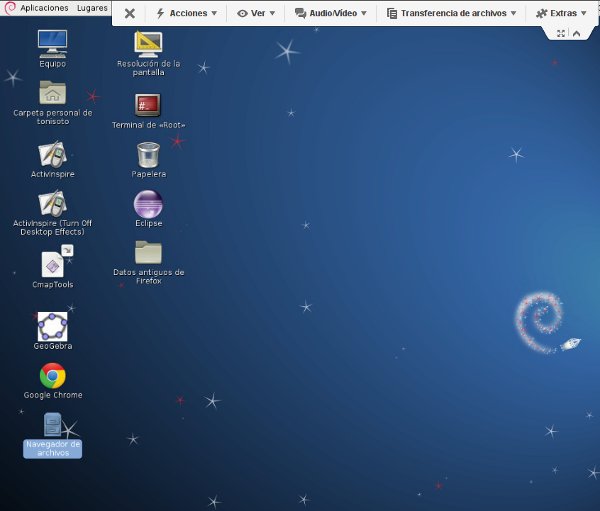
Suppose that we are on holidays far from home and we need to accomplish a task on our home computer using the graphical desktop. We have in our hands another device (for example a nexus7 tablet) and we are connected to WiFi hotspot. There is Teamviewer Apps for Android and IOS. We need Teamviewer installed in both machines: Desktop at home and our tablet, So I’m going to explain how can you launch remotely Teamviewer in your remote computer at home just for the time you need it to perform a particular task. As soon as we finished our job, we will stop it again to be safer.
I assume that you’ve already installed Teamviewer in your linux box and you also have a ssh account to login into your remote linux machine at home (user@home_machine:~$).
Steps:
- Login into your home linux box through ssh. Don’t use root access unless it was necessary. Use ‘sudo’ instead.
- Locate where teamviewer is installed:
user@home_machine:~$ whereis teamviewerteamviewer: /usr/bin/teamviewer /etc/teamviewer
- Now run this command to get the list of commands:
user@home_machine:~$ /usr/bin/teamviewer –helpTeamViewer 8.0.17147 <-- Your version
teamviewer start TeamViewer user interface (if not running)teamviewer --help print this help screenteamviewer --version print version information
teamviewer --info print version, status, id
teamviewer --passwd [PASSWD] set a password (useful when installing remote (ssh)
teamviewer --ziplog create a zip containing all teamviewer logs (useful when contacting support)teamviewer --daemon status show current status of the TeamViewer daemon
teamviewer --daemon start start TeamViewer daemon
teamviewer --daemon stop stop TeamViewer daemon
teamviewer --daemon restart stop/start TeamViewer daemon
teamviewer --daemon disable disable TeamViewer daemon - don't start daemon on system startup
teamviewer --daemon enable enable TeamViewer daemon - start daemon on system startup (default)
- Now we will check ID number for calling remotely our device and the currentstatus of teamviewer daemon in our computer:
user@home_machine:~$ /usr/bin/teamviewer –infoTeamViewer 8.0.17147
 teamviewerd status

 teamviewerd stop/waiting
TeamViewer ID: 9XXXXXXX7 <-- Your ID number
- If we don’t remember the password to connect to teamviewer in our home machine we can reset it using this command:
user@home_machine:~$ /usr/bin/teamviewer –passwd MYnewpassword - Now it’s time to enable the teamviewer daemon and launch (start) it. check that it’s up and running:
user@home_machine:~$ sudo teamviewer --daemon enable

 mar jul 9 13:29:00 CEST 2013
Action: Installing daemon (8.0.17147) for 'SystemV' ...
installing /etc/init.d/teamviewerd (/opt/teamviewer8/tv_bin/script/teamviewerd.sysv)
System start/stop links for /etc/init.d/teamviewerd already exist.
/etc/init.d/teamviewerd start
Starting teamviewerd...
user@home_machine:~$ sudo teamviewer –daemon start
/etc/init.d/teamviewerd start
Starting teamviewerd...
- We check again the status:
user@home_machine:~$ sudo teamviewer –infoTeamViewer 8.0.17147teamviewerd status /opt/teamviewer8/tv_bin/teamviewerd
teamviewerd start/running
TeamViewer ID: 9XXXXXXX7
- … and now we check that new connections are opened to teamviewers servers:
user@home_machine:~$ sudo netstat -ntap | grep teamviewertcp 0 0 127.0.0.1:5941 0.0.0.0:* LISTEN 20351/teamviewerd
tcp 0 0 192.168.1.100:49333 176.223.198.114:5938 ESTABLISHED 20351/teamviewerd
- Now close your ssh session to your home computer otherwise you won’t be able to connect to teamviewer remotely. Once closed the ssh session try to connect to your home PC remotely using any other device you had in your hands.
- Once you finish close the teamviewer session and reconnect to your home computer again with ssh. We will stop teamviewer until the next time we needed it again. Commands to perform this final step is:
user@home_machine:~$ sudo teamviewer –daemon stop
4 comentarios
Edmondo MinisciFantastic and very helpfull post. I’ve been trying to do something like this since many months without success. Now I can easily access the machine at my conveninence without leaving TV always on. THANKS!
ps: I confirm it worked for me (remote machine with TV8 on Debian 7)
JesterEEGreat write-up! On my Ubuntu 13.04 installation I am able to control the daemon via SSH (start/stop/restart/etc.), but still can’t connect to the session. I looked at the differences of what is running when I start the teamviewer daemon from SSH and what get’s initialized when I login. It seems that starting the daemon does not start the “wineserver” that is started as a user process when I login. I believe your instructions assume that that is already started. I will experiment with this and see if this can be started from the system init (instead of a user login process) and restarted remotely from SSH.
tonisotoYes, you’re right. I assumed that winserver (/opt/teamviewer8/tv_bin/wine/bin/wineserver) had already been launched when you logged in. But I can kill it and launch it again when it was needed from the console to restarting the whole service
If I’m not wrong, we need two processes to run teamviewer at our home machine, one owned by ‘user’ and the other by ‘root’:
user 608 0.1 0.0 4556 1764 ? Ss 13:10 0:00 /opt/teamviewer8/tv_bin/wine/bin/wineserver
root 1075 0.6 0.1 70380 5504 ? Sl 13:17 0:00 /opt/teamviewer8/tv_bin/teamviewerd -dIf you can try what I’m saying, kill both processes from console to start from scratch.
To launch the wineserver as user, ssh to your machine as user and type:
user@home_machine:~$ /usr/bin/teamviewer –info &
Click return to go ahead.… then, to launch teamviewer daemon as root (sudo) type:
user@home_machine:~$ sudo teamviewer –daemon start &
Click return to go ahead.Check that both processes were created typing:
user@home_machine:~$ ps -aux | grep view… you should see now two processes:
user 2134 0.1 0.0 4448 1648 ? Ss 13:32 0:00 /opt/teamviewer8/tv_bin/wine/bin/wineserver
root 2175 0.4 0.0 45280 3984 ? Sl 13:32 0:00 /opt/teamviewer8/tv_bin/teamviewerd -dClose your SSH session and try to connect to your home_machine with teamviewer.
It works for me.
TariqueI was able to run the teamviewer7 typing these two command
/usr/bin/teamviewer -info &
sudo teamviewer -daemon start &
Now,
ps -ef| grep view
xxx 15582 14511 0 Feb21 pts/4 00:00:00 /bin/bash /usr/bin/teamviewer -info
xxx 15586 15582 0 Feb21 pts/4 00:00:00 /bin/bash /opt/teamviewer/teamviewer/7/bin/wrapper wine c:\Program Files\TeamViewer\Version7\TeamViewer.exe -info
xxx 15615 1 1 Feb21 ? 00:00:00 /opt/teamviewer/teamviewer/7/wine/bin/wineserverAnd now the big question is how will I find my ID and Passwd to connect to that remote machine through teamviewer from my home?
Thanks


Launching Teamviewer remotely through SSH的更多相关文章
- Hide SSH Welcome Banner/Message on Ubuntu14.04+
Introduction Usually when you logged in you linux based PC remotely via SSH, a long banner will be d ...
- linux centos 7上运行teamviewer与找不到ID问题处理办法
以前在raspberryPi上搞过teamviewer,现在用了CentOS服务器,搞了一个vpn,访问还有点问题,时间紧张,就先给teamviewer. 而centos7 上安装也比较简单,几条命令 ...
- [SSH] Intro to SSH command
Create an ssh key: ssh-keygen Copy an SSH key to a remoate server: ssh-copy-id root@104.197.227.8 // ...
- Python Fabric ssh 配置解读
Python Fabric ssh 配置解读 Fabric 2.4简介: Fabric is a high level Python (2.7, 3.4+) library designed to e ...
- manjaro安装teamviewer实现远程连接
不要安装库里面的这两个版本,安装后桌面快捷方式和命令行运行都正常显示窗口,但没有teamviewer ID和随机密码 12.x版本也不用下载尝试了 ➜ ~ teamviewer Init...Chec ...
- manjaro安装teamviewer后无法打开
点桌面快捷方式一闪而过 命令行运行提示 $ teamviewer /opt/teamviewer/tv_bin/script/tvw_exec:行7: /opt/teamviewer/logfiles ...
- jenkins插件Publish Over SSH因安全问题下架
最近用docker新搭建了一个jenkins,安装插件的时候发现publish over ssh找不到了,官方给出的解释是存在安全隐患于2022.01.12暂停分发,官方解释如下:https://ww ...
- rosrun和roslaunch
rosrun allows you to run an executable(可执行) in an arbitrary(任意) package without having to cd (or ros ...
- CentOS7下Firewall防火墙配置用法详解
官方文档地址: https://access.redhat.com/documentation/en-US/Red_Hat_Enterprise_Linux/7/html/Security_Guide ...
- IOS Application Security Testing Cheat Sheet
IOS Application Security Testing Cheat Sheet [hide] 1 DRAFT CHEAT SHEET - WORK IN PROGRESS 2 Int ...
随机推荐
- Android---Android Studio项目目录结构分析.
1. .gradle 和.idea 这两个目录下放置的都是 Android Studio 自动生成的一些文件,我们无须关心,也不要去手 动编辑. 2. app 项目中的代码.资源等内容几乎都是放置在这 ...
- 双声道音频16bit量化16KHz采样率共多少个bit
Hz(赫兹)是频率单位,其含义是每秒钟的次数.kHz中的k是千的意思,所以kHz就是千赫兹,所以16kHz就是16000Hz,意思就是每秒钟采样16000次.bit(比特)称为"位" ...
- 基于ESP8266的JSON解析实例分析
什么是JSON? JSON(JavaScript Object Notation) 是一种轻量级的数据交换格式.采用完全独立于编程语言的文本格式来存储和表示数据.其简洁和层次结构清晰的特点使得 J ...
- Android 多module情况下module依赖aar问题处理
原文: Android 多module情况下module依赖aar问题处理 - Stars-One的杂货小窝 问题描述 负责一个大项目Android工程项目,新增了一个module,而此module由 ...
- 用于演示文稿的新 Dapr 幻灯片
Dapr 官方博客上(https://blog.dapr.io/posts/2024/03/10/new-dapr-slide-deck-for-your-presentations/)发布了一个新的 ...
- DL基础补全计划(四)---对抗过拟合:权重衰减、Dropout
PS:要转载请注明出处,本人版权所有. PS: 这个只是基于<我自己>的理解, 如果和你的原则及想法相冲突,请谅解,勿喷. 前置说明 本文作为本人csdn blog的主站的备份.(Bl ...
- Django 使用 Nginx + uWSGI 启动
一.前言 购买了腾讯云服务器练习 Django 项目时, # 最开始用的启动 Django 项目命令 python3 manage.py runserver 0.0.0.0:80 后面发现我一旦把 x ...
- 配置Tomcat服务器
一:修改服务器端口 访问tomcat主页的时候,输入的是localhost:8080,说明tomcat的端口是8080,那么怎么修改端口号呢? 我们要先认识配置文件 用浏览器打开tomcat下conf ...
- 一文搞懂idea中的根目录和路径(以Mybatis为例)
一文搞懂idea中的根目录和路径(以Mybatis为例) 在 IntelliJ IDEA 中,项目结构和组织比较灵活,允许用户根据项目需求进行定制. 1.根目录概念: 1.1 项目根目录(Projec ...
- 从静态到动态化,Python数据可视化中的Matplotlib和Seaborn
本文分享自华为云社区<Python数据可视化大揭秘:Matplotlib和Seaborn高效应用指南>,作者: 柠檬味拥抱. 安装Matplotlib和Seaborn 首先,确保你已经安装 ...