
Arduino – Turn LED ON and OFF With Button
In this Arduino tutorial I will show you how to turn an LED on and off with a push button. In fact, we’ll do 2 slightly different applications.
First, we will power on the LED when the button is pressed, and power off the LED when the button is not pressed.
And then we’ll modify the program to toggle the LED’s state only when we release the button.
For more info on each component, also check out this Arduino LED tutorial and this Arduino push button tutorial.
Let’s get started!
>> Watch this video as an additional resource:
You are learning how to use Arduino to build your own projects?
Check out Arduino For Beginners and learn step by step.
After watching the video, subscribe to the Robotics Back-End Youtube channel so you don’t miss the next tutorials!
Table of Contents
Arduino circuit with an LED and a button
To build the circuit you will need those components:
- Arduino board (any board, if you don’t have Uno you can easily adapt by finding corresponding pins).
- Breadboard.
- LED – any color.
- Push button.
- 220 Ohm resistor for the LED. If you don’t have this specific value, any resistor from 330 to 1k Ohm will do.
- 10k Ohm resistor for the push button. If you don’t have, you can go until 20k-50k Ohm.
- A bunch of male to male wires (including if possible black, red, and other colors).
Here’s the circuit you have to make.
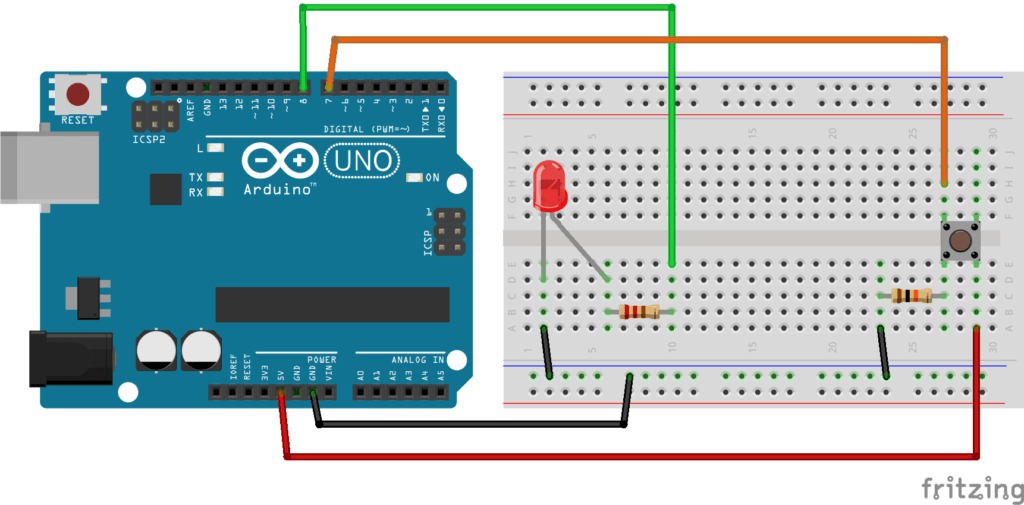
Step by step instructions to build the circuit (more info about Arduino pins here):
- First, make sure to power off your Arduino – remove any USB cable.
- Plug a black wire between the blue line of the breadboard and a ground (GND) pin on the Arduino board.
- Plug the LED. You can notice that the LED has a leg shorter than the other. Plug this shorter leg to the ground (blue line here) of the circuit.
- Connect the longer leg of the LED to a digital pin (here pin no 8, you can change it). Add a 220 Ohm resistor in between to limit the current going through the LED.
- Add the push button to the breadboard, like in the picture.
- Connect one leg of the button to the ground, and put a 10k Ohm resistor in between. This resistor will act as a “pull down” resistor, which means that the default button’s state will be LOW.
- Add a red wire between another leg of the button and VCC (5V).
- Finally, connect a leg of the button (same side as the pull down resistor) to a digital pin (here 7).
All right your circuit is now finished. You can start writing code.
Turn on the LED when button is pressed, turn it off otherwise
What we want to achieve is simple: when the button is not pressed, the LED is off. And when we press the button the LED should be on.
The code
Let’s break this code down line by line.
Setup
First, as a best practice, we use some defines to keep the pin number for the LED and push button. That way, if you have used different pins than I, you just need to modify those 2 lines. Also, in the future if you want to change the LED from pin 8 to pin 11 for example, you can modify this line without touching anything else in the code.
The setup function is executed once at the beginning of the program. This is the perfect time to initialize our pins with the pinMode() function:
- OUTPUT for the LED, as we’re going to write data to it.
- INPUT for the push button, as we’re going to read data from it.
Now, the digital pins are correctly set up.
Loop – Turn on the LED when button is pressed
In the loop function, we start by reading the button’s state with the digitalRead() function. As we have a pull down resistor on the button, we know that the non-pressed state will give us the value LOW.
(Note: if you were using a pull up resistor, or no resistor at all – with the INPUT_PULLUP option for pinMode – this would be the opposite. HIGH when the button is not pressed, and LOW when it’s pressed.)
So, once we get the button’s state, we check if it’s HIGH or LOW:
- HIGH (pressed): we power on the LED with digitalWrite() and the HIGH state.
- LOW (not pressed): we power off the LED with digitalWrite() and the LOW state.
OK, now let’s do something a little bit more complex.
Toggle LED’s state with the push button – first iteration
What we want to do is to toggle the LED’s state when you press + release the button. So, the first time you release the button, the LED will turn on. The second time, it will turn off. Etc.
The code
Let’s analyze the code.
Setup
Those defines are the same as before.
We need to create 2 global variables, to keep the state of the button and the LED. In the loop we’ll use those variables to compare the previous state to the new state.
The void setup stays the same. We just set the mode for both pins.
And now the serious stuff is coming. We enter the void loop function.
Monitor the button’s state
The first thing we do is to read the button’s state and to store it inside a new local variable.
Then we can compare the current state to the last one (from the previous execution of the loop function). 4 possibilities here:
- LOW -> LOW (last -> current).
- LOW -> HIGH.
- HIGH -> LOW.
- HIGH -> HIGH.
With the condition, we only enter the next block of code if the current and last state are different. If the 2 states are the same, then we don’t enter the if and the loop function is finished for this turn.
Also, now that we have the information we want, we directly store the current state into the last state variable, so that we have the correct value for the next time we enter the loop.
At this point we have only 2 possibilities left:
- Either the previous state was LOW and the current state is HIGH (not pressed to pressed).
- Or the previous state was HIGH and the current state is LOW (pressed to not pressed).
We are only interested in the second option, so here we just have to check if the current button’s state is LOW. If that’s the case, we can now turn the LED on or off.
Toggle the LED when the button has been released
Here we toggle the state of the LED. I’m not a big fan of one-liners but this one is really handful when you just need to toggle a state. This will save you 3-4 lines of code for something really trivial.
Here’s the template for this one-liner: (condition to evaluate) ? if true use this value : if false use this value.
So, if the LED is currently powered on (ledState == HIGH), we assign the value LOW. If the LED is powered off (ledState != HIGH), we assign the value HIGH.
And the last thing we need to do is of course to physically set the state for the LED, with the new computed state.
Turn LED on and off with button – using debounce
One thing you might notice with the previous experiment: sometimes when you press and release the button, the LED’s state doesn’t change, or blinks quickly multiple times.
This is because the button is physically bouncing when you press it. Thus, many false positives will be interpreted by the Arduino. What you can do to prevent that is to add a debounce delay in your code. For example, you can decide that when the program detects a change in the button’s state, it will wait 50 milliseconds before considering another change viable.
Let’s add a few lines to our previous code.
The improved code
Now, if you run this program, you won’t have any problem with the LED’s state being changed quite randomly when you press/release the button.
And here is how we achieve that.
Debounce explained
We create 2 new global variables:
- One to decide how long we want to wait before validating a second change in the button’s state. Here it means that if the state changes, any changes after that in the next 50 milliseconds will be ignored. 50 millis is a good value, you can experiment with lower and upper values to check the behavior.
- Another one to keep the last time the state was changed, so we have a starting point to compare to.
Then, in the loop, we only start the button/LED functionality if enough time has passed since the last time the button’s state was changed.
To do that it’s quite simple: we compare the duration since the last update time to the required debounce duration.
Once the debounce delay has been passed, then we can do what we did before. And don’t forget to update the starting point for the “debounce timer” just after you detect a change in the button’s state. So, the next time the program enters the loop, it will wait for 50 milliseconds (or the value you’ve chosen) to detect new changes in the button’s state.
Conclusion – Arduino turn Led ON and OFF with button
In this tutorial you have seen how to build an Arduino circuit with an LED and a push button, and also how to control this circuit to turn the LED on and off with the button.
Even if it’s a rather simple application, there are many ways to program it. You can power on the LED only when the button is pressed, or make the LED blink when you release the button, and so on.
Another way to write the code (for the exact same functionalities) is to use Arduino interrupts – available for the boards having interrupt pins.
To go further from here, check out:
Arduino – Turn LED ON and OFF With Button的更多相关文章
- 使用Arduino和LED光柱显示器件轻松制作电池电压指示器
电池有一定的电压限制,如果电压在充电或放电时超出规定的限制,电池的使用寿命就会受到影响或降低.每当我们使用电池供电的项目,有时我们需要检查电池电压电量,确定是否需要充电或更换.本电路将帮助您监测电池电 ...
- Arduino控制LED灯(开关控制)
问题:当使用"digitalRead(BUT) == 1"控制LED灯时会出现"digitalWrite(LED, ledState);"的值出现跳动. 原因: ...
- Arduino uno LED灯实验
http://jingyan.baidu.com/article/a65957f4e358d924e67f9bad.html
- Arduino关于旋转编码器程序的介绍(Reading Rotary Encoders)--by Markdown
介绍 旋转或编码器是一个角度測量装置. 他用作精确測量电机的旋转角度或者用来控制控制轮子(能够无限旋转,而电位器只能旋转到特定位置).其中有一些还安装了一个能够在轴上按的button,就像音乐播放器的 ...
- Arduino 串行外设接口——W3Cschool
来源:https://www.w3cschool.cn/arduino/arduino_serial_peripheral_interface.html Arduino 串行外设接口 由 drbear ...
- FL2440驱动添加(4)LED 驱动添加
硬件信息:FL2440板子,s3c2440CPU带四个LED,分别在链接GPB5,GPB6,GPB8,GPB10 内核版本:linux-3.8.0 led驱动代码如下: 值得注意地方地方: 1,定时器 ...
- fl2440 platform总线led字符设备驱动
首先需要知道的是,设备跟驱动是分开的.设备通过struct device来定义,也可以自己将结构体封装到自己定义的device结构体中: 例如:struct platform_device: 在inc ...
- 如何用 JavaScript 控制 Arduino?
Arduino 运行 C 语言,而主控端运行 JavaScript,一次要编写和维护两种程序.既然浏览器和服务器都用 JavaScript,若 Arduino 也能用 JavaScript 控制,那岂 ...
- Arduino系列之智能家居蓝牙语音遥控灯(四)
用到的材料 Arduino uno hc-05 蓝牙模块 安卓手机 安卓APP AMR—voice 通过安卓手机连接Arduino的蓝牙模块Hc-05,通过语音识别软件AMR-voice识别语音, ...
- 「雕爷学编程」Arduino动手做(20)—水银开关模块
37款传感器与模块的提法,在网络上广泛流传,其实Arduino能够兼容的传感器模块肯定是不止37种的.鉴于本人手头积累了一些传感器和模块,依照实践出真知(一定要动手做)的理念,以学习和交流为目的,这里 ...
随机推荐
- 痞子衡嵌入式:主流QuadSPI NOR Flash厂商关于QE位与IO功能复用关联设计
大家好,我是痞子衡,是正经搞技术的痞子.今天痞子衡给大家讲的是几家主流QuadSPI NOR Flash厂商关于QE位与IO功能复用关联设计. 痞子衡之前写过一篇文章 <串行NOR Flash下 ...
- 现代C++学习指南-方向篇
C++是一门有着四十年历史的语言,先后经历过四次版本大升级(诞生.98.11.17(20),14算小升级).每次升级都是很多问题和解决方案的取舍.了解这些历史,能更好地帮助我们理清语言的发展脉络.所以 ...
- Spring Cloud灰度部署
1.背景(灰度部署) 在我们系统发布生产环境时,有时为了确保新的服务逻辑没有问题,会让一小部分特定的用户来使用新的版本(比如客户端的内测版本),而其余的用户使用旧的版本,那么这个在Spring Clo ...
- LLE算法的应用场景和案例:详解LLE算法在实际问题中的效果和表现
目录 引言 随着深度学习技术的不断发展,神经网络模型在人工智能领域的应用越来越广泛.其中,LLE(Largely Element-wise Linear) 神经网络是一种常用的神经网络模型,其基本思想 ...
- Collection 接口及其常用方法
Collection 接口的特点 Collection接口没有直接实现类,提供了更具体的子接口(如Set和List)的实现.Collection实现类(通常通过其中一个子接口间接实现Collectio ...
- 【xx-job】 定时任务调度
XXL-JOB XXL-JOB是一个分布式任务调度平台,其核心设计目标是开发迅速.学习简单.轻量级.易扩展. 现已开放源代码并接入多家公司线上产品线,开箱即用. 一.任务调度中心 1.1 下载XXL- ...
- 2023-07-19:布尔表达式 是计算结果不是 true 就是 false 的表达式 有效的表达式需遵循以下约定: ‘t‘,运算结果为 true ‘f‘,运算结果为 false ‘!(subExpr
2023-07-19:布尔表达式 是计算结果不是 true 就是 false 的表达式 有效的表达式需遵循以下约定: 't',运算结果为 true 'f',运算结果为 false '!(subExpr ...
- 王道oj/problem15(用c++的引用精简代码)
网址:http://oj.lgwenda.com/problem/15 思路:子函数的形参是指针的时候格式为 int*&p,且原函数实参为p 主函数使用fgets(字符串的指针,最大容量,st ...
- manacher(马拉车)算法C++详解
马拉车的定义 马拉车本质是对中心扩展法(暴力算法)的优化. 马拉车是干什么的 Manacher算法帮助我们在给定的字符串中找到最长的回文子串. 为了简单起见,我们先只处理有奇数个字符的字符串,关于偶数 ...
- Stable Diffusion基础:ControlNet之人体姿势控制
在AI绘画中精确控制图片是一件比较困难的事情,不过随着 ControlNet 的诞生,这一问题得到了很大的缓解. 今天我就给大家分享一个使用Stable Diffusion WebUI + OpenP ...