
iOS 二维码 学习
这段时间忙着交接工作,找工作,找房子,入职,杂七杂八的,差不多一个月没有静下来学习了.这周末晚上等外卖的时间学习一下二维码的制作与扫描.
项目采用OC语言,只要使用iOS自带的CoreImage框架,通过滤镜CIFilter生成二维码,扫描使用原生自带相机实现.
开撸:
先写一个类,封装把string转换我image和把CIImage转换为string:
QRImage.h
 //

 //  QRImage.h

 //  QRcode

 //

 //  Created by Shaoting Zhou on 2017/11/19.

 //  Copyright © 2017年 Shaoting Zhou. All rights reserved.

 //

 #import <Foundation/Foundation.h>

 #import <CoreImage/CoreImage.h>

 #import <UIKit/UIKit.h>

 @interface QRImage : NSObject

 + (UIImage *)imageWithQRString:(NSString *)string;  //把string转换我image

 + (NSString *)stringFromCiImage:(CIImage *)ciimage; //把CIImage转换为string

 @end
QRImage.m
 //

 //  QRImage.m

 //  QRcode

 //

 //  Created by Shaoting Zhou on 2017/11/19.

 //  Copyright © 2017年 Shaoting Zhou. All rights reserved.

 //

 #import "QRImage.h"

 @implementation QRImage

 #pragma mark - 把string转换为Image

 + (UIImage *)imageWithQRString:(NSString *)string{

     NSData * stringData = [string dataUsingEncoding:NSUTF8StringEncoding];

     CIFilter * qrFilter = [CIFilter filterWithName:@"CIQRCodeGenerator"]; //过滤器

     [qrFilter setValue:stringData forKey:@"inputMessage"];

     [qrFilter setValue:@"M" forKey:@"inputCorrectionLevel"];  //纠错等级

     UIImage * image =  [self createUIImageFromCIImage:qrFilter.outputImage withSize:];

     return image;

 }

 #pragma mark - CIImgae ->  UIImage

 + (UIImage *)createUIImageFromCIImage:(CIImage *)image withSize:(CGFloat)size{

     CGRect extent = CGRectIntegral(image.extent);

     CGFloat scale = MIN(size/CGRectGetWidth(extent), size/CGRectGetHeight(extent));

     //1.创建bitmap;

     size_t width = CGRectGetWidth(extent) * scale;

     size_t height = CGRectGetHeight(extent) * scale;

     CGColorSpaceRef cs = CGColorSpaceCreateDeviceGray();

     CGContextRef bitmapRef = CGBitmapContextCreate(nil, width, height, , , cs, (CGBitmapInfo)kCGImageAlphaNone);

     CIContext *context = [CIContext contextWithOptions:nil];

     CGImageRef bitmapImage = [context createCGImage:image fromRect:extent];

     CGContextSetInterpolationQuality(bitmapRef, kCGInterpolationNone);

     CGContextScaleCTM(bitmapRef, scale, scale);

     CGContextDrawImage(bitmapRef, extent, bitmapImage);

     //2.保存bitmap到图片

     CGImageRef scaledImage = CGBitmapContextCreateImage(bitmapRef);

     CGContextRelease(bitmapRef);

     CGImageRelease(bitmapImage);

     return [UIImage imageWithCGImage:scaledImage];

 }

 #pragma mark - 把image转换为string

 + (NSString *)stringFromCiImage:(CIImage *)ciimage{

     NSString * content = nil;

     if(!ciimage){

         return  content;

     }

     CIDetector * detector = [CIDetector detectorOfType:CIDetectorTypeQRCode context:[CIContext contextWithOptions:nil] options:@{CIDetectorAccuracy:CIDetectorAccuracyHigh}];

     NSArray * features = [detector featuresInImage:ciimage];

     if(features.count){

         for (CIFeature * feature in features) {

             if([feature isKindOfClass:[CIQRCodeFeature class]]){

                 content = ((CIQRCodeFeature *)feature).messageString;

                 break;

             }

         }

     }else{

         NSLog(@"解析失败,确保硬件支持");

     }

     return content;

 }

 @end
上面的代码就是关键之处.
下面,写一个界面生成二维码,通过上面写好的string转换我image,显示在屏幕之上.
MainViewController.h
 //

 //  MainViewController.h

 //  QRcode

 //

 //  Created by Shaoting Zhou on 2017/11/18.

 //  Copyright © 2017年 Shaoting Zhou. All rights reserved.

 //

 #import <UIKit/UIKit.h>

 #import "QRImage.h"

 #import "ScanViewController.h"

 @interface MainViewController : UIViewController

 @property (nonatomic,strong) UIImageView * qrImageView;

 @property (nonatomic,strong) UITextField * textField;

 @end
MainViewController.m
 //

 //  MainViewController.m

 //  QRcode

 //

 //  Created by Shaoting Zhou on 2017/11/18.

 //  Copyright © 2017年 Shaoting Zhou. All rights reserved.

 //

 #import "MainViewController.h"

 @interface MainViewController ()

 @end

 @implementation MainViewController

 - (void)viewDidLoad {

     [super viewDidLoad];

     [self setUI];

     self.title = @"生成二维码";

     self.navigationItem.rightBarButtonItem = [[UIBarButtonItem alloc]initWithTitle:@"扫描" style:(UIBarButtonItemStylePlain) target:self action:@selector(scangQRimage)];

 }

 -(void)setUI{

     self.textField = [[UITextField alloc]initWithFrame:CGRectMake(, , , )];

     self.textField.borderStyle = UITextBorderStyleRoundedRect;

     [self.view addSubview:self.textField];

     UIButton * btn = [[UIButton alloc]initWithFrame:CGRectMake(, , , )];

     [btn setTitle:@"生成二维码" forState:(UIControlStateNormal)];

     [btn setTitleColor:[UIColor redColor] forState:(UIControlStateNormal)];

     [btn addTarget:self action:@selector(makeQRcode) forControlEvents:(UIControlEventTouchUpInside)];

     [self.view addSubview:btn];

     self.qrImageView = [[UIImageView alloc]initWithFrame:CGRectMake(, , , )];

     [self.view addSubview:self.qrImageView];

 }

 #pragma mark - 生成二维码

 -(void)makeQRcode{

     [self.textField resignFirstResponder];

     UIImage * img = [QRImage imageWithQRString:self.textField.text];

     self.qrImageView.image = img;

 }

 #pragma mark - push到扫描界面

 -(void)scangQRimage{

     ScanViewController * scanVC = [[ScanViewController alloc]init];

     [self.navigationController pushViewController:scanVC animated:NO];

 }

 - (void)didReceiveMemoryWarning {

     [super didReceiveMemoryWarning];

     // Dispose of any resources that can be recreated.

 }

 /*

 #pragma mark - Navigation

 // In a storyboard-based application, you will often want to do a little preparation before navigation

 - (void)prepareForSegue:(UIStoryboardSegue *)segue sender:(id)sender {

     // Get the new view controller using [segue destinationViewController].

     // Pass the selected object to the new view controller.

 }

 */

 @end
再写一个界面扫描二维码和通过相册选择二维码扫描,通过上面写好的把CIImage转换为string,扫描出二维码信息显示出来即可.
ScanViewController.h
 //

 //  ScanViewController.h

 //  QRcode

 //

 //  Created by Shaoting Zhou on 2017/11/19.

 //  Copyright © 2017年 Shaoting Zhou. All rights reserved.

 //

 #import <UIKit/UIKit.h>

 #import <AVFoundation/AVFoundation.h>

 #import "QRImage.h"

 @interface ScanViewController : UIViewController <AVCaptureMetadataOutputObjectsDelegate,UINavigationControllerDelegate,UIImagePickerControllerDelegate>

 @property (nonatomic,strong) AVCaptureSession * session;

 @property (nonatomic,strong) UITextField * textField;

 @end
ScanViewController.m
 //

 //  ScanViewController.m

 //  QRcode

 //

 //  Created by Shaoting Zhou on 2017/11/19.

 //  Copyright © 2017年 Shaoting Zhou. All rights reserved.

 //

 #import "ScanViewController.h"

 @interface ScanViewController ()

 @end

 @implementation ScanViewController

 - (void)viewDidLoad {

     [super viewDidLoad];

     self.title = @"扫描二维码";

     self.textField = [[UITextField alloc]initWithFrame:CGRectMake(, , , )];

     self.textField.borderStyle = UITextBorderStyleRoundedRect;

     self.textField.userInteractionEnabled = NO;

     [self.view addSubview:self.textField];

     self.navigationItem.rightBarButtonItem = [[UIBarButtonItem alloc]initWithTitle:@"相册" style:(UIBarButtonItemStylePlain) target:self action:@selector(presentImagePicker)];

 }

 - (void)viewWillAppear:(BOOL)animated{

     [super viewWillAppear:animated];

     [self startScan];

 }

 #pragma  mark - 开始扫描

 - (void)startScan{

     if([AVCaptureDevice authorizationStatusForMediaType:AVMediaTypeVideo] == AVAuthorizationStatusAuthorized || [AVCaptureDevice authorizationStatusForMediaType:AVMediaTypeVideo] == AVAuthorizationStatusNotDetermined ){

         self.session = [[AVCaptureSession alloc]init];

         AVCaptureDeviceInput * input = [[AVCaptureDeviceInput alloc]initWithDevice:[AVCaptureDevice defaultDeviceWithMediaType:AVMediaTypeVideo] error:nil];

         if(input){

             [self.session addInput:input];

         }

         AVCaptureMetadataOutput * output = [[AVCaptureMetadataOutput alloc]init];

         [output setMetadataObjectsDelegate:self queue:dispatch_get_main_queue()];

         if(output){

             [self.session addOutput:output];

         }

         NSMutableArray * ary = [[NSMutableArray alloc]init];

         if([output.availableMetadataObjectTypes containsObject:AVMetadataObjectTypeQRCode]){

             [ary addObject:AVMetadataObjectTypeQRCode];

         }

         if([output.availableMetadataObjectTypes containsObject:AVMetadataObjectTypeEAN13Code]){

             [ary addObject:AVMetadataObjectTypeEAN13Code];

         }

         if([output.availableMetadataObjectTypes containsObject:AVMetadataObjectTypeEAN8Code]){

             [ary addObject:AVMetadataObjectTypeEAN8Code];

         }

         if([output.availableMetadataObjectTypes containsObject:AVMetadataObjectTypeCode128Code]){

             [ary addObject:AVMetadataObjectTypeCode128Code];

         }

         output.metadataObjectTypes = ary;

         AVCaptureVideoPreviewLayer * layer = [AVCaptureVideoPreviewLayer layerWithSession:self.session];

         layer.videoGravity = AVLayerVideoGravityResizeAspectFill;

         layer.frame = CGRectMake((self.view.bounds.size.width - )/, , , );

         [self.view.layer addSublayer:layer];

         UIImageView * imageView = [[UIImageView alloc]initWithFrame:CGRectMake((self.view.bounds.size.width - )/, , , )];

         [self.view addSubview:imageView];

         [self.session startRunning];

     }

 }

 #pragma mark - AVCaptureMetadataOutputObjectsDelegate代理方法

 - (void)captureOutput:(AVCaptureOutput *)output didOutputMetadataObjects:(NSArray<__kindof AVMetadataObject *> *)metadataObjects fromConnection:(AVCaptureConnection *)connection{

     NSString * str = nil;

     for (AVMetadataObject * obj in metadataObjects) {

         if([obj.type isEqualToString:AVMetadataObjectTypeQRCode]){

             str = [(AVMetadataMachineReadableCodeObject *)obj stringValue];

             [self.session startRunning];

             break;

         }

     }

     self.textField.text = str;

 }

 #pragma mark - UIImagePickerControllerDelegate代理方法

 - (void)imagePickerController:(UIImagePickerController *)picker didFinishPickingMediaWithInfo:(NSDictionary<NSString *,id> *)info{

     UIImage * image = [info objectForKey:UIImagePickerControllerOriginalImage];

     CIImage * ciimage = [[CIImage alloc]initWithImage:image];

     NSString * str = [QRImage stringFromCiImage:ciimage];

     self.textField.text = str;

     [self dismissViewControllerAnimated:YES completion:nil];

 }

 #pragma mark - 弹出相册

 - (void)presentImagePicker{

     UIImagePickerController * imagePicker = [[UIImagePickerController alloc]init];

     imagePicker.delegate = self;

     [self presentViewController:imagePicker animated:NO completion:nil];

 }

 - (void)didReceiveMemoryWarning {

     [super didReceiveMemoryWarning];

     // Dispose of any resources that can be recreated.

 }

 /*

  #pragma mark - Navigation

  // In a storyboard-based application, you will often want to do a little preparation before navigation

  - (void)prepareForSegue:(UIStoryboardSegue *)segue sender:(id)sender {

  // Get the new view controller using [segue destinationViewController].

  // Pass the selected object to the new view controller.

  }

  */

 @end
github: https://github.com/pheromone/QRcode
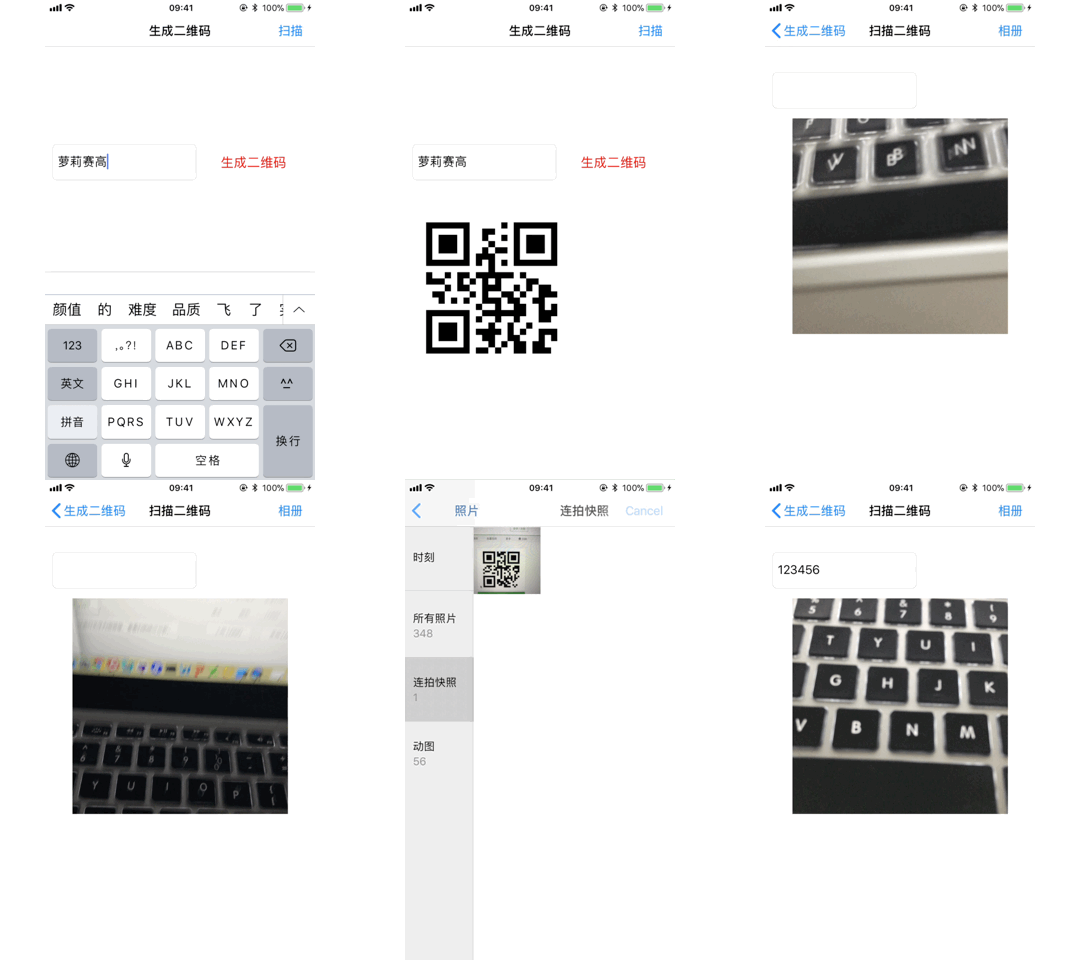
效果如下:
iOS 二维码 学习的更多相关文章
- Ios二维码扫描(系统自带的二维码扫描)
Ios二维码扫描 这里给大家介绍的时如何使用系统自带的二维码扫描方法和一些简单的动画! 操作步骤: 1).首先你需要搭建UI界面如图:下图我用了俩个imageview和一个label 2).你需要在你 ...
- AJ学IOS 之二维码学习,快速打开相机读取二维码
AJ分享,必须精品 上一篇文章写了怎么生成二维码,这儿就说说怎么读取吧,反正也很简单,iOS封装的太强大了 步骤呢就是这样: 读取二维码需要导入AVFoundation框架#import <AV ...
- AJ学IOS 之二维码学习,快速生成二维码
AJ分享,必须精品 二维码是一项项目中可能会用到的,iOS打开相机索取二维码的速度可不是Android能比的...(Android扫描二维码要来回来回晃...) 简单不多说,如何把一段资料(网址呀,字 ...
- iOS二维码扫描IOS7系统实现
扫描相关类 二维码扫描需要获取摄像头并读取照片信息,因此我们需要导入系统的AVFoundation框架,创建视频会话.我们需要用到一下几个类: AVCaptureSession 会话对象.此类作为硬件 ...
- iOS - 二维码扫描和应用跳转
序言 前面我们已经调到过怎么制作二维码,在我们能够生成二维码之后,如何对二维码进行扫描呢? 在iOS7之前,大部分应用中使用的二维码扫描是第三方的扫描框架,例如ZXing或者ZBar.使用时集成麻烦, ...
- iOS二维码生成与识别
在 IOS7 以前,在IOS中实现二维码和条形码扫描,有两大开源组件 ZBar 与 ZXing. 总结下各自的缺点: ZBar在扫描的灵敏度上,和内存的使用上相对于ZXing上都是较优的,但是对于 & ...
- python生成个性二维码学习笔记
在linux环境下进行编码 1.先进家目录,自行创建Code文件夹 cd Code 2.下载MyQR库 sudo pip3 install MyQR 3.下载所需资源文件并解压 Code/ $ wge ...
- iOS二维码、条形码生成(可指定大小、颜色)
一.前言: iOS7.0之后可以利用系统原生 API 生成二维码, iOS8.0之后可以生成条形码, 系统默认生成的颜色是黑色. 在这里, 利用以下方法可以生成指定大小.指定颜色的二维码和条形码, 还 ...
- iOS:二维码的生成
所谓的二维码就是一个图片,只不过在iOS需要借用<CoreImage/CoreImage.h>来实现, 并且二维码图片是通过CIImage来转成UIImage的.具体步骤如下: // 1 ...
随机推荐
- Linux进程管理的学习
uptime 简洁显示服务器负载 uptime 显示内核版本 uname -r dstat命令 cpu.内存.io等查看工具 dstat dstat --top-cpu dstat --top-io ...
- sqlserver isnull函数
isnull(参数1,参数2),判断参数1是否为NULL,如果是,返回参数2,否则返回参数1. select ISNULL(null,'helloword') 返回helloword字符串select ...
- DBlink 创建 删除 脚本
--配置SQLSERVER数据库的DBLINK --删除dblink Exec sp_droplinkedsrvlogin test,Null Exec sp_dropserver test --创建 ...
- 使用Github Composer Packagist编写及发布扩展包
1.在github中创建自己的仓库,然后本地clone,初始化composer init ,在composer.json中增加autoload "autoload": { &quo ...
- 使用PHP添加圆形头像
首先来看一下PHP怎样生成一个圆形透明的图片 function circle($url){ $w = 430; $h=430; // original size $path = dirname(__F ...
- .net实现网易云音乐下载
客户端版的网易云音乐下载是需要vip的,网页版的虽然可以通过调试工具找到下载链接,但是用起来不是很方便,通过调试工具观察请求发现请求参数都是加密的,比如搜索歌曲的请求参数: 这个加密的实现肯定是写在j ...
- 如何不使用loop循环创建连续的数组
ES5 Array.apply(null,{length:100}) Object.keys(Array.apply(null,{length:100})); ES6 [...Array(100)]
- python运算符与数据类型
python运算符 Python语言支持以下类型的运算符: 算术运算符 比较(关系)运算符 赋值运算符 逻辑运算符 位运算符 成员运算符 身份运算符 运算符优先级 以下假设变量: a=10,b=20: ...
- JS变量的提升详解
此次说明的是var与function的变量提升 那么先看一段代码 <script type="text/javascript"> console.log(test); ...
- 【转载】如何查看Mysql是否已经安装
原文地址: https://jingyan.baidu.com/article/fd8044fa2ecaf35030137a42.html MySQL是关系型数据库管理系统,是目前最流行的关系型数据库 ...