
How To Secure Nginx with Let's Encrypt on Ubuntu 14.04
https://www.digitalocean.com/community/tutorials/how-to-secure-nginx-with-let-s-encrypt-on-ubuntu-14-04
Introduction
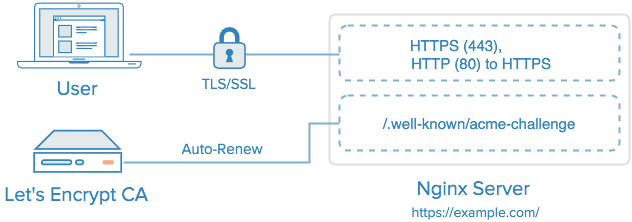
Let's Encrypt is a new Certificate Authority (CA) that provides an easy way to obtain and install free TLS/SSL certificates, thereby enabling encrypted HTTPS on web servers. It simplifies the process by providing a software client, letsencrypt, that attempts to automate most (if not all) of the required steps. Currently, as Let's Encrypt is still in open beta, the entire process of obtaining and installing a certificate is fully automated only on Apache web servers. However, Let's Encrypt can be used to easily obtain a free SSL certificate, which can be installed manually, regardless of your choice of web server software.
In this tutorial, we will show you how to use Let's Encrypt to obtain a free SSL certificate and use it with Nginx on Ubuntu 14.04. We will also show you how to automatically renew your SSL certificate. If you're running a different web server, simply follow your web server's documentation to learn how to use the certificate with your setup.
Prerequisites
Before following this tutorial, you'll need a few things.
You should have an Ubuntu 14.04 server with a non-root user who has sudo privileges. You can learn how to set up such a user account by following steps 1-3 in our initial server setup for Ubuntu 14.04 tutorial.
You must own or control the registered domain name that you wish to use the certificate with. If you do not already have a registered domain name, you may register one with one of the many domain name registrars out there (e.g. Namecheap, GoDaddy, etc.).
If you haven't already, be sure to create an A Record that points your domain to the public IP address of your server. This is required because of how Let's Encrypt validates that you own the domain it is issuing a certificate for. For example, if you want to obtain a certificate for example.com, that domain must resolve to your server for the validation process to work. Our setup will use example.com andwww.example.com as the domain names, so both DNS records are required.
Once you have all of the prerequisites out of the way, let's move on to installing the Let's Encrypt client software.
Step 1 — Install Let's Encrypt Client
The first step to using Let's Encrypt to obtain an SSL certificate is to install the letsencrypt software on your server. Currently, the best way to install Let's Encrypt is to simply clone it from the official GitHub repository. In the future, it will likely be available via a package manager.
Install Git and bc
Let's install Git and bc now, so we can clone the Let's Encrypt repository.
Update your server's package manager with this command:
- sudo apt-get update
Then install the git and bc packages with apt-get:
- sudo apt-get -y install git bc
With git and bc installed, we can easily download letsencrypt by cloning the repository from GitHub.
Clone Let's Encrypt
We can now clone the Let’s Encrypt repository in /opt with this command:
- sudo git clone https://github.com/letsencrypt/letsencrypt /opt/letsencrypt
You should now have a copy of the letsencrypt repository in the /opt/letsencrypt directory.
Step 2 — Obtain a Certificate
Let's Encrypt provides a variety of ways to obtain SSL certificates, through various plugins. Unlike the Apache plugin, which is covered in a different tutorial, most of the plugins will only help you with obtaining a certificate which you must manually configure your web server to use. Plugins that only obtain certificates, and don't install them, are referred to as "authenticators" because they are used to authenticate whether a server should be issued a certificate.
We'll show you how to use the Webroot plugin to obtain an SSL certificate.
How To Use the Webroot Plugin
The Webroot plugin works by placing a special file in the /.well-known directory within your document root, which can be opened (through your web server) by the Let's Encrypt service for validation. Depending on your configuration, you may need to explicitly allow access to the /.well-knowndirectory.
If you haven't installed Nginx yet, do so with this command:
- sudo apt-get install nginx
To ensure that the directory is accessible to Let's Encrypt for validation, let's make a quick change to our Nginx configuration. By default, it's located at /etc/nginx/sites-available/default. We'll usenano to edit it:
- sudo nano /etc/nginx/sites-available/default
Inside the server block, add this location block:
        location ~ /.well-known {

                allow all;

        }
You will also want look up what your document root is set to by searching for the root directive, as the path is required to use the Webroot plugin. If you're using the default configuration file, the root will be/usr/share/nginx/html.
Save and exit.
Reload Nginx with this command:
- sudo service nginx reload
Now that we know our webroot-path, we can use the Webroot plugin to request an SSL certificate with these commands. Here, we are also specifying our domain names with the -d option. If you want a single cert to work with multiple domain names (e.g. example.com and www.example.com), be sure to include all of them. Also, make sure that you replace the highlighted parts with the appropriate webroot path and domain name(s):
- cd /opt/letsencrypt
- ./letsencrypt-auto certonly -a webroot --webroot-path=/usr/share/nginx/html -d example.com -d www.example.com
Note: The Let's Encrypt software requires superuser privileges, so you will be required to enter your password if you haven't used sudo recently.
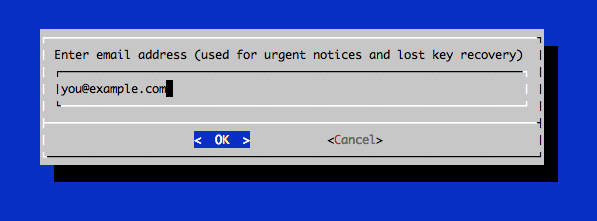
After letsencrypt initializes, you will be prompted for some information. The exact prompts may vary depending on if you've used Let's Encrypt before, but we'll step you through the first time.
At the prompt, enter an email address that will be used for notices and lost key recovery:
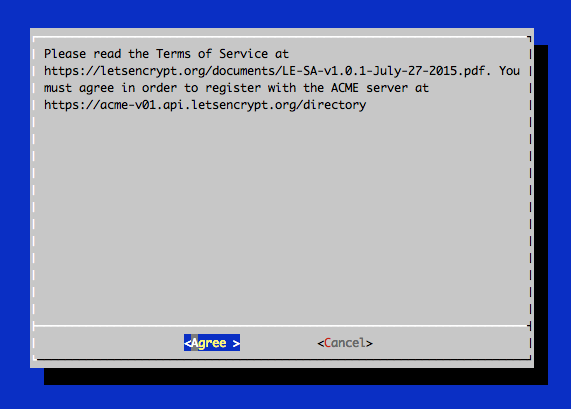
Then you must agree to the Let's Encrypt Subscribe Agreement. Select Agree:
If everything was successful, you should see an output message that looks something like this:
IMPORTANT NOTES:

 - If you lose your account credentials, you can recover through

   e-mails sent to sammy@digitalocean.com

 - Congratulations! Your certificate and chain have been saved at

   /etc/letsencrypt/live/example.com/fullchain.pem. Your

   cert will expire on 2016-03-15. To obtain a new version of the

   certificate in the future, simply run Let's Encrypt again.

 - Your account credentials have been saved in your Let's Encrypt

   configuration directory at /etc/letsencrypt. You should make a

   secure backup of this folder now. This configuration directory will

   also contain certificates and private keys obtained by Let's

   Encrypt so making regular backups of this folder is ideal.

 - If like Let's Encrypt, please consider supporting our work by:

   Donating to ISRG / Let's Encrypt:   https://letsencrypt.org/donate

   Donating to EFF:                    https://eff.org/donate-le
You will want to note the path and expiration date of your certificate, which was highlighted in the example output.
Firewall Note: If you receive an error like Failed to connect to host for DVSNI challenge, your server's firewall may need to be configured to allow TCP traffic on port 80 and 443.
Note: If your domain is routing through a DNS service like CloudFlare, you will need to temporarily disable it until you have obtained the certificate.
Certificate Files
After obtaining the cert, you will have the following PEM-encoded files:
- cert.pem: Your domain's certificate
- chain.pem: The Let's Encrypt chain certificate
- fullchain.pem:
cert.pemandchain.pemcombined - privkey.pem: Your certificate's private key
It's important that you are aware of the location of the certificate files that were just created, so you can use them in your web server configuration. The files themselves are placed in a subdirectory in/etc/letsencrypt/archive. However, Let's Encrypt creates symbolic links to the most recent certificate files in the /etc/letsencrypt/live/your_domain_name directory. Because the links will always point to the most recent certificate files, this is the path that you should use to refer to your certificate files.
You can check that the files exist by running this command (substituting in your domain name):
- sudo ls -l /etc/letsencrypt/live/your_domain_name
The output should be the four previously mentioned certificate files. In a moment, you will configure your web server to use fullchain.pem as the certificate file, and privkey.pem as the certificate key file.
Generate Strong Diffie-Hellman Group
To further increase security, you should also generate a strong Diffie-Hellman group. To generate a 2048-bit group, use this command:
- sudo openssl dhparam -out /etc/ssl/certs/dhparam.pem 2048
This may take a few minutes but when it's done you will have a strong DH group at/etc/ssl/certs/dhparam.pem.
Step 3 — Configure TLS/SSL on Web Server (Nginx)
Now that you have an SSL certificate, you need to configure your Nginx web server to use it.
Edit the Nginx configuration that contains your server block. Again, it's at /etc/nginx/sites-available/default by default:
- sudo nano /etc/nginx/sites-available/default
Find the server block. Comment out or delete the lines that configure this server block to listen on port 80. In the default configuration, these two lines should be deleted:
        listen 80 default_server;

        listen [::]:80 default_server ipv6only=on;
We are going to configure this server block to listen on port 443 with SSL enabled instead. Within yourserver { block, add the following lines but replace all of the instances of example.com with your own domain:
        listen 443 ssl;

        server_name example.com www.example.com;

        ssl_certificate /etc/letsencrypt/live/example.com/fullchain.pem;

        ssl_certificate_key /etc/letsencrypt/live/example.com/privkey.pem;
This enables your server to use SSL, and tells it to use the Let's Encrypt SSL certificate that we obtained earlier.
To allow only the most secure SSL protocols and ciphers, and use the strong Diffie-Hellman group we generated, add the following lines to the same server block:
        ssl_protocols TLSv1 TLSv1.1 TLSv1.2;

        ssl_prefer_server_ciphers on;

        ssl_dhparam /etc/ssl/certs/dhparam.pem;

        ssl_ciphers 'ECDHE-RSA-AES128-GCM-SHA256:ECDHE-ECDSA-AES128-GCM-SHA256:ECDHE-RSA-AES256-GCM-SHA384:ECDHE-ECDSA-AES256-GCM-SHA384:DHE-RSA-AES128-GCM-SHA256:DHE-DSS-AES128-GCM-SHA256:kEDH+AESGCM:ECDHE-RSA-AES128-SHA256:ECDHE-ECDSA-AES128-SHA256:ECDHE-RSA-AES128-SHA:ECDHE-ECDSA-AES128-SHA:ECDHE-RSA-AES256-SHA384:ECDHE-ECDSA-AES256-SHA384:ECDHE-RSA-AES256-SHA:ECDHE-ECDSA-AES256-SHA:DHE-RSA-AES128-SHA256:DHE-RSA-AES128-SHA:DHE-DSS-AES128-SHA256:DHE-RSA-AES256-SHA256:DHE-DSS-AES256-SHA:DHE-RSA-AES256-SHA:AES128-GCM-SHA256:AES256-GCM-SHA384:AES128-SHA256:AES256-SHA256:AES128-SHA:AES256-SHA:AES:CAMELLIA:DES-CBC3-SHA:!aNULL:!eNULL:!EXPORT:!DES:!RC4:!MD5:!PSK:!aECDH:!EDH-DSS-DES-CBC3-SHA:!EDH-RSA-DES-CBC3-SHA:!KRB5-DES-CBC3-SHA';

        ssl_session_timeout 1d;

        ssl_session_cache shared:SSL:50m;

        ssl_stapling on;

        ssl_stapling_verify on;

        add_header Strict-Transport-Security max-age=15768000;
Lastly, outside of the original server block (that is listening on HTTPS, port 443), add this server block to redirect HTTP (port 80) to HTTPS. Be sure to replace the highlighted part with your own domain name:
server {

    listen 80;

    server_name example.com www.example.com;

    return 301 https://$host$request_uri;

}
Save and exit.
Now put the changes into effect by reloading Nginx:
- sudo service nginx reload
The Let's Encrypt TLS/SSL certificate is now in place. At this point, you should test that the TLS/SSL certificate works by visiting your domain via HTTPS in a web browser.
You can use the Qualys SSL Labs Report to see how your server configuration scores:
https://www.ssllabs.com/ssltest/analyze.html?d=example.com
This SSL setup should report an A+ rating.
Step 4 — Set Up Auto Renewal
Let’s Encrypt certificates are valid for 90 days, but it’s recommended that you renew the certificates every 60 days to allow a margin of error. At the time of this writing, automatic renewal is still not available as a feature of the client itself, but you can manually renew your certificates by running the Let’s Encrypt client with the renew option.
To trigger the renewal process for all installed domains, run this command:
- /opt/letsencrypt/letsencrypt-auto renew
Because we recently installed the certificate, the command will only check for the expiration date and print a message informing that the certificate is not due to renewal yet. The output should look similar to this:
Checking for new version...

Requesting root privileges to run letsencrypt...

   /root/.local/share/letsencrypt/bin/letsencrypt renew

Processing /etc/letsencrypt/renewal/example.com.conf

The following certs are not due for renewal yet:

  /etc/letsencrypt/live/example.com/fullchain.pem (skipped)

No renewals were attempted.
Notice that if you created a bundled certificate with multiple domains, only the base domain name will be shown in the output, but the renewal should be valid for all domains included in this certificate.
A practical way to ensure your certificates won’t get outdated is to create a cron job that will periodically execute the automatic renewal command for you. Since the renewal first checks for the expiration date and only executes the renewal if the certificate is less than 30 days away from expiration, it is safe to create a cron job that runs every week or even every day, for instance.
Let's edit the crontab to create a new job that will run the renewal command every week. To edit the crontab for the root user, run:
- sudo crontab -e
Add the following lines:
30 2 * * 1 /opt/letsencrypt/letsencrypt-auto renew >> /var/log/le-renew.log

35 2 * * 1 /etc/init.d/nginx reload
Save and exit. This will create a new cron job that will execute the letsencrypt-auto renew command every Monday at 2:30 am, and reload Nginx at 2:35am (so the renewed certificate will be used). The output produced by the command will be piped to a log file located at /var/log/le-renewal.log.
For more information on how to create and schedule cron jobs, you can check our How to Use Cron to Automate Tasks in a VPS guide.
Step 5 — Updating the Let’s Encrypt Client (optional)
Whenever new updates are available for the client, you can update your local copy by running a git pull from inside the Let’s Encrypt directory:
- cd /opt/letsencrypt
- sudo git pull
This will download all recent changes to the repository, updating your client.
Conclusion
That's it! Your web server is now using a free Let's Encrypt TLS/SSL certificate to securely serve HTTPS content.
How To Secure Nginx with Let's Encrypt on Ubuntu 14.04的更多相关文章
- Nginx模块之————RTMP模块在Ubuntu 14.04年的设置与搭建
Nginx的设置,RTMP在Ubuntu 14.04 https://www.vultr.com/docs/setup-nginx-rtmp-on-ubuntu-14-04
- How To Secure Apache with Let's Encrypt on Ubuntu (Free SSL)
Introduction This tutorial will show you how to set up a TLS/SSL certificate from Let's Encrypt on a ...
- [django] Deploy Django Applications Using uWSGI and Nginx on Ubuntu 14.04
关键点1:chmod-socket=666 (mysite_uwsgi.ini) 关键点2 : 工程目录和虚拟环境目录搞清楚 几个参考: http://uwsgi-docs.readthedocs.i ...
- ubuntu 14.04安装nginx+php+mysql
前段时间的折腾,颇费一番周折,过程中发现网上的许多资料比较老旧过时了,所以在这里也简单把过程重新整理一遍,争取一帖解决问题. 基于最新的Ubuntu 14.04(2014年9月)搭建nginx.php ...
- 在Ubuntu 14.04安装Nginx
###介绍 Nginx是世界上最流行的网络服务器中的一种,负责托管网络上一些流量最高的网站.在多数情况下,Nginx比Apache在资源上更加友好,可以作为网络服务器或反向代理服务器. 这篇教程中,我 ...
- Ubuntu 14.04 上使用 Nginx 部署 Laravel
本教程将会涉及以下工具: Ubuntu 14.04 LTS PHP 5.5 MySQL Laravel 5.0 Nginx 参考文章:Ubuntu 14.04 上使用 Nginx 部署 Laravel ...
- Ubuntu 14.04 安装LNMP(nginx/1.12.1+php7.1.9+mysql5.7.19)环境
这篇教程中,我们将讨论怎样在Ubuntu 14.04搭建LNMP环境 1 安装Nginx 首先我们要更新apt源 sudo add-apt-repository ppa:nginx/stable s ...
- ubuntu 14.04安装nginx+php
转自:http://www.cnblogs.com/helinfeng/p/4219051.html 基于最新的Ubuntu 14.04(2014年9月)搭建nginx.php.mysql环境,以下全 ...
- 【转】如何在Ubuntu 14.04 LTS上设置Nginx虚拟主机
介绍 转自http://www.pandacademy.com/%E5%A6%82%E4%BD%95%E5%9C%A8ubuntu-14-04-lts%E4%B8%8A%E8%AE%BE%E7%BD% ...
随机推荐
- Java类名 方法名 常量 变量的命名习惯
1.包 用于将完成不同功能的类分门别类,放在不同的目录(包)下,包的命名规则:将公司域名反转作为包名,对于包名,每个字母都需要小写. 如果定义类的时候没有使用package(包),那么java就认为我 ...
- Window 远程连接 Ubuntu 系统
安装XRDP 服务, 用windows远程连接ubuntu 1. Step 1 – Install xRDP sudo apt-get update sudo apt-get install xrdp ...
- 转 PYTHON2 编码处理-str与Unicode的区别
https://www.cnblogs.com/long2015/p/4090824.html
- 不要滥用SharedPreference
SharedPreference是Android上一种非常易用的轻量级存储方式,由于其API及其友好,得到了很多很多开发者的青睐.但是,SharedPreference并不是万能的,如果把它用在不合适 ...
- 2019.03.21 读书笔记 基元类型的Parse与TryParse 性能与建议
Parse转换失败时会抛出异常,耗损性能,如果转换成功,则与TryParse无差异.查看源码,tryparse的代码更多一些,在失败时,反而性能更优,主要是抛出异常耗损了性能.所以在不确定是用Tryp ...
- leetcode 181 Employees Earning More Than Their Managers 不会分析的数据库复杂度
https://leetcode.com/problems/employees-earning-more-than-their-managers/description/ 老师上课没分析这些的复杂度, ...
- Murano Weekly Meeting 2016.08.09
Meeting time: 2016.August.09 1:00~2:00 Chairperson: Kirill Zaitsev, from Mirantis Meeting summary: ...
- 021-动态生成验证码jsp代码模板
<%@ page language="java" contentType="text/html; charset=UTF-8" pageEncoding= ...
- 01-取消文件与svn服务器的关联
有的时候一个和svn服务器关联的文件,svn的链接已经失效,但是文件还是显示和svn关联的状态. 下面主要是解决怎么取消一个文件和svn服务器的关联. 1 新建一个文本文件 在任意目录下新建一个文本文 ...
- Python第三方库使用感言
Python第三方库使用的感言加使用笔记 一般来讲第三方库会提供大量的类与对象, 对象方法的返回值和库中函数的返回值一般不会是Python原始自带的对象, 而是由该第三方库提供的对象, 因为Pytho ...