
Git常用命令速查表 & Git Basics & github : release 发布!
Git常用命令速查表 & Git Basics & github : release 发布!
Git常用命令速查表:

1
1
1
1
1

http://git-scm.com/book/en/v2/Git-Basics-Tagging
Git Basics
2.6 Git Basics - Tagging
Tagging
Like most VCSs, Git has the ability to tag specific points in history as being important. Typically people use this functionality to mark release points (v1.0, and so on). In this section, you’ll learn how to list the available tags, how to create new tags, and what the different types of tags are.
Listing Your Tags
Listing the available tags in Git is straightforward. Just type git tag:
$git tag
v0.1
v1.3
This command lists the tags in alphabetical order; the order in which they appear has no real importance.
You can also search for tags with a particular pattern. The Git source repo, for instance, contains more than 500 tags. If you’re only interested in looking at the 1.8.5 series, you can run this:
$git tag -l"v1.8.5*"
v1.8.5
v1.8.5-rc0
v1.8.5-rc1
v1.8.5-rc2
v1.8.5-rc3
v1.8.5.1
v1.8.5.2
v1.8.5.3
v1.8.5.4
v1.8.5.5
Creating Tags
Git uses two main types of tags: lightweight and annotated.
A lightweight tag is very much like a branch that doesn’t change – it’s just a pointer to a specific commit.
Annotated tags, however, are stored as full objects in the Git database. They’re checksummed; contain the tagger name, email, and date; have a tagging message; and can be signed and verified with GNU Privacy Guard (GPG). It’s generally recommended that you create annotated tags so you can have all this information; but if you want a temporary tag or for some reason don’t want to keep the other information, lightweight tags are available too.
Annotated Tags
Creating an annotated tag in Git is simple. The easiest way is to specify -a when you run the tag command:
$git tag -a v1.4 -m"my version 1.4"
$git tag
v0.1
v1.3
v1.4
The -m specifies a tagging message, which is stored with the tag. If you don’t specify a message for an annotated tag, Git launches your editor so you can type it in.
You can see the tag data along with the commit that was tagged by using the git show command:
$git show v1.4
tag v1.4
Tagger: Ben Straub <ben@straub.cc>
Date: Sat May 3 20:19:12 2014 -0700my version 1.4commit ca82a6dff817ec66f44342007202690a93763949
Author: Scott Chacon <schacon@gee-mail.com>
Date: Mon Mar 17 21:52:11 2008 -0700changed the version number
That shows the tagger information, the date the commit was tagged, and the annotation message before showing the commit information.
Lightweight Tags
Another way to tag commits is with a lightweight tag. This is basically the commit checksum stored in a file – no other information is kept. To create a lightweight tag, don’t supply the -a, -s, or -m option:
$git tag v1.4-lw
$git tag
v0.1
v1.3
v1.4
v1.4-lw
v1.5
This time, if you run git show on the tag, you don’t see the extra tag information. The command just shows the commit:
$git show v1.4-lw
commit ca82a6dff817ec66f44342007202690a93763949
Author: Scott Chacon <schacon@gee-mail.com>
Date: Mon Mar 17 21:52:11 2008 -0700changed the version number
Tagging Later
You can also tag commits after you’ve moved past them. Suppose your commit history looks like this:
$git log --pretty=oneline
15027957951b64cf874c3557a0f3547bd83b3ff6 Merge branch 'experiment'
a6b4c97498bd301d84096da251c98a07c7723e65 beginning write support
0d52aaab4479697da7686c15f77a3d64d9165190 one more thing
6d52a271eda8725415634dd79daabbc4d9b6008e Merge branch 'experiment'
0b7434d86859cc7b8c3d5e1dddfed66ff742fcbc added a commit function
4682c3261057305bdd616e23b64b0857d832627b added a todo file
166ae0c4d3f420721acbb115cc33848dfcc2121a started write support
9fceb02d0ae598e95dc970b74767f19372d61af8 updated rakefile
964f16d36dfccde844893cac5b347e7b3d44abbc commit the todo
8a5cbc430f1a9c3d00faaeffd07798508422908a updated readme
Now, suppose you forgot to tag the project at v1.2, which was at the “updated rakefile” commit. You can add it after the fact. To tag that commit, you specify the commit checksum (or part of it) at the end of the command:
$ git tag -a v1.2 9fceb02You can see that you’ve tagged the commit:
$git tag
v0.1
v1.2
v1.3
v1.4
v1.4-lw
v1.5$git show v1.2
tag v1.2
Tagger: Scott Chacon <schacon@gee-mail.com>
Date: Mon Feb 9 15:32:16 2009 -0800version 1.2
commit 9fceb02d0ae598e95dc970b74767f19372d61af8
Author: Magnus Chacon <mchacon@gee-mail.com>
Date: Sun Apr 27 20:43:35 2008 -0700updated rakefile
...
Sharing Tags
By default, the git push command doesn’t transfer tags to remote servers. You will have to explicitly push tags to a shared server after you have created them. This process is just like sharing remote branches – you can run git push origin [tagname].
$git push origin v1.5
Counting objects: 14, done.
Delta compression using up to 8 threads.
Compressing objects: 100% (12/12), done.
Writing objects: 100% (14/14), 2.05 KiB | 0 bytes/s, done.
Total 14 (delta 3), reused 0 (delta 0)
To git@github.com:schacon/simplegit.git
* [new tag] v1.5 -> v1.5
If you have a lot of tags that you want to push up at once, you can also use the --tags option to the git push command. This will transfer all of your tags to the remote server that are not already there.
$git push origin --tags
Counting objects: 1, done.
Writing objects: 100% (1/1), 160 bytes | 0 bytes/s, done.
Total 1 (delta 0), reused 0 (delta 0)
To git@github.com:schacon/simplegit.git
* [new tag] v1.4 -> v1.4
* [new tag] v1.4-lw -> v1.4-lw
Now, when someone else clones or pulls from your repository, they will get all your tags as well.
Checking out Tags
You can’t really check out a tag in Git, since they can’t be moved around. If you want to put a version of your repository in your working directory that looks like a specific tag, you can create a new branch at a specific tag with git checkout -b [branchname] [tagname]:
$git checkout -b version2 v2.0.0
Switched to a new branch 'version2'
Of course if you do this and do a commit, your version2 branch will be slightly different than your v2.0.0 tag since it will move forward with your new changes, so do be careful.
1
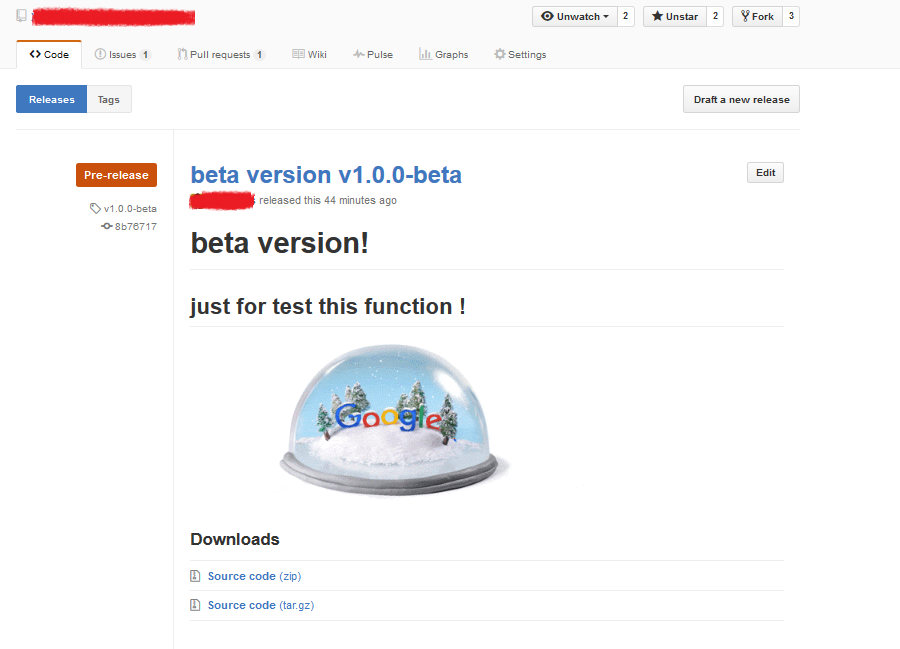
github : release 发布!
1
xxxxxxxxxxxxxxx
xxxxxxxxxxxxxxxxxxxxxxx
xxxxxxxxxxxxxxxxxxxxxxxxxxxx
Git常用命令速查表 & Git Basics & github : release 发布!的更多相关文章
- Git 常用命令速查表(图文+表格)【转】
转自:http://www.jb51.net/article/55442.htm 一. Git 常用命令速查 git branch 查看本地所有分支git status 查看当前状态 git comm ...
- Git 常用命令速查表(图文+表格)
一. Git 常用命令速查 git branch 查看本地所有分支git status 查看当前状态 git commit 提交 git branch -a 查看所有的分支git branch -r ...
- 转收藏:Git常用命令速查表
一. Git 常用命令速查 git branch 查看本地所有分支git status 查看当前状态 git commit 提交 git branch -a 查看所有的分支git branch -r ...
- Git常用命令速查表,新手必备版本控制
Git 跟 SVN 一样,都是用于管理代码的版本控制工具.无论在项目中,我们负责哪一块,只要需要编写代码,就必须熟悉Git(依公司要求而定). 当然,用的越熟练,处理的项目越顺利,离出任CTO.迎娶白 ...
- [No0000176]Git常用命令速查表(收藏大全)
名词 master: 默认开发分支 origin: 默认远程版本库 Index / Stage:暂存区 Workspace:工作区 Repository:仓库区(或本地仓库) Remote:远程仓库 ...
- Git常用命令速查表
- Git 常用命令速查表(三)
http://blog.csdn.net/sunboy_2050/article/details/7529841
- Git 常用命令速查表
- git常用命令速查表【转】
随机推荐
- mysql(视图 事务 索引 外键)
视图 视图本质就是对查询的封装 创建视图(定义视图 起名以v_开头) create view v_students as select classes.name as c_name ,stud ...
- Linux网卡没有eth0显示ens33原因以及解决办法
原因 首先说明下eth0与ens33的关系: 目前的主流网卡为使用以太网络协定所开发出来的以太网卡 (Ethernet),因此我们 Linux 就称呼这种网络接口为 ethN (N 为数字). 举例来 ...
- 计算机网络第7版 PDF+ 计算机网络释疑与习题解答第7版 PDF 计算机网络 课后答案
网上全都是要钱的,要么就是第六版的,属实被恶心到了. 链接:https://pan.baidu.com/s/15jCOH6LXnQfB1RwGpNgBFg提取码:byMB
- 标准PE头属性说明
- Linux 技巧:让进程在后台运行更可靠的几种方法
Linux 技巧:让进程在后台运行更可靠的几种方法 https://www.ibm.com/developerworks/cn/linux/l-cn-nohup/index.html 我们经常会碰到这 ...
- 理解前端模块概念:CommonJs与ES6Module
前言 现代前端开发每时每刻都和模块打交道.例如,在项目中引入一个插件,或者实现一个供全局使用组件的JS文件.这些都可以称为模块. 在设计程序结构时,不可能把所有代码都放在一起.更为友好的组织方式时按照 ...
- centos7+python3+selenium+chrome
一.安装GUI图形化界面 (1)安装GUI图形化界面 yum groupinstall "GNOME Desktop" "Graphical Administration ...
- CF912A
题意 你手里有 A 个黄水晶和 B 个蓝水晶,其中两个黄水晶可以造一个黄水晶球,三个蓝水晶可以造一个蓝水晶球,一黄一蓝两个水晶可以造一个绿水晶球. 现在你需要 x 个黄水晶球,y 个绿水晶球,z 个蓝 ...
- Centos搭建Hive
Centos搭建Hive 一.Hive简介 二.安装Hive 2.1hive下载 2.2上传解压 2.3配置hive相关的环境变量 三.Mysql 3.1安装mysql connector 3.2 将 ...
- (15)Linux命令基本格式
1.命令提示符 登录系统后,第一眼看到的内容是: [root@localhost ~]# 这就是 Linux 系统的命令提示符.那么,这个提示符的含义是什么呢? []:这是提示符的分隔符号,没有特殊含 ...