
Android学习04
Toast
Toast是Android系统提供的一种非常好的提示方式,在程序中可以使用它将一些短小的信息通知给用户,这些信息会在一段时间后自动消失,并且不会占用任何的屏幕空间.
1、默认Toast
在屏幕底部显示提示内容
Toast.makeText(getApplicationContext(),"Toast",Toast.LENGTH_LONG).show();
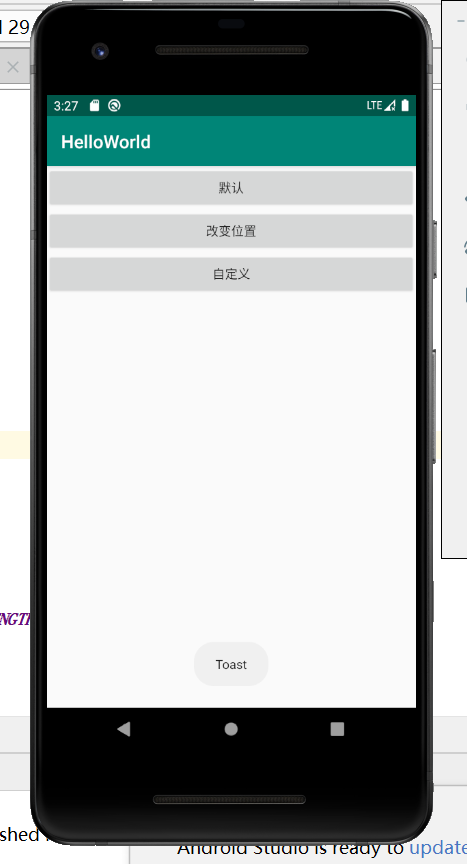
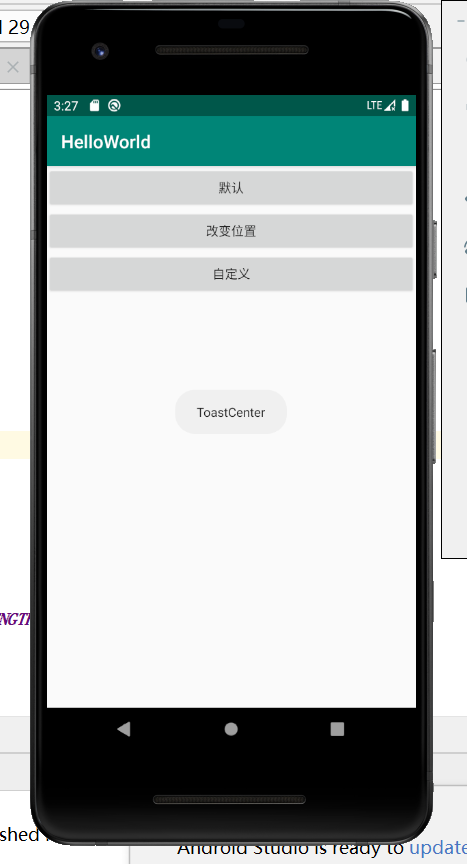
2、使用setGravity()方法来定位Toast 在屏幕上的位置,例如toast.setGravity(Gravity.CENTER, 0, 0)可以把Toast 定位在屏幕中间。
//maleText返回的是toast
Toast toastCenter = Toast.makeText(getApplicationContext(),"ToastCenter",Toast.LENGTH_LONG);
toastCenter.setGravity(Gravity.CENTER,0,0);
toastCenter.show();
3、自定义Toast,图片加文字的形式显示,可以通过增加Toast 的Layout来调整Toast 上的布局方式。增加一个Toast 的Layout描述xml文件,/res/layout/toast_layout.xml:
<?xml version="1.0" encoding="utf-8"?>

<LinearLayout xmlns:android="http://schemas.android.com/apk/res/android"

    android:orientation="vertical"

    android:layout_width="wrap_content"

    android:layout_height="wrap_content"

    android:background="#99000000"

    android:gravity="center">

    <LinearLayout

        android:layout_width="200dp"

        android:layout_height="200dp"

        android:orientation="vertical"

        android:gravity="center">

        <ImageView

            android:id="@+id/iv_toast"

            android:layout_width="100dp"

            android:layout_height="100dp"

            android:scaleType="fitCenter"/>

        <TextView

            android:id="@+id/tv_toast"

            android:layout_width="wrap_content"

            android:layout_height="wrap_content"

            android:textSize="20sp"

            android:textColor="#000"

            android:layout_marginTop="15dp"/>

    </LinearLayout>

</LinearLayout>
Toast toastCustom = new Toast(getApplicationContext());
LayoutInflater inflater = LayoutInflater.from(ToastActivity.this);
View view = inflater.inflate(R.layout.layout_toast,null);
ImageView imageView = view.findViewById(R.id.iv_toast);
TextView textView = view.findViewById(R.id.tv_toast);
imageView.setImageResource(R.drawable.icon_lamp);
textView.setText("这是一个灯泡");
toastCustom.setView(view);
toastCustom.show();

完整代码:
layout
<?xml version="1.0" encoding="utf-8"?>

<LinearLayout xmlns:android="http://schemas.android.com/apk/res/android"

    android:layout_width="match_parent"

    android:layout_height="match_parent"

    android:orientation="vertical">

    <Button

        android:id="@+id/btn_toast1"

        android:layout_width="match_parent"

        android:layout_height="wrap_content"

        android:text="默认"/>

    <Button

        android:id="@+id/btn_toast2"

        android:layout_width="match_parent"

        android:layout_height="wrap_content"

        android:text="改变位置"/>

    <Button

        android:id="@+id/btn_toast3"

        android:layout_width="match_parent"

        android:layout_height="wrap_content"

        android:text="自定义"/>

</LinearLayout>
ToastActivity
package com.example.helloworld;

import androidx.appcompat.app.AppCompatActivity;

import android.os.Bundle;

import android.view.Gravity;

import android.view.LayoutInflater;

import android.view.View;

import android.widget.Button;

import android.widget.ImageView;

import android.widget.TextView;

import android.widget.Toast;

public class ToastActivity extends AppCompatActivity {

    private Button mBtnToast1,mBtnToast2,mBtnToast3;

    @Override

    protected void onCreate(Bundle savedInstanceState) {

        super.onCreate(savedInstanceState);

        setContentView(R.layout.activity_toast);

        mBtnToast1 = findViewById(R.id.btn_toast1);

        mBtnToast2 = findViewById(R.id.btn_toast2);

        mBtnToast3 = findViewById(R.id.btn_toast3);

        onClick onClick = new onClick();

        mBtnToast1.setOnClickListener(onClick);

        mBtnToast2.setOnClickListener(onClick);

        mBtnToast3.setOnClickListener(onClick);

    }

    class onClick implements View.OnClickListener{

        @Override

        public void onClick(View v) {

            switch (v.getId()){

                case R.id.btn_toast1:

                    Toast.makeText(getApplicationContext(),"Toast",Toast.LENGTH_LONG).show();

                    break;

                case R.id.btn_toast2:

                    //maleText返回的是toast

                    Toast toastCenter = Toast.makeText(getApplicationContext(),"ToastCenter",Toast.LENGTH_LONG);

                    toastCenter.setGravity(Gravity.CENTER,0,0);

                    toastCenter.show();

                    break;

                case R.id.btn_toast3:

                    Toast toastCustom = new Toast(getApplicationContext());

                    LayoutInflater inflater = LayoutInflater.from(ToastActivity.this);

                    View view = inflater.inflate(R.layout.layout_toast,null);

                    ImageView imageView = view.findViewById(R.id.iv_toast);

                    TextView textView = view.findViewById(R.id.tv_toast);

                    imageView.setImageResource(R.drawable.icon_lamp);

                    textView.setText("这是一个灯泡");

                    toastCustom.setView(view);

                    toastCustom.show();

                    break;

            }

        }

    }

}
Android学习04的更多相关文章
- Android学习——windows下搭建Cygwin环境
在上一篇博文<Android学习——windows下搭建NDK_r9环境>中,我们详细的讲解了在windows下进行Android NDK开发环境的配置,我们也讲到了在NDk r7以后,我 ...
- Android学习第三天-打包常用命令
在前面<Android学习第一天-adb常用命令>和 <Android学习第二天-android常用命令>两篇博文中,我们重点讲解了adb和android的常用命令,下面我们讲 ...
- Android学习记录(三)——安装SQLite
这次学习安装SQLite. 一.SQLite简介 重要特性:零配置,即不需要复杂的配置即可使用 详细:https://www.runoob.com/sqlite/sqlite-intro.html 二 ...
- Python学习--04条件控制与循环结构
Python学习--04条件控制与循环结构 条件控制 在Python程序中,用if语句实现条件控制. 语法格式: if <条件判断1>: <执行1> elif <条件判断 ...
- Android学习路线总结,绝对干货
title: Android学习路线总结,绝对干货 tags: Android学习路线,Android学习资料,怎么学习android grammar_cjkRuby: true --- 一.前言 不 ...
- Android 学习资源
下面这些资源对Android开发来说是很有帮助的! 最常用的: Android开发官方网站:http://developer.android.com/index.html 这个网站应该是Android ...
- Android学习资料收集
1.Android 学习之路 http://stormzhang.com/android/2014/07/07/learn-android-from-rookie/
- Android学习——第一个NDK程序
在前面的学习中,我们已经讲解了关于NDK编程的环境搭建流程,简单的使用我们也通过官网本身自带的例子进行说明了.可是相信大家一定还存在这么的一个疑惑:“如果我要自己利用NDK编写一个Android应用, ...
- Android学习——windows下搭建NDK_r9环境
1. NDK(Native Development Kit) 1.1 NDK简介 Android NDK是一套允许开发人员使用本地代码(如C/C++)进行Android APP功能开发的工具,通过这个 ...
随机推荐
- Ice Skating
Bajtek is learning to skate on ice. He's a beginner, so his only mode of transportation is pushing o ...
- conn (php)
<?php$host="localhost";$db_user="root"; //数据库用户$db_pass=""; //数据库密码 ...
- plt/sns draw histgram
当使用如下代码保存使用 plt.savefig 保存生成的图片时,结果打开生成的图片却是一片空白. import matplotlib.pyplot as pltx = np.triu(ged) # ...
- [Luogu]中位数
Description Luogu1168 Solution 一种神奇的做法:开一个大根堆和小根堆,保证大根堆比小根堆多1个元素,且大根堆堆顶元素比小根堆堆顶元素小,那么大根堆堆顶就是中位数.插入的时 ...
- python property(不动产)方法
class Test(object): @property def test(self): return 100 @test.setter def test(self): return "修 ...
- 简述python(threading)多线程
一.概述 import threading 调用 t1 = threading.Thread(target=function , args=(,)) Thread类的实例方法 # join():在子线 ...
- JavaScript对象之属性标签
本文介绍一下js对象的属性标签(configurable.writable.enumerable.value.get.set)的使用. 上图的要点为: 1.Object.getOwnPropertyD ...
- JS 获取当天所在月的第一天的日期,最后一天日期,所在周的每天的日期,时间,所在每月日期,时间的计算
/** * 获取当天所在月的最后一天日期,和下一个月的第一天日期 * 调用getMonthDay(d), d默认值为01,d为要设置成的day: */ const getMonthMaxDay = ( ...
- 将Tomcat集成到idea中
检查有没有成功
- C++-CodeForces-1307A/1307B/1307C
假装自己打比赛嘿嘿嘿 #include <bits/stdc++.h> using namespace std; ]; int main(){ for(cin>>t;t--;) ...