
C#中的WinFrom技术实现串口通讯助手(附源码)
C#中的WinFrom技术实现串口通讯助手(附源码)
实现的功能:
1、实现自动加载可用串口。
2、打开串口,并且使用C#状态栏显示串口的状态。
3、实现了串口的接收数据和发送数据功能。
4、串口使用定时器进行定时发送数据。
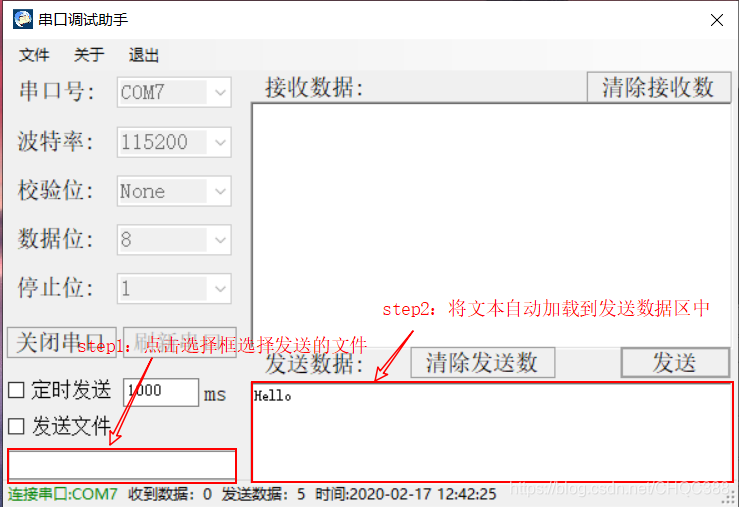
5、可以打开文件夹,选择文件进行发送,并且将发送文件的内容显示在发送文本框中。
6、可以清空发送和接收文本框中的内容。
7、可以实时计算发送和接收的字节数。
8、实现打开文件夹保存发送和接收的文件内容(目前只支持.txt文件)。
9、实时显示当前时间。
功能演示
1、界面功能介绍:
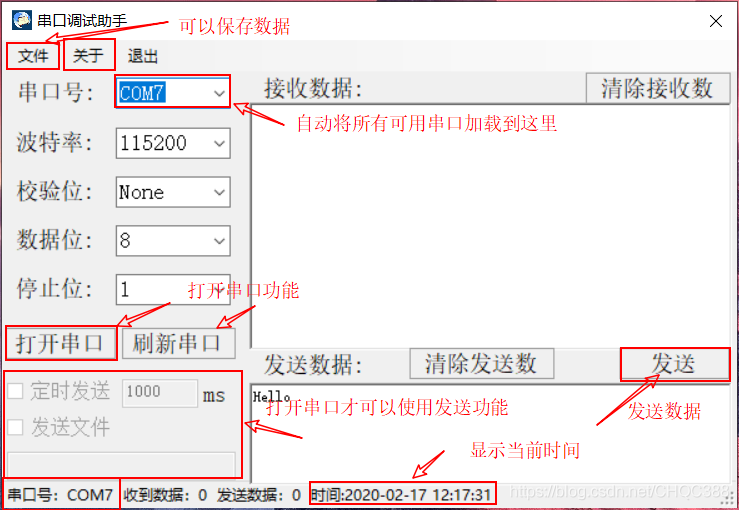
2、打开串口演示:
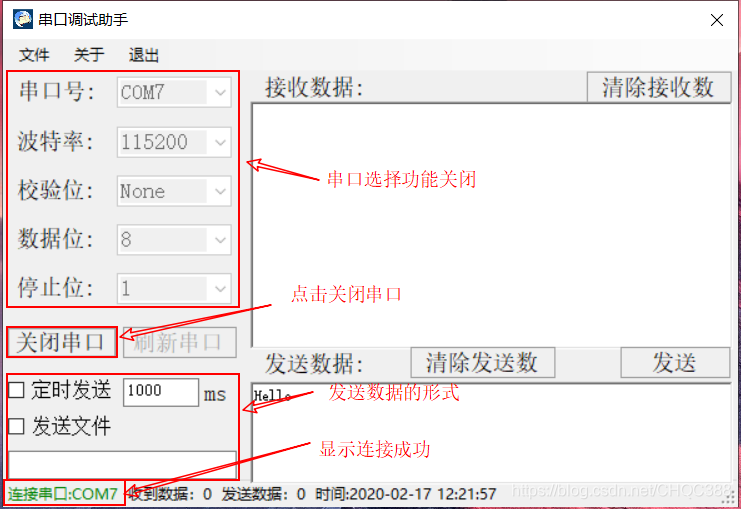
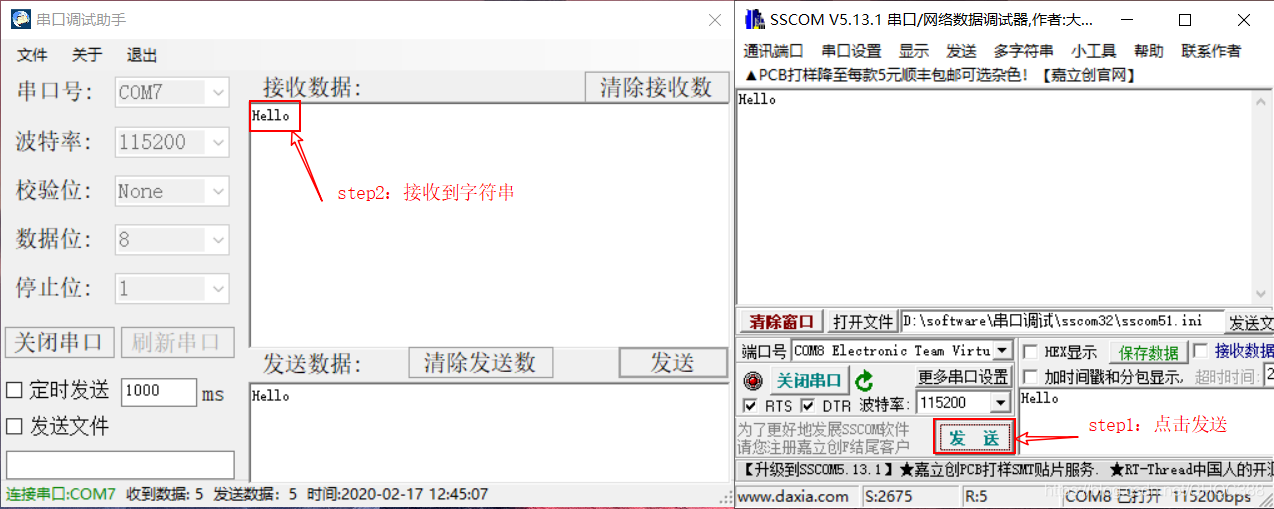
3、发送数据演示:
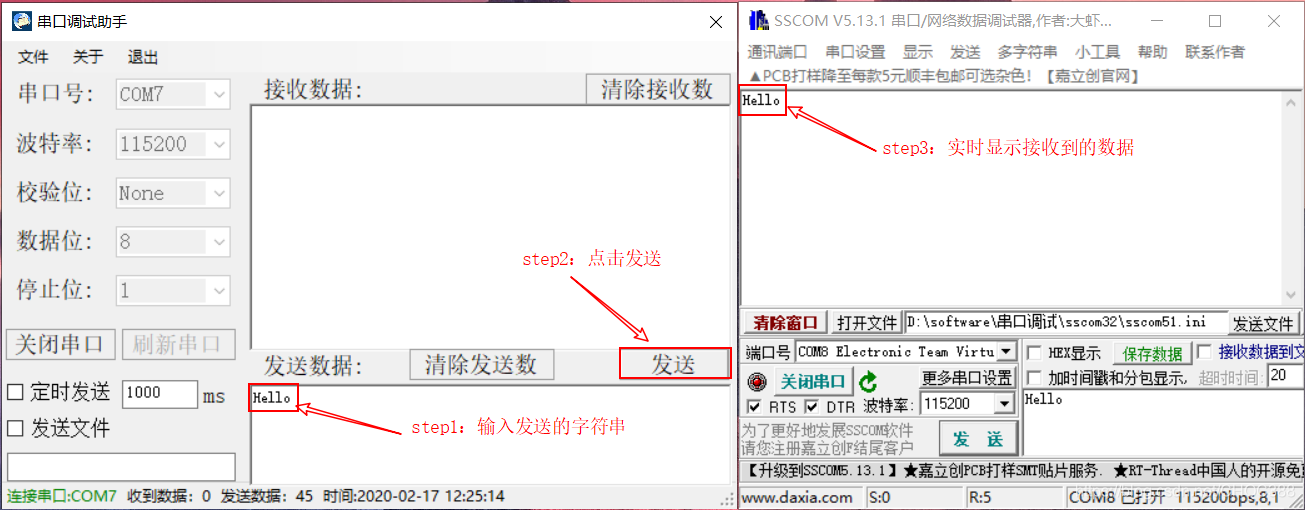
动态演示
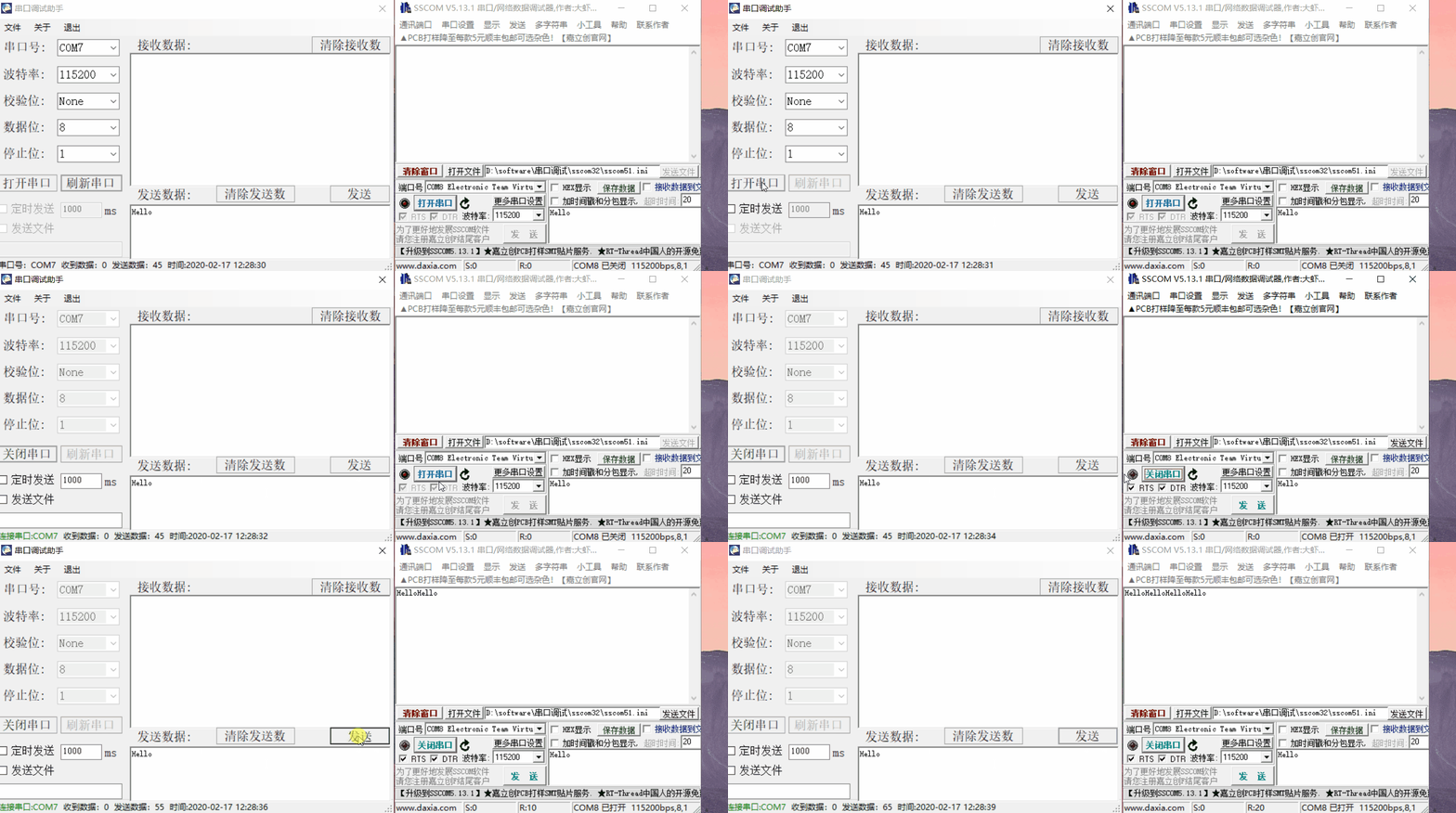
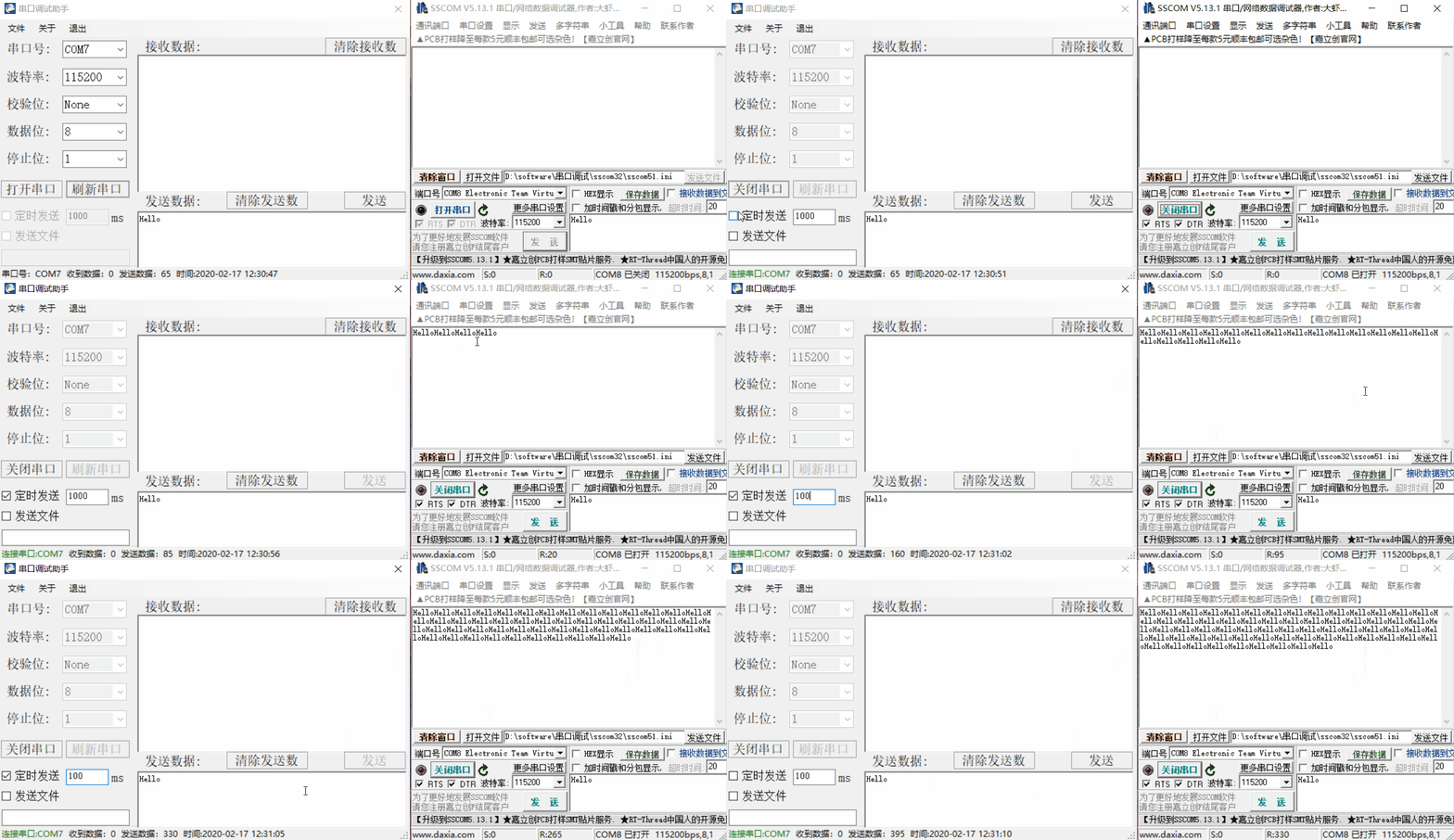
4、定时发送数据演示:
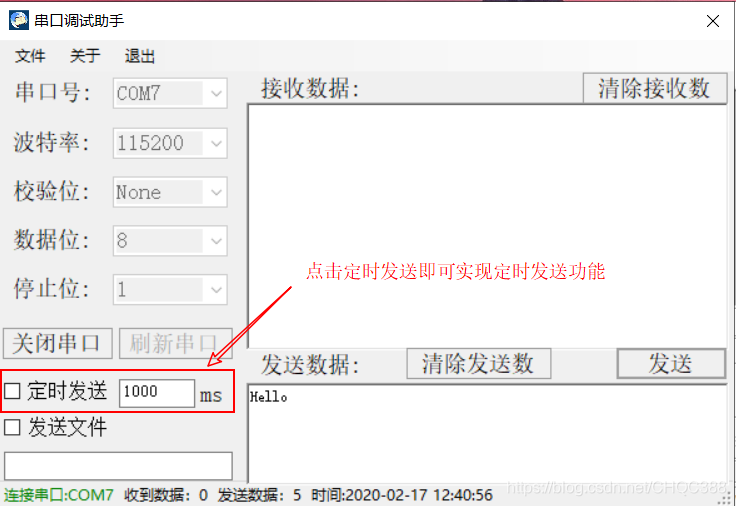
动态演示
5、发送文件内容演示:
动态演示
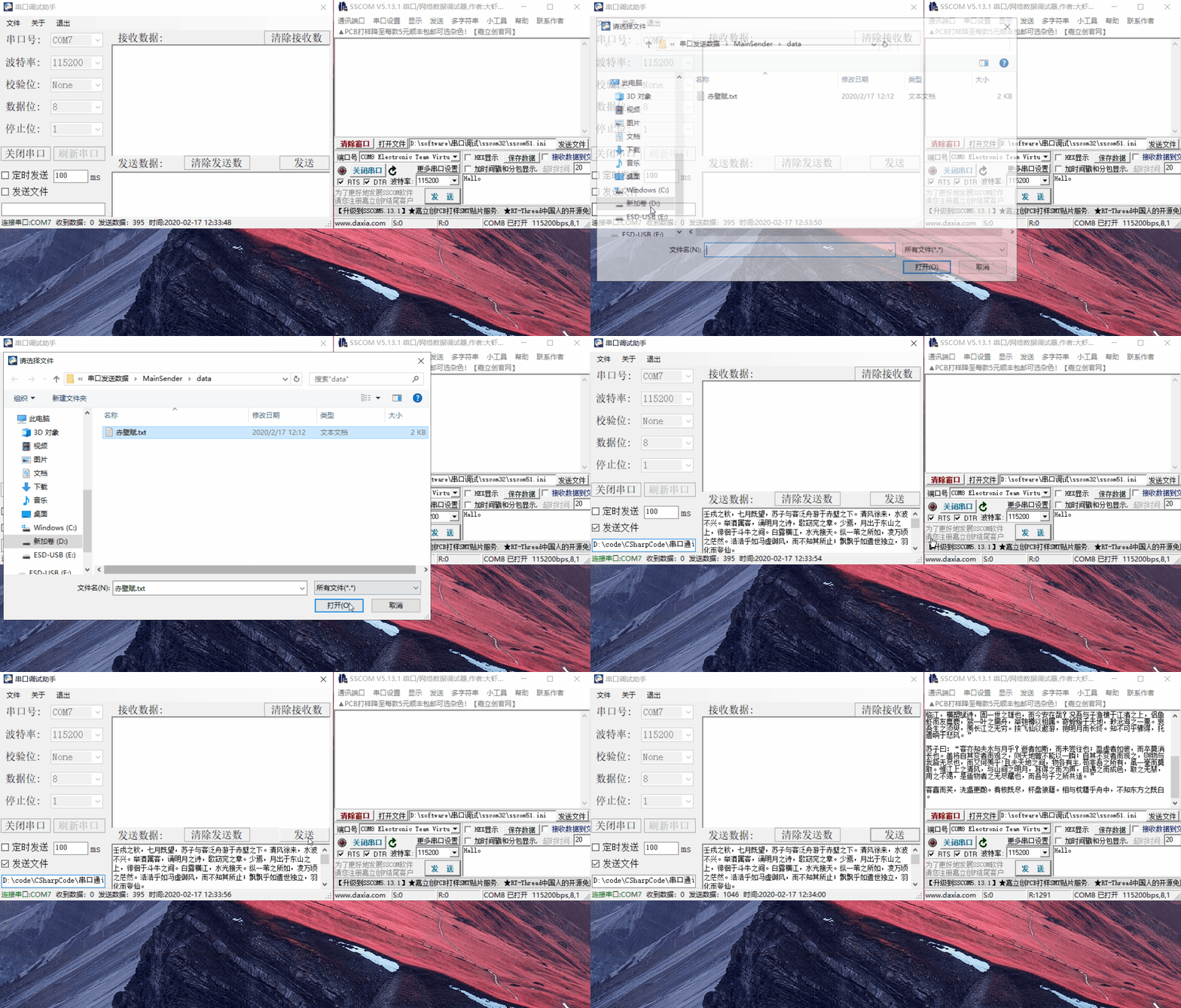
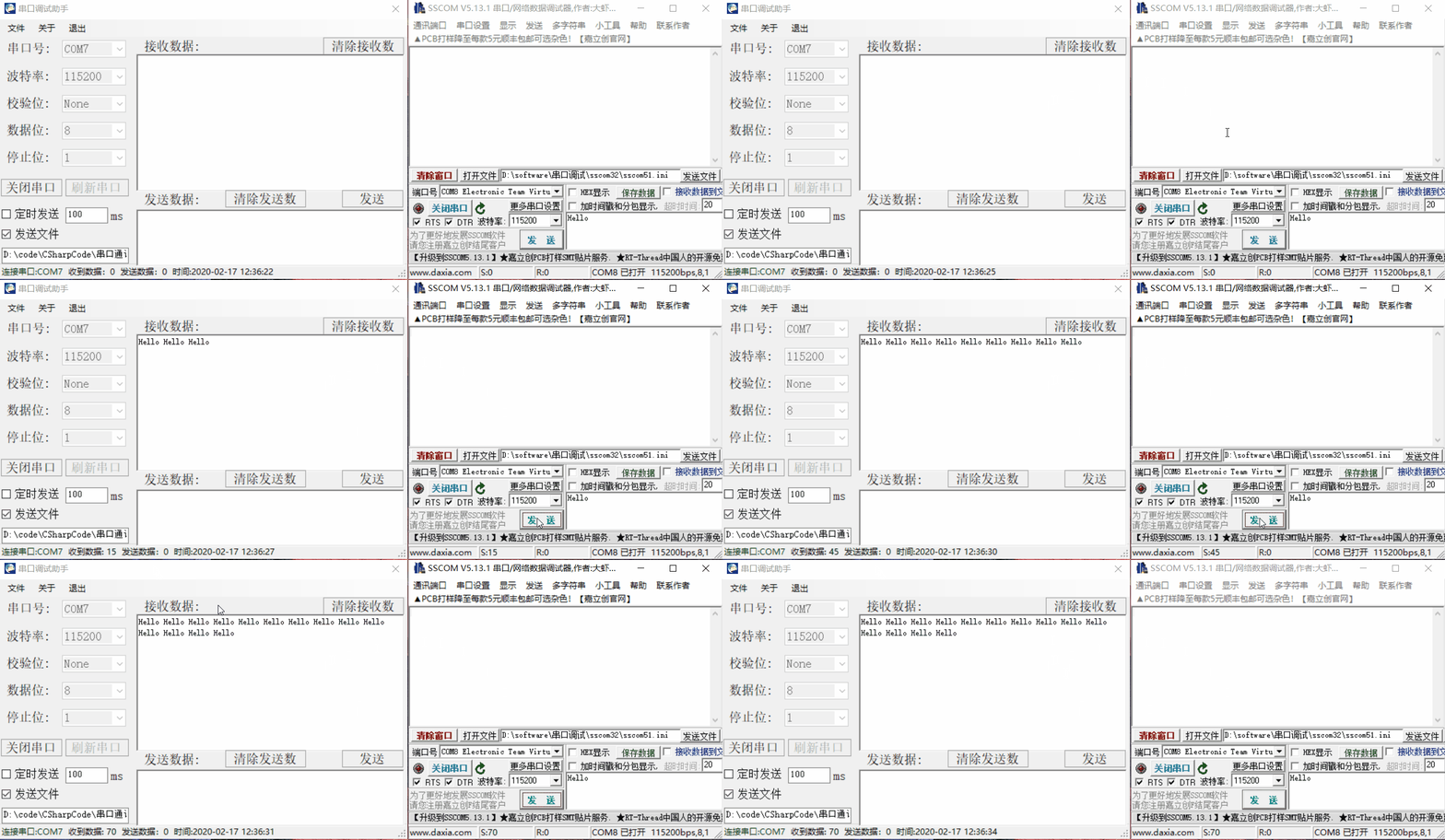
6、接收数据演示:
动态演示
7、保存数据演示:
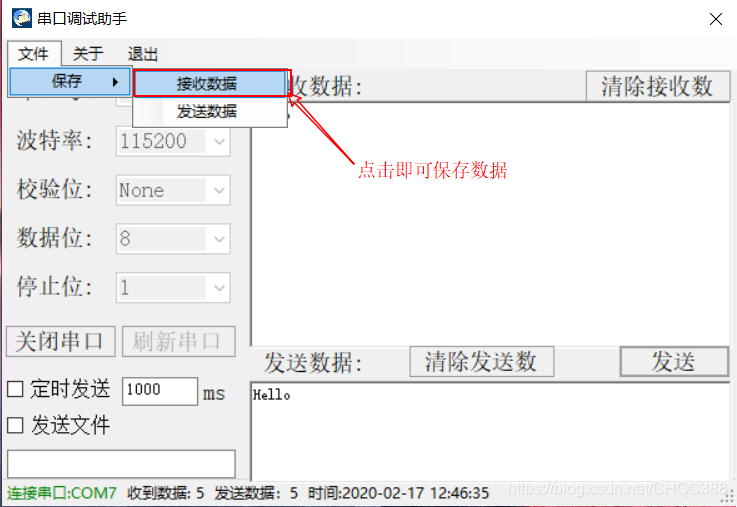
动态演示
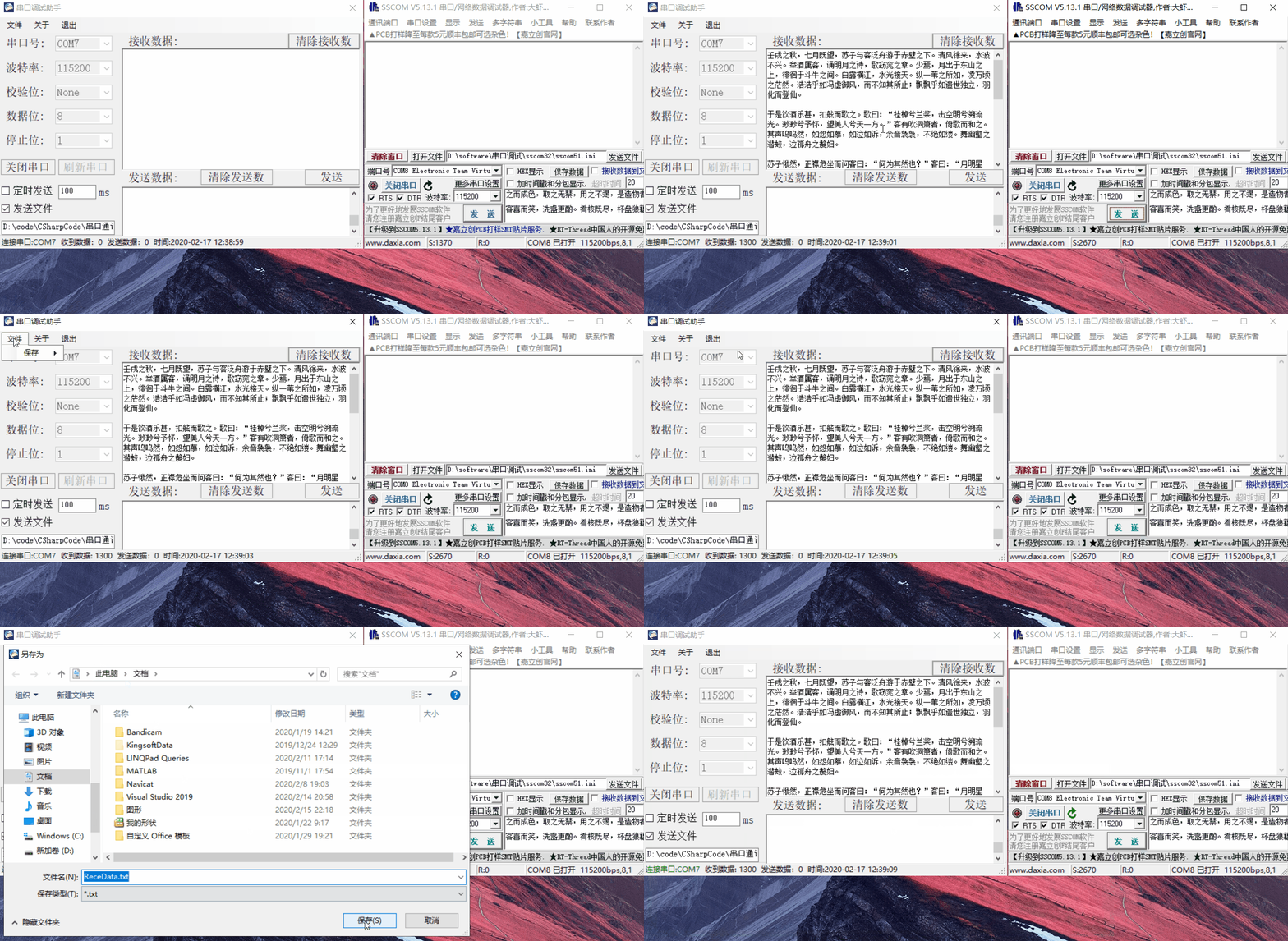
主要使用的技术:
1、数据保存和读取。
2、定时器的操作。
3、串口模块的使用。
4、委托和事件解决线程冲突问题。
工程源代码:
using System;
using System.Drawing;
using System.IO; // 导入输入输出文件框
using System.IO.Ports; // 串口模块
using System.Text;
using System.Windows.Forms;
namespace MainSender
{
// 解决线程访问问题
public delegate void SerialPortEventHandler(Object sender, SerialPortEventArgs e); // 定义委托
public partial class SerialDebug : Form
{
private string FilePath = null; // 打开文件路径
private object thisLock = new object(); // 锁住线程
public event SerialPortEventHandler comReceiveDataEvent = null; // 定义串口接收数据响应事件
// 数据状态
private static int sendCount = 0; // 发送数据量
private static int receCount = 0; // 接收数据量
public SerialDebug()
{
InitializeComponent();
InitializeSerialSet(); // 初始化串口设置
}
/// <summary>
/// 串口初始化设置
/// </summary>
public void InitializeSerialSet()
{
InitializePorts(); // 初始化串口号
// 初始化波特率
comboBox_BandRate.Text = comboBox_BandRate.Items[6].ToString();
// 初始化校验位
comboBox_Check.Text = comboBox_Check.Items[0].ToString();
// 初始化数据位
comboBox_Data.Text = comboBox_Data.Items[0].ToString();
// 初始化停止位
comboBox_Stop.Text = comboBox_Stop.Items[0].ToString();
}
/// <summary>
/// 可用串口扫描,并且显示
/// </summary>
public void InitializePorts()
{
comboBox_Serial.Items.Clear(); // 清空原来的信息
// 返回可用串口号,形式:COM3
string[] arraysPostsNames = SerialPort.GetPortNames(); // 获取所有可用的串口号
// 检查串口号是否正确
if (arraysPostsNames.Length > 0)
{
Array.Sort(arraysPostsNames); // 使用默认进行排序,从小到大肾虚
for (int i = 0; i < arraysPostsNames.Length; i++)
{
comboBox_Serial.Items.Add(arraysPostsNames[i]); // 将所有可用串口加载到串口显示框当中
}
comboBox_Serial.Text = arraysPostsNames[0]; // 默认选择第一个串口
comboBox_Serial.Enabled = true; // 打开选择框
// 设置状态栏属性
toolStripStatus_Port.Text = "串口号:" + comboBox_Serial.Text; // 设置状态栏的情况
toolStripStatus_Port.ForeColor = Color.Black; // 设置为红色
}
else
{
toolStripStatus_Port.Text = "没有可用串口"; // 设置状态栏的情况
toolStripStatus_Port.ForeColor = Color.Red; // 设置为红色
comboBox_Serial.Text = "None"; // 提示没有可用串口
comboBox_Serial.Enabled = false; // 禁止打开串口选择框
}
}
/// <summary>
/// 串口读取数据响应方法
/// </summary>
/// <param name="sender"></param>
/// <param name="e"></param>
private void serialPortMonitor_DataReceived(object sender, System.IO.Ports.SerialDataReceivedEventArgs e)
{
ReceiveData();
}
private void SerialDebug_Load(object sender, EventArgs e)
{
comReceiveDataEvent += new SerialPortEventHandler(ComReceiveDataEvent); // 订阅事件
toolStripStatus_Time.Text = "时间:" + DateTime.Now.ToString("yyyy-MM-dd hh:mm:ss"); // 显示当前时间
}
public void ComReceiveDataEvent(Object sender, SerialPortEventArgs e)
{
if (this.InvokeRequired)
{
try
{
Invoke(new Action<Object, SerialPortEventArgs>(ComReceiveDataEvent), sender, e);
}
catch (Exception)
{
}
return;
}
if (richTextBox_Receive.Text.Length > 0)
{
richTextBox_Receive.AppendText(" "); // 中间使用 隔开,也可以使用-隔开
}
richTextBox_Receive.AppendText(System.Text.Encoding.Default.GetString(e.receivedBytes));
// 更新状态显示框
receCount += e.receivedBytes.Length;
toolStripStatus_recestatus.Text = "收到数据: " + receCount.ToString();
}
/// <summary>
/// 串口选择框改变
/// </summary>
/// <param name="sender"></param>
/// <param name="e"></param>
private void Select_Ports_Change(object sender, EventArgs e)
{
// 设置状态栏属性
toolStripStatus_Port.Text = "串口号:" + comboBox_Serial.Text; // 设置状态栏的情况
toolStripStatus_Port.ForeColor = Color.Black; // 设置为黑色
}
/// <summary>
/// 更新状态栏
/// </summary>
/// <param name="sender"></param>
/// <param name="e"></param>
private void Update_StatusTime(object sender, EventArgs e)
{
toolStripStatus_Time.Text = "时间:" + DateTime.Now.ToString("yyyy-MM-dd hh:mm:ss"); // 显示当前时间
}
/// <summary>
/// 保存文件加载方法
/// </summary>
/// <param name="sender"></param>
/// <param name="e"></param>
private void SaveData_Click(object sender, EventArgs e)
{
SaveFileDialog saveDataSend = new SaveFileDialog();
saveDataSend.InitialDirectory = Environment.GetFolderPath(Environment.SpecialFolder.MyDocuments); // 获取文件路径
saveDataSend.Filter = "*.txt|txt file"; // 文本文件
saveDataSend.DefaultExt = ".txt"; // 默认文件的形式
saveDataSend.FileName = "SendData.txt"; // 文件默认名
if (saveDataSend.ShowDialog() == DialogResult.OK) // 显示文件框,并且选择文件
{
FilePath = saveDataSend.FileName; // 获取文件名
// 参数1:写入文件的文件名;参数2:写入文件的内容
try
{
System.IO.File.WriteAllText(FilePath, richTextBox_Send.Text); // 向文件中写入内容
}
catch
{
MessageBox.Show("保存文件失败", "提示", MessageBoxButtons.OK, MessageBoxIcon.Information); ;
}
}
}
/// <summary>
/// 选择发送文件响应函数
/// </summary>
/// <param name="sender"></param>
/// <param name="e"></param>
private void textBox_Filepath_Click(object sender, EventArgs e)
{
OpenFileDialog fileDialog = new OpenFileDialog();
fileDialog.Multiselect = false; // 是否可以选择多个文件
fileDialog.Title = "请选择文件"; // 标题
fileDialog.Filter = "所有文件(*.*)|*.*"; // 显示所有文件
if (fileDialog.ShowDialog() == DialogResult.OK) // 打开文件选择框
{
FilePath = fileDialog.FileName; // 绝对路径
textBox_Filepath.Text = FilePath; // 在窗口中显示文件路径
}
checkBox_Sendfile.Checked = true; // 设置发送文件框选项状态
ReadFile(FilePath); // 将文件内容显示在发送框当中
}
/// <summary>
/// 将文件内容显示在发送数据显示框中
/// </summary>
/// <param name="sender"></param>
/// <param name="e"></param>
public void ReadFile(string filepath)
{
try
{
richTextBox_Send.Text = ""; // 清空显示框
StreamReader sr = new StreamReader(filepath, Encoding.Default);
string content;
while ((content = sr.ReadLine()) != null) // 按行读取显示在发送数据框中
{
richTextBox_Send.Text += (content.ToString() + "\r\n"); // ReadLine默认不会读取换行符
}
}
catch (Exception)
{
}
}
/// <summary>
/// 清除发送数据
/// </summary>
/// <param name="sender"></param>
/// <param name="e"></param>
private void button_ClcSendData_Click(object sender, EventArgs e)
{
richTextBox_Send.Text = ""; // 清空显示框
sendCount = 0;
toolStripStatus_sendstatus.Text = "发送数据:" + sendCount.ToString();
}
/// <summary>
/// 清除接收数据
/// </summary>
/// <param name="sender"></param>
/// <param name="e"></param>
private void button_ClcReceData_Click(object sender, EventArgs e)
{
richTextBox_Receive.Text = ""; // 清空接收数据
receCount = 0;
toolStripStatus_recestatus.Text = "收到数据:" + receCount.ToString();
}
/// <summary>
/// 发送数据按键点击响应函数
/// </summary>
/// <param name="sender"></param>
/// <param name="e"></param>
private void button_SendData_Click(object sender, EventArgs e)
{
string senddata = richTextBox_Send.Text;
byte[] data = System.Text.Encoding.Default.GetBytes(senddata); // 将发送的数据转化为字节数组
SendData(data); // 发送数据
sendCount += senddata.Length;
toolStripStatus_sendstatus.Text = "发送数据:" + sendCount.ToString();
}
/// <summary>
/// 保存发送数据,保存发送数据菜单响应函数
/// </summary>
/// <param name="sender"></param>
/// <param name="e"></param>
private void MenuItem_ReceData_Click(object sender, EventArgs e)
{
SaveFileDialog saveDataSend = new SaveFileDialog();
saveDataSend.InitialDirectory = Environment.GetFolderPath(Environment.SpecialFolder.MyDocuments); // 获取文件路径
saveDataSend.Filter = "*.txt|txt file"; // 文本文件
saveDataSend.DefaultExt = ".txt"; // 默认文件的形式
saveDataSend.FileName = "ReceData.txt"; // 文件默认名
if (saveDataSend.ShowDialog() == DialogResult.OK) // 显示文件框,并且选择文件
{
FilePath = saveDataSend.FileName; // 获取文件名
// 参数1:写入文件的文件名;参数2:写入文件的内容
try
{
System.IO.File.WriteAllText(FilePath, richTextBox_Receive.Text); // 向文件中写入内容
}
catch
{
MessageBox.Show("保存文件失败", "提示", MessageBoxButtons.OK, MessageBoxIcon.Information); ;
}
}
}
/// <summary>
/// 串口状态响应函数
/// </summary>
/// <param name="sender"></param>
/// <param name="e"></param>
private void button_OK_Click(object sender, EventArgs e)
{
if (serialPort1 == null)
{
return;
}
if (serialPort1.IsOpen == false)
{
serialPort1.PortName = comboBox_Serial.Text;
serialPort1.BaudRate = Convert.ToInt32(comboBox_BandRate.Text);
serialPort1.Parity = (Parity)Enum.Parse(typeof(Parity), comboBox_Check.Text); // 强制类型转换
serialPort1.DataBits = Convert.ToInt32(comboBox_Data.Text);
serialPort1.StopBits = (StopBits)Enum.Parse(typeof(StopBits), comboBox_Stop.Text);
try
{
serialPort1.Open();
// 设置按键的使用权限
comboBox_Serial.Enabled = false;
comboBox_BandRate.Enabled = false;
comboBox_Check.Enabled = false;
comboBox_Data.Enabled = false;
comboBox_Stop.Enabled = false;
button_Refresh.Enabled = false;
button_SendData.Enabled = true;
checkBox_SendData.Enabled = true;
textBox_selectTime.Enabled = true;
checkBox_Sendfile.Enabled = true;
textBox_Filepath.Enabled = true;
// 打开属性变为关闭属性
button_OK.Text = "关闭串口";
toolStripStatus_Port.Text = "连接串口:" + comboBox_Serial.Text;
toolStripStatus_Port.ForeColor = Color.Green; // 设置为绿色
}
catch (Exception)
{
toolStripStatus_Port.Text = "连接失败:" + comboBox_Serial.Text;
toolStripStatus_Port.ForeColor = Color.Red; // 设置为红色
MessageBox.Show("串口连接失败!\r\n可能原因:串口被占用", "提示", MessageBoxButtons.OK, MessageBoxIcon.Information);
}
}
else
{
serialPort1.Close(); // 关闭串口
// 设置按键的使用权限
comboBox_Serial.Enabled = true;
comboBox_BandRate.Enabled = true;
comboBox_Check.Enabled = true;
comboBox_Data.Enabled = true;
comboBox_Stop.Enabled = true;
button_Refresh.Enabled = true;
button_SendData.Enabled = false;
checkBox_SendData.Enabled = false;
textBox_selectTime.Enabled = false;
checkBox_Sendfile.Enabled = false;
textBox_Filepath.Enabled = false;
// 打开属性变为关闭属性
button_OK.Text = "打开串口";
toolStripStatus_Port.Text = "断开连接:" + comboBox_Serial.Text;
toolStripStatus_Port.ForeColor = Color.Red; // 设置为红色
}
}
/// <summary>
/// 向串口中发送数据
/// </summary>
/// <param name="sender"></param>
/// <param name="e"></param>
public bool SendData(byte[] data)
{
if (serialPort1 == null)
{
return false;
}
if (serialPort1.IsOpen == false)
{
return false;
}
try
{
serialPort1.Write(data, 0, data.Length);
}
catch (Exception)
{
//提示信息
MessageBox.Show("数据发送失败!", "提示", MessageBoxButtons.OK, MessageBoxIcon.Information);
return false;
}
return true;
}
/// <summary>
/// 串口接收数据
/// </summary>
/// <param name="sender"></param>
/// <param name="e"></param>
public bool ReceiveData()
{
if (serialPort1 == null)
{
return false;
}
if (serialPort1.IsOpen == false)
{
return false;
}
if (serialPort1.BytesToRead <= 0) // 串口中没有数据
{
return false;
}
lock (thisLock) // 锁住串口
{
int len = serialPort1.BytesToRead;
byte[] data = new Byte[len];
try
{
serialPort1.Read(data, 0, len); // 向串口中读取数据
}
catch (Exception)
{
MessageBox.Show("数据接收失败!", "提示", MessageBoxButtons.OK, MessageBoxIcon.Information);
return false;
}
SerialPortEventArgs args = new SerialPortEventArgs();
args.receivedBytes = data;
if (comReceiveDataEvent != null)
{
comReceiveDataEvent.Invoke(this, args);
}
}
return true;
}
/// <summary>
/// 刷新串口参数
/// </summary>
/// <param name="sender"></param>
/// <param name="e"></param>
private void button_Refresh_Click(object sender, EventArgs e)
{
InitializeSerialSet(); // 刷新串口设置
}
/// <summary>
/// 定时发送数据
/// </summary>
/// <param name="sender"></param>
/// <param name="e"></param>
private void timerSend_Tick(object sender, EventArgs e)
{
if (checkBox_SendData.Checked)
{
string datastr = richTextBox_Send.Text;
if (datastr == "")
{
return;
}
timerSend.Interval = int.Parse(textBox_selectTime.Text); // 将字符串转化为整型数字
byte[] data = System.Text.Encoding.Default.GetBytes(datastr); // 字符串转化为字节数组
SendData(data);
sendCount += datastr.Length;
toolStripStatus_sendstatus.Text = "发送数据:" + sendCount.ToString();
// 控件设置
button_SendData.Enabled = false;
}
else
{
button_SendData.Enabled = true;
}
}
/// <summary>
/// 退出菜单
/// </summary>
/// <param name="sender"></param>
/// <param name="e"></param>
private void MenuItem_Quit_Click(object sender, EventArgs e)
{
this.Close(); // 关闭窗体,然后退出
}
/// <summary>
/// 关于菜单
/// </summary>
/// <param name="sender"></param>
/// <param name="e"></param>
private void MenuItem_About_Click(object sender, EventArgs e)
{
About about = new About();
about.Show(); // 显示关于窗体
}
}
public class SerialPortEventArgs : EventArgs
{
public byte[] receivedBytes = null; // 用来接收串口读取的数据
}
}
如果你对本工程感兴趣可以下载源代码。
C#中的WinFrom技术实现串口通讯助手(附源码)的更多相关文章
- Web 开发中很实用的10个效果【附源码下载】
在工作中,我们可能会用到各种交互效果.而这些效果在平常翻看文章的时候碰到很多,但是一时半会又想不起来在哪,所以养成知识整理的习惯是很有必要的.这篇文章给大家推荐10个在 Web 开发中很有用的效果,记 ...
- MVC中使用SignalR打造酷炫实用的即时通讯功能附源码
前言,现在这世道写篇帖子没个前言真不好意思发出来.本贴的主要内容来自于本人在之前项目中所开发的一个小功能,用于OA中的即时通讯.由于当时走的太急,忘记把代码拿出来.想想这已经是大半年前的事情了,时间过 ...
- 网站开发中必备的8个 jQuery 效果【附源码】
jQuery 作为最优秀 JavaScript 库之一,改变了很多人编写 JavaScript 的方式.它简化了 HTML 文档遍历,事件处理,动画和 Ajax 交互,而且有成千上万的成熟 jQuer ...
- C#使用Xamarin开发可移植移动应用(5.进阶篇显示弹出窗口与通讯中心)附源码
前言 系列目录 C#使用Xamarin开发可移植移动应用目录 源码地址:https://github.com/l2999019/DemoApp 可以Star一下,随意 - - 说点什么.. 没啥好说的 ...
- 转:Web 开发中很实用的10个效果【附源码下载】
原文地址:http://www.cnblogs.com/lhb25/p/10-useful-web-effect.html 在工作中,我们可能会用到各种交互效果.而这些效果在平常翻看文章的时候碰到很多 ...
- ASP.NET中登录时记住用户名和密码(附源码下载)--ASP.NET
必需了解的:实例需要做的是Cookie对象的创建和对Cookie对象数据的读取,通过Response对象的Cookies属性创建Cookie,通过Request对象的Cookies可以读取Cookie ...
- Winforn中实现ZedGraph自定义添加右键菜单项(附源码下载)
场景 Winform中实现ZedGraph中曲线右键显示为中文: https://blog.csdn.net/BADAO_LIUMANG_QIZHI/article/details/100115292 ...
- Winform中实现ZedGraph的多条Y轴(附源码下载)
场景 Winforn中设置ZedGraph曲线图的属性.坐标轴属性.刻度属性: https://blog.csdn.net/BADAO_LIUMANG_QIZHI/article/details/10 ...
- iOS即时通讯之CocoaAsyncSocket源码解析四
原文 前言: 本文为CocoaAsyncSocket源码系列中第二篇:Read篇,将重点涉及该框架是如何利用缓冲区对数据进行读取.以及各种情况下的数据包处理,其中还包括普通的.和基于TLS的不同读取操 ...
随机推荐
- 【WPF学习】第二十一章 特殊容器
内容控件不仅包括基本控件,如标签.按钮以及工具提示:它们还包含特殊容器,这些容器可用于构造用户界面中比较大的部分区域. 首先介绍ScrollViewer控件,该控件直接继承自ContentContro ...
- 代码中理解CPU结构及工作原理
一.前言 从研究生开始到工作半年,陆续在接触MCU SOC这些以CPU为核心的控制器,但由于专业的原因一直对CPU的内部结构和工作原理一知半解.今天从一篇博客中打破一直以来的盲区.特此声明,本文设计思 ...
- 使用typescript改造koa开发框架
强类型的 TypeScript 开发体验和维护项目上相比 JavaScript 有着明显的优势,那么对常用的脚手架进行改造也就势在必行了. 接下来开始对基于 koa 框架的 node 后端脚手架进行改 ...
- spring源码系列(十): 读取xml入口类 ClassPathXmlApplicationContext 分析
环境准备: 使用spring5.1.6版本 1 xml配置文件 <?xml version="1.0" encoding="UTF-8"?> < ...
- AcWing 786.第k个数
AcWing 786.第k个数 题目描述 给定一个长度为n的整数数列,以及一个整数k,请用快速选择算法求出数列的第k小的数是多少. 输入格式 第一行包含两个整数 n 和 k. 第二行包含 n 个整数( ...
- CSS快速入门例子
CSS入门应用 01-结合方式01 <!DOCTYPE html PUBLIC "-//W3C//DTD HTML 4.01 Transitional//EN" " ...
- linux运维基础知识-系统分区及LVM逻辑卷的创建
系统分区及LVM逻辑卷的创建 分区 创建逻辑卷 LVM简介:逻辑卷管理器(LogicalVolumeManager)本质上是一个虚拟设备驱动,是在内核中块设备和物理设备之间添加的一个新的抽象层次,如图 ...
- Virus:病毒查杀
简介 小伙伴们,大家好,今天分享一次Linux系统杀毒的经历,还有个人的一些总结,希望对大家有用. 这次遇到的是一个挖矿的病毒,在挖一种叫门罗币(XMR)的数字货币,行情走势请看 https://ww ...
- gulp 压缩文件2 摘
一下代码用来简单的压缩 .js 和 .css ; 在cmd里执行 gulp minifycss minifyjs,各task执行是正常的. 注意,先安装后相应的模块,建议安装到本地. 说 ...
- 在centos6.3下安装php的Xdebug
首先下载一个xdebug http://www.xdebug.org/docs/ 官网上有windos版本和linux源码版本的,我们下载一个源码包xdebug-2.2.5.tgz 然后进入安装流程 ...