
Windows 服务入门指南
有很多时候,我们需要创建Windows Service。 这篇文章可以算是一个入门指南吧,希望对初学者有帮助.
要创建Windows Service, 首先选择Windows服务项目,如下图:
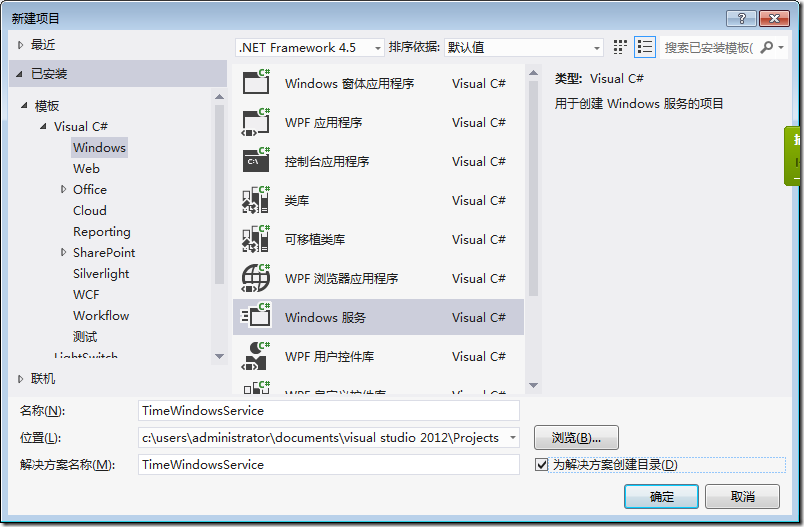
这里我想创建一个Windows服务,定时的执行一些任务。

public partial class Service1 : ServiceBase

{

    public Service1()

    {

        InitializeComponent();

    }

    protected override void OnStart(string[] args)

    {

    }

    protected override void OnStop()

    {

    }

}
OnStart :服务启动的时候执行,
OnStop:服务停止的时候执行
为了定时的执行任务,我修改代码如下:
namespace TimeWindowsService

{

    public partial class Service1 : ServiceBase

    {

        System.Timers.Timer timer = null;

        public Service1()

        {

            InitializeComponent();

        }

        protected override void OnStart(string[] args)

        {

            timer = new System.Timers.Timer();

            timer.Elapsed += timer_Elapsed;

            timer.Interval = 1000;

            timer.Start();

        }

        void timer_Elapsed(object sender, System.Timers.ElapsedEventArgs e)

        {

            Console.WriteLine("Time elapsed");

        }

        protected override void OnStop()

        {

            if (timer != null)

            {

                timer.Stop();

            }

        }

    }

}
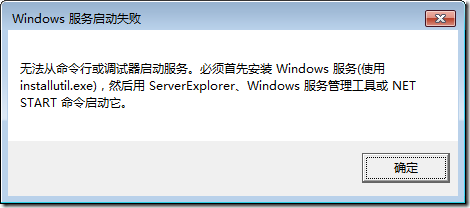
按F5运行代码,会提示:
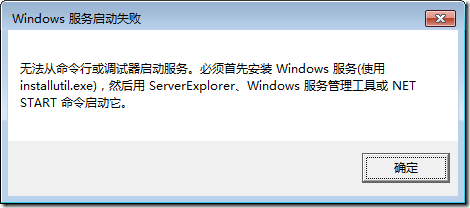
这代表我们必须先使用Installutil.exe 来安装服务。
当然你可以打开命令行,然后输入命令来安装服务,不过在这里我打算使用外部工具来执行InstallUtil.exe。
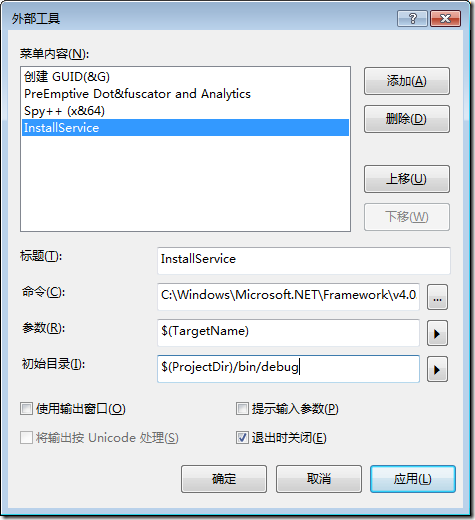
其中命令是:C:\Windows\Microsoft.NET\Framework\v4.0.30319\InstallUtil.exe
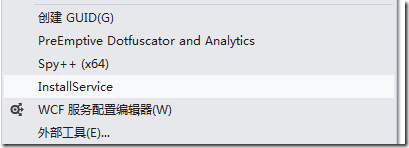
点击确定,可以发现一个InstallService 命令。
 、
、
点击InstallService,可以发现屏幕闪了一下,然后又过了,很明显是因为我们的命令出错了。
注意,我们在添加InstallService的时候,选择的是 ,所以即使有错误信息,也会一闪而过。
修改InstallService的命令如下:
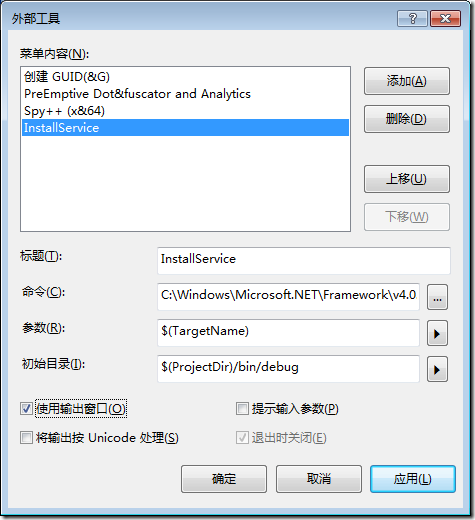
再次运行InstallService,可以看到:
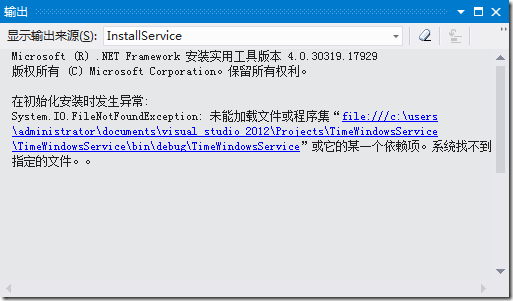
这代表InstallService 的时候出错了,找不到文件,我们希望它找的是TimeWindowsService.exe,
而不是\bin\debug\TimeWindowsService
所以正确的设置InstallService命令应该是下面这样:
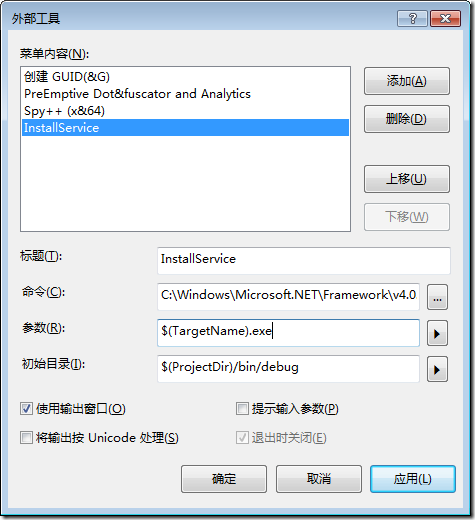
保存,然后运行,结果如下:
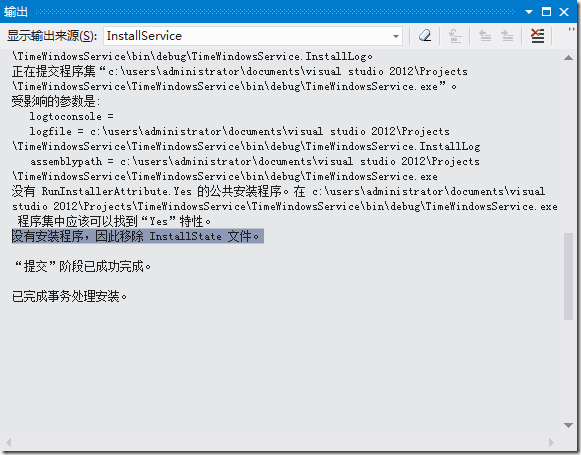
还是没有安装成功,因为没有安装程序。
有很多教程会告诉你,需要添加一个像下面这样的类:http://www.cnblogs.com/jjstar/articles/20353.aspx
using System.Collections;

using System.Configuration.Install;

using System.ServiceProcess;

using System.ComponentModel;

namespace WindowsService1

{

 /// <summary>

 /// myInstall 的摘要说明。

 /// </summary>

 ///

 [RunInstaller(true)]

 public class myInstall : Installer

 {

  private ServiceInstaller serviceInstaller;

  private ServiceProcessInstaller processInstaller;

  public myInstall()

  {

   processInstaller = new ServiceProcessInstaller();

   serviceInstaller = new ServiceInstaller();

   processInstaller.Account = ServiceAccount.LocalSystem;

   serviceInstaller.StartType = ServiceStartMode.Automatic;

   serviceInstaller.ServiceName = "WindowsService1";

   Installers.Add(serviceInstaller);

   Installers.Add(processInstaller);

  }

 }

}
对于记性不好的人来说,很容易问的一个问题是:VS有提供相关的快捷键吗?,当然,VS提供了。
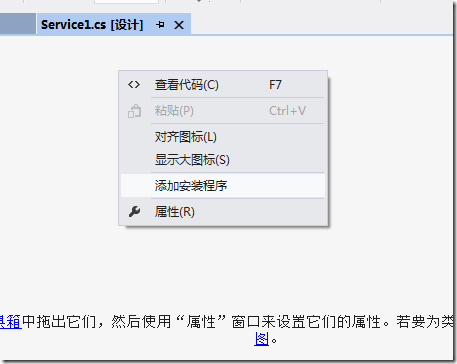
在Service1.cs 设计页面点击,添加安装程序,vs 就会自动帮你生成一个Installer 的类。
添加的类是:
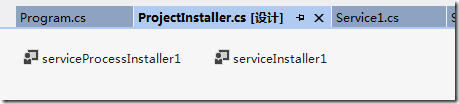
serviceProcessInstaller1 :
安装一个可执行文件,该文件包含扩展 System.ServiceProcess.ServiceBase 的类。 该类由安装实用工具(如 InstallUtil.exe)在安装服务应用程序时调用。
serviceInstall1:
安装一个类,该类扩展 System.ServiceProcess.ServiceBase 来实现服务。 在安装服务应用程序时由安装实用工具调用该类。
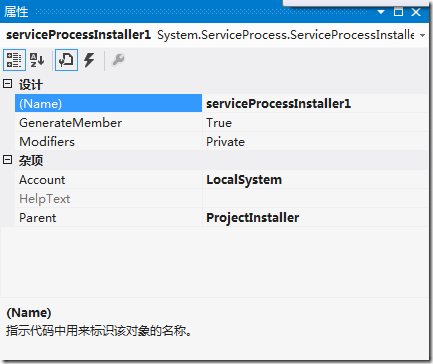
细心的读者看看他们的属性就知道区别在哪里了。
为了简单,将account 设置为LocalSystem.
好了,安装程序已经弄完了,接着上面的InstallService 吧,注意要编译程序啊。
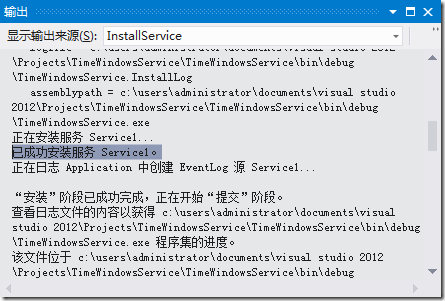
可以看到已经成功的安装服务了。
从任务管理器中,你也可以看到安装的服务:
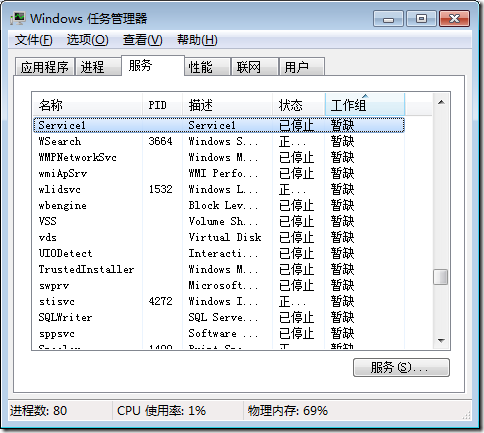
OK,接着按F5 调试吧,可是:
依然出现了这个提示框,很显然,我们不能按F5 来调试windows服务。
有很多文章讲述了如何调试windows服务。
1:比如这篇文章:http://www.cnblogs.com/downmoon/archive/2009/09/16/1567643.html,所采用的AttachProcess 方法。
可是有时候,由于各种各样的原因,服务无法启动,或者是服务由于某些原因而自动停止,所以也就不太容易附加到进程去调试了。
2:还有一些修改代码的方法,比如:
添加一个DebugOnStart 的方法
public void DebugOnStart()

        {

            this.OnStart(null);

        }

        protected override void OnStart(string[] args)

        {

            timer = new System.Timers.Timer();

            timer.Elapsed += timer_Elapsed;

            timer.Interval = 1000;

            timer.Start();

        }
然后修改main函数如下:
static void Main()

        {

            //ServiceBase[] ServicesToRun;

            //ServicesToRun = new ServiceBase[]

            //{

            //    new Service1()

            //};

            //ServiceBase.Run(ServicesToRun);

            new Service1().DebugOnStart();

        }
效果如下:
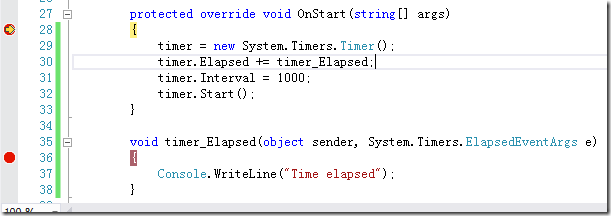
3:在构造函数中用Thread.Sleep. 然后快速的附加到进程。
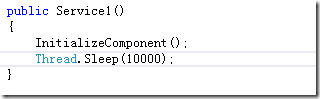
这样,服务就会需要10秒才能启动,有10秒的时间,肯定可以”附加到进程”的吧
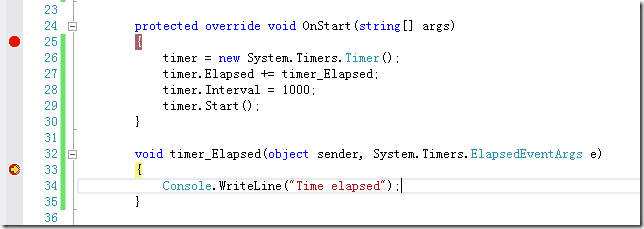
我个人比较喜欢的一种方式:
void timer_Elapsed(object sender, System.Timers.ElapsedEventArgs e)

        {

            if (!Debugger.IsAttached)

            {

                Debugger.Launch();

            }

            Console.WriteLine("Time elapsed");

        }
这样在启动Service的时候,会提示:
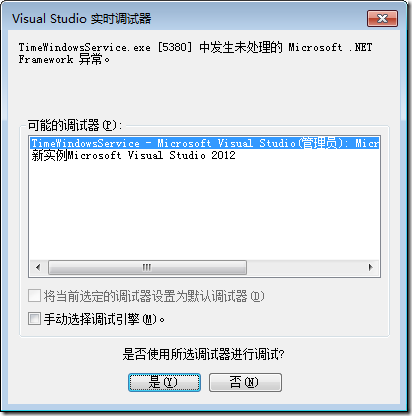
点击确定后:
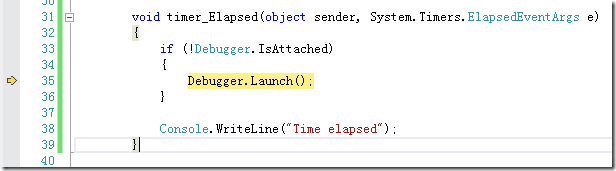
这种方式是,你可以在任何时间,任何需要调试的地方添加上面的语句。
具体的可以参考Debugger 类。
参考的文章:http://www.codeproject.com/Articles/19914/How-to-debug-a-Windows-Service-and-not-die-in-the
Windows 服务入门指南的更多相关文章
- C#创建Windows服务入门图解(VS2010)
C#创建Windows服务入门图解(VS2010) Windows服务大家都知道,比如Audio.Theme都是大家比较熟悉的服务,他们可以设为自动启动的,并且在注册表的开机自启动项里是没有痕迹的.所 ...
- .Net创建windows服务入门
本文主要记录学习.net 如何创建windows服务. 1.创建一个Windows服务程序 2.新建安装程序 3.修改service文件 代码如下 protected override void On ...
- C#开发Windows服务 入门
Microsoft Windows 服务(即,以前的 NT 服务)使您能够创建在它们自己的 Windows 会话中可长时间运行的可执行应用程序. 服务可以在计算机启动时自动启动,可以暂停和重新启动而且 ...
- c#创建windows服务入门教程实例
用c#中创建一个windows服务非常简单,与windows服务相关的类都在System.ServiceProcess命名空间下. 每个服务都需要继承自ServiceBase类,并重写相应的启动.暂停 ...
- 《Office 365开发入门指南》上市说明和读者服务
写在最开始的话 拙作<Office 365开发入门指南>上周开始已经正式在各大书店.在线商城上市,欢迎对Office 365的开发.生态感兴趣的开发者.项目经理.产品经理参考本书,全面了解 ...
- C# Windows服务开发从入门到精通
一.课程介绍 大家都知道如果想要程序一直运行在windows服务器上,最好是把程序写成windows服务程序:这样程序会随着系统的自动启动而启动,自动关闭而关闭,不需要用户直接登录,直接开机就可以启动 ...
- 分布式服务框架 Zookeeper(三)官方入门指南
入门指南:使用ZooKeeper来协调分布式应用 这篇文档包含了让你快速上手ZooKeeper的信息.主要是针对那些想要试一把ZooKeeper的开发人员,包含了安装一个单一ZooKeeper服务器的 ...
- Microsoft Orleans 之 入门指南
Microsoft Orleans 在.net用简单方法构建高并发.分布式的大型应用程序框架. 原文:http://dotnet.github.io/orleans/ 在线文档:http://dotn ...
- 《Gulp 入门指南》 : 使用 gulp 压缩 JS
<Gulp 入门指南> : 使用 gulp 压缩 JS 请务必理解如下章节后阅读此章节: 安装 Node 和 gulp 访问论坛获取帮助 压缩 js 代码可降低 js 文件大小,提高页面打 ...
随机推荐
- 如何将cmd中命令输出保存为TXT文本文件
在使用Windows 中的cmd.exe工具时,有时候我们想要把我们的输入命令及结果保存起来, 但是用复制的方法过于麻烦:有时输出数据条数过大,会造成内容自动滚出屏幕,无法阅读,我们可将命令运行的结果 ...
- zepto源码--classRE、maybeAddPx、children、defaultDisplay--学习笔记
1.classRE 对获取className的操作,进行缓存.如果缓存中有,直接读取缓存中的值,如果没有,则先进行缓存的存储,再读取值. 利用前面变量定义的classCache={}进行缓存的操作,如 ...
- 流媒体学习一-------mediastreamer2 的简介
Mediastreamer2 是一个功能强大且小巧的流引擎,专门为音视频电话应用而开发.这个库为linphone中所有的接收.发送多媒体流提供处理,包括音/视频捕获,编码和解码,渲染. 特性: 接收. ...
- Intent Flag(转)
转载自 http://blog.csdn.net/berber78/article/details/7278408 一. intent.setFlags()方法中的参数值含义: 1.FLAG_ACTI ...
- LINQ之select方法选择多个字段
单个字段: var list1 = list.Select(field1 => field1.CouponID).ToList(); 多个字段: var list1 = list.Select( ...
- webView、scrollView、TableView,为了防止滚动时出现偏移,底部黑框问题等
if ([self respondsToSelector:@selector(automaticallyAdjustsScrollViewInsets)]) {self.automaticallyAd ...
- asp.net mvc 简单搜索功能
View中代码: <input type="text" class="searchText" id="searchText"/> ...
- json和string 之间的相互转换
json和string 之间的相互转换 <script type="text/javascript"> //先认识一下js中json function showInfo ...
- 通往成功的钥匙--Web前端开发技术
互联网是一个服务性行业,用户对网站良好的体验度,直接影响到网站的效果.无论你做了多少广告推广,没有用户体验度等于零.Web前端技术是为了解决用户体验度而诞生的.无论是百度.新浪.阿里巴巴等大型网站,还 ...
- 30天,O2O速成攻略【7.25北京站】
活动概况 时间:2015年7月25日13:30-16:30 地点:车库咖啡(北京市海淀西大街48号鑫鼎宾馆二层) 主办:APICloud.领通科技.快易行 网址:www.apicloud.com 费用 ...