
Table View Programming Guide for iOS---(一)---About Table Views in iOS Apps
About Table Views in iOS Apps
Table views are versatile user interface objects frequently found in iOS apps. A table view presents data in a scrollable list of multiple rows that may be divided into sections.
表格视图是通用用户界面对象,常常能在iOS应用程序里看到。 表格视图在一个多行的一个滚动列表中呈现数据,这些行可能被分为多个区(sections)。
Table views have many purposes:
表格视图有很多用途:
To let users navigate through hierarchically structured data
让用户浏览分层结构数据。
To present an indexed list of items
显示一个带索引的数据列表。
To display detail information and controls in visually distinct groupings
在不同的可视化组中显示具体信息和控件。
To present a selectable list of options
显示一个可选择的选择列表。
Figure I-1 Table views of various kinds
图 I-1 多种类型的表格视图
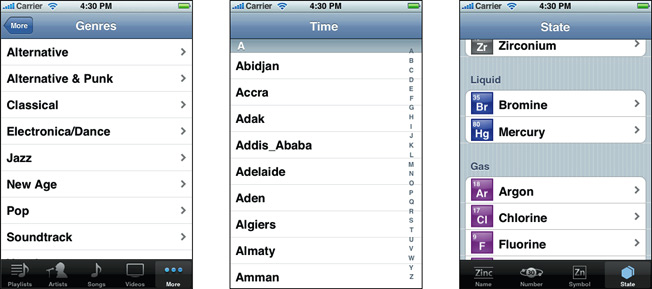
A table view has only one column and allows vertical scrolling only. It consists of rows in sections. Each section can have a header and a footer that displays text or an image. However, many table views have only one section with no visible header or footer. Programmatically, the UIKit framework identifies rows and sections through their index number: Sections are numbered 0 through n – 1 from the top of a table view to the bottom; rows are numbered 0 through n – 1 within a section. A table view can have its own header and footer, distinct from any section; the table header appears before the first row of the first section, and the table footer appears after the last row of the last section.
表格视图只有一列,并且只允许纵向滚动。它有不同区中的行组成。每个区都能有一个头和尾用来显示文本或一个图片。 然而,很多视图只有一个区,并且没有可见的头或尾。 在程序上,UIKit 框架通过它们的索引值来识别行和列:区(sections)从表格视图顶部从0开始往下计数;行(rows)在一个区里从0开始计数。 表格视图都可以有它自己的头和尾, 不同于任何区;表格头在第一个区的第一行上显示,表格尾在最后一个区的最后一行后出现。
At a Glance
一、概述
A table view is an instance of the UITableView class in one of two basic styles, plain or grouped. A plain table view is an unbroken list; a grouped table view has visually distinct sections. A table view has a data source and might have a delegate. The data source object provides the data for populating the sections and rows of the table view. The delegate object customizes its appearance and behavior.
表格视图是 UITableView 类的一个实例,它有两种基本风格:plain(简朴)或grouped(分组)。简朴表格视图是一个完整列表;而分组表格视图是可视化的不同区。表格视图有一个数据源,还可能有一个委托。数据源对象提供填充表格视图区和行的数据。委托对象定义它的外形和行为。
Related chapters: “Table View Styles and Accessory Views”
Table Views Draw Their Rows Using Cells
1、表格视图用单元格(Cells)绘制它们的行
A table view draws its visible rows using cells—that is, UITableViewCell objects. Cells are views that can display text, images, or other kinds of content. They can have background views for both normal and selected states. Cells can also have accessory views, which function as controls for selecting or setting an option.
表格视图使用单元格来绘制它的可见行---就是,UITableViewCell 对象。单元格是能够显示文本,图像或其它类型内容的视图。 它们可以为正常状态和被选中状态设置不同的背景视图。单元格还能有辅助视图(accessory views),作为选择控件或设置一个选项。
The UIKit framework defines four standard cell styles, each with its own layout of the three default content elements: main label, detail label, and image. You may also create your own custom cells to acquire a distinctive style for your app’s table views.
UIKit 框架定义了四种标准单元格风格,每种都有自己的布局,包含3个默认内容元素:主标签, 详细标签以及图片。你还可以创建你自己的自定义单元格来为你的应用程序表格视图设置一个独特的风格。
When you configure the attributes of a table view in the storyboard editor, you choose between two types of cell content: static cells or dynamic prototypes.
当你在故事板编辑器里配置一个表格视图的属性时,你可以选择2种单元格内容类型之一:静态单元格或动态原型。
Static cells. Use static cells to design a table with a fixed number of rows, each with its own layout. Use static cells when you know what the table looks like at design time, regardless of the specific information it displays.
静态单元格。使用静态单元格来设置一个表格,该表格有一个固定数量的行,每个行都有它自己的布局。 不用管它显示的指定信息,只要你在设计时知道表格的外形就可以使用静态单元格。
Dynamic prototypes. Use dynamic prototypes to design one cell and then use it as the template for other cells in the table. Use a dynamic prototype when multiple cells in a table should use the same layout to display information. Dynamic prototype content is managed by the data source at runtime, with an arbitrary number of cells.
动态原型。使用动态原型来设计一个单元格,然后在表格里使用它作为其它单元格的模板。 当表格里多个单元格应该使用相同的布局来显示信息时,使用一个动态原型。 动态原型内容由数据源在运行时管理,它有任意数量的单元格。
Related Chapters: “Table View Styles and Accessory Views,” “A Closer Look at Table View Cells”
相关章节: “Table View Styles and Accessory Views,” “A Closer Look at Table View Cells”
Responding to Selections of Rows
2、响应行的选择
When users select a row (by tapping it), the delegate of the table view is informed via a message. The delegate is passed the indexes of the row and the section that the row is in. It uses this information to locate the corresponding item in the app’s data model. This item might be at an intermediate level in the hierarchy of data or it might be a “leaf node" in the hierarchy. If the item is at an intermediate level, the app displays a new table view. If the item is a leaf node, the app displays details about the selected item in a grouped-style table view or some other kind of view.
当用户选择了一行(通过点击它),该动作通过消息通知到表格视图的委托。被选择行的行索引和区索引被传递给委托。 它使用该信息来定位应用程序数据模型中相关的数据项。该数据项可能在数据层次的中间层或者它可能是层次中的叶节点。 如果它在中间层,应用程序显示一个新的表格视图。如果数据项是一个叶节点,应用程序在一个分组风格的表格视图或一些其它类型的视图中显示被选择数据项的具体内容。
In table views that list a series of options, tapping a row simply selects its associated option. No subsequent view of data is displayed.
在列出一系列选项的表格视图中,点击一行只是简单的选择它相关的选项。点击不会导航到一个新的视图。
Related Chapters: “Navigating a Data Hierarchy with Table Views,” “Managing Selections”
相关章节: “Navigating a Data Hierarchy with Table Views,” “Managing Selections”
In Editing Mode You Can Add, Delete, and Reorder Rows
3、在设计模式,你可以添加,删除,以及重新排序行
Table views can enter an editing mode in which users can insert or delete rows, or relocate them within the table. In editing mode, rows that are marked for insertion or deletion display a green plus sign (insertion) or a red minus sign (deletion) near the left edge of the row. If users touch a deletion control or, in some table views, swipe across a row, a red Delete button appears, prompting users to delete that row. Rows that can be relocated display (near their right edge) an image consisting of several horizontal lines. When the table view leaves editing mode, the insertion, deletion, and reordering controls disappear.
表格视图可以进入一个编辑模式,在那里用户可以插入或删除行,或在表格中重新定位它们。 在编辑模式中,被标记为插入或删除的行的左边会显示一个绿色加号标记(插入)或一个红色减号标记(删除)。如果用户触摸一个删除控件,或在一些表格视图中,手指划过一行,一个红色删除按钮就会出现,提示用户删除那行。能被重新排序的行(行的右边)会显示一个由几条横向直线组成的图标。 当表格视图离开编辑模式,插入,删除,以及重新排序控件就会消失。
When users attempt to insert, delete, or reorder rows, the table view sends a sequence of messages to its data source and delegate so that they can manage these operations.
当用户尝试着去插入,删除,或重新排序行时,表格视图给它的数据源和委托发送一个消息序列,这样它们就能管理这些操作。
Related Chapters: “Inserting and Deleting Rows and Sections,” “Managing the Reordering of Rows”
相关章节:“Inserting and Deleting Rows and Sections,” “Managing the Reordering of Rows”
To Create a Table View, Use a Storyboard
4、使用一个故事板创建一个表格视图
The easiest and recommended way to create and manage a table view is to use a custom UITableViewController object in a storyboard. If your app is based largely on table views, create your Xcode project using the Master-Detail Application template. This template includes an initial custom UITableViewController class and a storyboard for the scenes in the user interface, including the custom view controller and its table view. In the storyboard editor, choose one of the two styles for this table view and design its content.
创建并管理一个表格视图的最简单而且推荐的方法是在一个故事板里使用一个自定义 UITableViewController 对象。如果你的应用程序基于大量的表格视图,用Master-Detail应用模板来创建你的Xcode工程。 该模板包括一个初始化自定义UITableViewController 类以及一个包含用户界面场景的故事板,它包含了自定义视图控制器以及它的表格视图。在故事板编辑器中,为该表格视图选择一种风格,并设计它的内容。
At runtime, UITableViewController creates the table view and assigns itself as delegate and data source. Immediately after it’s created, the table view asks its data source for the number of sections, the number of rows in each section, and the table view cell to use to draw each row. The data source manages the application data used for populating the sections and rows of the table view.
在运行时,UITableViewController 创建了表格视图并分配它自己成为委托和数据源。当它创建完成后,表格视图立即向数据源请求区(sections)的个数,每个区的行数,以及用来绘制每行的视图单元格。数据源管理着应用程序的数据,它们用来填充表格视图的区和行。
Related Chapters: “Navigating a Data Hierarchy with Table Views,” “Creating and Configuring a Table View”
相关章节: “Navigating a Data Hierarchy with Table Views,” “Creating and Configuring a Table View”
Prerequisites
二、先决条件
Before reading this document, you should read Start Developing iOS Apps Today to understand the basic process for developing iOS apps. Then read View Controller Programming Guide for iOS for a comprehensive look at view controllers and storyboards. Finally, to gain valuable hands-on experience using table views in a storyboard, read the tutorial Your Second iOS App: Storyboards.
阅读该文档之前,你应该先阅读Start Developing iOS Apps Today 来理解开发iOS应用程序的基本进程。 然后阅读 View Controller Programming Guide for iOS ,全面审视视图控制器以及故事板。 最后,在一个故事板里使用表格视图获得宝贵的亲身经历。
The information presented in this introduction and in “Table View Styles and Accessory Views” summarizes prescriptive information on table views presented iniOS Human Interface Guidelines. You can find a complete description of the styles and characteristics of table views, as well as their recommended uses, in the chapter“Content Views”.
在此介绍的信息以及在 “Table View Styles and Accessory Views”中总结说明的信息,在iOS Human Interface Guidelines 里都有讲述。你可以在章节“Content Views” 里找到表格视图风格和特性的完整讲述,以及它们的推荐用法。
See Also
三、参见
You will find the following sample code projects to be instructive models for your own table view implementations:
你可以把以下例子作为实现自己的表格视图的启发性模型:
SimpleDrillDown project
For guidance on how to use the standard container view controllers provided by UIKit, see View Controller Catalog for iOS. This document describes split view controllers and navigation controllers, which can both contain table view controllers as children.
关于如何使用UIKit提供的标准容器视图控制器的指南,请看View Controller Catalog foriOS。该文档描述了split 视图控制器以及导航控制器,它们都能把表格视图作为它们的子视图使用。
Table View Programming Guide for iOS---(一)---About Table Views in iOS Apps的更多相关文章
- Table View Programming Guide for iOS---(四)---Navigating a Data Hierarchy with Table Views
Navigating a Data Hierarchy with Table Views 导航数据表视图层次 A common use of table views—and one to which ...
- Table View Programming Guide for iOS---(五)---Creating and Configuring a Table View
Creating and Configuring a Table View Your app must present a table view to users before it can mana ...
- Table View Programming Guide for iOS---(六)---A Closer Look at Table View Cells
A Closer Look at Table View Cells A table view uses cell objects to draw its visible rows and then c ...
- Table View Programming Guide for iOS---(三)----Overview of the Table View API
Overview of the Table View API 表格视图API概述 The table view programming interface includes several UIKit ...
- Table View Programming Guide for iOS---(二)----Table View Styles and Accessory Views
Table View Styles and Accessory Views 表格视图的风格以及辅助视图 Table views come in distinctive styles that are ...
- Table View Programming Guide for iOS---(七)---Managing Selections
Managing Selections 管理选择 When users tap a row of a table view, usually something happens as a result ...
- Collection View Programming Guide for iOS---(一)----About iOS Collection Views
Next About iOS Collection Views 关于iOS Collection Views A collection view is a way to present an orde ...
- 【IOS笔记】View Programming Guide for iOS -1
原文:View Programming Guide for iOS View and Window Architecture Views and windows present your applic ...
- View Programming Guide for iOS ---- iOS 视图编程指南(四)---Views
Views Because view objects are the main way your application interacts with the user, they have many ...
随机推荐
- 高级算法设计讲义 Lecture Notes for Advanced Algorithm Design
(Last modification: 2012-12-17) Textbooks: (1) David Williamson, David Shmoys. The Design of Approxi ...
- DeepFM
DeepFM integrates the architectures of FM and deep neural networks (DNN). It models low-order featur ...
- 转:VMware中三种网络连接的区别
转自:http://www.cnblogs.com/rainman/archive/2013/05/06/3063925.html VMware中三种网络连接的区别 1.概述 2.bridged( ...
- [Javascript] Use a custom sort function on an Array in Javascript
Sorting in Javascript with sort uses lexical sorting by default, which means it will sort in alphabe ...
- Android Auto Scroll ViewPager (Smooth)
项目信息 项目地址 https://github.com/benniaobuguai/android-auto-scroll-viewpager 特性 支持自动平滑切换海报.相册等,无限次循环轮播 手 ...
- opencvSGBM半全局立体匹配算法的研究(1)
转载请说明出处:http://blog.csdn.net/zhubaohua_bupt/article/details/51866567 这段时间对opencvSGBM半全局立体匹配算法进行了比較仔细 ...
- MeiTuanLocateCity
https://github.com/eltld/MeiTuanLocateCity
- 关于Widget预览图的改动
在做项目时候,由于常常不带GPS功能.所以在有些细节上须要做处理,当中之中的一个就是.快捷开关的预览图和实际效果图的差异 在我们快捷开关的预览图中,总是能够看到五个快捷开关,事实上就包含GPS信息 而 ...
- 程序员笔记|如何编写高性能的Java代码
一.并发 Unable to create new native thread …… 问题1:Java中创建一个线程消耗多少内存? 每个线程有独自的栈内存,共享堆内存 问题2:一台机器可以创建多少线程 ...
- OpenMAX IL介绍与其体系
1 OpenMAX IL介绍与其体系 这一部分的文档描写叙述 OpenMAX IL的特性与体系. 1.1 OpenMAX IL 简述 OpenMAX IL 软件接口层定义了一套API.用于訪问系统 ...