
solr的命令
Start the Server
If you didn’t start Solr after installing it, you can start it by running bin/solr from the Solr directory.
bin/solr startIf you are running Windows, you can start Solr by running bin\solr.cmd instead.
bin\solr.cmd startThis will start Solr in the background, listening on port 8983.
When you start Solr in the background, the script will wait to make sure Solr starts correctly before returning to the command line prompt.
The bin/solr and bin\solr.cmd scripts allow you to customize how you start Solr. Let’s work through a few examples of using the bin/solr script (if you’re running Solr on Windows, the bin\solr.cmd works the same as what is shown in the examples below):
Solr Script Options
The bin/solr script has several options.
Script Help
To see how to use the bin/solr script, execute:
bin/solr -helpFor specific usage instructions for the start command, do:
bin/solr start -helpStart Solr in the Foreground
Since Solr is a server, it is more common to run it in the background, especially on Unix/Linux. However, to start Solr in the foreground, simply do:
bin/solr start -fIf you are running Windows, you can run:
bin\solr.cmd start -fStart Solr with a Different Port
To change the port Solr listens on, you can use the -p parameter when starting, such as:
bin/solr start -p 8984Stop Solr
When running Solr in the foreground (using -f), then you can stop it using Ctrl-c. However, when running in the background, you should use the stop command, such as:
bin/solr stop -p 8983The stop command requires you to specify the port Solr is listening on or you can use the -all parameter to stop all running Solr instances.
Start Solr with a Specific Bundled Example
Solr also provides a number of useful examples to help you learn about key features. You can launch the examples using the -e flag. For instance, to launch the "techproducts" example, you would do:
bin/solr -e techproductsCurrently, the available examples you can run are: techproducts, dih, schemaless, and cloud. See the sectionRunning with Example Configurations for details on each example.
|
Getting Started with SolrCloud
Running the |
Check if Solr is Running
If you’re not sure if Solr is running locally, you can use the status command:
bin/solr statusThis will search for running Solr instances on your computer and then gather basic information about them, such as the version and memory usage.
That’s it! Solr is running. If you need convincing, use a Web browser to see the Admin Console.
http://localhost:8983/solr/
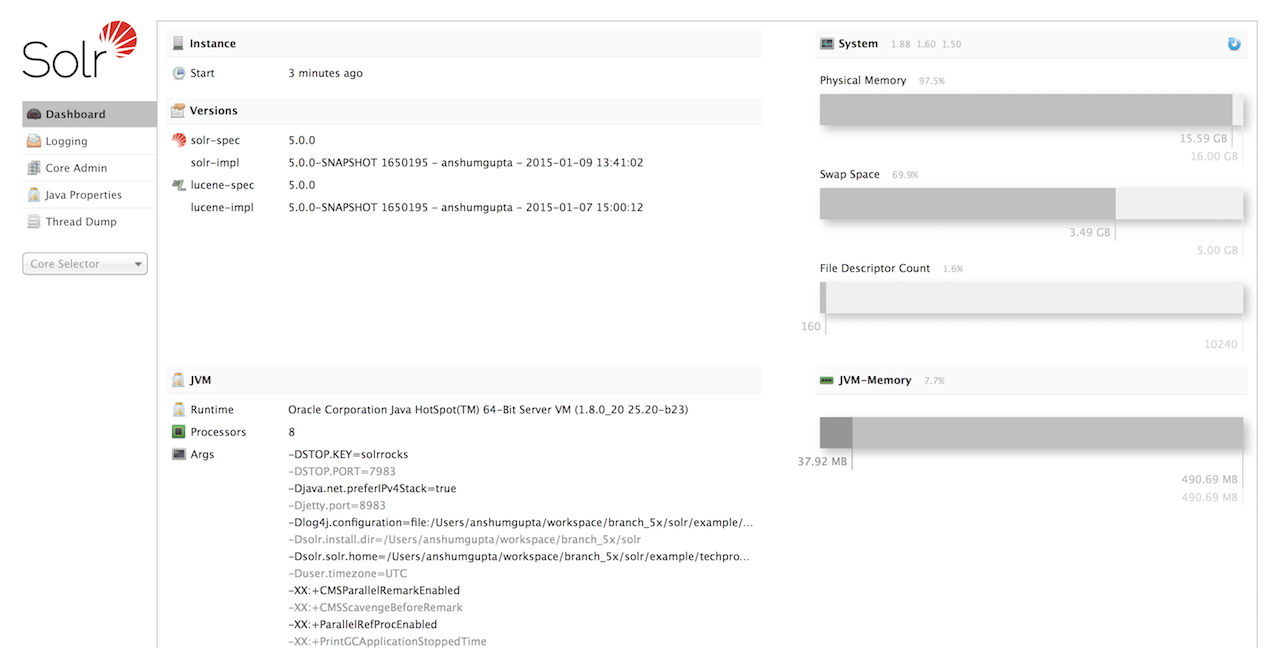
If Solr is not running, your browser will complain that it cannot connect to the server. Check your port number and try again.
Create a Core
If you did not start Solr with an example configuration, you would need to create a core in order to be able to index and search. You can do so by running:
bin/solr create -c <name>This will create a core that uses a data-driven schema which tries to guess the correct field type when you add documents to the index.
To see all available options for creating a new core, execute:
bin/solr create -helpAdd Documents
Solr is built to find documents that match queries. Solr’s schema provides an idea of how content is structured (more on the schema later), but without documents there is nothing to find. Solr needs input before it can do much.
You may want to add a few sample documents before trying to index your own content. The Solr installation comes with different types of example documents located under the sub-directories of the example/directory of your installation.
In the bin/ directory is the post script, a command line tool which can be used to index different types of documents. Do not worry too much about the details for now. The Indexing and Basic Data Operationssection has all the details on indexing.
To see some information about the usage of bin/post, use the -help option. Windows users, see the section for Post Tool on Windows.
bin/post can post various types of content to Solr, including files in Solr’s native XML and JSON formats, CSV files, a directory tree of rich documents, or even a simple short web crawl. See the examples at the end ofbin/post -help for various commands to easily get started posting your content into Solr.
Go ahead and add all the documents in some example XML files:
$ bin/post -c gettingstarted example/exampledocs/*.xml

SimplePostTool version 5.0.0

Posting files to [base] url http://localhost:8983/solr/gettingstarted/update...

Entering auto mode. File endings considered are xml,json,csv,pdf,doc,docx,ppt,pptx,xls,xlsx,odt,odp,ods,ott,otp,ots,rtf,htm,html,txt,log

POSTing file gb18030-example.xml (application/xml) to [base]

POSTing file hd.xml (application/xml) to [base]

POSTing file ipod_other.xml (application/xml) to [base]

POSTing file ipod_video.xml (application/xml) to [base]

POSTing file manufacturers.xml (application/xml) to [base]

POSTing file mem.xml (application/xml) to [base]

POSTing file money.xml (application/xml) to [base]

POSTing file monitor.xml (application/xml) to [base]

POSTing file monitor2.xml (application/xml) to [base]

POSTing file mp500.xml (application/xml) to [base]

POSTing file sd500.xml (application/xml) to [base]

POSTing file solr.xml (application/xml) to [base]

POSTing file utf8-example.xml (application/xml) to [base]

POSTing file vidcard.xml (application/xml) to [base]

14 files indexed.

COMMITting Solr index changes to http://localhost:8983/solr/gettingstarted/update...

Time spent: 0:00:00.153
That’s it! Solr has indexed the documents contained in those files.
Ask Questions
Now that you have indexed documents, you can perform queries. The simplest way is by building a URL that includes the query parameters. This is exactly the same as building any other HTTP URL.
For example, the following query searches all document fields for "video":
http://localhost:8983/solr/gettingstarted/select?q=video
Notice how the URL includes the host name (localhost), the port number where the server is listening (8983), the application name (solr), the request handler for queries (select), and finally, the query itself (q=video).
The results are contained in an XML document, which you can examine directly by clicking on the link above. The document contains two parts. The first part is the responseHeader, which contains information about the response itself. The main part of the reply is in the result tag, which contains one or more doc tags, each of which contains fields from documents that match the query. You can use standard XML transformation techniques to mold Solr’s results into a form that is suitable for displaying to users. Alternatively, Solr can output the results in JSON, PHP, Ruby and even user-defined formats.
Just in case you are not running Solr as you read, the following screen shot shows the result of a query (the next example, actually) as viewed in Mozilla Firefox. The top-level response contains a lst namedresponseHeader and a result named response. Inside result, you can see the three docs that represent the search results.
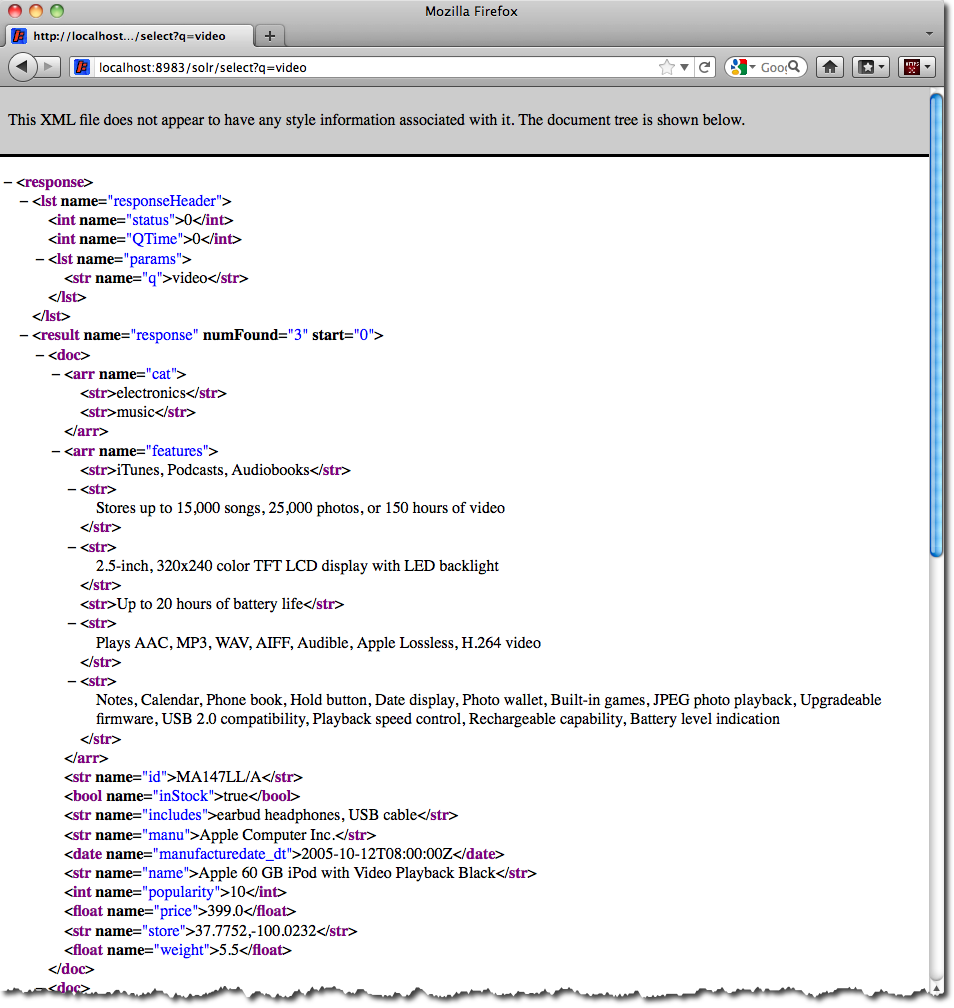
Once you have mastered the basic idea of a query, it is easy to add enhancements to explore the query syntax. This one is the same as before but the results only contain the ID, name, and price for each returned document. If you don’t specify which fields you want, all of them are returned.
http://localhost:8983/solr/gettingstarted/select?q=video&fl=id,name,price
Here is another example which searches for "black" in the name field only. If you do not tell Solr which field to search, it will search default fields, as specified in the schema.
http://localhost:8983/solr/gettingstarted/select?q=name:black
You can provide ranges for fields. The following query finds every document whose price is between $0 and $400.
http://localhost:8983/solr/gettingstarted/select?q=price:0%20TO%20400&fl=id,name,price
Faceted browsing is one of Solr’s key features. It allows users to narrow search results in ways that are meaningful to your application. For example, a shopping site could provide facets to narrow search results by manufacturer or price.
Faceting information is returned as a third part of Solr’s query response. To get a taste of this power, take a look at the following query. It adds facet=true and facet.field=cat.
http://localhost:8983/solr/gettingstarted/select?q=price:0%20TO%20400&fl=id,name,price&facet=true&facet.field=cat
In addition to the familiar responseHeader and response from Solr, a facet_counts element is also present. Here is a view with the responseHeader and response collapsed so you can see the faceting information clearly.
An XML Response with faceting
<response>

<lst name="responseHeader">

...

</lst>

<result name="response" numFound="9" start="0">

  <doc>

    <str name="id">SOLR1000</str>

    <str name="name">Solr, the Enterprise Search Server</str>

    <float name="price">0.0</float></doc>

...

</result>

<lst name="facet_counts">

  <lst name="facet_queries"/>

  <lst name="facet_fields">

    <lst name="cat">

      <int name="electronics">6</int>

      <int name="memory">3</int>

      <int name="search">2</int>

      <int name="software">2</int>

      <int name="camera">1</int>

      <int name="copier">1</int>

      <int name="multifunction printer">1</int>

      <int name="music">1</int>

      <int name="printer">1</int>

      <int name="scanner">1</int>

      <int name="connector">0</int>

      <int name="currency">0</int>

      <int name="graphics card">0</int>

      <int name="hard drive">0</int>

      <int name="monitor">0</int>

    </lst>

  </lst>

  <lst name="facet_dates"/>

  <lst name="facet_ranges"/>

</lst>

</response>
The facet information shows how many of the query results have each possible value of the cat field. You could easily use this information to provide users with a quick way to narrow their query results. You can filter results by adding one or more filter queries to the Solr request. This request constrains documents with a category of "software".
http://localhost:8983/solr/gettingstarted/select?q=price:0%20TO%20400&fl=id,name,price&facet=true&facet.field=cat&fq=cat:software
solr的命令的更多相关文章
- solr入门命令
#####################shell命令############################# 导入文档: sh bin/post -c gettingstarted docs/i ...
- solr常用命令
1.启动和关闭 a.启动和重启 启动和重启命令有很多选项让你运行在SolrCloud模式,使用示例配置,以hostname为开头或者非默认端口,指向本地ZooKeeper. bin/solr star ...
- Solr常用命令总结
前提条件: 安装solr版本:4.8.0 部署solr路径:/data/solr-4.8.0 1. 通过zookeeper上传一些配置信息: 通过zk命令将配置信息上传到zk环境中: /data/so ...
- solr 常用命令
1.启动和关闭 a.启动和重启 启动和重启命令有很多选项让你运行在SolrCloud模式,使用示例配置,以hostname为开头或者非默认端口,指向本地ZooKeeper. bin/solr star ...
- CVE-2019-0193:Apache Solr 远程命令执行漏洞复现
0x00 漏洞背景 2019年8月1日,Apache Solr官方发布了CVE-2019-0193漏洞预警,漏洞危害评级为严重 0x01 影响范围 Apache Solr < 8.2.0 0x0 ...
- Apache Solr远程命令执行
简介 Solr是一个独立的企业级搜索应用服务器,它对外提供类似于Web-service的API接口.用户可以通过http请求,向搜索引擎服务器提交一定格式的XML文件,生成索引:也可以通过Http G ...
- Apache Solr远程命令执行复现
环境 /vulhub/solr/CVE-2019-0193/ 创建一个集合 docker-compose exec solr bash bin/solr create_core -c test -d ...
- Apache Solr 远程命令+XXE执行漏洞(CVE-2017-12629)
Apache Solr 最近有出了个漏洞预警,先复习一下之前的漏洞 命令执行 先创建一个listener,其中设置exe的值为我们想执行的命令,args的值是命令参数 POST /solr/demo/ ...
- 03 Apache Solr: 安装和运行
前面介绍了Solr在项目中的使用和构建高度可用.高度可扩展的Solr服务器的一些想法.但是光说不练假把式,现在开始,把Solr运行起来继续深入了解吧! 安装 安装JAVA Apache So ...
随机推荐
- MWC飞控增加声纳定高的方法(转)
源: MWC飞控增加声纳定高的方法
- k8s之磁盘挂载持久化
- php cURL error 60: SSL certificate problem: unable to get local issuer certificate 解决办法
错误例子如下: php5.6以上的版本会出现这种问题 关于“SSL证书问题:无法获取本地颁发者证书”错误.很明显,这适用于发送CURL请求的系统(并且没有服务器接收请求) 1)从https://cur ...
- dubbo+zookeeper+springboot简单示例
目录 dubbo+zookeeper+springboot简单示例 zookeeper安装使用 api子模块 生产者producer 消费者consumer @(目录) dubbo+zookeeper ...
- FreeMarker的应用场景
FreeMarker是一款模板引擎: 即一种基于模板和要改变的数据, 并用来生成输出文本(HTML网页.电子邮件.配置文件.源代码等)的通用工具. 它不是面向最终用户的,而是一个Java类库,是一 ...
- lombok插件/slf4j中字符串格式化
大家在编写springboot项目的过程中可能会接触到lombok这个插件,这个插件可以在编译时帮我生成很多代码. 1.@Data生成Getter和Setter代码,用于类名注释 2.@Getter ...
- 《MySQL必知必会》学习笔记——前言
前言 MySQL已经成为世界上最受欢迎的数据库管理系统之一.无论是用在小型开发项目上,还是用来构建那些声名显赫的网站,MySQL都证明了自己是个稳定.可靠.快速.可信的系统,足以胜任任何数据存储业务的 ...
- H310C,B365,M.2 NVME SSD,USB3.0,安装 WIN7 64 位
华擎H310CM ITX NVME SSD 上安装WIN7 64位 核心关键点:xHCI USB3.0驱动,nvme驱动,nvme win7补丁. 硬件配置:I5 9400F, 华擎H310CM IT ...
- tcpreplay使用介绍
安装 brew install tcpreplay yum install tcpreplay tcpreplay 回放 tcpreplay is a tool for replaying netwo ...
- AWS 架构最佳实践概述(十一)
AWS 架构最佳实践 AWS合理架构的框架支柱 安全性 - 保护并监控系统 能够保护信息.系统和资产 通过风险评估和缓解策略 可靠性 - 从故障中恢复并减少中断 从基础设施或服务故障中恢复 动态获取计 ...