
[转帖]MOUNTING AN S3 BUCKET ON WINDOWS AND LINUX
https://blog.spikeseed.cloud/mount-s3-as-a-disk/#mounting-an-s3-bucket-on-windows-server-2016
Wouldn’t it be perfect to be able to use Amazon S3 as any local folder on your machine? It is all this blog post is about. We will see how to mount Amazon S3 Buckets on both Linux and Windows.
Amazon Simple Storage Service (Amazon S3) is an object storage service that is secure, efficient and highly available. Customers can use it to store and protect an unlimited number of files for multiple use cases, such as websites static resources, mobile applications, backup and restore, archiving, enterprise applications and big data analytics. Amazon S3 provides easy-to-use management features so we can organize our data and configure access control.
Table of Contents
- Mounting an S3 bucket on Windows Server 2016
- Mounting an S3 bucket on a Linux Ubuntu 18.04
- Conclusion
MOUNTING AN S3 BUCKET ON WINDOWS SERVER 2016
Mounting an S3 bucket on Windows is not easy. There are several commercial softwares which can help us mont an S3 Bucket. In this blog post, we will use rclone, an open source command line tool to manage files on cloud storages. rclone can mount any local, cloud or virtual filesystem as a disk on Windows and Linux.
Launch the Windows Server 2016 in the cloud
First, we need to launch a Windows Server 2016 EC2 instance with access to internet and associated with an instance Profile which grants the instance access to our S3 Bucket. The following IAM policy gives the minimum rights to access the bucket we want to mount (for this example, we will use a bucket named tmp-prenard).
1 |
{
|
To mount an S3 bucket on a on-premise Windows Server we have to work with AWS Credentials (see Understanding and getting your AWS credentials for more information).
Mount the S3 bucket on the Windows instance
On the Windows instance.
- download the latest version of rclone and unzip the archive.
create a directory under
c:\Program Files\rcloneand copy the content of the archive in this directory.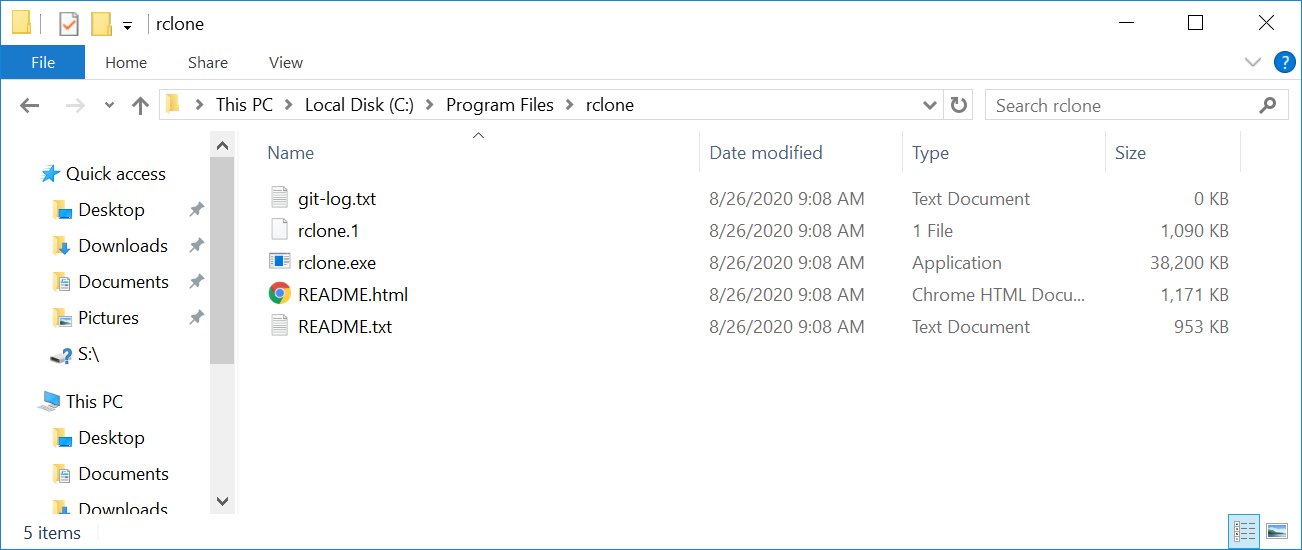
add the path of
rclone(C:\Program Files\rclone\) in the path Windows environment variables.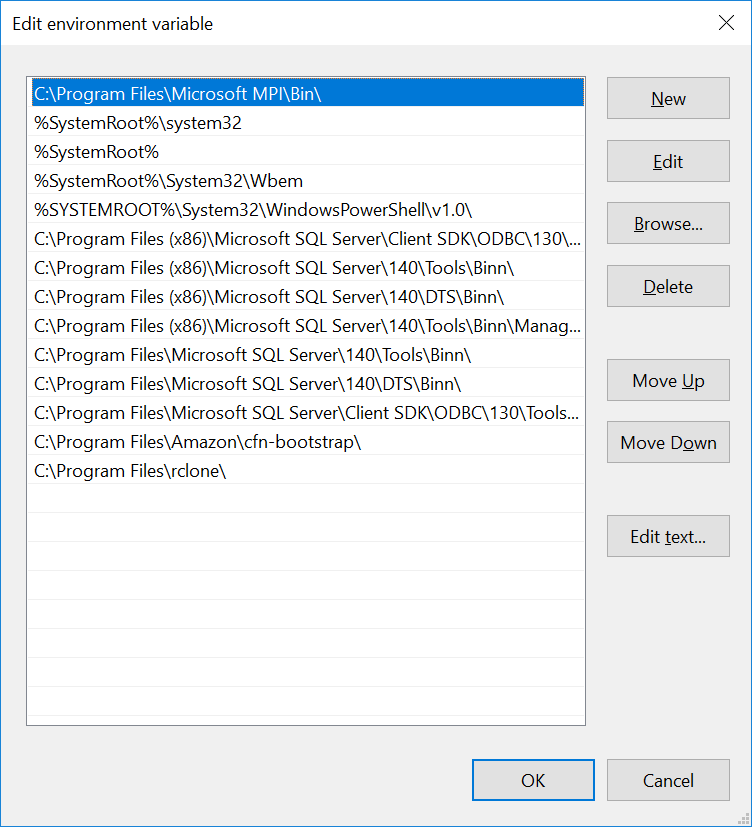
In a Powershell console, if we type rclone we can see all the available commands:
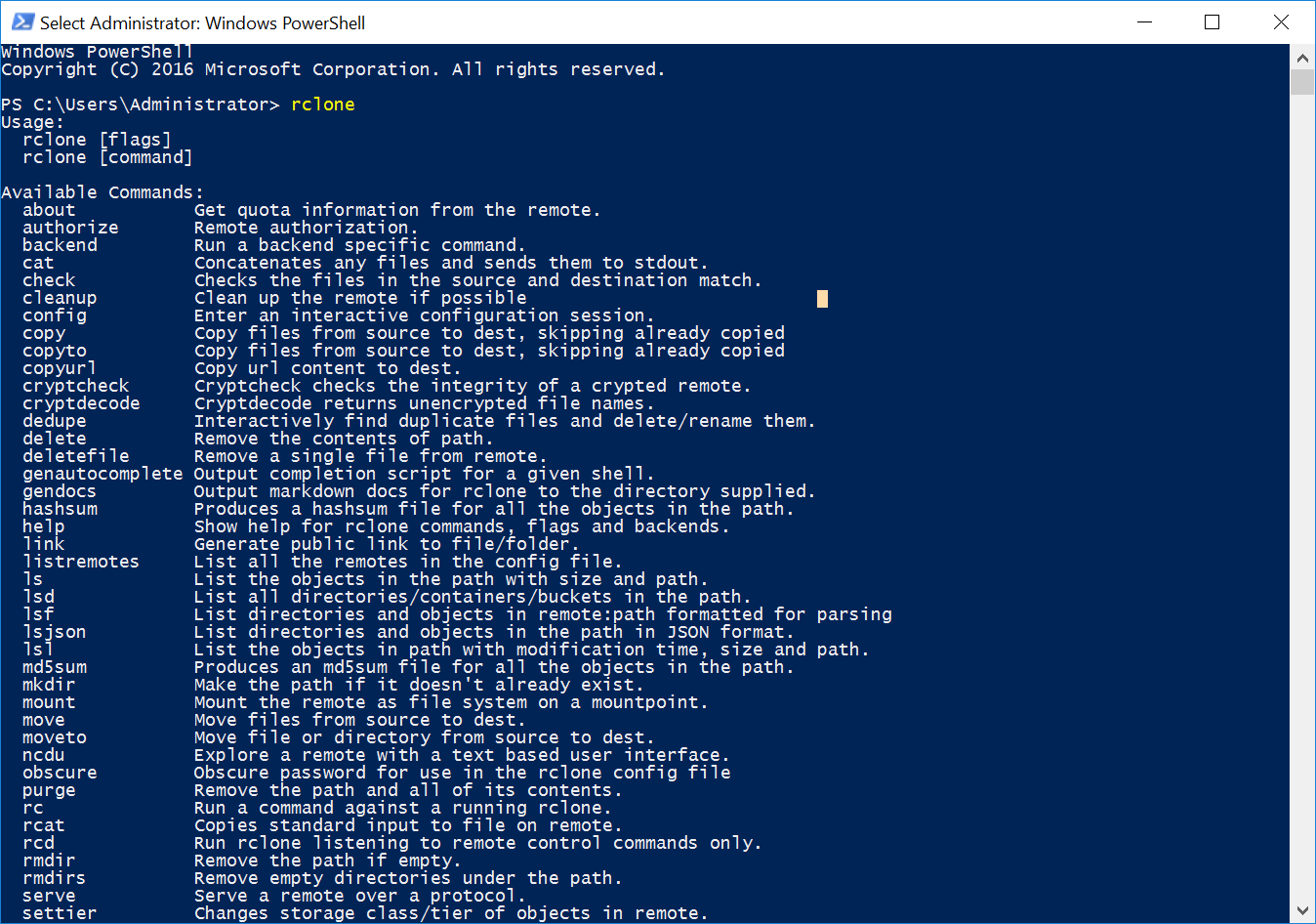
Now that we have installed rclone, we will continue with the configuration by typing rclone config:
select
nfor a new remote configuration.1
2
3
4
5
6
7
8
9
10Windows PowerShell
Copyright (C) 2016 Microsoft Corporation. All rights reserved. PS C:\Users\Administrator> rclone config
2020/08/26 09:22:37 NOTICE: Config file "C:\\Users\\Administrator\\.config\\rclone\\rclone.conf" not found - using defaults
No remotes found - make a new one
n) New remote
s) Set configuration password
q) Quit config
n/s/q> ngive a name to the connection (e.g.
aws_s3)1
name> aws_s3
select
4for “Amazon S3 Compliant Storage Provider”.1
2
3
4
5
6
7
8
9
10
11
12
13
14
15
16
17
18Type of storage to configure.
Enter a string value. Press Enter for the default ("").
Choose a number from below, or type in your own value
1 / 1Fichier
\ "fichier"
2 / Alias for an existing remote
\ "alias"
3 / Amazon Drive
\ "amazon cloud drive"
4 / Amazon S3 Compliant Storage Provider (AWS, Alibaba, Ceph, Digital Ocean, Dreamhost, IBM COS, Minio, etc)
\ "s3"
5 / Backblaze B2
\ "b2"
6 / Box
\ "box"
[...]
Storage> 4
** See help for s3 backend at: https://rclone.org/s3/ **select
1for the S3 provider.1
2
3
4
5
6
7
8
9Choose your S3 provider.
Enter a string value. Press Enter for the default ("").
Choose a number from below, or type in your own value
1 / Amazon Web Services (AWS) S3
\ "AWS"
2 / Alibaba Cloud Object Storage System (OSS) formerly Aliyun
\ "Alibaba"
[...]
provider> 1select
2to use AWS credentials from the Instance Profile we defined earlier.1
2
3
4
5
6
7
8
9Get AWS credentials from runtime (environment variables or EC2/ECS meta data if no env vars).
Only applies if access_key_id and secret_access_key is blank.
Enter a boolean value (true or false). Press Enter for the default ("false").
Choose a number from below, or type in your own value
1 / Enter AWS credentials in the next step
\ "false"
2 / Get AWS credentials from the environment (env vars or IAM)
\ "true"
env_auth> 2leave blank
access_key_idandsecret_access_key, by pressingEntertwice.1
2
3
4
5
6
7
8AWS Access Key ID.
Leave blank for anonymous access or runtime credentials.
Enter a string value. Press Enter for the default ("").
access_key_id>
AWS Secret Access Key (password)
Leave blank for anonymous access or runtime credentials.
Enter a string value. Press Enter for the default ("").
secret_access_key>select the AWS region in which the S3 bucket has been created (
eu-west-1in this example).1
2
3
4
5
6
7
8
9
10
11
12
13
14
15
16
17
18
19
20
21
22
23
24
25
26
27
28Region to connect to.
Enter a string value. Press Enter for the default ("").
Choose a number from below, or type in your own value
/ The default endpoint - a good choice if you are unsure.
1 | US Region, Northern Virginia or Pacific Northwest.
| Leave location constraint empty.
\ "us-east-1"
/ US East (Ohio) Region
2 | Needs location constraint us-east-2.
\ "us-east-2"
/ US West (Oregon) Region
3 | Needs location constraint us-west-2.
\ "us-west-2"
/ US West (Northern California) Region
4 | Needs location constraint us-west-1.
\ "us-west-1"
/ Canada (Central) Region
5 | Needs location constraint ca-central-1.
\ "ca-central-1"
/ EU (Ireland) Region
6 | Needs location constraint EU or eu-west-1.
\ "eu-west-1"
/ EU (London) Region
7 | Needs location constraint eu-west-2.
\ "eu-west-2"
/ EU (Stockholm) Region
[...]
region> 6leave blank all the remaining fields, as we do not use any “special” configuration such as endpoint or specific ACL.
1

2

3

4

5

6

7

8

9

10

11

12

13

14

15

16

17

18

19

20

21

22

23

24
25
26
27
28
29
30
31
32
33
34
35
36
37
38
39
40
41
42
43
44
45
46
47
48
49
50
51
52
53
54
55
56
57
58
59
60
61
62
63
64
65
66
67
68
69
70
71
72
73
74
75
76
77
78
79
80
81
82
83
84
85
86
87
88
89
90
91
92
93
94
95
96
97
98
99
100
101
102
103
104
105Endpoint for S3 API.
Leave blank if using AWS to use the default endpoint for the region.
Enter a string value. Press Enter for the default ("").
endpoint>
Location constraint - must be set to match the Region.
Used when creating buckets only.
Enter a string value. Press Enter for the default ("").
Choose a number from below, or type in your own value
1 / Empty for US Region, Northern Virginia or Pacific Northwest.
\ ""
2 / US East (Ohio) Region.
\ "us-east-2"
3 / US West (Oregon) Region.
\ "us-west-2"
4 / US West (Northern California) Region.
\ "us-west-1"
5 / Canada (Central) Region.
\ "ca-central-1"
6 / EU (Ireland) Region.
\ "eu-west-1"
7 / EU (London) Region.
\ "eu-west-2"
8 / EU (Stockholm) Region.
\ "eu-north-1"
9 / EU Region.
\ "EU"
10 / Asia Pacific (Singapore) Region.
\ "ap-southeast-1"
11 / Asia Pacific (Sydney) Region.
\ "ap-southeast-2"
12 / Asia Pacific (Tokyo) Region.
\ "ap-northeast-1"
13 / Asia Pacific (Seoul)
\ "ap-northeast-2"
14 / Asia Pacific (Mumbai)
\ "ap-south-1"
15 / Asia Pacific (Hong Kong)
\ "ap-east-1"
16 / South America (Sao Paulo) Region.
\ "sa-east-1"
location_constraint>
Canned ACL used when creating buckets and storing or copying objects. This ACL is used for creating objects and if bucket_acl isn't set, for creating buckets too. For more info visit https://docs.aws.amazon.com/AmazonS3/latest/dev/acl-overview.html#canned-acl Note that this ACL is applied when server side copying objects as S3
doesn't copy the ACL from the source but rather writes a fresh one.
Enter a string value. Press Enter for the default ("").
Choose a number from below, or type in your own value
1 / Owner gets FULL_CONTROL. No one else has access rights (default).
\ "private"
2 / Owner gets FULL_CONTROL. The AllUsers group gets READ access.
\ "public-read"
/ Owner gets FULL_CONTROL. The AllUsers group gets READ and WRITE access.
3 | Granting this on a bucket is generally not recommended.
\ "public-read-write"
4 / Owner gets FULL_CONTROL. The AuthenticatedUsers group gets READ access.
\ "authenticated-read"
/ Object owner gets FULL_CONTROL. Bucket owner gets READ access.
5 | If you specify this canned ACL when creating a bucket, Amazon S3 ignores it.
\ "bucket-owner-read"
/ Both the object owner and the bucket owner get FULL_CONTROL over the object.
6 | If you specify this canned ACL when creating a bucket, Amazon S3 ignores it.
\ "bucket-owner-full-control"
acl>
The server-side encryption algorithm used when storing this object in S3.
Enter a string value. Press Enter for the default ("").
Choose a number from below, or type in your own value
1 / None
\ ""
2 / AES256
\ "AES256"
3 / aws:kms
\ "aws:kms"
server_side_encryption>
If using KMS ID you must provide the ARN of Key.
Enter a string value. Press Enter for the default ("").
Choose a number from below, or type in your own value
1 / None
\ ""
2 / arn:aws:kms:*
\ "arn:aws:kms:us-east-1:*"
sse_kms_key_id>
The storage class to use when storing new objects in S3.
Enter a string value. Press Enter for the default ("").
Choose a number from below, or type in your own value
1 / Default
\ ""
2 / Standard storage class
\ "STANDARD"
3 / Reduced redundancy storage class
\ "REDUCED_REDUNDANCY"
4 / Standard Infrequent Access storage class
\ "STANDARD_IA"
5 / One Zone Infrequent Access storage class
\ "ONEZONE_IA"
6 / Glacier storage class
\ "GLACIER"
7 / Glacier Deep Archive storage class
\ "DEEP_ARCHIVE"
8 / Intelligent-Tiering storage class
\ "INTELLIGENT_TIERING"
storage_class>finally, skip the advanced configuration by typing
n. We get a summary of the configuration. If everything is fine we can typey. Otherwisento restart the configuration process.1
2
3
4
5
6
7
8
9
10
11
12
13
14
15
16
17
18
19
20
21
22
23
24
25
26
27
28
29
30Edit advanced config? (y/n)
y) Yes
n) No (default)
y/n> n
Remote config
--------------------
[aws_s3]
type = s3
provider = AWS
env_auth = true
region = eu-west-1
--------------------
y) Yes this is OK (default)
e) Edit this remote
d) Delete this remote
y/e/d> y
Current remotes: Name Type
==== ====
aws_s3 s3 e) Edit existing remote
n) New remote
d) Delete remote
r) Rename remote
c) Copy remote
s) Set configuration password
q) Quit config
e/n/d/r/c/s/q> q
rclone setup is now complete. Unfortunately, we are not done yet. If we try to mount the bucket by typing: rclone mount <configuration_name>:<bucket_name> we get an error.
1 |
PS C:\Users\Administrator> rclone mount aws_s3:tmp-prenard S: --vfs-cache-mode full |
In order to make rclone work we need winfsp, an open source Windows File System Proxy which makes it easy to write user space filesystems for Windows. It provides a FUSE emulation layer which rclone uses in combination with cgofuse.
To get rid of this error, we need to download and install winfsp-1.7.20172.msi.
After that we can try again to mount the bucket on the instance.
1 |
Windows PowerShell |
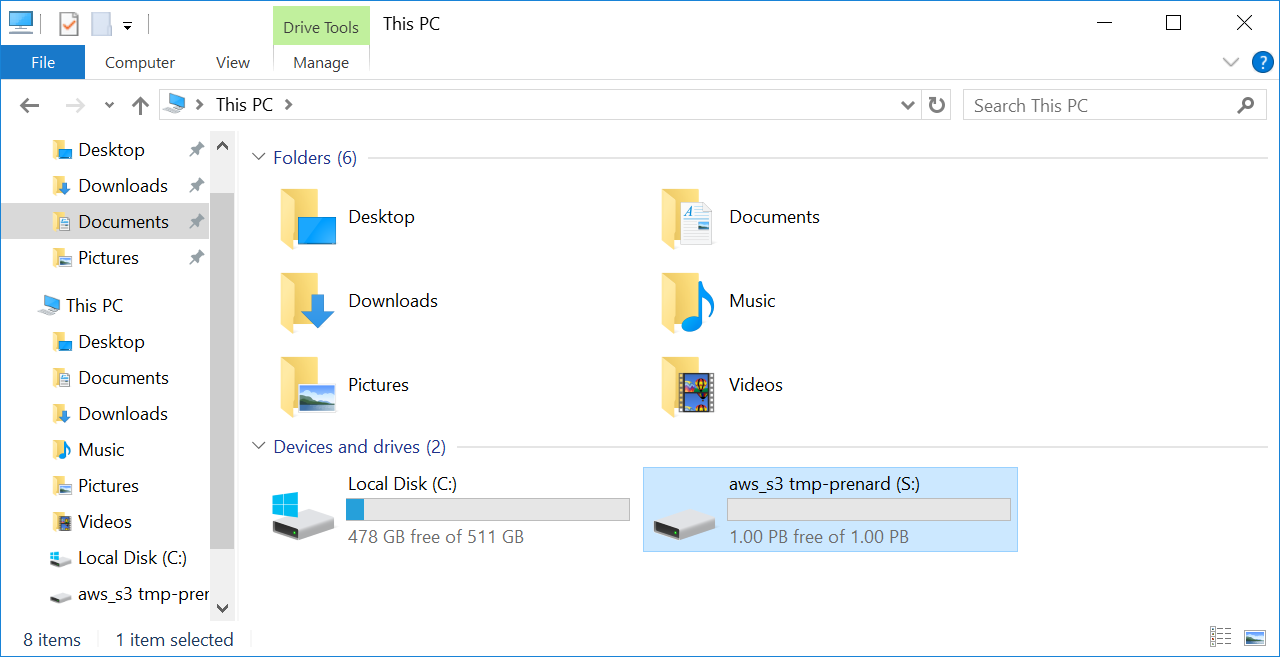
We can now see a new disk mounted on the instance. Let’s drop a file at the root of the disk to see if everything is working.
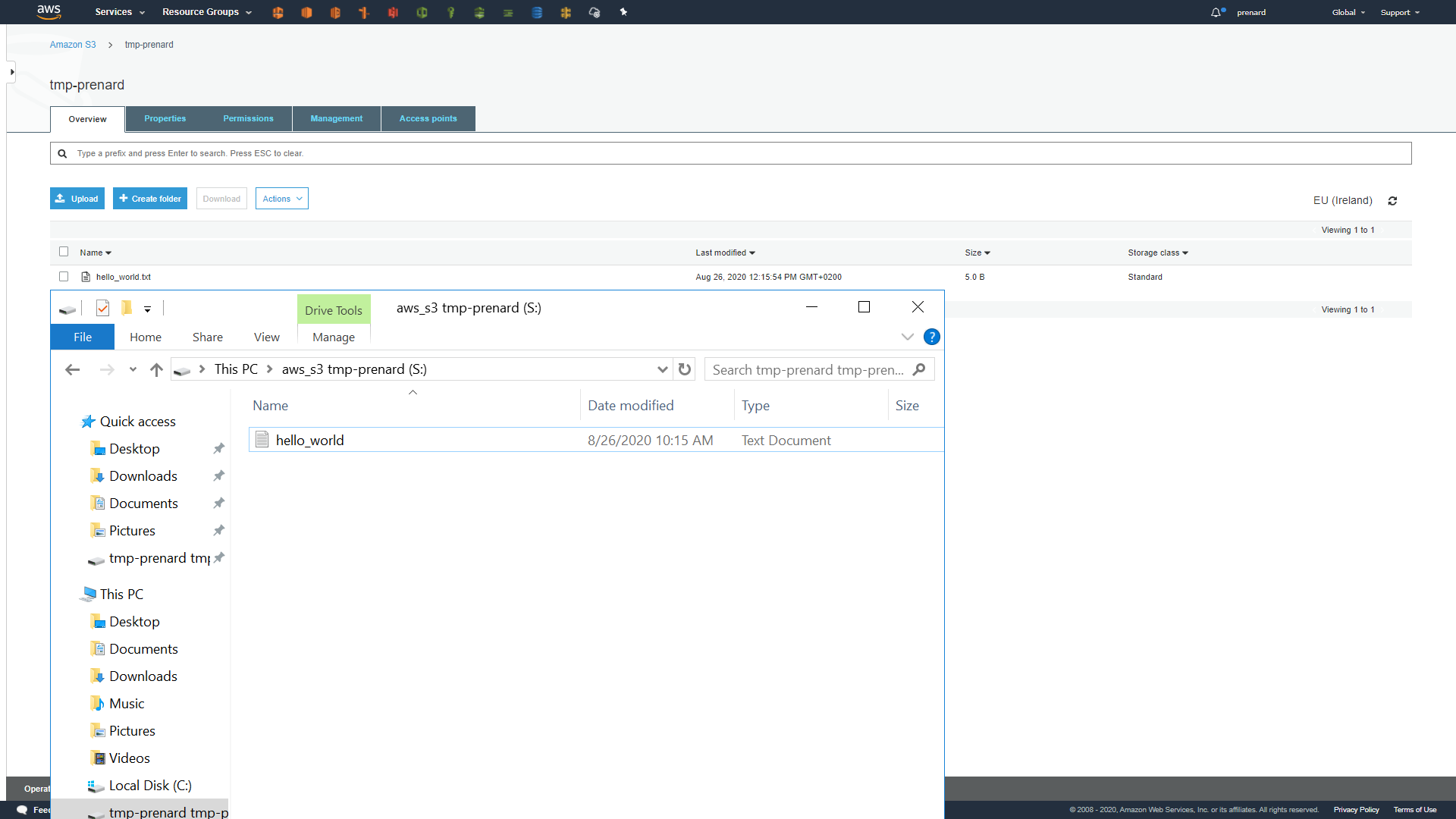
Wonderful, it’s working! We can see that the synchronization is working between the instance and the S3 bucket.
It is worth mentioning that it is also possible to specify a Bucket prefix after the Bucket name in the rclone mount command to mount only what is under this prefix.
Automate everything!
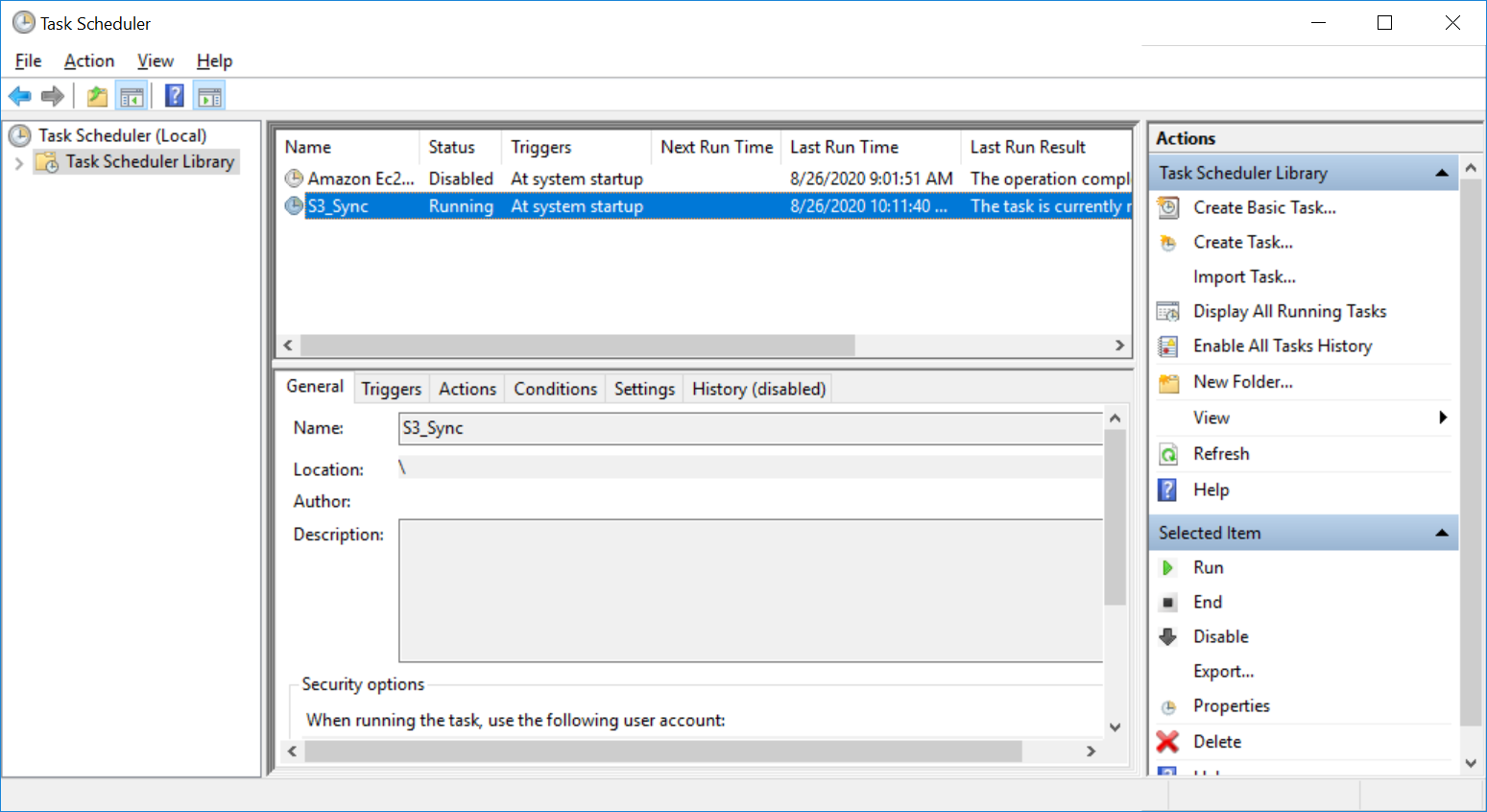
Unfortunately, nothing is automated, and we still need to execute the same command when the instance is started. Here are some PowerShell commands for the creation of a Windows Scheduled Tasks that will be executed at startup.
1 |
$time = New-ScheduledTaskTrigger -AtStartup |
[转帖]MOUNTING AN S3 BUCKET ON WINDOWS AND LINUX的更多相关文章
- [AWS] S3 Bucket
云存储服务 2.1 为网站打开属性 属性和权限设置 设置bucket属性,打开功能:Static website hosting(静态网站托管) 设置bucket权限,Permissions ---- ...
- [转帖]Windows和Linux对决(多进程多线程)
Windows和Linux对决(多进程多线程) https://blog.csdn.net/world_2015/article/details/44920467 太长了 还没看完.. 还是没太理解好 ...
- 【转帖】Linux上搭建Samba,实现windows与Linux文件数据同步
Linux上搭建Samba,实现windows与Linux文件数据同步 2018年06月09日 :: m_nanle_xiaobudiu 阅读数 15812更多 分类专栏: Linux Samba 版 ...
- 【转帖】Windows与Linux系统下的库介绍
Windows与Linux系统下的库介绍 http://embeddedlinux.org.cn/emb-linux/entry-level/200903/12-553.html 库的定义 库文件是一 ...
- [转帖]Windows与Linux的命令行命令对比
Windows与Linux的命令行命令对比 https://www.cnblogs.com/sztom/p/10785140.html * Windows不区分大小写,Linux区分大小写的. sn ...
- 使用scp在windows和Linux之间互传文件
转自:http://yangzhongfei.blog.163.com/blog/static/4610987520103141050918/ 为了进行系统维护操作,有时需要再windows和linu ...
- 两台服务器共享文件Windows和Linux
最近遇到一个问题,新装的两台服务器死活就是挂载不上samba服务器上的文件,在输入mount挂载命令的时候提示只读什么的,尝试了在挂载的时候用只读的方式去挂载也是不行,最终发现了,缺少安装cifs包, ...
- windows和linux执行class
windows java -classpath .;lib/* com.Test linux java -classpath .:ib/* com.Test "."代表当前路径,这 ...
- windows和linux中搭建python集成开发环境IDE——如何设置多个python环境
本系列分为两篇: 1.[转]windows和linux中搭建python集成开发环境IDE 2.[转]linux和windows下安装python集成开发环境及其python包 3.windows和l ...
- Windows和Linux都有的Copy-on-write技术
Windows和Linux都有的Copy-on-write技术 MySQL技术内幕Innodb存储引擎第2版 P375 SQL Server2008 实现与维护(MCTS教程)P199 LVM快照技术 ...
随机推荐
- JavaFx之使用高版本JDK(二十八)
JavaFx之使用高版本JDK(二十八) 如何使用高版本的jfx? 根据官网的需要手动引入jfx模块(运行参数:–module-path) 要知道高版本jfx已经集成了丰富的主流功能,例如视频编码,大 ...
- 前端系列:正则表达式RegExp详解
目录 正则创建 匹配方法 元字符 字符集合 边界 分组 数量词汇 匹配模式 RegExp 方法特性 正则创建 字面量创建 const str = 'asdf123sds3234' const rege ...
- 揭秘Spring事务失效场景分析与解决方案
在Spring框架中,事务管理是一个核心功能,然而有时候会遇到事务失效的情况,这可能导致数据一致性问题.本文将深入探讨一些Spring事务失效的常见场景,并提供详细的例子以及解决方案. 1. 跨方法调 ...
- 2023-11-01:用go语言,沿街有一排连续的房屋。每间房屋内都藏有一定的现金, 现在有一位小偷计划从这些房屋中窃取现金, 由于相邻的房屋装有相互连通的防盗系统,所以小偷 不会窃取相邻的房屋, 小
2023-11-01:用go语言,沿街有一排连续的房屋.每间房屋内都藏有一定的现金, 现在有一位小偷计划从这些房屋中窃取现金, 由于相邻的房屋装有相互连通的防盗系统,所以小偷 不会窃取相邻的房屋, 小 ...
- dart的语法
dart的语法 main方法 main(){ print("有返回值"); } void main() { print("没有返回值"); } 字符串的定义的方 ...
- 为什么程序猿DD热衷于内容输出与分享?
一.热衷于内容输出与分享 我是程序猿DD,大家知道我热衷于内容输出与分享.比如我一直有在产出博客或维护开源项目,是因为平时不沉迷游戏或追剧,空下来就喜欢整理整理最近碰到的问题,那么写写博客正好是一种比 ...
- web内容如何保护:如何有效地保护 HTML5 格式的视频内容?
文章资料还没有整理完,现在还不通顺,但是可以做笔记看 HTML是用于创建web页面和web应用程序的公开标准的标记语言.HTML文件基本上是纯文本文件,这意味着软件应用程序和普通人可以轻松地创建.读取 ...
- 没有苹果开发者账号能否创建ios证书-最新
摘要: 本文介绍了在没有Mac电脑的情况下,使用appuploader工具生成iOS证书和描述文件的方法.随着大前端和H5框架的热门话题,越来越多的人希望将H5应用打包成iOS应用.苹果官方提供的 ...
- 火山引擎DataLeap:更强数据目录搜索能力,做到一步找数
更多技术交流.求职机会,欢迎关注字节跳动数据平台微信公众号,回复[1]进入官方交流群 随着数据管理变得更加复杂,元数据的重要性呈指数级增加. 如今,Data Catalog(数据目录)被看成是元数 ...
- COOIS增强
一.订单抬头增强 二.结构添加字段 添加ZGCWL字段 三.BADI增强 四.其他界面增强 不同的界面,选择不同的修改结构 抬头 ct_ioheader 组件 ct_ioopcomp 工序 ct_io ...