
Dockers启动Kafka
首先安装 Confluent Platform
Quick Start for Confluent Platform (Local install)
Use this quick start to get up and running with Confluent Platform and its main components in a development environment. This quick start uses Confluent Control Center included in Confluent Platform for topic management and event stream processing using ksqlDB.
In this quick start, you create Apache Kafka topics, use Kafka Connect to generate mock data to those topics, and create ksqlDB streaming queries on those topics. You then go to Control Center to monitor and analyze the streaming queries.
See also
You can also run an automated version of this quick start designed for Confluent Platform local installs.
Prerequisites:
Internet connectivity.Operating System currently supported by Confluent Platform.A supported version of Java downloaded and installed.Java 8 and Java 11 are supported in this version of Confluent Platform (Java 9 and 10 are not supported). For more information, see Java supported versions.
Step 1: Download and Start Confluent Platform
Go to the downloads page.
Scroll to the Download Confluent Platform section and provide the following:
- Email: Your email address
- Format:
deb,rpm,tar, orzip
Click DOWNLOAD FREE.
Tip
You have installation options for
Ansible,Docker, andKubernetes. Also, you can download a previous version from Previous Versions.
Decompress the file. You should have the directories, such as
binandetc.Set the environment variable for the Confluent Platform directory.
export CONFLUENT_HOME=<path-to-confluent>
Add the Confluent Platform
bindirectory to your PATH.export PATH=$PATH:$CONFLUENT_HOME/bin
Install the Kafka Connect Datagen source connector using the Confluent Hub client. This connector generates mock data for demonstration purposes and is not suitable for production. Confluent Hub is an online library of pre-packaged and ready-to-install extensions or add-ons for Confluent Platform and Kafka.
confluent-hub install \

   --no-prompt confluentinc/kafka-connect-datagen:latest
Start Confluent Platform using the Confluent CLI confluent local services start command. This command starts all of the Confluent Platform components, including Kafka, ZooKeeper, Schema Registry, HTTP REST Proxy for Kafka, Kafka Connect, ksqlDB, and Control Center.
Important
The confluent local commands are intended for a single-node development environment and are not suitable for a production environment. The data that are produced are transient and are intended to be temporary. For production-ready workflows, see Install and Upgrade Confluent Platform.
confluent local services start
Your output should resemble:
Starting Zookeeper

Zookeeper is [UP]

Starting Kafka

Kafka is [UP]

Starting Schema Registry

Schema Registry is [UP]

Starting Kafka REST

Kafka REST is [UP]

Starting Connect

Connect is [UP]

Starting KSQL Server

KSQL Server is [UP]

Starting Control Center

Control Center is [UP]
Step 2: Create Kafka Topics
In this step, you create Kafka topics using Confluent Control Center. Confluent Control Center provides the functionality for building and monitoring production data pipelines and event streaming applications.
Navigate to the Control Center web interface at http://localhost:9021.
If you installed Confluent Platform on a different host, replace
localhostwith the host name in the address.It may take a minute or two for Control Center to come online.
Note
Control Center won’t connect to ksqlDB if Control Center isn’t open and running in a
localhostbrowser session.
Click the controlcenter.cluster tile.
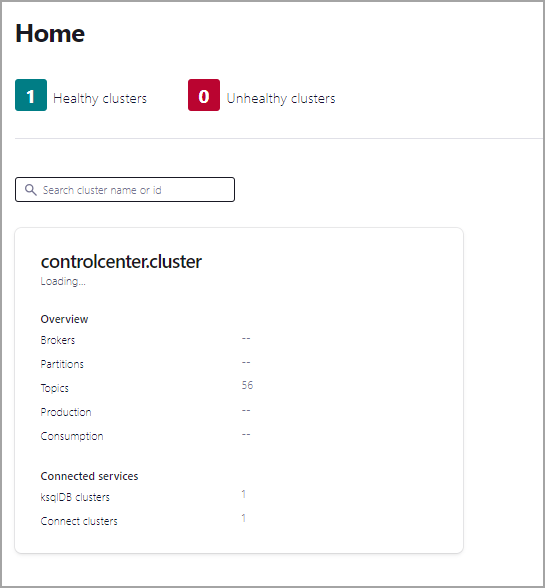
In the navigation bar, click Topics to open the topics list, and then click Add a topic.
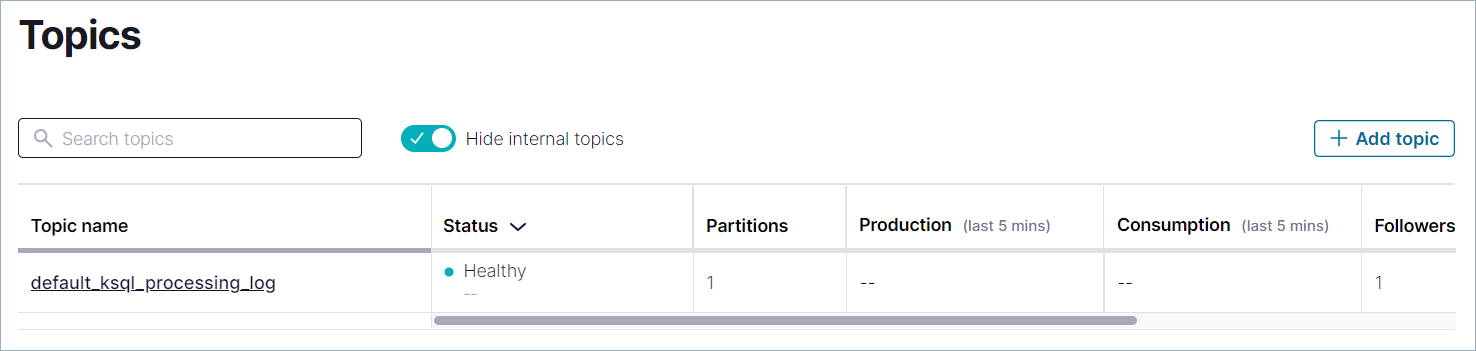
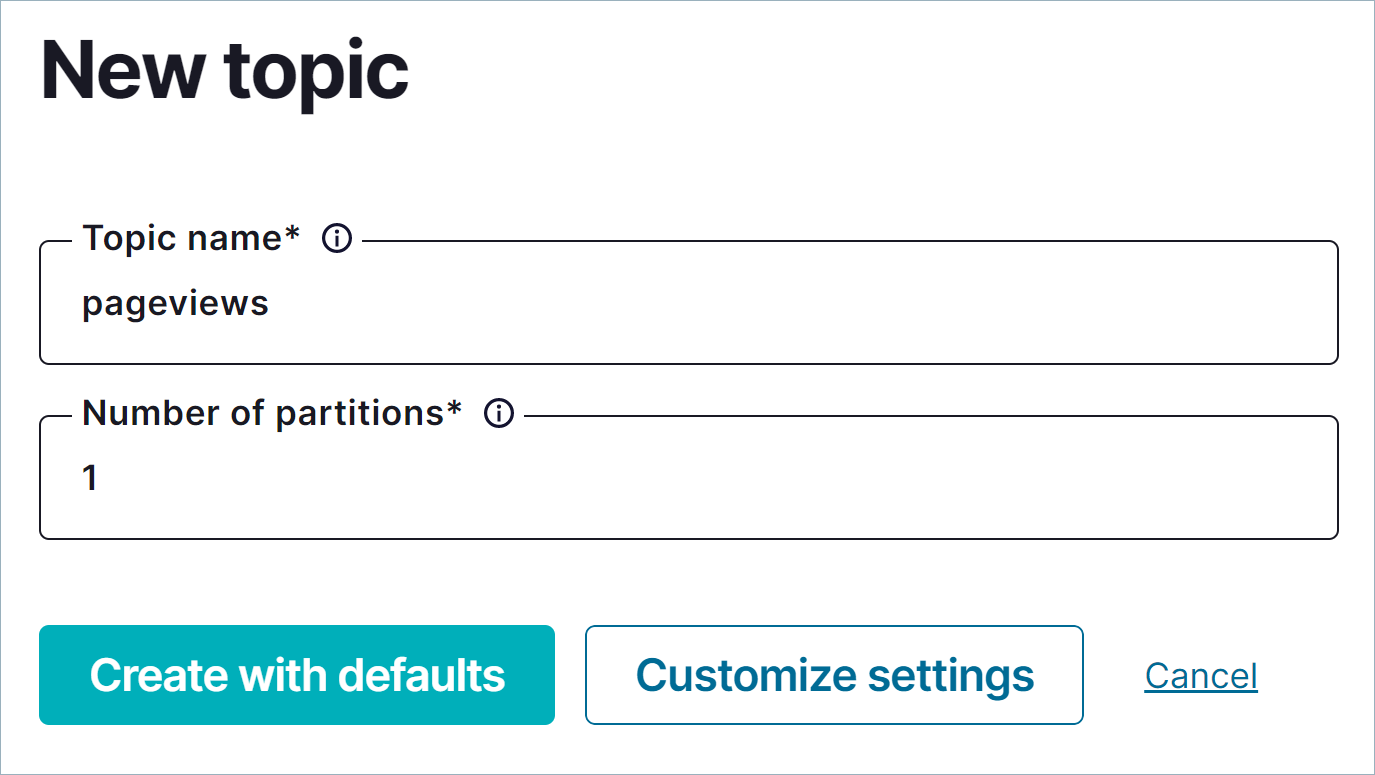
In the Topic name field, specify
pageviewsand click Create with defaults.Note that topic names are case-sensitive.
In the navigation bar, click Topics to open the topics list, and then click Add a topic.
In the Topic name field, specify
usersand click Create with defaults.
Step 3: Install a Kafka Connector and Generate Sample Data
In this step, you use Kafka Connect to run a demo source connector called kafka-connect-datagen that creates sample data for the Kafka topics pageviews and users.
Tip
The Kafka Connect Datagen connector was installed manually in Step 1: Download and Start Confluent Platform. If you encounter issues locating the Datagen Connector, refer to the Issue: Cannot locate the Datagen connector in the Troubleshooting section.
Run the first instance of the Kafka Connect Datagen connector to produce Kafka data to the
pageviewstopic in AVRO format.In the navigation bar, click Connect.
Click the
connect-defaultcluster in the Connect Clusters list.Click Add connector.
Select the
DatagenConnectortile.Tip
To narrow displayed connectors, click Filter by category and click Sources.
In the Name field, enter
datagen-pageviewsas the name of the connector.Enter the following configuration values:
- Key converter class:
org.apache.kafka.connect.storage.StringConverter. - kafka.topic:
pageviews. - max.interval:
100. - quickstart:
pageviews.
- Key converter class:
Click Next.
Review the connector configuration and click Launch.
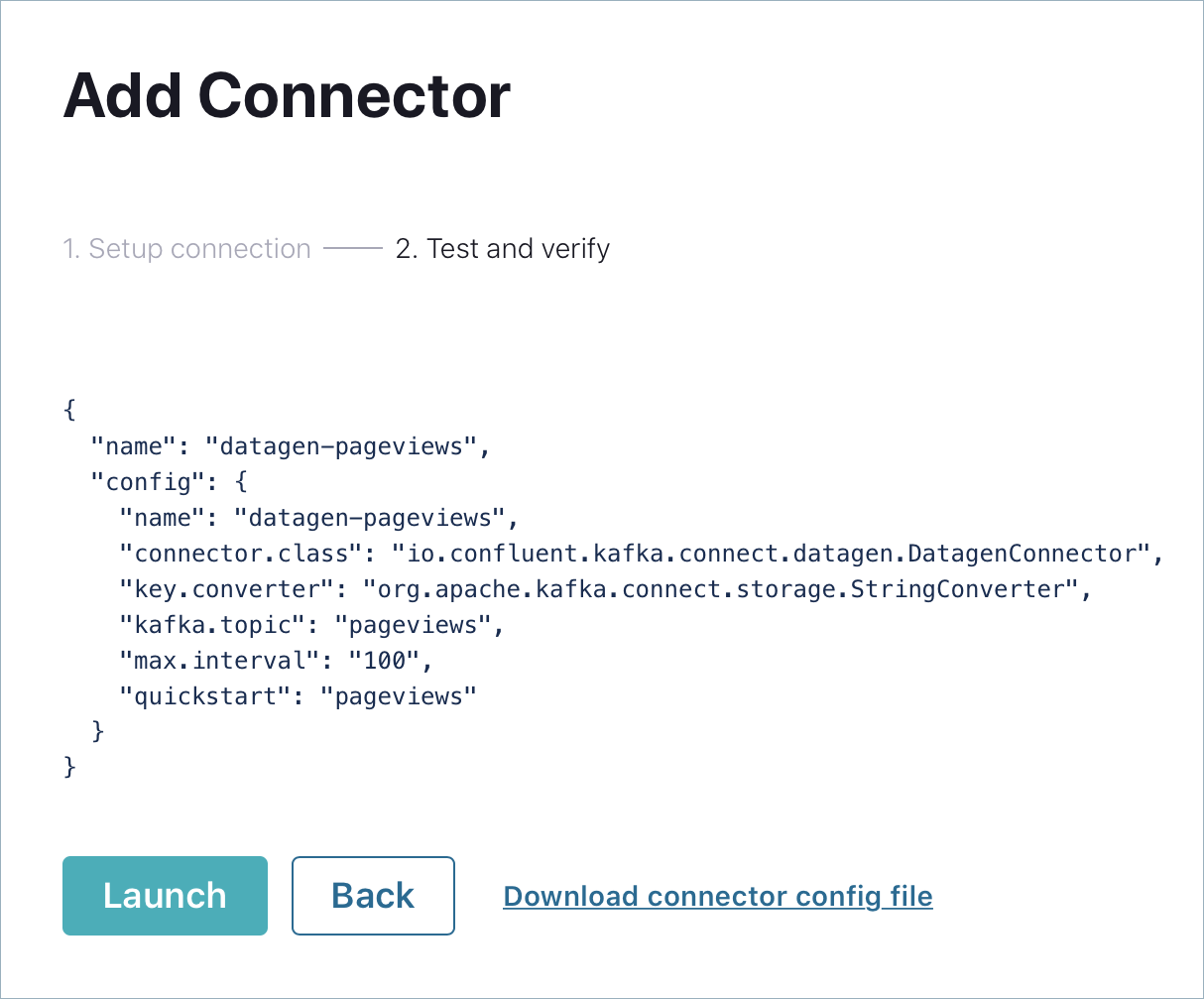
Run the second instance of the Kafka Connect Datagen connector to produce Kafka data to the
userstopic in AVRO format.Click Add connector.
Select the
DatagenConnectortile.Tip
To narrow displayed connectors, click Filter by category and click Sources.
In the Name field, enter
datagen-usersas the name of the connector.Enter the following configuration values:
- Key converter class:
org.apache.kafka.connect.storage.StringConverter - kafka.topic:
users - max.interval:
1000 - quickstart:
users
- Key converter class:
Click Next.
Review the connector configuration and click Launch.
Step 4: Create and Write to a Stream and Table using ksqlDB
Tip
You can also run these commands using the ksqlDB CLI from your terminal with this command:
<path-to-confluent>/bin/ksql http://localhost:8088.
Create Streams and Tables
In this step, you use ksqlDB to create a stream for the pageviews topic and a table for the users topic.
In the navigation bar, click ksqlDB.
Select the
ksqlDBapplication.Copy the following code into the editor window and click Run query to create the
pageviewsstream. Stream names are not case-sensitive.CREATE STREAM pageviews WITH (KAFKA_TOPIC='pageviews', VALUE_FORMAT='AVRO');
Copy the following code into the editor window and click Run query to create the
userstable. Table names are not case-sensitive.CREATE TABLE users (id VARCHAR PRIMARY KEY)
WITH (KAFKA_TOPIC='users', VALUE_FORMAT='AVRO');
Write Queries
In this step, you create ksqlDB queries against the stream and the table you created above.
In the Editor tab, click Add query properties to add a custom query property.
Set the
auto.offset.resetparameter toEarliest.The setting instructs ksqlDB queries to read all available topic data from the beginning. This configuration is used for each subsequent query. For more information, see the ksqlDB Configuration Parameter Reference.
Create the following queries.
Click Stop to stop the current running query.
Create a non-persistent query that returns data from a stream with the results limited to a maximum of three rows:
Enter the following query in the editor:
SELECT pageid FROM pageviews EMIT CHANGES LIMIT 3;
Click Run query. Your output should resemble:
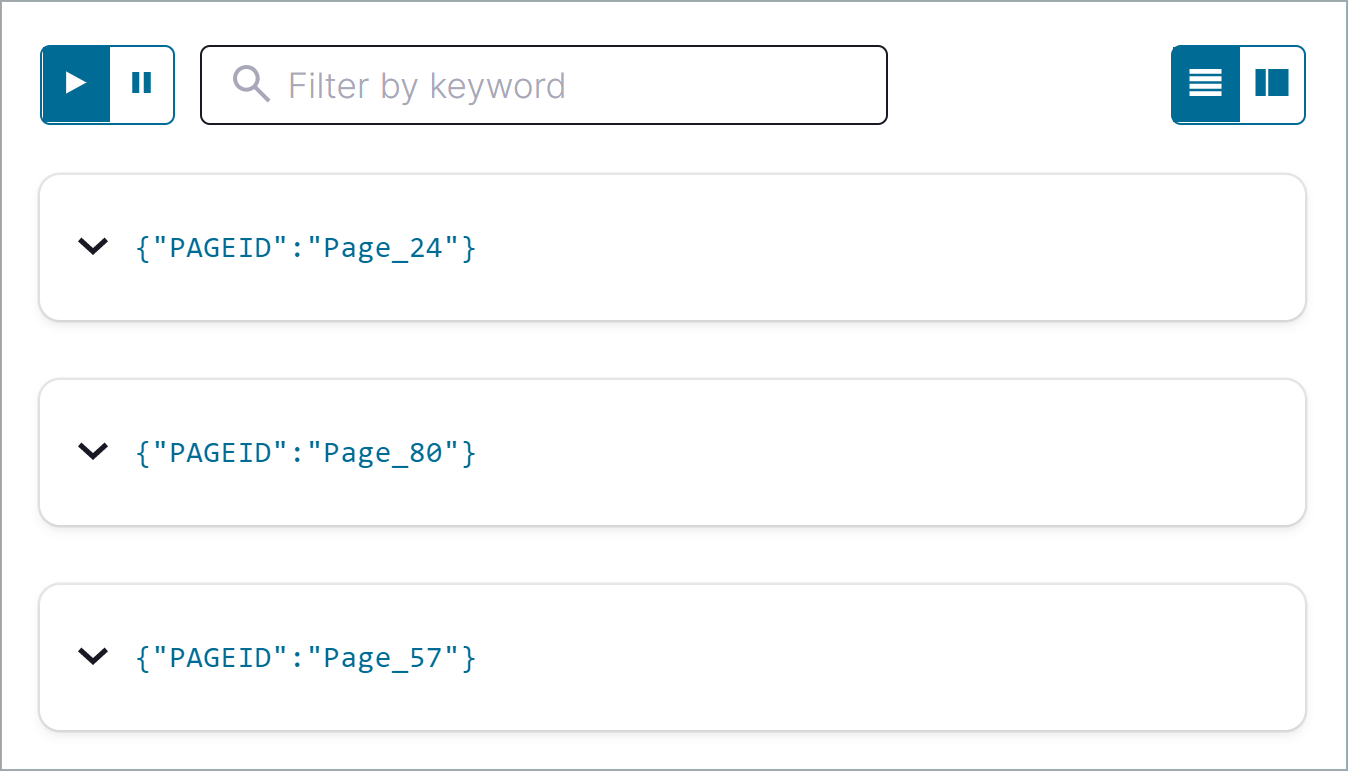
Click the Card view or Table view icon to change the output layout.
Create a persistent query (as a stream) that filters the
PAGEVIEWSstream for female users. The results from this query are written to the KafkaPAGEVIEWS_FEMALEtopic:Enter the following query in the editor:
CREATE STREAM pageviews_female

  AS SELECT users.id AS userid, pageid, regionid

  FROM pageviews LEFT JOIN users ON pageviews.userid = users.id

  WHERE gender = 'FEMALE'

  EMIT CHANGES;
Click Run query. Your output should resemble:

Create a persistent query where
REGIONIDends with8or9. Results from this query are written to the Kafka topic namedpageviews_enriched_r8_r9as explicitly specified in the query:Enter the following query in the editor:
CREATE STREAM pageviews_female_like_89

  WITH (KAFKA_TOPIC='pageviews_enriched_r8_r9', VALUE_FORMAT='AVRO')

  AS SELECT * FROM pageviews_female

  WHERE regionid LIKE '%_8' OR regionid LIKE '%_9'

  EMIT CHANGES;
Click Run query. Your output should resemble:

Create a persistent query that counts the
PAGEVIEWSfor eachREGIONandGENDERcombination in a tumbling window of 30 seconds when the count is greater than 1. Because the procedure is grouping and counting, the result is now a table, rather than a stream. Results from this query are written to a Kafka topic calledPAGEVIEWS_REGIONS:Enter the following query in the editor:
CREATE TABLE pageviews_regions WITH (KEY_FORMAT='JSON')

  AS SELECT gender, regionid, COUNT(*) AS numusers

  FROM pageviews LEFT JOIN users ON pageviews.userid = users.id

  WINDOW TUMBLING (SIZE 30 SECOND)

  GROUP BY gender, regionid

  HAVING COUNT(*) > 1

  EMIT CHANGES;
Click Run query. Your output should resemble:

Click the Persistent queries tab. You should see the following persisted queries:
- PAGEVIEWS_FEMALE
- PAGEVIEWS_FEMALE_LIKE_89
- PAGEVIEWS_REGIONS
Click the Editor tab. The All available streams and tables pane shows all of the streams and tables that you can access.
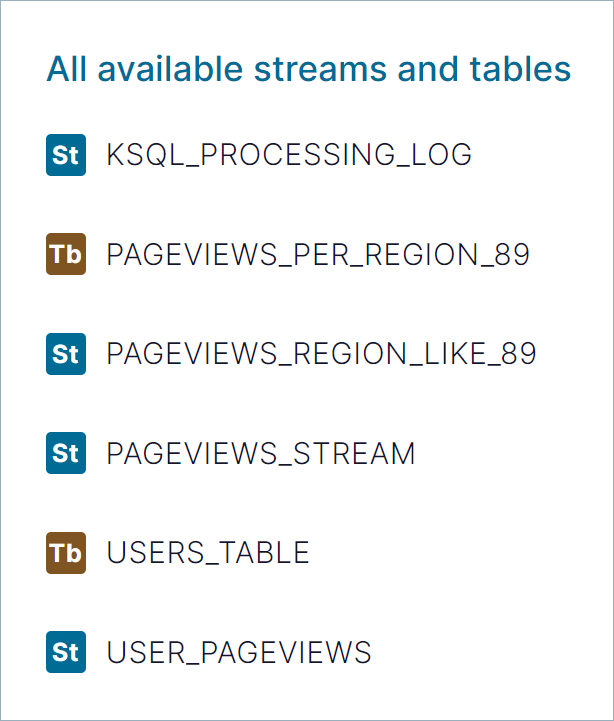
In the All available streams and tables section, click KSQL_PROCESSING_LOG to view the stream’s schema, including nested data structures.
Run Queries
In this step, you run the ksqlDB queries you save as streams and tables above in the previous section.
In the Streams tab, select the
PAGEVIEWS_FEMALEstream.Click Query stream.
The editor opens, and streaming output of the query displays.
Click Stop to stop the output generation.
In the Tables tab, select
PAGEVIEWS_REGIONStable.Click Query table.
The editor opens, and streaming output of the query displays.
Click Stop to stop the output generation.
Step 5: Monitor Consumer Lag
In the navigation bar, click Consumers to view the consumers created by ksqlDB.
Click the consumer group ID to view details for the
_confluent-ksql-default_query_CSAS_PAGEVIEWS_FEMALE_5consumer group.From the page, you can see the consumer lag and consumption values for your streaming query.
For more information, see the Control Center Consumers documentation.
Step 6: Stop Confluent Platform
When you are done working with the local install, you can stop Confluent Platform.
Stop Confluent Platform using the Confluent CLI confluent local services connect stop command.
confluent local services stop
Destroy the data in the Confluent Platform instance with the confluent local destroy command.
confluent local destroy
然后使用docker-compose运行Kafka
Kafka Commands Primer
Once you have Confluent Platform running, an intuitive next step is try out some basic Kafka commands to create topics and work with producers and consumers. This should help orient Kafka newbies and pros alike that all those familiar Kafka tools are readily available in Confluent Platform, and work the same way. These provide a means of testing and working with basic functionality, as well as configuring and monitoring deployments. The commands surface a subset of the APIs available to you.
Confluent Platform ships with Kafka commands and utilities in $CONFLUENT_HOME/etc/kafka/bin. This bin/ directory includes both Confluent proprietary and open source Kafka utilities.
A few things to note:
- With Confluent Platform installed and running on your system, you can run Kafka commands from anywhere; for example, from your
$HOME(~/) directory. You do not have to run these from within$CONFLUENT_HOME. - A full list is provided in CLI Tools for Confluent Platform. Those in the list that begin with
kafka-are the Kafka open source command utilities, also covered in various sections of the Apache Kafka documentation. - Comprehensive command line help is available by typing any of the commands with no arguments; for example,
kafka-topicsorkafka-producer-perf-test.
To help get you started, the sections below provide examples for some of the most fundamental and widely-used commands.
Create, list and describe topics
You can use kafka-topics for operations on topics (create, list, describe, alter, delete, and so forth).
In a command window, run the following commands to experiment with topics.
Create three topics,
cool-topic,warm-topic,hot-topic.kafka-topics --create --topic cool-topic --bootstrap-server localhost:9092
kafka-topics --create --topic warm-topic --bootstrap-server localhost:9092
kafka-topics --create --topic hot-topic --partitions 2 --replication-factor 2 --bootstrap-server localhost:9092
List all topics.
kafka-topics --list --bootstrap-server localhost:9092
Tip
System topics are prefaced by an underscore in the output. The topics you created are listed at the end.
Describe a topic.
This shows partitions, replication factor, and in-sync replicas for the topic.
kafka-topics --describe --topic cool-topic --bootstrap-server localhost:9092
Your output should resemble the following:
Topic: cool-topic PartitionCount: 1       ReplicationFactor: 1    Configs: segment.bytes=1073741824

  Topic: cool-topic       Partition: 0    Leader: 0       Replicas: 0     Isr: 0  Offline:
Tip
If you run
kafka-topics --describewith no specified topic, you get a detailed description of every topic on the cluster (system and user topics).
Describe another topic, using one of the other brokers in the cluster as the bootstrap server.
kafka-topics --describe --topic hot-topic --bootstrap-server localhost:9094
Here is that example output:
Topic: hot-topic  PartitionCount: 2       ReplicationFactor: 2    Configs: segment.bytes=1073741824

  Topic: hot-topic        Partition: 0    Leader: 1       Replicas: 1,0   Isr: 1,0        Offline:

  Topic: hot-topic        Partition: 1    Leader: 0       Replicas: 0,2   Isr: 0,2        Offline:
You can connect to any of the brokers in the cluster to run these commands because they all have the same data!
Alter a topic’s cofiguration.
For this example, change the partition count on hot-topic from
2to9.kafka-topics --alter --topic hot-topic --partitions 9 --bootstrap-server localhost:9092
Tip
Dynamic topic modification is inherently limited by the current configurations. For example, you cannot decrease the number of partitions or modify the replication factor for a topic, as that would require partition reassignment.
Rerun
--describeon the same topic.kafka-topics --describe --topic hot-topic --bootstrap-server localhost:9092
Here is that example output, and verify that the partition count is updated to
9:Topic: hot-topic PartitionCount: 9 ReplicationFactor: 2 Configs: segment.bytes=1073741824
Topic: hot-topic Partition: 0 Leader: 2 Replicas: 2,1 Isr: 2,1 Offline:
Topic: hot-topic Partition: 1 Leader: 1 Replicas: 1,0 Isr: 1,0 Offline:
Topic: hot-topic Partition: 2 Leader: 1 Replicas: 1,2 Isr: 1,2 Offline:
Topic: hot-topic Partition: 3 Leader: 2 Replicas: 2,1 Isr: 2,1 Offline:
Topic: hot-topic Partition: 4 Leader: 0 Replicas: 0,2 Isr: 0,2 Offline:
Topic: hot-topic Partition: 5 Leader: 1 Replicas: 1,0 Isr: 1,0 Offline:
Topic: hot-topic Partition: 6 Leader: 2 Replicas: 2,0 Isr: 2,0 Offline:
Topic: hot-topic Partition: 7 Leader: 0 Replicas: 0,1 Isr: 0,1 Offline:
Topic: hot-topic Partition: 8 Leader: 1 Replicas: 1,2 Isr: 1,2 Offline:
Delete a topic.
kafka-topics --delete --topic warm-topic --bootstrap-server localhost:9092
List all topics.
kafka-topics --list --bootstrap-server localhost:9092
Run producers and consumers to send and read messages
The command utilities kafka-console-producer and kafka-console-consumer allow you to manually produce messages to and consume from a topic.
Open two new command windows, one for a producer, and the other for a consumer.
Run a producer to produce to
cool-topic.kafka-console-producer --topic cool-topic --bootstrap-server localhost:9092
Send some messages.
Type your messages at the prompt (
>), and hit Return after each one.Your command window will resemble the following:
$ kafka-console-producer --broker-list localhost:9092 --topic cool-topic

>hi cool topic

>did you get this message?

>first

>second

>third

>yes! I love you cool topic

>
Tip
You can use the
--broker-listflag in place of--bootstrap-serverfor the producer, typically used to send data to specific brokers; shown here as an example.In the other command window, run a consumer to read messages from
cool-topic. Specify that you want to start consuming from the beginning, as shown.kafka-console-consumer --topic cool-topic --from-beginning --bootstrap-server localhost:9092
Your output will resemble the following:
$ kafka-console-consumer --bootstrap-server localhost:9092 --from-beginning --topic cool-topic

hi cool topic on origin cluster

is this getting to your replica?

first

second

third

yes! I love you cool topic
When you want to stop the producer and consumer, type Ctl-C in their respective command windows.
Tip
You may want to leave at least the producer running for now, in case you want to send more messages when we revisit topics on the Control Center.
Produce auto-generated message data to topics
You can use kafka-consumer-perf-test in its own command window to generate test data to topics.
For example, open a new command window and type the following command to send data to
hot-topic, with the specified throughput and record size.kafka-producer-perf-test \
--producer-props bootstrap.servers=localhost:9092 \
--topic hot-topic \
--record-size 1000 \
--throughput 1000 \
--num-records 3600000
The command provides status output on messages sent, as shown:
4999 records sent, 999.8 records/sec (0.95 MB/sec), 1.1 ms avg latency, 240.0 ms max latency.

5003 records sent, 1000.2 records/sec (0.95 MB/sec), 0.5 ms avg latency, 4.0 ms max latency.

5003 records sent, 1000.2 records/sec (0.95 MB/sec), 0.6 ms avg latency, 5.0 ms max latency.

5001 records sent, 1000.2 records/sec (0.95 MB/sec), 0.3 ms avg latency, 3.0 ms max latency.

5001 records sent, 1000.0 records/sec (0.95 MB/sec), 0.3 ms avg latency, 4.0 ms max latency.

5000 records sent, 1000.0 records/sec (0.95 MB/sec), 0.8 ms avg latency, 24.0 ms max latency.

5001 records sent, 1000.2 records/sec (0.95 MB/sec), 0.6 ms avg latency, 3.0 ms max latency.

...
Open a new command window to consume the messages from hot-topic as they are sent (not from the beginning).
kafka-console-consumer --topic hot-topic --bootstrap-server localhost:9092
Type Ctl-C to stop the consumer.
Tip
You may want to leave the producer running for a moment, as you are about to revisit Topics on the Control Center.
To learn more, check out Benchmark Commands, Let’s Load test, Kafka!, and How to do Performance testing of Kafka Cluster
参考文档
Confluent Community Docker Image for Apache Kafka
Dockers启动Kafka的更多相关文章
- 启动kafka时报scala相关错误:java.lang.NoSuchMethodError: scala.Predef$.ArrowAssoc()
1.报错现象: 启动kafka的时候启动失败,并且会报告下面的错误: java.lang.NoSuchMethodError: scala.Predef$.ArrowAssoc(Ljava/lang/ ...
- 安装启动kafka
vim kafka/config/server.properties #确保唯一 broker.id=0 #允许删除主题 delete.topic.enable=true # 指定数据文件所在目录 l ...
- 首次启动Kafka报Java HotSpot(TM) 64-Bit Server VM warning: INFO: os::commit_memory(0x00000000c0000000, 1073741824, 0) failed; error='Cannot allocate memory' (errno=12)
首次启动Kafka报错如下: 原因:内存不足,查看启动配置 调小一些:
- 启动Kafka
启动zookeeper 使用命令查看zookeeper是否启动成功: 启动kafka Brokerr 使用命令查看kafka Broker是否启动更成功 在kafka中创建topic 'test' b ...
- Mac单机模式安装启动Kafka
1.下载kafka,网址: https://www.apache.org/dyn/closer.cgi?path=/kafka/2.0.0/kafka_2.12-2.0.0.tgz 2.移动tar包到 ...
- 启动kafka集群,关闭kafka集群脚本
启动kafka集群,关闭kafka集群脚本 在$KAFKA_HOME/bin下新建如下脚本文件 start-kafka.sh #!/bin/bash BROKERS="mini41 mini ...
- 启动kafka报错
启动kafka时 报错: kafka-console-consumer.sh --from-beginning --zookeeper node01:8121,node02:8121,node03:8 ...
- macOS启动Kafka
目录 kafka目录结构 先启动zookeeper 后启动kafka 创建topic 创建一个生产者 创建一个消费者 kafka目录结构 # kafka安装目录 /usr/local/Cellar/k ...
- 【kafka】一键启动kafka脚本
3.1 创建文件cd bin 跳转到bin文件夹里touch start-kafka-cluster.sh --新建一键启动文件touch stop-kafka-cluster.sh --新建一键 ...
随机推荐
- 2021广东省强网杯WriteUp
个人赛 网络诈骗 参考 https://github.com/Heyxk/notes/issues/1 先把EnMicroMsg.db提出来 CompatibleInfo.cfg是0kb,用第一种方法 ...
- 在随着layui官网下架后 layui镜像站起来了
layui:https://gitee.com/lh_yun/layui 介绍 layui镜像站 「本站仅为 layui 文档保留的镜像站点,与官方无关」 源码地址 在线 pdf 1.主页 https ...
- SQL Server2019数据库备份与还原脚本,数据库可批量备份
前言 最近公司服务器到期,需要进行数据迁移,而数据库属于多而繁琐,通过图形化界面一个一个备份所需时间成本很大,所以想着写一个sql脚本来执行. 开始 数据库单个备份 数据库批量备份 数据库还原 数据库 ...
- 简易发号SQL,可用于生成指定前缀自增序列--改进版
使用merge语法实现新增or更新 首先创建表 CREATE TABLE Test.dbo.Increments ( Prefix varchar(50) NOT NULL, [MaxNum ] bi ...
- [hdu4747]Mex
首先计算出以1为左端点的所有区间的mex,考虑删除左端点仍然维护这个序列:设当前删除点下一次出现在y,y~n的mex不变,从左端点到y的点中大于删除值的点要变成删除值,因为这个是不断递增的,所以是一段 ...
- 解决Windows7、Windows10 ping不通的问题
在VLAN交换机网络下面不能访问Windows10或者Windows7共享.ping不通问题,关闭防火墙发现能ping通了共享也正常了. 但是关闭防火墙将给电脑系统留下安全隐患.不怕麻烦的可以继续往下 ...
- Redis分布式缓存剖析及大厂面试精髓v6.2.6
概述 官方说明 Redis官网 https://redis.io/ 最新版本6.2.6 Redis中文官网 http://www.redis.cn/ 不过中文官网的同步更新维护相对要滞后不少时间,但对 ...
- JAVA特点及安装卸载
C语言特点 1972 贴近硬件,运行速度快,效率高 操作系统,数据库,网络系统,编译器 指针和内存管理 C++语言特点 1982 面向对象 兼容C 图形领域,游戏等 Java语言特点 简单性 面向对象 ...
- 【NOI导刊200908模拟试题02 题4】【二分+Dijkstra】 收费站
Description 在某个遥远的国家里,有n个城市.编号外1,2,3,-,n. 这个国家的政府修建了m条双向的通路.每条公路连接着两个城市.沿着某条公路,开车从一个城市到另一个城市,需要花费一定的 ...
- Codeforces 997D - Cycles in product(换根 dp)
Codeforces 题面传送门 & 洛谷题面传送门 一种换根 dp 的做法. 首先碰到这类题目,我们很明显不能真的把图 \(G\) 建出来,因此我们需要观察一下图 \(G\) 有哪些性质.很 ...