
WPF 实现文件、图标拖放功能(支持UAC的那种)
WPF实现文件拖放功能,正常情况并没有什么问题,但是如果你的程序使用管理员身份启动,你就会发现文件拖放功能就会失效。
这是因为WPF 在不同UAC等级下,是不允许拖放的。
原理很简单,与桌面相关联的进程为 explorer.exe,即 explorer.exe 这个进程启动的方式是非管理员身份,当你的程序使用管理员身份启动时,就会导致拖放失败。
因为二者的权限不一样,系统不允许不同权限的进程进行通讯,包括进程通讯等操作。
解决方案:
方案一(不推荐):让 explorer.exe 也使用管理员身份启动。举例Win7系统只需这样设置下并重启系统即可,如下图:
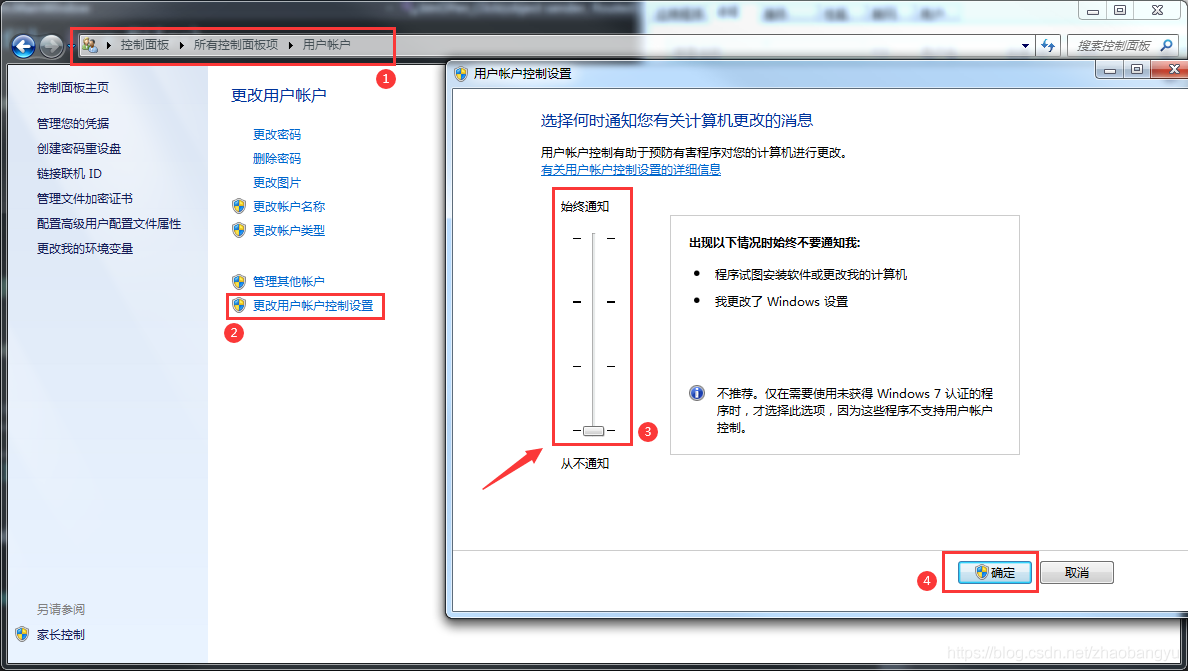

这种方案能解决问题,但是你不可能让用户去做这种操作,所以只能算一个解决方案,并不能解决实际的问题。
方案二:让你的程序使用非管理员启动,程序中需要管理员身份的操作,一般为涉及到注册表操作或驱动操作,可以考虑将这部分操作放到一个服务里单独操作,可以理解为程序分成服务与应用程序两块,需要管理员身份操作的
功能部分放到服务里实现,界面相关的操作在应用程序里实现。
这种方案也能解决,并且问题解决的比较彻底,但是项目工程量比较大的情况下,工作量就比较大了,为一个文件拖放的功能,增加了较大的工作量,得不偿失。
方案三:提供一个折中的办法,WPF经过我较长的上网搜索及研究,没有找到合适的办法解决这个问题,但是 WinForm 通过消息Hook却能实现,所以这个折中的办法就是WPF+WinForm来解决这个问题。
下面我们将主要讲解如何使用 WPF+WinForm 解决WPF程序使用管理员身份启动后不能拖放文件的问题。
第一部分:使用 WinForm 解决使用不能拖动的问题,关键代码如下
ElevatedDragDropManager.cs
using System;

using System.Collections.Generic;

using System.Linq;

using System.Text;

using System.Runtime.InteropServices;

using System.Windows.Forms;

using System.Windows;

public class ElevatedDragDropManager : IMessageFilter

{

    #region "P/Invoke"

    [DllImport("user32.dll")]

    [return: MarshalAs(UnmanagedType.Bool)]

    private static extern bool ChangeWindowMessageFilterEx(IntPtr hWnd, uint msg, ChangeWindowMessageFilterExAction action, ref CHANGEFILTERSTRUCT changeInfo);

    [DllImport("user32.dll")]

    [return: MarshalAs(UnmanagedType.Bool)]

    private static extern bool ChangeWindowMessageFilter(uint msg, ChangeWindowMessageFilterFlags flags);

    [DllImport("shell32.dll")]

    private static extern void DragAcceptFiles(IntPtr hwnd, bool fAccept);

    [DllImport("shell32.dll")]

    private static extern uint DragQueryFile(IntPtr hDrop, uint iFile, [Out()]

StringBuilder lpszFile, uint cch);

    [DllImport("shell32.dll")]

    private static extern bool DragQueryPoint(IntPtr hDrop, ref POINT lppt);

    [DllImport("shell32.dll")]

    private static extern void DragFinish(IntPtr hDrop);

    [StructLayout(LayoutKind.Sequential)]

    private struct POINT

    {

        public int X;

        public int Y;

        public POINT(int newX, int newY)

        {

            X = newX;

            Y = newY;

        }

        public static implicit operator System.Drawing.Point(POINT p)

        {

            return new System.Drawing.Point(p.X, p.Y);

        }

        public static implicit operator POINT(System.Drawing.Point p)

        {

            return new POINT(p.X, p.Y);

        }

    }

    private enum MessageFilterInfo : uint

    {

        None,

        AlreadyAllowed,

        AlreadyDisAllowed,

        AllowedHigher

    }

    private enum ChangeWindowMessageFilterExAction : uint

    {

        Reset,

        Allow,

        Disallow

    }

    private enum ChangeWindowMessageFilterFlags : uint

    {

        Add = 1,

        Remove = 2

    }

    [StructLayout(LayoutKind.Sequential)]

    private struct CHANGEFILTERSTRUCT

    {

        public uint cbSize;

        public MessageFilterInfo ExtStatus;

    }

    #endregion

    public static ElevatedDragDropManager Instance = new ElevatedDragDropManager();

    public event EventHandler<ElevatedDragDropArgs> ElevatedDragDrop;

    private const uint WM_DROPFILES = 0x233;

    private const uint WM_COPYDATA = 0x4a;

    private const uint WM_COPYGLOBALDATA = 0x49;

    private readonly bool IsVistaOrHigher = Environment.OSVersion.Version.Major >= 6;

    private readonly bool Is7OrHigher = (Environment.OSVersion.Version.Major == 6 && Environment.OSVersion.Version.Minor >= 1) || Environment.OSVersion.Version.Major > 6;

    public void EnableDragDrop(IntPtr hWnd)

    {

        if (Is7OrHigher)

        {

            CHANGEFILTERSTRUCT changeStruct = new CHANGEFILTERSTRUCT();

            changeStruct.cbSize = Convert.ToUInt32(Marshal.SizeOf(typeof(CHANGEFILTERSTRUCT)));

            ChangeWindowMessageFilterEx(hWnd, WM_DROPFILES, ChangeWindowMessageFilterExAction.Allow, ref changeStruct);

            ChangeWindowMessageFilterEx(hWnd, WM_COPYDATA, ChangeWindowMessageFilterExAction.Allow, ref changeStruct);

            ChangeWindowMessageFilterEx(hWnd, WM_COPYGLOBALDATA, ChangeWindowMessageFilterExAction.Allow, ref changeStruct);

        }

        else if (IsVistaOrHigher)

        {

            ChangeWindowMessageFilter(WM_DROPFILES, ChangeWindowMessageFilterFlags.Add);

            ChangeWindowMessageFilter(WM_COPYDATA, ChangeWindowMessageFilterFlags.Add);

            ChangeWindowMessageFilter(WM_COPYGLOBALDATA, ChangeWindowMessageFilterFlags.Add);

        }

        DragAcceptFiles(hWnd, true);

    }

    public bool PreFilterMessage(ref Message m)

    {

        if (m.Msg == WM_DROPFILES)

        {

            HandleDragDropMessage(m);

            return true;

        }

        return false;

    }

    private void HandleDragDropMessage(Message m)

    {

        dynamic sb = new StringBuilder(260);

        uint numFiles = DragQueryFile(m.WParam, 0xffffffffu, sb, 0);

        dynamic list = new List<string>();

        for (uint i = 0; i <= numFiles - 1; i++)

        {

            if (DragQueryFile(m.WParam, i, sb, Convert.ToUInt32(sb.Capacity) * 2) > 0)

            {

                list.Add(sb.ToString());

            }

        }

        POINT p = default(POINT);

        DragQueryPoint(m.WParam, ref p);

        DragFinish(m.WParam);

        dynamic args = new ElevatedDragDropArgs();

        args.HWnd = m.HWnd;

        args.Files = list;

        args.X = p.X;

        args.Y = p.Y;

        if (ElevatedDragDrop != null)

        {

            ElevatedDragDrop(this, args);

        }

    }

}

public class ElevatedDragDropArgs : EventArgs

{

    public IntPtr HWnd

    {

        get { return m_HWnd; }

        set { m_HWnd = value; }

    }

    private IntPtr m_HWnd;

    public List<string> Files

    {

        get { return m_Files; }

        set { m_Files = value; }

    }

    private List<string> m_Files;

    public int X

    {

        get { return m_X; }

        set { m_X = value; }

    }

    private int m_X;

    public int Y

    {

        get { return m_Y; }

        set { m_Y = value; }

    }

    private int m_Y;

    public ElevatedDragDropArgs()

    {

        Files = new List<string>();

    }

}
Form1.cs
注:需要将Form1窗口的AllowDrop属性设置为false,否则无法拖动文件。
using System;

using System.Collections.Generic;

using System.ComponentModel;

using System.Data;

using System.Drawing;

using System.Linq;

using System.Text;

using System.Windows.Forms;

namespace FileDragDrop

{

    public partial class FileDragDrop : Form

    {

        public FileDragDrop()

        {

            InitializeComponent();

            //this.AllowDrop设置为false

            this.AllowDrop = false;

            ElevatedDragDropManager filter = new ElevatedDragDropManager();

            //开启拖放功能

            filter.EnableDragDrop(this.Handle);

            //添加消息过滤器

            Application.AddMessageFilter(filter);

            //设置拖放结束回调

            filter.ElevatedDragDrop += this.ElevatedDragDrop;

        }

        //拖放结束事件

        private void ElevatedDragDrop(System.Object sender, ElevatedDragDropArgs e)

        {

            try

            {

                if (e.HWnd == this.Handle)

                {

                    foreach (string file in e.Files)

                    {

                        //拖动文件

                        MessageBox.Show("ElevatedDragDrop File=" + (file) + "!");

                    }

                }

            }

            catch (Exception ex)

            {

                //异常信息

                MessageBox.Show("ElevatedDragDrop error=" + (ex.TargetSite?.Name) + "!");

            }

        }

    }

}
最终的效果:
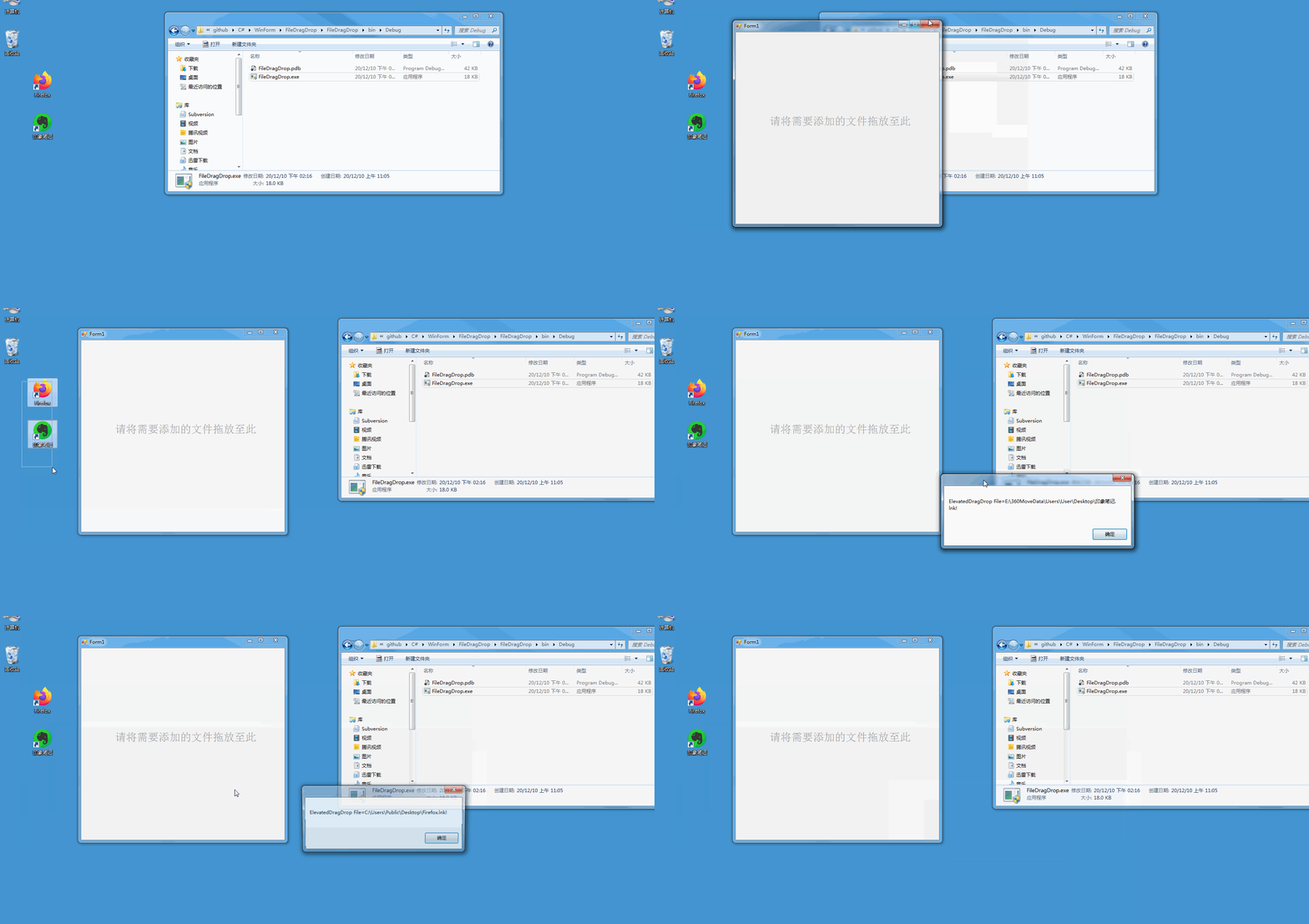
WinForm项目代码链接:https://github.com/zhaobangyu/C-SHAP/tree/WinForm
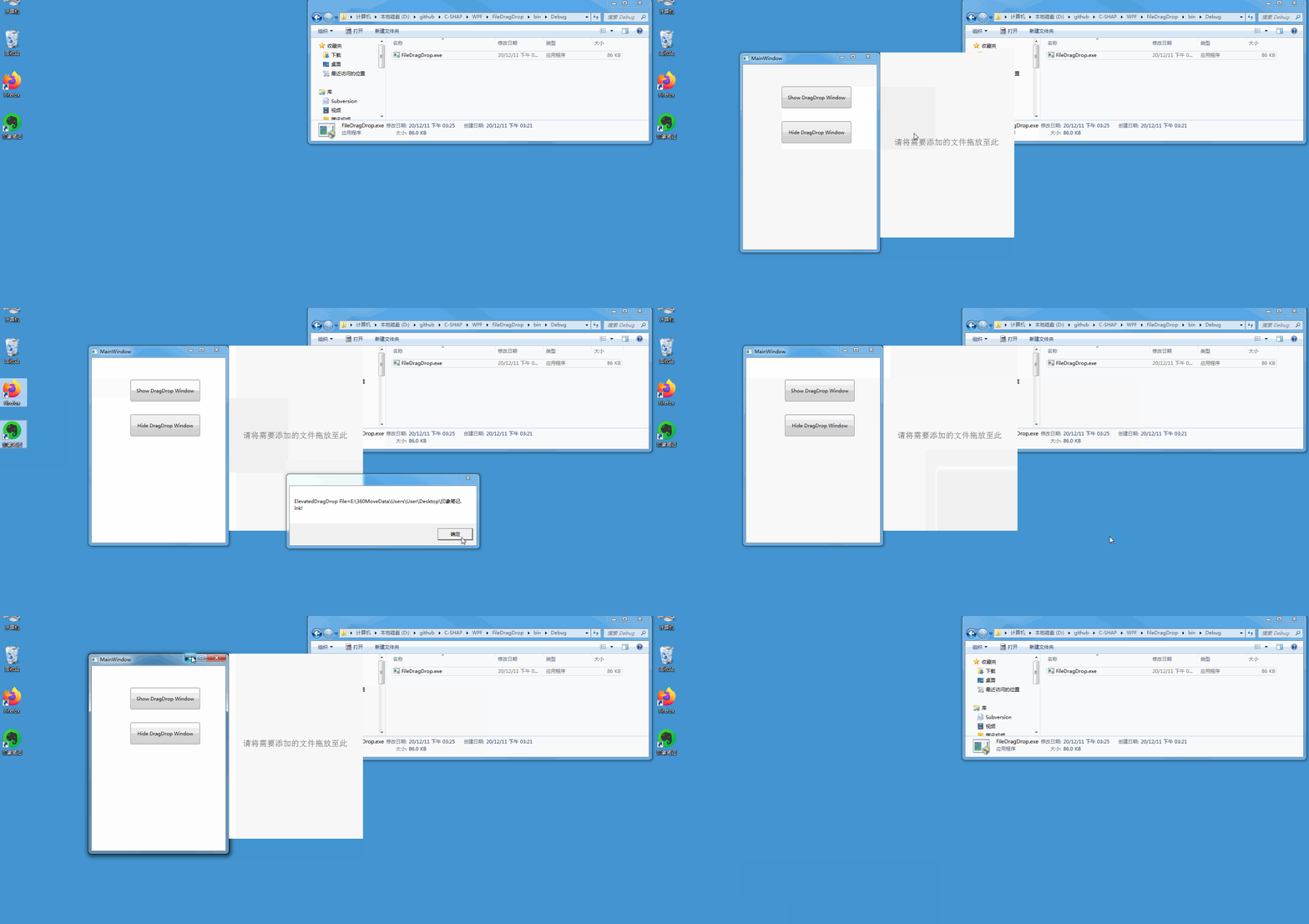
WPF+WinForm项目代码链接:https://github.com/zhaobangyu/C-SHAP/tree/WPF/FileDragDrop
WPF 实现文件、图标拖放功能(支持UAC的那种)的更多相关文章
- WPF拖放功能实现zz
写在前面:本文为即兴而作,因此难免有疏漏和词不达意的地方.在这里,非常期望您提供评论,分享您的想法和建议. 这是一篇介绍如何在WPF中实现拖放功能的短文. 首先要读者清楚的一件事情是:拖放主要分为拖放 ...
- WPF拖放功能实现
写在前面:本文为即兴而作,因此难免有疏漏和词不达意的地方.在这里,非常期望您提供评论,分享您的想法和建议. 这是一篇介绍如何在WPF中实现拖放功能的短文. 首先要读者清楚的一件事情是:拖放主要分为拖放 ...
- WPF开发快速入门【7】WPF的拖放功能(Drag and Drop)
概述 本文描述WPF的拖放功能(Drag and Drop). 拖放功能涉及到两个功能,一个就是拖,一个是放.拖放可以发生在两个控件之间,也可以在一个控件自己内部拖放.假设界面上有两个控件,一个Tre ...
- 如何使用LightningChart拖放功能进行数据转移 ?
本文主要介绍如何使用LightningChart扩展拖放功能为所有图表组件创建图表,如:系列,标题,轴线等等.支持用鼠标放置自定义对象到另一个图表中,如:可以添加或修改JSON/CSV或其他格式的数据 ...
- iOS如何在应用中添加图标更换功能
一.在info.plist中设置图标信息 首先将需要更换的图标按照下面的方式声明,以便我们能够正常调用文件和方法.注意,每个图标的图标名称和对应的文件名要一一对应. 二.在工程根目录下添加图标文件 图 ...
- HOW TO: 在 Visual C# .NET 应用程序中提供文件拖放功能
本文假定您熟悉下列主题: Windows 窗体列表框控件 Windows 窗体事件处理 生成示例的步骤 列表框控件提供了您需要处理的两个拖放事件: DragEnter 和 DragDrop. 当您在控 ...
- WPF 4 动态覆盖图标(Dynamic Overlay Icon)
原文:WPF 4 动态覆盖图标(Dynamic Overlay Icon) 在<WPF 4 开发Windows 7 任务栏>一文中我们学习了任务栏的相关开发内容,同时也对覆盖图标 ...
- c# WPF SVG 文件的引用(SharpVectors)
原文:c# WPF SVG 文件的引用(SharpVectors) 阿里巴巴矢量图标库提供了大量的 SVG 图标:https://www.iconfont.cn/ 但是 WPF 本身不支持 SVG 格 ...
- MVC5:使用Ajax和HTML5实现文件上传功能
引言 在实际编程中,经常遇到实现文件上传并显示上传进度的功能,基于此目的,本文就为大家介绍不使用flash 或任何上传文件的插件来实现带有进度显示的文件上传功能. 基本功能:实现带有进度条的文件上传功 ...
- Draggabilly – 轻松实现拖放功能(Drag & Drop)
Draggabilly 是一个很小的 JavaScript 库,专注于拖放功能.只需要简单的设置参数就可以在你的网站用添加拖放功能.兼容 IE8+ 浏览器,支持多点触摸.可以灵活绑定事件,支持 Req ...
随机推荐
- 【nginx】代理设置Host
旧文章从语雀迁移过来,原日期为2021-02-18 nginx 的 proxy 模块使我们经常会用到的模块之一,比如我们常用的 nginx 反向代理. 反向代理我们一般有这么几行配置代码: locat ...
- Typora + PicGo + B2 Cloud Storage 实现个人免费图床
前言 22年底终于购入了Typora,想着之前使用时候的痛点就是在图片管理这一块. 我尝试过使用在线的图床工具进行图片上传再将链接放入Typora,但说实话非常麻烦. 也尝试过就将图片保存在本地,但当 ...
- [seaborn] seaborn学习笔记8-避免过度绘图Avoid Overplotting
8 避免过度绘图Avoid Overplotting(代码下载) 过度绘图是散点图及几天常见图表中最常见的问题之一.如下图所示当数据集很大时,散点图的点会重叠,使得图形变得不可读.在这篇文章中,提出了 ...
- vulnhub靶场之HACKER KID: 1.0.1
准备: 攻击机:虚拟机kali.本机win10. 靶机:Hacker kid: 1.0.1,下载地址:https://download.vulnhub.com/hackerkid/Hacker_Kid ...
- TiDB 底层存储结构 LSM 树原理介绍
作者:京东物流 刘家存 随着数据量的增大,传统关系型数据库越来越不能满足对于海量数据存储的需求.对于分布式关系型数据库,我们了解其底层存储结构是非常重要的.本文将介绍下分布式关系型数据库 TiDB 所 ...
- vulnhub靶场之FUNBOX: UNDER CONSTRUCTION!
准备: 攻击机:虚拟机kali.本机win10. 靶机:Funbox: Under Construction!,下载地址:https://download.vulnhub.com/funbox/Fun ...
- 《Effective C++》关于const,define等总结
(将每一条item的总结和自己的理解给记录下来,以后有需要的话可以再回头参阅这些资料,不懂的再翻书温故.) Item 02:尽量以const ,enum,inline替换#define #define ...
- 通过rpm安装postgresql-9.6无法远程连接的问题
1.停止postgresql服务 service postgresql-9.6 stop 2.修改postgresql.conf vi /var/lib/pgsql/9.6/data/postgres ...
- Redis之key的淘汰策略
淘汰策略概述 redis作为缓存使用时,在添加新数据的同时自动清理旧的数据.这种行为在开发者社区众所周知,也是流行的memcached系统的默认行为. redis中使用的LRU淘汰算法是一种近似LRU ...
- 使用gm/ID方法设计二级运算放大器
1 设计指标 运算放大器采用图1所示的电路结构,电路中的电流源均采用共源共栅结构,可以获得较高的共模抑制比和电流复制精度.其性能指标为增益带宽积GBW=100MHz,负载电容CL=2pF.本设计采用的 ...