
elementUI slider组件,带范围选择实现双向绑定
网上查过很多相关文章都没有一章是写element ui滑块带范围实现双向绑定 二个滑块二头的数据怎么得到 我的需求是做个时间轴要滑动选择不同的时间 开始很难做最后一点一点摸索得出的结论 好在写出来了先给大家看实体图
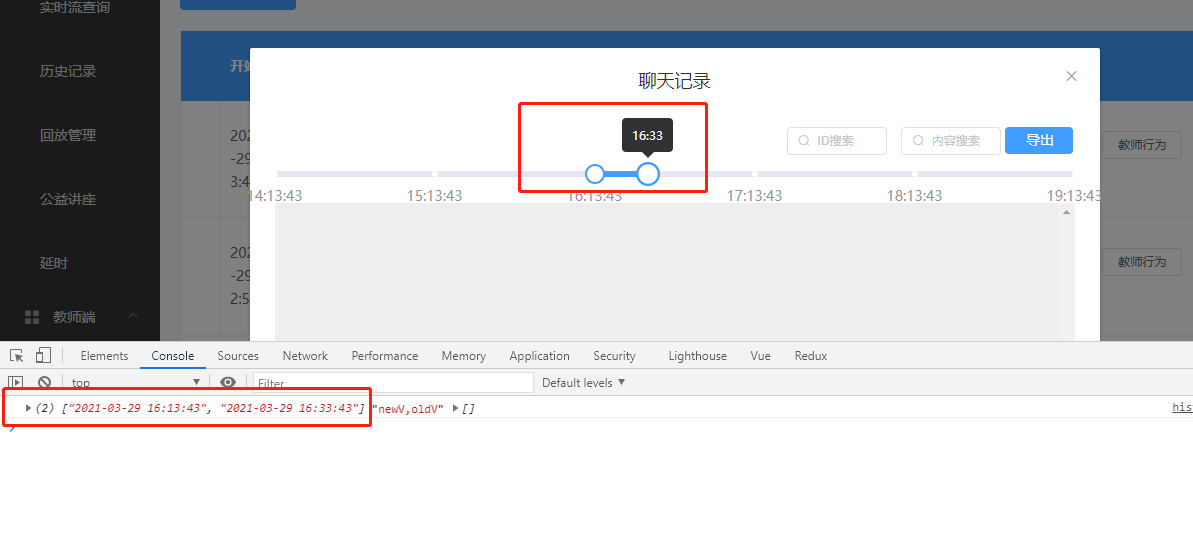
就是这样的 给大家贴代码 多余的代码我就不贴了 就给你们看主要的
 <div>

      <el-dialog

        title="聊天记录"

        :visible.sync="showFlag"

        width="850px"

        @close="closeDialog"

        center

      >

        <div>

          <div class="block">

            <el-slider

              v-model="value"

              range

              :marks="marks"

              :max="300"

              :step="1"

              @change="schedule()"

              style="margin-bottom:10px;"

              :format-tooltip="formatTooltip"

            >

            </el-slider>

          </div>

        </div>

      </el-dialog>

    </div>
再是函数方法里面的
这是点击按钮进入聊天弹框触发的函数

  showChart(scope) {

      this.value = [120, 140]

      this.liveIdRow = scope.row.LiveID

      this.TeacherIDRow = scope.row.TeacherID

      this.searchValue.time = []

      this.data = []

      if (scope) {

        var startTime = scope.row.StartTime

        var endTime = moment(startTime)

          .add(20, 'm')

          .format('YYYY-MM-DD HH:mm:ss')

        this.searchValue.time.push(startTime)

        this.searchValue.time.push(endTime)

        this.focusTimeList = []

        for (var i = 0; i < 7; i++) {

          this.focusTimeList.push(

            moment(startTime)

              .add(60 * i, 'm')

              .format('YYYY-MM-DD HH:mm:ss')

          )

        }

        this.focusTimeListTwo = []

        for (var k = 0; k < 3; k++) {

          this.focusTimeListTwo.push(

            moment(this.focusTimeList[0])

              .add(-60 * k, 'm')

              .format('YYYY-MM-DD HH:mm:ss')

          )

        }

      }

      this.loading = true

      this.showFlag = true

      this.recordList = []

      var body = {

        liveid: this.liveIdRow,

        teacherid: this.TeacherIDRow,

        start: this.searchValue.time[0],

        end: this.searchValue.time[1]

      }

      return request({

        method: 'get',

        url: '/api/teacher/chat',

        params: body

      }).then(res => {

        if (res.Content) {

          this.messages = res.Content

          this.messages.forEach(item => {

            var num = parseInt(19 * Math.random())

            item.img = require(`../../../assets/auter/icon-test_${num}.png`)

            item.msgs = item.msg

              .replace(/\[e\]em_/g, '<img src=../../../static/faces/em_')

              .replace(/\[e\]/g, '.png>')

          })

          this.recordList = this.messages

          this.loading = false

        } else {

          this.$message({

            message: '无分析结果!',

            type: 'warning'

          })

          this.loading = false

        }

      })

    },

这是滑块自带的函数你可以去elementui官网看一下了解一下大概就是你滑动一下滑块每次都触发的函数

 formatTooltip(val) {

      this.val = val

      this.marks = {

        0: this.focusTimeListTwo[2].substring(11, 19),

        60: this.focusTimeListTwo[1].substring(11, 19),

        120: this.focusTimeList[0].substring(11, 19),

        180: this.focusTimeList[1].substring(11, 19),

        240: this.focusTimeList[2].substring(11, 19),

        300: this.focusTimeList[3].substring(11, 19)

      }

      if (val != null) {

        var hour = this.focusTimeListTwo[2].substring(11, 13)

        var min = this.focusTimeListTwo[2].substring(14, 16)

        if (val < 60 || val == 60) {

          min = min * 1 + val

          if (min == 60) {

            min = 0

            hour = this.focusTimeListTwo[1].substring(11, 13) * 1

          }

          hour = hour * 1

          if (min > 60) {

            min = min - 60

            hour = hour + 1

          }

        }

        if ((val > 60 && val < 120) || val == 120) {

          min = this.focusTimeListTwo[1].substring(14, 16) * 1

          hour = this.focusTimeListTwo[1].substring(11, 13) * 1

          min = min * 1 + val - 60

          if (min == 60) {

            min = 0

            hour = this.focusTimeList[0].substring(11, 13) * 1

          }

          if (min > 60) {

            min = min - 60

            hour = hour + 1

          }

        }

        if ((val > 120 && val < 180) || val == 120) {

          min = this.focusTimeList[0].substring(14, 16) * 1

          min = min * 1 + val - 120

          hour = this.focusTimeList[0].substring(11, 13) * 1

          if (min == 60) {

            min = 0

            hour = this.focusTimeList[1].substring(11, 13) * 1

          }

          if (min > 60) {

            min = min - 60

            hour = hour + 1

          }

        }

        if ((val > 180 && val < 240) || val == 180) {

          min = this.focusTimeList[1].substring(14, 16) * 1

          min = min * 1 + val - 180

          hour = this.focusTimeList[1].substring(11, 13) * 1

          if (min == 60) {

            min = 0

            hour = this.focusTimeList[2].substring(11, 13) * 1

          }

          if (min > 60) {

            min = min - 60

            hour = hour + 1

          }

        }

        if ((val > 240 && val < 300) || val == 240) {

          min = this.focusTimeList[2].substring(14, 16) * 1

          min = min * 1 + val - 240

          hour = this.focusTimeList[2].substring(11, 13) * 1

          if (min == 60) {

            min = 0

            hour = this.focusTimeList[3].substring(11, 13) * 1

          }

          if (min > 60) {

            min = min - 60

            hour = hour + 1

          }

        }

        if (val == 300) {

          min = this.focusTimeList[3].substring(14, 16) * 1

          min = min * 1 + val - 300

          hour = this.focusTimeList[3].substring(11, 13) * 1

          if (min > 60) {

            min = min - 60

            hour = hour + 1

          }

        }

        if (hour < 10) {

          hour = '0' + hour

        }

        if (min < 10) {

          min = '0' + min

        }

        this.hour = hour

        this.min = min

        const time = hour + ':' + min

        return time

      } else {

        hour = 0

        min = 0

        hour = this.focusTimeList[0].substring(11, 13)

        min = this.focusTimeList[0].substring(14, 16)

        const time = hour + ':' + min

        return time

      }

    },

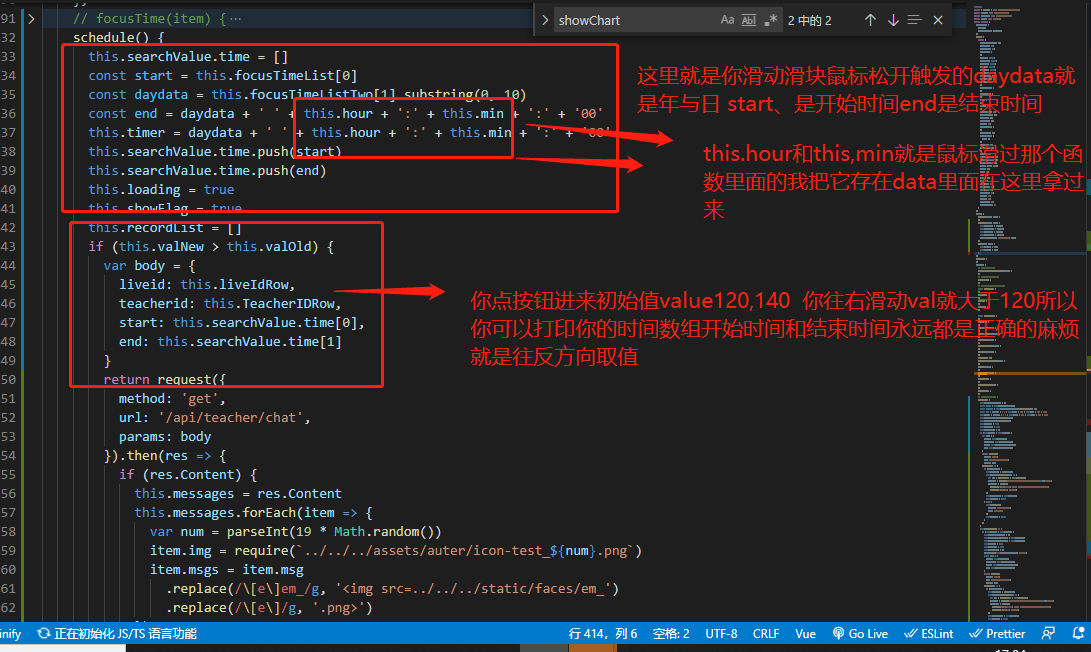
下面也是elementui自带函数大概意思就是你拖动划款松开鼠标触发的

schedule() {

      this.searchValue.time = []

      const start = this.focusTimeList[0]

      const daydata = this.focusTimeListTwo[1].substring(0, 10)

      const end = daydata + ' ' + this.hour + ':' + this.min + ':' + '00'

      this.timer = daydata + ' ' + this.hour + ':' + this.min + ':' + '00'

      this.searchValue.time.push(start)

      this.searchValue.time.push(end)

      this.loading = true

      this.showFlag = true

      this.recordList = []

      if (this.valNew > this.valOld) {

        var body = {

          liveid: this.liveIdRow,

          teacherid: this.TeacherIDRow,

          start: this.searchValue.time[0],

          end: this.searchValue.time[1]

        }

        return request({

          method: 'get',

          url: '/api/teacher/chat',

          params: body

        }).then(res => {

          if (res.Content) {

            this.messages = res.Content

            this.messages.forEach(item => {

              var num = parseInt(19 * Math.random())

              item.img = require(`../../../assets/auter/icon-test_${num}.png`)

              item.msgs = item.msg

                .replace(/\[e\]em_/g, '<img src=../../../static/faces/em_')

                .replace(/\[e\]/g, '.png>')

            })

            this.recordList = this.messages

            this.loading = false

          } else {

            this.$message({

              message: '无分析结果!',

              type: 'warning'

            })

            this.loading = false

          }

        })

      }

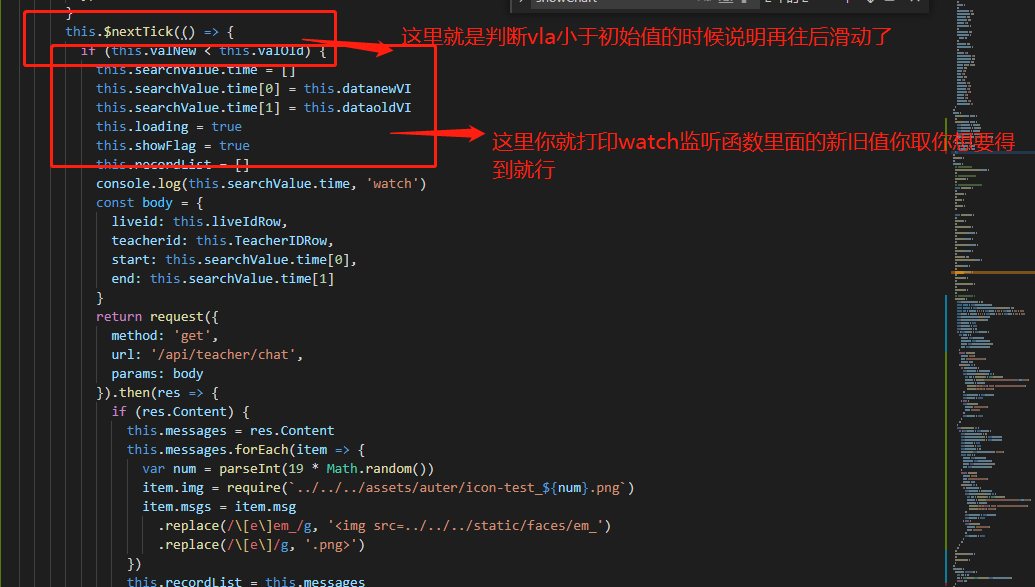
      this.$nextTick(() => {

        if (this.valNew < this.valOld) {

          this.searchValue.time = []

          this.searchValue.time[0] = this.datanewVI

          this.searchValue.time[1] = this.dataoldVI

          this.loading = true

          this.showFlag = true

          this.recordList = []

          console.log(this.searchValue.time, 'watch')

          const body = {

            liveid: this.liveIdRow,

            teacherid: this.TeacherIDRow,

            start: this.searchValue.time[0],

            end: this.searchValue.time[1]

          }

          return request({

            method: 'get',

            url: '/api/teacher/chat',

            params: body

          }).then(res => {

            if (res.Content) {

              this.messages = res.Content

              this.messages.forEach(item => {

                var num = parseInt(19 * Math.random())

                item.img = require(`../../../assets/auter/icon-test_${num}.png`)

                item.msgs = item.msg

                  .replace(/\[e\]em_/g, '<img src=../../../static/faces/em_')

                  .replace(/\[e\]/g, '.png>')

              })

              this.recordList = this.messages

              this.loading = false

            } else {

              this.$message({

                message: '无分析结果!',

                type: 'warning'

              })

              this.loading = false

            }

          })

        }

      })

    },

这个是计算函数 大概作用就是深拷贝

,

  computed: {

    datainit: function() {

      var obj = {}

      obj = JSON.parse(JSON.stringify(this.searchValue.time))

      return obj

    }

  },

下面是监听函数  这就不用多说了  大家都懂监听

  watch: {

    datainit(newV, oldV) {

      this.datanewV = newV[0]

      this.datanewVI = newV[1]

      this.dataoldV = oldV[0]

      this.dataoldVI = oldV[1]

      console.log(newV, 'newV,oldV', oldV)

    },

    val(newV, oldV) {

      this.valNew = newV

      this.valOld = oldV

    }

  },
贴代码是方便你们copy 下面就是带图讲解
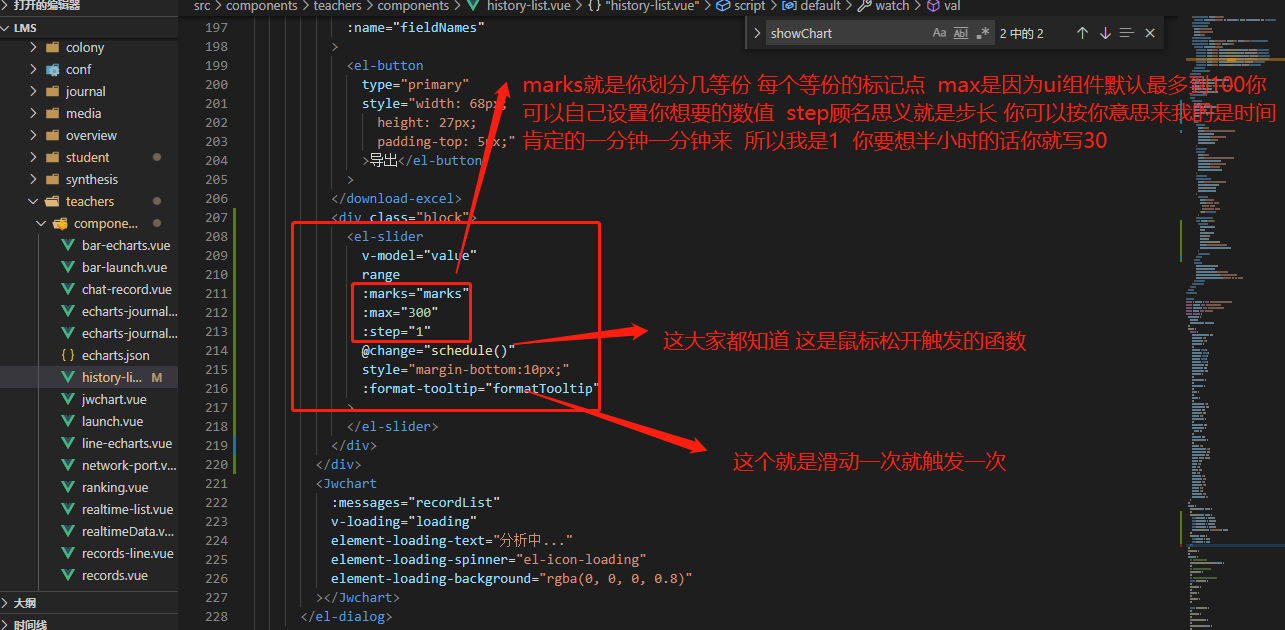
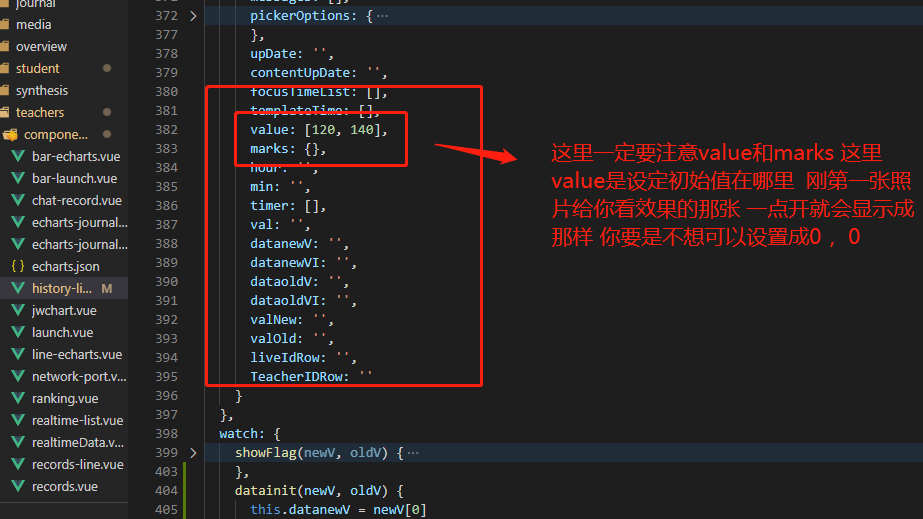
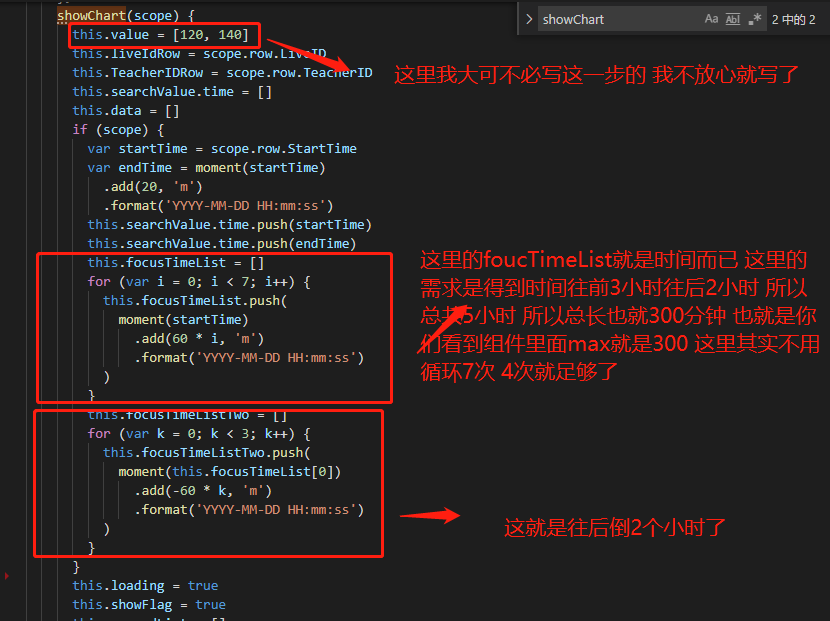
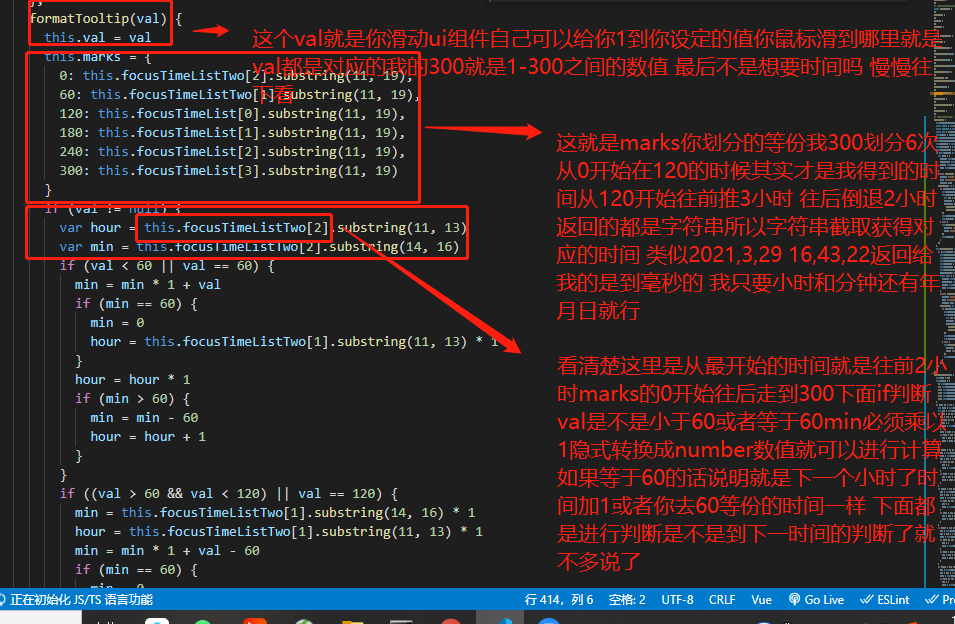
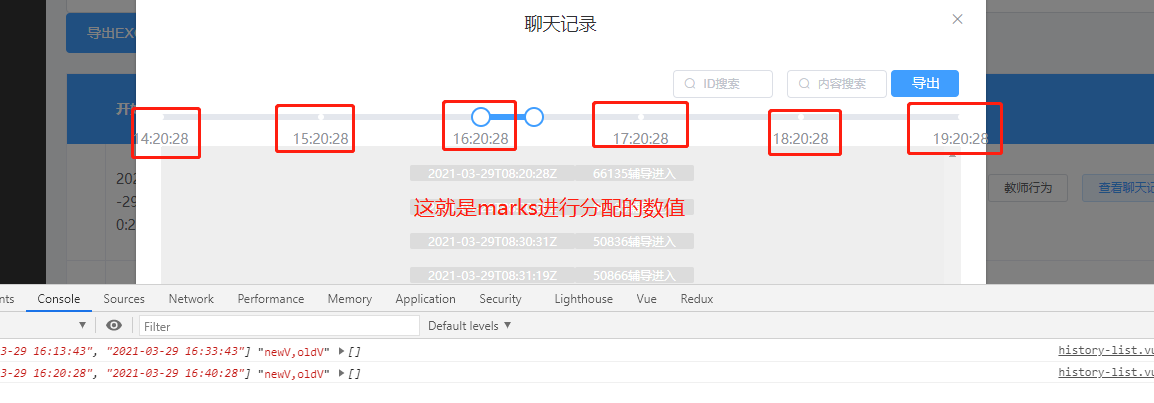

完成上面这些你就可以随便滑动得到时间显示时间了
其实这个都很简单主要是取值问题是往后滑动没问题 怎么都能去取到值 就是往前拖动我怎么都拿不到前面的值 最后我想了办法把时间存起来深拷贝一下 再进行监听和新旧元素对比 这样就可以完美得到值了
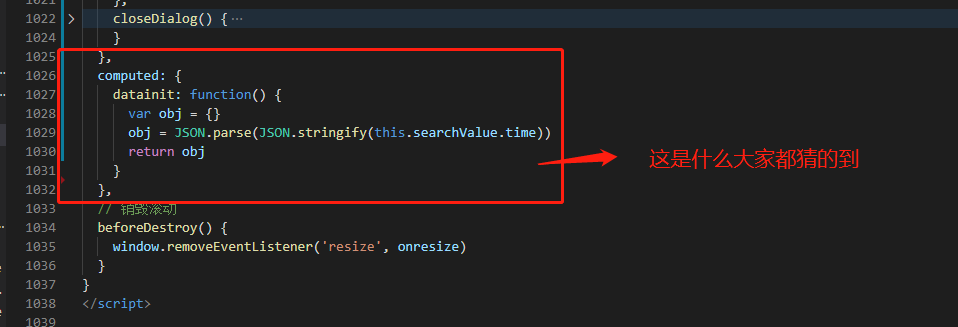
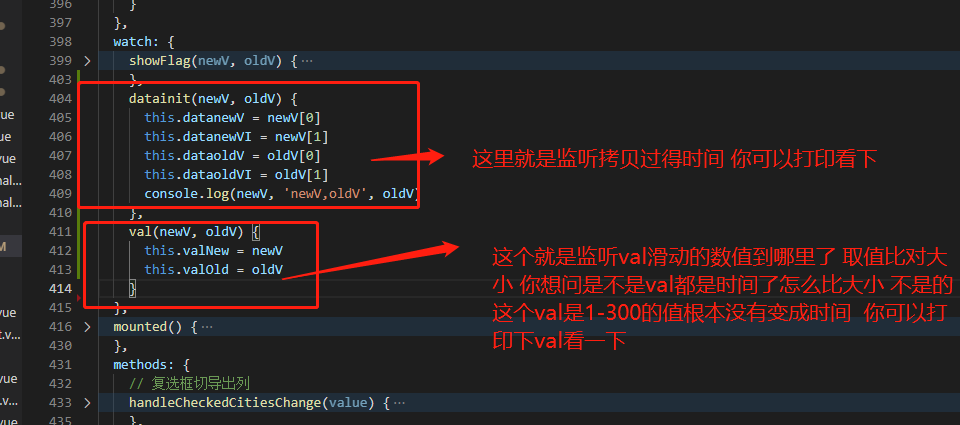
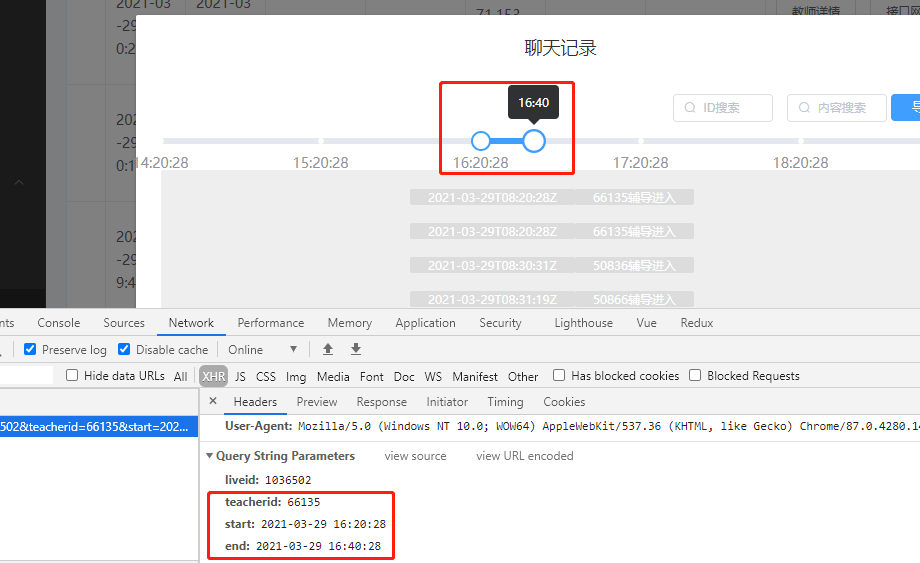
这是刚开始进来
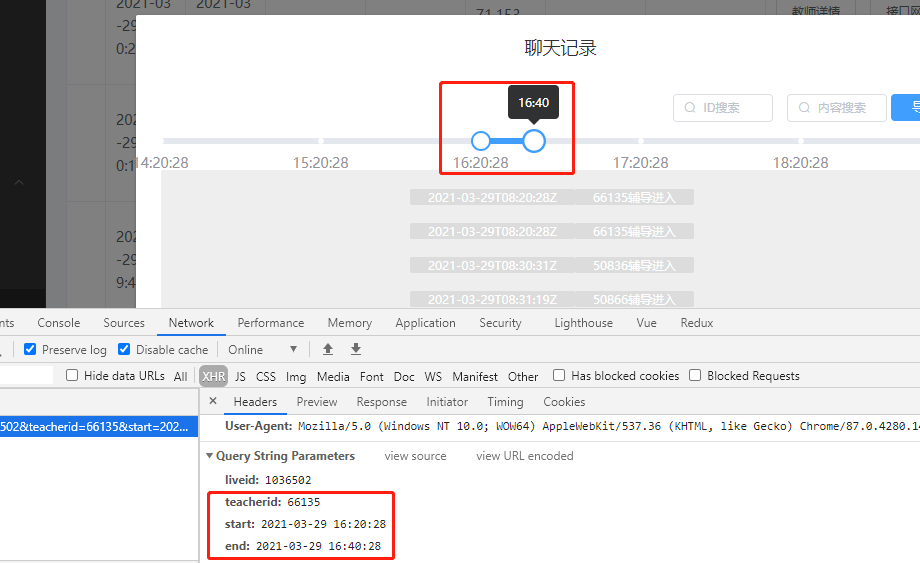
这是往前

这是往后

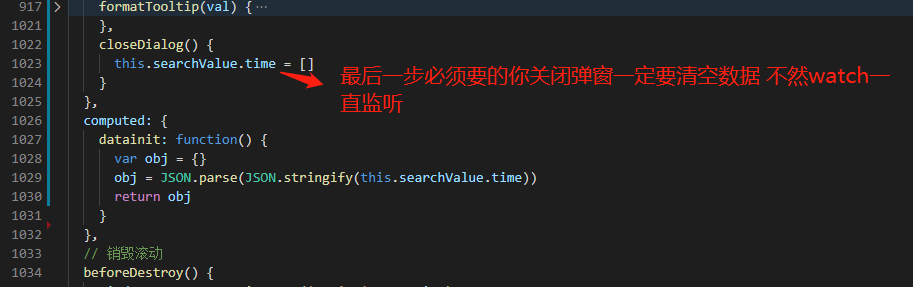
最后回去发现一开始进去就往左滑动会有bug进行改动改了就判断的地方
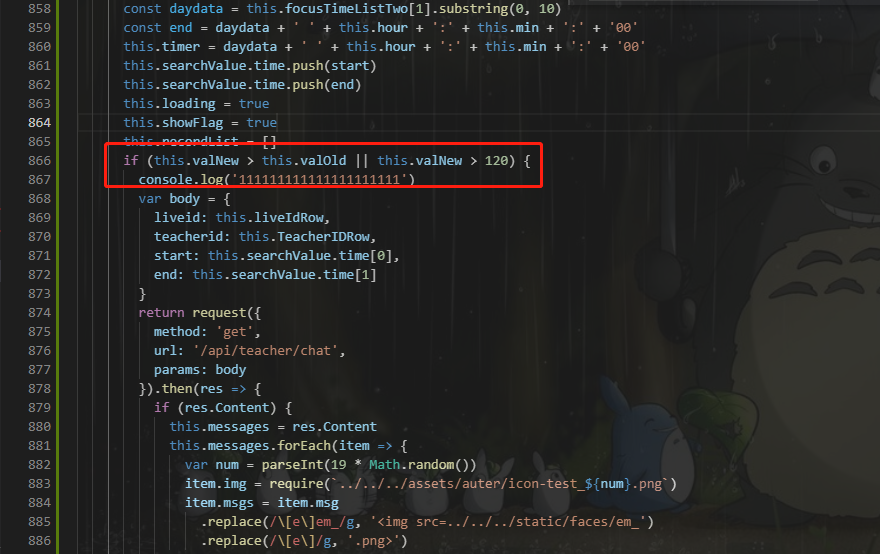
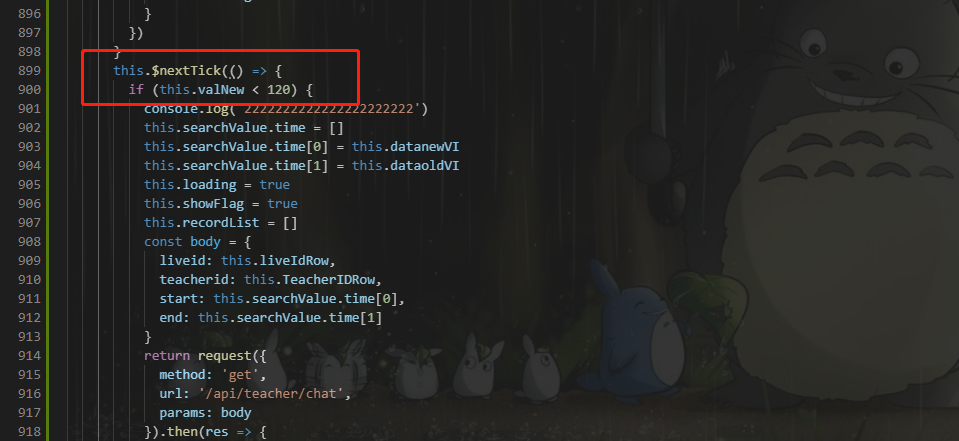
改成小于120还有大于120 这样就可以 但是bug还是有我服了 只能一开始进来右边滑块只能往右滑动 左边滑块只能往左滑动才能得到正确数据 一开始右边滑块往左移动和一开始进来左边滑块往右移动都拿不到正确数据 我枯了 求大神carry
3月31改动
终于经过我不懈努力 终于完美实现滑块怎么动都可以拿到值 我也是无意之中想到的 在元素上绑定ref利用ref来得到数值 特别特别的方便
给大家看改过的代码 只改动这里就够了之前写了太多多余的代码了
schedule() {

      this.searchValue.time = []

      const start = this.focusTimeList[0]

      const daydata = this.focusTimeListTwo[1].substring(0, 10)

      const end = daydata + ' ' + this.hour + ':' + this.min + ':' + '00'

      this.searchValue.time.push(start)

      this.searchValue.time.push(end)

      this.loading = true

      this.showFlag = true

      this.recordList = []

      this.$nextTick(() => {

        this.searchValue.time = []

        this.searchValue.time[0] = this.$refs.sliders.$children[0].formatValue

        this.searchValue.time[1] = this.$refs.sliders.$children[1].formatValue

        this.loading = true

        this.showFlag = true

        this.recordList = []

        const body = {

          liveid: this.liveIdRow,

          teacherid: this.TeacherIDRow,

          start: this.searchValue.time[0],

          end: this.searchValue.time[1]

        }

        return request({

          method: 'get',

          url: '/api/teacher/chat',

          params: body

        }).then(res => {

          if (res.Content) {

            this.messages = res.Content

            this.messages.forEach(item => {

              var num = parseInt(19 * Math.random())

              item.img = require(`../../../assets/auter/icon-test_${num}.png`)

              item.msgs = item.msg

                .replace(/\[e\]em_/g, '<img src=../../../static/faces/em_')

                .replace(/\[e\]/g, '.png>')

            })

            this.recordList = this.messages

            this.loading = false

          } else {

            this.$message({

              message: '无分析结果!',

              type: 'warning'

            })

            this.loading = false

          }

        })

      })

    },
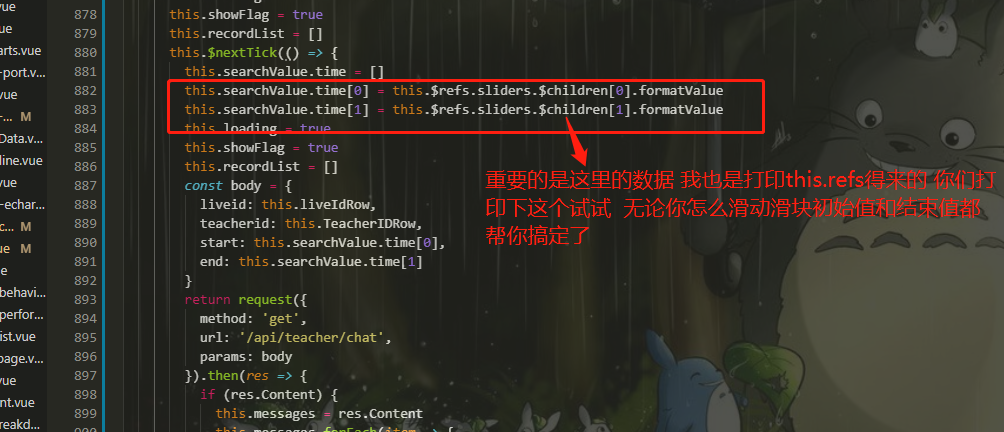

终于大功告成了
感谢大家 要觉得不错右侧打赏一下把
elementUI slider组件,带范围选择实现双向绑定的更多相关文章
- vue2.X props 数据传递 实现组件内数据与组件外的数据的双向绑定
vue2.0 禁止 子组件修改父组件数据 在Vue2中组件的props的数据流动改为了只能单向流动,即只能由组件外(调用组件方)通过组件的DOM属性attribute传递props给组件内,组件内只能 ...
- elementUI tree组件获取当前选择所有选中(check)和半选中(indeterminate)的节点
网上查了半天,一大堆都说要改源码的,最后发现有方法不用改源码的 获取方法如下 this.$refs.tree.getCheckedKeys().concat(this.$refs.tree.getHa ...
- vue.js组件之间通讯的数据双向绑定----父亲把数据传递给儿子,儿子更改数据后,重新发送给父亲,父亲数据更改后,属性会重新发送个儿子,儿子刷新新数据
vue组件是相互独立的,如果要交互通讯,这时候,就需要组件之间数据互通了 往常我们讲的都是数据传递,子传父,父传子,都没有说子和父,父与子之间的数据互通 父亲传递给儿子数据,儿子触发一个父亲方法,将最 ...
- 如何在Vue2中实现组件props双向绑定
Vue学习笔记-3 前言 Vue 2.x相比较Vue 1.x而言,升级变化除了实现了Virtual-Dom以外,给使用者最大不适就是移除的组件的props的双向绑定功能. 以往在Vue1.x中利用pr ...
- (复习)父子组件传值使用v-modal双向绑定,报错Avoid mutating a prop directly解决方案
报错:Avoid mutating a prop directly since the value will be overwritten whenever the parent component. ...
- Blazor和Vue对比学习(基础1.5):双向绑定
这章我们来学习,现代前端框架中最精彩的一部分,双向绑定.除了掌握原生HTML标签的双向绑定使用,我们还要在一个自定义的组件上,手撸实现双向绑定.双向绑定,是前两章知识点的一个综合运用(父传子.子传父) ...
- VUE JS 使用组件实现双向绑定
1.VUE 前端简单介绍 VUE JS是一个简洁的双向数据绑定框架,他的性能超过ANGULARJS,原因是实现的机制和ANGULARJS 不同,他在初始化时对数据增加了get和set方法,在数据se ...
- element-ui dialog组件添加可拖拽位置 可拖拽宽高
edge浏览器下作的gifhttp://www.lanourteam.com/%E6... 有几个点需要注意一下 每个弹窗都要有唯一dom可操作 指令可以做到 拖拽时要添加可拖拽区块 header 由 ...
- Elementui tabs组件内添加组件
1. Elementui tabs组件内添加组件 1.1. 需求 今天的一个需求是在后台框架的基础上添加tab页,结果页面如下 原本上述红框内的内容是不存在的,直接点击左侧菜单栏进行页面跳转,现加了t ...
- 自定义组件实现双向绑定v-model
自定义组件实现 v-model 双向绑定,首先要先明白 v-model,这个指令到底实现了什么? v-model实际做的事情就是:传入一个value属性值,然后监听input事件返回一个值,用该返回值 ...
随机推荐
- 力扣388(java)-文件的最长绝对路径(中等)
题目: 假设有一个同时存储文件和目录的文件系统.下图展示了文件系统的一个示例: 这里将 dir 作为根目录中的唯一目录.dir 包含两个子目录 subdir1 和 subdir2 .subdir1 包 ...
- 记一次 JMeter 压测 HTTPS 性能问题
简介:在使用 JMeter 压测时,发现同一后端服务,在单机 500 并发下,HTTP 和 HTTPS 协议压测 RT 差距非常大.同时观测后端服务各监控指标水位都很低,因此怀疑性能瓶颈在 JMet ...
- 参与 Apache 顶级开源项目的 N 种方式,Apache Dubbo Samples SIG 成立!
简介: 一说到参与开源项目贡献,一般大家的反应都是代码级别的贡献,总觉得我的代码被社区合并了,我才算一个贡献者,这是一个常见的错误认知.其实,在一个开源社区中有非常多的角色是 non-code con ...
- 万物智联时代的终端智能「管家」 重磅升级:混合云IoT一体机
简介: 「混合云IoT一体机」边缘部署.开箱即用.安全稳定.智管易用,通过定制软件和硬件相结合,预先定制.集成.测试和优化,实现快速部署和远程运维,并提升后续系统可用性和运维效率,是万物互联时代企业 ...
- [Go] Golang并发控制: WaitGroup 含义和常规用法
一个 WaitGroup 等待一个 goroutine 集合的结束. 主 goroutine 调用 Add 设置需要等待的 goroutine 数量. 接下来每个 goroutine 运行并在结束时调 ...
- WPF 自己封装 Skia 差量绘制控件
使用 Skia 能做到在多个不同的平台使用相同的一套 API 绘制出相同界面效果的图片,可以将图片绘制到应用程序的渲染显示里面.在 WPF 中最稳的方法就是通过 WriteableBitmap 作为承 ...
- LLM优化:开源星火13B显卡及内存占用优化
1. 背景 本qiang~这两天接了一个任务,部署几个开源的模型,并且将本地经过全量微调的模型与开源模型做一个效果对比. 部署的开源模型包括:星火13B,Baichuan2-13B, ChatGLM6 ...
- 通俗易懂的生产环境Web应用架构介绍
前言 看见一篇非常通俗易懂且适合新手阅读的Web应用架构文章,我将其手工翻译了出来,分享给大家. 也可以去阅读英文原文,标题为,贴出链接: https://stephenmann.io/post/wh ...
- 五、Doris数据分布
在 Doris 中,数据都以表(Table)的形式进行逻辑上的描述 名词解释 数据分布:数据分布是将数据划分为子集, 按一定规则, 均衡地分布在不同节点上,以期最大限度地利用集群的并发性能 短查询:s ...
- VMware之系统复制
目录 功能描述 复制centos7-1文件夹 载入复制的系统 设置配置 启动系统 修改网卡配置 刷新配置 测试上网 功能描述 复制已经安装好的centOs7.6 复制centos7-1文件夹 1.系统 ...