
"Hello World!" for Microsoft Windows
"Hello World!" for Microsoft Windows
It's time to write your first application! The following instructions are for users of Windows Vista, Windows 7, and Windows 8. Instructions for other platforms are in "Hello World!" for Solaris OS and Linux and "Hello World!" for the NetBeans IDE.
If you encounter(遭遇) problems with the instructions on this page, consult(查阅) the Common Problems (and Their Solutions).
A Checklist 
To write your first program, you'll need:
The Java SE Development Kit 8 (JDK 8)
You can download the Windows version now. (Make sure you download the JDK, not the JRE.) Consult the installation instructions.
A text editor
In this example, we'll use Notepad, a simple editor included with the Windows platforms. You can easily adapt(适应) these instructions if you use a different text editor.
These two items are all you'll need to write your first application.
Creating Your First Application
Your first application, HelloWorldApp, will simply display the greeting "Hello world!". To create this program, you will:
Create a source file
A source file contains code, written in the Java programming language, that you and other programmers can understand. You can use any text editor to create and edit source files.
Compile the source file into a .class file
The Java programming language compiler (
javac) takes your source file and translates its text into instructions that the Java virtual machine can understand. The instructions contained within this file are known as bytecodes.Run the program
The Java application launcher tool (
java) uses the Java virtual machine to run your application.
Create a Source File
To create a source file, you have two options:
You can save the file
HelloWorldApp.java.classFile.Or, you can use the following (longer) instructions.
First, start your editor. You can launch the Notepad editor from the Start menu by selecting Programs > Accessories > Notepad. In a new document, type in the following code:
/**  * The HelloWorldApp class implements an application that  * simply prints "Hello World!" to standard output.  */

class HelloWorldApp {     public static void main(String[] args) {         System.out.println("Hello World!"); // Display the string.     }

}
Be Careful When You Type 

Note: Type all code, commands, and file names exactly as shown. Both the compiler (
javac) and launcher (java) are case-sensitive, so you must capitalize consistently.
HelloWorldApp is not the same as helloworldapp.
Save the code in a file with the name HelloWorldApp.java. To do this in Notepad, first choose the File > Save As menu item. Then, in the Save As dialog box:
- Using the Save in combo box, specify the folder (directory) where you'll save your file. In this example, the directory is
myapplicationon theCdrive. - In the File name text field, type
"HelloWorldApp.java", including the quotation marks. - From the Save as type combo box, choose Text Documents (*.txt).
- In the Encoding combo box, leave the encoding as ANSI.
When you're finished, the dialog box should look like this.
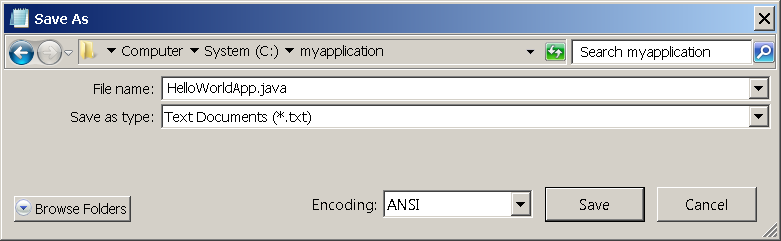
The Save As dialog just before you click Save.
Now click Save, and exit Notepad.
Compile the Source File into a .class File
Bring up a shell, or "command," window. You can do this from the Start menu by choosing Run... and then entering cmd. The shell window should look similar to the following figure.
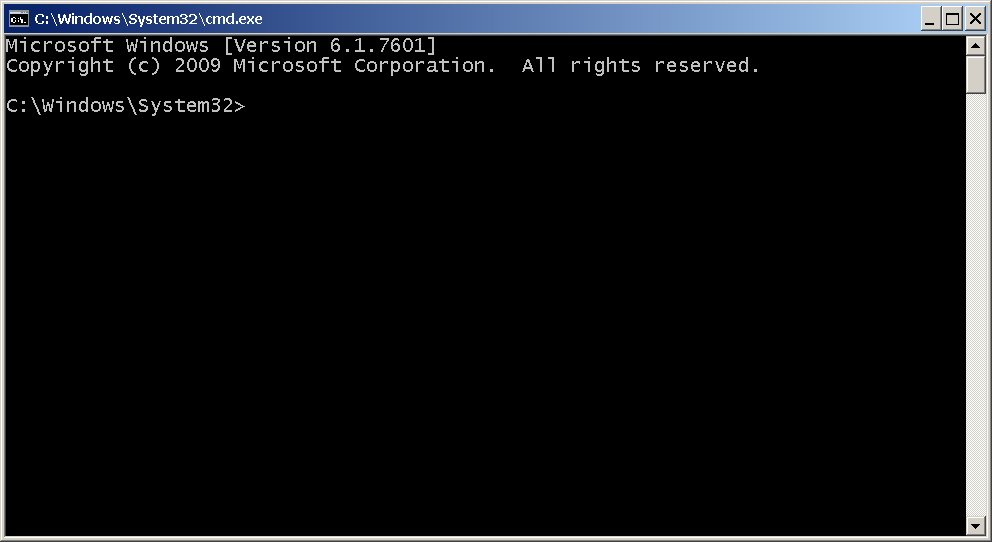
A shell window.
The prompt(提示) shows your current directory. When you bring up the prompt, your current directory is usually your home directory for Windows XP (as shown in the preceding figure.
To compile your source file, change your current directory to the directory where your file is located. For example, if your source directory is myapplication on the C drive, type the following command at the prompt and press Enter:
cd C:\myapplication
Now the prompt should change to C:\myapplication>.
Note:
To change to a directory on a different drive, you must type an extra command: the name of the drive. For example, to change to the myapplication directory on the D drive, you must enter D:, as follows:
C:\>D:

D:\>cd myapplication

D:\myapplication>
If you enter dir at the prompt, you should see your source file, as follows:
C:\>cd myapplication

C:\myapplication>dir

 Volume in drive C is System

 Volume Serial Number is F2E8-C8CC

 Directory of C:\myapplication

2014-04-24  01:34 PM    <DIR>          .

2014-04-24  01:34 PM    <DIR>          ..

2014-04-24  01:34 PM               267 HelloWorldApp.java

               1 File(s)            267 bytes

               2 Dir(s)  93,297,991,680 bytes free

C:\myapplication>
Now you are ready to compile. At the prompt, type the following command and press Enter.
javac HelloWorldApp.java
The compiler has generated a bytecode file, HelloWorldApp.class. At the prompt, type dir to see the new file that was generated as follows:
C:\myapplication>javac HelloWorldApp.java

C:\myapplication>dir

 Volume in drive C is System

 Volume Serial Number is F2E8-C8CC

 Directory of C:\myapplication

2014-04-24  02:07 PM    <DIR>          .

2014-04-24  02:07 PM    <DIR>          ..

2014-04-24  02:07 PM               432 HelloWorldApp.class

2014-04-24  01:34 PM               267 HelloWorldApp.java

               2 File(s)            699 bytes

               2 Dir(s)  93,298,032,640 bytes free

C:\myapplication>
Now that you have a .class file, you can run your program.
If you encounter problems with the instructions in this step, consult the Common Problems (and Their Solutions).
Run the Program
In the same directory, enter the following command at the prompt:
java -cp . HelloWorldApp
You should see the following on your screen:
C:\myapplication>java -cp . HelloWorldApp

Hello World!

C:\myapplication>
Congratulations! Your program works!
If you encounter problems with the instructions in this step, consult the Common Problems (and Their Solutions).
"Hello World!" for Microsoft Windows的更多相关文章
- Microsoft Windows* SDK May 2010 或较新版本(兼容 2010 年 6 月 DirectX SDK)GPU Detect
原文链接 下载代码样本 特性/描述 日期: 2016 年 5 月 5 日 GPU Detect 是一种简短的示例,演示了检测系统中主要显卡硬件(包括第六代智能英特尔® 酷睿™ 处理器产品家族)的方式. ...
- 需要正确安装 Microsoft.Windows.ShellExperienceHost 和 "Microsoft.Windows.Cortana" 应用程序。
windows 10 开始菜单修复工具 Win10开始菜单修复工具出现的原因,自从升级到Windows 10,一直BUG不断,而其中有一个BUG非常的让你印象深刻,就是开始菜单无响应,你用着用着电脑 ...
- 驱动开发利器Microsoft Windows Driver Kit 7.1.0下载
在Windows 2000 与Windows XP 系统采用是WINDDK来开发WINDOWS驱动程序,我手头也有WINDDK,可是从Windows Vista开始之后,一般采用Microsoft W ...
- C++ 无法将值写入注册表 HKEY_LOCAL_MACHINE\Sofeware\Microsoft\Windows\CurrentVersion\Run,以实现开机自启动应用程序。
C++ 无法将值写入注册表 HKEY_LOCAL_MACHINE\Sofeware\Microsoft\Windows\CurrentVersion\Run,以实现开机自启动应用程序.但可以写入到H ...
- [Solution] Microsoft Windows 服务(1) C#创建Windows服务
Microsoft Windows 服务(即,以前的 NT 服务)使您能够创建在它们自己的 Windows 会话中可长时间运行的可执行应用程序.这些服务可以在计算机启动时自动启动,可以暂停和重新启动而 ...
- Hyperion Business Modeling for Microsoft Windows (32-bit)
介质包搜索 常见问题 说明 复查 许可证列表 以确定需要下载的产品程序包. 请选择产品程序包和平台,然后单击“查找”. 如果只有一项结果,则可以看到下载页.如果有多个结果,请选择一个,然后单 ...
- Oracle Fusion Applications (11.1.8) Media Pack and Oracle Application Development Framework 11g (11.1.1.7.2) for Microsoft Windows x64 (64-bit)
Oracle Fusion Applications (11.1.8) Media Pack for Microsoft Windows x64 (64-bit) 重新搜索 常见问题 提示 ...
- Microsoft Windows 远程权限提升漏洞(CVE-2013-3175)(MS13-062)
漏洞版本: Microsoft Windows XP Microsoft Windows Vista Microsoft Windows Server 2008 Microsoft Windows R ...
- Microsoft Windows Sharepoint Services V3.0 安装图示
本文以图示的方式,向读者展示Microsoft Windows SharePoint Services V3.0的安装过程. 在以下图示的安装过程中,使用了下面所列出的软件: Windows Serv ...
随机推荐
- ASP.NET MVC随想录——创建自定义的Middleware中间件
经过前2篇文章的介绍,相信大家已经对OWIN和Katana有了基本的了解,那么这篇文章我将继续OWIN和Katana之旅——创建自定义的Middleware中间件. 何为Middleware中间件 M ...
- 实战使用Axure设计App,使用WebStorm开发(4) – 实现页面UI
系列文章 实战使用Axure设计App,使用WebStorm开发(1) – 用Axure描述需求 实战使用Axure设计App,使用WebStorm开发(2) – 创建 Ionic 项目 实战使 ...
- TACACS.Net Group 配置
Tacacs作为一个验证工具,其网站上资料较少,只有一些缺省配置,并且没有提到如果在应用中与其自带的Group功能做集成, 这里使用免费的windows 版的TACACS.net 作介绍http:// ...
- Session自定义存储及分布式存储
默认情况下,PHP 使用内置的文件会话保存管理器(files)来完成会话的保存.我们无需设置,PHP默认将session以文件的形式保存到服务器. 通过调用函数 session_start() 即可手 ...
- Atitit 理解Monad attilax总结
Atitit 理解Monad attilax总结 但函数式编程最大的一个问题是,函数是一个数学抽象,在现实世界中不存在,1 那既然这样就够用了,还要 Monad 干嘛?Monad 的作用在这里就体现出 ...
- c#动态调用Webservices
方式一: Hashtable ht = new Hashtable(); ht.Add("a", "testhelloworld"); XmlDocument ...
- MongoDB修改器的使用1
为什么要使用修改器? 通常我们只会修改文档的一部分,这时候更新整个文档就显得很麻烦,通常是通过原子性的更新修改器来完成. 1."$set"修改器 "$set ...
- UML快速回顾
UML(Unified Modeling Language)统一建模语言的概念已经出现了近20年,虽然并不是所有的概念都非常有实践意义,但常见的用例图.类图.序列图和状态图却实实在在非常有效,是项目中 ...
- JS原生第一篇 (帅哥)
"流程控制语句":if.for. 1.1 if 选择语句,给程序添加了多种执行路线. 1 if(){ 2 语句1 3 }else if(){ 4 语句2 5 }else if( ...
- 利用跨域请求来隐藏firbug控制台中的Ajax请求
本文链接:http://www.orlion.ml/63/ 普通jquery的Ajax请求在控制台中是可见的,如下: 而在利用jsonp(json with padding)进行Ajax跨域时,发现A ...