
MATLAB GUI设计(1)
一、新建GUI
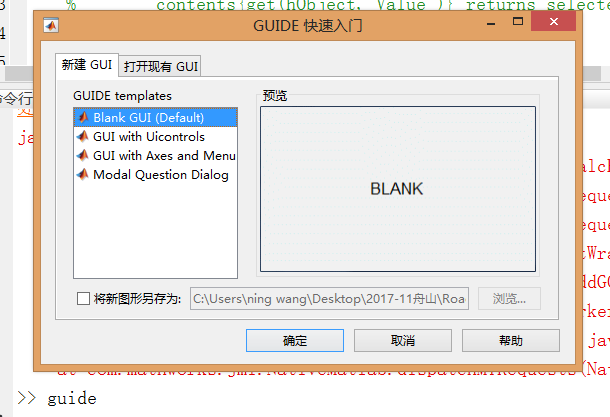
1、命令行窗口输入 guide会出来如下界面,可以新建空白GUI,也可以打开已有GUI
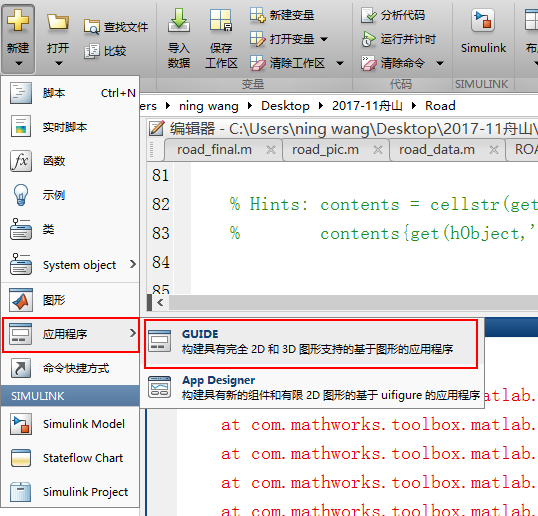
2、通过工具栏新建
二、数据传递例子
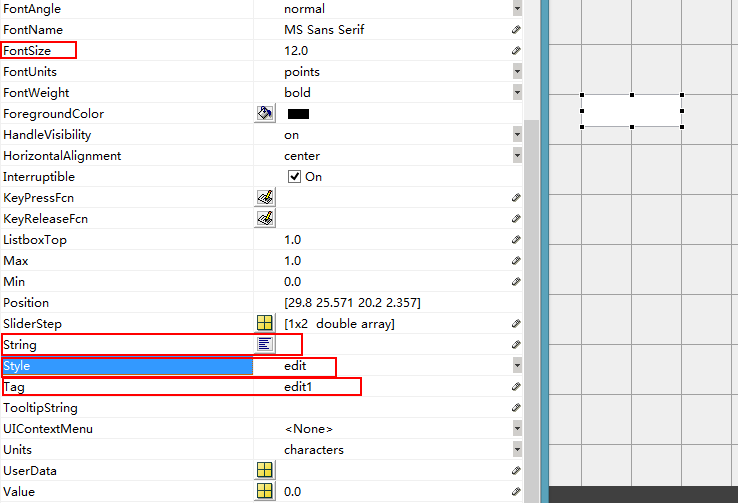
1、添加输入框按钮,设置尺寸大小,内容,格式,标签
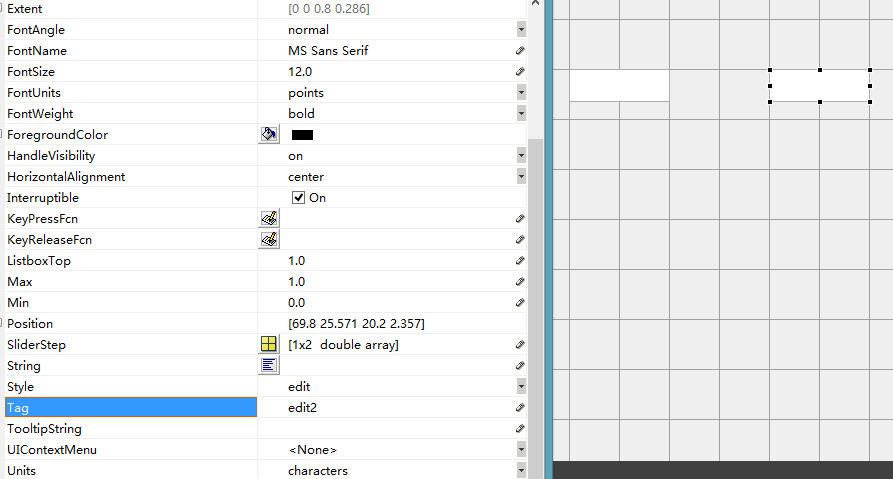
2、复制输入框按钮,得到输出框按钮
3、转换按钮
(1)添加按钮
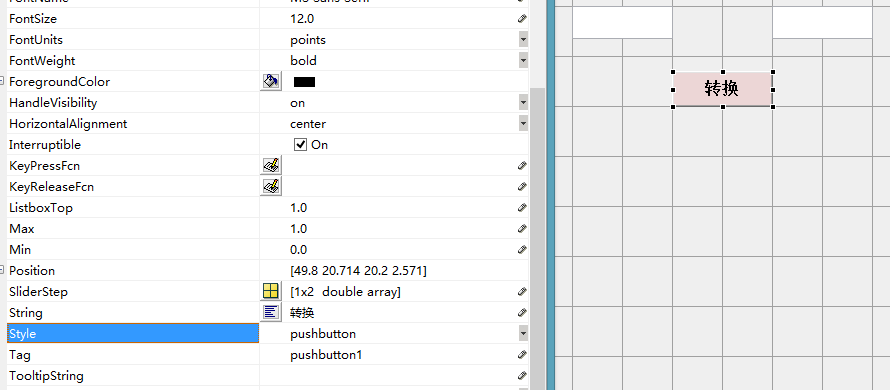
注意格式是pushbutton
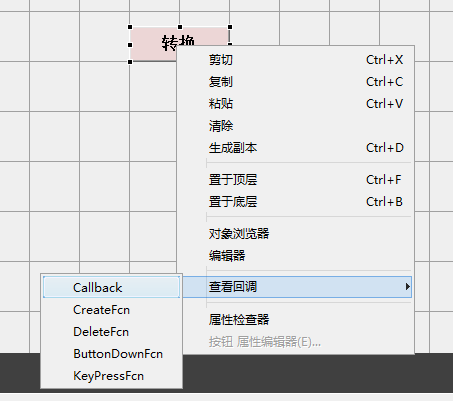
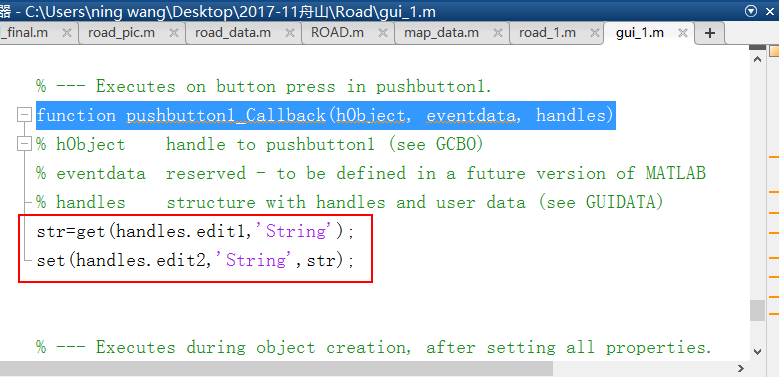
(2)添加回调函数
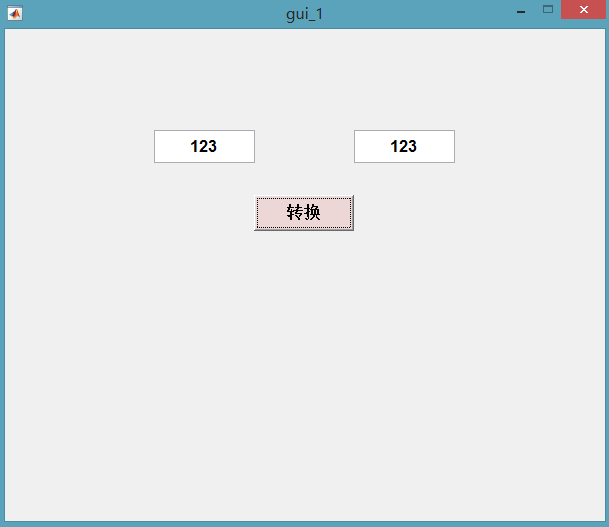
(3)运行
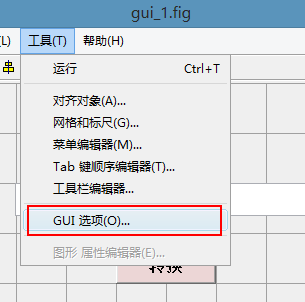
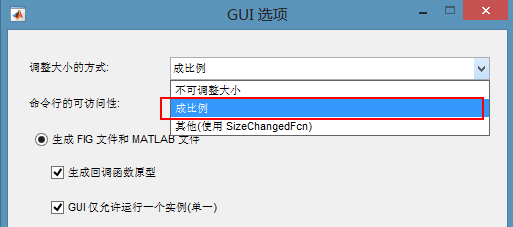
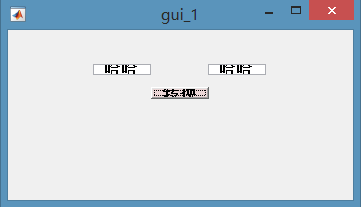
3、界面可调
4、滚动条
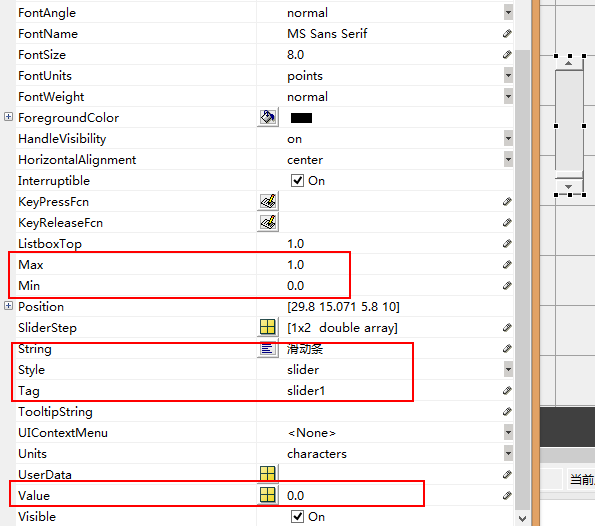
(1)插入滑动条,设置
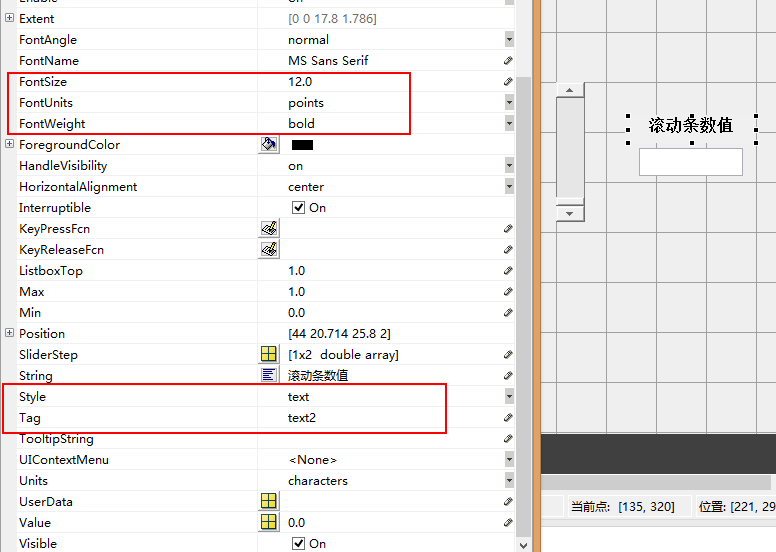
(2)静态文本框
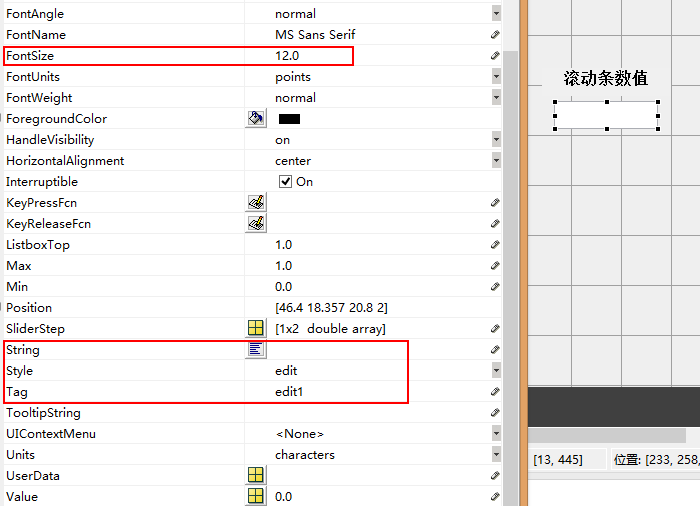
(3)可编辑文本
(4)回调函数
打开滑动条的回调函数
function slider1_Callback(hObject, eventdata, handles)

% hObject    handle to slider1 (see GCBO)

% eventdata  reserved - to be defined in a future version of MATLAB

% handles    structure with handles and user data (see GUIDATA)

val=get(handles.slider1,'Value');%得到slider1,属性为‘Value’的值

set(handles.edit1,'String',num2str(val));%设置edit1属性为‘String’的值
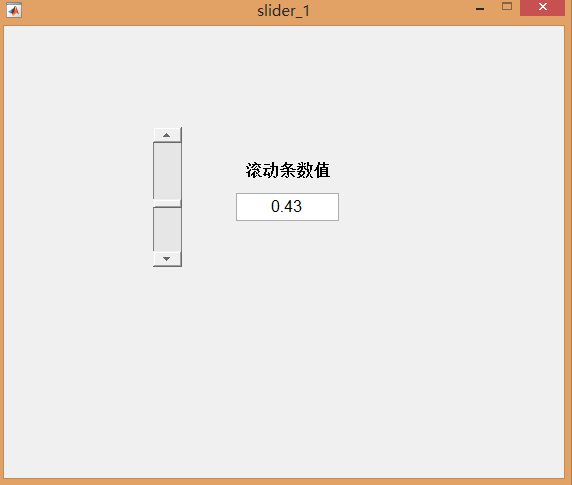
加上最后两句,即可。
4、单选按钮
(1)添加单选按钮,设置
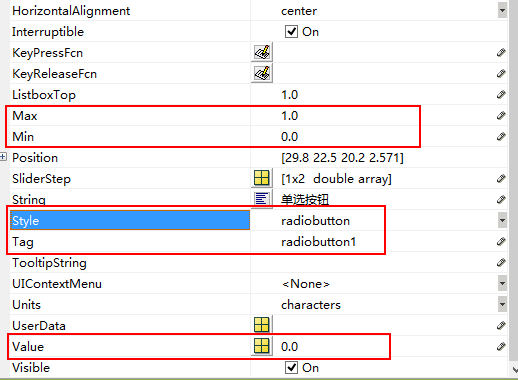
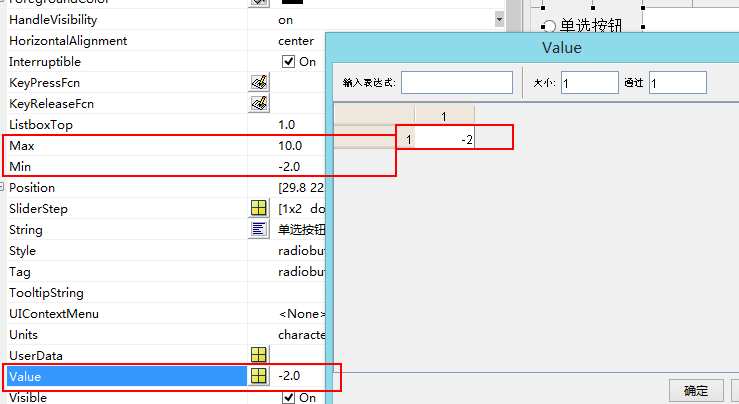
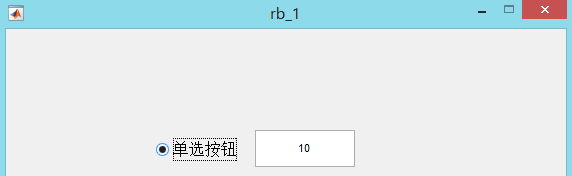
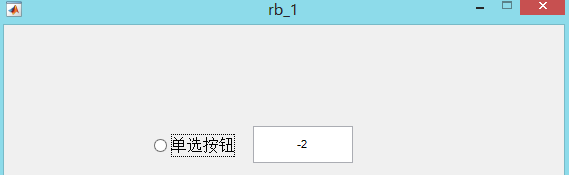
选择了该按钮,'Value'值为最大值,否则为最小值
(2)添加可编辑文本
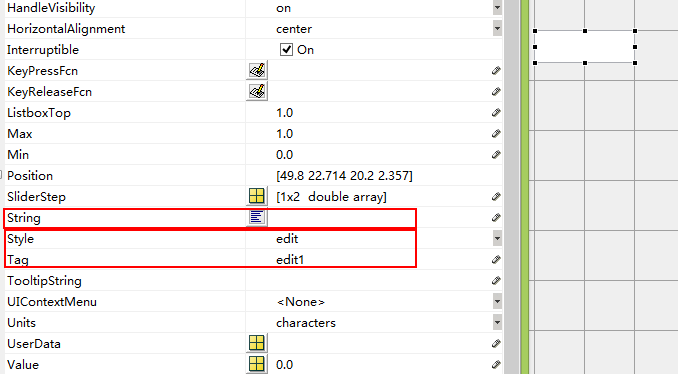
(3)添加回调函数
function radiobutton1_Callback(hObject, eventdata, handles)

% hObject    handle to radiobutton1 (see GCBO)

% eventdata  reserved - to be defined in a future version of MATLAB

% handles    structure with handles and user data (see GUIDATA)

val=get(handles.radiobutton1,'Value');%得到slider1,属性为‘Value’的值

set(handles.edit1,'String',num2str(val));%设置edit1属性为‘Strin

% Hint: get(hObject,'Value') returns toggle state of radiobutton1
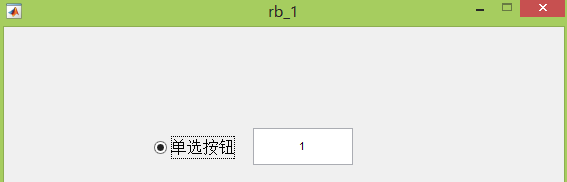
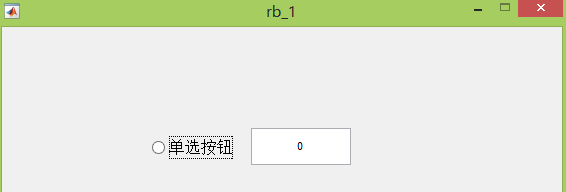
(5)更改最大最小值及设置
5、复选框
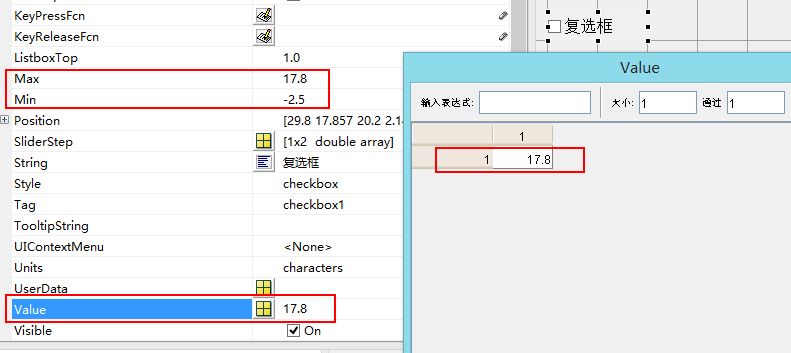
(1)添加复选框,设置
(2)添加可编辑文本框(如上)
(3)回调函数
function checkbox1_Callback(hObject, eventdata, handles)

% hObject    handle to checkbox1 (see GCBO)

% eventdata  reserved - to be defined in a future version of MATLAB

% handles    structure with handles and user data (see GUIDATA)

val=get(handles.checkbox1,'Value');%得到slider1,属性为‘Value’的值

set(handles.edit2,'String',num2str(val));%设置edit1属性为‘Strin

% Hint: get(hObject,'Value') returns toggle state of checkbox1


6、切换函数
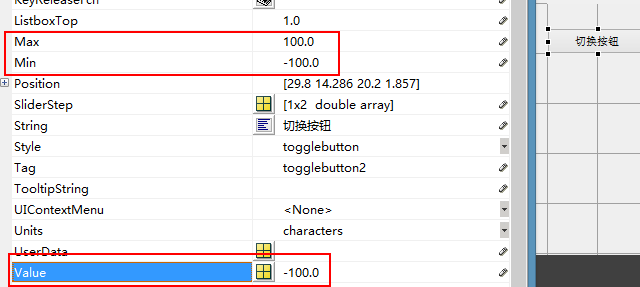
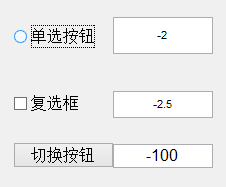
(1)添加切换按钮
(2)添加文本框
(3)添加回调函数
function togglebutton2_Callback(hObject, eventdata, handles)

% hObject    handle to togglebutton2 (see GCBO)

% eventdata  reserved - to be defined in a future version of MATLAB

% handles    structure with handles and user data (see GUIDATA)

val=get(handles.togglebutton2,'Value');%得到slider1,属性为‘Value’的值

set(handles.edit3,'String',num2str(val));%设置edit1属性为‘Strin

% Hint: get(hObject,'Value') returns toggle state of togglebutton2

7、按钮组
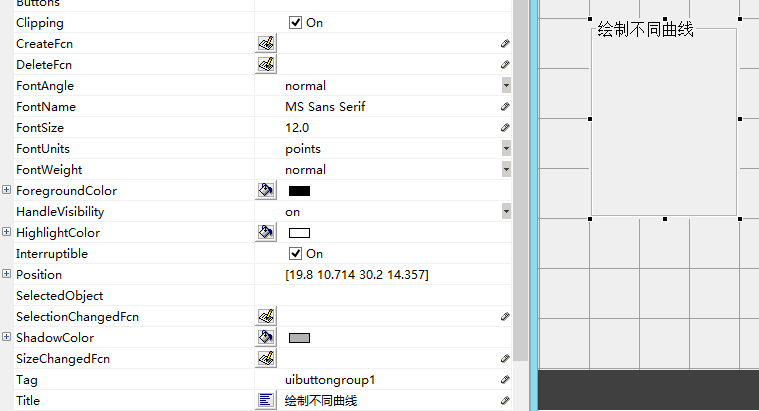
(1)添加按钮组控件,设置显示文字及大小
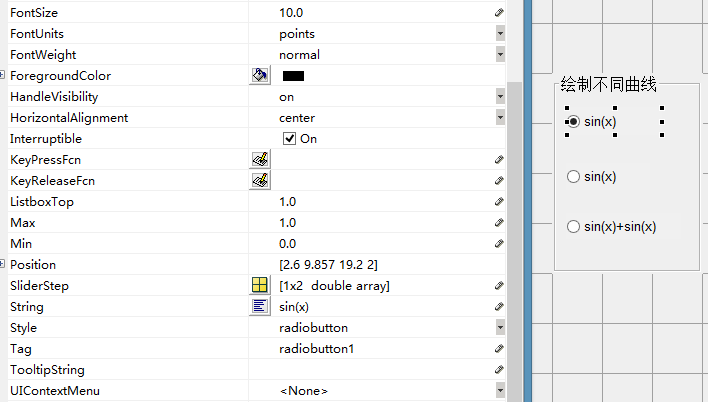
(2)添加三个单选按钮,更改显示内容和大小
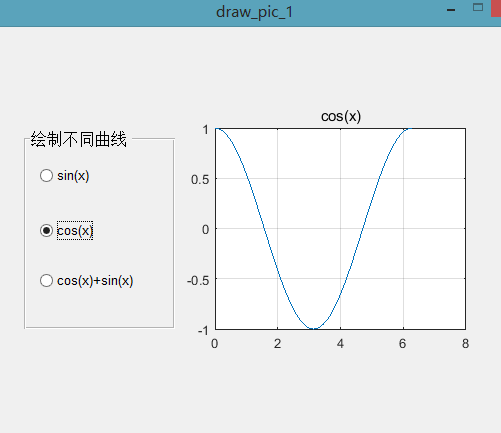
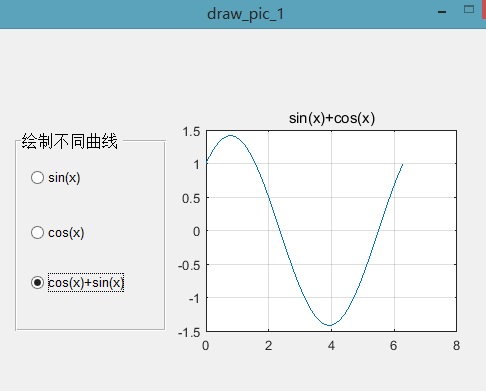
运行一下,如下图

同一时刻只能选择一个按钮,这就是按钮组的特点
(3)添加坐标轴
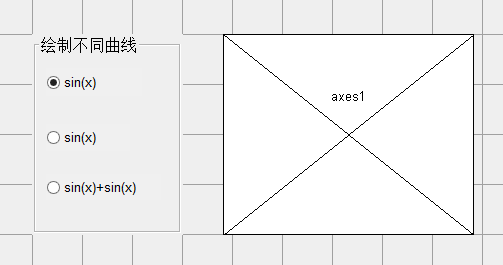
(4)添加SelectionChangedFcn函数
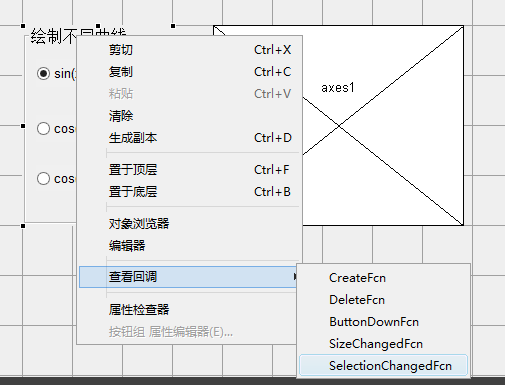
function uibuttongroup1_SelectionChangedFcn(hObject, eventdata, handles)

% hObject    handle to the selected object in uibuttongroup1

% eventdata  reserved - to be defined in a future version of MATLAB

% handles    structure with handles and user data (see GUIDATA)

x=0:0.01:2*pi;%定义x轴坐标

axes(handles.axes1);%选中你要画图的坐标系

current_selection=get(eventdata.NewValue,'tag');  %困扰了一天的问题终于解决了

                                                 %原来 是Tag 返回值是字符串类型

                                                 % case后的选择条件要加引号

switch current_selection

    case 'radiobutton1'

        y1=sin(x);

        plot(x,y1);

        grid on

        title('sin(x)')

    case 'radiobutton2'

        y2=cos(x);

        plot(x,y2);

        grid on

        title('cos(x)')

    case 'radiobutton3'

        y3=sin(x)+cos(x);

        plot(x,y3);

        grid on

        title('sin(x)+cos(x)')

end
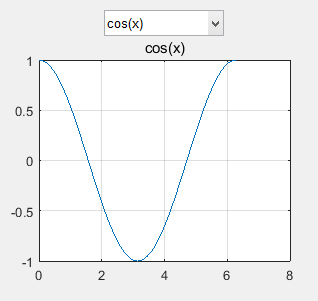
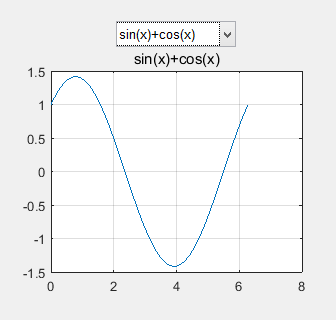
8、弹出式菜单
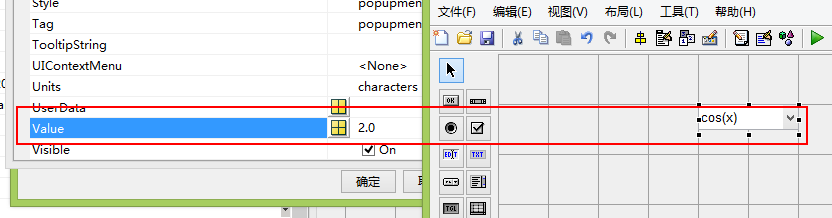
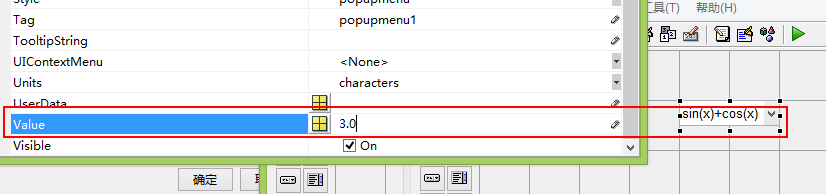
(1)添加弹出式菜单
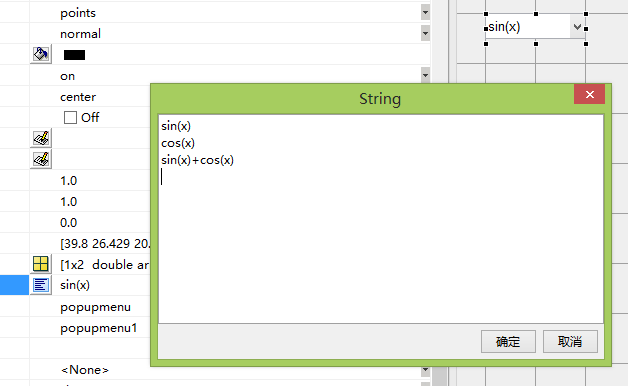
Value 随着选择不同分别为1,2,3
(2)添加回掉函数
function popupmenu1_Callback(hObject, eventdata, handles)

% hObject    handle to popupmenu1 (see GCBO)

% eventdata  reserved - to be defined in a future version of MATLAB

% handles    structure with handles and user data (see GUIDATA)

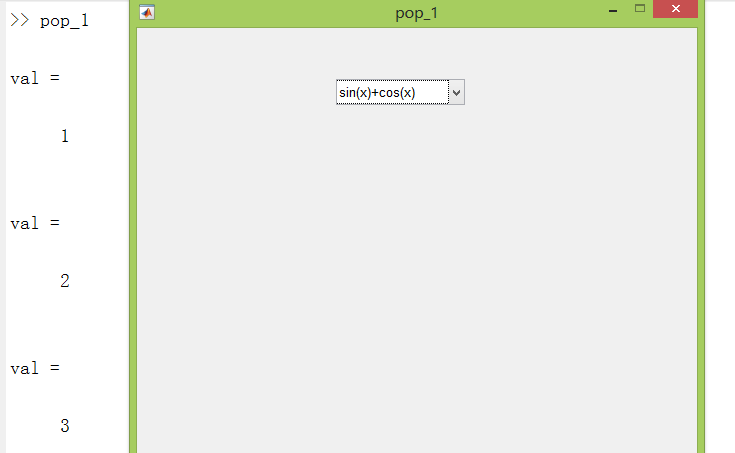
val=get(handles.popupmenu1,'Value')%不加分号,将结果显示
选择不同的函数,返回不同的值
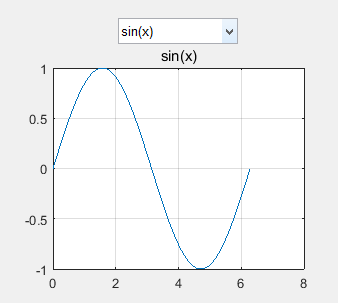
(3)添加坐标轴
(4)添加回调函数
function popupmenu1_Callback(hObject, eventdata, handles)

% hObject    handle to popupmenu1 (see GCBO)

% eventdata  reserved - to be defined in a future version of MATLAB

% handles    structure with handles and user data (see GUIDATA)

val=get(handles.popupmenu1,'Value');

x=0:0.01:2*pi;%定义x轴坐标

axes(handles.axes1);%选中你要画图的坐标系

switch val

    case 1

        y1=sin(x);

        plot(x,y1);

        grid on

        title('sin(x)')

    case 2

        y2=cos(x);

        plot(x,y2);

        grid on

        title('cos(x)')

    case 3

        y3=sin(x)+cos(x);
        handles.h=plot(x,y3);%创建句柄
        set(handles.h,'Color',rand(1,3));%设置颜色

        title('sin(x)+cos(x)')
end
9、listbox控件
(1)创建listbox控件
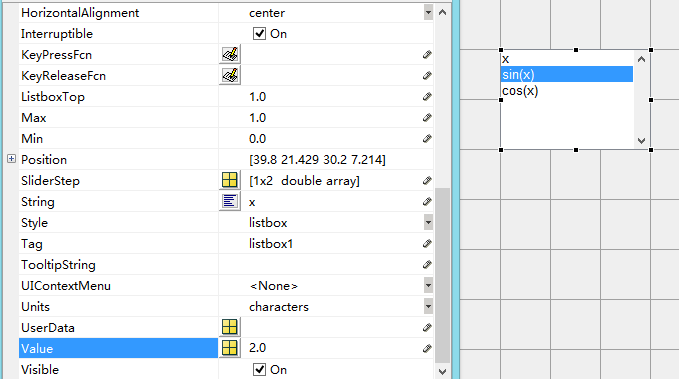
Value的值和list内容一一对应。
(2)添加按钮
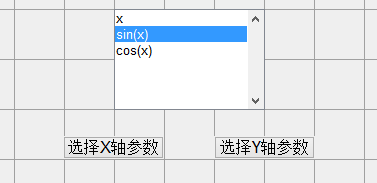
(3)添加可编辑文本
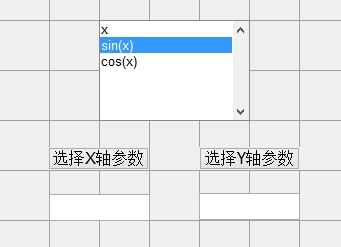
(4)按钮函数添加回调函数
function pushbutton1_Callback(hObject, eventdata, handles)

% hObject    handle to pushbutton1 (see GCBO)

% eventdata  reserved - to be defined in a future version of MATLAB

% handles    structure with handles and user data (see GUIDATA)

str=get(handles.listbox1,'String');%得到listbox1中String中的字符串,列表格式

index_x=get(handles.listbox1,'Value');%列表的下标

set(handles.edit1,'String',str(index_x));%将字符串显示在可编辑文本框中
y轴的回调函数同理。
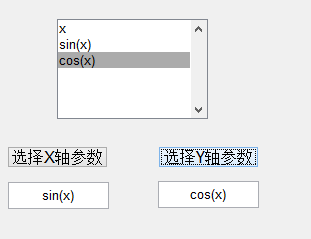
(5)CreatFcn函数(listbox将参数函数化)
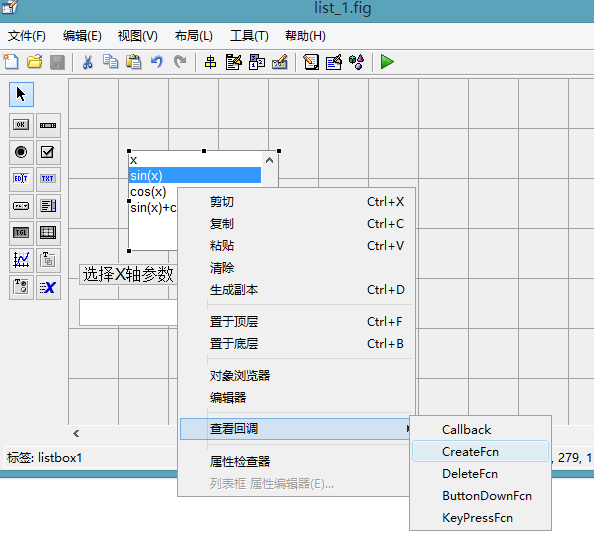
function listbox1_CreateFcn(hObject, eventdata, handles)

% hObject    handle to listbox1 (see GCBO)

% eventdata  reserved - to be defined in a future version of MATLAB

% handles    empty - handles not created until after all CreateFcns called

% Hint: listbox controls usually have a white background on Windows.

%       See ISPC and COMPUTER.

if ispc && isequal(get(hObject,'BackgroundColor'), get(0,'defaultUicontrolBackgroundColor'))

    set(hObject,'BackgroundColor','white');

end

t=0:0.01:2*pi;

canshu1=t;

canshu2=sin(t);

canshu3=cos(t);

canshu4=sin(t)+cos(t);
创建新的结构体,保存handles结构体
cl=[canshu1;canshu2;canshu3;canshu4];%创建新的结构体,注意一定使用分号,否则得到的是一串数字。或者使用元胞格式,但是注意调试数据获取方式

handles.cl=cl;

guidata(hObject,handles);%更新handles结构体
(6)回调函数中,选择的x,y轴参数赋值
function pushbutton1_Callback(hObject, eventdata, handles)

% hObject    handle to pushbutton1 (see GCBO)

% eventdata  reserved - to be defined in a future version of MATLAB

% handles    structure with handles and user data (see GUIDATA)

str=get(handles.listbox1,'String');%得到listbox1中String中的字符串,列表格式

index_x=get(handles.listbox1,'Value');%列表的下标

set(handles.edit1,'String',str(index_x));%将字符串显示在可编辑文本框中

x=handles.cl(index_x,:);%选择的x轴的数值

handles.x=x;%必须定义新的handles,否则没法传递到下一个函数

guidata(hObject,handles)
y轴同理
function pushbutton2_Callback(hObject, eventdata, handles)

% hObject    handle to pushbutton2 (see GCBO)

% eventdata  reserved - to be defined in a future version of MATLAB

% handles    structure with handles and user data (see GUIDATA)

str=get(handles.listbox1,'String');

index_y=get(handles.listbox1,'Value');

set(handles.edit2,'String',str(index_y));

y=handles.cl(index_y,:);

handles.y=y;

guidata(hObject,handles)
(7)创建绘图按钮和坐标轴,并且添加绘图按钮回调函数
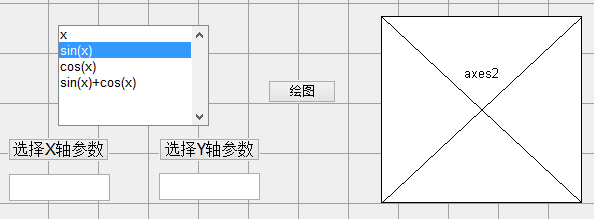
function pushbutton3_Callback(hObject, eventdata, handles)

% hObject    handle to pushbutton3 (see GCBO)

% eventdata  reserved - to be defined in a future version of MATLAB

% handles    structure with handles and user data (see GUIDATA)

axes(handles.axes2);%选中你要画图的坐标系

plot(handles.x,handles.y);

grid on

axis equal
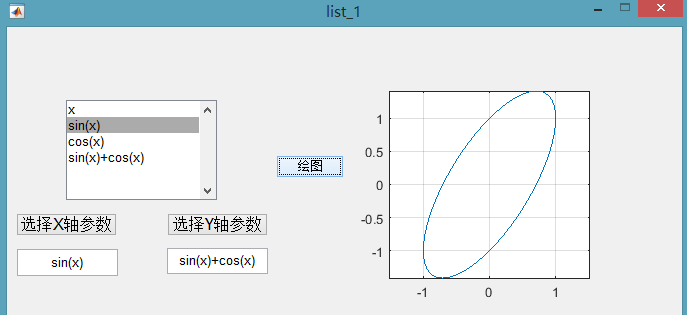
元胞数组形式的全部程序
function varargout = list_1(varargin)

% LIST_1 MATLAB code for list_1.fig

%      LIST_1, by itself, creates a new LIST_1 or raises the existing

%      singleton*.

%

%      H = LIST_1 returns the handle to a new LIST_1 or the handle to

%      the existing singleton*.

%

%      LIST_1('CALLBACK',hObject,eventData,handles,...) calls the local

%      function named CALLBACK in LIST_1.M with the given input arguments.

%

%      LIST_1('Property','Value',...) creates a new LIST_1 or raises the

%      existing singleton*.  Starting from the left, property value pairs are

%      applied to the GUI before list_1_OpeningFcn gets called.  An

%      unrecognized property name or invalid value makes property application

%      stop.  All inputs are passed to list_1_OpeningFcn via varargin.

%

%      *See GUI Options on GUIDE's Tools menu.  Choose "GUI allows only one

%      instance to run (singleton)".

%

% See also: GUIDE, GUIDATA, GUIHANDLES

% Edit the above text to modify the response to help list_1

% Last Modified by GUIDE v2.5 23-Nov-2017 00:35:23

% Begin initialization code - DO NOT EDIT

gui_Singleton = 1;

gui_State = struct('gui_Name',       mfilename, ...

                   'gui_Singleton',  gui_Singleton, ...

                   'gui_OpeningFcn', @list_1_OpeningFcn, ...

                   'gui_OutputFcn',  @list_1_OutputFcn, ...

                   'gui_LayoutFcn',  [] , ...

                   'gui_Callback',   []);

if nargin && ischar(varargin{1})

    gui_State.gui_Callback = str2func(varargin{1});

end

if nargout

    [varargout{1:nargout}] = gui_mainfcn(gui_State, varargin{:});

else

    gui_mainfcn(gui_State, varargin{:});

end

% End initialization code - DO NOT EDIT

% --- Executes just before list_1 is made visible.

function list_1_OpeningFcn(hObject, eventdata, handles, varargin)

% This function has no output args, see OutputFcn.

% hObject    handle to figure

% eventdata  reserved - to be defined in a future version of MATLAB

% handles    structure with handles and user data (see GUIDATA)

% varargin   command line arguments to list_1 (see VARARGIN)

% Choose default command line output for list_1

handles.output = hObject;

% Update handles structure

guidata(hObject, handles);

% UIWAIT makes list_1 wait for user response (see UIRESUME)

% uiwait(handles.figure1);

% --- Outputs from this function are returned to the command line.

function varargout = list_1_OutputFcn(hObject, eventdata, handles)

% varargout  cell array for returning output args (see VARARGOUT);

% hObject    handle to figure

% eventdata  reserved - to be defined in a future version of MATLAB

% handles    structure with handles and user data (see GUIDATA)

% Get default command line output from handles structure

varargout{1} = handles.output;

% --- Executes on selection change in listbox1.

function listbox1_Callback(hObject, eventdata, handles)

% hObject    handle to listbox1 (see GCBO)

% eventdata  reserved - to be defined in a future version of MATLAB

% handles    structure with handles and user data (see GUIDATA)

% Hints: contents = cellstr(get(hObject,'String')) returns listbox1 contents as cell array

%        contents{get(hObject,'Value')} returns selected item from listbox1

% --- Executes during object creation, after setting all properties.

function listbox1_CreateFcn(hObject, eventdata, handles)

% hObject    handle to listbox1 (see GCBO)

% eventdata  reserved - to be defined in a future version of MATLAB

% handles    empty - handles not created until after all CreateFcns called

% Hint: listbox controls usually have a white background on Windows.

%       See ISPC and COMPUTER.

if ispc && isequal(get(hObject,'BackgroundColor'), get(0,'defaultUicontrolBackgroundColor'))

    set(hObject,'BackgroundColor','white');

end

t=0:0.01:2*pi;

canshu1=t;

canshu2=sin(t);

canshu3=cos(t);

canshu4=sin(t)+cos(t);

cl={canshu1,canshu2,canshu3,canshu4};%元胞数组创建新的结构体

handles.cl=cl;

guidata(hObject,handles)%更新handles结构体

% --- Executes on button press in pushbutton1.

function pushbutton1_Callback(hObject, eventdata, handles)

% hObject    handle to pushbutton1 (see GCBO)

% eventdata  reserved - to be defined in a future version of MATLAB

% handles    structure with handles and user data (see GUIDATA)

str=get(handles.listbox1,'String');%得到listbox1中String中的字符串,列表格式

index_x=get(handles.listbox1,'Value');%列表的下标

set(handles.edit1,'String',str(index_x));%将字符串显示在可编辑文本框中

x=handles.cl{index_x};%选择的x轴的数值

handles.x=x;%handles化

guidata(hObject,handles)

% --- Executes on button press in pushbutton2.

function pushbutton2_Callback(hObject, eventdata, handles)

% hObject    handle to pushbutton2 (see GCBO)

% eventdata  reserved - to be defined in a future version of MATLAB

% handles    structure with handles and user data (see GUIDATA)

str=get(handles.listbox1,'String');

index_y=get(handles.listbox1,'Value');

set(handles.edit2,'String',str(index_y));

y=handles.cl{index_y};%注意使用花括号

handles.y=y;%创建新的元胞数组传递数值

guidata(hObject,handles)

function edit1_Callback(hObject, eventdata, handles)

% hObject    handle to edit1 (see GCBO)

% eventdata  reserved - to be defined in a future version of MATLAB

% handles    structure with handles and user data (see GUIDATA)

% Hints: get(hObject,'String') returns contents of edit1 as text

%        str2double(get(hObject,'String')) returns contents of edit1 as a double

% --- Executes during object creation, after setting all properties.

function edit1_CreateFcn(hObject, eventdata, handles)

% hObject    handle to edit1 (see GCBO)

% eventdata  reserved - to be defined in a future version of MATLAB

% handles    empty - handles not created until after all CreateFcns called

% Hint: edit controls usually have a white background on Windows.

%       See ISPC and COMPUTER.

if ispc && isequal(get(hObject,'BackgroundColor'), get(0,'defaultUicontrolBackgroundColor'))

    set(hObject,'BackgroundColor','white');

end

function edit2_Callback(hObject, eventdata, handles)

% hObject    handle to edit2 (see GCBO)

% eventdata  reserved - to be defined in a future version of MATLAB

% handles    structure with handles and user data (see GUIDATA)

% Hints: get(hObject,'String') returns contents of edit2 as text

%        str2double(get(hObject,'String')) returns contents of edit2 as a double

% --- Executes during object creation, after setting all properties.

function edit2_CreateFcn(hObject, eventdata, handles)

% hObject    handle to edit2 (see GCBO)

% eventdata  reserved - to be defined in a future version of MATLAB

% handles    empty - handles not created until after all CreateFcns called

% Hint: edit controls usually have a white background on Windows.

%       See ISPC and COMPUTER.

if ispc && isequal(get(hObject,'BackgroundColor'), get(0,'defaultUicontrolBackgroundColor'))

    set(hObject,'BackgroundColor','white');

end

% --- Executes on button press in pushbutton3.

function pushbutton3_Callback(hObject, eventdata, handles)

% hObject    handle to pushbutton3 (see GCBO)

% eventdata  reserved - to be defined in a future version of MATLAB

% handles    structure with handles and user data (see GUIDATA)

axes(handles.axes2);%选中你要画图的坐标系

plot(handles.x,handles.y);

grid on

axis equal
注意整个实例是利用handles来传递全局变量。
字符的一开始参数化,编程很好的思想。
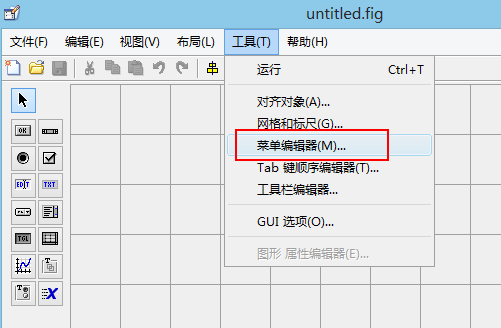
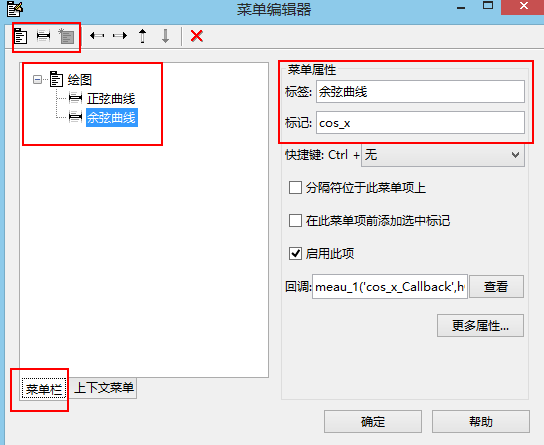
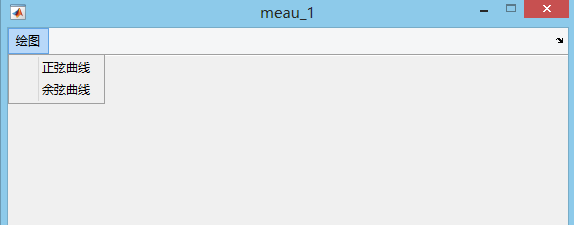
10、菜单编辑
(1)创建菜单编辑器
(2)创建坐标轴
(3)添加回调函数
function sin_x_Callback(hObject, eventdata, handles)

% hObject    handle to sin_x (see GCBO)

% eventdata  reserved - to be defined in a future version of MATLAB

% handles    structure with handles and user data (see GUIDATA)

x=0:0.01:2*pi;

axes(handles.axes1);

handles.h=plot(x,sin(x));%创建画图句柄

grid on

title('正弦曲线')

guidata(hObject,handles)%保存句柄

% --------------------------------------------------------------------

function cos_x_Callback(hObject, eventdata, handles)

% hObject    handle to cos_x (see GCBO)

% eventdata  reserved - to be defined in a future version of MATLAB

% handles    structure with handles and user data (see GUIDATA)

x=0:0.01:2*pi;

axes(handles.axes1);

handles.h=plot(x,cos(x));%创建画图句柄

grid on

title('余弦曲线')

guidata(hObject,handles)%保存句柄
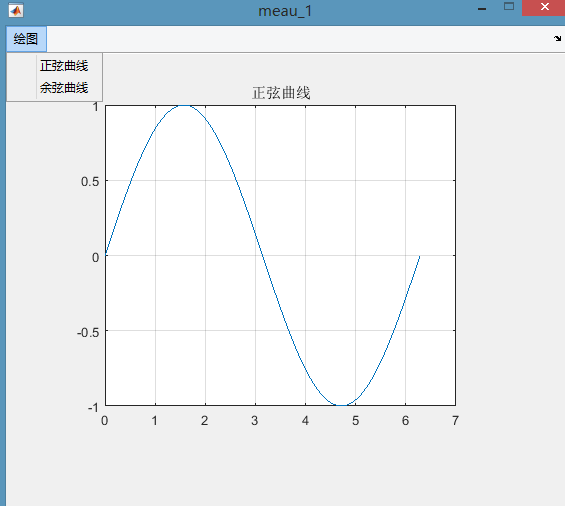
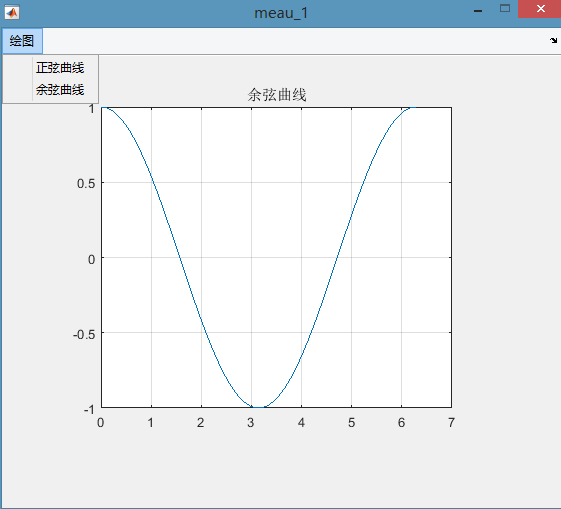
(4)添加上下文菜单
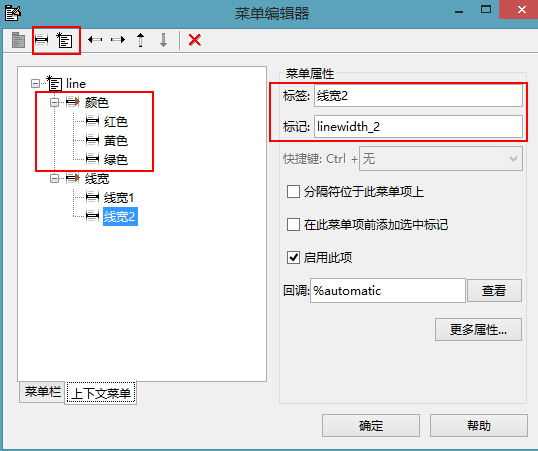
更改坐标轴设置
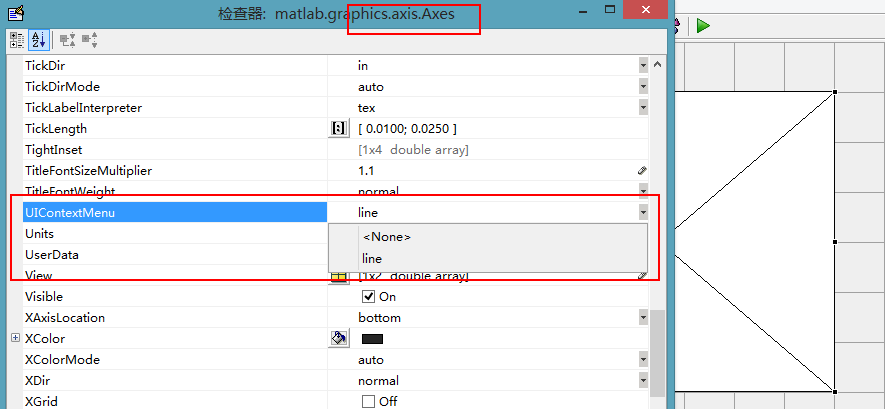
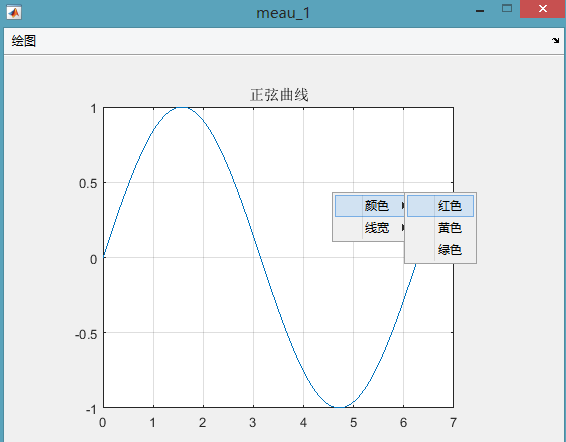
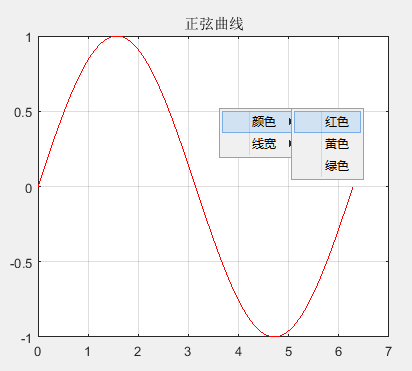
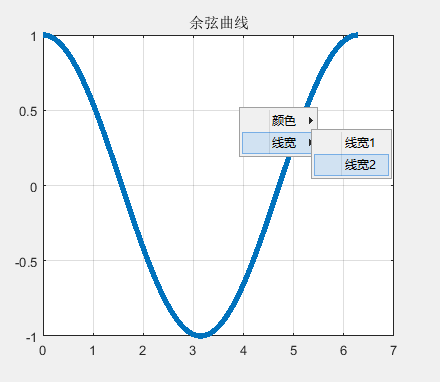
(5)添加颜色、线宽回调函数
% --------------------------------------------------------------------

function red_Callback(hObject, eventdata, handles)

% hObject    handle to red (see GCBO)

% eventdata  reserved - to be defined in a future version of MATLAB

% handles    structure with handles and user data (see GUIDATA)

set(handles.h,'color','red')%设置红色

% --------------------------------------------------------------------

function yellow_Callback(hObject, eventdata, handles)

% hObject    handle to yellow (see GCBO)

% eventdata  reserved - to be defined in a future version of MATLAB

% handles    structure with handles and user data (see GUIDATA)

set(handles.h,'color','y')

% --------------------------------------------------------------------

function grean_Callback(hObject, eventdata, handles)

% hObject    handle to grean (see GCBO)

% eventdata  reserved - to be defined in a future version of MATLAB

% handles    structure with handles and user data (see GUIDATA)

set(handles.h,'color','g')
function linewidth_1_Callback(hObject, eventdata, handles)

% hObject    handle to linewidth_1 (see GCBO)

% eventdata  reserved - to be defined in a future version of MATLAB

% handles    structure with handles and user data (see GUIDATA)

set(handles.h,'linewidth',2)%线宽

% --------------------------------------------------------------------

function linewidth_2_Callback(hObject, eventdata, handles)

% hObject    handle to linewidth_2 (see GCBO)

% eventdata  reserved - to be defined in a future version of MATLAB

% handles    structure with handles and user data (see GUIDATA)

set(handles.h,'linewidth',4)%线宽
MATLAB GUI设计(1)的更多相关文章
- Matlab GUI设计中的一些常用函数
Matlab GUI常用函数总结 % — 文件的打开.读取和关闭% — 文件的保存% — 创建一个进度条% — 在名为display的axes显示图像,然后关闭% — 把数字转化为时间格式% — ch ...
- MATLAB GUI 设计要点 转
https://www.cnblogs.com/wangh0802PositiveANDupward/p/4588512.html 从简单的例子说起吧. 创建Matlab GUI界面通常有两种方式: ...
- MATLAB GUI设计(线性卷积和循环卷积的比较--笔记)
原创循环卷积代码,转载需注明出处 线性卷积与循环卷积的比较 实验目的和要求 掌握循环卷积和线性卷积的原理,与理论分析结果比较,加深理解循环卷积与线性卷积之间的关系. 实验内容和步骤 1) 已知两序列X ...
- Matlab GUI设计(2)
11. (1)界面设计 (2)添加按钮的回调函数 function pushbutton1_Callback(hObject, eventdata, handles) % hObject handle ...
- MATLAB GUI设计(3)
一.gca.gcf.gco 1.三者的功能定义: gcf 返回当前Figure 对象的句柄值 gca 返回当前axes 对象的句柄值 gco 返回当前鼠标单击的句柄值,该对象可以是除root 对象外的 ...
- [学习一个] Matlab GUI 学习笔记 Ⅰ
Matlab GUI 学习笔记 Ⅰ 1. Foreword Matlab 是严格意义上的编程语言吗?曾经有人告诉我他是通过 Matlab 学会了面对对象编程,我是不信的,但这依然不妨碍它在特殊领域的强 ...
- matlab gui界面设计记录
我们要进行的程序是彩色图像处理试验示例,用这个程序来练习我们的gui前台设计. 程序功能介绍:具有彩色图像处理及保存和音乐播放功能效果如下图 2 在MATLAB的命令窗口中输入guide命令,打开gu ...
- [转载] 关于matlab GUI的一点心得
转载自 落落轻尘 [Fig文件方式,即使用菜单File->New->GUI来设计界面] 首先值得注意的是,在低版本matlab上制作的含GUI的m文件一般不能在高版本的matlab上面运行 ...
- Matlab GUI memo
有一段时间没写博客,一周4篇文章都坚持不下来,不知道写哪个方面的内容,写研究相关就怕论文查重查到,其他方面也没太多时间去学.还是花时间多学点其他方面.废话到此,很早就做过matlab gui相关,现在 ...
随机推荐
- 前端每日实战:152# 视频演示如何用纯 CSS 创作一个圆点错觉效果
效果预览 按下右侧的"点击预览"按钮可以在当前页面预览,点击链接可以全屏预览. https://codepen.io/comehope/pen/gBwzKR 可交互视频 此视频是可 ...
- Flink系列之状态及检查点
Flink不同于其他实时计算的框架之处是它可以提供针对不同的状态进行编程和计算.本篇文章的主要思路如下,大家可以选择性阅读. 1. Flink的状态分类及不同点. 2. Flink针对不同的状态进行编 ...
- fastdfs的入门到精通(引言和单机安装)
引言: FastDFS是一个开源的轻量级分布式文件系统,它对文件进行管理,功能包括:文件存储.文件同步.文件访问(文件上传.文件下载)等,解决了大容量存储和负载均衡的问题.特别适合以文件为载体的在线服 ...
- TCP/IP协议基本知识
1.TCP/IP协议中主机与主机之间通信的三要素: IP地址(IP address) 子网掩码(subnet mask) IP路由(IP router) 2.IP地址的分类及每一类的范围: A类1-1 ...
- ajax js分页算法分析
显示效果:[页面总数小于等于10,全部显示,当前页特殊显示]上一页 1 2 3 4 5 6 7 8 9 10 下一页 [页面总数大于10,部分显示,当前页特殊 ...
- 0402数据放入集合进行查询-Java(新手)
JDBC工具类: package cn.Wuchang.zyDome; import java.sql.*; public class JDBCUtils { private static final ...
- java-FileUtils(读取、判断、获取)-(新手)
实例: lx1: import org.apache.commons.io.*; import java.io.File; import java.io.IOException; public cla ...
- 第三届上海市大学生网络安全大赛 流量分析 WriteUp
题目链接: https://pan.baidu.com/s/1Utfq8W-NS4AfI0xG-HqSbA 提取码: 9wqs 解题思路: 打开流量包后,按照协议进行分类,发现了存在以下几种协议类型: ...
- JSP+Servlet+JDBC+Mysql实现的天才会议管理系统
本文存在视频版本,请知悉 项目简介 项目来源于:https://github.com/hegexunmeng/meeting-system 这次分享一个会议管理系统,前端后端几乎没有使用任何框架,适合 ...
- Python-文件操作-之优化购物车
#此次购物车优化,主要使用了文件操作的相关方法,有买家入口,和商家入口 一.买家入口 1.买家第一次启动程序输入金额,金额会记录到文件里,再登录就读取文件里保存的金额,买家可以购买商品,按 ‘q’ 退 ...