
《Programming WPF》翻译 第5章 1.不使用样式
原文:《Programming WPF》翻译 第5章 1.不使用样式
作为一个样式如何使其在WPF使用的例子,,让我们看一下TTT简单的实现,如示例5-1。
示例5-1
 <!-- Window1.xaml --><Window x:Class="TicTacToe.Window1" xmlns="http://schemas.microsoft.com/winfx/avalon/2005" xmlns:x="http://schemas.microsoft.com/winfx/xaml/2005" Text="TicTacToe"> <!-- the black background lets the tic-tac-toe --> <!-- crosshatch come through on the margins --> <Grid Background="Black"> <Grid.RowDefinitions> <RowDefinition /> <RowDefinition /> <RowDefinition /> </Grid.RowDefinitions> <Grid.ColumnDefinitions> <ColumnDefinition /> <ColumnDefinition /> <ColumnDefinition /> </Grid.ColumnDefinitions> <Button Margin="0,0,2,2" Grid.Row="0" Grid.Column="0" x:Name="cell00" /> <Button Margin="2,0,2,2" Grid.Row="0" Grid.Column="1" x:Name="cell01" /> <Button Margin="2,0,0,2" Grid.Row="0" Grid.Column="2" x:Name="cell02" /> <Button Margin="0,2,2,2" Grid.Row="1" Grid.Column="0" x:Name="cell10" /> <Button Margin="2,2,2,2" Grid.Row="1" Grid.Column="1" x:Name="cell11" /> <Button Margin="2,2,0,2" Grid.Row="1" Grid.Column="2" x:Name="cell12" /> <Button Margin="0,2,2,0" Grid.Row="2" Grid.Column="0" x:Name="cell20" /> <Button Margin="2,2,2,0" Grid.Row="2" Grid.Column="1" x:Name="cell21" /> <Button Margin="2,2,0,0" Grid.Row="2" Grid.Column="2" x:Name="cell22" /> </Grid></Window>
这个grid的外观上排列了一组9个按钮在一个3X3栅格的TTT单元中,在按钮上使用了页面空白为了TTT的交叉线阴影。对游戏逻辑的一个简单的实现,在xaml后台代码中,如示例5-2所示。
示例5-2
// Window1.xaml.cs

 namespace TicTacToe {
 public partial class Window1 : Window {
 // Track the current player (X or O) string currentPlayer; // Track the list of cells for finding a winner etc. Button[] cells; public Window1( ) { InitializeComponent( ); // Cache the list of buttons and handle their clicks this.cells = new Button[] { this.cell00, this.cell01, }; foreach( Button cell in this.cells ) { cell.Click += cell_Click;
 } // Initialize a new game NewGame( ); } // Wrapper around the current player for future expansion, // e.g. updating status text with the current player string CurrentPlayer { get { return this.currentPlayer; } set { this.currentPlayer = value; } } // Use the buttons to track game state void NewGame( ) { foreach( Button cell in this.cells ) { cell.Content = null; } CurrentPlayer = "X"; } void cell_Click(object sender, RoutedEventArgs e) { Button button = (Button)sender; // Don't let multiple clicks change the player for a cell if( button.Content != null ) { return; } // Set button content button.Content = CurrentPlayer; // Check for winner or a tie if( HasWon(this.currentPlayer) ) { MessageBox.Show("Winner!", "Game Over"); NewGame( ); return; } else if( TieGame( ) ) { MessageBox.Show("No Winner!", "Game Over"); NewGame( ); return; } // Switch player if( CurrentPlayer == "X" ) { CurrentPlayer = "O"; } else { CurrentPlayer = "X"; } } // Use this.cells to find a winner or a tie bool HasWon(string player) {} bool TieGame( ) {} }
 }
}我们的简单TTT逻辑使用字符串代表玩家,使用按钮来跟踪游戏状态。当点击任意一个按钮时,我们将内容设置为字符串,用来象征当前玩家以及转换玩家。当游戏结束的时候,每一个按钮上的内容都会被清除。游戏中的截图如图5-1。
图5-1
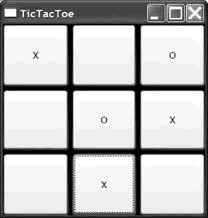
注意到图5-1中,grid的背景来自页面的空白。这些空白差不多使grid看上去像一个可绘制的TTT木板(虽然我们将来会做的更好)。然而,如果我们真的指望模仿一个手绘的游戏,我们已经对按钮上的字体大小做了设置,但并没匹配到线条的厚度。
一种修复这个问题的方法是为每一个按钮对象设置字体和宽度,如示例5-3。
示例5-3
<Button FontSize="32" FontWeight="Bold" x:Name="cell00" /><Button FontSize="32" FontWeight="Bold" x:Name="cell01" /><Button FontSize="32" FontWeight="Bold" x:Name="cell02" /><Button FontSize="32" FontWeight="Bold" x:Name="cell10" /><Button FontSize="32" FontWeight="Bold" x:Name="cell11" /><Button FontSize="32" FontWeight="Bold" x:Name="cell12" /><Button FontSize="32" FontWeight="Bold" x:Name="cell20" /><Button FontSize="32" FontWeight="Bold" x:Name="cell21" /><Button FontSize="32" FontWeight="Bold" x:Name="cell22" />依照我的视觉敏感性,今天,虽然这样做使得X的和O的外观更好,一旦我以后想改动它,我就要负责在9个独立的地方改变这些属性,这是重复性的努力——违反了我的编码敏感性。我宁愿重制我的决定——为了以后的维护,将我的TTT单元的外观放在一个共同的地方。这是样式派得上用场的地方。
《Programming WPF》翻译 第5章 1.不使用样式的更多相关文章
- 《Programming WPF》翻译 第6章 2.资源与样式
原文:<Programming WPF>翻译 第6章 2.资源与样式 WPF的样式机制以来于资源体系来定位样式.正如你在第5章看到的,样式在元素的资源片段中定义,而且样式通过其名字被引用, ...
- 《Programming WPF》翻译 第5章 4.元素类型样式
原文:<Programming WPF>翻译 第5章 4.元素类型样式 命名样式非常有用,当你得到一组属性并应用到特点的元素上.然而,如果你想要应用一个统一的样式到所有确定元素类型的实例, ...
- 《Programming WPF》翻译 第5章 2.内嵌样式
原文:<Programming WPF>翻译 第5章 2.内嵌样式 每一个“可样式化”的WPF元素都有一个Style属性,可以在内部设置这个属性--使用XAML属性-元素的语法(在第一章讨 ...
- 《Programming WPF》翻译 第9章 5.默认可视化
原文:<Programming WPF>翻译 第9章 5.默认可视化 虽然为控件提供一个自定义外观的能力是有用的,开发者应该能够使用一个控件而不用必须提供自定义可视化.这个控件应该正好工作 ...
- 《Programming WPF》翻译 第9章 6.我们进行到哪里了?
原文:<Programming WPF>翻译 第9章 6.我们进行到哪里了? 只有当任何内嵌控件都没有提供你需要的底层行为时,你将要写一个自定义控件.当你写一个自定义控件,你将要使用到依赖 ...
- 《Programming WPF》翻译 第9章 4.模板
原文:<Programming WPF>翻译 第9章 4.模板 对一个自定义元素最后的设计考虑是,它是如何连接其可视化的.如果一个元素直接从FrameworkElement中派生,这将会适 ...
- 《Programming WPF》翻译 第9章 3.自定义功能
原文:<Programming WPF>翻译 第9章 3.自定义功能 一旦你挑选好一个基类,你将要为你的控件设计一个API.大部分WPF元素提供属性暴露了多数功能,事件,命令,因为他们从框 ...
- 《Programming WPF》翻译 第9章 2.选择一个基类
原文:<Programming WPF>翻译 第9章 2.选择一个基类 WPF提供了很多类,当创建一个自定义元素时,你可以从这些类中派生.图9-1显示了一组可能作为类--可能是合适的基类, ...
- 《Programming WPF》翻译 第9章 1.自定义控件基础
原文:<Programming WPF>翻译 第9章 1.自定义控件基础 在写一个自定义控件之前,你需要问的第一个问题是,我真的需要一个自定义控件吗?一个写自定义控件的主要原因是为了用户界 ...
随机推荐
- CONTEST36 小Z的模拟赛(2)
A.小Z的可恶路障 题目:http://www.luogu.org/problem/show?pid=U126 题解:暴力也可以过吧.我为了保险先求了一次最短路,然后枚举这条最短路上的所有边... 代 ...
- iOS 9之SFSafariViewController
金田( github 示例源码) 有时候需要在App内部打开一个网页,例如为了展示公司官网,产品列表信息,Facebook,微博等.以前都是使用 UIWebView,iOS 8引入了WKWebView ...
- bzoj3629[JLOI2014]聪明的燕姿
http://www.lydsy.com/JudgeOnline/problem.php?id=3629 搜索. 我们知道: 如果$N=\prod\limits_{i=1}^{m}p_{i}^{k_{ ...
- phpcms:三、头部包含
1‘标题:{if isset($SEO['title']) && !empty($SEO['title'])}{$SEO['title']}{/if}{$SEO['site_title ...
- Spring 的优秀工具类盘点第 2 部分
特殊字符转义 由于 Web 应用程序需要联合使用到多种语言,每种语言都包含一些特殊的字符,对于动态语言或标签式的语言而言,如果需要动态构造语言的内容时,一个我们经常会碰到的问题就是特殊字符转义的问题. ...
- 加密解密(2)*客户端,服务器,CA(Certificate Authority),公钥,私钥,证书,签名,验证
加密解密(2)*客户端,服务器,CA(Certificate Authority),公钥,私钥,证书,签名,验证 各角色比喻 客户端:通常为请求方,要验证服务器的身份. 服务器:通常为响应方,有时也要 ...
- Java中日期时间API小结
Java中为处理日期和时间提供了大量的API,确实有把一件简单的事情搞复杂的嫌疑,各种类:Date Time Timestamp Calendar...,但是如果能够看到时间处理的本质就可以轻松hol ...
- CentOS管理
1.使用yum安装和卸载软件 主要功能是更方便的添加/删除/更新RPM包. 它能自动解决包的倚赖性问题. 它能便于管理大量系统的更新问题 一.yum list|more 列 ...
- C#的位运算符
C#的位运算符&,| ,^ ,<<,>>2008年08月01日 星期五 15:52位 运 算我们知道任何信息在计算机中都是以二进制的形式保存的位操作符就是对数据按二进制 ...
- 《第一行代码》学习笔记10-活动Activity(8)
1.除了onRestart()方法,其他都是两两相对的.三种生存期: (1)完整生存期:onCreate()~onDestroy().一般情况下,一个活动会在onCreate()中完成各种初始化操作, ...