
【VMware vSphere】扩容或缩减 vCenter Server 的磁盘空间大小。
我们在部署 vCenter Server 时,根据不同环境的情况,可以选择不同的部署选项,比如环境中的主机可能运行了 100 个,或者虚拟机运行了 1000 个,此时按照官方推荐的选择“小型环境”部署选项即可满足需求;如果主机超过了 100 个,可能在 1000 个以内,或者虚拟机超过了 1000 个,可能要运行 10000 个,此时推荐应该选择“大型环境”部署选项。
| 部署选项 | CPU | 内存 |
| 微型环境(最多 10 个主机或 100 个虚拟机) | 2 | 14 GB |
| 小型环境(最多 100 个主机或 1,000 个虚拟机) | 4 | 21 GB |
| 中型环境(最多 400 个主机或 4000 个虚拟机) | 8 | 30 GB |
| 大型环境(最多 1000 个主机或 10000 个虚拟机) | 16 | 39 GB |
| 超大型环境(最多 2000 个主机或 35000 个虚拟机) | 24 | 58 GB |
同样,根据不同的部署选项,也会设置不同的默认存储大小,不过针对不同的部署选项,可以单独将默认存储大小调整为其他存储大小,比如选择“大型”或者“超大型”存储大小。
| 部署选项 | 默认存储大小 | 大型存储大小 | 超大型存储大小 |
| 微型环境(最多 10 个主机或 100 个虚拟机) | 579 GB | 2019 GB | 4279 GB |
| 小型环境(最多 100 个主机或 1000 个虚拟机) | 694 GB | 2044 GB | 4304 GB |
| 中型环境(最多 400 个主机或 4000 个虚拟机) | 908 GB | 2208 GB | 4468 GB |
| 大型环境(最多 1000 个主机或 10000 个虚拟机) | 1358 GB | 2258 GB | 4518 GB |
| 超大型环境(最多 2000 个主机或 35000 个虚拟机) | 2283 GB | 2383 GB | 4643 GB |
不同的部署选项会为 vCenter Server 虚拟机分配不同的 CPU 和内存大小,这个很容易理解,因为环境体型越大自然运行负载就越高,即使初始部署的时候分配得较低或较高,这两项也可以在后续使用过程中根据情况随时去调整它。但是,对于部署选项中的存储大小,大家可能就有疑问了,因为不清楚这个环境到底会占用多少存储空间,分配的少了,害怕磁盘被占满导致服务故障,分配的多了,害怕造成磁盘空间浪费。通常情况下,如果没有特殊需求,我们选择部署选项时只需保持默认即可,当对环境中的日志或者数据库类大小有更高需求时,可以选择大一级别选项,不建议一开始选择最高级别选项,因为相对来说,后续想要“扩容”要比“缩减”操作更容易一些。
一、vCenter Server 磁盘说明
当 vCenter Server 部署完成之后,我们可以访问“https://vcenter-ip-or-fqdn:5480/#/ui/monitor/disks”管理后台查看磁盘的分区情况。以 vSphere 8 为例,部署时分配的所有存储空间被划分为 17 块磁盘(硬盘格式为VMDK),每块硬盘独立挂载到不同的分区目录以支持不同的用途,将鼠标放在不同分区上面可以显示其功能和用途,通过监控每块磁盘的利用率可以了解不同分区的使用情况。
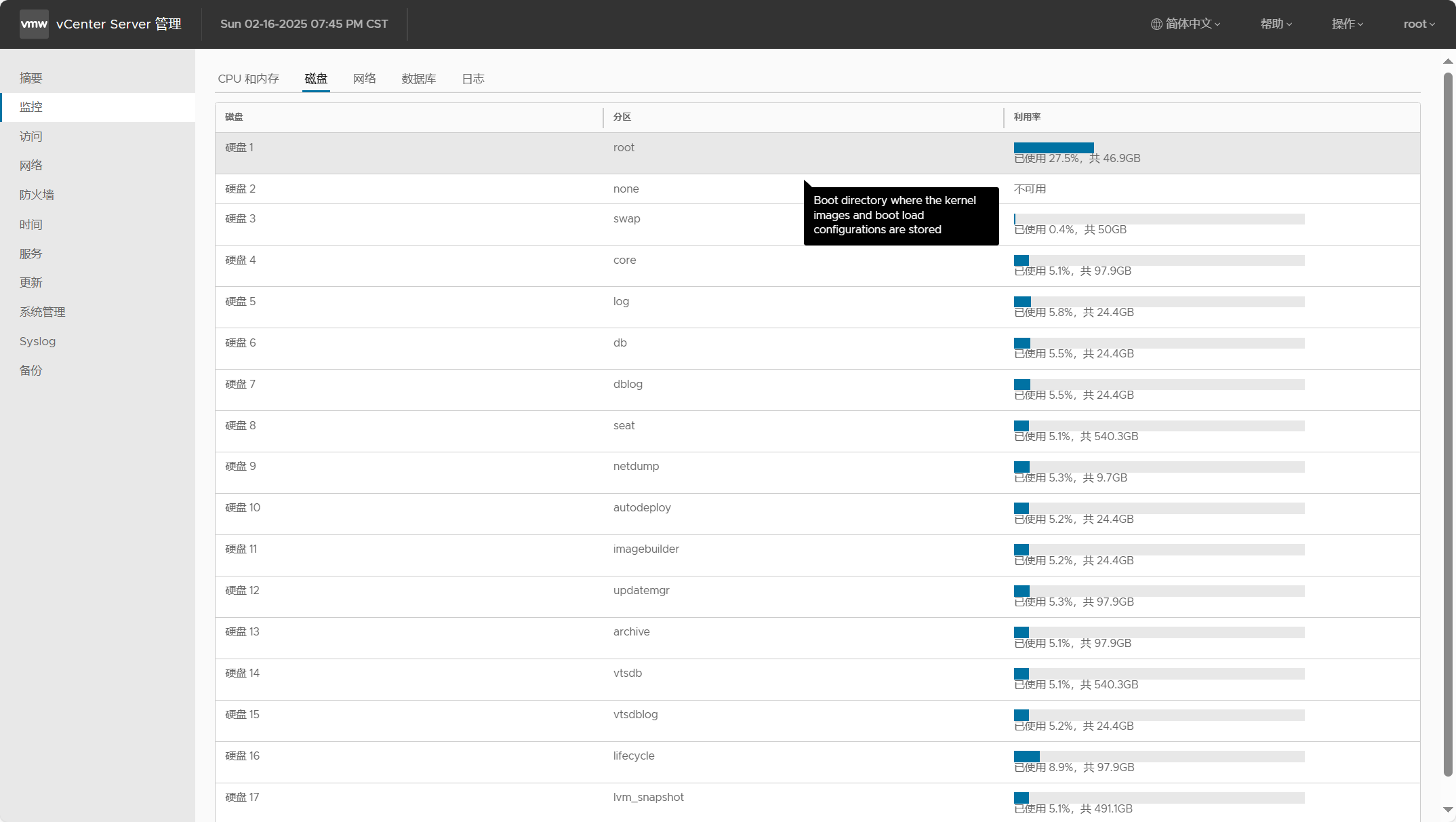
不是所有的 vCenter Server 版本都会创建这么多的磁盘,并且不同版本所挂载目录的空间大小也不尽相同。以部署选项中的“微型环境”默认存储大小为例,以下是各个 vCenter Server 版本部署之后的磁盘使用情况。注意,如果不是默认存储大小,而是选择了其他类型的存储大小,则部署之后的磁盘分区大小也会跟着发生变化。
| vCenter Server 版本 | 磁盘(VMDK) | 挂载目录 | 默认大小 | 用途 |
| 6.0 | VMDK1 | / (10 GB) /boot (132 MB) SWAP (1 GB) |
12 GB | Boot directory where the kernel images and boot load configurations are stored |
| VMDK2 | /tmp | 1.3 GB | Temporary directory used to store temporary files generated or used by services from vCenter Server | |
| VMDK3 | SWAP | 25 GB | Swap directory used when the system is out of memory to swap to disk | |
| VMDK4 | /storage/core | 25 GB | Core directory where core dumps from VPXD process from the vCenter Server are stored | |
| VMDK5 | /storage/log | 10 GB | Log directory where vCenter Server stores all logs for the environment | |
| VMDK6 | /storage/db | 10 GB | VMware Postgres database storage location | |
| VMDK7 | /storage/dblog | 5 GB | VMware Postgres database logging location | |
| VMDK8 | /storage/seat | 10 GB | Stats, Events, Alarms and Tasks (SEAT) directory for VMware Postgres | |
| VMDK9 | /storage/netdump | 1 GB | VMware Netdump collector repository that stores ESXi dumps | |
| VMDK10 | /storage/autodeploy | 10 GB | VMware Auto Deploy repository that stores the thinpackages used for stateless booting of ESXi hosts | |
| VMDK11 | /storage/invsvc | 5 GB | VMware Inventory Service directory where the xDB, Inventory Service bootstrap configuration file, and tomcat configuration files reside | |
| 6.5 | VMDK1 | / (10 GB) /boot (132 MB) SWAP (1 GB) |
12 GB | Directory where the kernel images and boot loader configurations are stored. |
| VMDK2 | /tmp | 1.8 GB | Directory used to store temporary files generated or used by services from vCenter Server | |
| VMDK3 | SWAP | 25 GB | Directory used when the system is out of memory to swap to disk | |
| VMDK4 | /storage/core | 25 GB | Directory where core dumps from VPXD process from the vCenter Server are stored | |
| VMDK5 | /storage/log | 10 GB | Directory where vCenter Server and Platform Services Controller store all logs for the environment | |
| VMDK6 | /storage/db | 10 GB | VMware Postgres database storage location | |
| VMDK7 | /storage/dblog | 5 GB | VMware Postgres database logging location | |
| VMDK8 | /storage/seat | 10 GB | Stats, Events, Alarms and Tasks (SEAT) directory for VMware Postgres | |
| VMDK9 | /storage/netdump | 1 GB | VMware Netdump collector repository that stores ESXi dumps | |
| VMDK10 | /storage/autodeploy | 10 GB | VMware Auto Deploy repository that stores the thinpackages used for stateless booting of ESXi hosts | |
| VMDK11 | /storage/imagebuilder | 10 GB | VMware Image Builder repository that stores the vSphere image profiles, software depots and VIB packages, such as driver VIBs and update VIBs. | |
| VMDK12 | /storage/updatemgr | 100 GB | VMware Update Manager repository where patches and updates are stored for Virtual Machine and ESXi hosts | |
| 6.7 | VMDK1 | / (10 GB) /boot (132 MB) SWAP (1 GB) |
12 GB | Directory where the kernel images and boot loader configurations are stored. |
| VMDK2 | /tmp | 1.8 GB | Directory used to store temporary files generated or used by services from vCenter Server | |
| VMDK3 | SWAP | 25 GB | Directory used when the system is out of memory to swap to disk | |
| VMDK4 | /storage/core | 25 GB | Directory where core dumps from VPXD process from the vCenter Server are stored | |
| VMDK5 | /storage/log | 10 GB | Directory where vCenter Server and Platform Services Controller store all logs for the environment | |
| VMDK6 | /storage/db | 10 GB | VMware Postgres database storage location | |
| VMDK7 | /storage/dblog | 5 GB | VMware Postgres database logging location | |
| VMDK8 | /storage/seat | 10 GB | Stats, Events, Alarms and Tasks (SEAT) directory for VMware Postgres | |
| VMDK9 | /storage/netdump | 1 GB | VMware Netdump collector repository that stores ESXi dumps | |
| VMDK10 | /storage/autodeploy | 10 GB | VMware Auto Deploy repository that stores the thinpackages used for stateless booting of ESXi hosts | |
| VMDK11 | /storage/imagebuilder | 10 GB | VMware Image Builder repository that stores the vSphere image profiles, software depots and VIB packages, such as driver VIBs and update VIBs. | |
| VMDK12 | /storage/updatemgr | 100 GB | VMware Update Manager repository where patches and updates are stored for Virtual Machine and ESXi hosts | |
| VMDK13 | /storage/archive | 50 GB | VMware Postgres database’s Write-Ahead Logging (WAL) location | |
| 7.0 | VMDK1 | / (46 GB) /boot (132 MB) SWAP (1 GB) |
48 GB | Directory where the kernel images and boot loader configurations are stored. |
| VMDK2 | /tmp | 1.8 GB | Directory used to store temporary files generated or used by services from vCenter Server | |
| VMDK3 | SWAP | 25 GB | Directory used when the system is out of memory to swap to disk | |
| VMDK4 | /storage/core | 25 GB | Directory where core dumps from VPXD process from the vCenter Server are stored | |
| VMDK5 | /storage/log | 10 GB | Directory where vCenter Server and Platform Services Controller store all logs for the environment | |
| VMDK6 | /storage/db | 10 GB | VMware Postgres database storage location | |
| VMDK7 | /storage/dblog | 5 GB | VMware Postgres database logging location | |
| VMDK8 | /storage/seat | 10 GB | Stats, Events, Alarms and Tasks (SEAT) directory for VMware Postgres | |
| VMDK9 | /storage/netdump | 1 GB | VMware Netdump collector repository that stores ESXi dumps | |
| VMDK10 | /storage/autodeploy | 10 GB | VMware Auto Deploy repository that stores the thinpackages used for stateless booting of ESXi hosts | |
| VMDK11 | /storage/imagebuilder | 10 GB | VMware Image Builder repository that stores the vSphere image profiles, software depots and VIB packages, such as driver VIBs and update VIBs. | |
| VMDK12 | /storage/updatemgr | 100 GB | VMware Update Manager repository where patches and updates are stored for Virtual Machine and ESXi hosts | |
| VMDK13 | /storage/archive | 50 GB | VMware Postgres database’s Write-Ahead Logging (WAL) location | |
| VMDK14 | /storage/vtsdb | 10 GB | VMware vTSDB Service Repository that stores the stats | |
| VMDK15 | /storage/vtsdblog | 5 GB | VMware vTSDB Service Repository that stores the logs of the service | |
| VMDK16 | /storage/lifecycle | 100 GB | Workload Control Plane service stage directory or software depot, this stores the binaries for install and update/upgrade. | |
| 8.0 | VMDK1 | / (48 GB) /boot (512 MB) |
48 GB | Directory where the kernel images and boot loader configurations are stored. |
| VMDK2 | /tmp | 5.5 GB | Directory used to store temporary files generated or used by services from vCenter Server | |
| VMDK3 | SWAP | 25 GB | Directory used when the system is out of memory to swap to disk | |
| VMDK4 | /storage/core | 25 GB | Directory where core dumps from VPXD process from the vCenter Server are stored | |
| VMDK5 | /storage/log | 10 GB | Directory where vCenter Server and Platform Services Controller store all logs for the environment | |
| VMDK6 | /storage/db | 10 GB | VMware Postgres database storage location | |
| VMDK7 | /storage/dblog | 15 GB | VMware Postgres database logging location | |
| VMDK8 | /storage/seat | 10 GB | Stats, Events, Alarms and Tasks (SEAT) directory for VMware Postgres | |
| VMDK9 | /storage/netdump | 1 GB | VMware Netdump collector repository that stores ESXi dumps | |
| VMDK10 | /storage/autodeploy | 10 GB | VMware Auto Deploy repository that stores the thinpackages used for stateless booting of ESXi hosts | |
| VMDK11 | /storage/imagebuilder | 10 GB | VMware Image Builder repository that stores the vSphere image profiles, software depots and VIB packages, such as driver VIBs and update VIBs. | |
| VMDK12 | /storage/updatemgr | 100 GB | VMware Update Manager repository where patches and updates are stored for Virtual Machine and ESXi hosts | |
| VMDK13 | /storage/archive | 50 GB | VMware Postgres database’s Write-Ahead Logging (WAL) location | |
| VMDK14 | /storage/vtsdb | 10 GB | VMware vTSDB Service Repository that stores the stats | |
| VMDK15 | /storage/vtsdblog | 5 GB | VMware vTSDB Service Repository that stores the logs of the service | |
| VMDK16 | /storage/lifecycle | 100 GB | Workload Control Plane service stage directory or software depot, this stores the binaries for install and update/upgrade. | |
| VMDK17 | /storage/lvm_snapshot | 150 GB | Directory used to store temporary system root |
二、vCenter Server 磁盘扩容
我们可以通过 VAMI 管理后台监控磁盘/分区的使用情况,vCenter Server 运行一段时间后,当利用率进度条显示为红色之后,说明磁盘空间即将占满,此时应该考虑对磁盘执行扩容操作。如果不及时进行扩容操作,或者因为其他原因导致磁盘的空间被完全占满,可能会造成服务中断以及 vCenter Server 使用故障。
从 vSphere 6.0 开始,vCenter Server 就引入了 Logical Volume Management(LVM)逻辑卷管理,并且可以在不停机的情况下完成磁盘空间的动态扩容,这对于运维和管理来说变得十分方便。但是有一点需要注意的是,vSphere 7.0 及之后的版本不支持调整根分区的大小,如果根分区的空间使用率比较高,可以考虑清除某些日志的方式来降低空间占用。以 vSphere 8.0 为例,下面演示如何对 vCenter Server 进行磁盘扩容。

使用 SSH 以 root 用户连接到 vCenter Server,默认情况下进入 API 命令行。磁盘扩容支持两种方式,一种是 API 方式,另外一种是 Shell 方式,这里先说第一种方式。

输入“storage”并按“Tab”补全,可以看到具有多个用于存储的 API 命令,运行“storage.health.get”可以获取存储的健康状态。

运行“storage.list”可以获取 vCenter Server 所有的磁盘分区。

运行“storage.stats.list”可以获取 vCenter Server 磁盘分区使用情况。Usedkbytes 表示已使用空间大小,Totalkbytes 表示总空间大小,注意单位是 KB;Usedinodes 表示已使用的 inode 数量,Totalinodes 表示总共的 inode 数量。

登录到 vSphere Client,找到 vCenter Server 虚拟机并点击编辑设置,展开硬盘选项卡可以看到 vCenter Server 的所有硬盘,这里演示给“硬盘 5”扩容磁盘空间,也就是“/storage/log”分区,从 25 GB 扩容到 30 GB。注意,如果这里显示是灰色无法修改磁盘的空间大小,可能是因为虚拟机正在快照上运行,可以尝试删除 vCenter Server 虚拟机的所有快照,并在继续之前创建 vCenter Server 基于文件的完整备份。

运行“storage.resize”命令以执行磁盘分区自动扩容,再次查看磁盘分区的空间大小,可以发现已成功增加。

使用 SSH 以 root 用户连接到 vCenter Server,默认情况下进入 API 命令行。使用以下命令开启 vCenter Server 的 Bash Shell 访问,再输入 shell 命令进行连接。
shell.set --enabled true
使用“df -h”或者“lsblk”命令查看磁盘分区及使用情况,然后确定某一个分区是否受影响。

登录到 vSphere Client,找到 vCenter Server 虚拟机并点击编辑设置,展开硬盘选项卡,这里还是演示给“硬盘 5”扩容磁盘空间,从 30 GB 扩容到 40 GB。

直接运行以下脚本,再次查看磁盘分区的使用情况,可以发现磁盘空间大小已成功扩容。
/usr/lib/applmgmt/support/scripts/autogrow.sh
上述过程能够完成对 vCenter Server 磁盘的扩容操作,整个过程应该比较简单,可以根据个人习惯自行选择使用 API 或者 Shell 方式。
三、vCenter Server 磁盘缩减
其实应该能发现,上面所演示的 vCenter Server 磁盘空间使用率是极其较小的,这里的环境在部署的时候选择了“大型环境”选项,并且将默认存储大小修改为了“大型存储大小”,所以看起来分配给 vCenter Server 的磁盘空间被浪费了。如果运行很长一段时间后,发现 vCenter Server 的磁盘空间占用率依然非常低的话,说明使用环境与部署选项差距过大,选择低一档的部署选项也能满足需求。
已经部署的 vCenter Server,能不能对其存储空间执行缩减呢?网上有一些文章介绍如何收缩 vCenter Server 的磁盘大小,但是这些方法操作难度较高并且不受官方支持,所以,下面演示一种受支持的方法,用于缩减 vCenter Server 的磁盘空间大小。这种方法其实就是使用 vCenter Server 安装程序执行备份还原过程,因为在还原的第一阶段可以选择我们想要的任何部署选项。有关 vCenter Server 基于文件的备份方法可以参考这篇(使用 SFTP 服务器备份 VCF 核心组件的配置文件。)文章。

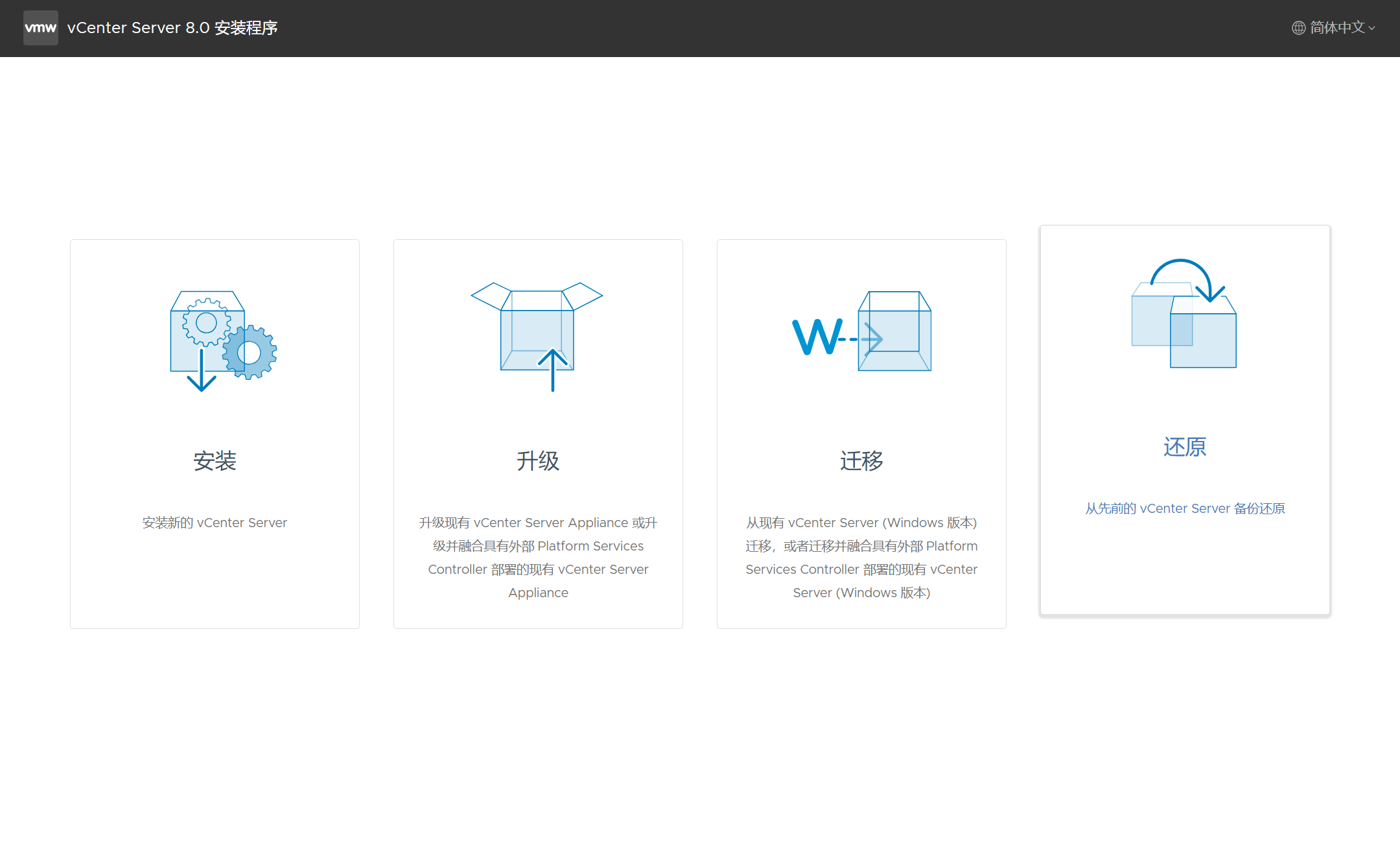
运行 vCenter Server 安装程序,选择“还原”选项。
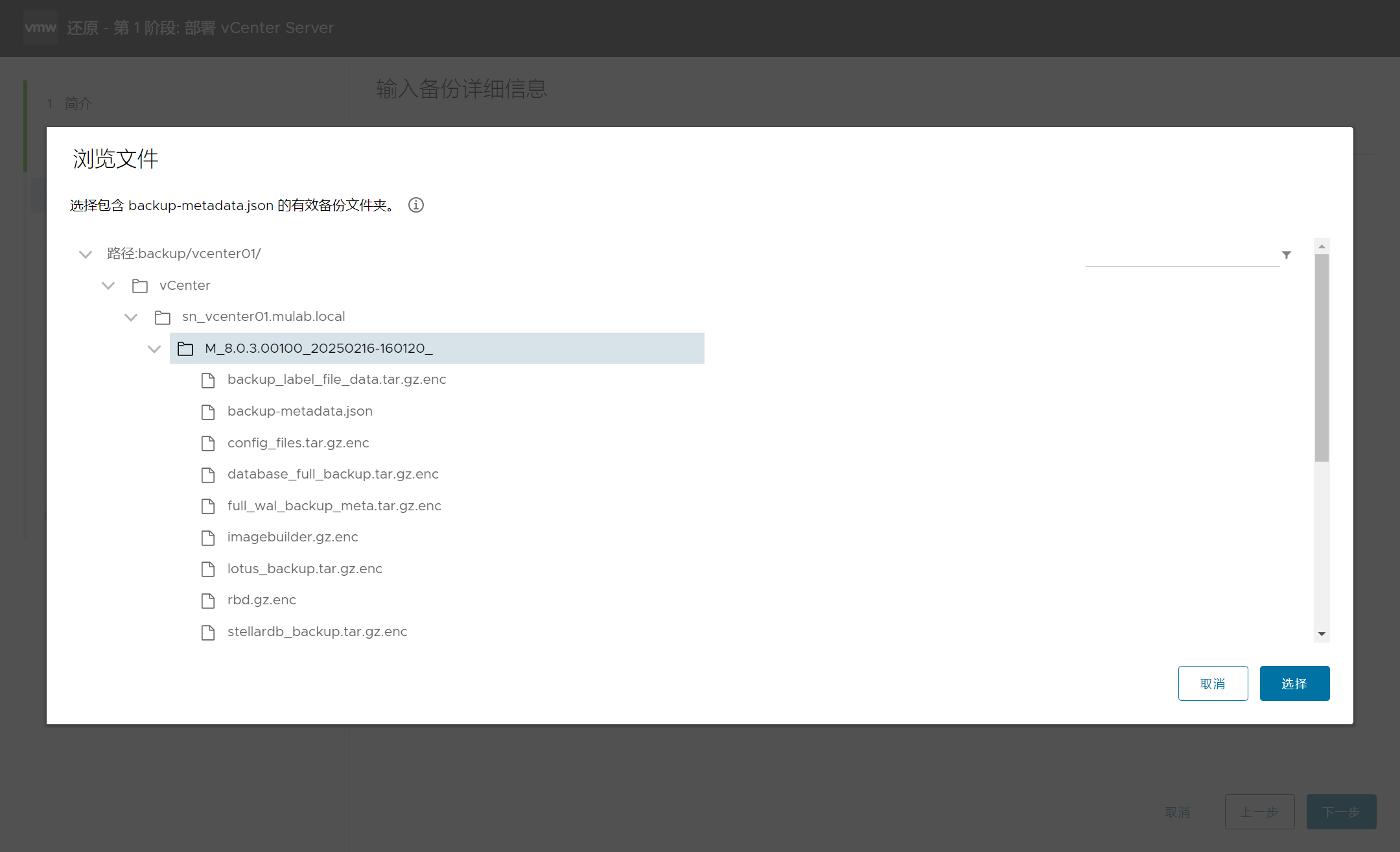
连接到备份服务器并选择 vCenter Server 指定备份文件。

中间过程就省略了,在选择部署大小时,可根据当前 vCenter Server 环境的情况选择合适的部署选项,这里选择“小型环境”即可。

完成第一阶段新 vCenter Server 的部署,点击继续。

开始第二阶段还原过程。
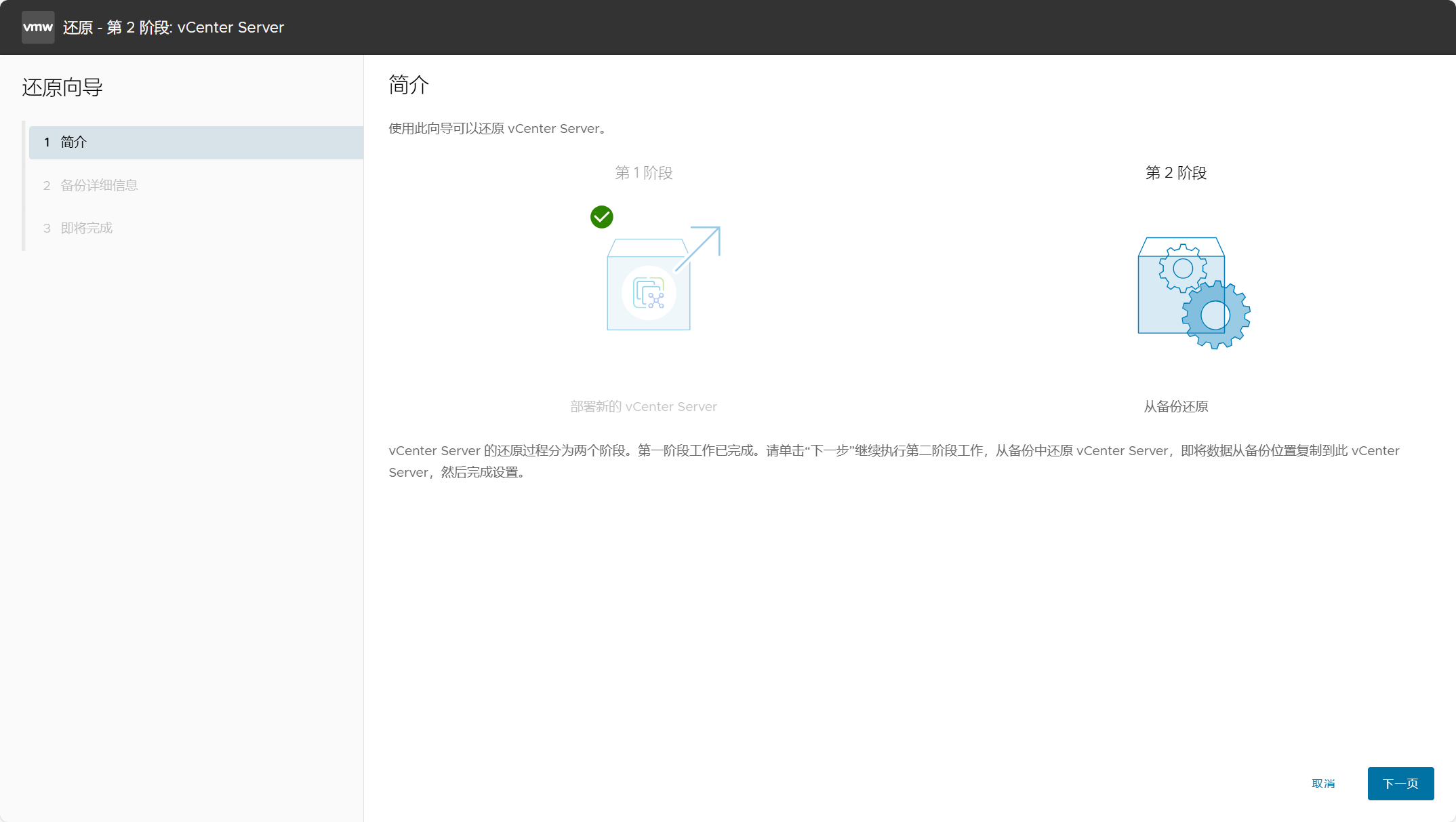
连接到备份服务器。

由于部署选项与备份配置文件不匹配,出现“元数据和系统验证失败/Metadata and system validation failed”错误。

登录到备份服务器,导航到 vCenter Server 的备份目录,找到“backup-metadata.json”备份元数据文件并进行编辑,根据下图修改文件中的“SizeInfo”和“Deployment Type”中的值以匹配在还原第一阶所选择的部署选项。


修改后,重新点击即可验证成功并进入下一步。

完成还原过程。

登录 VAMI,再次点击磁盘监控,可以发现 vCenter Server 磁盘空间大小已成功缩减。

参考类似的方式,也可以在跨版本“升级”过程中对 vCenter Server 磁盘空间进行缩减,比如从 6.5/6.7 升级到 7.0 或者 8.0 时,使用 vCenter Server 安装程序执行第一阶段的部署,然后关闭向导并通过浏览器访问 VAMI 进入第二阶段“升级”,最终完成整个过程。
【VMware vSphere】扩容或缩减 vCenter Server 的磁盘空间大小。的更多相关文章
- VMware使用自带工具vmware-vdiskmanager精简占用磁盘空间
https://blog.csdn.net/xcl113/article/details/50715943 vmware-vdiskmanager压缩磁盘大小,验证有效 一 .sudo apt-get ...
- VMware vSphere,ESXi和vCenter的关系和区别
VMware Inc.是一家软件公司.它开发了很多产品,尤其是各种云解决方案 .他的云解决方案包括云产品,数据中心产品和桌面产品等. vSphere是在数据中心产品下的一套软件.vSphere类似微软 ...
- VMware vSphere 创建虚拟机步骤及三种磁盘规格
https://blog.csdn.net/hanzheng260561728/article/details/80471899 http://www.mycitrix.cn/esxi-disk-mo ...
- 如何扩大VMware虚拟机的硬盘磁盘空间大小
首先,在虚拟机配置界面通过界面配置,直接扩大虚拟机硬盘大小: 而后,登陆虚拟机,在windows磁盘管理,更多操作中直接“重新扫描磁盘”,操作系统自动找到了多出来的磁盘空间: 最后,在老磁盘分区上通过 ...
- VMware vCenter Server安装与配置
预先准备好安装包 ESXI6 VMware-VMvisor-Installer-6.0.0.update01-3073146.x86_64.iso VC VMware-VIMSet ...
- VMware vSphere 5.1 简介与安装
虚拟化系列-VMware vSphere 5.1 简介与安装 标签: 虚拟化 esxi5.1 VMware vSphere 5.1 原创作品,允许转载,转载时请务必以超链接形式标明文章 原始出处 . ...
- [转载]【虚拟化系列】VMware vSphere 5.1 虚拟机管理
转载自:http://mabofeng.blog.51cto.com/2661587/1019497 在上一博文中我们安装了强大的VMware vCenter管理中心,通过VMware vSphere ...
- [转载]【虚拟化系列】VMware vSphere 5.1 简介与安装
转载自:http://mabofeng.blog.51cto.com/2661587/1017680 一. VMware vSphere 5.1简介 vSphere是VMware推 ...
- 【虚拟化系列】VMware vSphere 5.1 虚拟机管理
在上一博文中我们安装了强大的VMware vCenter管理中心,通过VMware vSphere Client连接到VMware vCenter管理中心, vSphere 的两个核心组件是 ...
- 【虚拟化系列】VMware vSphere 5.1 简介与安装
一. VMware vSphere 5.1简介 vSphere是VMware推出的基于云计算的新一代数据中心虚拟化套件,提供了虚拟化基础架构.高可用性.集中管理.监控等一整套解决方 ...
随机推荐
- Educational Codeforces Round 132 (Rated for Div
Educational Codeforces Round 132 (Rated for Div. 2) Recover an RBS 给你一个括号序列,里面存在?号,题目保证至少有一种方案使得该括号序 ...
- 指针, C语言的精髓
指针, C语言的精髓 莫队先咕几天, 容我先讲完树剖 (因为后面树上的东西好多都要用树剖求 LCA). 什么是指针 保存变量地址的变量叫做指针. 这是大概的定义, 但是Defad认为这个定义不太好理解 ...
- C# 和 SQL Server中 PadLeft和PadRight 的用法
C# 中 PadLeft和PadRight 的用法 需求:需要一个字符串实现自增.是根据数据库中一个自增的int类型的值,实现自增的.但是要加上前缀.比如,数据库中有一个自增的值,为,2.那么这个自增 ...
- oracle中id自增长(转)
首先,你要有一张表! CREATE TABLE example( ID Number(4) NOT NULL PRIMARY KEY, NAME VARCHAR(25), PHONE VARCHAR( ...
- Mysql的整体架构设计
整体分层 连接层 服务层 存储引擎层 连接层 客户端要连接到服务器 3306 端口,必须要跟服务端建立连接,那么 管理所有的连接,验证客户端的身份和权限,这些功能就在连接层完成. 服务层 连接层会把 ...
- js 吸顶以及一些获取文档高度等小方法
1.返回html文档元素document.documentElement 2.文档的高度document.body.clientHeight 3.html文档可视高度==页面可见区域的高度docume ...
- Winform 使用WebView2 开发现代应用
使用 WebView2 开发现代应用 WebView2 是 Microsoft 提供的一种嵌入式浏览器控件,基于 Edge (Chromium) 引擎.它允许开发者将现代 Web 技术(如 HTML. ...
- 为什么SQL正在击败NoSQL,这对未来的数据意味着什么(转载)
为什么SQL正在击败NoSQL,这对未来的数据意味着什么 : http://geek.csdn.net/news/detail/238939 译者注:经过多年的沉寂之后,今天的SQL正在复出.缘由如何 ...
- 【爬虫】XPath实例
题目要求我们用XPATH去爬某个网站并且保存为CSV文件 代码如下,仅供参考 # -*- coding: UTF-8 -*- # 开发人员:萌狼蓝天 # 博客:Https://mllt.cc # 笔记 ...
- https://gitlab.com/volian/nala/-/wikis/Installation
Installation Debian Testing/Sid Nala is officially in the testing and sid repos. sudo apt install ...