
winform 计算器
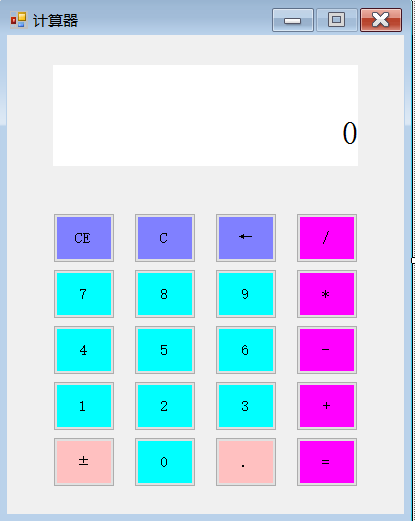
using System;

using System.Collections.Generic;

using System.ComponentModel;

using System.Data;

using System.Drawing;

using System.Linq;

using System.Text;

using System.Threading.Tasks;

using System.Windows.Forms;

namespace 计算器1

{

    public partial class Form1 : Form

    {

        //存储上次点击了什么按钮,0代表什么都没点击,1代表点击了数字按钮,2代表点击了运算符

        private int prev = ;

        //存储计算的中间结果

        private decimal zj = ;

        //记录上次按的什么运算符

        private string prevysf = "+";

        public Form1()

        {

            InitializeComponent();

        }

        //数字按钮

        private void button15_Click(object sender, EventArgs e)

        {

            //将事件源转换为按钮

            Button btn = sender as Button;

            //替换(如果下面文本框内容为0或者上次点击了运算符)

            if (prev ==  || txtbottom.Text == "")

            {

                txtbottom.Text = btn.Text;

            }

            //追加(如果下面文本框内容不为0并且上次没有点击运算符)

            else

            {

                txtbottom.Text += btn.Text;

            }

            //点击了数字按钮

            prev = ;

        }

        //运算符按钮

        private void button16_Click(object sender, EventArgs e)

        {

            Button btn = sender as Button;

            //上次按了数字

            if (prev == )

            {

                txttop.Text += txtbottom.Text + btn.Text;

                switch (prevysf)

                {

                    case "+":

                        zj = zj + Convert.ToDecimal(txtbottom.Text);

                        break;

                    case "-":

                        zj = zj - Convert.ToDecimal(txtbottom.Text);

                        break;

                    case "*":

                        zj = zj * Convert.ToDecimal(txtbottom.Text);

                        break;

                    case "/":

                        zj = zj / Convert.ToDecimal(txtbottom.Text);

                        break;

                }

                txtbottom.Text = zj.ToString();

            }

            //上次按了运算符

            else

            {

                string s = txttop.Text;

                s = s.Substring(, s.Length - );

                s = s + btn.Text;

                txttop.Text = s;

            }

            //点击了运算符

            prev = ;

            //记录下运算符

            prevysf = btn.Text;

        }

        //清零

        private void button1_Click(object sender, EventArgs e)

        {

            txttop.Text = "";

            txtbottom.Text = "";

            prev = ;

            zj = ;

            prevysf = "+";

        }

        //清零

        private void button2_Click(object sender, EventArgs e)

        {

            txtbottom.Text = "";

        }

        //等号

        private void button20_Click(object sender, EventArgs e)

        {

            Button btn = sender as Button;

            txttop.Text += txtbottom.Text + btn.Text;

            switch (prevysf)

            {

                case "+":

                    zj = zj + Convert.ToDecimal(txtbottom.Text);

                    break;

                case "-":

                    zj = zj - Convert.ToDecimal(txtbottom.Text);

                    break;

                case "*":

                    zj = zj * Convert.ToDecimal(txtbottom.Text);

                    break;

                case "/":

                    zj = zj / Convert.ToDecimal(txtbottom.Text);

                    break;

            }

            txtbottom.Text = zj.ToString();

            txttop.Text = "";

            zj = ;

        }

        //小数点

        private void button19_Click(object sender, EventArgs e)

        {

            if(txtbottom.Text.Contains(".")==false)

                txtbottom.Text += ".";

        }

        //退格

        private void button3_Click(object sender, EventArgs e)

        {

            txtbottom.Text = txtbottom.Text.Substring(,txtbottom.TextLength-);

        }

        //±号控制

        private void button17_Click(object sender, EventArgs e)

        {

            if(!txtbottom.Text.Contains("-"))

           txtbottom.Text= txtbottom.Text.Insert(, "-");

           else if (txtbottom.Text.Contains("-"))

                txtbottom.Text = txtbottom.Text.Replace("-","");

        }

        //键盘控制

        protected override bool ProcessCmdKey(ref Message msg, Keys keyData)

        {

            // if it is a hotkey, return true; otherwise, return false

            switch (keyData)

            {

                case Keys.NumPad0:

                    //焦点定位到控件button_num_0上,即数字0键上

                    button18.Focus();

                    //执行按钮点击操作

                    button18.PerformClick();

                    return true;

                case Keys.NumPad1:

                    button13.Focus();

                    button13.PerformClick();

                    return true;

                case Keys.NumPad2:

                    button14.Focus();

                    button14.PerformClick();

                    return true;

                case Keys.NumPad3:

                    button15.Focus();

                    button15.PerformClick();

                    return true;

                case Keys.NumPad4:

                    button9.Focus();

                    button9.PerformClick();

                    return true;

                case Keys.NumPad5:

                    button10.Focus();

                    button10.PerformClick();

                    return true;

                case Keys.NumPad6:

                    button11.Focus();

                    button11.PerformClick();

                    return true;

                case Keys.NumPad7:

                    button5.Focus();

                    button5.PerformClick();

                    return true;

                case Keys.NumPad8:

                    button6.Focus();

                    button6.PerformClick();

                    return true;

                case Keys.NumPad9:

                    button7.Focus();

                    button7.PerformClick();

                    return true;

                case Keys.Back:

                    button3.Focus();

                    button3.PerformClick();

                    return true;

                case Keys.Divide:

                    button4.Focus();

                    button4.PerformClick();

                    return true;

                case Keys.Multiply:

                    button8.Focus();

                    button8.PerformClick();

                    return true;

                case Keys.Subtract:

                    button12.Focus();

                    button12.PerformClick();

                    return true;

                case Keys.Add:

                    button16.Focus();

                    button16.PerformClick();

                    return true;

                case Keys.Enter:

                    button20.Focus();

                    button20.PerformClick();

                    return true;

                case Keys.Delete:

                    button19.Focus();

                    button19.PerformClick();

                    return true;

                //......

                default:

                    break;

            }

            return base.ProcessCmdKey(ref msg, keyData);

        }

    }

}
winform 计算器的更多相关文章
- Winform——计算器
namespace 计算器2._0 { public partial class Form1 : Form { public Form1() { InitializeComponent(); } pr ...
- Winform——计算器进制转换
namespace 进制转换2._0 { public partial class Form1 : Form { public Form1() { InitializeComponent(); } p ...
- [原][C#][winForm]分级基金折溢价WinForm网络计算器
分级基金折溢价WinForm网络计算器 通过子/母基金代码,从 [ 东方财富网,天天基金网,新浪 ] 抓取分级基金的子母基金数据(代码,名称,净值,价格), 并计算出子基金(A基金,B基金)以及母基金 ...
- winform操作windows系统计算器
winform对系统计算器的调用,启动,最大化最小化显示,在mainwindow设置topmost=true时,正常显示计算器并置顶. /// <summary> /// 获取窗体的句柄函 ...
- 1.C#WinForm基础制作简单计算器
利用c#语言编写简单计算器: 核心知识点: MessageBox.Show(Convert.ToString(comboBox1.SelectedIndex));//下拉序号 MessageBox.S ...
- winform(四)——简单计算器制作
效果图: 代码区: using System; using System.Collections.Generic; using System.ComponentModel; using System. ...
- winform制作简单计算器
public Form1() { InitializeComponent(); textBox2.Text = ";//主显示屏 textBox1.Text = "";/ ...
- WinForm 制作一个简单的计算器
namespace WindowsFormsApplication6 { public partial class Form1 : Form { //存储上次点击了什么按钮,0代表什么都没有点击,1代 ...
- C# winform(计算器)
随机推荐
- 【CodeVS】1993草地排水
题目描述 Description 在农夫约翰的农场上,每逢下雨,Bessie最喜欢的三叶草地就积聚了一潭水.这意味着草地被水淹没了,并且小草要继续生长还要花相当长一段时间.因此,农夫约翰修建了一套排水 ...
- Android -- 重设字符并统计原字符以及修改字符的长度以及位置
1. 效果图
- 严重: Error configuring application listener of class org.springframework.web.context.ContextLoaderListener
严重: Error configuring application listener of class org.springframework.web.context.ContextLoaderLis ...
- Linux下目标文件分析
文章来源:华清远见嵌入式学院,原文地址:http://www.embedu.org/Column/Column699.htm 作者:冯老师,华清远见嵌入式学院讲师. 1. 程序源码如下: 2.命令 g ...
- Springmvc+Hibernate在Eclipse启动Tomcat需要很长时间的解决方法
最近在学习SpringMvc开发,有一个提问困扰了很久,就是在Eclipse启动Tomcat需要很长时间,大概要1分多钟. 启动日志: 九月 08, 2016 8:59:01 下午 org.apach ...
- 李洪强漫谈iOS开发[C语言-051]-判断整数位数
- c# 函数练习
1.out的使用 2.100以内与7无关的数(个位数是7,十位数是7,7的倍数) 每日一句:不求与人相比,但求超越自己,要哭就哭出激动的泪水,要笑就笑出成长的性格!
- oracle结构与安全
从宏观上来看:oracle数据库服务器主要有数据库和实例组成. 在orale数据库服务器中,首先会产生一个实例,通过实例访问一个数据库. 一个实例对应着一个数据库. oracle 数据库在逻辑上是按层 ...
- Datatable转换Json
#region Datatable转换为Json /// <summary> /// Datatable转换为Json /// </su ...
- Android课程---表格布局TableLayout
特别注意:由于表格布局继承自线性布局,因此并不显示表格线 示例代码: <?xml version="1.0" encoding="utf-8"?> ...