
WPF 新手引导
参考了https://www.cnblogs.com/ZXdeveloper/p/8391864.html,自己随便实现了一个,记录下,比较丑
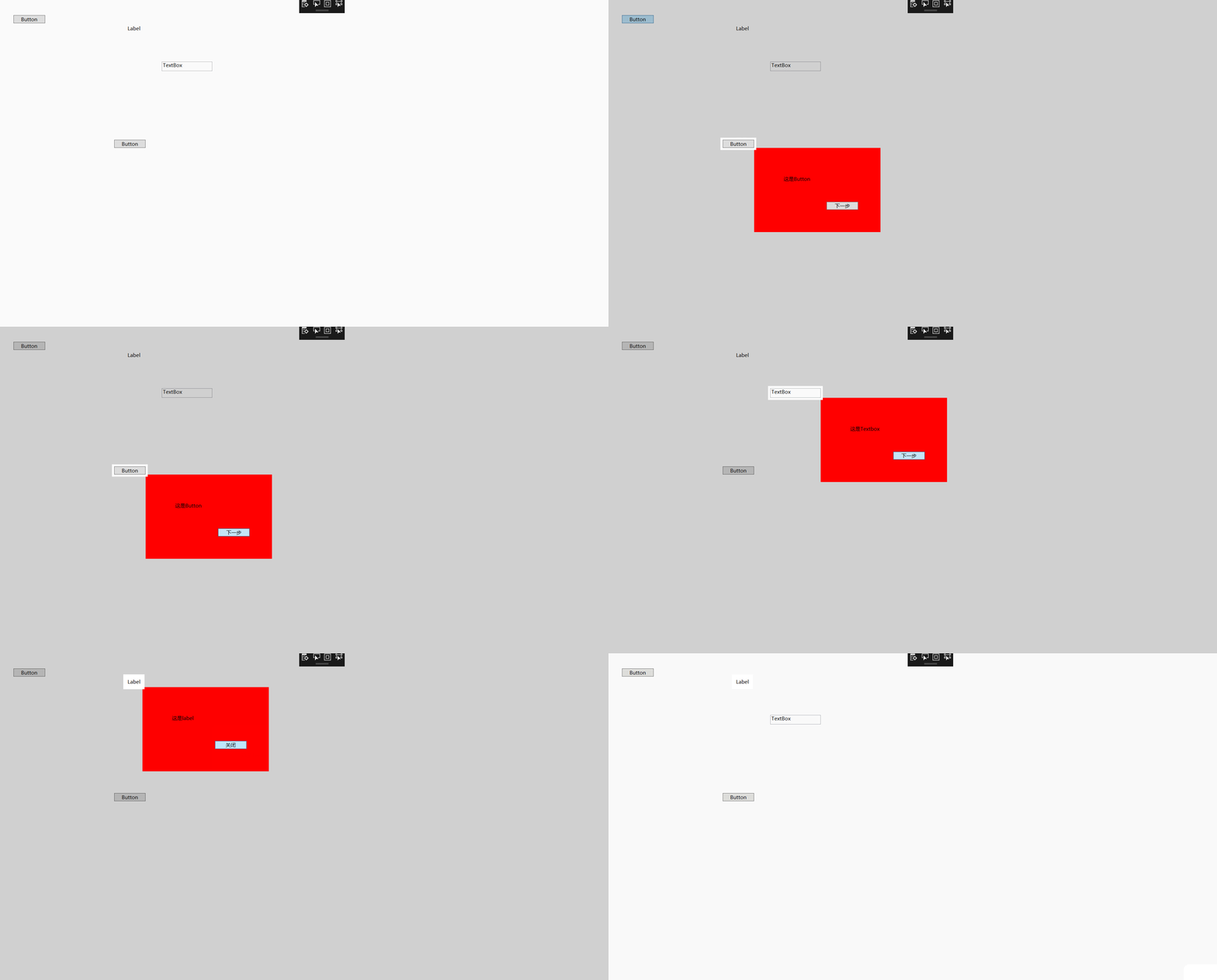
<Window x:Class="UserGuide.MainWindow"

        xmlns="http://schemas.microsoft.com/winfx/2006/xaml/presentation"

        xmlns:x="http://schemas.microsoft.com/winfx/2006/xaml"

        xmlns:d="http://schemas.microsoft.com/expression/blend/2008"

        xmlns:mc="http://schemas.openxmlformats.org/markup-compatibility/2006"

        xmlns:local="clr-namespace:UserGuide"

        mc:Ignorable="d"

        Title="MainWindow" Height="450" Width="800">

    <Grid>

        <Button Content="Button" HorizontalAlignment="Left" Margin="35,44,0,0" VerticalAlignment="Top" Width="75" Click="Button_Click"/>

        <Button x:Name="o1" Content="Button" HorizontalAlignment="Left" Margin="274,340,0,0" VerticalAlignment="Top" Width="75"/>

        <TextBox  x:Name="o2" HorizontalAlignment="Left" Height="23" Margin="387,154,0,0" TextWrapping="Wrap" Text="TextBox" VerticalAlignment="Top" Width="120"/>

        <Label  x:Name="o3" Content="Label" HorizontalAlignment="Left" Margin="301,63,0,0" VerticalAlignment="Top"/>

        <Canvas x:Name="can" Background="#33121212"   Visibility="Collapsed" />

    </Grid>

</Window>
using System;

using System.Collections.Generic;

using System.Linq;

using System.Text;

using System.Windows;

using System.Windows.Controls;

using System.Windows.Data;

using System.Windows.Documents;

using System.Windows.Input;

using System.Windows.Media;

using System.Windows.Media.Imaging;

using System.Windows.Navigation;

using System.Windows.Shapes;

namespace UserGuide

{

    /// <summary>

    /// MainWindow.xaml 的交互逻辑

    /// </summary>

    public partial class MainWindow : Window

    {

        List<GuideModel> _elList;

        int _currentIndex = ;

        PathGeometry borGeometry = new PathGeometry();

        public MainWindow()

        {

            InitializeComponent();

            _elList = new List<GuideModel>()

            {

                new GuideModel(){ EL=o1,FBtnDesc="下一步",FDesc="这是Button"},

                new GuideModel(){ EL=o2,FBtnDesc="下一步",FDesc="这是Textbox"},

                new GuideModel(){ EL=o3,FBtnDesc="关闭",FDesc="这是label"}

            };

        }

        private void Button_Click(object sender, RoutedEventArgs e)

        {

            _currentIndex = ;

            can.Visibility = Visibility.Visible;

            StartGuide();

        }

        private void CreateGuide(GuideModel el)

        {

            can.Visibility = Visibility.Visible;

            can.Children.Clear();

            Point point = el.EL.TransformToAncestor(Window.GetWindow(el.EL)).Transform(new Point(, ));//获取控件坐标点

            //设置canvas的clip

            RectangleGeometry rg = new RectangleGeometry();

            rg.Rect = new Rect(, , this.ActualWidth, this.ActualHeight);

            borGeometry = Geometry.Combine(borGeometry, rg, GeometryCombineMode.Union, null);

            can.Clip = borGeometry;

            RectangleGeometry rg1 = new RectangleGeometry();

            rg1.Rect = new Rect(point.X - , point.Y - , el.EL.ActualWidth + , el.EL.ActualHeight + );

            borGeometry = Geometry.Combine(borGeometry, rg1, GeometryCombineMode.Exclude, null);

            can.Clip = borGeometry;

            UC uc = new UC();

            uc.SetLbl(el.FDesc);//设置引导描述

            uc.SetBtn(el.FBtnDesc);//设置按钮描述

            uc.NextFlag += StartGuide;//按钮委托

            //设置引导控件位置

            uc.SetValue(LeftProperty, point.X + el.EL.ActualWidth);

            uc.SetValue(TopProperty, point.Y + el.EL.ActualHeight);

            can.Children.Add(uc);

            _currentIndex++;

        }

        private void StartGuide()

        {

            if (_currentIndex >= _elList.Count)

            {

                can.Visibility = Visibility.Collapsed;

                return;

            }

            CreateGuide(_elList[_currentIndex]);

        }

    }

    public class GuideModel

    {

        public FrameworkElement EL { get; set; }

        public string FDesc { get; set; }

        public string FBtnDesc { get; set; }

    }

}
添加一个引导控件
<UserControl x:Class="UserGuide.UC"

             xmlns="http://schemas.microsoft.com/winfx/2006/xaml/presentation"

             xmlns:x="http://schemas.microsoft.com/winfx/2006/xaml"

             xmlns:mc="http://schemas.openxmlformats.org/markup-compatibility/2006"

             xmlns:d="http://schemas.microsoft.com/expression/blend/2008"

             xmlns:local="clr-namespace:UserGuide"

             mc:Ignorable="d"

              Height="200"  Width="300">

    <Grid  Background="Red">

        <Label x:Name="lbl" Content="Label" HorizontalAlignment="Left" Margin="65,61,0,0" VerticalAlignment="Top"/>

        <Button x:Name="btn" Content="Button" HorizontalAlignment="Left" Margin="172,128,0,0" VerticalAlignment="Top" Width="75" Click="Button_Click" />

    </Grid>

</UserControl>
using System;

using System.Collections.Generic;

using System.Linq;

using System.Text;

using System.Windows;

using System.Windows.Controls;

using System.Windows.Data;

using System.Windows.Documents;

using System.Windows.Input;

using System.Windows.Media;

using System.Windows.Media.Imaging;

using System.Windows.Navigation;

using System.Windows.Shapes;

namespace UserGuide

{

    /// <summary>

    /// UC.xaml 的交互逻辑

    /// </summary>

    public partial class UC : UserControl

    {

        public delegate void NextFlagHandle();

        public NextFlagHandle NextFlag;

        public UC()

        {

            InitializeComponent();

        }

        private void Button_Click(object sender, RoutedEventArgs e)

        {

            NextFlag();

        }

        public void SetLbl(string lblValue)

        {

            lbl.Content = lblValue;

        }

        public void SetBtn(string btnValue)

        {

            btn.Content = btnValue;

        }

    }

}
自己写着玩玩的,用到项目中肯定需要美化的,基本功能实现了。
WPF 新手引导的更多相关文章
- WPF|快速添加新手引导功能(支持MVVM)
阅读导航 前言 案例一 案例二 案例三(本文介绍的方式) 如何使用? 控件如何开发的? 总结 1. 前言 案例一 站长分享过 眾尋 大佬的一篇 WPF 简易新手引导 一文,新手引导的效果挺不错的,如下 ...
- WPF 简易新手引导
这两天不忙,所以,做了一个简易的新手引导小Demo.因为,不是项目上应用,所以,做的很粗糙,也就是给需要的人,一个思路而已. 新手引导功能的话,就是告诉用户,页面上操作的顺序,第一步要做什么,第二步要 ...
- 在WPF中使用依赖注入的方式创建视图
在WPF中使用依赖注入的方式创建视图 0x00 问题的产生 互联网时代桌面开发真是越来越少了,很多应用都转到了浏览器端和移动智能终端,相应的软件开发上的新技术应用到桌面开发的文章也很少.我之前主要做W ...
- MVVM框架从WPF移植到UWP遇到的问题和解决方法
MVVM框架从WPF移植到UWP遇到的问题和解决方法 0x00 起因 这几天开始学习UWP了,之前有WPF经验,所以总体感觉还可以,看了一些基础概念和主题,写了几个测试程序,突然想起来了前一段时间在W ...
- MVVM模式解析和在WPF中的实现(六) 用依赖注入的方式配置ViewModel并注册消息
MVVM模式解析和在WPF中的实现(六) 用依赖注入的方式配置ViewModel并注册消息 系列目录: MVVM模式解析和在WPF中的实现(一)MVVM模式简介 MVVM模式解析和在WPF中的实现(二 ...
- MVVM模式解析和在WPF中的实现(五)View和ViewModel的通信
MVVM模式解析和在WPF中的实现(五) View和ViewModel的通信 系列目录: MVVM模式解析和在WPF中的实现(一)MVVM模式简介 MVVM模式解析和在WPF中的实现(二)数据绑定 M ...
- MVVM设计模式和WPF中的实现(四)事件绑定
MVVM设计模式和在WPF中的实现(四) 事件绑定 系列目录: MVVM模式解析和在WPF中的实现(一)MVVM模式简介 MVVM模式解析和在WPF中的实现(二)数据绑定 MVVM模式解析和在WPF中 ...
- MVVM模式解析和在WPF中的实现(三)命令绑定
MVVM模式解析和在WPF中的实现(三) 命令绑定 系列目录: MVVM模式解析和在WPF中的实现(一)MVVM模式简介 MVVM模式解析和在WPF中的实现(二)数据绑定 MVVM模式解析和在WPF中 ...
- MVVM模式和在WPF中的实现(二)数据绑定
MVVM模式解析和在WPF中的实现(二) 数据绑定 系列目录: MVVM模式解析和在WPF中的实现(一)MVVM模式简介 MVVM模式解析和在WPF中的实现(二)数据绑定 MVVM模式解析和在WPF中 ...
随机推荐
- zabbix使用之打造邮件报警
zabbix使用之打造邮件报警 前言: 报警信息很重要,它能使我们最快的知道故障内容,以便于及时处理问题.zabbix如果没配置报警功能,则完全不能体现zabbix的优势了 配置详情如下: 1.编写发 ...
- http中的Content-Type
要学习content-type,必须事先知道它到底是什么,是干什么用的. HTTP协议(RFC2616)采用了请求/响应模型.客户端向服务器发送一个请求,请求头包含请求的方法.URI.协议版本.以及包 ...
- 自己创建js文件
js文件的创建: /** * Created by Administrator on 2018/7/14. */ (function(arg){ var status = 1; $.extend({ ...
- vs2010下使用绘图控件MsChart的方法
1. 使用setupmschart.exe将MSCHRT20.OCX注册到系统: http://download.csdn.net/detail/xiaowh001/8892147 2. 在vs201 ...
- consul service
{ "name": "consul-agent (host:{{ .MONITOR_CONSUL }})", "command&q ...
- 15.3Sum (Two-Pointers)
Given an array S of n integers, are there elements a, b, c in S such that a + b + c = 0? Find all un ...
- DropDownList绑定数据的几种方式
1. 视图中添加可以直接通过单击属性"Items"后的按钮为某一DropDownList控件添加数据项.每添加一项数据就是添加了一个ListItem(列表控件中的数据项).这种方式 ...
- info信息总结
查询info信息 [[NSBundle mainBundle] infoDictionary] 以下是对应的输出 { BuildMachineOSBuild = 15C50; CFBundleDeve ...
- boost之内存管理
内存管理一直是令C++程序员最头疼的工作,C++继承了C那高效而又灵活的指针,使用起来稍微不小心就会导致内存泄露.野指针.越界访问等访问.虽然C++标准提供了只能指针std::auto_ptr,但是并 ...
- smarty if
<{if data}> <input type="submit" value="修改" /> <{else}> <in ...