
Container 布局容器
Container 布局容器
用于布局的容器组件,方便快速搭建页面的基本结构:
<el-container>:外层容器。当子元素中包含 <el-header> 或 <el-footer> 时,全部子元素会垂直上下排列,否则会水平左右排列。
<el-header>:顶栏容器。
<el-aside>:侧边栏容器。
<el-main>:主要区域容器。
<el-footer>:底栏容器。
以上组件采用了 flex 布局,使用前请确定目标浏览器是否兼容。此外,<el-container> 的子元素只能是后四者,后四者的父元素也只能是 <el-container>。
¶常见页面布局
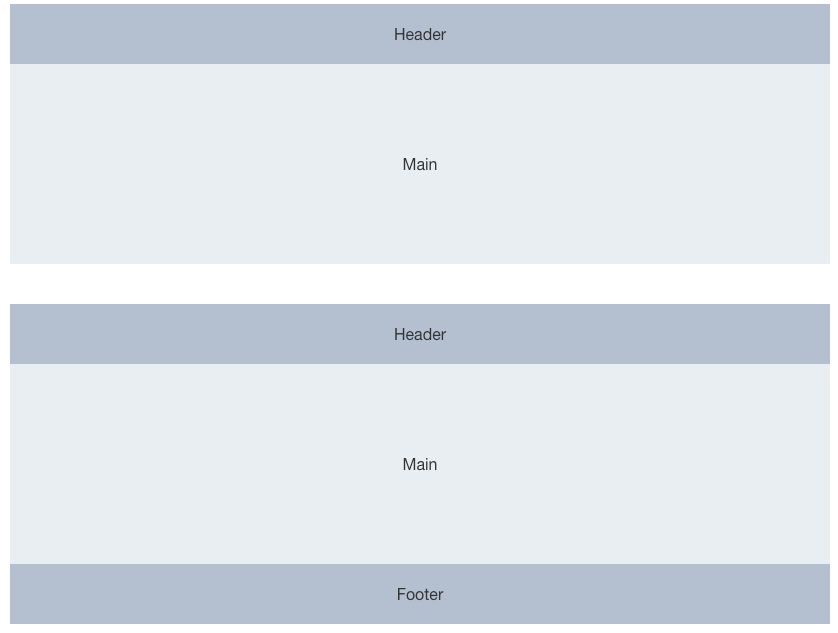
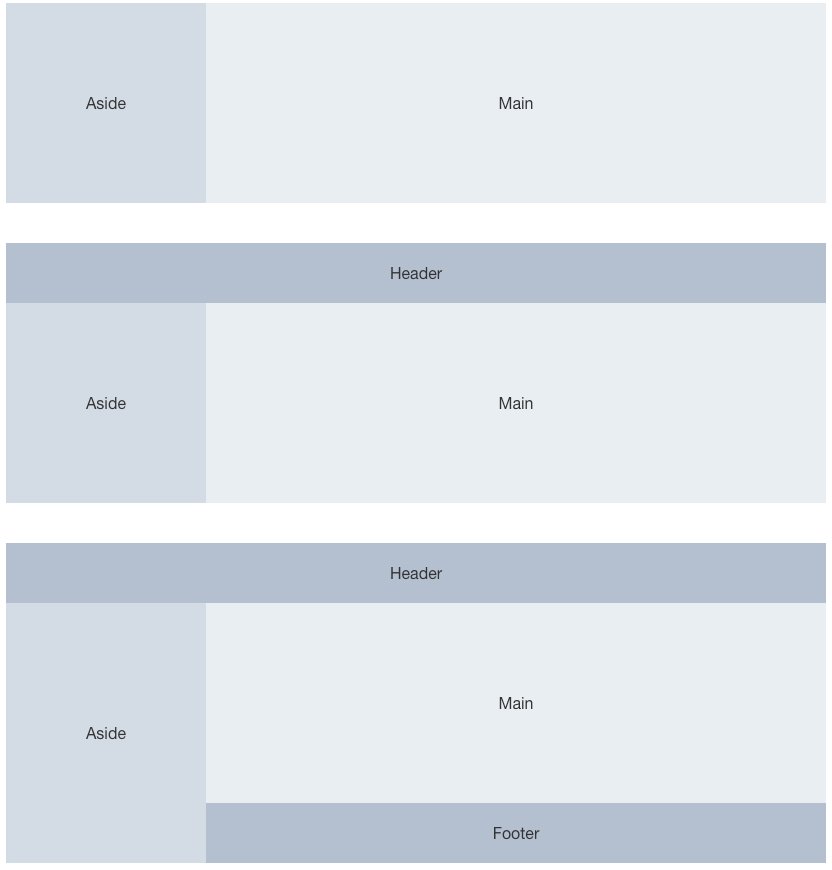
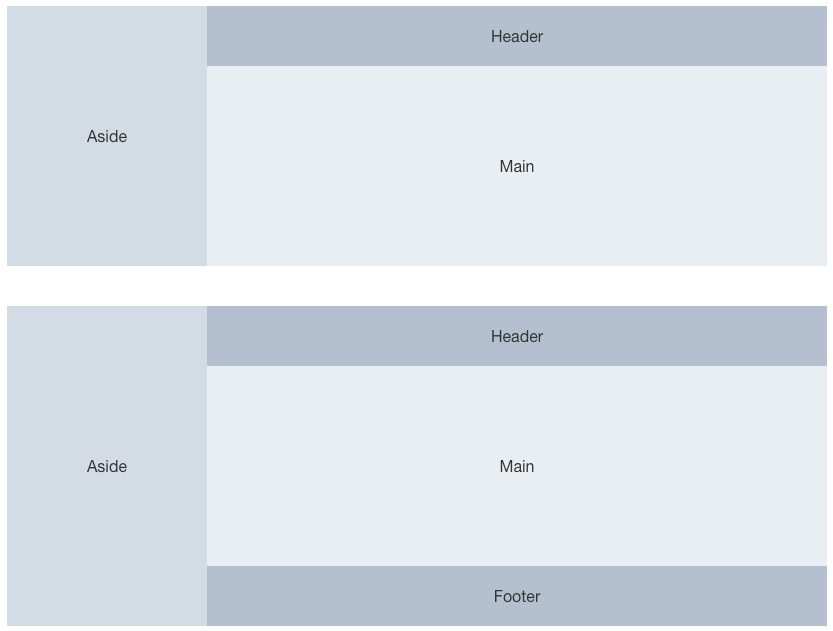
<el-container>

  <el-header>Header</el-header>

  <el-main>Main</el-main>

</el-container>

<el-container>

  <el-header>Header</el-header>

  <el-main>Main</el-main>

  <el-footer>Footer</el-footer>

</el-container>

<el-container>

  <el-aside width="200px">Aside</el-aside>

  <el-main>Main</el-main>

</el-container>

<el-container>

  <el-header>Header</el-header>

  <el-container>

    <el-aside width="200px">Aside</el-aside>

    <el-main>Main</el-main>

  </el-container>

</el-container>

<el-container>

  <el-header>Header</el-header>

  <el-container>

    <el-aside width="200px">Aside</el-aside>

    <el-container>

      <el-main>Main</el-main>

      <el-footer>Footer</el-footer>

    </el-container>

  </el-container>

</el-container>

<el-container>

  <el-aside width="200px">Aside</el-aside>

  <el-container>

    <el-header>Header</el-header>

    <el-main>Main</el-main>

  </el-container>

</el-container>

<el-container>

  <el-aside width="200px">Aside</el-aside>

  <el-container>

    <el-header>Header</el-header>

    <el-main>Main</el-main>

    <el-footer>Footer</el-footer>

  </el-container>

</el-container>

<style>

  .el-header, .el-footer {

    background-color: #B3C0D1;

    color: #333;

    text-align: center;

    line-height: 60px;

  }

  .el-aside {

    background-color: #D3DCE6;

    color: #333;

    text-align: center;

    line-height: 200px;

  }

  .el-main {

    background-color: #E9EEF3;

    color: #333;

    text-align: center;

    line-height: 160px;

  }

  body > .el-container {

    margin-bottom: 40px;

  }

  .el-container:nth-child(5) .el-aside,

  .el-container:nth-child(6) .el-aside {

    line-height: 260px;

  }

  .el-container:nth-child(7) .el-aside {

    line-height: 320px;

  }

</style>
¶实例
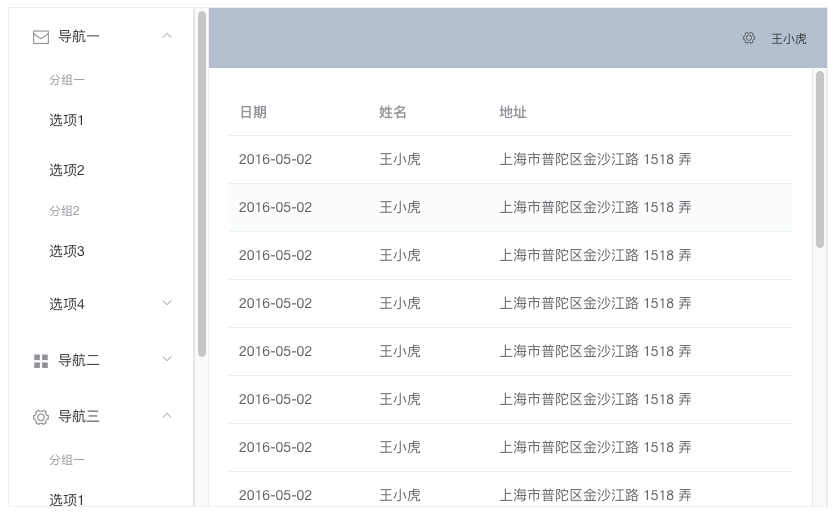
<el-container style="height: 500px; border: 1px solid #eee">

  <el-aside width="200px" style="background-color: rgb(238, 241, 246)">

    <el-menu :default-openeds="['1', '3']">

      <el-submenu index="1">

        <template slot="title"><i class="el-icon-message"></i>导航一</template>

        <el-menu-item-group>

          <template slot="title">分组一</template>

          <el-menu-item index="1-1">选项1</el-menu-item>

          <el-menu-item index="1-2">选项2</el-menu-item>

        </el-menu-item-group>

        <el-menu-item-group title="分组2">

          <el-menu-item index="1-3">选项3</el-menu-item>

        </el-menu-item-group>

        <el-submenu index="1-4">

          <template slot="title">选项4</template>

          <el-menu-item index="1-4-1">选项4-1</el-menu-item>

        </el-submenu>

      </el-submenu>

      <el-submenu index="2">

        <template slot="title"><i class="el-icon-menu"></i>导航二</template>

        <el-menu-item-group>

          <template slot="title">分组一</template>

          <el-menu-item index="2-1">选项1</el-menu-item>

          <el-menu-item index="2-2">选项2</el-menu-item>

        </el-menu-item-group>

        <el-menu-item-group title="分组2">

          <el-menu-item index="2-3">选项3</el-menu-item>

        </el-menu-item-group>

        <el-submenu index="2-4">

          <template slot="title">选项4</template>

          <el-menu-item index="2-4-1">选项4-1</el-menu-item>

        </el-submenu>

      </el-submenu>

      <el-submenu index="3">

        <template slot="title"><i class="el-icon-setting"></i>导航三</template>

        <el-menu-item-group>

          <template slot="title">分组一</template>

          <el-menu-item index="3-1">选项1</el-menu-item>

          <el-menu-item index="3-2">选项2</el-menu-item>

        </el-menu-item-group>

        <el-menu-item-group title="分组2">

          <el-menu-item index="3-3">选项3</el-menu-item>

        </el-menu-item-group>

        <el-submenu index="3-4">

          <template slot="title">选项4</template>

          <el-menu-item index="3-4-1">选项4-1</el-menu-item>

        </el-submenu>

      </el-submenu>

    </el-menu>

  </el-aside>

  <el-container>

    <el-header style="text-align: right; font-size: 12px">

      <el-dropdown>

        <i class="el-icon-setting" style="margin-right: 15px"></i>

        <el-dropdown-menu slot="dropdown">

          <el-dropdown-item>查看</el-dropdown-item>

          <el-dropdown-item>新增</el-dropdown-item>

          <el-dropdown-item>删除</el-dropdown-item>

        </el-dropdown-menu>

      </el-dropdown>

      <span>王小虎</span>

    </el-header>

    <el-main>

      <el-table :data="tableData">

        <el-table-column prop="date" label="日期" width="140">

        </el-table-column>

        <el-table-column prop="name" label="姓名" width="120">

        </el-table-column>

        <el-table-column prop="address" label="地址">

        </el-table-column>

      </el-table>

    </el-main>

  </el-container>

</el-container>

<style>

  .el-header {

    background-color: #B3C0D1;

    color: #333;

    line-height: 60px;

  }

  .el-aside {

    color: #333;

  }

</style>

<script>

  export default {

    data() {

      const item = {

        date: '2016-05-02',

        name: '王小虎',

        address: '上海市普陀区金沙江路 1518 弄'

      };

      return {

        tableData: Array(20).fill(item)

      }

    }

  };

</script>
¶Container Attributes
| 参数 | 说明 | 类型 | 可选值 | 默认值 |
|---|---|---|---|---|
| direction | 子元素的排列方向 | string | horizontal / vertical | 子元素中有 el-header 或 el-footer 时为 vertical,否则为 horizontal |
¶Header Attributes
| 参数 | 说明 | 类型 | 可选值 | 默认值 |
|---|---|---|---|---|
| height | 顶栏高度 | string | — | 60px |
¶Aside Attributes
| 参数 | 说明 | 类型 | 可选值 | 默认值 |
|---|---|---|---|---|
| width | 侧边栏宽度 | string | — | 300px |
¶Footer Attributes
| 参数 | 说明 | 类型 | 可选值 | 默认值 |
|---|---|---|---|---|
| height | 底栏高度 | string | — | 60px |
Container 布局容器的更多相关文章
- elementUI 学习入门之 container 布局容器
Container 布局容器 用于布局的容器组件,方便快速搭建页面基本结构 <el-container> : 外层容器.当子元素包含 <el-header> 或 <el- ...
- Element 2 组件源码剖析之布局容器
0x00 简介 前文分析过组件的 布局栅格化(Grid Layout) ,通过基础的 24 分栏,迅速简便地创建布局. 本文将介绍用于布局的容器组件,使用 Flexbox 功能将其所控制区域设定为特定 ...
- 3_bootsrap布局容器
3.布局容器 BootStrap必须需要至少一个布局容器,才能为页面内容进行封装和方便的样式控制. 相当于一个画板. 帮助手册位置:全局CSS样式------->概览------->布局容 ...
- GTK入门学习:布局容器之水平布局
假设我们希望窗体里多放加入几个控件,直接加入是不成功的.由于窗体仅仅能容纳一个控件的容器. 这时候.我们须要借助布局容器,我们先把布局容器加入到窗体里.然后再把所须要加入的控件放在布局容器里. 布局容 ...
- 学习WPF——WPF布局——了解布局容器
WPF布局工作内部原理 WPF渲染布局时主要执行了两个工作:测量和排列 测量阶段,容器遍历所有子元素,并询问子元素所期望的尺寸 排列阶段,容器在合适的位置放置子元素,并设置元素的最终尺寸 这是一个递归 ...
- 学习WPF——WPF布局——初识布局容器
StackPanel堆叠布局 StackPanel是简单布局方式之一,可以很方便的进行纵向布局和横向布局 StackPanel默认是纵向布局的 <Window x:Class="Wpf ...
- Android 在布局容器中动态添加控件
这里,通过一个小demo,就可以掌握在布局容器中动态添加控件,以动态添加Button控件为例,添加其他控件同样道理. 1.addView 添加控件到布局容器 2.removeView 在布局容器中删掉 ...
- Android自定义ViewGroup(四、打造自己的布局容器)
转载请标明出处: http://blog.csdn.net/xmxkf/article/details/51500304 本文出自:[openXu的博客] 目录: 简单实现水平排列效果 自定义Layo ...
- WPF 10天修炼 第四天- WPF布局容器
WPF布局 WPF的窗口也就是Window类,是一个内容控件,该控件派生自ContentControl.内容控件有一个Content属性,该属性有一个限制,只能放置一个用户界面元素,或一个字符串.为了 ...
随机推荐
- 第五章、drf-JWT认证
目录 JWT认证 JWT认证方式与其他认证方式对比: 优点 格式 drf - jwt 插件 官网 安装 token的签发与校验初识: 签发token 校验token 自定义drf-jwt配置 sett ...
- 堆(heap)和栈(stack)、内存泄漏(memory leak)和内存溢出
来源:http://blog.itpub.net/8797129/viewspace-693648/ 简单的可以理解为:heap:是由malloc之类函数分配的空间所在地.地址是由低向高增长的.sta ...
- <转载>c++中new一个二维数组
原文连接 在c++中定义一个二维数组时有多种方式,下面是几种定义方式的说明:其中dataType 表示数据类型,如int byte long... 1.dataType (*num)[n] = n ...
- 网页报警提示 This page includes a password or credit card input in a non-secure context. A warning has been added to the URL bar. For more information, see https://goo.gl/zmWq3m.
This page includes a password or credit card input in a non-secure context. A warning has been added ...
- Ubuntu系统---又显示nvidia-smi 未找到命令
Ubuntu系统---又显示nvidia-smi 未找到命令 本来nvidia驱动+CUDA安装好用,两次遇到开机发现字体异常,不用合计,是显卡驱动的问题.一查,确实是nvidia-smi 未找到命令 ...
- curl命令的用法
curl 命令详解 命令事例 发送POST请求: 如果传输文件:curl -F "blob=@tmp.txt;type=text/plain" localhost:8080/r ...
- 转: Javascript收藏
搜集的一些javascript小技巧! 事件源对象 event.srcElement.tagName event.srcElement.type 捕获释放 event.srcElement.set ...
- 基于栈的指令集与基于寄存器的指令集详细比对及JVM执行栈指令集实例剖析
基于栈的指令集与基于寄存器的指令集详细比对: 这次来学习一些新的概念:关于Java字节码的解释执行的一种方式,当然啦是一些纯理论的东东,但很重要,在之后会有详细的实验来对理论进行巩固滴,下面来了解一下 ...
- java堆栈信息查看,以及JVM性能查看工具-jconsole+jmap
java-core P487 P515 chapter11,主要讲java的异常,里面很多内容收获良多,之前一直没注意过的. 一,Throwable类获得StackTraceElement ,可进行 ...
- python_网络编程hmac模块验证客户端的合法性
hmac模块: 比较两个函数的密钥是否一致: import hmac import os msg = os.urandom(32) #生成32位随机字节码 def wdc(): key = b'wdc ...