
Qiskit 安装指南
内容参考官方文档 https://qiskit.org/documentation/install.html
conda create -n name_of_my_env python=3
创建虚拟环境,如果后面要下载qiskit[visualization],这里的python要安装3.6版本,不然后面安装pywinpty时,会有冲突,目前3.7和3.8版本都有问题。
conda activate name_of_my_env
激活虚拟环境,然后在虚拟环境里安包
pip install qiskit
这里可以直接安装,目前的qiskit已经到了0.16版本,目前有人安装的时候numpy的版本可能不匹配,需要安装对应版本。
pip install qiskit[visualization]
如果希望能够把线路图画出来,那么需要安装visualization,安装python3.6版本就不会有冲突。
至此,Qiskit的安装成功,如果要检验的话,这里有一段最为简单的代码,使用的是IBM的量子模拟器,如果你安装成功,将能直接运行得到答案。
import numpy as np

from qiskit import(

  QuantumCircuit,

  execute,

  Aer)

from qiskit.visualization import plot_histogram

# Use Aer's qasm_simulator

simulator = Aer.get_backend('qasm_simulator')

# Create a Quantum Circuit acting on the q register

circuit = QuantumCircuit(2, 2)

# Add a H gate on qubit 0

circuit.h(0)

# Add a CX (CNOT) gate on control qubit 0 and target qubit 1

circuit.cx(0, 1)

# Map the quantum measurement to the classical bits

circuit.measure([0,1], [0,1])

# Execute the circuit on the qasm simulator

job = execute(circuit, simulator, shots=1000)

# Grab results from the job

result = job.result()

# Returns counts

counts = result.get_counts(circuit)

print("\nTotal count for 00 and 11 are:",counts)

# Draw the circuit

circuit.draw()
关于python的小伙伴,有一个常用的网页交互的小伙伴,Jupyter notebook。
关于安装,因为我直接采用的就是anaconda,所以直接就安装好了,不过现在直接使用jupyter notebook有一个问题,那就是,不能找到我们先前创造的conda环境,这里就需要进一步的配置。
conda install ipykernel
在base的环境里安装ipykernel,问y/n的那就都y了
python -m ipykernel install --user --name 环境名称 --display-name "在jupyter中显示的环境名称"
前一个环境名称是刚刚conda创建的虚拟环境的名字,后一个是jupyter中显示的名字,可以和前面的不一样。
这个时候再打开jupyter notebook : jupyter notebook,在new的地方就能看见新的环境了。
执行一下先前的代码,得到结果:
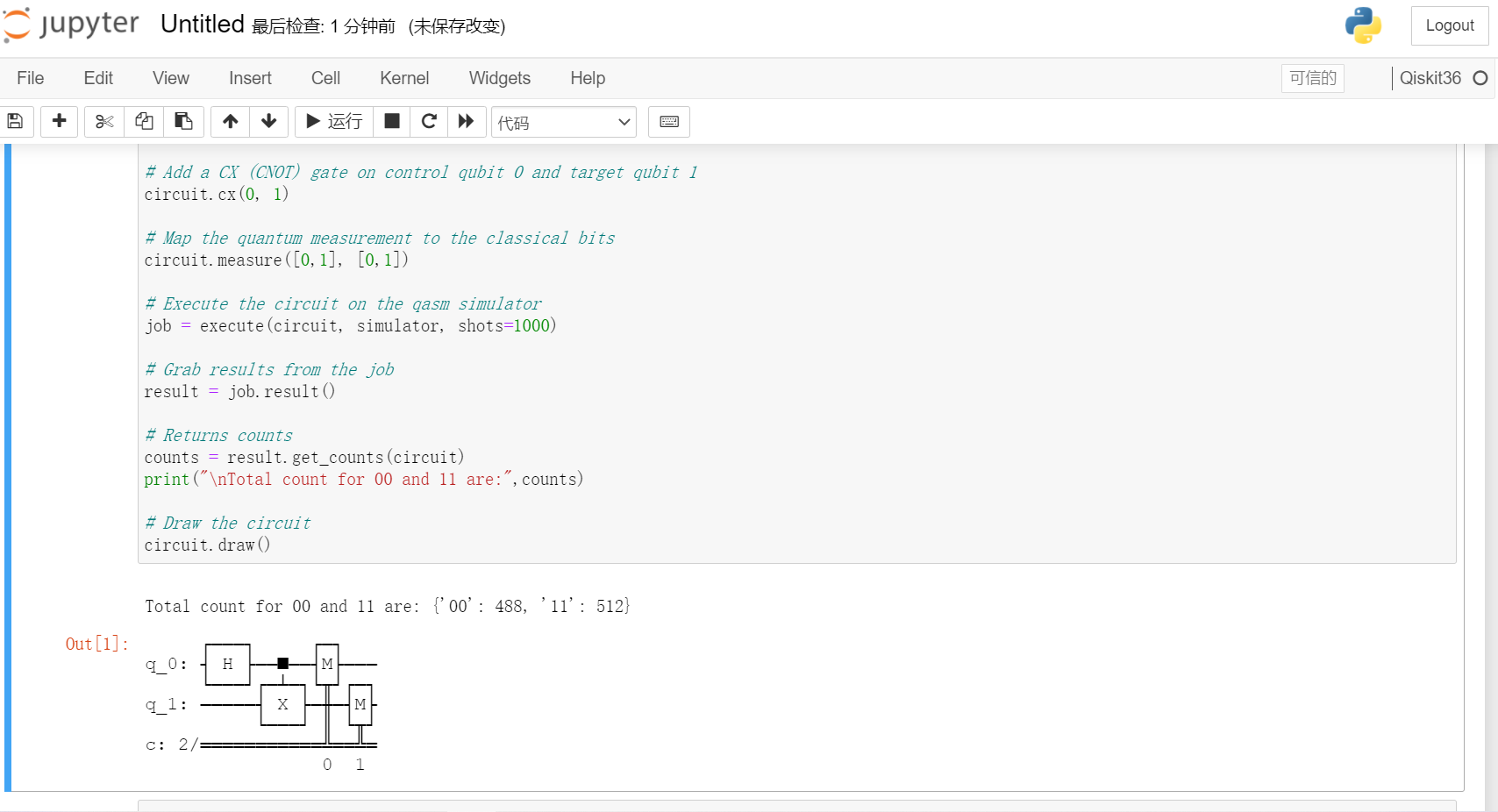
目前我们使用的是simulator,但是我们选择IBM一定是眼馋他的量子计算机,而不仅仅是个模拟,所以我们的下一步,就是想要来连上我们的真机器。
创建一个IBM的账号 https://quantum-computing.ibm.com/login
在My Account的地方复制自己的API token
运行以下语句:把引号中的字符串替换成自己的token
from qiskit import IBMQ

IBMQ.save_account('MY_API_TOKEN')
运行以下语句:
IBMQ.load_account() # Load account from disk 前面我们已经把账号存好了,现在直接加载下来就好。

IBMQ.providers()    # List all available providers
不过这里可能出现一下问题
SSLEOFError: EOF occurred in violation of protocol (_ssl.c:852)
我搜到的解决方法有:
pip install ndg-httpsclient

pip install pyopenssl

pip install pyasn1
但是这样也可能解决不了问题,因为ssl的问题还有可能是开了代理(比如你的fq),当你关了代理的时候,SSLEOFError的问题就解决了。
这个时候你再查一查有哪些机器是可以给你用的,得到结果:
[<AccountProvider for IBMQ(hub='ibm-q', group='open', project='main')>]
这个时候,我们已经愉快地和真的机器有了联系。
我们重跑上面的代码,但是这次我们选择真的机器来跑,IBM有不止一个的机器还有自己的名字:ibmq_qasm_simulator,ibmq_16_melbourne,ibmq_ourense,ibmqx2,ibmq_vigo等等
import numpy as np

from qiskit import(

  QuantumCircuit,

  execute,

  Aer)

from qiskit.visualization import plot_histogram

from qiskit import IBMQ

provider = IBMQ.load_account()

backend = provider.get_backend('ibmq_16_melbourne')

# Create a Quantum Circuit acting on the q register

circuit = QuantumCircuit(2, 2)

# Add a H gate on qubit 0

circuit.h(0)

# Add a CX (CNOT) gate on control qubit 0 and target qubit 1

circuit.cx(0, 1)

# Map the quantum measurement to the classical bits

circuit.measure([0,1], [0,1])

# Execute the circuit on the qasm simulator

job = execute(circuit, backend, shots=1000)

# Grab results from the job

result = job.result()

# Returns counts

counts = result.get_counts(circuit)

print("\nTotal count for 00 and 11 are:",counts)

# Draw the circuit

circuit.draw()
在真的机器上跑要等一会,排个队,等前面的人跑完了再轮到你,让我们来看看这个期待的结果:
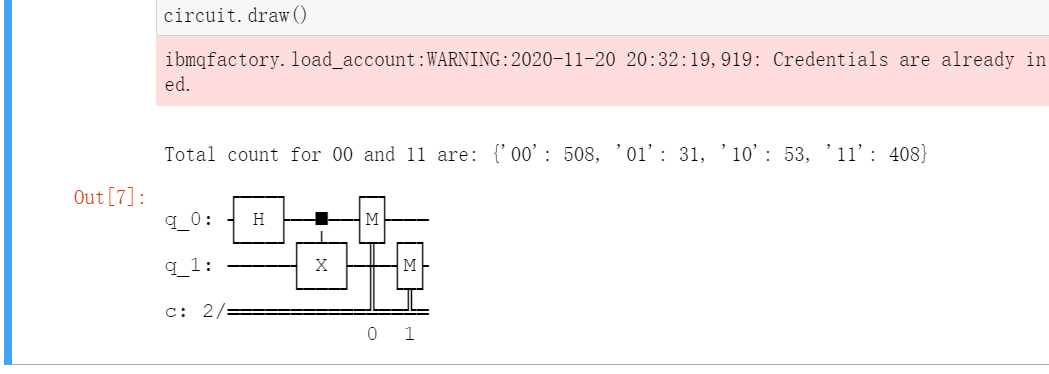
因为有噪声的存在,所以原本不该出现的01,10也会产生,这也是真机和模拟器的区别。
Qiskit 安装指南的更多相关文章
- nGrinder安装指南
NGrinder 由两个模块组成,其运行环境为 Oracle JDK 1.6 nGrinder controller web 应用程序,部署在Tomcat 6.x 或更高的版本 nGrinder A ...
- postgresql pgsql最新版安装指南及数据存储路径更改及主从配置
postgresql pgsql最新版安装指南及数据存储路径更改及主从配置 安装指南 首先在apt的list添加你当前系统版本对应的apt列表 目前官网有16.04,14.04,12.04 分别对应下 ...
- 全新 Mac 安装指南(编程篇)(环境变量、Shell 终端、SSH 远程连接)
注:本文专门用于指导对计算机编程与设计(尤其是互联网产品开发与设计)感兴趣的 Mac 新用户,如何在 Mac OS X 系统上配置开发与上网环境,另有<全新 Mac 安装指南(通用篇)>作 ...
- 全新 Mac 安装指南(通用篇)(推荐设置、软件安装、推荐软件)
注:本文将会不定期维护与更新,有需要的朋友请在 Github 上订阅该条 Issues:<全新 Mac 安装指南(通用篇)>. 在 Mac 电脑上只用 Windows 操作系统的同学请看到 ...
- ArchLinux安装指南
将ArchLinux作为进阶Linux发行版,主要看重滚动更新和深入理解Linux的安装过程. 由于是新手,所以先选择在公司电脑上用VMware来安装.然后渐进到借助U盘在win10笔记本上安装双系统 ...
- Linux环境中Openfire安装指南
Linux环境中Openfire安装指南 安装环境: 安装软件:Openfire 4_1_0 http://download.igniterealtime.org/openfire/openfire_ ...
- scrapy3_ 安装指南
安装指南 安装Scrapy 注解 请先阅读 平台安装指南. 下列的安装步骤假定您已经安装好下列程序: Python 2.7 Python Package: pip and setuptools. 现在 ...
- storm 原理简介及单机版安装指南——详细版【转】
storm 原理简介及单机版安装指南 本文翻译自: https://github.com/nathanmarz/storm/wiki/Tutorial 原文链接自:http://www.open-op ...
- mac osx 系统 brew install hadoop 安装指南
mac osx 系统 brew install hadoop 安装指南 brew install hadoop 配置 core-site.xml:配置hdfs文件地址(记得chmod 对应文件夹 ...
随机推荐
- spring boot:swagger3文档展示分页和分栏的列表数据(swagger 3.0.0 / spring boot 2.3.3)
一,什么情况下需要展示分页和分栏的数据的文档? 分页时,页面上展示的是同一类型的列表的数据,如图: 分栏时,每行都是一个列表,而且展示的数据类型也可能不同 这也是两种常用的数据返回形式 说明:刘宏缔的 ...
- request-html 使用
from requests_html import HTMLSessionsession = HTMLSession()resp = session.get('http://www.spbeen.co ...
- Python基础数据类型及其转换
数据类型: 浮点型float: 3.1415 也就是小数 整型 int: 123,主要用来运算,+-*/ 字符串 str: 'abc?', 记录少量信息 布尔值 bool: True or False ...
- OpenCV开发笔记(七十一):红胖子8分钟带你深入级联分类器训练
前言 红胖子,来也! 做图像处理,经常头痛的是明明分离出来了(非颜色的),分为几块区域,那怎么知道这几块区域到底哪一块是我们需要的,那么这部分就涉及到需要识别了. 识别可以自己写模板匹配.特征 ...
- C# 面试前的准备_基础知识点的回顾_01
本系列本章来至于http://www.cnblogs.com/LionelMessi/p/4311931.html 1.try{} 里面有个Return语句,那么紧跟try后面的Finally{}会不 ...
- Java异常ClassCastException
在说ClassCastException之前,先介绍下引用类型转换: 引用类型转换分为向上转型和向下转型两种: 向上转型:多态本身是子类类型向父类类型向上转换的过程,这个过程是默认的:当父类引用指向一 ...
- c语言创建dll以及使用
0x01. declspec(dllexport)创建导出dll 笔者这边使用vs 2015,但是性质都一样的 新建项目 -> Win32控制台应用程序 -> dll 这时候就创建了一个项 ...
- 【Flutter 1-5】运行Flutter的第一个项目——计数器
创建项目 创建Flutter项目有很多种方法,各个IDE工具也都集成了创建Flutter项目的快捷操作.我们这里列举三种方式:使用命令行创建.使用Android Studio创建和使用VSCode创建 ...
- 简单粗暴套娃模式组json发送https请求
各位童鞋大家好,向来简单粗暴的铁柱兄给大家来玩一手套娃模式来组Json数据,不说别的,无脑套. 当然,这一手比较适合临场用一下,若长期用的话建议搞一套适用的框架,只管set就好了.话不多说开始上课. ...
- Maven打包过程
1.安装maven 下载地址:http://mirrors.tuna.tsinghua.edu.cn/apache/maven/maven-3/3.6.1/binaries/apache-maven- ...