
React Native知识6-NavigatorIOS组件
NavigatorIOS包装了UIKit的导航功能,可以使用左划功能来返回到上一界面。本组件并非由Facebook官方开发组维护。这一组件的开发完全由社区主导。如果纯js的方案能够满足你的需求的话,那么我们建议你选择Navigator组件(理论知识可以见React Native中文网)。
一:概念内容
1:路由:一个路由是用于描述导航器中一页的对象。NavigatorIOS的第一个路由通过initialRoute属性来提供。
render: function() {

  return (

    <NavigatorIOS

      initialRoute={{

        component: MyView,

        title: 'My View Title',

        passProps: { myProp: 'foo' },

      }}

    />

  );

},
现在MyView会被导航器渲染出来。它可以通过route属性获得对应的路由对象,导航器本身,还有所有passProps中传递的属性。 查看initialRoute的propTypes来了解路由(route)的完整定义。
2:导航器:导航器是一个object,包含了一系列导航函数,可供视图调用。它会作为props传递给NavigatorIOS渲染的任何组件。
var MyView = React.createClass({

  _handleBackButtonPress: function() {

    this.props.navigator.pop();

  },

  _handleNextButtonPress: function() {

    this.props.navigator.push(nextRoute);

  },

  ...

});
一个导航器对象包含如下的函数:
push(route) - 导航器跳转到一个新的路由。

pop() - 回到上一页。

popN(n) - 回到N页之前。当N=1的时候,效果和pop()一样。

replace(route) - 替换当前页的路由,并立即加载新路由的视图。

replacePrevious(route) - 替换上一页的路由/视图。

replacePreviousAndPop(route) - 替换上一页的路由/视图并且立刻切换回上一页。

resetTo(route) - 替换最顶级的路由并且回到它。

popToRoute(route) - 一直回到某个指定的路由。

popToTop() - 回到最顶层的路由。
导航函数也可以从NavigatorIOS的子组件中获得:
var MyView = React.createClass({

  _handleNavigationRequest: function() {

    this.refs.nav.push(otherRoute);

  },

  render: () => (

    <NavigatorIOS

      ref="nav"

      initialRoute={...}

    />

  ),

});
二:属性
1:barTintColor string
导航条的背景颜色。
2:initialRoute {component: function, title: string, passProps: object, backButtonIcon: Image.propTypes.source, backButtonTitle: string, leftButtonIcon: Image.propTypes.source, leftButtonTitle: string, onLeftButtonPress: function, rightButtonIcon: Image.propTypes.source, rightButtonTitle: string, onRightButtonPress: function, wrapperStyle: [object Object]}
NavigatorIOS使用"路由"对象来包含要渲染的子视图、它们的属性、以及导航条配置。"push"和任何其它的导航函数的参数都是这样的路由对象。
3:itemWrapperStyle View#style
导航器中的组件的默认属性。一个常见的用途是设置所有页面的背景颜色。
4:navigationBarHidden bool
一个布尔值,决定导航栏是否隐藏。
5:shadowHidden bool
一个布尔值,决定是否要隐藏1像素的阴影
6:tintColor string
导航栏上按钮的颜色。
7:titleTextColor string
导航器标题的文字颜色。
8:translucent bool
一个布尔值,决定是否导航条是半透明的。
9:interactivePopGestureEnabled bool
决定是否启用滑动返回手势。不指定此属性时,手势会根据navigationBar的显隐情况决定是否启用(显示时启用手势,隐藏时禁用手势)。指定此属性后,手势与navigationBar的显隐情况无关。
三:方法
1:push(route: { component: Function; title: string; passProps?: Object; backButtonTitle?: string; backButtonIcon?: Object; leftButtonTitle?: string; leftButtonIcon?: Object; onLeftButtonPress?: Function; rightButtonTitle?: string; rightButtonIcon?: Object; onRightButtonPress?: Function; wrapperStyle?: any; }) 跳转
2:popN(n: number) 返回第N层
3:pop() 返回上一层
4:replaceAtIndex(route: { component: Function; title: string; passProps?: Object; backButtonTitle?: string; backButtonIcon?: Object; leftButtonTitle?: string; leftButtonIcon?: Object; onLeftButtonPress?: Function; rightButtonTitle?: string; rightButtonIcon?: Object; onRightButtonPress?: Function; wrapperStyle?: any; }, index: number) 替换navigation栈的路由,索引指定要替换的堆栈中的路由。如果它是负面的,它从后面计数。
5:replace(route: { component: Function; title: string; passProps?: Object; backButtonTitle?: string; backButtonIcon?: Object; leftButtonTitle?: string; leftButtonIcon?: Object; onLeftButtonPress?: Function; rightButtonTitle?: string; rightButtonIcon?: Object; onRightButtonPress?: Function; wrapperStyle?: any; })
替换当前页面的路由,并立即加载新路由的视图。
6:replacePrevious(route: { component: Function; title: string; passProps?: Object; backButtonTitle?: string; backButtonIcon?: Object; leftButtonTitle?: string; leftButtonIcon?: Object; onLeftButtonPress?: Function; rightButtonTitle?: string; rightButtonIcon?: Object; onRightButtonPress?: Function; wrapperStyle?: any; })
替换上一页的路由/视图。
7:popToTop() 返回到顶层
8:popToRoute(route: { component: Function; title: string; passProps?: Object; backButtonTitle?: string; backButtonIcon?: Object; leftButtonTitle?: string; leftButtonIcon?: Object; onLeftButtonPress?: Function; rightButtonTitle?: string; rightButtonIcon?: Object; onRightButtonPress?: Function; wrapperStyle?: any; })
返回特定路由对象的项目
9:replacePreviousAndPop(route: { component: Function; title: string; passProps?: Object; backButtonTitle?: string; backButtonIcon?: Object; leftButtonTitle?: string; leftButtonIcon?: Object; onLeftButtonPress?: Function; rightButtonTitle?: string; rightButtonIcon?: Object; onRightButtonPress?: Function; wrapperStyle?: any; })
替换前面的路由/视图并返回到它。
10:resetTo(route: { component: Function; title: string; passProps?: Object; backButtonTitle?: string; backButtonIcon?: Object; leftButtonTitle?: string; leftButtonIcon?: Object; onLeftButtonPress?: Function; rightButtonTitle?: string; rightButtonIcon?: Object; onRightButtonPress?: Function; wrapperStyle?: any; })
取代顶级和并执行poptotop
三:实例代码
import React, { Component } from 'react';

import {

  AppRegistry,

  StyleSheet,

  Text,

  View,

  TextInput,

  Alert,

  Image,

  TouchableHighlight,

  TouchableOpacity,

  NavigatorIOS,

  ScrollView

} from 'react-native';

//导航栏

class ReactNativeProject extends Component {

  render() {

    return (

      <NavigatorIOS style={{flex:1}} initialRoute={{ component:ListPage,title:'首页'}}/>

    );

  }

}

//列表页面

class ListPage extends Component {

  render(){

  return (

    <ScrollView style={styles.flex}>

      <Text style={styles.list_item} onPress={this._goToDetailPage.bind(this)}>订单1详情</Text>

      <Text style={styles.list_item} onPress={this._goToDetailPage.bind(this)}>订单2详情</Text>

      <Text style={styles.list_item} onPress={this._goToDetailPage.bind(this)}>订单3详情</Text>

    </ScrollView>

    );

}

_goToDetailPage(){

  this.props.navigator.push({

    component: DetailPage,

    title: '订单详情',

    rightButtonTitle: '购物车',

    onRightButtonPress: function(){

        alert('进入我的购物车');

      }

  });

}

}

//详情页

class DetailPage extends Component {

  _show(text) {

    alert(text);

  }

  _handleBackButtonPress() {

    this.props.navigator.pop();

  }

  render() {

    return (

      <View style={styles.container}>

              <TouchableOpacity

                 onPress={this._show.bind(this,'React Native')}

                 activeOpacity={0.5}>

                 <Text style={styles.item}>React Native</Text>

               </TouchableOpacity>

               <TouchableOpacity

                 onPress={this._handleBackButtonPress.bind(this)}>

                 <Text style={styles.item}>返回上一级页面</Text>

               </TouchableOpacity>

      </View>

    );

  }

}

const styles = StyleSheet.create({

  container: {

    flex: 1,

    marginTop:64

  },

  item:

  {

    fontSize:18,

    marginLeft:5,

    color:'#434343'

  },

  flex:{

    flex: 1,

  },

  list_item:{

    lineHeight:25,

    fontSize:16,

    marginLeft:10,

    marginRight:10

  }

});

AppRegistry.registerComponent('ReactNativeProject', () => ReactNativeProject);
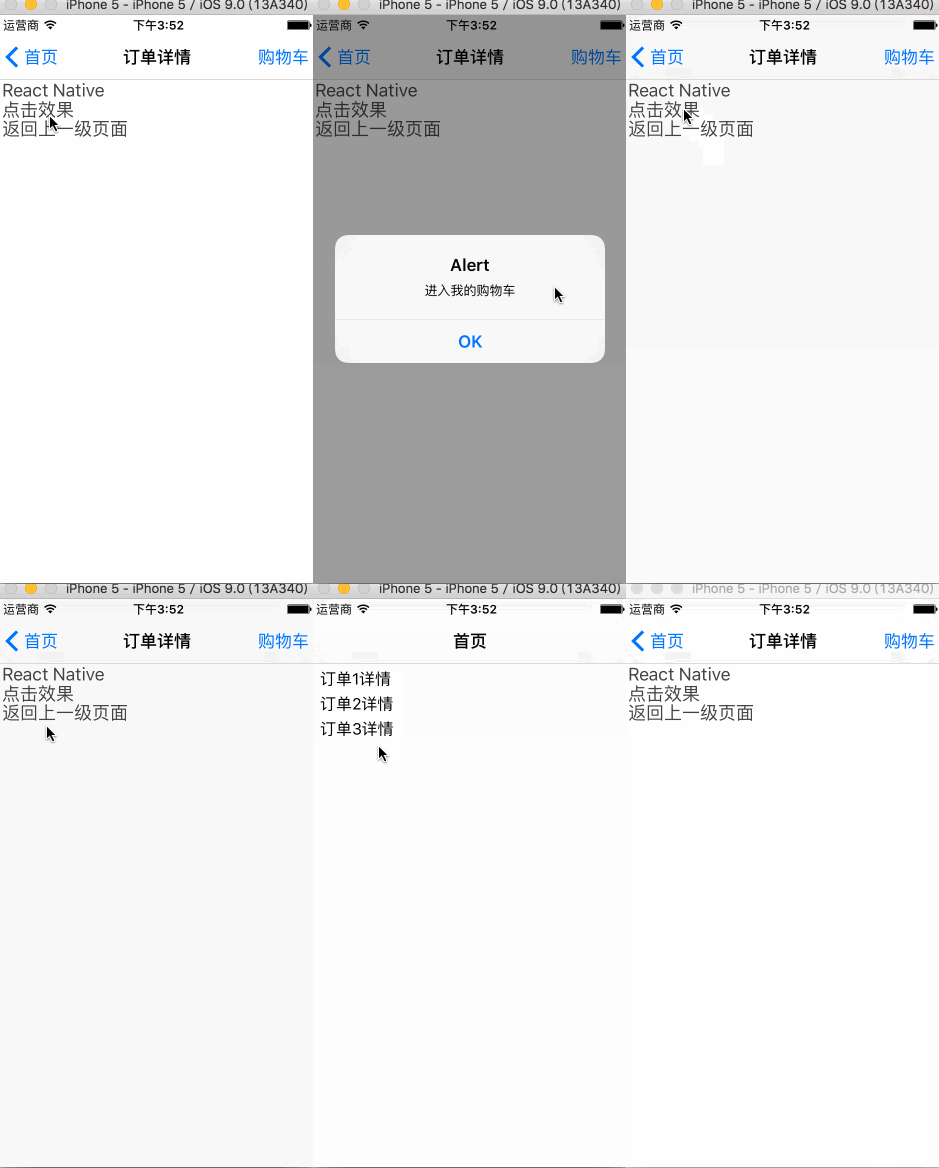
效果图:
最近有个妹子弄的一个关于扩大眼界跟内含的订阅号,每天都会更新一些深度内容,在这里如果你感兴趣也可以关注一下(嘿对美女跟知识感兴趣),当然可以关注后输入:github 会有我的微信号,如果有问题你也可以在那找到我;当然不感兴趣无视此信息;

React Native知识6-NavigatorIOS组件的更多相关文章
- React Native知识5-Touchable类组件
React Native 没有像web那样可以给元素绑定click事件,前面我们已经知道Text组件有onPress事件,为了给其他组件 也绑定点击事件,React Native提供了3个组件来做这件 ...
- React Native知识
http://www.cnblogs.com/wujy/tag/React%20Native/ React Native知识12-与原生交互 React Native知识11-Props(属性) ...
- React Native 项目常用第三方组件汇总
React Native 项目常用第三方组件汇总 https://www.jianshu.com/p/d9cd9a868764?utm_campaign=maleskine&utm_conte ...
- React Native知识2-Text组件
Text用于显示文本的React组件,并且它也支持嵌套.样式,以及触摸处理.在下面的例子里,嵌套的标题和正文文字会继承来自styles.baseText的fontFamily字体样式,不过标题上还附加 ...
- React Native知识12-与原生交互
一:原生传递参数给React Native 1:原生给React Native传参 原生给JS传数据,主要依靠属性. 通过initialProperties,这个RCTRootView的初始化函数的参 ...
- React Native知识1-FlexBox 布局内容
一:理论知识点 1:什么是FlexBox布局? 弹性盒模型(The Flexible Box Module),又叫Flexbox,意为“弹性布局”,旨在通过弹性的方式来对齐和分布容器中内容的空间,使其 ...
- React Native知识10-ListView组件
ListView - 一个核心组件,用于高效地显示一个可以垂直滚动的变化的数据列表.最基本的使用方式就是创建一个ListView.DataSource数据源,然后给它传递一个普通的数据数组,再使用数据 ...
- React Native知识9-ScrollView组件
一个包装了平台的ScrollView(滚动视图)的组件,同时还集成了触摸锁定的“响应者”系统. 记住ScrollView必须有一个确定的高度才能正常工作,因为它实际上所做的就是将一系列不确定高度的子组 ...
- React Native知识7-TabBarIOS组件
一:简介 两个TabBarIOS和TabBarIOS.Item组件可以实现页面Tab切换的功能,Tab页面切换的架构在应用开发中还是非常常见的.如:腾讯QQ,淘宝,美团外卖等等 二:TabBarIOS ...
随机推荐
- .NET平台机器学习资源汇总,有你想要的么?
接触机器学习1年多了,由于只会用C#堆代码,所以只关注.NET平台的资源,一边积累,一边收集,一边学习,所以在本站第101篇博客到来之际,分享给大家.部分用过的 ,会有稍微详细点的说明,其他没用过的, ...
- NFS Volume Provider(Part I) - 每天5分钟玩转 OpenStack(62)
cinder-volume 支持多种 volume provider,前面我们一直使用的是默认的 LVM,本节我们将增加 NFS volume provider. 虽然 NFS 更多地应用在实验或小规 ...
- 最大连续子序列乘积(DP)
题目来源:小米手机2013年校园招聘笔试题 题目描述: 给定一个浮点数序列(可能有正数.0和负数),求出一个最大的连续子序列乘积. 输入: 输入可能包含多个测试样例.每个测试样例的第一行仅包含正整数 ...
- ZOJ Problem Set - 1337 Pi 最大公约数
这道题目的关键在于怎么求两个整数的最大公约数,这里正好复习一下以前的知识,如下: 1.设整数a和b 2.如果a和b都为0,则二者的最大公约数不存在 3.如果a或b等于0,则二者的最大公约数为非0的一个 ...
- ZOJ Problem Set - 1251 Box of Bricks
这道题简单的翻译成纯数学语言就是给你n个数字,每次运算只能是加1或者减1,问经过最短几步可以使得n个数字相等 由于题目限定了n个数字一定有平均数,所以求出avg,将所有比其大的数字或者比其小的数字的差 ...
- WebApi Controller 分类
前言 写这篇WebApi Controller分类一是把Contrller分类的解决方法说一说,再顺便把遇到的问题和解决方法聊一聊. 说实话第一次在项目中使用WebApi感觉非常的不顺手. 遇到的问题 ...
- Bootstrap Navbar应用及源码解析
目的: 用Bootstrap Navbar component 实现一个响应式导航 理解Bootstrap Navbar component是如何工作的(不包括collepse.js) 清楚自己添加一 ...
- jQuery-1.9.1源码分析系列(十六)ajax——ajax框架
ajax的介绍就不多说了,点击可看. 既然是ajax框架,那么闲谈一谈jQuery的ajax处理思路. 现在的浏览器都支持ajax,只不过不同的浏览器使用方法可能有不同(IE使用new window. ...
- C++ 版本的 行为树的简单实现
如果你想转载这篇文章呢,请严格按照以下格式注明出处和作者 出处:http://www.cnblogs.com/anxin1225/p/4827294.html 作者:Anxin1225.Bianchx ...
- LINQ to SQL语句(11)之Update
说明:更新操作,先获取对象,进行修改操作之后,直接调用SubmitChanges()方法即可提交.注意,这里是在同一个DataContext中,对于不同的DataContex看下面的讲解. 1.简单形 ...