
BackgroundWorker Class Sample for Beginners
Introduction
This article presents a novice .NET developer to develop a multithreading application
without being burdened by the complexity that comes with threading.
Background
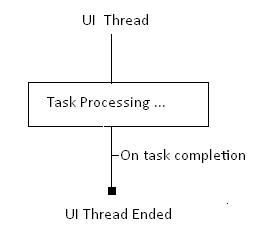
A basic Windows application runs on a single thread usually referred to as UI thread.
This UI thread is responsible for creating/painting all the controls and upon
which the code execution takes place. So when you are running a long-running task (i.e., data intensive database operation or processing some 100s of bitmap images), the UI thread locks
up and the UI application turns white (remember the UI thread was responsible
to paint all the controls) rendering your application to Not Responding state.
Using the Code
What you need to do is to shift this heavy processing on a different thread.
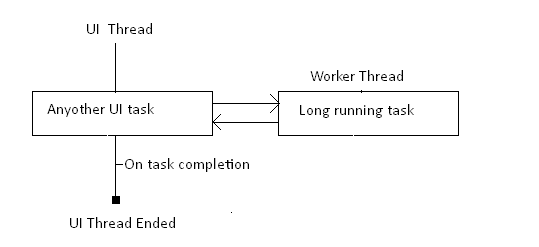
Leave the UI thread free for painting the UI. .NET has made the BackgroundWorker object
available to us to simplify threading. This object is designed to simply run a
function on a different thread and then call an event on your UI thread when
it's complete.
The steps are extremely simple:
- Create a
BackgroundWorkerobject. - Tell the
BackgroundWorkerobject what task to run on the background thread (theDoWorkfunction). - Tell it what function to run on the UI thread when
the work is complete (theRunWorkerCompletedfunction).
BackgroundWorker uses the thread-pool,
which recycles threads to avoid recreating them for each new task. This means
one should never call Abort on a BackgroundWorker thread.
And a golden rule never to forget:
Never access UI objects on a thread that didn't create them. It means you cannot
use a code such as this...
 Collapse | Copy
Code
lblStatus.Text = "Processing file...20%";
...in the DoWork function. Had you done
this, you would receive a runtime error. The BackgroundWorker object resolves this problem by giving us a ReportProgress function
which can be called from the background thread'sDoWork function.
This will cause the ProgressChanged event
to fire on the UI thread. Now we can access the UI objects on their thread and
do what we want (In our case, setting the label text status).
BackgroundWorker also provides a RunWorkerCompleted event
which fires after the DoWork event handler has done its job. Handling RunWorkerCompleted is
not mandatory, but one usually does so in order to query any exception that was thrown in DoWork. Furthermore, code
within a RunWorkerCompleted event handler is able to update Windows Forms and WPF controls without explicit marshalling;
code within the DoWork event handler cannot.
To add support for progress reporting:
- Set the
WorkerReportsProgressproperty
totrue. - Periodically call
ReportProgressfrom
within theDoWorkevent handler with a "percentage complete" value. Collapse | Copy
Codem_oWorker.ReportProgress(i); //as seen in the code
- Handle the
ProgressChangedevent,
querying its event argument'sProgressPercentageproperty: Collapse | Copy
Codevoid m_oWorker_ProgressChanged(object sender, ProgressChangedEventArgs e)
{
// This function fires on the UI thread so it's safe to edit
// the UI control directly, no funny business with Control.Invoke :)
// Update the progressBar with the integer supplied to us from the
// ReportProgress() function.
progressBar1.Value = e.ProgressPercentage;
lblStatus.Text = "Processing......" + progressBar1.Value.ToString() + "%";
}
Code in the ProgressChanged event
handler is free to interact with UI controls just as with RunWorkerCompleted. This is typically where you will update
a progress bar.
To add support for cancellation:
- Set the
WorkerSupportsCancellationproperty totrue. - Periodically check the
CancellationPendingproperty from within theDoWorkevent
handler – iftrue, set the event argument'sCancelproperty
totrue, and return. (The worker can setCanceland exit without prompting via
trueCancellationPending– if it decides the job's too difficult and it can't
go on). Collapse | Copy
Codeif (m_oWorker.CancellationPending)
{
// Set the e.Cancel flag so that the WorkerCompleted event
// knows that the process was cancelled.
e.Cancel = true;
m_oWorker.ReportProgress(0);
return;
} - Call
CancelAsyncto request cancellation. This code is handled on click
of the Cancel button. Collapse | Copy
Codem_oWorker.CancelAsync();
Properties
This is not an exhaustive list, but I want to emphasize the Argument, Result,
and the RunWorkerAsync methods. These are properties of BackgroundWorker that
you absolutely need to know to accomplish anything. I show the properties as you would reference them in your code.
DoWorkEventArgsUsage: Contains
ee.Argumentande.Result,
so it is used to access those properties.e.ArgumentUsage: Used to get the parameter reference received byRunWorkerAsync.e.ResultUsage:
Check to see what theBackgroundWorkerprocessing did.m_oWorker.RunWorkerAsync();Usage:
Called to start a process on the worker thread.
Here's the entire code:
Collapse | CopyCode
using System;
using System.Collections.Generic;
using System.ComponentModel;
using System.Data;
using System.Drawing;
using System.Threading;
using System.Text;
using System.Windows.Forms; namespace BackgroundWorkerSample
{
// The BackgroundWorker will be used to perform a long running action
// on a background thread. This allows the UI to be free for painting
// as well as other actions the user may want to perform. The background
// thread will use the ReportProgress event to update the ProgressBar
// on the UI thread.
public partial class Form1 : Form
{
/// <summary>
/// The backgroundworker object on which the time consuming operation
/// shall be executed
/// </summary>
BackgroundWorker m_oWorker; public Form1()
{
InitializeComponent();
m_oWorker = new BackgroundWorker(); // Create a background worker thread that ReportsProgress &
// SupportsCancellation
// Hook up the appropriate events.
m_oWorker.DoWork += new DoWorkEventHandler(m_oWorker_DoWork);
m_oWorker.ProgressChanged += new ProgressChangedEventHandler
(m_oWorker_ProgressChanged);
m_oWorker.RunWorkerCompleted += new RunWorkerCompletedEventHandler
(m_oWorker_RunWorkerCompleted);
m_oWorker.WorkerReportsProgress = true;
m_oWorker.WorkerSupportsCancellation = true;
} /// <summary>
/// On completed do the appropriate task
/// </summary>
/// <param name="sender"></param>
/// <param name="e"></param>
void m_oWorker_RunWorkerCompleted(object sender, RunWorkerCompletedEventArgs e)
{
// The background process is complete. We need to inspect
// our response to see if an error occurred, a cancel was
// requested or if we completed successfully.
if (e.Cancelled)
{
lblStatus.Text = "Task Cancelled.";
} // Check to see if an error occurred in the background process. else if (e.Error != null)
{
lblStatus.Text = "Error while performing background operation.";
}
else
{
// Everything completed normally.
lblStatus.Text = "Task Completed...";
} //Change the status of the buttons on the UI accordingly
btnStartAsyncOperation.Enabled = true;
btnCancel.Enabled = false;
} /// <summary>
/// Notification is performed here to the progress bar
/// </summary>
/// <param name="sender"></param>
/// <param name="e"></param>
void m_oWorker_ProgressChanged(object sender, ProgressChangedEventArgs e)

{

    // This function fires on the UI thread so it's safe to edit

    // the UI control directly, no funny business with Control.Invoke :)

    // Update the progressBar with the integer supplied to us from the

    // ReportProgress() function.

    progressBar1.Value = e.ProgressPercentage;

    lblStatus.Text = "Processing......" + progressBar1.Value.ToString() + "%";

} /// <summary>
/// Time consuming operations go here </br>
/// i.e. Database operations,Reporting
/// </summary>
/// <param name="sender"></param>
/// <param name="e"></param>
void m_oWorker_DoWork(object sender, DoWorkEventArgs e)
{
// The sender is the BackgroundWorker object we need it to
// report progress and check for cancellation.
//NOTE : Never play with the UI thread here...
for (int i = 0; i < 100; i++)
{
Thread.Sleep(100); // Periodically report progress to the main thread so that it can
// update the UI. In most cases you'll just need to send an
// integer that will update a ProgressBar
m_oWorker.ReportProgress(i);
// Periodically check if a cancellation request is pending.
// If the user clicks cancel the line
// m_AsyncWorker.CancelAsync(); if ran above. This
// sets the CancellationPending to true.
// You must check this flag in here and react to it.
// We react to it by setting e.Cancel to true and leaving
 if (m_oWorker.CancellationPending)

  {

     // Set the e.Cancel flag so that the WorkerCompleted event

     // knows that the process was cancelled.

     e.Cancel = true;

     m_oWorker.ReportProgress(0);

     return;

  }
} //Report 100% completion on operation completed
m_oWorker.ReportProgress(100);
} private void btnStartAsyncOperation_Click(object sender, EventArgs e)
{
//Change the status of the buttons on the UI accordingly
//The start button is disabled as soon as the background operation is started
//The Cancel button is enabled so that the user can stop the operation
//at any point of time during the execution
btnStartAsyncOperation.Enabled = false;
btnCancel.Enabled = true; // Kickoff the worker thread to begin it's DoWork function.
m_oWorker.RunWorkerAsync();
} private void btnCancel_Click(object sender, EventArgs e)
{
if (m_oWorker.IsBusy)
{ // Notify the worker thread that a cancel has been requested. // The cancel will not actually happen until the thread in the // DoWork checks the m_oWorker.CancellationPending flag. m_oWorker.CancelAsync();
}
}
}
}
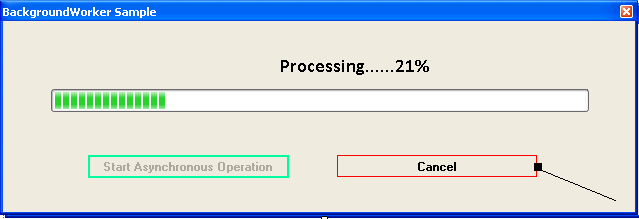
1. Start
Once the application is started, click on the button that reads Start Asynchronous Operation. The UI now shows aprogressbar
with UI continuously being updated.
2. Cancel
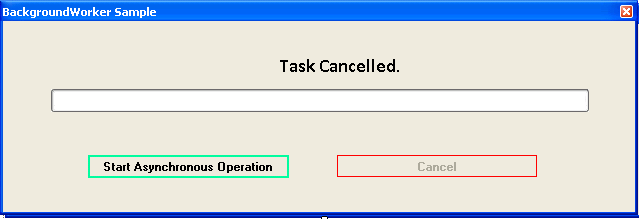
To cancel the parallel operation midway, press the cancel button. Note that the UI thread is
now free to perform any additional task during this time and it is not locked by the data intensive operation that is happening in the background.
3. On Successful Completion
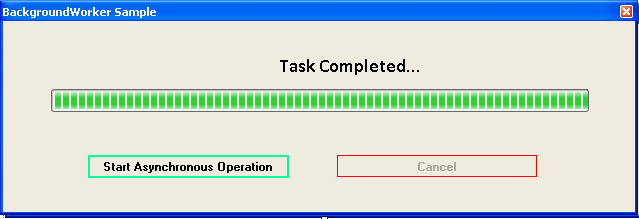
The statusbar shall read Task Completed upon the successful completion of the parallel task.
Points of Interest
转自:http://www.codeproject.com/Articles/99143/BackgroundWorker-Class-Sample-for-Beginners
BackgroundWorker Class Sample for Beginners的更多相关文章
- Multithreading annd Grand Central Dispatch on ios for Beginners Tutorial-多线程和GCD的入门教程
原文链接:Multithreading and Grand Central Dispatch on iOS for Beginners Tutorial Have you ever written a ...
- TSQL Beginners Challenge 3 - Find the Factorial
这是一个关于CTE的应用,这里我们用CTE实现阶乘 Factorial,首先来看一个简单的小实验,然后再来看题目.有的童鞋会问怎么没有2就来3了呢,惭愧,TSQL Beginners Challeng ...
- GDI+ Tutorial for Beginners
原文 GDI+ Tutorial for Beginners GDI+ is next evolution of GDI. Using GDI objects in earlier versions ...
- ObjectARX® for Beginners: An Introduction
转:ObjectARX® for Beginners: An Introduction Lee Ambrosius – Autodesk, Inc. CP4164-L Objec ...
- BackgroundWorker study
using System; using System.Collections.Generic; using System.ComponentModel; using System.Data; usin ...
- C# BackgroundWorker 详解
在C#程序中,经常会有一些耗时较长的CPU密集型运算,如果直接在 UI 线程执行这样的运算就会出现UI不响应的问题.解决这类问题的主要途径是使用多线程,启动一个后台线程,把运算操作放在这个后台线程中完 ...
- Linux下UPnP sample分析
一.UPnP简介 UPnP(Universal Plug and Play)技术是一种屏蔽各种数字设备的硬件和操作系统的通信协议.它是一种数字网络中间件技术,建立在TCP/IP.HTTP协 ...
- 【Winform】使用BackgroundWorker控制进度条显示进度
许多开发者看见一些软件有进度条显示进度,自己想弄,项目建好后发现并没有自己想象中的那么简单...看了网上很多教程后,写了一个小Demo供网友们参考~~,Demo的网址:http://pan.baidu ...
- cocos2d-x for android配置 & 运行 Sample on Linux OS
1.从http://www.cocos2d-x.org/download下载稳定版 比如cocos2d-x-2.2 2.解压cocos2d-x-2.2.zip,比如本文将其解压到 /opt 目录下 3 ...
随机推荐
- css动画库
转载自:http://www.cnblogs.com/starof/p/4968769.html 本文作者starof,因知识本身在变化,作者也在不断学习成长,文章内容也不定时更新,为避免误导读者,方 ...
- Centos7创建用户su登录后显示为 bash-4.1$
useradd name [root@localhost data]# su name bash-4.2$ [root@localhost ~]# cp -a /etc/skel/. /home/na ...
- day 67 django 之ORM 增删改查基础
一 操作基础前提准备 1. 新建django 项目 mysite 子项目app01 ,选择好做路径. 2 .2-1在app01 下面models 中引用 模块 from django.db im ...
- 六、在U-boot中让LCD填充纯色
1. 编译U-boot 准备好U-boot压缩包urbetter-u-boot-1.1.6-v1.0.tgz,输入命令:tar -xvf urbetter-u-boot-1.1.6-v1.0.tgz ...
- 2010年腾讯前端面试题学习(js部分)
看了牛人写的回忆文章,里面有2010年腾讯的前端面试题,里面涉及到不少基础性的问题,学习一下:) 原文地址:https://segmentfault.com/a/1190000012998107 js ...
- 2019-03-29-day022-封装与类方法与静态方法
昨日回顾 抽象类 规范代码,规定子类必须实现某个方法的名字 不能实例化 from abc import ABCMeta, abstractmethod class 抽象类名(metaclass=ABC ...
- Shiro自定义Realm时用注解的方式注入父类的credentialsMatcher
用Shiro做登录权限控制时,密码加密是自定义的. 数据库的密码通过散列获取,如下,算法为:md5,盐为一个随机数字,散列迭代次数为3次,最终将salt与散列后的密码保存到数据库内,第二次登录时将登录 ...
- 神州数码RIP协议认证
实验要求:掌握RIP协议的简单认证及MD5认证 拓扑如下 简单认证 R1 enable 进入特权模式 config 进入全局模式 hostname R1 修改名称 interface s0/1 进入 ...
- mysql 数据查询全讲
数据查询 涉及到DQL(Data Query Language)是sql语句的一类 本文全面介绍了mysql下 select 语句的各种查询方式:普通查询,模糊查询,查询排序,分页查询,聚合函数查询 ...
- python 实现图的深度优先和广度优先搜索
在介绍 python 实现图的深度优先和广度优先搜索前,我们先来了解下什么是"图". 1 一些定义 顶点 顶点(也称为"节点")是图的基本部分.它可以有一个名称 ...