
王之泰201771010131《面向对象程序设计(java)》第十四周学习总结
第一部分:理论知识学习部分
第12章 Swing用户界面组件
12.1.Swing和MVC设计模式
a 设计模式初识
b 模型—视图—控制器模式
c Swing组件的模型—视图—控制器分析
12.2布局管理器
a 布局管理器是一组类。
b 实现java.awt.LayoutManager接口
c 决定容器中组件的位置和大小
d Java.awt包中定义了5种布局管理类,每一种布 局管理类对应一种布局策略。
e 每个容器都有与之相关的默认布局管理器。
f 当一个容器选定一种布局策略时,它应该创建该 策略对应的布局管理器对象,并将此对象设置为 自己的布局管理器。
g 5种布局管理器
(1)FlowLayout:流布局(Applet和Panel的默认 布局管理器)
(2)BorderLayout:边框布局(Window、Frame和 Dialog的默认布局管理器)
(3)GridLayout:网格布局
(4)GridBagLayout:网格组布局
(5)CardLayout:卡片布局
12.3文本输入
a 域
b 文本区
c 标签与标签组件
d 密码域
e 滚动窗格
12.4选择组件
a 复选框
b 单选按钮
c 边框
d 组合框
e 滑动条
12.5菜单
a 菜单创建
b 菜单项中的图标
c 复选框和单选按钮菜单项
d 弹出菜单
e 快捷键和加速器
f 启用和禁用菜单项
g工具栏
h 工具提示
12.5对话框
a 选项对话框
b 创建对话框
c 数据选择
d 文件对话框 e 颜色选择器
第二部分:实验部分——Swing图形界面组件
实验时间 20178-11-29
1、实验目的与要求
(1) 掌握GUI布局管理器用法;
(2) 掌握各类Java Swing组件用途及常用API;
2、实验内容和步骤
实验1: 导入第12章示例程序,测试程序并进行组内讨论。
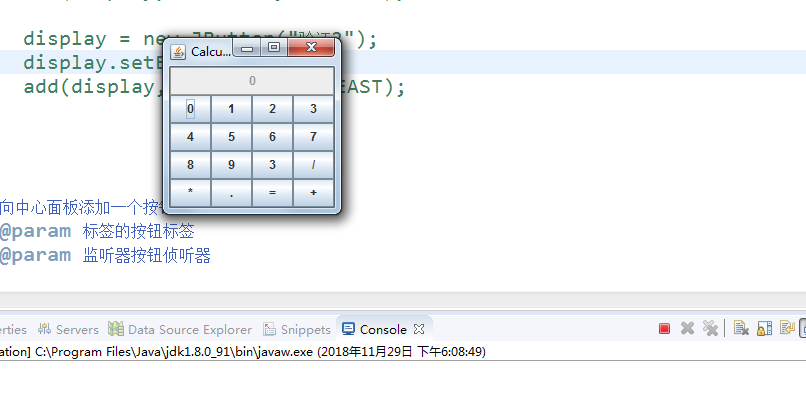
测试程序1
1.在elipse IDE中运行教材479页程序12-1,结合运行结果理解程序;
2.掌握各种布局管理器的用法;
3.理解GUI界面中事件处理技术的用途。
4.在布局管理应用代码处添加注释;
 import java.awt.*;

 import javax.swing.*;

 /**

  * @version 1.34 2015-06-12

  * @author Cay Horstmann

  */

 public class Calculator

 {

    public static void main(String[] args)

    {

       EventQueue.invokeLater(() -> {

          CalculatorFrame frame = new CalculatorFrame();

          frame.setTitle("Calculator");

          frame.setDefaultCloseOperation(JFrame.EXIT_ON_CLOSE);

          frame.setVisible(true);

       });

    }

 }
 package calculator;

 import javax.swing.*;

 /**

  * 一个带有计算器面板的框架。

  */

 public class CalculatorFrame extends JFrame

 {

    public CalculatorFrame()

    {

       add(new CalculatorPanel());

       pack();

    }

 }
 package calculator;

 import java.awt.*;

 import java.awt.event.*;

 import javax.swing.*;

 /**

  * 具有计算器按钮和结果显示的面板。

  */

 public class CalculatorPanel extends JPanel

 {

    private JButton display;

    private JPanel panel;

    private double result;

    private String lastCommand;

    private boolean start;

    public CalculatorPanel()

    {

       setLayout(new BorderLayout());

       result = 0;

       lastCommand = "=";

       start = true;

       // 添加显示

       display = new JButton("0");

       display.setEnabled(false);

       add(display, BorderLayout.NORTH);

       ActionListener insert = new InsertAction();

       ActionListener command = new CommandAction();

       // 在4×4网格中添加按钮

       panel = new JPanel();

       panel.setLayout(new GridLayout(4, 4));

       addButton("0", insert);

       addButton("1", insert);

       addButton("2", insert);

       addButton("3", command);

       addButton("4", insert);

       addButton("5", insert);

       addButton("6", insert);

       addButton("7", command);

       addButton("8", insert);

       addButton("9", insert);

       addButton("3", insert);

       addButton("/", command);

       addButton("*", insert);

       addButton(".", insert);

       addButton("=", command);

       addButton("+", command);

       add(panel, BorderLayout.SOUTH);

 //      display = new JButton("验证");

 //      display.setEnabled(true);

 //      add(display, BorderLayout.CENTER);

 //

 //      display = new JButton("验证1");

 //      display.setEnabled(true);

 //      add(display, BorderLayout.WEST);

 //

 //      display = new JButton("验证2");

 //      display.setEnabled(true);

 //      add(display, BorderLayout.EAST);

    }

    /**

     * 向中心面板添加一个按钮。

     * @param 标签的按钮标签

     * @param 监听器按钮侦听器

     */

    private void addButton(String label, ActionListener listener)

    {

       JButton button = new JButton(label);

       button.addActionListener(listener);

       panel.add(button);

    }

    /**

     * 此操作将按钮操作字符串插入到显示文本的末尾

     */

    private class InsertAction implements ActionListener

    {

       public void actionPerformed(ActionEvent event)

       {

          String input = event.getActionCommand();

          if (start)

          {

             display.setText("");

             start = false;

          }

          display.setText(display.getText() + input);

       }

    }

    /**

     * 此操作执行按钮操作字符串所表示的命令。

     */

    private class CommandAction implements ActionListener

    {

       public void actionPerformed(ActionEvent event)

       {

          String command = event.getActionCommand();

          if (start)

          {

             if (command.equals("-"))

             {

                display.setText(command);

                start = false;

             }

             else lastCommand = command;

          }

          else

          {

             calculate(Double.parseDouble(display.getText()));

             lastCommand = command;

             start = true;

          }

       }

    }

    /**

     * 执行悬而未决的计算。

     * @param x值与先前结果一起累积。

     */

    public void calculate(double x)

    {

       if (lastCommand.equals("+")) result += x;

       else if (lastCommand.equals("-")) result -= x;

       else if (lastCommand.equals("*")) result *= x;

       else if (lastCommand.equals("/")) result /= x;

       else if (lastCommand.equals("=")) result = x;

       display.setText("" + result);

    }

 }
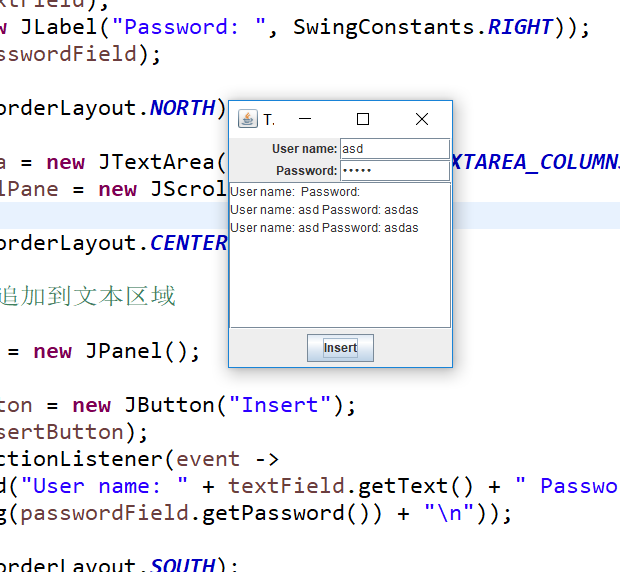
测试程序2
1.在elipse IDE中调试运行教材486页程序12-2,结合运行结果理解程序;
2.掌握各种文本组件的用法;
3.记录示例代码阅读理解中存在的问题与疑惑。
 package text;

 import java.awt.*;

 import javax.swing.*;

 /**

  * @version 1.41 2015-06-12

  * @author Cay Horstmann

  */

 public class TextComponentTest

 {

    public static void main(String[] args)

    {

       EventQueue.invokeLater(() -> {

          JFrame frame = new TextComponentFrame();

          frame.setTitle("TextComponentTest");

          frame.setDefaultCloseOperation(JFrame.EXIT_ON_CLOSE);

          frame.setVisible(true);

       });

    }

 }
 package text;

 import java.awt.BorderLayout;

 import java.awt.GridLayout;

 import javax.swing.JButton;

 import javax.swing.JFrame;

 import javax.swing.JLabel;

 import javax.swing.JPanel;

 import javax.swing.JPasswordField;

 import javax.swing.JScrollPane;

 import javax.swing.JTextArea;

 import javax.swing.JTextField;

 import javax.swing.SwingConstants;

 /**

  * 具有文本文本组件的框架.

  */

 public class TextComponentFrame extends JFrame

 {

    public static final int TEXTAREA_ROWS = 8;

    public static final int TEXTAREA_COLUMNS = 20;

    public TextComponentFrame()

    {

       JTextField textField = new JTextField();

       JPasswordField passwordField = new JPasswordField();

       JPanel northPanel = new JPanel();

       northPanel.setLayout(new GridLayout(2, 2));

       northPanel.add(new JLabel("User name: ", SwingConstants.RIGHT));

       northPanel.add(textField);

       northPanel.add(new JLabel("Password: ", SwingConstants.RIGHT));

       northPanel.add(passwordField);

       add(northPanel, BorderLayout.NORTH);

       JTextArea textArea = new JTextArea(TEXTAREA_ROWS, TEXTAREA_COLUMNS);

       JScrollPane scrollPane = new JScrollPane(textArea);

       add(scrollPane, BorderLayout.CENTER);

       // 添加按钮将文本追加到文本区域

       JPanel southPanel = new JPanel();

       JButton insertButton = new JButton("Insert");

       southPanel.add(insertButton);

       insertButton.addActionListener(event ->

          textArea.append("User name: " + textField.getText() + " Password: "

             + new String(passwordField.getPassword()) + "\n"));

       add(southPanel, BorderLayout.SOUTH);

       pack();

    }

 }
测试程序3
1.在elipse IDE中调试运行教材489页程序12-3,结合运行结果理解程序;
2.掌握复选框组件的用法;
3.记录示例代码阅读理解中存在的问题与疑惑。
 package checkBox;

 import java.awt.*;

 import javax.swing.*;

 /**

  * @version 1.34 2015-06-12

  * @author Cay Horstmann

  */

 public class CheckBoxTest

 {

    public static void main(String[] args)

    {

       EventQueue.invokeLater(() -> {

          JFrame frame = new CheckBoxFrame();

          frame.setTitle("CheckBoxTest");

          frame.setDefaultCloseOperation(JFrame.EXIT_ON_CLOSE);

          frame.setVisible(true);

       });

    }

 }
 package checkBox;

 import java.awt.*;

 import java.awt.event.*;

 import javax.swing.*;

 /**

  * 带有样本文本标签的框和用于选择字体的复选框

  * attributes.

  */

 public class CheckBoxFrame extends JFrame

 {

    private JLabel label;

    private JCheckBox bold;

    private JCheckBox italic;

    private static final int FONTSIZE = 24;

    public CheckBoxFrame()

    {

       // 添加示例文本标签

       label = new JLabel("The quick brown fox jumps over the lazy dog.");

       label.setFont(new Font("Serif", Font.BOLD, FONTSIZE));

       add(label, BorderLayout.CENTER);

       // 此侦听器设置字体属性

       // 到复选框状态的标签

       ActionListener listener = event -> {

          int mode = 0;

          if (bold.isSelected()) mode += Font.BOLD;

          if (italic.isSelected()) mode += Font.ITALIC;

          label.setFont(new Font("Serif", mode, FONTSIZE));

       };

       // 添加复选框

       JPanel buttonPanel = new JPanel();

       bold = new JCheckBox("Bold");

       bold.addActionListener(listener);

       bold.setSelected(true);

       buttonPanel.add(bold);

       italic = new JCheckBox("Italic");

       italic.addActionListener(listener);

       buttonPanel.add(italic);

       add(buttonPanel, BorderLayout.SOUTH);

       pack();

    }

 }

测试程序4
1.在elipse IDE中调试运行教材491页程序12-4,运行结果理解程序;
2.掌握单选按钮组件的用法;
3.记录示例代码阅读理解中存在的问题与疑惑。
 package radioButton;

 import java.awt.*;

 import javax.swing.*;

 /**

  * @version 1.34 2015-06-12

  * @author Cay Horstmann

  */

 public class RadioButtonTest

 {

    public static void main(String[] args)

    {

       EventQueue.invokeLater(() -> {

          JFrame frame = new RadioButtonFrame();

          frame.setTitle("RadioButtonTest");

          frame.setDefaultCloseOperation(JFrame.EXIT_ON_CLOSE);

          frame.setVisible(true);

       });

    }

 }
 package radioButton;

 import java.awt.*;

 import java.awt.event.*;

 import javax.swing.*;

 /**

  * 带有样本文本标签和单选按钮以选择字体大小的框架。

  */

 public class RadioButtonFrame extends JFrame

 {

    private JPanel buttonPanel;

    private ButtonGroup group;

    private JLabel label;

    private static final int DEFAULT_SIZE = 36;

    public RadioButtonFrame()

    {

       // 添加示例文本标签

       label = new JLabel("The quick brown fox jumps over the lazy dog.");

       label.setFont(new Font("Serif", Font.PLAIN, DEFAULT_SIZE));

       add(label, BorderLayout.CENTER);

       // 添加单选按钮

       buttonPanel = new JPanel();

       group = new ButtonGroup();

       addRadioButton("Small", 8);

       addRadioButton("Medium", 12);

       addRadioButton("Large", 18);

       addRadioButton("Extra large", 36);

       add(buttonPanel, BorderLayout.SOUTH);

       pack();

    }

    /**

     * 添加一个设置示例文本字体大小的单选按钮。

     * @param 命名按钮上出现的字符串

     * @param 设置此按钮设置的字体大小

     */

    public void addRadioButton(String name, int size)

    {

       boolean selected = size == DEFAULT_SIZE;

       JRadioButton button = new JRadioButton(name, selected);

       group.add(button);

       buttonPanel.add(button);

       // 此侦听器设置标签字体大小。

       ActionListener listener = event -> label.setFont(new Font("Serif", Font.PLAIN, size));

       button.addActionListener(listener);

    }

 }

测试程序5
1.在elipse IDE中调试运行教材494页程序12-5,结合运行结果理解程序;
2.掌握边框的用法;
3。记录示例代码阅读理解中存在的问题与疑惑。
 package border;

 import java.awt.*;

 import javax.swing.*;

 /**

  * @version 1.34 2015-06-13

  * @author Cay Horstmann

  */

 public class BorderTest

 {

    public static void main(String[] args)

    {

       EventQueue.invokeLater(() -> {

          JFrame frame = new BorderFrame();

          frame.setTitle("BorderTest");

          frame.setDefaultCloseOperation(JFrame.EXIT_ON_CLOSE);

          frame.setVisible(true);

       });

    }

 }
 package border;

 import java.awt.*;

 import javax.swing.*;

 import javax.swing.border.*;

 /**

  * 用单选按钮选择边框样式的框架

  */

 public class BorderFrame extends JFrame

 {

    private JPanel demoPanel;

    private JPanel buttonPanel;

    private ButtonGroup group;

    public BorderFrame()

    {

       demoPanel = new JPanel();

       buttonPanel = new JPanel();

       group = new ButtonGroup();

       addRadioButton("Lowered bevel", BorderFactory.createLoweredBevelBorder());

       addRadioButton("Raised bevel", BorderFactory.createRaisedBevelBorder());

       addRadioButton("Etched", BorderFactory.createEtchedBorder());

       addRadioButton("Line", BorderFactory.createLineBorder(Color.BLUE));

       addRadioButton("Matte", BorderFactory.createMatteBorder(10, 10, 10, 10, Color.BLUE));

       addRadioButton("Empty", BorderFactory.createEmptyBorder());

       Border etched = BorderFactory.createEtchedBorder();

       Border titled = BorderFactory.createTitledBorder(etched, "Border types");

       buttonPanel.setBorder(titled);

       setLayout(new GridLayout(2, 1));

       add(buttonPanel);

       add(demoPanel);

       pack();

    }

    public void addRadioButton(String buttonName, Border b)

    {

       JRadioButton button = new JRadioButton(buttonName);

       button.addActionListener(event -> demoPanel.setBorder(b));

       group.add(button);

       buttonPanel.add(button);

    }

 }

测试程序6
1.在elipse IDE中调试运行教材498页程序12-6,结合运行结果理解程序;
2.掌握组合框组件的用法;
3.记录示例代码阅读理解中存在的问题与疑惑。
 package comboBox;

 import java.awt.*;

 import javax.swing.*;

 /**

  * @version 1.35 2015-06-12

  * @author Cay Horstmann

  */

 public class ComboBoxTest

 {

    public static void main(String[] args)

    {

       EventQueue.invokeLater(() -> {

          JFrame frame = new ComboBoxFrame();

          frame.setTitle("ComboBoxTest");

          frame.setDefaultCloseOperation(JFrame.EXIT_ON_CLOSE);

          frame.setVisible(true);

       });

    }

 }
 package comboBox;

 import java.awt.BorderLayout;

 import java.awt.Font;

 import javax.swing.JComboBox;

 import javax.swing.JFrame;

 import javax.swing.JLabel;

 import javax.swing.JPanel;

 /**

  * 具有样本文本标签和选择字体面的组合框的框架。

  */

 public class ComboBoxFrame extends JFrame

 {

    private JComboBox<String> faceCombo;

    private JLabel label;

    private static final int DEFAULT_SIZE = 24;

    public ComboBoxFrame()

    {

       // 添加示例文本标签

       label = new JLabel("The quick brown fox jumps over the lazy dog.");

       label.setFont(new Font("Serif", Font.PLAIN, DEFAULT_SIZE));

       add(label, BorderLayout.CENTER);

       // 制作组合框并添加面部名称

       faceCombo = new JComboBox<>();

       faceCombo.addItem("Serif");

       faceCombo.addItem("SansSerif");

       faceCombo.addItem("Monospaced");

       faceCombo.addItem("Dialog");

       faceCombo.addItem("DialogInput");

       // 组合框侦听器将标签字体更改为选定的面部名称。

       faceCombo.addActionListener(event ->

          label.setFont(

             new Font(faceCombo.getItemAt(faceCombo.getSelectedIndex()),

                Font.PLAIN, DEFAULT_SIZE)));

       // 将组合框添加到框架的南部边界的面板上

       JPanel comboPanel = new JPanel();

       comboPanel.add(faceCombo);

       add(comboPanel, BorderLayout.SOUTH);

       pack();

    }

 }

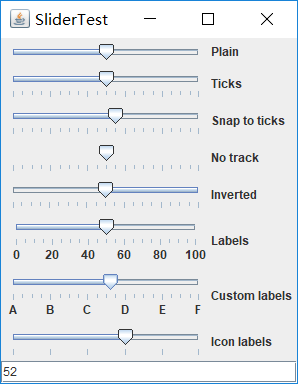
测试程序7
1.在elipse IDE中调试运行教材501页程序12-7,结合运行结果理解程序;
2.掌握滑动条组件的用法;
3.记录示例代码阅读理解中存在的问题与疑惑。
 package slider;

 import java.awt.*;

 import javax.swing.*;

 /**

  * @version 1.15 2015-06-12

  * @author Cay Horstmann

  */

 public class SliderTest

 {

    public static void main(String[] args)

    {

       EventQueue.invokeLater(() -> {

          SliderFrame frame = new SliderFrame();

          frame.setTitle("SliderTest");

          frame.setDefaultCloseOperation(JFrame.EXIT_ON_CLOSE);

          frame.setVisible(true);

       });

    }

 }
 package slider;

 import java.awt.*;

 import java.util.*;

 import javax.swing.*;

 import javax.swing.event.*;

 /**

  * 一个具有许多滑块和文本字段的滑块值的框架。

  */

 public class SliderFrame extends JFrame

 {

    private JPanel sliderPanel;

    private JTextField textField;

    private ChangeListener listener;

    public SliderFrame()

    {

       sliderPanel = new JPanel();

       sliderPanel.setLayout(new GridBagLayout());

       // 所有滑块的公用侦听器

       listener = event -> {

          // 当滑块值改变时更新文本字段

          JSlider source = (JSlider) event.getSource();

          textField.setText("" + source.getValue());

       };

       // 添加普通滑块

       JSlider slider = new JSlider();

       addSlider(slider, "Plain");

       // 添加有主和小蜱的滑块

       slider = new JSlider();

       slider.setPaintTicks(true);

       slider.setMajorTickSpacing(20);

       slider.setMinorTickSpacing(5);

       addSlider(slider, "Ticks");

       // 添加一个滑动到滴答的滑块

       slider = new JSlider();

       slider.setPaintTicks(true);

       slider.setSnapToTicks(true);

       slider.setMajorTickSpacing(20);

       slider.setMinorTickSpacing(5);

       addSlider(slider, "Snap to ticks");

       // 添加没有磁道的滑块

       slider = new JSlider();

       slider.setPaintTicks(true);

       slider.setMajorTickSpacing(20);

       slider.setMinorTickSpacing(5);

       slider.setPaintTrack(false);

       addSlider(slider, "No track");

       // 添加倒置滑块

       slider = new JSlider();

       slider.setPaintTicks(true);

       slider.setMajorTickSpacing(20);

       slider.setMinorTickSpacing(5);

       slider.setInverted(true);

       addSlider(slider, "Inverted");

       // 添加带有数字标签的滑块

       slider = new JSlider();

       slider.setPaintTicks(true);

       slider.setPaintLabels(true);

       slider.setMajorTickSpacing(20);

       slider.setMinorTickSpacing(5);

       addSlider(slider, "Labels");

       // 添加带有字母标签的滑块

       slider = new JSlider();

       slider.setPaintLabels(true);

       slider.setPaintTicks(true);

       slider.setMajorTickSpacing(20);

       slider.setMinorTickSpacing(5);

       Dictionary<Integer, Component> labelTable = new Hashtable<>();

       labelTable.put(0, new JLabel("A"));

       labelTable.put(20, new JLabel("B"));

       labelTable.put(40, new JLabel("C"));

       labelTable.put(60, new JLabel("D"));

       labelTable.put(80, new JLabel("E"));

       labelTable.put(100, new JLabel("F"));

       slider.setLabelTable(labelTable);

       addSlider(slider, "Custom labels");

       // 添加带有图标标签的滑块

       slider = new JSlider();

       slider.setPaintTicks(true);

       slider.setPaintLabels(true);

       slider.setSnapToTicks(true);

       slider.setMajorTickSpacing(20);

       slider.setMinorTickSpacing(20);

       labelTable = new Hashtable<Integer, Component>();

       // 添加卡片图像

       labelTable.put(0, new JLabel(new ImageIcon("nine.gif")));

       labelTable.put(20, new JLabel(new ImageIcon("ten.gif")));

       labelTable.put(40, new JLabel(new ImageIcon("jack.gif")));

       labelTable.put(60, new JLabel(new ImageIcon("queen.gif")));

       labelTable.put(80, new JLabel(new ImageIcon("king.gif")));

       labelTable.put(100, new JLabel(new ImageIcon("ace.gif")));

       slider.setLabelTable(labelTable);

       addSlider(slider, "Icon labels");

       // 添加显示滑块值的文本字段

       textField = new JTextField();

       add(sliderPanel, BorderLayout.CENTER);

       add(textField, BorderLayout.SOUTH);

       pack();

    }

    /**

     * 向滑块面板添加滑块并钩住听者

     * @param S滑块

     * @param 描述滑块描述

     */

    public void addSlider(JSlider s, String description)

    {

       s.addChangeListener(listener);

       JPanel panel = new JPanel();

       panel.add(s);

       panel.add(new JLabel(description));

       panel.setAlignmentX(Component.LEFT_ALIGNMENT);

       GridBagConstraints gbc = new GridBagConstraints();

       gbc.gridy = sliderPanel.getComponentCount();

       gbc.anchor = GridBagConstraints.WEST;

       sliderPanel.add(panel, gbc);

    }

 }
测试程序8
1.在elipse IDE中调试运行教材512页程序12-8,结合运行结果理解程序;
2.掌握菜单的创建、菜单事件监听器、复选框和单选按钮菜单项、弹出菜单以及快捷键和加速器的用法。
3.记录示例代码阅读理解中存在的问题与疑惑。
 package menu;

 import java.awt.*;

 import javax.swing.*;

 /**

  * @version 1.24 2012-06-12

  * @author Cay Horstmann

  */

 public class MenuTest

 {

    public static void main(String[] args)

    {

       EventQueue.invokeLater(() -> {

          JFrame frame = new MenuFrame();

          frame.setTitle("MenuTest");

          frame.setDefaultCloseOperation(JFrame.EXIT_ON_CLOSE);

          frame.setVisible(true);

       });

    }

 }
 package menu;

 import java.awt.event.*;

 import javax.swing.*;

 /**

  * 一个带有示例菜单栏的框架。

  */

 public class MenuFrame extends JFrame

 {

    private static final int DEFAULT_WIDTH = 300;

    private static final int DEFAULT_HEIGHT = 200;

    private Action saveAction;

    private Action saveAsAction;

    private JCheckBoxMenuItem readonlyItem;

    private JPopupMenu popup;

    /**

     * 将动作名称打印到Studio.OUT的示例动作。

     */

    class TestAction extends AbstractAction

    {

       public TestAction(String name)

       {

          super(name);

       }

       public void actionPerformed(ActionEvent event)

       {

          System.out.println(getValue(Action.NAME) + " selected.");

       }

    }

    public MenuFrame()

    {

       setSize(DEFAULT_WIDTH, DEFAULT_HEIGHT);

       JMenu fileMenu = new JMenu("File");

       fileMenu.add(new TestAction("New"));

       // 演示加速器

       JMenuItem openItem = fileMenu.add(new TestAction("Open"));

       openItem.setAccelerator(KeyStroke.getKeyStroke("ctrl O"));

       fileMenu.addSeparator();

       saveAction = new TestAction("Save");

       JMenuItem saveItem = fileMenu.add(saveAction);

       saveItem.setAccelerator(KeyStroke.getKeyStroke("ctrl S"));

       saveAsAction = new TestAction("Save As");

       fileMenu.add(saveAsAction);

       fileMenu.addSeparator();

       fileMenu.add(new AbstractAction("Exit")

          {

             public void actionPerformed(ActionEvent event)

             {

                System.exit(0);

             }

          });

       // 演示复选框和单选按钮菜单

       readonlyItem = new JCheckBoxMenuItem("Read-only");

       readonlyItem.addActionListener(new ActionListener()

          {

             public void actionPerformed(ActionEvent event)

             {

                boolean saveOk = !readonlyItem.isSelected();

                saveAction.setEnabled(saveOk);

                saveAsAction.setEnabled(saveOk);

             }

          });

       ButtonGroup group = new ButtonGroup();

       JRadioButtonMenuItem insertItem = new JRadioButtonMenuItem("Insert");

       insertItem.setSelected(true);

       JRadioButtonMenuItem overtypeItem = new JRadioButtonMenuItem("Overtype");

       group.add(insertItem);

       group.add(overtypeItem);

       // 演示图标

       Action cutAction = new TestAction("Cut");

       cutAction.putValue(Action.SMALL_ICON, new ImageIcon("cut.gif"));

       Action copyAction = new TestAction("Copy");

       copyAction.putValue(Action.SMALL_ICON, new ImageIcon("copy.gif"));

       Action pasteAction = new TestAction("Paste");

       pasteAction.putValue(Action.SMALL_ICON, new ImageIcon("paste.gif"));

       JMenu editMenu = new JMenu("Edit");

       editMenu.add(cutAction);

       editMenu.add(copyAction);

       editMenu.add(pasteAction);

       // 演示嵌套菜单

       JMenu optionMenu = new JMenu("Options");

       optionMenu.add(readonlyItem);

       optionMenu.addSeparator();

       optionMenu.add(insertItem);

       optionMenu.add(overtypeItem);

       editMenu.addSeparator();

       editMenu.add(optionMenu);

       // 助记符演示

       JMenu helpMenu = new JMenu("Help");

       helpMenu.setMnemonic('H');

       JMenuItem indexItem = new JMenuItem("Index");

       indexItem.setMnemonic('I');

       helpMenu.add(indexItem);

       // 还可以将助记键添加到动作中。

       Action aboutAction = new TestAction("About");

       aboutAction.putValue(Action.MNEMONIC_KEY, new Integer('A'));

       helpMenu.add(aboutAction);

       // 将所有顶级菜单添加到菜单栏

       JMenuBar menuBar = new JMenuBar();

       setJMenuBar(menuBar);

       menuBar.add(fileMenu);

       menuBar.add(editMenu);

       menuBar.add(helpMenu);

       // 演示弹出窗口

       popup = new JPopupMenu();

       popup.add(cutAction);

       popup.add(copyAction);

       popup.add(pasteAction);

       JPanel panel = new JPanel();

       panel.setComponentPopupMenu(popup);

       add(panel);

    }

 }

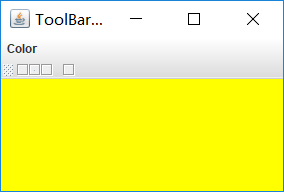
测试程序9
1.在elipse IDE中调试运行教材517页程序12-9,结合运行结果理解程序;
2.掌握工具栏和工具提示的用法;
3.记录示例代码阅读理解中存在的问题与疑惑。
 package toolBar;

 import java.awt.*;

 import javax.swing.*;

 /**

  * @version 1.14 2015-06-12

  * @author Cay Horstmann

  */

 public class ToolBarTest

 {

    public static void main(String[] args)

    {

       EventQueue.invokeLater(() -> {

          ToolBarFrame frame = new ToolBarFrame();

          frame.setTitle("ToolBarTest");

          frame.setDefaultCloseOperation(JFrame.EXIT_ON_CLOSE);

          frame.setVisible(true);

       });

    }

 }
 package toolBar;

 import java.awt.*;

 import java.awt.event.*;

 import javax.swing.*;

 /**

  * 带有工具栏和菜单的框架,用于颜色变化。

  */

 public class ToolBarFrame extends JFrame

 {

    private static final int DEFAULT_WIDTH = 300;

    private static final int DEFAULT_HEIGHT = 200;

    private JPanel panel;

    public ToolBarFrame()

    {

       setSize(DEFAULT_WIDTH, DEFAULT_HEIGHT);

       // 添加颜色变化面板

       panel = new JPanel();

       add(panel, BorderLayout.CENTER);

       // 设置动作

       Action blueAction = new ColorAction("Blue", new ImageIcon("blue-ball.gif"), Color.BLUE);

       Action yellowAction = new ColorAction("Yellow", new ImageIcon("yellow-ball.gif"),

             Color.YELLOW);

       Action redAction = new ColorAction("Red", new ImageIcon("red-ball.gif"), Color.RED);

       Action exitAction = new AbstractAction("Exit", new ImageIcon("exit.gif"))

          {

             public void actionPerformed(ActionEvent event)

             {

                System.exit(0);

             }

          };

       exitAction.putValue(Action.SHORT_DESCRIPTION, "Exit");

       // 填充工具栏

       JToolBar bar = new JToolBar();

       bar.add(blueAction);

       bar.add(yellowAction);

       bar.add(redAction);

       bar.addSeparator();

       bar.add(exitAction);

       add(bar, BorderLayout.NORTH);

       // 填充菜单

       JMenu menu = new JMenu("Color");

       menu.add(yellowAction);

       menu.add(blueAction);

       menu.add(redAction);

       menu.add(exitAction);

       JMenuBar menuBar = new JMenuBar();

       menuBar.add(menu);

       setJMenuBar(menuBar);

    }

    /**

     * 颜色动作将帧的背景设置为给定的颜色。

     */

    class ColorAction extends AbstractAction

    {

       public ColorAction(String name, Icon icon, Color c)

       {

          putValue(Action.NAME, name);

          putValue(Action.SMALL_ICON, icon);

          putValue(Action.SHORT_DESCRIPTION, name + " background");

          putValue("Color", c);

       }

       public void actionPerformed(ActionEvent event)

       {

          Color c = (Color) getValue("Color");

          panel.setBackground(c);

       }

    }

 }
测试程序10
1.在elipse IDE中调试运行教材524页程序12-10、12-11,结合运行结果理解程序,了解GridbagLayout的用法。
2.在elipse IDE中调试运行教材533页程序12-12,结合程序运行结果理解程序,了解GroupLayout的用法。
3.记录示例代码阅读理解中存在的问题与疑惑。
 package gridbag;

 import java.awt.EventQueue;

 import javax.swing.JFrame;

 /**

  * @version 1.35 2015-06-12

  * @author Cay Horstmann

  */

 public class GridBagLayoutTest

 {

    public static void main(String[] args)

    {

       EventQueue.invokeLater(() ->           {

                JFrame frame = new FontFrame();

                frame.setTitle("GridBagLayoutTest");

                frame.setDefaultCloseOperation(JFrame.EXIT_ON_CLOSE);

                frame.setVisible(true);

          });

    }

 }
 package gridbag;

 import java.awt.*;

 /**

  * This class simplifies the use of the GridBagConstraints class.

  * @version 1.01 2004-05-06

  * @author Cay Horstmann

  */

 public class GBC extends GridBagConstraints

 {

    /**

     * Constructs a GBC with a given gridx and gridy position and all other grid

     * bag constraint values set to the default.

     * @param gridx the gridx position

     * @param gridy the gridy position

     */

    public GBC(int gridx, int gridy)

    {

       this.gridx = gridx;

       this.gridy = gridy;

    }

    /**

     * Constructs a GBC with given gridx, gridy, gridwidth, gridheight and all

     * other grid bag constraint values set to the default.

     * @param gridx the gridx position

     * @param gridy the gridy position

     * @param gridwidth the cell span in x-direction

     * @param gridheight the cell span in y-direction

     */

    public GBC(int gridx, int gridy, int gridwidth, int gridheight)

    {

       this.gridx = gridx;

       this.gridy = gridy;

       this.gridwidth = gridwidth;

       this.gridheight = gridheight;

    }

    /**

     * Sets the anchor.

     * @param anchor the anchor value

     * @return this object for further modification

     */

    public GBC setAnchor(int anchor)

    {

       this.anchor = anchor;

       return this;

    }

    /**

     * Sets the fill direction.

     * @param fill the fill direction

     * @return this object for further modification

     */

    public GBC setFill(int fill)

    {

       this.fill = fill;

       return this;

    }

    /**

     * Sets the cell weights.

     * @param weightx the cell weight in x-direction

     * @param weighty the cell weight in y-direction

     * @return this object for further modification

     */

    public GBC setWeight(double weightx, double weighty)

    {

       this.weightx = weightx;

       this.weighty = weighty;

       return this;

    }

    /**

     * Sets the insets of this cell.

     * @param distance the spacing to use in all directions

     * @return this object for further modification

     */

    public GBC setInsets(int distance)

    {

       this.insets = new Insets(distance, distance, distance, distance);

       return this;

    }

    /**

     * Sets the insets of this cell.

     * @param top the spacing to use on top

     * @param left the spacing to use to the left

     * @param bottom the spacing to use on the bottom

     * @param right the spacing to use to the right

     * @return this object for further modification

     */

    public GBC setInsets(int top, int left, int bottom, int right)

    {

       this.insets = new Insets(top, left, bottom, right);

       return this;

    }

    /**

     * Sets the internal padding

     * @param ipadx the internal padding in x-direction

     * @param ipady the internal padding in y-direction

     * @return this object for further modification

     */

    public GBC setIpad(int ipadx, int ipady)

    {

       this.ipadx = ipadx;

       this.ipady = ipady;

       return this;

    }

 }
 package gridbag;

 import java.awt.Font;

 import java.awt.GridBagLayout;

 import java.awt.event.ActionListener;

 import javax.swing.BorderFactory;

 import javax.swing.JCheckBox;

 import javax.swing.JComboBox;

 import javax.swing.JFrame;

 import javax.swing.JLabel;

 import javax.swing.JTextArea;

 /**

  * A frame that uses a grid bag layout to arrange font selection components.

  */

 public class FontFrame extends JFrame

 {

    public static final int TEXT_ROWS = 10;

    public static final int TEXT_COLUMNS = 20;

    private JComboBox<String> face;

    private JComboBox<Integer> size;

    private JCheckBox bold;

    private JCheckBox italic;

    private JTextArea sample;

    public FontFrame()

    {

       GridBagLayout layout = new GridBagLayout();

       setLayout(layout);

       ActionListener listener = event -> updateSample();

       // construct components

       JLabel faceLabel = new JLabel("Face: ");

       face = new JComboBox<>(new String[] { "Serif", "SansSerif", "Monospaced",

             "Dialog", "DialogInput" });

       face.addActionListener(listener);

       JLabel sizeLabel = new JLabel("Size: ");

       size = new JComboBox<>(new Integer[] { 8, 10, 12, 15, 18, 24, 36, 48 });

       size.addActionListener(listener);

       bold = new JCheckBox("Bold");

       bold.addActionListener(listener);

       italic = new JCheckBox("Italic");

       italic.addActionListener(listener);

       sample = new JTextArea(TEXT_ROWS, TEXT_COLUMNS);

       sample.setText("The quick brown fox jumps over the lazy dog");

       sample.setEditable(false);

       sample.setLineWrap(true);

       sample.setBorder(BorderFactory.createEtchedBorder());

       // add components to grid, using GBC convenience class

       add(faceLabel, new GBC(0, 0).setAnchor(GBC.EAST));

       add(face, new GBC(1, 0).setFill(GBC.HORIZONTAL).setWeight(100, 0)

             .setInsets(1));

       add(sizeLabel, new GBC(0, 1).setAnchor(GBC.EAST));

       add(size, new GBC(1, 1).setFill(GBC.HORIZONTAL).setWeight(100, 0)

             .setInsets(1));

       add(bold, new GBC(0, 2, 2, 1).setAnchor(GBC.CENTER).setWeight(100, 100));

       add(italic, new GBC(0, 3, 2, 1).setAnchor(GBC.CENTER).setWeight(100, 100));

       add(sample, new GBC(2, 0, 1, 4).setFill(GBC.BOTH).setWeight(100, 100));

       pack();

       updateSample();

    }

    public void updateSample()

    {

       String fontFace = (String) face.getSelectedItem();

       int fontStyle = (bold.isSelected() ? Font.BOLD : 0)

             + (italic.isSelected() ? Font.ITALIC : 0);

       int fontSize = size.getItemAt(size.getSelectedIndex());

       Font font = new Font(fontFace, fontStyle, fontSize);

       sample.setFont(font);

       sample.repaint();

    }

 }

 package groupLayout;

 import java.awt.EventQueue;

 import javax.swing.JFrame;

 /**

  * @version 1.01 2015-06-12

  * @author Cay Horstmann

  */

 public class GroupLayoutTest

 {

    public static void main(String[] args)

    {

       EventQueue.invokeLater(() -> {

          JFrame frame = new FontFrame();

          frame.setTitle("GroupLayoutTest");

          frame.setDefaultCloseOperation(JFrame.EXIT_ON_CLOSE);

          frame.setVisible(true);

       });

    }

 }
 package groupLayout;

 import java.awt.Font;

 import java.awt.event.ActionListener;

 import javax.swing.BorderFactory;

 import javax.swing.GroupLayout;

 import javax.swing.JCheckBox;

 import javax.swing.JComboBox;

 import javax.swing.JFrame;

 import javax.swing.JLabel;

 import javax.swing.JScrollPane;

 import javax.swing.JTextArea;

 import javax.swing.LayoutStyle;

 import javax.swing.SwingConstants;

 /**

  * A frame that uses a group layout to arrange font selection components.

  */

 public class FontFrame extends JFrame

 {

    public static final int TEXT_ROWS = 10;

    public static final int TEXT_COLUMNS = 20;

    private JComboBox<String> face;

    private JComboBox<Integer> size;

    private JCheckBox bold;

    private JCheckBox italic;

    private JScrollPane pane;

    private JTextArea sample;

    public FontFrame()

    {

       ActionListener listener = event -> updateSample();

       // construct components

       JLabel faceLabel = new JLabel("Face: ");

       face = new JComboBox<>(new String[] { "Serif", "SansSerif", "Monospaced", "Dialog",

             "DialogInput" });

       face.addActionListener(listener);

       JLabel sizeLabel = new JLabel("Size: ");

       size = new JComboBox<>(new Integer[] { 8, 10, 12, 15, 18, 24, 36, 48 });

       size.addActionListener(listener);

       bold = new JCheckBox("Bold");

       bold.addActionListener(listener);

       italic = new JCheckBox("Italic");

       italic.addActionListener(listener);

       sample = new JTextArea(TEXT_ROWS, TEXT_COLUMNS);

       sample.setText("The quick brown fox jumps over the lazy dog");

       sample.setEditable(false);

       sample.setLineWrap(true);

       sample.setBorder(BorderFactory.createEtchedBorder());

       pane = new JScrollPane(sample);

       GroupLayout layout = new GroupLayout(getContentPane());

       setLayout(layout);

       layout.setHorizontalGroup(layout.createParallelGroup(GroupLayout.Alignment.LEADING)

             .addGroup(

                   layout.createSequentialGroup().addContainerGap().addGroup(

                         layout.createParallelGroup(GroupLayout.Alignment.LEADING).addGroup(

                               GroupLayout.Alignment.TRAILING,

                               layout.createSequentialGroup().addGroup(

                                     layout.createParallelGroup(GroupLayout.Alignment.TRAILING)

                                           .addComponent(faceLabel).addComponent(sizeLabel))

                                     .addPreferredGap(LayoutStyle.ComponentPlacement.RELATED)

                                     .addGroup(

                                           layout.createParallelGroup(

                                                 GroupLayout.Alignment.LEADING, false)

                                                 .addComponent(size).addComponent(face)))

                               .addComponent(italic).addComponent(bold)).addPreferredGap(

                         LayoutStyle.ComponentPlacement.RELATED).addComponent(pane)

                         .addContainerGap()));

       layout.linkSize(SwingConstants.HORIZONTAL, new java.awt.Component[] { face, size });

       layout.setVerticalGroup(layout.createParallelGroup(GroupLayout.Alignment.LEADING)

             .addGroup(

                   layout.createSequentialGroup().addContainerGap().addGroup(

                         layout.createParallelGroup(GroupLayout.Alignment.LEADING).addComponent(

                               pane, GroupLayout.Alignment.TRAILING).addGroup(

                               layout.createSequentialGroup().addGroup(

                                     layout.createParallelGroup(GroupLayout.Alignment.BASELINE)

                                           .addComponent(face).addComponent(faceLabel))

                                     .addPreferredGap(LayoutStyle.ComponentPlacement.RELATED)

                                     .addGroup(

                                           layout.createParallelGroup(

                                                 GroupLayout.Alignment.BASELINE).addComponent(size)

                                                 .addComponent(sizeLabel)).addPreferredGap(

                                           LayoutStyle.ComponentPlacement.RELATED).addComponent(

                                           italic, GroupLayout.DEFAULT_SIZE,

                                           GroupLayout.DEFAULT_SIZE, Short.MAX_VALUE)

                                     .addPreferredGap(LayoutStyle.ComponentPlacement.RELATED)

                                     .addComponent(bold, GroupLayout.DEFAULT_SIZE,

                                           GroupLayout.DEFAULT_SIZE, Short.MAX_VALUE)))

                         .addContainerGap()));

       pack();

    }

    public void updateSample()

    {

       String fontFace = (String) face.getSelectedItem();

       int fontStyle = (bold.isSelected() ? Font.BOLD : 0)

             + (italic.isSelected() ? Font.ITALIC : 0);

       int fontSize = size.getItemAt(size.getSelectedIndex());

       Font font = new Font(fontFace, fontStyle, fontSize);

       sample.setFont(font);

       sample.repaint();

    }

 }

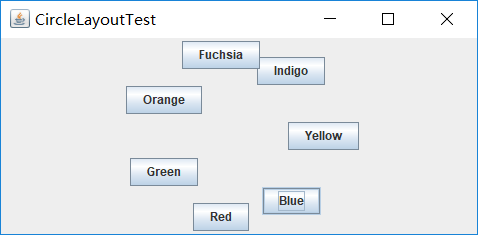
测试程序11
1.在elipse IDE中调试运行教材539页程序12-13、12-14,结合运行结果理解程序;
2.掌握定制布局管理器的用法。
3.记录示例代码阅读理解中存在的问题与疑惑。
 package circleLayout;

 import java.awt.*;

 import javax.swing.*;

 /**

  * @version 1.33 2015-06-12

  * @author Cay Horstmann

  */

 public class CircleLayoutTest

 {

    public static void main(String[] args)

    {

       EventQueue.invokeLater(() -> {

          JFrame frame = new CircleLayoutFrame();

          frame.setTitle("CircleLayoutTest");

          frame.setDefaultCloseOperation(JFrame.EXIT_ON_CLOSE);

          frame.setVisible(true);

       });

    }

 }
 package circleLayout;

 import javax.swing.*;

 /**

  * A frame that shows buttons arranged along a circle.

  */

 public class CircleLayoutFrame extends JFrame

 {

    public CircleLayoutFrame()

    {

       setLayout(new CircleLayout());

       add(new JButton("Yellow"));

       add(new JButton("Blue"));

       add(new JButton("Red"));

       add(new JButton("Green"));

       add(new JButton("Orange"));

       add(new JButton("Fuchsia"));

       add(new JButton("Indigo"));

       pack();

    }

 }
 package circleLayout;

 import java.awt.*;

 /**

  * A layout manager that lays out components along a circle.

  */

 public class CircleLayout implements LayoutManager

 {

    private int minWidth = 0;

    private int minHeight = 0;

    private int preferredWidth = 0;

    private int preferredHeight = 0;

    private boolean sizesSet = false;

    private int maxComponentWidth = 0;

    private int maxComponentHeight = 0;

    public void addLayoutComponent(String name, Component comp)

    {

    }

    public void removeLayoutComponent(Component comp)

    {

    }

    public void setSizes(Container parent)

    {

       if (sizesSet) return;

       int n = parent.getComponentCount();

       preferredWidth = 0;

       preferredHeight = 0;

       minWidth = 0;

       minHeight = 0;

       maxComponentWidth = 0;

       maxComponentHeight = 0;

       // compute the maximum component widths and heights

       // and set the preferred size to the sum of the component sizes.

       for (int i = 0; i < n; i++)

       {

          Component c = parent.getComponent(i);

          if (c.isVisible())

          {

             Dimension d = c.getPreferredSize();

             maxComponentWidth = Math.max(maxComponentWidth, d.width);

             maxComponentHeight = Math.max(maxComponentHeight, d.height);

             preferredWidth += d.width;

             preferredHeight += d.height;

          }

       }

       minWidth = preferredWidth / 2;

       minHeight = preferredHeight / 2;

       sizesSet = true;

    }

    public Dimension preferredLayoutSize(Container parent)

    {

       setSizes(parent);

       Insets insets = parent.getInsets();

       int width = preferredWidth + insets.left + insets.right;

       int height = preferredHeight + insets.top + insets.bottom;

       return new Dimension(width, height);

    }

    public Dimension minimumLayoutSize(Container parent)

    {

       setSizes(parent);

       Insets insets = parent.getInsets();

       int width = minWidth + insets.left + insets.right;

       int height = minHeight + insets.top + insets.bottom;

       return new Dimension(width, height);

    }

    public void layoutContainer(Container parent)

    {

       setSizes(parent);

       // compute center of the circle

       Insets insets = parent.getInsets();

       int containerWidth = parent.getSize().width - insets.left - insets.right;

       int containerHeight = parent.getSize().height - insets.top - insets.bottom;

       int xcenter = insets.left + containerWidth / 2;

       int ycenter = insets.top + containerHeight / 2;

       // compute radius of the circle

       int xradius = (containerWidth - maxComponentWidth) / 2;

       int yradius = (containerHeight - maxComponentHeight) / 2;

       int radius = Math.min(xradius, yradius);

       // lay out components along the circle

       int n = parent.getComponentCount();

       for (int i = 0; i < n; i++)

       {

          Component c = parent.getComponent(i);

          if (c.isVisible())

          {

             double angle = 2 * Math.PI * i / n;

             // center point of component

             int x = xcenter + (int) (Math.cos(angle) * radius);

             int y = ycenter + (int) (Math.sin(angle) * radius);

             // move component so that its center is (x, y)

             // and its size is its preferred size

             Dimension d = c.getPreferredSize();

             c.setBounds(x - d.width / 2, y - d.height / 2, d.width, d.height);

          }

       }

    }

 }
测试程序12
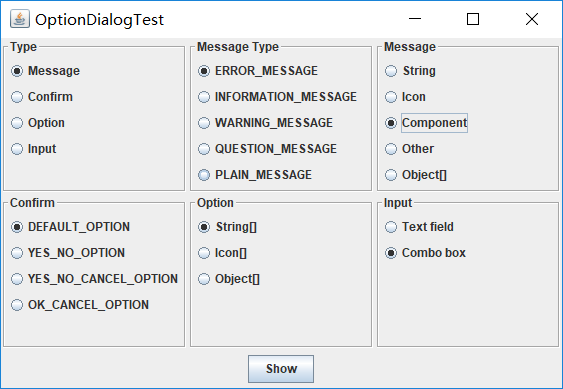
1.在elipse IDE中调试运行教材544页程序12-15、12-16,结合运行结果理解程序;
2.掌握选项对话框的用法。
3.记录示例代码阅读理解中存在的问题与疑惑。
 package optionDialog;

 import java.awt.*;

 import javax.swing.*;

 /**

  * @version 1.34 2015-06-12

  * @author Cay Horstmann

  */

 public class OptionDialogTest

 {

    public static void main(String[] args)

    {

       EventQueue.invokeLater(() -> {

          JFrame frame = new OptionDialogFrame();

          frame.setTitle("OptionDialogTest");

          frame.setDefaultCloseOperation(JFrame.EXIT_ON_CLOSE);

          frame.setVisible(true);

       });

    }

 }
 package optionDialog;

 import javax.swing.*;

 /**

  * A panel with radio buttons inside a titled border.

  */

 public class ButtonPanel extends JPanel

 {

    private ButtonGroup group;

    /**

     * Constructs a button panel.

     * @param title the title shown in the border

     * @param options an array of radio button labels

     */

    public ButtonPanel(String title, String... options)

    {

       setBorder(BorderFactory.createTitledBorder(BorderFactory.createEtchedBorder(), title));

       setLayout(new BoxLayout(this, BoxLayout.Y_AXIS));

       group = new ButtonGroup();

       // make one radio button for each option

       for (String option : options)

       {

          JRadioButton b = new JRadioButton(option);

          b.setActionCommand(option);

          add(b);

          group.add(b);

          b.setSelected(option == options[0]);

       }

    }

    /**

     * Gets the currently selected option.

     * @return the label of the currently selected radio button.

     */

    public String getSelection()

    {

       return group.getSelection().getActionCommand();

    }

 }
 package optionDialog;

 import java.awt.*;

 import java.awt.event.*;

 import java.awt.geom.*;

 import java.util.*;

 import javax.swing.*;

 /**

  * A frame that contains settings for selecting various option dialogs.

  */

 public class OptionDialogFrame extends JFrame

 {

    private ButtonPanel typePanel;

    private ButtonPanel messagePanel;

    private ButtonPanel messageTypePanel;

    private ButtonPanel optionTypePanel;

    private ButtonPanel optionsPanel;

    private ButtonPanel inputPanel;

    private String messageString = "Message";

    private Icon messageIcon = new ImageIcon("blue-ball.gif");

    private Object messageObject = new Date();

    private Component messageComponent = new SampleComponent();

    public OptionDialogFrame()

    {

       JPanel gridPanel = new JPanel();

       gridPanel.setLayout(new GridLayout(2, 3));

       typePanel = new ButtonPanel("Type", "Message", "Confirm", "Option", "Input");

       messageTypePanel = new ButtonPanel("Message Type", "ERROR_MESSAGE", "INFORMATION_MESSAGE",

             "WARNING_MESSAGE", "QUESTION_MESSAGE", "PLAIN_MESSAGE");

       messagePanel = new ButtonPanel("Message", "String", "Icon", "Component", "Other",

             "Object[]");

       optionTypePanel = new ButtonPanel("Confirm", "DEFAULT_OPTION", "YES_NO_OPTION",

             "YES_NO_CANCEL_OPTION", "OK_CANCEL_OPTION");

       optionsPanel = new ButtonPanel("Option", "String[]", "Icon[]", "Object[]");

       inputPanel = new ButtonPanel("Input", "Text field", "Combo box");

       gridPanel.add(typePanel);

       gridPanel.add(messageTypePanel);

       gridPanel.add(messagePanel);

       gridPanel.add(optionTypePanel);

       gridPanel.add(optionsPanel);

       gridPanel.add(inputPanel);

       // add a panel with a Show button

       JPanel showPanel = new JPanel();

       JButton showButton = new JButton("Show");

       showButton.addActionListener(new ShowAction());

       showPanel.add(showButton);

       add(gridPanel, BorderLayout.CENTER);

       add(showPanel, BorderLayout.SOUTH);

       pack();

    }

    /**

     * Gets the currently selected message.

     * @return a string, icon, component, or object array, depending on the Message panel selection

     */

    public Object getMessage()

    {

       String s = messagePanel.getSelection();

       if (s.equals("String")) return messageString;

       else if (s.equals("Icon")) return messageIcon;

       else if (s.equals("Component")) return messageComponent;

       else if (s.equals("Object[]")) return new Object[] { messageString, messageIcon,

             messageComponent, messageObject };

       else if (s.equals("Other")) return messageObject;

       else return null;

    }

    /**

     * Gets the currently selected options.

     * @return an array of strings, icons, or objects, depending on the Option panel selection

     */

    public Object[] getOptions()

    {

       String s = optionsPanel.getSelection();

       if (s.equals("String[]")) return new String[] { "Yellow", "Blue", "Red" };

       else if (s.equals("Icon[]")) return new Icon[] { new ImageIcon("yellow-ball.gif"),

             new ImageIcon("blue-ball.gif"), new ImageIcon("red-ball.gif") };

       else if (s.equals("Object[]")) return new Object[] { messageString, messageIcon,

             messageComponent, messageObject };

       else return null;

    }

    /**

     * Gets the selected message or option type

     * @param panel the Message Type or Confirm panel

     * @return the selected XXX_MESSAGE or XXX_OPTION constant from the JOptionPane class

     */

    public int getType(ButtonPanel panel)

    {

       String s = panel.getSelection();

       try

       {

          return JOptionPane.class.getField(s).getInt(null);

       }

       catch (Exception e)

       {

          return -1;

       }

    }

    /**

     * The action listener for the Show button shows a Confirm, Input, Message, or Option dialog

     * depending on the Type panel selection.

     */

    private class ShowAction implements ActionListener

    {

       public void actionPerformed(ActionEvent event)

       {

          if (typePanel.getSelection().equals("Confirm")) JOptionPane.showConfirmDialog(

                OptionDialogFrame.this, getMessage(), "Title", getType(optionTypePanel),

                getType(messageTypePanel));

          else if (typePanel.getSelection().equals("Input"))

          {

             if (inputPanel.getSelection().equals("Text field")) JOptionPane.showInputDialog(

                   OptionDialogFrame.this, getMessage(), "Title", getType(messageTypePanel));

             else JOptionPane.showInputDialog(OptionDialogFrame.this, getMessage(), "Title",

                   getType(messageTypePanel), null, new String[] { "Yellow", "Blue", "Red" },

                   "Blue");

          }

          else if (typePanel.getSelection().equals("Message")) JOptionPane.showMessageDialog(

                OptionDialogFrame.this, getMessage(), "Title", getType(messageTypePanel));

          else if (typePanel.getSelection().equals("Option")) JOptionPane.showOptionDialog(

                OptionDialogFrame.this, getMessage(), "Title", getType(optionTypePanel),

                getType(messageTypePanel), null, getOptions(), getOptions()[0]);

       }

    }

 }

 /**

  * A component with a painted surface

  */

 class SampleComponent extends JComponent

 {

    public void paintComponent(Graphics g)

    {

       Graphics2D g2 = (Graphics2D) g;

       Rectangle2D rect = new Rectangle2D.Double(0, 0, getWidth() - 1, getHeight() - 1);

       g2.setPaint(Color.YELLOW);

       g2.fill(rect);

       g2.setPaint(Color.BLUE);

       g2.draw(rect);

    }

    public Dimension getPreferredSize()

    {

       return new Dimension(10, 10);

    }

 }
测试程序13
1.在elipse IDE中调试运行教材552页程序12-17、12-18,结合运行结果理解程序;
2.掌握对话框的创建方法;
3.记录示例代码阅读理解中存在的问题与疑惑。
 package dialog;

 import java.awt.*;

 import javax.swing.*;

 /**

  * @version 1.34 2012-06-12

  * @author Cay Horstmann

  */

 public class DialogTest

 {

    public static void main(String[] args)

    {

       EventQueue.invokeLater(() -> {

          JFrame frame = new DialogFrame();

          frame.setTitle("DialogTest");

          frame.setDefaultCloseOperation(JFrame.EXIT_ON_CLOSE);

          frame.setVisible(true);

       });

    }

 }
 package dialog;

 import javax.swing.JFrame;

 import javax.swing.JMenu;

 import javax.swing.JMenuBar;

 import javax.swing.JMenuItem;

 /**

  * A frame with a menu whose File->About action shows a dialog.

  */

 public class DialogFrame extends JFrame

 {

    private static final int DEFAULT_WIDTH = 300;

    private static final int DEFAULT_HEIGHT = 200;

    private AboutDialog dialog;

    public DialogFrame()

    {

       setSize(DEFAULT_WIDTH, DEFAULT_HEIGHT);

       // Construct a File menu.

       JMenuBar menuBar = new JMenuBar();

       setJMenuBar(menuBar);

       JMenu fileMenu = new JMenu("File");

       menuBar.add(fileMenu);

       // Add About and Exit menu items.

       // The About item shows the About dialog.

       JMenuItem aboutItem = new JMenuItem("About");

       aboutItem.addActionListener(event -> {

          if (dialog == null) // first time

             dialog = new AboutDialog(DialogFrame.this);

          dialog.setVisible(true); // pop up dialog

       });

       fileMenu.add(aboutItem);

       // The Exit item exits the program.

       JMenuItem exitItem = new JMenuItem("Exit");

       exitItem.addActionListener(event -> System.exit(0));

       fileMenu.add(exitItem);

    }

 }
 package dialog;

 import java.awt.BorderLayout;

 import javax.swing.JButton;

 import javax.swing.JDialog;

 import javax.swing.JFrame;

 import javax.swing.JLabel;

 import javax.swing.JPanel;

 /**

  * A sample modal dialog that displays a message and waits for the user to click the OK button.

  */

 public class AboutDialog extends JDialog

 {

    public AboutDialog(JFrame owner)

    {

       super(owner, "About DialogTest", true);

       // add HTML label to center

       add(

             new JLabel(

                   "<html><h1><i>Core Java</i></h1><hr>By Cay Horstmann</html>"),

             BorderLayout.CENTER);

       // OK button closes the dialog

       JButton ok = new JButton("OK");

       ok.addActionListener(event -> setVisible(false));

       // add OK button to southern border

       JPanel panel = new JPanel();

       panel.add(ok);

       add(panel, BorderLayout.SOUTH);

       pack();

    }

 }

测试程序14
1.在elipse IDE中调试运行教材556页程序12-19、12-20,结合运行结果理解程序;
2.掌握对话框的数据交换用法;
3.记录示例代码阅读理解中存在的问题与疑惑。
 package dataExchange;

 import java.awt.*;

 import javax.swing.*;

 /**

  * @version 1.34 2015-06-12

  * @author Cay Horstmann

  */

 public class DataExchangeTest

 {

    public static void main(String[] args)

    {

       EventQueue.invokeLater(() -> {

          JFrame frame = new DataExchangeFrame();

          frame.setTitle("DataExchangeTest");

          frame.setDefaultCloseOperation(JFrame.EXIT_ON_CLOSE);

          frame.setVisible(true);

       });

    }

 }
 package dataExchange;

 import java.awt.*;

 import java.awt.event.*;

 import javax.swing.*;

 /**

  * A frame with a menu whose File->Connect action shows a password dialog.

  */

 public class DataExchangeFrame extends JFrame

 {

    public static final int TEXT_ROWS = 20;

    public static final int TEXT_COLUMNS = 40;

    private PasswordChooser dialog = null;

    private JTextArea textArea;

    public DataExchangeFrame()

    {

       // construct a File menu

       JMenuBar mbar = new JMenuBar();

       setJMenuBar(mbar);

       JMenu fileMenu = new JMenu("File");

       mbar.add(fileMenu);

       // add Connect and Exit menu items

       JMenuItem connectItem = new JMenuItem("Connect");

       connectItem.addActionListener(new ConnectAction());

       fileMenu.add(connectItem);

       // The Exit item exits the program

       JMenuItem exitItem = new JMenuItem("Exit");

       exitItem.addActionListener(event -> System.exit(0));

       fileMenu.add(exitItem);

       textArea = new JTextArea(TEXT_ROWS, TEXT_COLUMNS);

       add(new JScrollPane(textArea), BorderLayout.CENTER);

       pack();

    }

    /**

     * The Connect action pops up the password dialog.

     */

    private class ConnectAction implements ActionListener

    {

       public void actionPerformed(ActionEvent event)

       {

          // if first time, construct dialog

          if (dialog == null) dialog = new PasswordChooser();

          // set default values

          dialog.setUser(new User("yourname", null));

          // pop up dialog

          if (dialog.showDialog(DataExchangeFrame.this, "Connect"))

          {

             // if accepted, retrieve user input

             User u = dialog.getUser();

             textArea.append("user name = " + u.getName() + ", password = "

                   + (new String(u.getPassword())) + "\n");

          }

       }

    }

 }
 package dataExchange;

 import java.awt.BorderLayout;

 import java.awt.Component;

 import java.awt.Frame;

 import java.awt.GridLayout;

 import javax.swing.JButton;

 import javax.swing.JDialog;

 import javax.swing.JLabel;

 import javax.swing.JPanel;

 import javax.swing.JPasswordField;

 import javax.swing.JTextField;

 import javax.swing.SwingUtilities;

 /**

  * A password chooser that is shown inside a dialog

  */

 public class PasswordChooser extends JPanel

 {

    private JTextField username;

    private JPasswordField password;

    private JButton okButton;

    private boolean ok;

    private JDialog dialog;

    public PasswordChooser()

    {

       setLayout(new BorderLayout());

       // construct a panel with user name and password fields

       JPanel panel = new JPanel();

       panel.setLayout(new GridLayout(2, 2));

       panel.add(new JLabel("User name:"));

       panel.add(username = new JTextField(""));

       panel.add(new JLabel("Password:"));

       panel.add(password = new JPasswordField(""));

       add(panel, BorderLayout.CENTER);

       // create Ok and Cancel buttons that terminate the dialog

       okButton = new JButton("Ok");

       okButton.addActionListener(event -> {

          ok = true;

          dialog.setVisible(false);

       });

       JButton cancelButton = new JButton("Cancel");

       cancelButton.addActionListener(event -> dialog.setVisible(false));

       // add buttons to southern border

       JPanel buttonPanel = new JPanel();

       buttonPanel.add(okButton);

       buttonPanel.add(cancelButton);

       add(buttonPanel, BorderLayout.SOUTH);

    }

    /**

     * Sets the dialog defaults.

     * @param u the default user information

     */

    public void setUser(User u)

    {

       username.setText(u.getName());

    }

    /**

     * Gets the dialog entries.

     * @return a User object whose state represents the dialog entries

     */

    public User getUser()

    {

       return new User(username.getText(), password.getPassword());

    }

    /**

     * Show the chooser panel in a dialog

     * @param parent a component in the owner frame or null

     * @param title the dialog window title

     */

    public boolean showDialog(Component parent, String title)

    {

       ok = false;

       // locate the owner frame

       Frame owner = null;

       if (parent instanceof Frame)

          owner = (Frame) parent;

       else

          owner = (Frame) SwingUtilities.getAncestorOfClass(Frame.class, parent);

       // if first time, or if owner has changed, make new dialog

       if (dialog == null || dialog.getOwner() != owner)

       {

          dialog = new JDialog(owner, true);

          dialog.add(this);

          dialog.getRootPane().setDefaultButton(okButton);

          dialog.pack();

       }

       // set title and show dialog

       dialog.setTitle(title);

       dialog.setVisible(true);

       return ok;

    }

 }
 package dataExchange;

 /**

  * A user has a name and password. For security reasons, the password is stored as a char[], not a

  * String.

  */

 public class User

 {

    private String name;

    private char[] password;

    public User(String aName, char[] aPassword)

    {

       name = aName;

       password = aPassword;

    }

    public String getName()

    {

       return name;

    }

    public char[] getPassword()

    {

       return password;

    }

    public void setName(String aName)

    {

       name = aName;

    }

    public void setPassword(char[] aPassword)

    {

       password = aPassword;

    }

 }

测试程序15
1.在elipse IDE中调试运行教材570页程序12-24,结合运行结果理解程序;
2.了解颜色选择器的用法。
3.记录示例代码阅读理解中存在的问题与疑惑。
 package colorChooser;

 import java.awt.*;

 import javax.swing.*;

 /**

  * @version 1.04 2015-06-12

  * @author Cay Horstmann

  */

 public class ColorChooserTest

 {

    public static void main(String[] args)

    {

       EventQueue.invokeLater(() -> {

          JFrame frame = new ColorChooserFrame();

          frame.setTitle("ColorChooserTest");

          frame.setDefaultCloseOperation(JFrame.EXIT_ON_CLOSE);

          frame.setVisible(true);

       });

    }

 }
 package colorChooser;

 import java.awt.Color;

 import java.awt.Frame;

 import java.awt.event.ActionEvent;

 import java.awt.event.ActionListener;

 import javax.swing.JButton;

 import javax.swing.JColorChooser;

 import javax.swing.JDialog;

 import javax.swing.JPanel;

 /**

  * A panel with buttons to pop up three types of color choosers

  */

 public class ColorChooserPanel extends JPanel

 {

    public ColorChooserPanel()

    {

       JButton modalButton = new JButton("Modal");

       modalButton.addActionListener(new ModalListener());

       add(modalButton);

       JButton modelessButton = new JButton("Modeless");

       modelessButton.addActionListener(new ModelessListener());

       add(modelessButton);

       JButton immediateButton = new JButton("Immediate");

       immediateButton.addActionListener(new ImmediateListener());

       add(immediateButton);

    }

    /**

     * This listener pops up a modal color chooser

     */

    private class ModalListener implements ActionListener

    {

       public void actionPerformed(ActionEvent event)

       {

          Color defaultColor = getBackground();

          Color selected = JColorChooser.showDialog(ColorChooserPanel.this, "Set background",

                defaultColor);

          if (selected != null) setBackground(selected);

       }

    }

    /**

     * This listener pops up a modeless color chooser. The panel color is changed when the user

     * clicks the OK button.

     */

    private class ModelessListener implements ActionListener

    {

       private JDialog dialog;

       private JColorChooser chooser;

       public ModelessListener()

       {

          chooser = new JColorChooser();

          dialog = JColorChooser.createDialog(ColorChooserPanel.this, "Background Color",

                false /* not modal */, chooser,

                event -> setBackground(chooser.getColor()),

                null /* no Cancel button listener */);

       }

       public void actionPerformed(ActionEvent event)

       {

          chooser.setColor(getBackground());

          dialog.setVisible(true);

       }

    }

    /**

     * This listener pops up a modeless color chooser. The panel color is changed immediately when

     * the user picks a new color.

     */

    private class ImmediateListener implements ActionListener

    {

       private JDialog dialog;

       private JColorChooser chooser;

       public ImmediateListener()

       {

          chooser = new JColorChooser();

          chooser.getSelectionModel().addChangeListener(

                event -> setBackground(chooser.getColor()));

          dialog = new JDialog((Frame) null, false /* not modal */);

          dialog.add(chooser);

          dialog.pack();

       }

       public void actionPerformed(ActionEvent event)

       {

          chooser.setColor(getBackground());

          dialog.setVisible(true);

       }

    }

 }
 package colorChooser;

 import javax.swing.*;

 /**

  * A frame with a color chooser panel

  */

 public class ColorChooserFrame extends JFrame

 {

    private static final int DEFAULT_WIDTH = 300;

    private static final int DEFAULT_HEIGHT = 200;

    public ColorChooserFrame()

    {

       setSize(DEFAULT_WIDTH, DEFAULT_HEIGHT);

       // add color chooser panel to frame

       ColorChooserPanel panel = new ColorChooserPanel();

       add(panel);

    }

 }

实验2:组内讨论反思本组负责程序,理解程序总体结构,梳理程序GUI设计中应用的相关组件,整理相关组件的API,对程序中组件应用的相关代码添加注释。
实验3:组间协同学习:在本班课程QQ群内,各位同学对实验1中存在的问题进行提问,提问时注明实验1中的测试程序编号,负责对应程序的小组需及时对群内提问进行回答。
第三部分:总结
本周学习内容较多,所以我们采用了自小组协作学习模式,首先我们小组成员分别将所有程序知识点过了一遍,将自己存在的问题和学习感悟记录下来,之后在小组学习时讨论解决。通过本周的小组学习,我们收获了自主学习所得不到的好处,那就是学习理解别人的学习感悟和知识理解。
但是在本章的学习中也存在很多问题,知识容量过大,自主学习需花费较多时间,即使挑一点深入,其余小组解答剩余知识点的困惑,也无法很好理解。
王之泰201771010131《面向对象程序设计(java)》第十四周学习总结的更多相关文章
- 201871010124 王生涛《面向对象程序设计JAVA》第一周学习总结
项目 内容 这个作业属于哪个课程 https://www.cnblogs.com/nwnu-daizh/ 这个作业的要求在哪里 https://edu.cnblogs.com/campus/xbsf/ ...
- 201521123061 《Java程序设计》第十四周学习总结
201521123061 <Java程序设计>第十四周学习总结 1. 本周学习总结 1.1 以你喜欢的方式(思维导图或其他)归纳总结多数据库相关内容. 2. 书面作业 1. MySQL数据 ...
- 201521123072《java程序设计》第十四周学习总结
201521123072<java程序设计>第十四周学习总结 1. 本周学习总结 1.1 以你喜欢的方式(思维导图或其他)归纳总结多数据库相关内容. 2. 书面作业 1. MySQL数据库 ...
- 201521123038 《Java程序设计》 第十四周学习总结
201521123038 <Java程序设计> 第十四周学习总结 1. 本周学习总结 1.1 以你喜欢的方式(思维导图或其他)归纳总结多数据库相关内容. 接口: DriverManager ...
- 201771010134杨其菊《面向对象程序设计java》第九周学习总结
第九周学习总结 第一部分:理论知识 异常.断言和调试.日志 1.捕获 ...
- 201521123122 《java程序设计》第十四周学习总结
## 201521123122 <java程序设计>第十四周实验总结 ## 1. 本周学习总结 1.1 以你喜欢的方式(思维导图或其他)归纳总结多数据库相关内容. 2. 书面作业 1. M ...
- 王之泰《面向对象程序设计(java)》课程学习总结
第一部分:理论知识学习部分 总复习纲要 1. Java语言特点与开发环境配置(第1章.第2章) 2. Java基本程序结构(第3章) 3. Java面向对象程序结构(第4章.第5章.第6章) 4. 类 ...
- 201871010132-张潇潇《面向对象程序设计(java)》第一周学习总结
面向对象程序设计(Java) 博文正文开头 项目 内容 这个作业属于哪个课程 https://www.cnblogs.com/nwnu-daizh/ 这个作业的要求在哪里 https://www.cn ...
- 扎西平措 201571030332《面向对象程序设计 Java 》第一周学习总结
<面向对象程序设计(java)>第一周学习总结 正文开头: 项目 内容 这个作业属于哪个课程 https://www.cnblogs.com/nwnu-daizh/ 这个作业的要求在哪里 ...
- 201777010217-金云馨《面向对象程序设计Java》第四周总结学习
2019面向对象程序设计(Java)第4周学习指导及要求 项目 内容 这个作业属于哪个课程 <任课教师博客主页链接>https://www.cnblogs.com/nwnu-daizh/ ...
随机推荐
- vue 父组件给子组件传值,子组件给父组件传值
父组件如何给子组件传值 使用props 举个例子: 子组件:fromTest.vue,父组件 app.vue fromTest.vue <template> <h2>{{tit ...
- centos7最小化安装系统
https://blog.csdn.net/hellboy0621/article/details/80392273
- 安装VC6.0安装步骤及心得体会
一.安装步骤: 1.打开网站https://pan.baidu.com/s/nxee/AD ,输入提取密码:wdhk. 2.登录微信账号,将软件下载到D盘. 3.鼠标右键点击VC6.0快捷方式,选择“ ...
- match 和 lastIndex 字符串检测差异
match .replace .search 这写不能识别特殊字符 indexOf .indexof 能识别特殊字符 str.lastIndexOf('a') > -1 // 通过lastInd ...
- Jenkins+Jmeter持续集成笔记(三:集成到Jenkins)
上一篇笔记中已经实现了通过ant工具执行Jmeter测试脚本,并输出html格式测试报告到指定目录. 在本章中,将尝试把这个过程丢进jenkins去执行. 1.Jenkins全局工具配置 登录jenk ...
- ADB——命令大全
基本语法 基本语法 adb [-d|-e|-s <serialNumber>] <command> # serialNumber表示设备序列号,也可以是ip地址 # 如果只有一 ...
- jenkins centos slave起不来报错The SSH key presented by the remote host does not match the key saved in the Known Hosts file against this host. Connections to this host will be denied until the two keys mat
场景:我的centos-204是一台centos的机器,本来用https://www.cnblogs.com/zndxall/p/8297356.html 的centos slave方式搭建ok的,一 ...
- andorid开发build.gradle 增加几种产品的方法
因为需要有些ndk的开发,cmakelists里需要定义不同的变量,这个在网上搜索解决方案,不是很容易就直接找到答案. 尝试了不少,最后找到解决方案.升级Gradle3.0,这个文章价值高. 在ras ...
- vue+element-ui实现表格checkbox单选
公司平台利用vue+elementui搭建前端页面,因为本人第一次使用vue也遇到了不少坑,因为我要实现的效果如下图所示 实现这种单选框,只能选择一个,但element-ui展示的是多选框,check ...
- Linux----------开始使用Screen
1.直接在命令行键入screen命令 screen 然后回车就可以创建一个全新的回话窗口 2.screen -ls 查看开启的会话窗口 3.重新连接会话 screen -r 1231 数 ...