
android--------自定义控件 之 组合控件篇
上篇介绍了自定义控件的自定义属性篇,地址:http://www.cnblogs.com/zhangqie/p/8969163.html
这篇博文主要来说说 自定义控件的组合控件来提高布局的复用
使用自定义组合控件的好处?
我们在项目开发中经常会遇见很多相似或者相同的布局,比如APP的标题栏,我们就可以用自定义组合控件来实现,以提高开发效率,降低开发成本为导向的,也便于扩展。
当然也可以有其他方式,如 include 标签
1:标题栏布局文件
<?xml version="1.0" encoding="utf-8"?>

<merge xmlns:android="http://schemas.android.com/apk/res/android">

    <ImageView

        android:id="@+id/title_tab_left"

        android:layout_width="wrap_content"

        android:layout_height="wrap_content"

        android:layout_alignParentLeft="true"

        android:layout_centerVertical="true"

        android:layout_marginLeft="5dp"

        android:background="@null"

        android:minHeight="45dp"

        android:textSize="14sp"

        />

    <TextView

        android:id="@+id/title_tab_title"

        android:layout_width="wrap_content"

        android:layout_height="wrap_content"

        android:layout_centerInParent="true"

        android:maxLines="1"

        android:textSize="17sp" />

    <Button

        android:id="@+id/title_tab_right"

        android:layout_width="wrap_content"

        android:layout_height="wrap_content"

        android:layout_alignParentRight="true"

        android:layout_centerVertical="true"

        android:layout_marginRight="7dp"

        android:background="@null"

        android:minHeight="45dp"

        android:minWidth="45dp"

        android:textSize="14sp" />

</merge>
2:属性文件
  <declare-styleable name="TopTabToolView">

        <attr name="tab_background_color" format="color"/>

        <attr name="left_tab_visible" format="boolean"/>

        <attr name="left_tab_drawable" format="reference|integer"/>

        <attr name="title_text" format="string"/>

        <attr name="title_color" format="color"/>

        <attr name="right_tab_visible" format="boolean"/>

        <attr name="right_tab_text" format="string"/>

        <attr name="right_tab_text_color" format="color"/>

        <attr name="right_tab_drawable" format="reference|integer"/>

    </declare-styleable>
3:自定义控件
public class TopTabToolView extends RelativeLayout {

    private ImageView titleBarLeftImg;

    private Button titleBarRightBtn;

    private TextView titleBarTitle;

    public TopTabToolView(Context context) {

        super(context);

    }

    public TopTabToolView(Context context, AttributeSet attrs) {

        super(context, attrs);

        LayoutInflater.from(context).inflate(R.layout.tab_tool_layout,this,true);

        titleBarLeftImg = (ImageView)findViewById(R.id.title_tab_left);

        titleBarTitle = (TextView)findViewById(R.id.title_tab_title);

        titleBarRightBtn = (Button)findViewById(R.id.title_tab_right);

        TypedArray typedArray = context.obtainStyledAttributes(attrs,R.styleable.TopTabToolView);

        if (typedArray != null){

            //背景设置

            int titleBarBackGround = typedArray.getColor(R.styleable.TopTabToolView_tab_background_color, Color.WHITE);

            setBackgroundColor(titleBarBackGround);

            //-------------------------标题栏左边----------------------

            boolean leftImgVisible = typedArray.getBoolean(R.styleable.TopTabToolView_left_tab_visible,true);

            if (leftImgVisible){

                titleBarLeftImg.setVisibility(VISIBLE);

            }else {

                titleBarLeftImg.setVisibility(GONE);

            }

            //设置图标

            int leftTabDrawble = typedArray.getResourceId(R.styleable.TopTabToolView_left_tab_drawable,-1);

            if (leftTabDrawble != -1){

                titleBarLeftImg.setImageResource(leftTabDrawble);

            }

            //--------------------------中间标题-----------------------

            String titleText = typedArray.getString(R.styleable.TopTabToolView_title_text);

            if (!TextUtils.isEmpty(titleText)){

                titleBarTitle.setText(titleText);

                //设置字体颜色

                int titleTextColor = typedArray.getColor(R.styleable.TopTabToolView_title_color,Color.WHITE);

                titleBarTitle.setTextColor(titleTextColor);

            }

            //------------------------标题栏右边-------------------------

            boolean rightButtonVisible = typedArray.getBoolean(R.styleable.TopTabToolView_right_tab_visible,true);

            if (rightButtonVisible){

                titleBarRightBtn.setVisibility(VISIBLE);

            }else {

                titleBarRightBtn.setVisibility(INVISIBLE);

            }

            //设置文字

            String rightBtnText = typedArray.getString(R.styleable.TopTabToolView_right_tab_text);

            if (!TextUtils.isEmpty(rightBtnText)){

                titleBarRightBtn.setText(rightBtnText);

                int rightBtnTextColor = typedArray.getColor(R.styleable.TopTabToolView_right_tab_text_color,Color.WHITE);

                titleBarRightBtn.setTextColor(rightBtnTextColor);

            }

            //设置图标

            int rightBtnDrawable = typedArray.getResourceId(R.styleable.TopTabToolView_right_tab_drawable,-1);

            if (rightBtnDrawable != -1){

                titleBarRightBtn.setCompoundDrawablesWithIntrinsicBounds(0,0,rightBtnDrawable,0);

            }

            typedArray.recycle();

        }

    }

    public TopTabToolView(Context context, AttributeSet attrs, int defStyleAttr) {

        super(context, attrs, defStyleAttr);

    }

    /**

     * 设置标题

     * @param title

     */

    public void setTitle(String title){

        if (!TextUtils.isEmpty(title)){

            titleBarTitle.setText(title);

        }

    }

    /***

     * 左边点击

     * @param onClickListener

     */

    public void setLeftOnClickListener(OnClickListener onClickListener){

        if (onClickListener != null){

            titleBarLeftImg.setOnClickListener(onClickListener);

        }

    }

    /***

     * 右边点击

     * @param onClickListener

     */

    public void setRightOnClickListener(OnClickListener onClickListener){

        if (onClickListener != null){

            titleBarRightBtn.setOnClickListener(onClickListener);

        }

    }

}
属性文件的设置也可以通过Java代码修改, 如: Title标题
4:Activity代码
public class Demo3Activity extends AppCompatActivity {

    TopTabToolView topTabToolView;

    @Override

    protected void onCreate(@Nullable Bundle savedInstanceState) {

        super.onCreate(savedInstanceState);

        setContentView(R.layout.demo3);

        initView();

    }

    private void initView(){

        topTabToolView = (TopTabToolView) findViewById(R.id.tab1);

        topTabToolView.setTitle("代码设置标题");

        topTabToolView.setLeftOnClickListener(new View.OnClickListener() {

            @Override

            public void onClick(View v) {

                finish();

            }

        });

        topTabToolView.setRightOnClickListener(new View.OnClickListener() {

            @Override

            public void onClick(View v) {

                Toast.makeText(Demo3Activity.this,"关闭",Toast.LENGTH_LONG).show();

            }

        });

    }

}
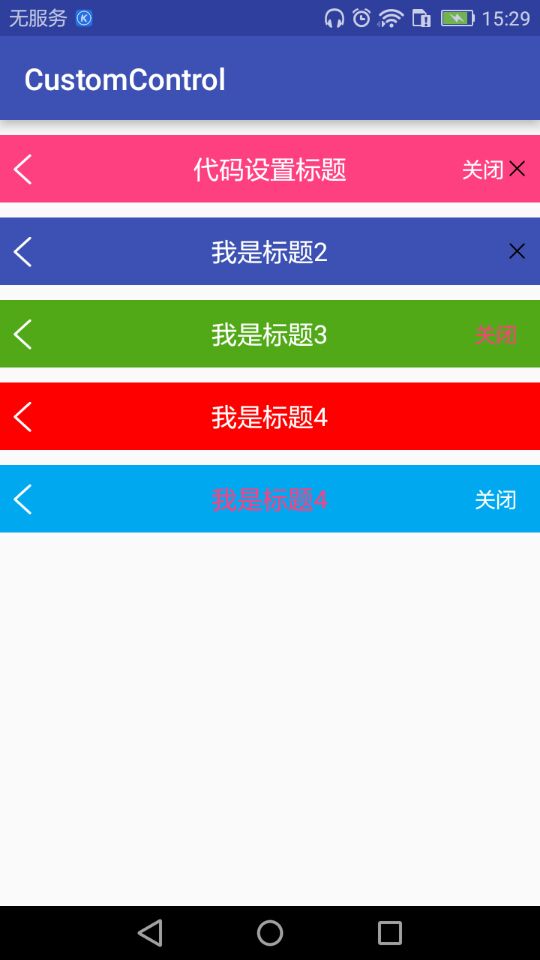
效果图:
源码地址:https://github.com/DickyQie/android-custom-control
android--------自定义控件 之 组合控件篇的更多相关文章
- Android开发技巧——自定义控件之组合控件
Android开发技巧--自定义控件之组合控件 我准备在接下来一段时间,写一系列有关Android自定义控件的博客,包括如何进行各种自定义,并分享一下我所知道的其中的技巧,注意点等. 还是那句老话,尽 ...
- Android自定义控件之日历控件
标签: android 控件 日历 应用 需求 2015年09月26日 22:21:54 25062人阅读 评论(109) 收藏 举报 分类: Android自定义控件系列(7) 版权声明:转载注 ...
- Flutter学习笔记(38)--自定义控件之组合控件
如需转载,请注明出处:Flutter学习笔记(38)--自定义控件之组合控件 在开始之前想先写点其他的,emm...就是今天在学习到自定义控件的时候,由于自定义控件这块一直是我的短板,无论是Andro ...
- android 自定义空间 组合控件中 TextView 不支持drawableLeft属性
android 自定义空间 组合控件中 TextView 不支持drawableLeft属性.会报错Caused by: android.view.InflateException: Binary X ...
- Android中自定义组合控件
Android中自定义控件的情况非常多,一般自定义控件可以分为两种:继承控件及组合控件.前者是通过继承View或其子类,重写方法实现自定义的显示及事件处理方式:后者是通过组合已有的控件,来实现结构的简 ...
- 自定义控件之--组合控件(titlebar)
自定义控件相关知识从郭霖等大神身上学习,这里只不过加上自己的理解和实践,绝非抄袭. 组合控件是自定义控件中最简单的方式,但是是入门自定义控件和进阶的过程: 那么常见的组合控件有那些? 比如titl ...
- [Android学习笔记]组合控件的使用
组合控件的使用 开发过程中,多个UI控件需要协同工作,相互交互之后,才可完成一个完整的业务需求,此时可把这些控件封装成为一个整体,相互之间的交互逻辑封装其中,外部调用可无需关心内部逻辑,只需获取处理后 ...
- Android Studio自定义组合控件
在Android的开发中,为了能够服用代码,会把有一定共有特点的控件组合在一起定义成一个自定义组合控件. 本文就详细讲述这一过程.虽然这样的View的组合有一个粒度的问题.粒度太大了无法复用,粒度太小 ...
- android 自己定义组合控件
自己定义控件是一些android程序猿感觉非常难攻破的难点,起码对我来说是这种,可是我们能够在网上找一些好的博客关于自己定义控件好好拿过来学习研究下,多练,多写点也能找到感觉,把一些原理弄懂,今天就讲 ...
随机推荐
- topcoder srm 704 div1
1.对于一棵树上的一个节点$u$,定义$f(u)$表示树上距离$u$最远的节点到$u$的距离.给出每个节点的$f$值,构造出这棵树. 思路:找到树的主干,然后不在主干上的节点一定可以连接到主干的某个节 ...
- Delphi XE5 for Android (九)
Delphi XE5 下TEdit控件有个属性:KeyboardType,如下图: 该属性决定了当焦点进入TEdit时,系统弹出的输入窗体,按照其帮助文件说明,不同取值的输入窗体不同,如下图: 根 ...
- Git 收集别名
.gitconfig文件夹一般是在C:\Users\Administrator路径下,用于全局的git的配置 下面是git别名的设置: [alias] last = log -1 --stat a = ...
- SpringBoot Redis使用fastjson进行序列化
在使用spring-data-redis,默认情况下是使用org.springframework.data.redis.serializer.JdkSerializationRedisSerializ ...
- ssm项目中遇到微信用户名称带有表情,插入失败问题
ssm项目中遇到微信用户名称带有表情,插入失败问题 问题 Mysql的utf8编码最多3个字节,而Emoji表情或者某些特殊字符是4个字节. 因此会导致带有表情的昵称插入数据库时出错. 解决方法 一. ...
- 【Hadoop 分布式部署 一 :分布式部署准备虚拟机 】
一.将IP配置为静态 按照 下面的操作将IP配置为静态IP 这个静态的IP地址 是你自己设置的,只要符合虚拟机的IP段就可以.最后点击 Apply 需要root密码 将网络断开 (在网络图标左键 ...
- python学习 day09打卡 初识函数
本节内容: 1.什么是函数 2.函数定义,函数名,函数体及函数的调用 3.函数的返回值 4.函数的参数 一.什么是函数 函数:对代码块和功能的封装和定义 定义一个事情或者功能.等到需要的时候直接去用, ...
- vue--移动端兼容问题
click的300ms延迟: 引入fastclick库来解决 输入命令 npm install fastclick 在main.js导入 import Vue from 'vue' import Ap ...
- Spring boot2.0 设置文件上传大小限制
今天把Spring boot版本升级到了2.0后,发现原来的文件上传大小限制设置不起作用了,原来的application.properties设置如下: spring.http.multipart.m ...
- 正则获取 某段 DIV 中 的内容
string html = "<div class='aa'><div class='left'>324324<div>dsfsdf</div> ...