
Nginx 整合 Lua 实现动态生成缩略图
一、前提
最近在开发一个项目,涉及到缩略图的功能,常见的生成缩略图的方案有以下几个:
人工创建
由美工 PS 出缩略图,然后上传到服务器上进行访问。

缺点:操作繁琐
工具包创建
上传原图到后台时,后台借用工具(如:Thumbnailator)创建缩略图

缺点:无法灵活获取更多尺寸的缩略图
第三方平台
如七牛云平台,在原图链接地址后加缩略图尺寸(如:http://images.xxx/abc.jpg_400x400.jpg)灵活生成缩略图

缺点:收费
很明显,第三个方案是比较好的,但是由于收费,笔者便放弃该方案。
那有没有既免费又能动态生成缩略图的方案呢?答案是肯定的,且看下文。
二、实现思路
实现功能需要用到 3 个工具:
Nginx:负责 web 服务器

GraphicsMagick:负责生成缩略图

Lua:负责控制缩略图尺寸以及调用 GraphicsMagick
大致的运行原理如下:
首先在 Nginx 中整合 Lua,由 Lua 处理响应请求。

当 Nginx 接收到图片请求时解析 url 获取图片尺寸传到 Lua 脚本,Lua 则调用 GraphicsMagick 生成缩略图

Lua 将生成的缩略图返回到客户端
如需了解更多资料,请查看文章末尾提供的链接。
三、准备工作
测试环境:IP 为 192.168.2.16 的 CentOS 7.x 系统
先安装依赖包
yum install -y gcc g++ gcc-c++ zlib zlib-devel openssl openssl-devel pcre pcre-devel
3.1 安装 Lua 即时编译器
git clone https://github.com/openresty/luajit2.git

cd luajit2

make && make install
vim /etc/profile 添加如下配置:
export LUAJIT_LIB=/usr/local/lib

export LUAJIT_INC=/usr/local/include/luajit-2.1
保存后重新编译 source /etc/profile。
创建软连接:
ln -s /usr/local/lib/libluajit-5.1.so.2 /lib64/libluajit-5.1.so.2
3.2 安装 GraphicsMagick
wget https://sourceforge.net/projects/graphicsmagick/files/graphicsmagick/1.3.33/GraphicsMagick-1.3.33.tar.gz

tar -zxvf GraphicsMagick-1.3.33.tar.gz

cd GraphicsMagick-1.3.33

./configure --prefix=/usr/local/GraphicsMagick --enable-shared

make && make install

# 检测安装是否成功

/usr/local/GraphicsMagick/bin/gm version
注意:在执行 “gm covert” 时如果报错:“No decode delegate for this image format” 需要安装对应的依赖包
# jpeg 相关

wget http://www.ijg.org/files/jpegsrc.v9c.tar.gz

# png 相关

wget https://download.sourceforge.net/libpng/libpng-1.6.37.tar.gz
同样是解压后执行 make && make install
3.3 安装 Nginx
笔者事先通过 yum 方式安装 nginx,但是扩展模块依赖 configure 命令,因此需要下载相同版本的源码包重新编译。
查看 Nginx 已安装的模块:
nginx -V
结果:
--prefix=/etc/nginx --sbin-path=/usr/sbin/nginx --modules-path=/usr/lib64/nginx/modules --conf-path=/etc/nginx/nginx.conf --error-log-path=/var/log/nginx/error.log --http-log-path=/var/log/nginx/access.log --pid-path=/var/run/nginx.pid --lock-path=/var/run/nginx.lock --http-client-body-temp-path=/var/cache/nginx/client_temp --http-proxy-temp-path=/var/cache/nginx/proxy_temp --http-fastcgi-temp-path=/var/cache/nginx/fastcgi_temp --http-uwsgi-temp-path=/var/cache/nginx/uwsgi_temp --http-scgi-temp-path=/var/cache/nginx/scgi_temp --user=nginx --group=nginx --with-compat --with-file-aio --with-threads --with-http_addition_module --with-http_auth_request_module --with-http_dav_module --with-http_flv_module --with-http_gunzip_module --with-http_gzip_static_module --with-http_mp4_module --with-http_random_index_module --with-http_realip_module --with-http_secure_link_module --with-http_slice_module --with-http_ssl_module --with-http_stub_status_module --with-http_sub_module --with-http_v2_module --with-mail --with-mail_ssl_module --with-stream --with-stream_realip_module --with-stream_ssl_module --with-stream_ssl_preread_module --with-cc-opt='-O2 -g -pipe -Wall -Wp,-D_FORTIFY_SOURCE=2 -fexceptions -fstack-protector-strong --param=ssp-buffer-size=4 -grecord-gcc-switches -m64 -mtune=generic -fPIC' --with-ld-opt='-Wl,-z,relro -Wl,-z,now -pie'
下载 nginx 源码包和 lua 扩展包:
注意:此处的安装有版本兼容问题,因此最好复制粘贴地址进行下载和安装!!!
wget http://nginx.org/download/nginx-1.16.1.tar.gz

wget https://github.com/simpl/ngx_devel_kit/archive/v0.3.0.tar.gz

wget https://github.com/openresty/lua-nginx-module/archive/v0.10.14.tar.gz

tar -zxvf nginx-1.16.1.tar.gz

tar -xzf v0.3.0.tar.gz

tar -xzf v0.10.14.tar.gz

cd nginx-1.16.1

./configure 已安装的模块 --add-module=/root/ngx_devel_kit-0.3.0 --add-module=/root/lua-nginx-module-0.10.14

make

cp /usr/local/nginx/sbin/nginx /usr/local/nginx/sbin/nginx.bak

cp ./objs/nginx /usr/local/nginx/sbin/
注意:不要 make install
启动 nginx
/usr/local/nginx/sbin/nginx
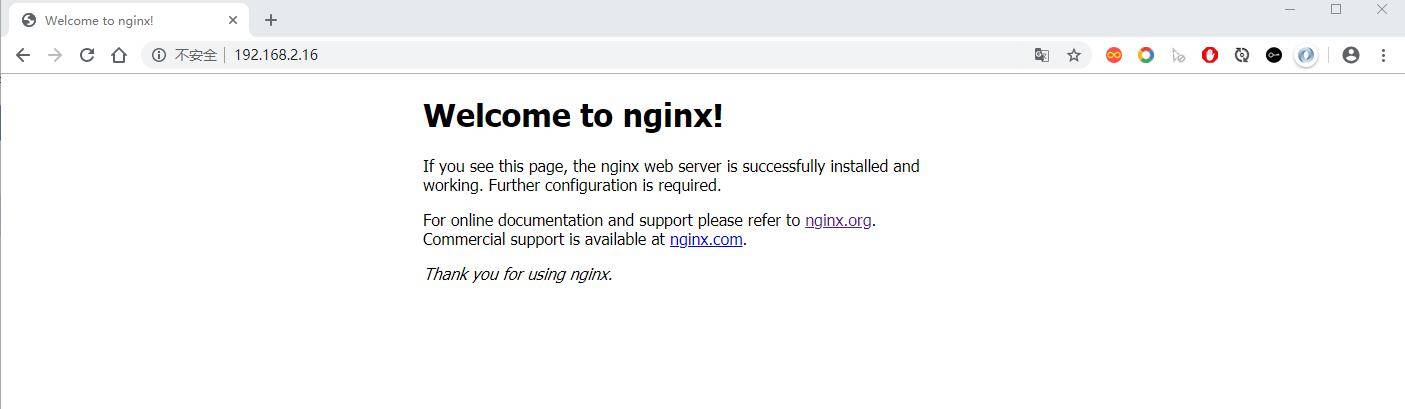
访问到下图说明安装成功:
四、实战演练
4.1 访问原图
在 nginx 的目录中创建一个名为 images 的目录,在该目录中放入 1.png 的图片。
配置 nginx.conf:
server {

    listen       80;

    server_name  localhost;

    #charset koi8-r;

    #access_log  logs/host.access.log  main;

    root  /usr/local/nginx/images/;

    location / {

       root html;

       index index.html;

    }

    location ~* \.(gif|jpg|jpeg|png)$ {

        root  /usr/local/nginx/images/;

    }

}
重启 Nginx 访问图片:
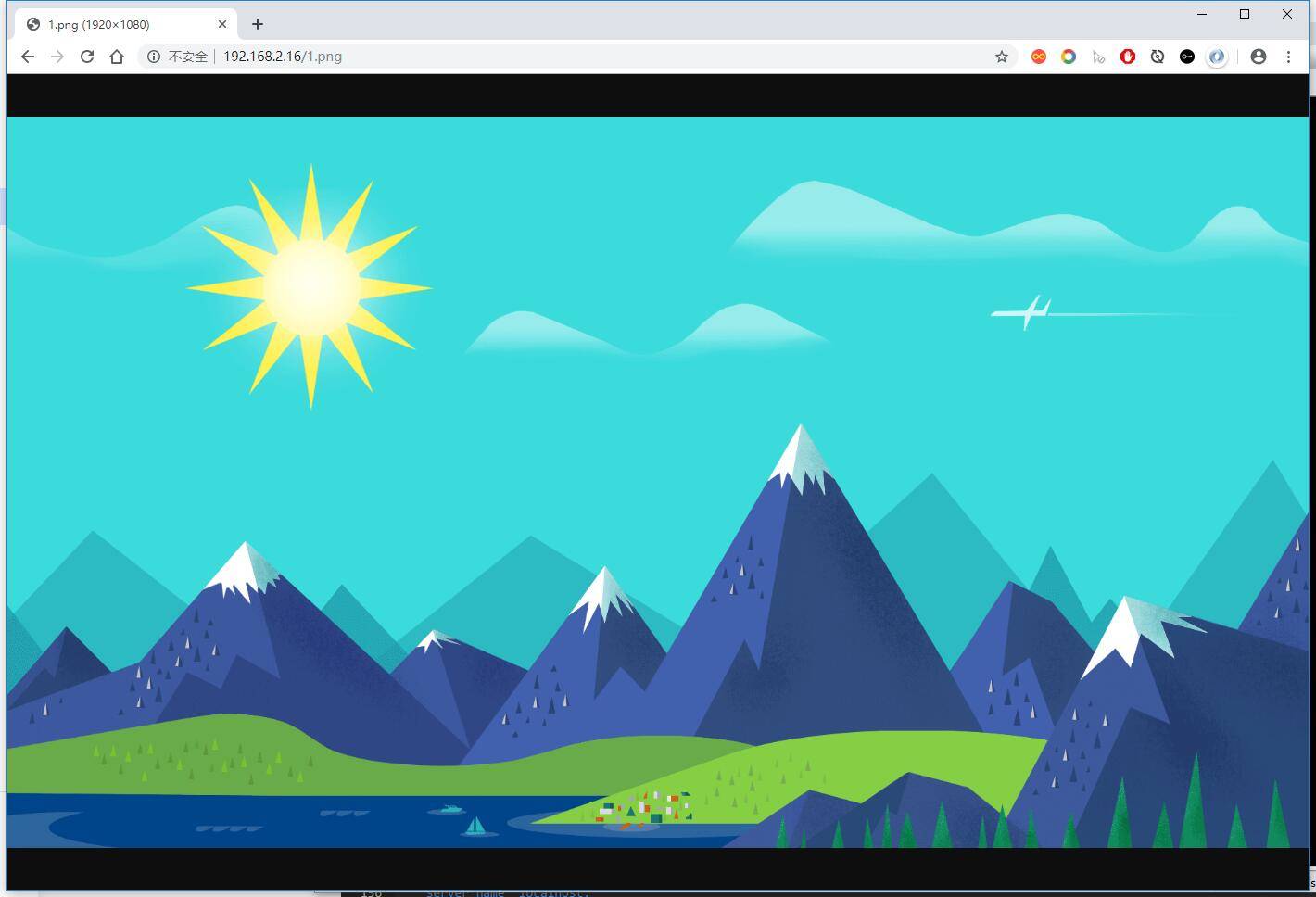
成功访问原图。
4.2 访问缩略图
修改 nginx.conf 文件:
server {

    listen       80;

    server_name  localhost;

    #charset koi8-r;

    #access_log  logs/host.access.log  main;

    root  /usr/local/nginx/images/;

    location / {

       root html;

       index index.html;

    }

    location ~* (.*\.(jpg|jpeg|gif|png))_(\d+)x(\d+)\.(jpg|jpeg|gif|png)$ {

        if (!-f $request_filename) {

                set $request_filepath /usr/local/nginx/images/$1;

                set $width $3;

                set $height $4;

                set $ext $5;

                content_by_lua_file /usr/local/nginx/lua/ImageResizer.lua;

        }

        # 注意:改配置必须放在 if 之后

        root  /usr/local/nginx/images/;

    }

}
在 /usr/local/nginx/lua/ 目录下创建 ImageResizer.lua 文件,内容如下:
local command = "/usr/local/GraphicsMagick/bin/gm convert   -auto-orient -strip " .. ngx.var.request_filepath ..

 " -resize " .. ngx.var.width .. "x" .. ngx.var.height .. " +profile \"*\" " .. ngx.var.request_filepath .. "_"

.. ngx.var.width .. "x" .. ngx.var.height .. "." .. ngx.var.ext;

os.execute(command);

ngx.exec(ngx.var.request_uri);
重启 Nginx 访问图片,在原图 url 后添加缩略图尺寸(_600x600.png):

我们再查看存放图片的目录:

已经动态生成图片了。
五、参考资料
Nginx 整合 Lua 实现动态生成缩略图的更多相关文章
- 如何安装nginx_lua_module模块,升级nginx,nginx-lua-fastdfs-GraphicsMagick动态生成缩略图,实现图片自动裁剪缩放
如何安装nginx_lua_module模块,升级nginx,nginx-lua-fastdfs-GraphicsMagick动态生成缩略图,实现图片自动裁剪缩放 参考网站:nginx-lua-fas ...
- nginx利用image_filter动态生成缩略图
转自:http://www.nginx.cn/2160.html "我如今是有些图片须要生成缩略图.这个如今加了image_filter这个已经实现了.但我不知道怎么样才干訪问我上传的原图& ...
- openresty + lua-resty-weedfs + weedfs + graphicsmagick动态生成缩略图(类似淘宝方案)
openresty + lua-resty-weedfs + weedfs + graphicsmagick动态生成缩略图(类似淘宝方案) --大部分的网站都要涉及到图片缩略图的处理,比如新闻配图,电 ...
- springboot mail整合freemark实现动态生成模板
目标:1:springboot 整合 mail2: mail 使用freemark 实现模板动态生成(就是通过字符串生成模板,不需要在工程中写入固定模板)3: springboot 整合aop 实现日 ...
- (转)php 根据url自动生成缩略图并处理高并发问题
分享是一种精神,与技术高低无关! 图片缩略图动态生成- [代码编程] 2011-08-23 版权声明:转载时请以超链接形式标明文章原始出处和作者信息及本声明http://www.blogbus.c ...
- Java规则引擎drools:drt动态生成规则并附上具体项目逻辑
一 整合 由于本人的码云太多太乱了,于是决定一个一个的整合到一个springboot项目里面. 附上自己的项目地址https://github.com/247292980/spring-boot 以整 ...
- 转: nginx使用image_filter生成缩略图 -- fasdfs海量图片缩略图整合
转: nginx使用image_filter生成缩略图 -- fasdfs海量图片缩略图整合 http://blog.csdn.net/CleverCode/article/details/522 ...
- nginx实时生成缩略图到硬盘上
现在随着各终端的出现(手机,ipad等平板),以及各种终端的手机分辨率和尺寸都不同,现在手机用户流量都是宝,网上出现了各种各样的生成缩略图功能的架构,有使用php实时生成缩略图的,也有用nginx + ...
- 【Nginx】面试官竟然问我Nginx如何生成缩略图,还好我看了这篇文章!!
写在前面 今天想写一篇使用Nginx如何生成缩略图的文章,想了半天题目也没想好,这个题目还是一名读者帮我起的.起因就是这位读者最近出去面试,面试官正好问了一个Nginx如何生成缩略图的问题.还别说,就 ...
随机推荐
- Jenkins的使用(二)-------MSBuild
六.构建 左边菜单栏 Manage Jenkins --->ManagePlugins--->可选插件,然后搜索 MSBuild,并安装 添加ssh插件后新增了两种 1.使用MSBu ...
- Python - Win10系统下Python3.x环境配置
Win10系统下Python3.x环境配置 https://blog.csdn.net/qq_41952474/article/details/82630551
- OpenGL笔记(4)纹理
纹理单元的理解 Shader中要用到纹理: uniform sampler2D texture1; Main读取图片数据,创建了纹理: unsigned int texture1; 怎么把c++里加载 ...
- Linux C 后台服务程序单进程控制
介绍 通常后台服务器程序都必须有且只有一个进程,那么如何单进程呢? 本例子是通过flock函数对/var/run/myserver.pid记录pid文件的进行加锁 若加锁不正常,说明后台服务进程已经在 ...
- node+express修改代码会自动重新运行
版权声明:本文为博主原创文章,遵循 CC 4.0 BY-SA 版权协议,转载请附上原文出处链接和本声明.本文链接:https://blog.csdn.net/weixin_40822305/artic ...
- 12个有趣的C语言问答
转自:http://www.admin10000.com/document/913.html 1,gets() 方法 Q:以下代码有个被隐藏住的问题,你能找到它吗? 1 2 3 4 5 6 7 8 9 ...
- linux echo命令颜色显示
echo命令颜色显示: echo: -n: 不换行. -e:让转移符生效. \t(tab) \n (换行) 实例: $ echo -e "\033[34mabcd\03 ...
- HTTP是什么,不是什么?
HTTP是什么? 不是什么? HTTP: 超文本传输协议,也就是HyperText Transfer Protocol.这是从字面上的理解,如果深一步的理解呢? HTTP又是什么呢? HTTP是什么 ...
- msyql error: Reading table information for completion of table and column names You can turn off this feature to get a quicker startup with -A
mysql> use mydb Reading table information for completion of table and column names You can turn o ...
- matplot 绘制定制饼图
1.普通风格 代码 import matplotlib.pyplot as plt plt.rcParams['font.sans-serif'] = 'SimHei' # 使图形中的中文正常编码显示 ...