
JavaScript实现图片裁剪预览效果~(第一个小玩具)
感觉开始学习的前一个月真的太不珍惜慕课网的资源了 上面蛮多小玩意真的蛮适合我这样刚入门JavaScript的同学加深使用理解
大概收藏了百来门或大或小的课程 有一个感觉就是学这个真的比光是看书看概念更有意思的多
预览效果
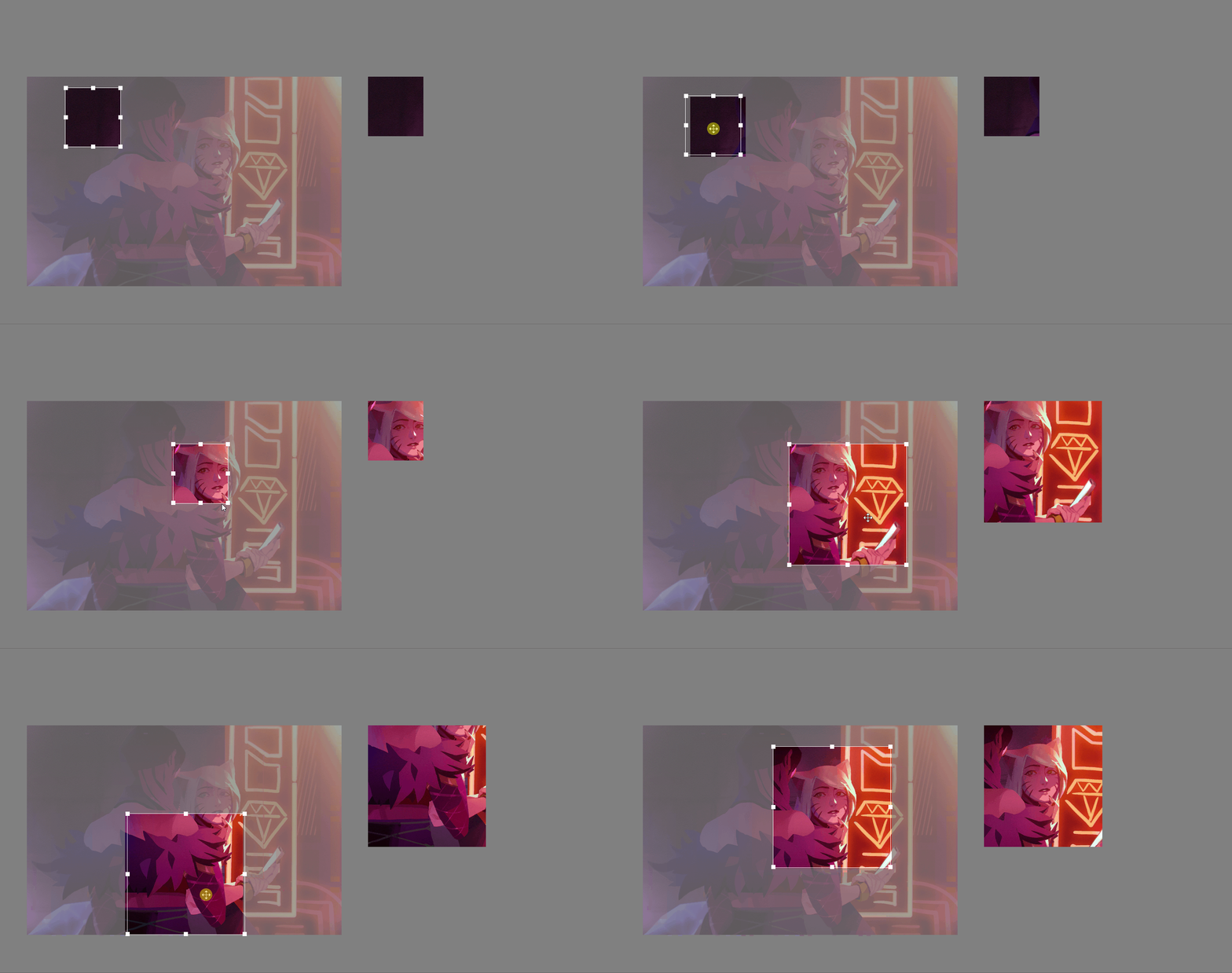
大概思路:分为三层来实现 类似PS的图层叠加 最底下一层垫着 并设置透明度 中间一层就是那个选取框中的明亮画布,使用clip属性实现 第三层是选取框及其八个触点
html与css代码
<!DOCTYPE html>

<html>

<head>

    <meta charset="utf-8">

    <meta http-equiv="X-UA-Compatible" content="IE=edge">

    <title>Page Title</title>

    <link rel="stylesheet" type="text/css" href="style.css"/><!--注意这个"/"-->

    <script type="text/javascript" src="jquery-1.8.1.min.js"></script>

    <script type="text/javascript" src="jquery-ui-1.10.4.custom.min.js"></script>

    <script src="edition2.js"></script>

    <style>

        body{

    background-color: gray;

}

#box{

    height: 400px;

    width: 600px;

    position: absolute;

    top: 150px;

    left: 200px;

}

#img1{

    height: 400px;

    width: 600px;

    position: absolute;

    top: 0;

    left: 0;

    opacity: 0.3;

}

#img2{

    height: 400px;

    width: 600px;

    position: absolute;

    top: 0;

    left: 0;

    /* display: none; */

    clip: rect(0,200px,200px,0);

}

#main{

    position: absolute;

    border: 1px solid #fff;

    width: 200px;

    height: 200px;

    cursor: move;

}

.min{

    position: absolute;

    font-size: 0;

    width: 8px;

    height: 8px;

    background-color: #fff;

}

.top{

    left: 50%;

    top: -4px;

    margin-left: -4px;

    cursor: n-resize;

}

.lefttop{

    left:-4px;

    top: -4px;

    cursor: nw-resize;

}

.righttop{

    /* background-color: aqua; */

    right: -4px;

    /* 绝对定位中的right*/

    top: -4px;

    cursor: ne-resize;

}

.left{

    top:50%;

    margin-top: -4px;

    left: -4px;

    cursor: w-resize;

}

.leftdown{

    bottom: -4px;

    left: -4px;

    cursor: sw-resize;

}

.down{

    bottom: -4px;

    left:50%;

    margin-left: -4px;

    cursor:s-resize;

}

.rightdown{

    bottom: -4px;

    right: -4px;

    cursor: se-resize;

}

.right{

    top: 50%;

    margin-top: -4px;

    right: -4px;

    cursor: e-resize;

}

#pre{

    position: absolute;

    left: 850px;

    top: 150px;

    width: 600px;

    height: 400px;

}

#img3{

    position: absolute;

    height: 400px;

    width: 600px;

}

    </style>

</head>

<body>

    <div id="box">

            <img id="img1" src="img1.jpg" alt="pic">

            <img id="img2" src="img1.jpg" alt="pic">

            <div id="main">

                <div id="lefttop" class="min lefttop"></div>

                <div id="top" class="min top" ></div>

                <div id="righttop" class="min righttop"></div>

                <div id="left" class="min left"></div>

                <div id="leftdown" class="min leftdown"></div>

                <div id="down" class="min down"></div>

                <div id="rightdown" class="min rightdown"></div>

                <div id="right" class="min right"></div>

            </div>

    </div>

    <div id="pre">

        <img id="img3" src="img1.jpg" alt="pic">

    </div>

</body>

</html>
比较难的地方主要是在js
将解释直接贴在js注释中了 懂的自然懂
document.onselectstart = new Function('event.returnValue = false;');

window.onload = function(){//其实这里是不是可以用JQuery选择器?

    var box = document.getElementById("box");

    var main = document.getElementById("main");

    var rightController = document.getElementById("right");

    var topController = document.getElementById("top");

    var leftController = document.getElementById("left");

    var downController = document.getElementById("down");

    var lefttopController = document.getElementById("lefttop");

    var leftdownController = document.getElementById("leftdown");

    var righttopController = document.getElementById("righttop");

    var rightdownController = document.getElementById("rightdown");

    var whetherdown = false;

    var contact = "";//被按下的触点

    $( "#main" ).draggable({ containment: 'parent' ,drag: setArea});

    //添加鼠标按下事件

    rightController.onmousedown = function(e){

        e.stopPropagation();//冒泡 至于原理我还在研究

        whetherdown = true;

        contact = "right";

    };

    topController.onmousedown = function(e){

        e.stopPropagation();

        whetherdown = true;

        contact = "top";

    };

    leftController.onmousedown = function(e){

        e.stopPropagation();

        whetherdown = true;

        contact = "left";

    };

    downController.onmousedown = function(e){

        e.stopPropagation();

        whetherdown = true;

        contact = "down";

    };

    lefttopController.onmousedown = function(e){

        e.stopPropagation();

        whetherdown = true;

        contact = "lefttop";

    };

    leftdownController.onmousedown = function(e){

        e.stopPropagation();

        whetherdown = true;

        contact = "leftdown";

    };

    rightdownController.onmousedown = function(e){

        e.stopPropagation();

        whetherdown = true;

        contact = "rightdown";

    };

    righttopController.onmousedown = function(e){

        e.stopPropagation();

        whetherdown = true;

        contact = "righttop";

    };

    //鼠标事件加在window上

    window.onmousemove = function(e){

        e.stopPropagation();

        if(whetherdown == true){

            switch(contact){

                case"right":

                    rightMove(e);

                    break;

                case"top":

                    topMove(e);

                    break;

                case"left":

                    leftMove(e);

                    break;

                case"down":

                    downMove(e);

                    break;

                case"righttop":

                    topMove(e);

                    rightMove(e);

                    break;

                case"rightdown":

                    rightMove(e);

                    downMove(e);

                    break;

                case"lefttop":

                    topMove(e);

                    leftMove(e);

                    break;

                case"leftdown":

                    leftMove(e);

                    downMove(e);

                    break;

            }

        var width = main.offsetWidth;

        var height = main.offsetHeight;

        setArea();

        }

    };

    //松开事件

    window.onmouseup = function(e){

        whetherdown = false;

        contact = ""

    };

    setArea();

    function rightMove(e){

    var x = e.clientX;

    if(x > getPosition(box).left + box.offsetWidth){

        x = getPosition(box).left + box.offsetWidth;

        console.log(x);

    }

    // var addWidth = "";//鼠标移动后增加的宽度

    var widthBefore = main.offsetWidth - 2;//变化前宽度

    var mainX = getPosition(lefttop).left + 4;

    var  addWidth = x - mainX - widthBefore;//鼠标移动后增加的宽度

    main.style.width = addWidth + widthBefore + "px";//变化后宽度

    }

    function topMove(e){

        var y = e.clientY;

        if(y < getPosition(box).top){

            y = getPosition(box).top;

        }

        var mainY = getPosition(lefttop).top + 4;//选取框相对于屏幕上边距离

        var addHeight = mainY - y;//增加的高度

        var heightBefore = main.offsetHeight - 2;//原来的高度

        main.style.height = heightBefore + addHeight + "px";

        main.style.top = main.offsetTop - addHeight + "px";

    }

    function leftMove(e){

        var x = e.clientX;//横坐标

        if(x < getPosition(box).left){

            x = getPosition(box).left

        }

        var mainX = getPosition(lefttop).left + 4;

        var addWidth = mainX - x;

        var widthBefore = main.offsetWidth -2;

        main.style.width = widthBefore + addWidth + "px";

        main.style.left = main.offsetLeft - addWidth + "px";//调整决定定位的属性

    }

    function downMove(e){

        var y = e.clientY;

        if(y > getPosition(box).top + box.offsetHeight){

            y = getPosition(box).top + box.offsetHeight

        }

        var heightBefore = main.offsetHeight - 2;

        var mainY = getPosition(lefttop).top +4;

        var addHeight = y - heightBefore - mainY;

            main.style.height = addHeight + heightBefore + "px";

    }

    //获取元素相对于屏幕左边距离 通过offsetLeft

    function getPosition(node){

        var left = node.offsetLeft;

        var top = node.offsetTop;

        var parent = node.offsetParent;

        while(parent != null){

            left += parent.offsetLeft;

            top += parent.offsetTop;

            parent = parent.offsetParent;

        }

        return {"left":left,"top":top};

        }

    //设置选取区域高亮

    function setArea(){

        var top = main.offsetTop;

        var right = main.offsetLeft + main.offsetWidth;

        var bottom = main.offsetTop + main.offsetHeight;

        var left = main.offsetLeft;

        var img2 = document.getElementById("img2");

        img2.style.clip = "rect(" + top + "px," + right + "px,"

        + bottom + "px," + left + "px)";

        preview({"top":top,"right":right,"bottom":bottom,"left":left});//注意这样写的好处

        }
//预览函数

    function preview(view){

        var img3 = document.getElementById("img3");

        img3.style.top = -view.top + "px";

        img3.style.left = -view.left + "px";

        img3.style.clip = "rect(" + view.top + "px," + view.right + "px," + view.bottom + "px," + view.left + "px)";

    }

    }
还有一个比较难的地方在于理解 做了几张图便于一目了然的的看懂js中四个方向的拖动为什么要这样写
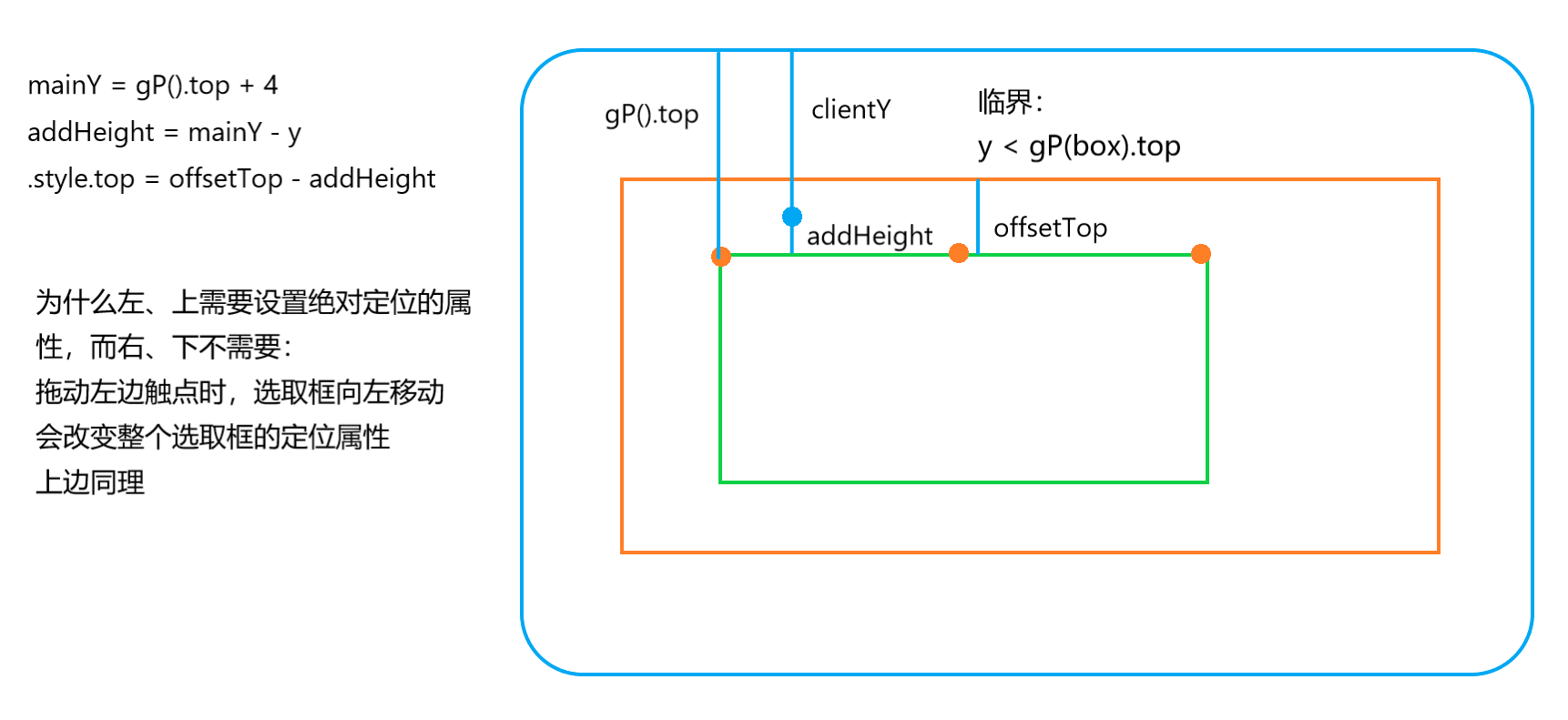
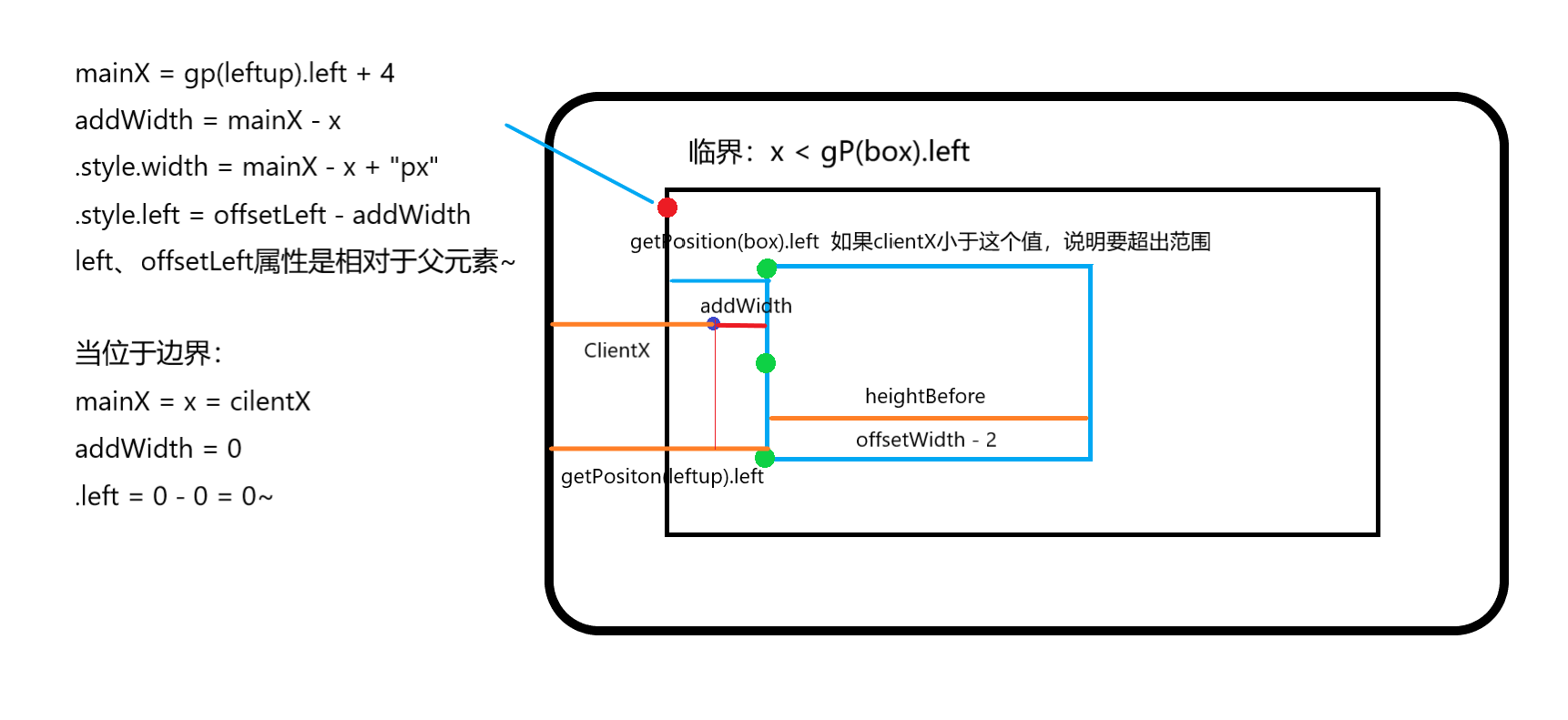
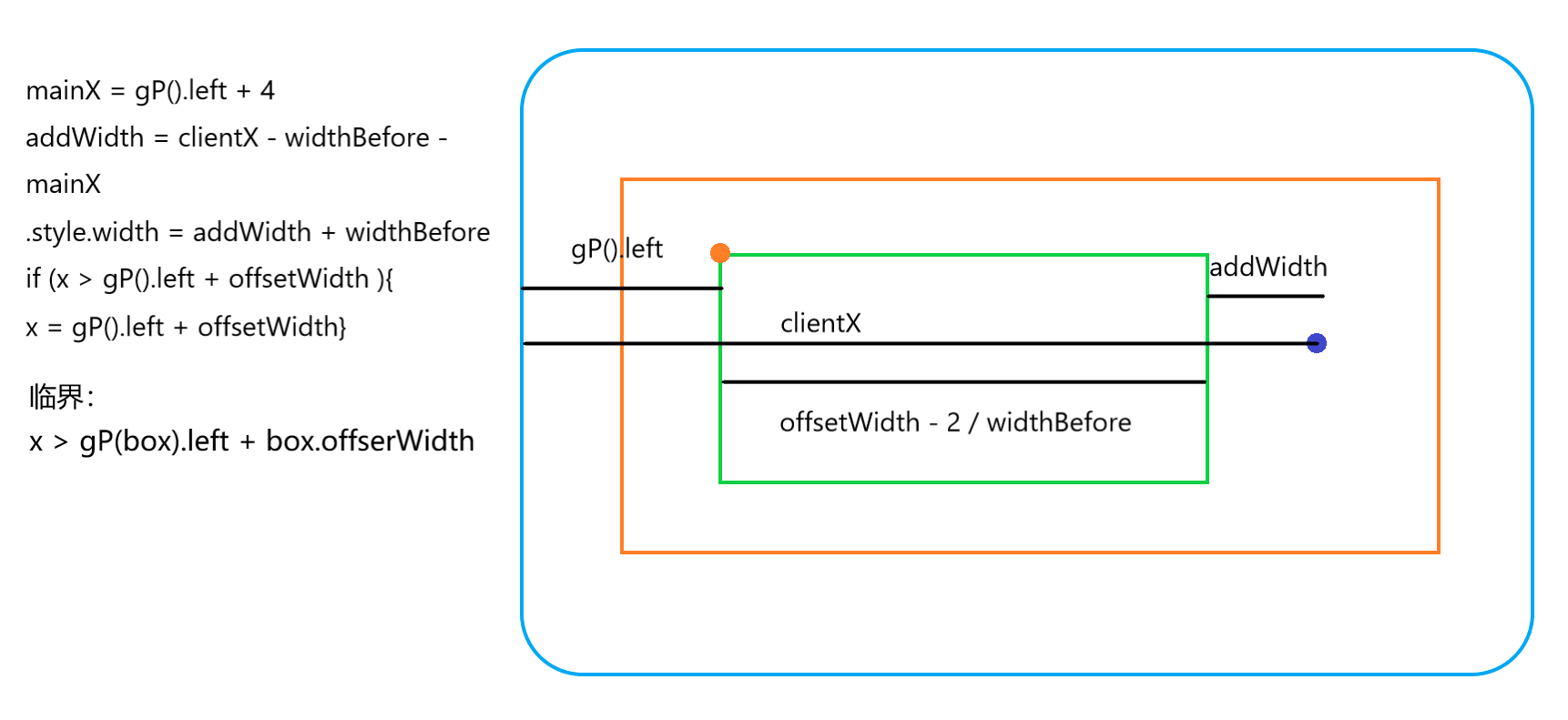
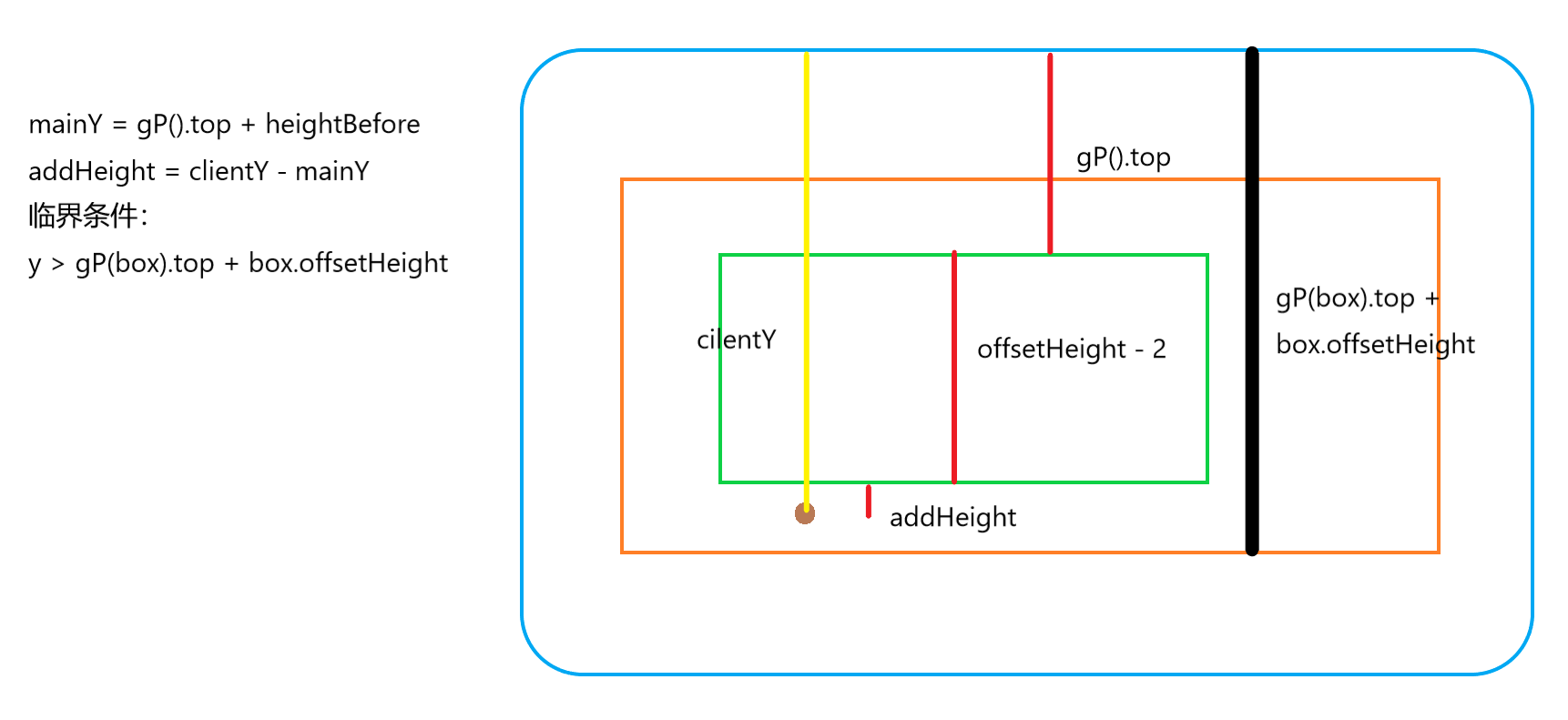
大概效果就是这样实现的 由于jQuery我还在学习 那个使用jQuery拖动模块的我还需要研究研究 告辞...
我爱前端!
JavaScript实现图片裁剪预览效果~(第一个小玩具)的更多相关文章
- node.js平台下,cropper.js实现图片裁剪预览并转换为base64发送至服务端。
一 .准备工作 1.首先需要先下载cropper,常规使用npm,进入项目路径后执行以下命令: npm install cropper 2. cropper基于jquery,在此不要忘记引入jq,同时 ...
- cropper.js实现图片裁剪预览并转换为base64发送至服务端。
一 .准备工作 1.首先需要先下载cropper,常规使用npm,进入项目路径后执行以下命令: npm install cropper 2. cropper基于jquery,在此不要忘记引入jq,同时 ...
- javascript实现图片的预览
简单javascript代码 实现上传图片预览 <body> <!-- 设置当有图片准备上传时触发javascript代码--> <input type="fi ...
- Jquery 下实现 图片大图预览效果
<!DOCTYPE html> <html> <head> <meta charset="utf-8"> <meta http ...
- Java实现图片裁剪预览功能
在项目中.我们须要做些类似头像上传,图片裁剪的功能,ok看以下文章! 须要插件:jQuery Jcrop 后端代码: package org.csg.upload; import java.awt.R ...
- 微信小程序实现图片放大预览效果
可以直接用微信程序自己的api很方便的实现 核心方法 wx.previewImage: 直接上代码, wxml: <!--pages/prewpicture/prew.wxml--> &l ...
- javascript和HTML5上传图片之前实现预览效果
一:FileList对象与file对象 FileList对象表示用户选择的文件列表,在HTML4中,file控件内只允许放置一个文件,但是到了HTML5中,通过添加multiple属性,file控件内 ...
- JS兼容各个浏览器的本地图片上传即时预览效果
JS兼容各个浏览器的本地图片上传即时预览效果 很早以前 在工作曾经碰到这么一个需求,当时也是纠结了很久,也是google了很久,没有碰到合适的demo,今天特意研究了下这方面的的问题,所以也就做了个简 ...
- JS兼容各个浏览器的本地图片上传即时预览效果\、
在firefox\chrome\ie10等浏览器中可以使用HTML5中的内容实现图片即时预览效果,在IE10以下浏览器中使用滤镜来解决图片显示问题. HTML5中的FileReader对象主要是把文件 ...
随机推荐
- java实例检查端口是否被占用
127.0.0.1代表本机 主要的原理是:Socket socket = new Socket(Address,port);#address代表主机的IP地址,port代表端口号 如果对该主机的特定端 ...
- centos7搭建Gitlab服务器
虚拟机配置信息 内存最好大于或等于4G,之前用2G内存搭建,访问出现502报错信息 不考虑selinux和防火墙问题 搭建之前最好关掉selinux和防火墙 临时调增selinux和关闭防火墙 下载G ...
- 安装httpd服务配置
本地yum源安装 mkdir /opt/dvd (先用mkdir去根下opt目录下建一个名字叫dvd的目录) mount /dev/sr0 /opt/dvd (用mount命令,挂载光盘设备 ...
- RHEL-server-7.0-Linux-centos安装过程
虚拟机centos7的安装过程 win10 ()vmware软件的时候,1.先关闭防火墙(杀毒软件),在安装vmware虚拟机.2.试着全装一下 vmware-14版本. 1. 打开VMware Wo ...
- jQuery对象的获取与操作方法总结
一.文章概述: 众所周知,jQuery 是一个 JavaScript 库,包含多个可重用的函数,用来辅助我们简化javascript开发,它极大地简化了 JavaScript 编程.但是需要注意的一点 ...
- gulp_css2js
var gulp = require('gulp'); var rename = require('gulp-rename'); var concat = require('gulp-concat') ...
- Redis-Migrate-Tool 使用详解
注意:目前不支持4.0.X及以上的redis使用 Redis 集群迁移工具,基于redis复制,快速,稳定. github链接:https://github.com/vipshop/redis-mig ...
- tf.nn.nce_loss
def nce_loss(weights,biases,inputs,labels,num_sampled,num_classes,num_true=1,sampled_values=None,rem ...
- lightgbm的sklearn接口和原生接口参数详细说明及调参指点
class lightgbm.LGBMClassifier(boosting_type='gbdt', num_leaves=31, max_depth=-1, learning_rate=0.1, ...
- delphi HTML转义字符编码转换
网上很多把HTML转换成纯文本格式的方法很多思路都是用正则表达式或者分析html代码替换的方法. 本文是利用IE完成转换,即利用IHTMLDocument2接口. Denon天Denon龙Denon ...