
【WPF】给TextBox添上Label
引言
在客户端开发中,要说出现频率大的控件,必定有TextBox的身影.然而在TextBox的旁边通常得有个基友Label,形影不离.为此,我们都要写两个控件,布局两次,这样麻烦且有点浪费时间.不如,我们做狠点,将它们两个绑在一起算了.
简单需求
我们需要的控件该是怎样的.首先,它应该有TextBox的所有特性,其次,它的上方或者左边应该有个Label.我们可以通过设置属性,显示Label的内容.大体上就是这样.
构建方式的选取
WPF的控件开发有两种,分为用户控件和自定义控件.在这次的控件开发中,自定义控件又可以细分为三种,如下:
1.首先是用户控件,通过继承UserControl,直接在xaml上布局设计.这种方式开发上比较方便,适用于多个界面上重用不变的模块.但是专业的控件开发一般不采取这种方式.
2.自定义控件之一,通过继承Control和模板上采用TextBox和Label的布局构建控件.这种方式功能上的自由度很高,例如可以自定义text属性,但是要构建大量的依赖项属性和路由事件.
3.自定义控件之二,通过继承TextBox和修改采用msdn上提供TextBox的默认模板,这种方式轻量级些,但是要深入理解默认模板的设计,和需要重定义模板的一些触发器和效果等.
4.自定义控件之三,上面两种都是比较复杂,我们有折中的做法.通过继承TextBox和模板上采用TextBox和Label的布局构建控件,本文就是介绍一下这种做法.
新建项目
首先,新建一个WPF用户控件库的项目,VS已经帮我们添加了一些东西,如图:
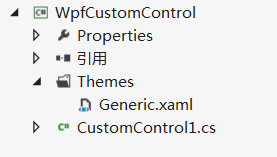
Themes文件夹下面的特定的Generic.xaml里面就是放我们的模板文件的了,一般我们不直接将模板直接写在里面,而是每个控件模板分别放在一个资源文件中,再合并在Generic里面.而真正的控件是CustomControl1.cs,里面包含着我们熟悉的各种依赖项属性和事件.当然,我们得重命名一下,就叫LabelTextBox吧.
无外观的LabelTextBox
在静态构造函数中,调用 DefaultStyleKeyProperty.OverrideMetadata,告诉WPF为此控件应用一个新样式,再新建一个LabelProperty和LabelPosition的依赖项属性,如下:
public class LabelTextBox : TextBox

    {

        static LabelTextBox()

        {

            DefaultStyleKeyProperty.OverrideMetadata(typeof(LabelTextBox), new FrameworkPropertyMetadata(typeof(LabelTextBox)));

        }

        public static readonly DependencyProperty LabelProperty = DependencyProperty.Register("Label", typeof(Object), typeof(LabelTextBox), new PropertyMetadata(string.Empty));

        public static readonly DependencyProperty LabelPositionProperty = DependencyProperty.Register("LabelPosition", typeof(Position), typeof(LabelTextBox), new PropertyMetadata(Position.Top));

        public Object Label

        {

            get { return (Object)GetValue(LabelProperty); }

            set { SetValue(LabelProperty, value); }

        }

        public Position LabelPosition

        {

            get { return (Position)GetValue(LabelPositionProperty); }

            set { SetValue(LabelPositionProperty, value); }

        }

    }

    public enum Position

    {

        Top,

        Left

    }
LabelTextBox的控件模板
上面已经完成了我们的LabelTextBox,但是它还没有样式模板.接下来我们来构建它的控件模板.在Themes文件夹下面新建一个资源字典名为LabelTextBox.xaml,其实模板的TextBox和LabelTextBox没有什么关联,所以我们给控件模板写上各种绑定和设置样式触发器,如下:
<ResourceDictionary xmlns="http://schemas.microsoft.com/winfx/2006/xaml/presentation"

                    xmlns:x="http://schemas.microsoft.com/winfx/2006/xaml"

                     xmlns:local="clr-namespace:WpfCustomControl">

    <ControlTemplate x:Key="TopLabelTextBoxTemplate" TargetType="{x:Type local:LabelTextBox}">

        <Grid>

            <Grid.RowDefinitions>

                <RowDefinition Height="auto"/>

                <RowDefinition Height="*"/>

            </Grid.RowDefinitions>

            <Label

                Content="{Binding Label, RelativeSource={RelativeSource TemplatedParent}}" Grid.Row=""/>

            <TextBox Grid.Row=""

                Text="{Binding Text, RelativeSource={RelativeSource TemplatedParent}, Mode=TwoWay, UpdateSourceTrigger=PropertyChanged}"

                HorizontalContentAlignment="{Binding HorizontalContentAlignment,RelativeSource={RelativeSource TemplatedParent}}"

                VerticalContentAlignment="{Binding VerticalContentAlignment,RelativeSource={RelativeSource TemplatedParent}}"

                Background="{Binding Background,RelativeSource={RelativeSource TemplatedParent}}"

                Foreground="{Binding Foreground,RelativeSource={RelativeSource TemplatedParent}}"

                TextWrapping="{Binding TextWrapping,RelativeSource={RelativeSource TemplatedParent}}"

                TextAlignment="{Binding TextAlignment,RelativeSource={RelativeSource TemplatedParent}}"

                HorizontalScrollBarVisibility="{Binding HorizontalScrollBarVisibility,RelativeSource={RelativeSource TemplatedParent}}"

                VerticalScrollBarVisibility="{Binding VerticalScrollBarVisibility,RelativeSource={RelativeSource TemplatedParent}}"

                                         MaxLength="{Binding MaxLength,RelativeSource={RelativeSource TemplatedParent}}"

                                         IsReadOnly="{Binding IsReadOnly,RelativeSource={RelativeSource TemplatedParent}}"

                                         IsEnabled="{Binding IsEnabled,RelativeSource={RelativeSource TemplatedParent}}"/>

        </Grid>

    </ControlTemplate>

    <ControlTemplate x:Key="LeftLabelTextBoxTemplate" TargetType="{x:Type local:LabelTextBox}">

        <Grid>

            <Grid.ColumnDefinitions>

                <ColumnDefinition Width="Auto"></ColumnDefinition>

                <ColumnDefinition Width="*"></ColumnDefinition>

            </Grid.ColumnDefinitions>

            <Label HorizontalAlignment="Center" VerticalAlignment="Center"

                Content="{Binding Label, RelativeSource={RelativeSource TemplatedParent}}" Grid.Column=""/>

            <TextBox Grid.Column=""

                Text="{Binding Text, RelativeSource={RelativeSource TemplatedParent}, Mode=TwoWay, UpdateSourceTrigger=PropertyChanged}"

                HorizontalContentAlignment="{Binding HorizontalContentAlignment,RelativeSource={RelativeSource TemplatedParent}}"

                VerticalContentAlignment="{Binding VerticalContentAlignment,RelativeSource={RelativeSource TemplatedParent}}"

                Background="{Binding Background,RelativeSource={RelativeSource TemplatedParent}}"

                Foreground="{Binding Foreground,RelativeSource={RelativeSource TemplatedParent}}"

                TextWrapping="{Binding TextWrapping,RelativeSource={RelativeSource TemplatedParent}}"

                TextAlignment="{Binding TextAlignment,RelativeSource={RelativeSource TemplatedParent}}"

                HorizontalScrollBarVisibility="{Binding HorizontalScrollBarVisibility,RelativeSource={RelativeSource TemplatedParent}}"

                VerticalScrollBarVisibility="{Binding VerticalScrollBarVisibility,RelativeSource={RelativeSource TemplatedParent}}"

                                         MaxLength="{Binding MaxLength,RelativeSource={RelativeSource TemplatedParent}}"

                                         IsReadOnly="{Binding IsReadOnly,RelativeSource={RelativeSource TemplatedParent}}"

                                         IsEnabled="{Binding IsEnabled,RelativeSource={RelativeSource TemplatedParent}}"/>

        </Grid>

    </ControlTemplate>

    <Style TargetType="{x:Type local:LabelTextBox}"  >

        <Setter Property="Template" Value="{StaticResource TopLabelTextBoxTemplate}"/>

        <Style.Triggers>

            <Trigger Property="LabelPosition" Value="Left">

                <Setter Property="Template" Value="{StaticResource ResourceKey=LeftLabelTextBoxTemplate}"></Setter>

            </Trigger>

        </Style.Triggers>

    </Style>

</ResourceDictionary>
接下来,将资源字典添加到Generic.xaml,如下:
<ResourceDictionary

    xmlns="http://schemas.microsoft.com/winfx/2006/xaml/presentation"

    xmlns:x="http://schemas.microsoft.com/winfx/2006/xaml"

    xmlns:local="clr-namespace:WpfCustomControl">

    <ResourceDictionary.MergedDictionaries>

        <ResourceDictionary Source="/WpfCustomControl;component/themes/LabelTextBox.xaml" ></ResourceDictionary>

    </ResourceDictionary.MergedDictionaries>

</ResourceDictionary>
编译通过后就得到我们的控件库WpfCustomControl.dll.
LabelTextBox的使用
在自己项目引用WpfCustomControl.dll,在xaml文件中添加标记引用,然后就可以直接使用,如下:
<Window x:Class="ControlsTest.MainWindow"

        xmlns="http://schemas.microsoft.com/winfx/2006/xaml/presentation"

        xmlns:x="http://schemas.microsoft.com/winfx/2006/xaml"

        xmlns:control="clr-namespace:WpfCustomControl;assembly=WpfCustomControl"

        Title="MainWindow" Height="" Width="">

    <Grid>

        <control:LabelTextBox Name="txtbox" LabelPosition="Top"  Label="标题" Width="" TextChanged="LabelTextBox_TextChanged_1" Margin="209,136,209.4,136.4"/>

    </Grid>

</Window>
可以看到TextChanged等事件能正常触发,但是上面说到TextBox和LabelTextBox没什么关联,要手动绑定属性.然而我们没有为LabelTextBox事件绑定过什么,却依然生效了.那是因为它们公用一个事件路由,实质是TextBox触发了TextChanged事件,冒泡到LabelTextBox,触发了LabelTextBox的TextChanged事件.
小结
本文简单介绍了如何构建一个自定义控件,其中涉及到依赖项属性,控件模板,资源,事件的知识点.最后,如果您有更好的建议,请不吝指教.
【WPF】给TextBox添上Label的更多相关文章
- WPF的TextBox产生内存泄露的情况
前段时间参与了一个WPF编写的项目,在该项目中有这样一个场景:在程序运行过程中需要动态地产生大量文本信息,并追加WPF界面上的一个TextBox的Text中进行显示.编写完之后,运行该项目的程序,发现 ...
- WPF自定义TextBox及ScrollViewer
原文:WPF自定义TextBox及ScrollViewer 寒假过完,在家真心什么都做不了,可能年龄大了,再想以前那样能专心坐下来已经不行了.回来第一件事就是改了项目的一个bug,最近又新增了一个新的 ...
- “WPF老矣,尚能饭否”—且说说WPF今生未来(上):担心
近日微软公布了最新的WPF路线图,一片热议:对于老牌控件提供商葡萄城来说,这是WPF系列控件一个重要的机遇,因此,Spread Studio for WPF产品做了一次重要更新,并随着Spread S ...
- C# C/S WPF 远程操作服务器上面的文件
作的时候用的是WPF,需要做一个上传附件的功能,服务器上有一个文件夹,附件都上传到里面,只知道URL路径. 文件夹是在服务器上的IIS里面(就比如说你发布一个网站,把文件夹建在网站下面,当然这个网站啥 ...
- Wpf解决TextBox文件拖入问题、拖放问题
在WPF中,当我们尝试向TextBox中拖放文件,从而获取其路径时,往往无法成功(拖放文字可以成功).造成这种原因关键是WPF的TextBox对拖放事件处理机制的不同, 解放方法如下: 使用Previ ...
- WPF技术触屏上的应用系列(六): 视觉冲击、超炫系统主界面、系统入口效果实现
原文:WPF技术触屏上的应用系列(六): 视觉冲击.超炫系统主界面.系统入口效果实现 去年某客户单位要做个大屏触屏应用,要对档案资源进行展示之用.客户端是Window7操作系统,54寸大屏电脑电视一体 ...
- WPF技术触屏上的应用系列(五): 图片列表异步加载、手指进行缩小、放大、拖动 、惯性滑入滑出等效果
原文:WPF技术触屏上的应用系列(五): 图片列表异步加载.手指进行缩小.放大.拖动 .惯性滑入滑出等效果 去年某客户单位要做个大屏触屏应用,要对档案资源进行展示之用.客户端是Window7操作系统, ...
- WPF技术触屏上的应用系列(四): 3D效果图片播放器(图片立体轮放、图片立体轮播、图片倒影立体滚动)效果实现
原文:WPF技术触屏上的应用系列(四): 3D效果图片播放器(图片立体轮放.图片立体轮播.图片倒影立体滚动)效果实现 去年某客户单位要做个大屏触屏应用,要对档案资源进行展示之用.客户端是Window7 ...
- WPF技术触屏上的应用系列(三): 视频播放器的使用及视频播放、播放、暂停、可拖动播放进度效果实现
原文:WPF技术触屏上的应用系列(三): 视频播放器的使用及视频播放.播放.暂停.可拖动播放进度效果实现 去年某客户单位要做个大屏触屏应用,要对档案资源进行展示之用.客户端是Window7操作系统,5 ...
随机推荐
- View的measure机制
Android中View框架的工作机制中,主要有三个过程: 1.View树的测量(measure)Android View框架的measure机制 2.View树的布局(layout) And ...
- CentOS配置yum源(补充)
这是对yum命令的补充 Yum命令 一.用Centos镜像搭建本地yum源 由于安装centos后的默认yum源为centos的官方地址,所以在国内使用很慢甚至无法访问,所以一般的做法都是把默认的yu ...
- MySQL——索引基础
本篇文章,我们将从索引基础开始,介绍什么是索引以及索引的几种类型,然后学习如何创建索引以及索引设计的基本原则. 本篇文章中用于测试索引创建的user表的结构如下: 什么是索引 索引(在 MySQL 中 ...
- VS插件VisualSVN v5.2.3.0 破解文件
分享一个VisualSVN v5.2.3的破解文件: >>>> 点此下载 <<<< 下载后,找到VisualSVN的安装目录,例如:C:\Program ...
- mysql 建立索引的原则(转)
索引查询是数据库中重要的记录查询方法,要不要进入索引以及在那些字段上建立索引都要和实际数据库系统的查询要求结合来考虑,下面给出实际中的一些通用的原则: 1. 在经常用作过滤器的字段上建立索引: 2. ...
- Sqlserver的Transaction做Rollback的时候要小心(转载)
仔细研究了下,发现sql server里面的explicit transaction(显示事务)还是有点复杂的.以下是有些总结: Commit transaction 会提交所有嵌套的transact ...
- SQL删除多列语句
最近在写SQL过程中发现需要对一张表结构作调整(此处是SQL Server),其中需要删除多列,由于之前都是一条SQL语句删除一列,于是猜想是否可以一条语句同时删除多列,如果可以,怎么写法? 第一次猜 ...
- Linux 出现 E325:ATTENTION swap
当用vim打开一个文件的时候,系统提示:E325:ATTENTION Found a swap by the name ".a.swp" owned by:…… …… 这是由于在编 ...
- 记一次隐秘的XSS漏洞挖掘
前言 在为某客户网站做渗透测试时发现一个有趣的事情.当我访问该网站的某条链接时服务器返回的是404页面.看到这里我当时就下意识的忽略它,但是后来又想了想这也不是完全没有价值,毕竟中间件及其版本都出来了 ...
- Alpha- 事后诸葛亮(麻瓜制造者)
目录 预期计划 现实进展 团队体会 成员分工及工作量比例 会议总结 预期计划 在Alpha阶段开始之前,我们的预期计划是:从用户登录,发布商品.发布求购信息的基本功能开始做起.用户登录使用输入教务处的 ...