
Jupyter Notebook的快捷键
Jupyter Notebook 有两种键盘输入模式。
编辑模式,允许你往单元中键入代码或文本,这时的单元框线是绿色的。
命令模式,键盘输入运行程序命令;这时的单元框线是蓝色。
命令模式 (按键 Esc 开启)
- Enter : 转入编辑模式
- Shift-Enter : 运行本单元,选中下个单元
- Ctrl-Enter : 运行本单元
- Alt-Enter : 运行本单元,在其下插入新单元
- Y : 单元转入代码状态
- M :单元转入markdown状态
- R : 单元转入raw状态
- 1 : 设定 1 级标题
- 2 : 设定 2 级标题
- 3 : 设定 3 级标题
- 4 : 设定 4 级标题
- 5 : 设定 5 级标题
- 6 : 设定 6 级标题
- Up : 选中上方单元
- K : 选中上方单元
- Down : 选中下方单元
- J : 选中下方单元
- Shift-K : 扩大选中上方单元
- Shift-J : 扩大选中下方单元
- A : 在上方插入新单元
- B : 在下方插入新单元
- X : 剪切选中的单元
- C : 复制选中的单元
- Shift-V : 粘贴到上方单元
- V : 粘贴到下方单元
- Z : 恢复删除的最后一个单元
- D,D : 删除选中的单元
- Shift-M : 合并选中的单元
- Ctrl-S : 文件存盘
- S : 文件存盘
- L : 转换行号
- O : 转换输出
- Shift-O : 转换输出滚动
- Esc : 关闭页面
- Q : 关闭页面
- H : 显示快捷键帮助
- I,I : 中断Notebook内核
- 0,0 : 重启Notebook内核
- Shift : 忽略
- Shift-Space : 向上滚动
- Space : 向下滚动
编辑模式 ( Enter 键启动)
- Tab : 代码补全或缩进
- Shift-Tab : 提示
- Ctrl-] : 缩进
- Ctrl-[ : 解除缩进
- Ctrl-A : 全选
- Ctrl-Z : 复原
- Ctrl-Shift-Z : 再做
- Ctrl-Y : 再做
- Ctrl-Home : 跳到单元开头
- Ctrl-Up : 跳到单元开头
- Ctrl-End : 跳到单元末尾
- Ctrl-Down : 跳到单元末尾
- Ctrl-Left : 跳到左边一个字首
- Ctrl-Right : 跳到右边一个字首
- Ctrl-Backspace : 删除前面一个字
- Ctrl-Delete : 删除后面一个字
- Esc : 进入命令模式
- Ctrl-M : 进入命令模式
- Shift-Enter : 运行本单元,选中下一单元
- Ctrl-Enter : 运行本单元
- Alt-Enter : 运行本单元,在下面插入一单元
- Ctrl-Shift-- : 分割单元
- Ctrl-Shift-Subtract : 分割单元
- Ctrl-S : 文件存盘
- Shift : 忽略
- Up : 光标上移或转入上一单元
- Down :光标下移或转入下一单元
HELP可以帮助我们直接进入对应的官方文档
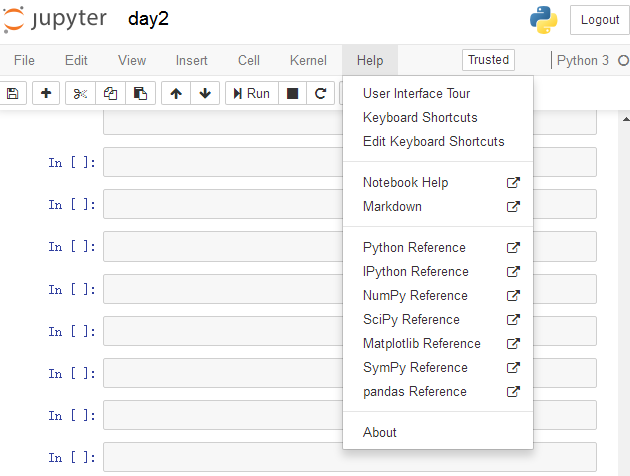
Keyboard Shortcuts 原文档
Command Mode (press Esc to enable)Edit Shortcuts
Edit Mode (press Enter to enable)
Jupyter Notebook的快捷键的更多相关文章
- jupyter notebook常用快捷键
阅读目录 命令模式 (按键 Esc 开启) 编辑模式 ( Enter 键启动) Jupyter Notebook 的快捷键 使用前需要进行安装: pip install jupyter (前提是你 ...
- Jupyter Notebook 的快捷键
原文:http://blog.csdn.net/lawme/article/details/51034543 Jupyter Notebook 的快捷键 Jupyter Notebook 有两种键盘输 ...
- Jupyter Notebook 常用快捷键
Jupyter Notebook 提供了比 IPython 美观的多得多的可视化形式.(比如对于 pandas 下的 DataFrame 的展示,df.head(5)) Jupyter Noteboo ...
- [转载]Jupyter Notebook 的快捷键
原文:http://blog.csdn.net/lawme/article/details/51034543 Jupyter Notebook 的快捷键 Jupyter Notebook 有两种键盘输 ...
- 【转载】Jupyter Notebook 常用快捷键
原文:http://blog.csdn.net/lawme/article/details/51034543 Jupyter Notebook 有两种键盘输入模式.编辑模式,允许你往单元中键入代码或文 ...
- Jupyter Notebook 常用快捷键 (转)
Jupyter Notebook 有两种键盘输入模式. 编辑模式,允许你往单元中键入代码或文本:这时的单元框线是绿色的. 命令模式,键盘输入运行程序命令:这时的单元框线为蓝色. 命令模式 (按键 Es ...
- Jupyter NoteBook使用快捷键
命令模式 (按键 Esc 开启) Enter : 转入编辑模式 Shift-Enter : 运行本单元,选中下个单元 Ctrl-Enter : 运行本单元 Alt-Enter : 运行本单元,在其下插 ...
- [转]Jupyter NoteBook 的快捷键使用指南
- Jupyter Notebook(推荐使用Anaconda安装)
一.Jupyter Notebook介绍 1.简介 Jupyter Notebook是基于网页的用于交互计算的应用程序.其可被应用于全过程计算:开发.文档编写.运行代码和展示结果. 简而言之,Jupy ...
随机推荐
- net.at.json.JSONException
1.错误描述 严重:Servlet.service() for servlet [clientServlet] in context with path [/User] threw exception ...
- SpringMVC工作流程描述
向服务器发送HTTP请求,请求被前端控制器 DispatcherServlet 捕获. DispatcherServlet 根据 <servlet-name>-servlet.xml 中的 ...
- freemarker基本数据类型(十一)
freemarker基本数据类型 1.基本数据类型 (1)字符串 (2)数字 (3)布尔值 (4)日期 2.展示示例 <html> <head> <meta http-e ...
- 两个map一个reduce(两个输入文件)
两个map,一个map读取一个hdfs文件,map完之后进入一个reduce进行逻辑处理. package com.zhongxin.mr; import org.apache.commons.lan ...
- MySQL的B树索引与索引优化
MySQL的MyISAM.InnoDB引擎默认均使用B+树索引(查询时都显示为"BTREE"),本文讨论两个问题: 为什么MySQL等主流数据库选择B+树的索引结构? 如何基于索引 ...
- 浅析Unity中的Enlighten与混合光照
0x00 前言 在Unity的5.6版本之前的5.x中,主要使用了Geomerics公司的Enlighten[1]来提供实时全局照明以及烘焙全局照明,在5.6之后Unity引入了新的Lightmapp ...
- Injection of autowired dependencies failed
error:org.springframework.beans.factory.BeanCreationException: Error creating bean with name 'mainCo ...
- Docker下redis的主从、持久化配置
Docker下redis的主从.持久化配置 redis是k-v型nosql数据库,支持字符串(string).列表(list).集合(set).散列(hash).有序集合(zset:形如member: ...
- windows7+python2.7+setuptools 、pip+Django+PIL 网页制作环境配置
1.安装Python2.7 官网下载安装包python-2.7.amd64,对应64位.安装时没什么特别操作,安装后将python的安装路径添加到系统变量path中,步骤为程序->计算机-> ...
- FPGA阶段性总结及后续博文计划
之前的博客主要记录了在培训过程中或自己设计小项目时的一些总结,主要涉及通用设计技巧,简单外设接口驱动等.因此内容比较杂,缺乏目的性.考虑设计通用性及提高学习开发效率,后续FPGA设计和博文主要是高带宽 ...