
A WPF File ListView and ComboBox
源码下载:
- Download FileListView_Version_2.zip
- Download FileListView_Version_2_Binaries.zip
- Download FileListView_Version_2.1.zip
The project is now maintained here: http://fsc.codeplex.com/
Introduction
I was recently asked to add a 'File Tree Pane' into my editor (https://edi.codeplex.com/discussions/541888) and went looking for a good solution, because the component is really missing and it really bothers me too. The best solution I found, was written by Thomas Willwacher, as usual, here at CodeProject. I really like the concept that Thomas is using and reviewed the project in terms of integrating it in my editor, and while that is still too come, I found already some issues that would probably be difficult to fix in a project that is driven by an IoC (which I'd like to do next).
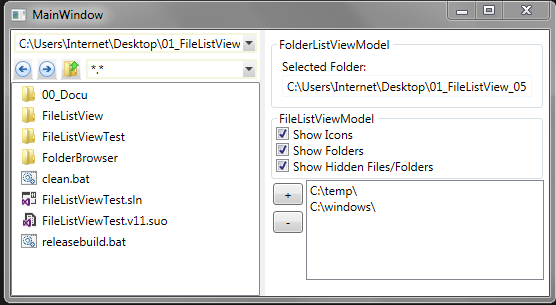

It is difficult to write this down correctly, so do not get me wrong here, I am really grateful that Thomas has posted his solution. Because I am not even sure whether I could have developed such a nice File Explorer concept to start with. But I saw architectural issues and I decided to get this done instead of putting it off. So, here is my take on this solution. I am posting it here in the hope that it is useful to others and that we might be able to develop this even further.
Background
The solution presented here is about a File Explorer control that can be used in a Tool Window. The user should be able to browse directories, list their files, filter on the listed files, and open files via double click, drag & drop and context menu. The Drag & Drop and Context menu part is not presented here since I do not think this would be hard to add. The solution presented here is just about the same test application that Thomas had posted in his article. I only added a directory browser control and developed the architecture from scratch with MVVM in mind.
Using the code
The current articles discusses the code in FileListView_Version2.zip in the download section. The FileListView_Version2.1.zip in the download section is a refactored version that is currently under development based on my observations and Leung Yat Chun's suggestions in the forum's section.
Re-using the code of the provided solution requires that you reference the Dll assemblies (FileListView and FolderBrowser), and copy & parts of the MainWindow.xaml code into your own view implementation. You will also need the code MainWindow.xaml.cs to create the necessary viewmodels. This is about all you need to re-use this solution in your own projects.
Points of Interest
The solution presented here contains 4 projects:
- FileListView, FileListViewTest and
- FolderBrowser, TestFolderBrowser.
The FileListView project is the assembly that contains the meat of the File Explorer controls that this article is focusing on. The FolderBrowser project originates from a different CodeProject article [2] and was included here since I felt that I did not need a Recent Files selection but a Recent Locations selection. So, re-factored this solution, as well, and included the result here.
The 'Test' projects in this solution contain a demo application that can be executed to check out how things work. The remainder of this article will focus on the FileListView project but feel free to ask questions/demand more information if you feel that I should document the FolderBrowser part in more detail.
The Views in the FileListView Project
The FileListView project is mainly partitioned in 3 views that are completely separated from each other.
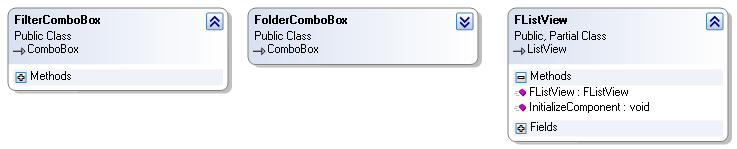
FilterComboBox
The FilterComboBox inherits from the ComboBox control [3] and should be fully theme-able since I'd like to support bright and dark skins. This is basically the control where you enter such filter as: '*.png', '*.*', or (I extended this) '*.png|*.jpg|*.jpeg'. This filter is then applied to the list of files when the user selects the filter or presses the enter key in the text portion of the combobox.
 Collapse | Copy Code
<fview:FilterComboBox DataContext="{Binding FolderView.Filters}"
ItemsSource="{Binding CurrentItems}"
SelectedItem="{Binding SelectedItem, UpdateSourceTrigger=PropertyChanged}"
Text="{Binding CurrentFilter, UpdateSourceTrigger=PropertyChanged}"
fvbehav:SelectionChangedCommand.ChangedCommand="{Binding SelectionChanged}"
VerticalAlignment="Top"
HorizontalAlignment="Stretch"
Grid.Column="3"
Margin="3"
/>
The above code shows how the FilterComboBox control is implemented in the MainWindow's Xaml. A noteworthy item is the SelectionChangedCommand behavior [4] which is basically a custom ComboBox behavior that binds itself to to the KeyUp and SelectionChanged event of the combobox. The behavior executes the bound SelectionChanged command in the FolderComboBoxViewModel when either event occurs. This in turn executes the SelectionChanged_Executed method which evaluates whether the currently entered path refers to a valid directory or not. The method raises the OnCurrentPathChanged event of theFolderChangedEventArgs type if the entered path was in fact in existence. This event is received by another viewmodel discussed further below.
FolderComboBox
The FolderComboBox control is the combobox that keeps the list of folders that a user can select as the base of his exploration. This includes the usual suspects, such as, Desktop, My Documents, and Drives but also contains a list of Recent Locations:
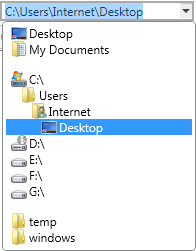
The FolderComboBox makes also use of the SelectionChanged behavior discussed above. It is very similar to the FilterComboBox except for 2 additions:
Collapse | Copy Code<Setter Property="ItemTemplate">
<Setter.Value>
<DataTemplate DataType="{x:Type vm:FSItemVM}">
<Grid ToolTip="{Binding FullPath}" ToolTipService.IsEnabled="{Binding ShowToolTip}">
<Grid.ColumnDefinitions>
<ColumnDefinition Width="{Binding Indentation}"/>
<ColumnDefinition Width="20"/>
<ColumnDefinition Width="100"/>
</Grid.ColumnDefinitions>
<Grid.RowDefinitions>
<RowDefinition />
</Grid.RowDefinitions>
<Image Grid.Row="0" Grid.Column="1" Source="{Binding Path=DisplayIcon}" Width="16" Height="16"/>
<TextBlock Grid.Row="0" Grid.Column="2" Text="{Binding DisplayName}" />
</Grid>
</DataTemplate>
</Setter.Value>
</Setter>
This ItemTemplate shows tha items display in the drop-down section of the ComboBox consist of an Image and a TextBlock. The ItemTemplate binds to instances of the ItemVM type which is part of theObservableCollection<FSItemVM> CurrentItems collection in the FolderComboBoxViewModel.
Collapse | Copy Code<Setter Property="ItemContainerStyle">
<Setter.Value>
<Style TargetType="{x:Type ComboBoxItem}" BasedOn="{StaticResource {x:Type ComboBoxItem}}">
<Style.Triggers>
<DataTrigger Binding="{Binding}" Value="{x:Null}">
<Setter Property="IsEnabled" Value="False" />
<Setter Property="Template">
<Setter.Value>
<ControlTemplate TargetType="{x:Type ComboBoxItem}">
<Separator Width="0" Height="10"/>
</ControlTemplate>
</Setter.Value>
</Setter>
</DataTrigger>
</Style.Triggers>
</Style>
</Setter.Value>
</Setter>
The 2nd interesting thing in the FolderComboBox control is the ItemContainerStyle which includes aDataTrigger that inserts a Seperator when the bound value is null. The above Xaml literally converts a value of null into a seperator entry in the drop down list. This little trick inserts a Seperator in the drop-down list that allows us to group items such that users cannot click into the extra space (since seperators are not hit test visible).
FListView
The FListView is basically an out of the box ListView with an attached behavior addition that converts a double click into a bound DoubleClickCommand in the FileListViewViewModel [5].
The ViewModels in the FileListView Project
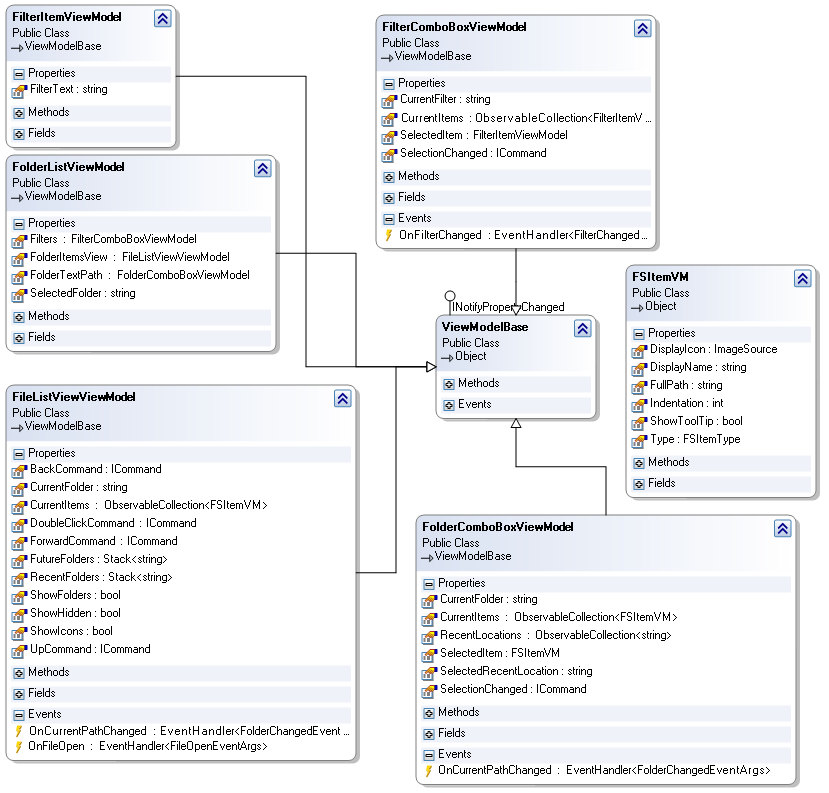
This solution includes a few more viewmodels than the original version 1. There is basically 1 viewmodel for each of the three controls documented in the previous section. The FolderComboBoxViewModel and the FileListViewModel make use of the FSItemVM class to manage their file specific collections. TheFolderListViewModel is the heart of the solution since it instantiates the other control specific viewmodels and manages their events when they say, hey:
- ...just selected a new Folder
(OnCurrentPathChanged in FolderComboBoxViewModel and FileListViewModel) - ...just selected a new Filter (OnFilterChanged in FilterComboBoxViewModel)
- ...just want to open a file (OnFileOpen in FileListViewModel)
Conclusions
Converting this project took me about 3-4 days of work but I think it was worth it since I have a much clearer understanding now and feel motivated to add other toys such as an async query and load of the FileListView. This could include a stop button shown in the Folder or Filter combobox to stop process that may take extra ordinary long when accessing slow devices.
Over all I have learned a few more tricks looking deep into someone else's code, so I am once again grateful for being part of this community. And now I am looking forward to see what the community thinks about this.
Credits
The Class diagrams in this article were drawn with #Develop (http://www.icsharpcode.net/opensource/sd/). I would like to say thank you for the original article and code version and the tips from Leung Yat Chun here at code project.
References
- [1] A WPF File ListView and ComboBox (Version I) by Thomas Willwacher
http://www.codeproject.com/Articles/167873/A-WPF-File-ListView-and-ComboBox - [2] WPF Folder Browser by Erik Rude
http://www.codeproject.com/Articles/352874/WPF-Folder-Browser - [3] Inheriting from a Look Less WPF Control
http://www.codeproject.com/Articles/575645/Inheriting-from-a-Look-Less-WPF-Control - [4] Patterns in Attached Behaviors
http://www.codeproject.com/Articles/422537/Patterns-in-Attached-Behaviours - [5] AttachedCommandBehavior V2 aka ACB
http://marlongrech.wordpress.com/2008/12/13/attachedcommandbehavior-v2-aka-acb/
A WPF File ListView and ComboBox的更多相关文章
- WPF中DataGrid的ComboBox的简单绑定方式(绝对简单)
在写次文前先不得不说下网上的其他wpf的DataGrid绑定ComboBox的方式,看了之后真是让人欲仙欲死. 首先告诉你一大堆的模型,一大堆的控件模板,其实或许你紧紧只想知道怎么让combobox怎 ...
- [WPF 如何] 如何向 ComboBox 添加一个空白选项
原文:[WPF 如何] 如何向 ComboBox 添加一个空白选项 看到这个问题,你可能会蔑视一笑 : 这也能成文章? 确实,你只需要在 ItemsSource 的0位置上插入一个空白的项就是了,如: ...
- WPF,ListView设置分组
原文:WPF,ListView设置分组 今天遇到一个问题,就是在ListView中设置分组.想了很久在网上早了些资料作出一个例子. 分组字段也可以在后台中定义: CollectionView view ...
- 深入探讨WPF的ListView控件
接上一篇博客初步探讨WPF的ListView控件(涉及模板.查找子控件) 我们继续探讨ListView的用法 一.实现排序功能 需求是这样的:假如我们把学生的分数放入ListView,当我 ...
- (转)利用WPF的ListView进行大数据量异步加载
原文:http://www.cnblogs.com/scy251147/archive/2012/01/08/2305319.html 由于之前利用Winform的ListView进行大数据量加载的时 ...
- WPF之ListView使用WrapPanel
原文:WPF之ListView使用WrapPanel 版权声明:本文为博主原创文章,未经博主允许不得转载. https://blog.csdn.net/jiuzaizuotian2014/articl ...
- 【C#/WPF】ListView的MVVM例子,及禁止拖动ListView的头部Header
一个ListView的MVVM简单例子: <ListView ItemsSource="{Binding GoodsList}" Margin="0,10,0,10 ...
- WPF dataGrid下的ComboBox的绑定
WPF dataGrid下的ComboBox的绑定 Wpf中dataGrid中的某列是comboBox解决这个问题费了不少时间,不废话了直接上代码 xaml 代码 <DataGridTempla ...
- 利用WPF的ListView进行大数据量异步加载
原文:利用WPF的ListView进行大数据量异步加载 由于之前利用Winform的ListView进行大数据量加载的时候,诟病良多,所以今天试着用WPF的ListView来做了一下,结果没有让我失望 ...
随机推荐
- 对于stackoverflow的中文翻译的相关问题
我们非常多朋友都给我留言说.希望我翻译一下stackoverflow的问题以及答案,首先我也非常愿意为大家翻译,在能够帮助大家的同一时候,对我本人的技能的提升有优点:可是工作量实在太大,所以我不可能翻 ...
- 【Cocos2d-X开发学习笔记】第30期:游戏中数据的存储(下)
本系列学习教程使用的是cocos2d-x-2.1.4(最新版为3.0alpha0-pre) ,PC开发环境Windows7,C++开发环境VS2010 一.对数据进行编解码 在上一期中,我们使用了CC ...
- 微信 SDK 不能 分享
说多了都是泪水,真的. 前段时间,做好了微信的分享功能,测试通过的,最近我又跑了一遍用例,发现不能启动微信客户端了,怎么都启动不了,日志如下:ignore wechat app signature v ...
- poj2226(最小点覆盖)
传送门:Muddy Fields 题意:一个由r行c列方格组成的田地,里面有若干个方格充满泥泞,其余方格都是草.要用长度不限,宽度为1的长木板来覆盖这些泥方格,但不能覆盖草地.最少要用多少个长木板. ...
- Python基础 - 关键字
前言 与C一样,python也有自己的关键字,关键字有特殊的意义,不能作为普通的变量名类名等用途 关键字列表 以python2.7.5为例,有如下关键字: and del from not while ...
- Wix学习整理(5)——安装时填写注册表
原文:Wix学习整理(5)--安装时填写注册表 一 Microsoft操作系统的注册表 什么是注册表? 注册表是Mircrosoft Windows中的一个重要的数据库,用于存储系统和应用程序的设置信 ...
- 10324 - Zeros and Ones
Problem N Zeros and Ones Input: standard input Output: standard output Time Limit: 2 seconds Memory ...
- BytesWritable 存储问题
public static void main(String args[]){ BytesWritable cv = new BytesWritable(); String str1 = " ...
- SE 2014年5月23日
两站点 A 和 B,由于业务往来需要,所以工程师提出vpn技术,同时需要保证业务流在internet上的安全性,同时在这里站点均为固定ip地址. 通过分析以上信息,确定这里使用 IPSec VPN的主 ...
- web框架之Spring-MVC环境搭建(转)
spring框架jar包 1.下载spring源包spring地址:http://www.springsource.org/download我下的是spring-framework-3.1.0.REL ...