
Office文档WEB端在线浏览(转换成Html)
最近在做了一个项目,要求是对Office文档在线预览。下面给大家分享一下我的方法。
1.第一种方法(不建议使用)
我是在网上搜了一个利用COM组件对office文档进行转换,但是此方法必须要装Office办公软件,而且容易与电脑上的WPS冲突,还有一系列的版本问题。我电脑上装的是Office2010,没有装WPS,所以直接可以使用。具体方法如下:
Microsoft Office 14.0 Object Library
Microsoft Word 14.0 Object Library
Microsoft Excel 14.0 Object Library
Microsoft PowerPoint 14.0 Object Library
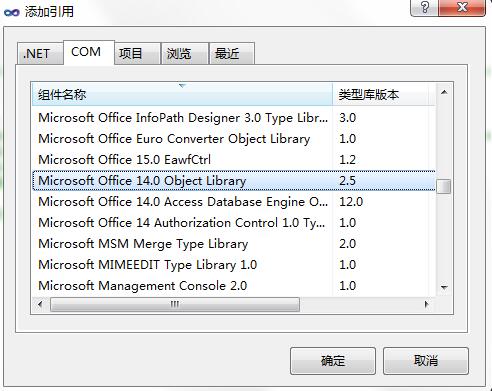
然后添加一个Office2HtmlHelper类,用于转换文件操作
using System;

using System.Collections.Generic;

using System.IO;

using System.Linq;

using System.Web;

using Microsoft.Office.Core;

using Word = Microsoft.Office.Interop.Word;

namespace OfficeToHtml.Utils

{

    public class Office2HtmlHelper

    {

        /// <summary>

        /// Word转成Html

        /// </summary>

        /// <param name="path">要转换的文档的路径</param>

        /// <param name="savePath">转换成html的保存路径</param>

        /// <param name="wordFileName">转换成html的文件名字</param>

        public static void Word2Html(string path, string savePath, string wordFileName)

        {

            Word.ApplicationClass word = new Word.ApplicationClass();

            Type wordType = word.GetType();

            Word.Documents docs = word.Documents;

            Type docsType = docs.GetType();

            Word.Document doc = (Word.Document)docsType.InvokeMember("Open", System.Reflection.BindingFlags.InvokeMethod, null, docs, new Object[] { (object)path, true, true });

            Type docType = doc.GetType();

            string strSaveFileName = savePath + wordFileName + ".html";

            object saveFileName = (object)strSaveFileName;

            docType.InvokeMember("SaveAs", System.Reflection.BindingFlags.InvokeMethod, null, doc, new object[] { saveFileName, Word.WdSaveFormat.wdFormatFilteredHTML });

            docType.InvokeMember("Close", System.Reflection.BindingFlags.InvokeMethod, null, doc, null);

            wordType.InvokeMember("Quit", System.Reflection.BindingFlags.InvokeMethod, null, word, null);

        }

        /// <summary>

        /// Excel转成Html

        /// </summary>

        /// <param name="path">要转换的文档的路径</param>

        /// <param name="savePath">转换成html的保存路径</param>

        /// <param name="wordFileName">转换成html的文件名字</param>

        public static void Excel2Html(string path, string savePath, string wordFileName)

        {

            string str = string.Empty;

            Microsoft.Office.Interop.Excel.Application repExcel = new Microsoft.Office.Interop.Excel.Application();

            Microsoft.Office.Interop.Excel.Workbook workbook = null;

            Microsoft.Office.Interop.Excel.Worksheet worksheet = null;

            workbook = repExcel.Application.Workbooks.Open(path, Type.Missing, Type.Missing, Type.Missing, Type.Missing, Type.Missing, Type.Missing, Type.Missing, Type.Missing, Type.Missing, Type.Missing, Type.Missing, Type.Missing, Type.Missing, Type.Missing);

            worksheet = (Microsoft.Office.Interop.Excel.Worksheet)workbook.Worksheets[];

            object htmlFile = savePath + wordFileName + ".html";

            object ofmt = Microsoft.Office.Interop.Excel.XlFileFormat.xlHtml;

            workbook.SaveAs(htmlFile, ofmt, Type.Missing, Type.Missing, Type.Missing, Type.Missing, Microsoft.Office.Interop.Excel.XlSaveAsAccessMode.xlNoChange, Type.Missing, Type.Missing, Type.Missing, Type.Missing, Type.Missing);

            object osave = false;

            workbook.Close(osave, Type.Missing, Type.Missing);

            repExcel.Quit();

        }

        /// <summary>

        /// ppt转成Html

        /// </summary>

        /// <param name="path">要转换的文档的路径</param>

        /// <param name="savePath">转换成html的保存路径</param>

        /// <param name="wordFileName">转换成html的文件名字</param>

        public static void PPT2Html(string path, string savePath, string wordFileName)

        {

            Microsoft.Office.Interop.PowerPoint.Application ppApp = new Microsoft.Office.Interop.PowerPoint.Application();

            string strSourceFile = path;

            string strDestinationFile = savePath + wordFileName + ".html";

            Microsoft.Office.Interop.PowerPoint.Presentation prsPres = ppApp.Presentations.Open(strSourceFile, Microsoft.Office.Core.MsoTriState.msoTrue, Microsoft.Office.Core.MsoTriState.msoFalse, Microsoft.Office.Core.MsoTriState.msoFalse);

            prsPres.SaveAs(strDestinationFile, Microsoft.Office.Interop.PowerPoint.PpSaveAsFileType.ppSaveAsHTML, MsoTriState.msoTrue);

            prsPres.Close();

            ppApp.Quit();

        }

    }

}
这样在上传文件的时候就可以使用Office2HtmlHelper类进行转换操作了,(控制器代码)
//创建文件夹

string rootFolder = System.Configuration.ConfigurationManager.AppSettings["UploadFileRootPath"];

string fileType = file.FileName.Split('.').Last();

string folderPath = rootFolder + "\\\\" + UPLOADS + "\\\\" + DateTime.Now.ToString("yyyy-MM-dd") + "\\\\";

//文件查看目录

string viewFolderPath = rootFolder + "\\\\" + HTMLUPLOADS + "\\\\" + DateTime.Now.ToString("yyyy-MM-dd") + "\\\\";

      if (!Directory.Exists(folderPath))

      {

           Directory.CreateDirectory(folderPath);

      }

      if (!Directory.Exists(viewFolderPath))

       {

           Directory.CreateDirectory(viewFolderPath);

       }

       string fileName = Guid.NewGuid().ToString();

       filePath = folderPath + fileName + "." + fileType;

       file.SaveAs(filePath);

       switch (fileType)

       {

            case "docx":

            case "doc":

                  Office2HtmlHelper.Word2Html(filePath, viewFolderPath, fileName);

                  viewPath = viewFolderPath + fileName + "." + "html";

                  break;

             case "xlsx":

             case "xls":

                   Office2HtmlHelper.Excel2Html(filePath, viewFolderPath, fileName);

                   viewPath = viewFolderPath + fileName + "." + "html";

                   break;

             case "ppt":

             case "pptx":

                   Office2HtmlHelper.PPT2Html(filePath, viewFolderPath, fileName);

                   viewPath = viewFolderPath + fileName + "." + "html";

                   break;

             default:

                   break;

         }
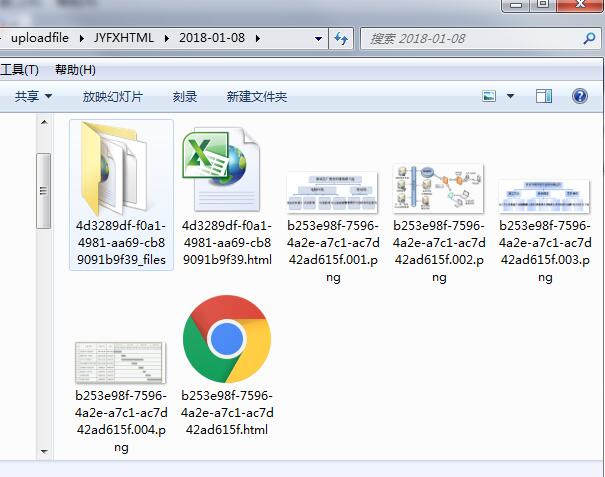
但是这样的话就必须要装Office软件才可以调用COM组件了。所以为了避免这种不友好的事情发生,最终选择了使用Aspose动态链接库
使用方法不变,只不过是转换方式变了,相比使用COM组件来说更加简便了一些:
using System;

using System.Collections.Generic;

using System.IO;

using System.Linq;

using System.Web;

//using Microsoft.Office.Core;

//using Word = Microsoft.Office.Interop.Word;

using Aspose.Cells;

using Aspose.Slides.Pptx;

namespace CqscSecurityApplication.Utils

{

    public class Office2HtmlHelper

    {

        /// <summary>

        /// Word转成Html

        /// </summary>

        /// <param name="path">要转换的文档的路径</param>

        /// <param name="savePath">转换成html的保存路径</param>

        /// <param name="wordFileName">转换成html的文件名字</param>

        public static void Word2Html(string path, string savePath, string wordFileName)

        {

            //Word.ApplicationClass word = new Word.ApplicationClass();

            //Type wordType = word.GetType();

            //Word.Documents docs = word.Documents;

            //Type docsType = docs.GetType();

            //Word.Document doc = (Word.Document)docsType.InvokeMember("Open", System.Reflection.BindingFlags.InvokeMethod, null, docs, new Object[] { (object)path, true, true });

            //Type docType = doc.GetType();

            //string strSaveFileName = savePath + wordFileName + ".html";

            //object saveFileName = (object)strSaveFileName;

            //docType.InvokeMember("SaveAs", System.Reflection.BindingFlags.InvokeMethod, null, doc, new object[] { saveFileName, Word.WdSaveFormat.wdFormatFilteredHTML });

            //docType.InvokeMember("Close", System.Reflection.BindingFlags.InvokeMethod, null, doc, null);

            //wordType.InvokeMember("Quit", System.Reflection.BindingFlags.InvokeMethod, null, word, null);

            Aspose.Words.Document doc = new Aspose.Words.Document(path);//通过path(文件原始源路径)获取文档内容

            wordFileName = wordFileName + ".html";

            string savePathss = Path.Combine(savePath, wordFileName);//合并转换后html文件路径

            doc.Save(savePathss,Aspose.Words.SaveFormat.Html);//转换为html格式

        }

        /// <summary>

        /// Excel转成Html

        /// </summary>

        /// <param name="path">要转换的文档的路径</param>

        /// <param name="savePath">转换成html的保存路径</param>

        /// <param name="wordFileName">转换成html的文件名字</param>

        public static void Excel2Html(string path, string savePath, string wordFileName)

        {

            //string str = string.Empty;

            //Microsoft.Office.Interop.Excel.Application repExcel = new Microsoft.Office.Interop.Excel.Application();

            //Microsoft.Office.Interop.Excel.Workbook workbook = null;

            //Microsoft.Office.Interop.Excel.Worksheet worksheet = null;

            //workbook = repExcel.Application.Workbooks.Open(path, Type.Missing, Type.Missing, Type.Missing, Type.Missing, Type.Missing, Type.Missing, Type.Missing, Type.Missing, Type.Missing, Type.Missing, Type.Missing, Type.Missing, Type.Missing, Type.Missing);

            //worksheet = (Microsoft.Office.Interop.Excel.Worksheet)workbook.Worksheets[1];

            //object htmlFile = savePath + wordFileName + ".html";

            //object ofmt = Microsoft.Office.Interop.Excel.XlFileFormat.xlHtml;

            //workbook.SaveAs(htmlFile, ofmt, Type.Missing, Type.Missing, Type.Missing, Type.Missing, Microsoft.Office.Interop.Excel.XlSaveAsAccessMode.xlNoChange, Type.Missing, Type.Missing, Type.Missing, Type.Missing, Type.Missing);

            //object osave = false;

            //workbook.Close(osave, Type.Missing, Type.Missing);

            //repExcel.Quit();

            Workbook workbook=new Workbook(path);

            wordFileName = wordFileName + ".html";

            string savePathss = Path.Combine(savePath, wordFileName);

            workbook.Save(savePathss, SaveFormat.Html);

        }

        /// <summary>

        /// ppt转成Html

        /// </summary>

        /// <param name="path">要转换的文档的路径</param>

        /// <param name="savePath">转换成html的保存路径</param>

        /// <param name="wordFileName">转换成html的文件名字</param>

        public static void PPT2Html(string path, string savePath, string wordFileName)

        {

            //Microsoft.Office.Interop.PowerPoint.Application ppApp = new Microsoft.Office.Interop.PowerPoint.Application();

            //string strSourceFile = path;

            //string strDestinationFile = savePath + wordFileName + ".html";

            //Microsoft.Office.Interop.PowerPoint.Presentation prsPres = ppApp.Presentations.Open(strSourceFile, Microsoft.Office.Core.MsoTriState.msoTrue, Microsoft.Office.Core.MsoTriState.msoFalse, Microsoft.Office.Core.MsoTriState.msoFalse);

            //prsPres.SaveAs(strDestinationFile, Microsoft.Office.Interop.PowerPoint.PpSaveAsFileType.ppSaveAsHTML, MsoTriState.msoTrue);

            //prsPres.Close();

            //ppApp.Quit();

            PresentationEx pres=new PresentationEx(path);

            wordFileName = wordFileName + ".html";

            string savePathss = Path.Combine(savePath, wordFileName);

            pres.Save(savePathss, Aspose.Slides.Export.SaveFormat.Html);

        }

    }

}
总之使用很简单,有遇到同样问题的同学,欢迎交流;
Office文档WEB端在线浏览(转换成Html)的更多相关文章
- OFFICE 文档转换为html在线预览
OFFICE 文档在线预览方案很多: 服务器先转换为PDF,再转换为SWF,最后通过网页加载Flash预览,比如flexpaper Office文档直接转换为SWF,通过网页加载Flash预览 微软的 ...
- java将office文档pdf文档转换成swf文件在线预览
第一步,安装openoffice.org openoffice.org是一套sun的开源office办公套件,能在widows,linux,solaris等操作系统上执行. 主要模块有writer(文 ...
- Java实现web在线预览office文档与pdf文档实例
https://yq.aliyun.com/ziliao/1768?spm=5176.8246799.blogcont.24.1PxYoX 摘要: 本文讲的是Java实现web在线预览office文档 ...
- 在禅道中实现WORD等OFFICE文档转换为PDF进行在线浏览
条件: 安装好禅道的服务器 能直接浏览PDF的浏览器(或通过 安装插件实现 ) 文档转换服务程序(建议部署在另一台服务器上) 实现 原理: 修改禅道的文件预览功能(OFFICE文档其使用的是下 ...
- [Office Web Apps]实现在线office文档预览
摘要 在使用office web apps实现office文档在线预览的时候,需要注意的地方. web api web api作为owa在线预览服务回调的接口,这里面核心代码片段如下: using H ...
- 基于MVC4+EasyUI的Web开发框架经验总结(8)--实现Office文档的预览
在博客园很多文章里面,曾经有一些介绍Office文档预览查看操作的,有些通过转为PDF进行查看,有些通过把它转换为Flash进行查看,但是过程都是曲线救国,真正能够简洁方便的实现Office文档的预览 ...
- [转载]基于MVC4+EasyUI的Web开发框架经验总结(8)--实现Office文档的预览
在博客园很多文章里面,曾经有一些介绍Office文档预览查看操作的,有些通过转为PDF进行查看,有些通过把它转换为Flash进行查看,但是过程都是曲线救国,真正能够简洁方便的实现Office文档的预览 ...
- Java版office文档在线预览
java将office文档pdf文档转换成swf文件在线预览 第一步,安装openoffice.org openoffice.org是一套sun的开源office办公套件,能在widows,linux ...
- (转)基于MVC4+EasyUI的Web开发框架经验总结(8)--实现Office文档的预览
http://www.cnblogs.com/wuhuacong/p/3871991.html 基于MVC4+EasyUI的Web开发框架经验总结(8)--实现Office文档的预览 在博客园很多文章 ...
随机推荐
- element-ui实现自定义多个文件上传
这里强调下是:aixos是原始的,不要qs封装过的,不然不识别传值传不过去 <el-upload action="/admin/borrow/borrowEdit" list ...
- 小程序实现倒计时:解决ios倒计时失效(setInterval失效)
在使用之前需要先在page页引入wxTimer.js文件(这里我将文件放在/utils) let timer = require('../../utils/wxTimer.js'); 然后就可以使用啦 ...
- 把Ubuntu系统自带的源修改为国内的源,中科大源链接:https://mirrors.ustc.edu.cn/repogen/
https://mirrors.ustc.edu.cn/repogen/ Tips: 可通过 URL 的形式直接下载配置. 例如: https://mirrors.ustc.edu.cn/repoge ...
- 04-String——课后作业1:字串加密
题目:请编写一个程序,加密或解密用户输入的英文字串要求设计思想.程序流程图.源代码.结果截图. 程序设计思想:首先由用户选择是加密还是解密,利用String类中的charAt函数依次取出字串中的字符, ...
- 下页小希学MVC5+EF6.2 学习记录三
目的:1 学习mvc+ef 2 写下日记也是对自己的督促 期待已久的EF终于来了. 学完本篇文章,你将会掌握基于EF数据模型的完整开发流程. 本次将会完成EF数据模型的搭建和使用. 基于这个模型 ...
- 65.ORM查询条件:gte,gt,lte和lt的使用
1. gte: 代表的是大于等于,英文全称为:great than equal.举例:找到文章id大于等于3等文章,示例代码如下: 定义模型的示例代码如下: from django.db import ...
- matlab中自带的sobol的函数提供的sobol序列
clc; clear all; close all; M=;% 维度,几个参数 nPop=; VarMin=[0.6, 0.10, 0.002, 0.02, 0.17, 0.0, 0.17, 0.0, ...
- UVA 11992 懒惰标记应用
这个题目要求和 还有 设置区间值 区间增值,明显要用线段树来 由于行数不超过20 而列数多达 10^5,所以对每一行建一棵线段树. 然后主要是在懒惰标记方面是难点 针对两种操作 分别设置 set 和 ...
- part9 公用图片画廊组件拆分
1.src中创建 common 再创建 gallery.然后gallery.vue 2.build 中webpack.base.conf 中配置更短路径 module.exports {}中 reso ...
- C++保存数据到CSV文件
主要是今天工作的时候需要把一些数据保存到本地,因为是一些预测值和标签的对比,还有预测值的概率,所以想到用CSV文件来保存,大概查了一下,还是比较简单的,所以记录一下. 首先要说明的是CSV文件有点类似 ...