
VNware上安装虚拟机Ubuntu16.10 并安装petalinux
1.下载
VMware
VMware-workstation-full-15.0.0-10134415.exe
自己寻找激活码
Ubuntu镜像
UG1144 PetaLinux Tools Documentation 推荐 Ubuntu Linux 16.04.5, 18.04.1
ubuntu-16.04.5-desktop-amd64.iso
http://old-releases.ubuntu.com/releases/16.04.5/ubuntu-16.04.5-desktop-amd64.iso
2.在VMware上安装Ubuntu16.04.5
文件-->新建虚拟机
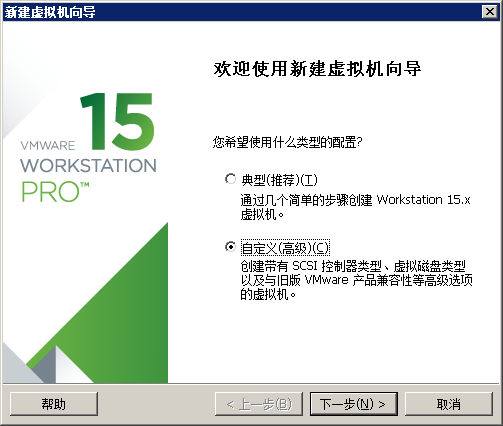
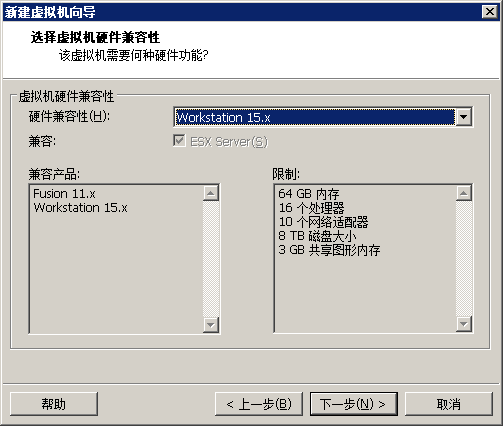
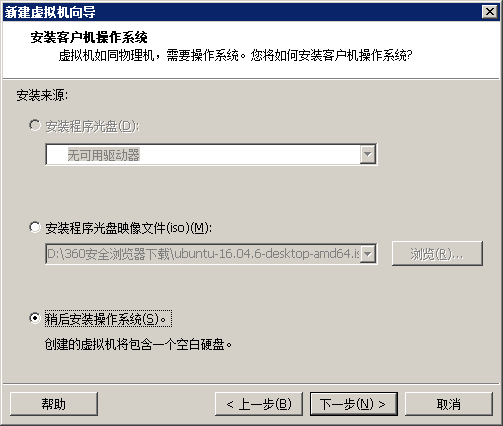
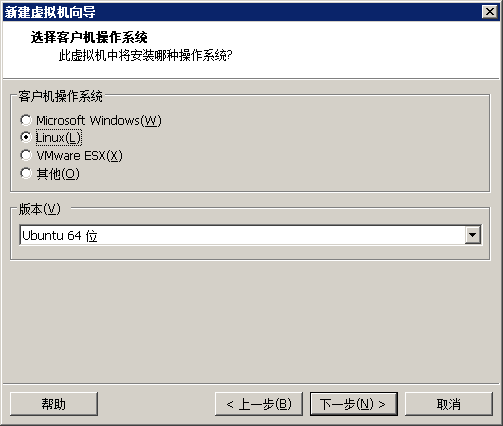
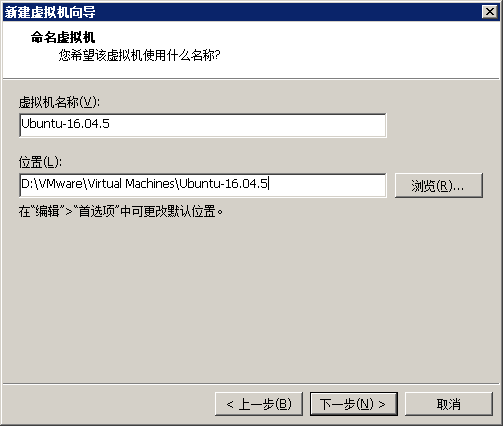
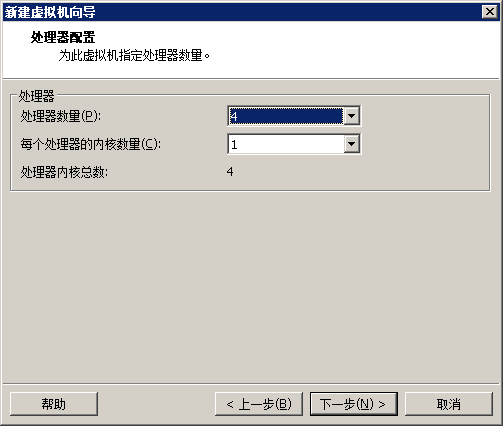
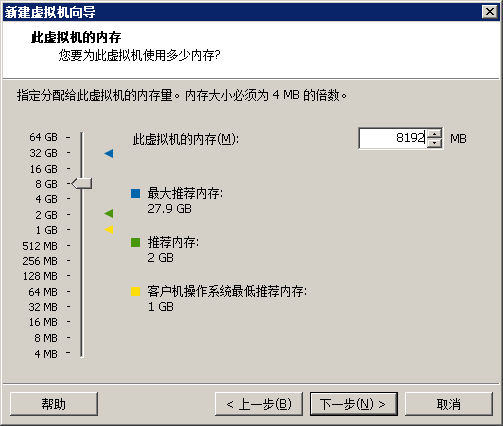
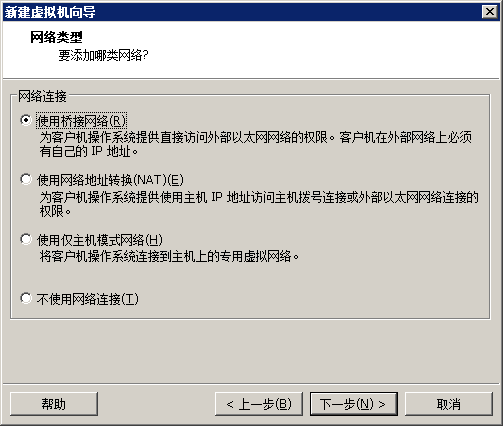
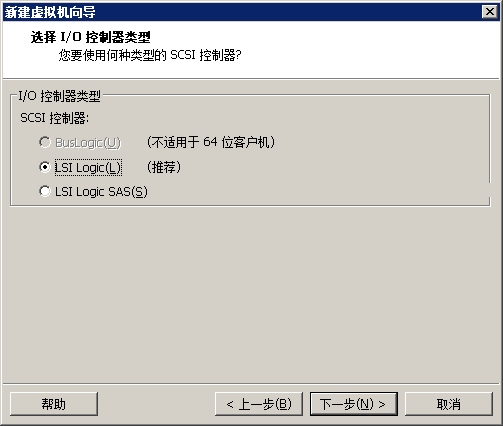
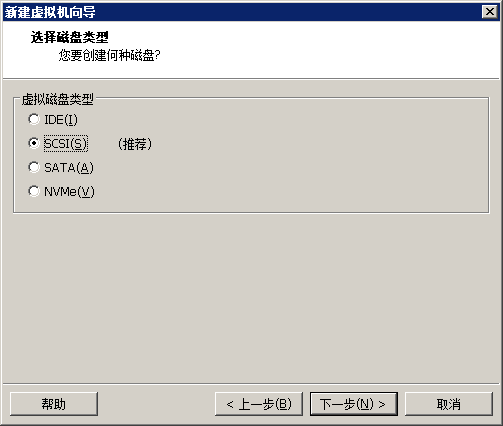
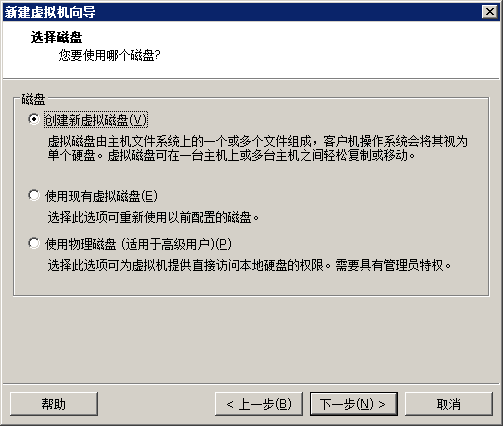
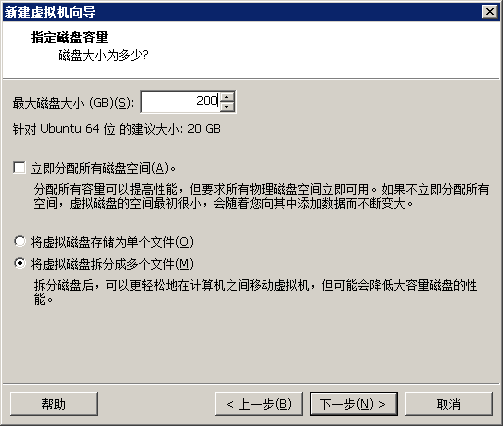
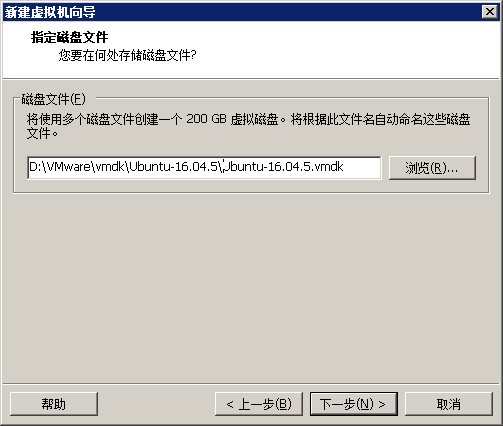
下一步点击自定义硬件
设置ISO

网络设为桥接

点击完成。
然后点击开启此虚拟机
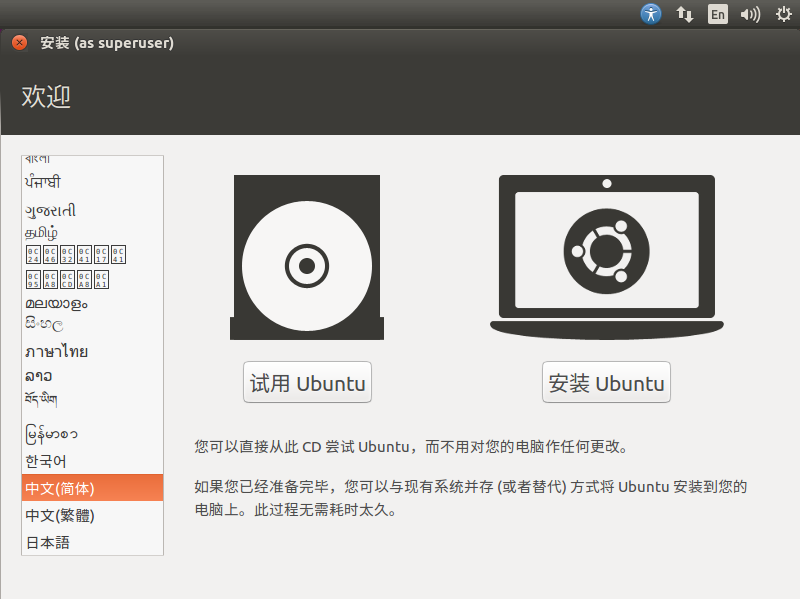
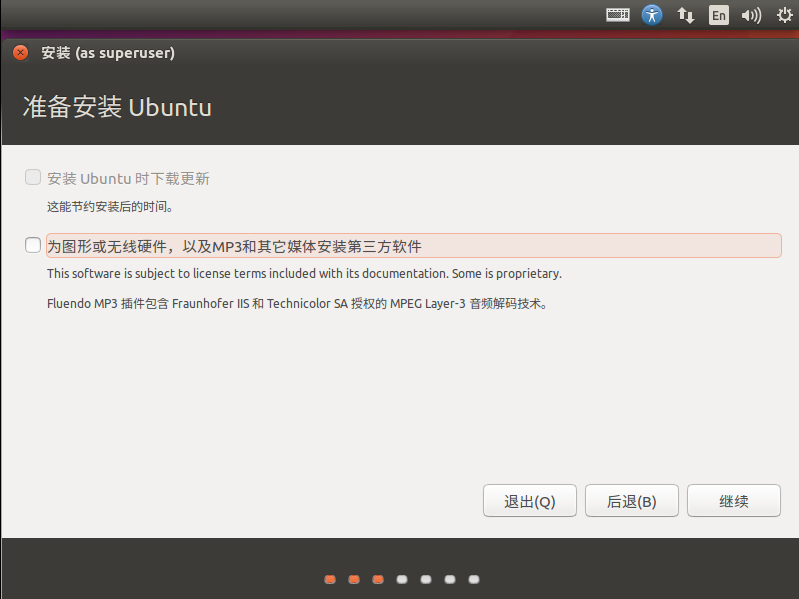
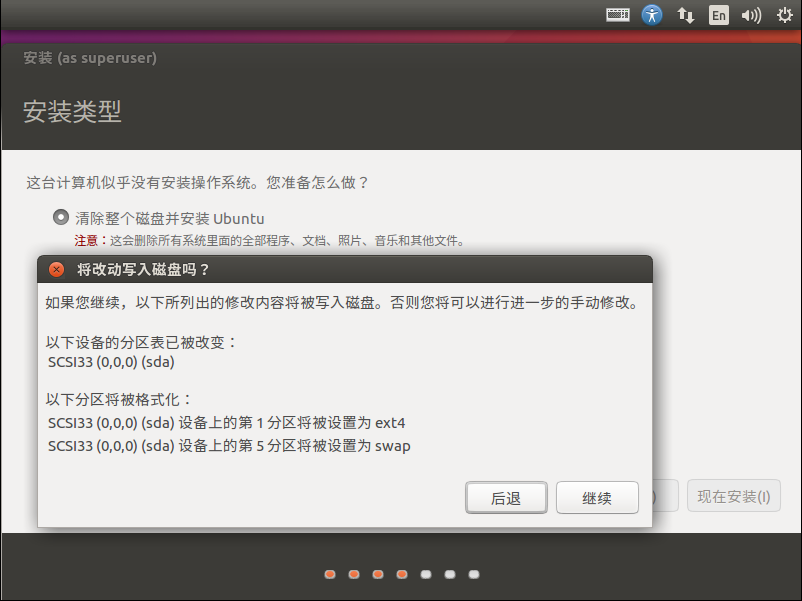
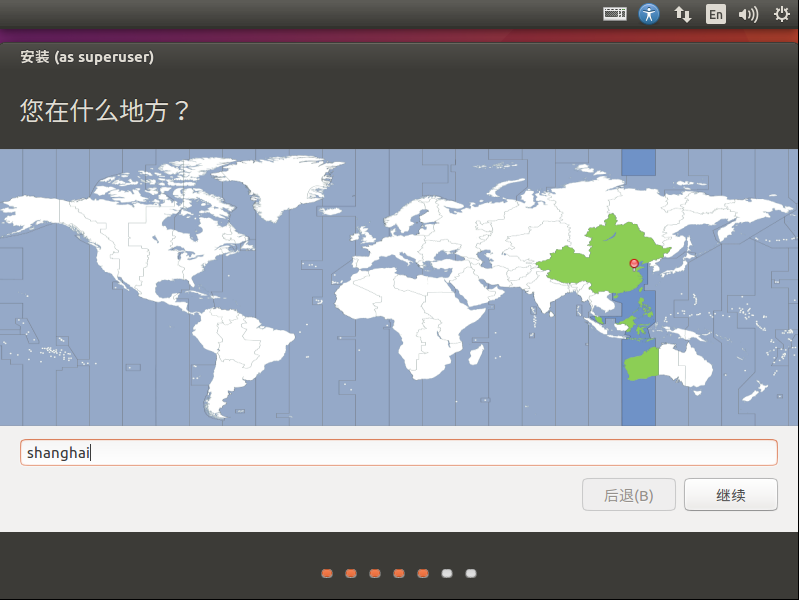
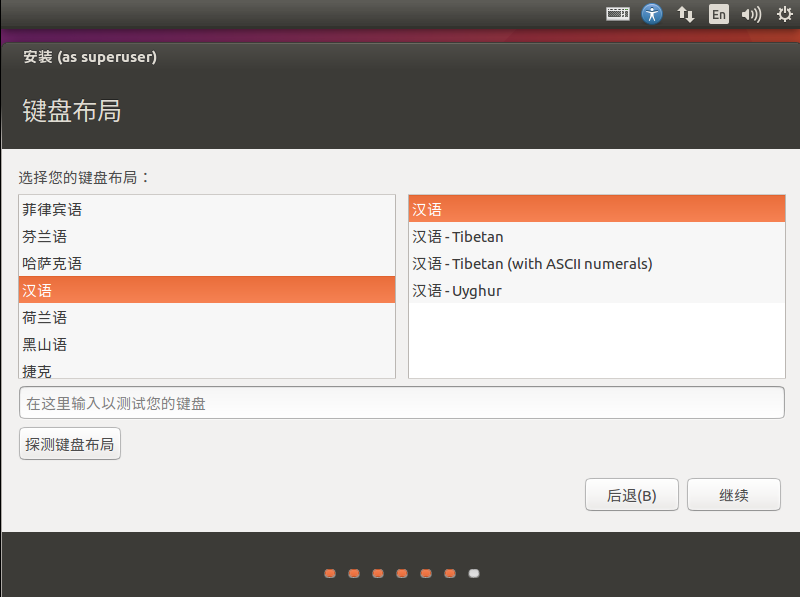
然后设置用户名和密码进入安装阶段,耐心等候一下。
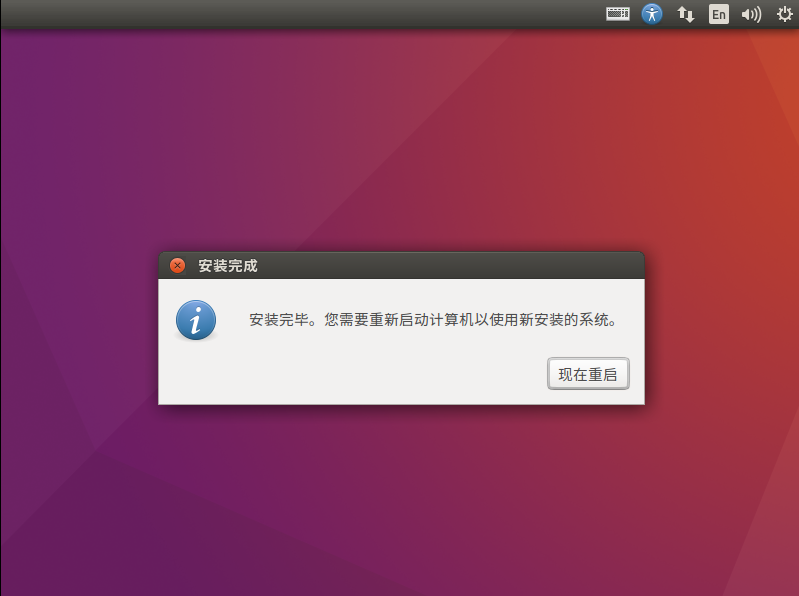
点击现在重启
如果没法重启,那么右键-->电源-->重新启动客户机
输入密码,进入界面
ctrl+alt+t 调出terminal
1)设置root密码
$sudo passwd
2)安装VMware Tools
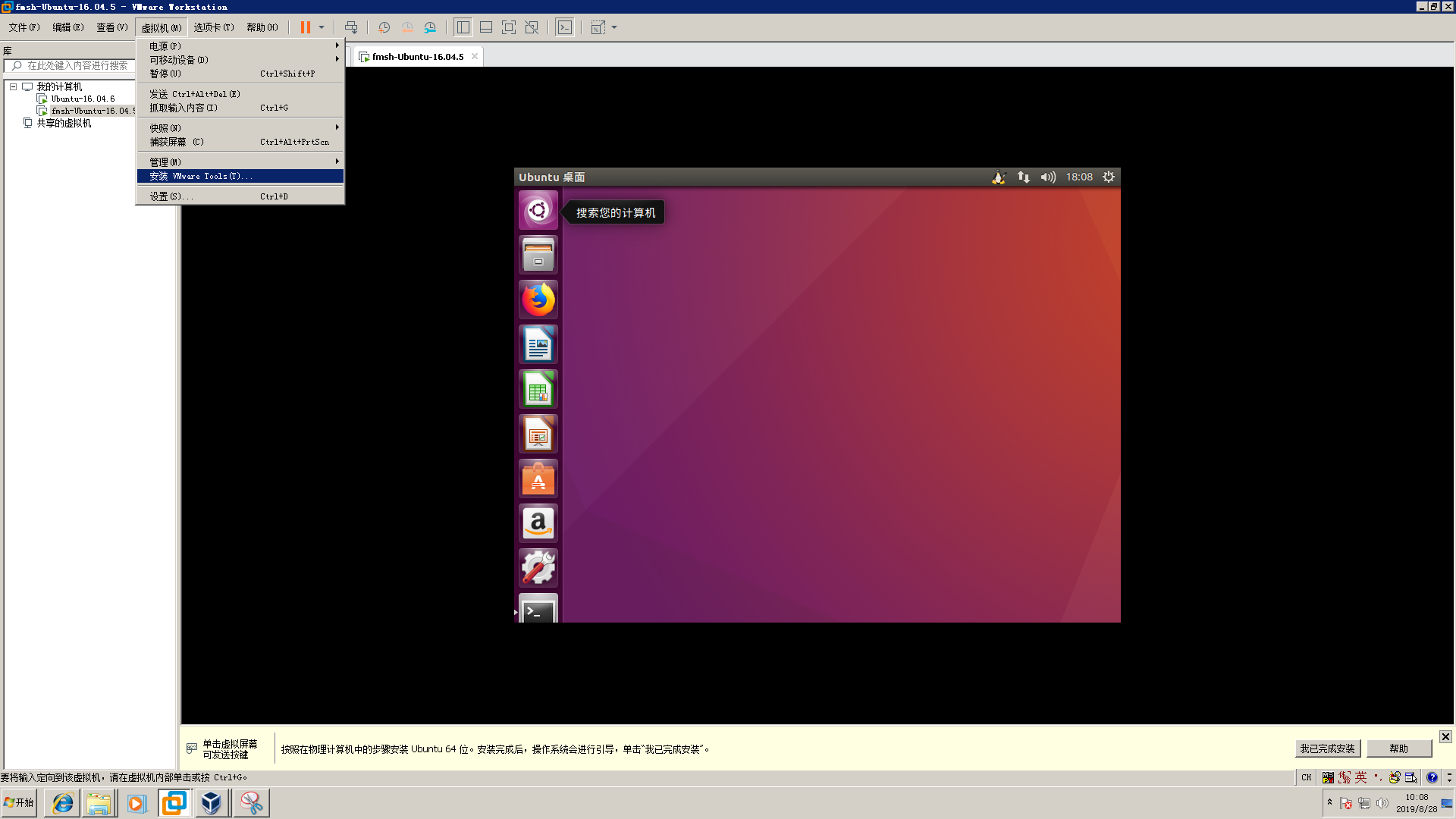
3)调整时间
看起来时间不对,通过时间和日期设置一下

4)网络
http://1.1.1.2 用户名密码登陆(公司上网管理)
此处如果不能上网,查一下编辑-->虚拟网络编辑器-->更改设置 设为桥接模式,选择硬件网卡
虚拟机-->右键 设置 网络适配器 桥接模式,复制物理网络连接状态
基本就可以通了。
5)sudo apt-get update
如果更新不通过 ,也许需要设置一下source.list
参考Ubuntu apt-get install E: 无法定位软件包Ubuntu apt-get install E: 无法定位软件包
3.在Ubuntu16.04.5上安装petalinux
之前折腾了两天各种问题,就是因为Ubuntu的版本不对,所以需要严格按照UG1144 PetaLinux Tools Documentation的推荐来
这个坑踩得好不值得啊啊啊啊啊。
1)下载
https://www.xilinx.com/support/download/index.html/content/xilinx/en/downloadNav/embedded-design-tools/2018-3.html
PetaLinux 2018.3 Installer (TAR/GZIP - 6.79 GB)
2)把shell设置成bash
sudo dpkg-reconfigure dash
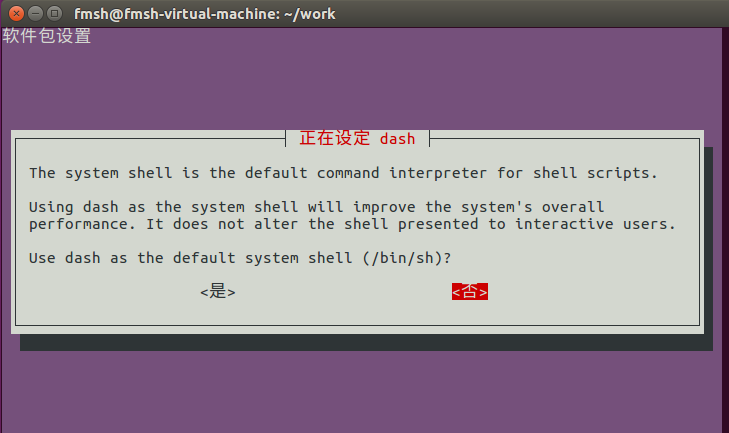
此时看一下 /bin/sh指向bash
2)安装依赖包
UG1144

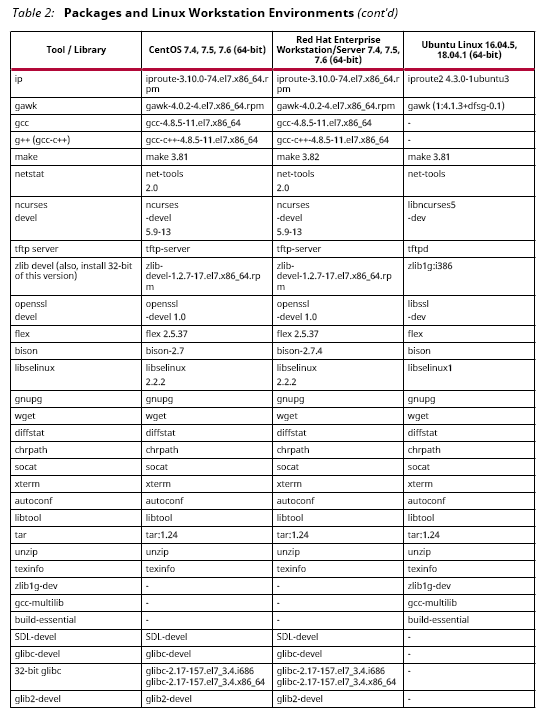
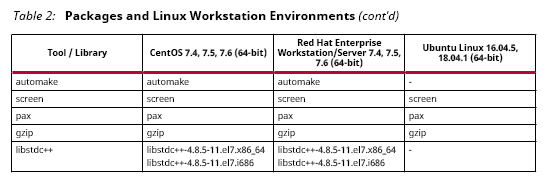
sudo apt-get install tofrodos iproute gawk make net-tools libncurses5-dev tftpd zlib1g:i386 libssl-dev flex bison libselinux1 gnupg wget diffstat chrpath socat xterm autoconf libtool tar unzip texinfo zlib1g-dev gcc-multilib build-essential git libsdl1.2-dev libglib2.0-dev
4)安装petalinux
我将petalinux-v2018.3-final-installer.run放在了VMware-share文件内
在Ubuntu-16.04.5中对应/mnt/hgfs/Ubuntu-16.04.5/目录
注意安装petalinux必须在非root用户
为了避免权限问题,在~/work目录下新建petalinux目录
/mnt/hgfs/Ubuntu-16.04.5/petalinux-v2018.3-final-installer.run ./petalinux/
安装过程中会出现
INFO: Checking installation environment requirements...
INFO: Checking free disk space
INFO: Checking installed tools
INFO: Checking installed development libraries
INFO: Checking network and other services
WARNING: No tftp server found - please refer to "PetaLinux SDK Installation Guide" for its impact and solution
INFO: Checking installer checksum...
INFO: Extracting PetaLinux installer...
LICENSE AGREEMENTS
PetaLinux SDK contains software from a number of sources. Please review
the following licenses and indicate your acceptance of each to continue.
You do not have to accept the licenses, however if you do not then you may
not use PetaLinux SDK.
Use PgUp/PgDn to navigate the license viewer, and press 'q' to close
Press Enter to display the license agreements
这时候需要按下enter键,让你阅读LICENSE AGREEMENTS,按下q,再按y,如此三次。
Do you accept Xilinx End User License Agreement? [y/N] > y
Do you accept Webtalk Terms and Conditions? [y/N] > y
Do you accept Third Party End User License Agreement? [y/N] > y
INFO: Installing PetaLinux...
INFO: Checking PetaLinux installer integrity...
INFO: Installing PetaLinux SDK to "./petalinux//."
INFO: Installing aarch64 Yocto SDK to "./petalinux//./components/yocto/source/aarch64"...
INFO: Installing arm Yocto SDK to "./petalinux//./components/yocto/source/arm"...
INFO: Installing microblaze_full Yocto SDK to "./petalinux//./components/yocto/source/microblaze_full"...
INFO: Installing microblaze_lite Yocto SDK to "./petalinux//./components/yocto/source/microblaze_lite"...
INFO: PetaLinux SDK has been installed to ./petalinux//.
至此安装完毕。
sudo mv ~/work/petalinux /opt/
source /opt/petalinux/settings.sh 设置环境
xsct等工具就可以直接用了。
4.ssh
apt-get install openssh-server
/etc/init.d/ssh restart 过程中认证一下就OK了
5.sftp
apt-get install vsftpd
/etc/init.d/vsftpd restart 过程中认证一下就OK了
6.运行sdk
1) dtc报warning has a unit name, but no reg property
将/opt/petalinux/tools/linux-i386/petalinux/bin/dtc 拷贝到/usr/bin目录下
2) 爆出缺mkimage工具
sudo cp ../u-boot-2018.07-fmxx/tools/mkimage /usr/bin/
VNware上安装虚拟机Ubuntu16.10 并安装petalinux的更多相关文章
- VNware上安装虚拟机Ubuntu16.10 并安装petalinux(版本问题的坑 弃帖 另开一帖)
1.下载Ubuntu镜像文件 最新版本:https://ubuntu.com/download/desktop 老版本:http://old-releases.ubuntu.com/releases/ ...
- Mac Book 上安装Windows 8 / 10 以后安装 Hyper-v 无法正常使用问题---虚拟化已禁止问题
Mac book由于工作需要装了双启动,平时工作用 Windows 10, 由于有些老程序无法启动,还得再装一个虚拟机. 起初装 WMWare 开始装 7.1版本,结果没安装完就直接崩溃重启, 网上反 ...
- MySQL安装 MySQL5.7.10免安装版配置,mysql5.7.10免安装版
MySQL5.7.10免安装版配置,mysql5.7.10免安装版 最新版的 Mysql 不提供图形界面的安装了, 下载下来是一个压缩包的形式, 那么我们如何来使用它呢, 让它为我们工作呢? 环境: ...
- ubuntu16.10下安装erlang和RabbitMQ
Ubuntu系统下安装RabbitMQ(我选择的是Ubuntu Server 16.10) 1.首先必须要有Erlang环境支持 --安装之前要装一些必要的库(Erlang开发环境同样)(参考:duq ...
- 使用Azure的GPU系列虚拟机Ubuntu-16.0.4安装GPU驱动并使用Tensorflow-GPU的过程。
1.source activate python362.source activate tensorflow-gpu3.pip install tensorflow-gpu(提示安装的这个版本:ten ...
- ubuntu16.10 中安装mysql
1.安装MYSQL: root@ubuntu:~# sudo apt-get install mysql-server root@ubuntu:~# apt isntall mysql-client ...
- ubuntu安装docker{ubuntu16.04下安装docker}
一.开始安装 第一步: 由于apt官方库里的docker版本可能比较旧,所以先卸载可能存在的旧版本: $ sudo apt-get remove docker docker-engine d ...
- 转: VMware 安装mac osx 10.11 安装步骤(一)(from伟东)
http://blog.csdn.net/soachenshui/article/details/49251513
- 在Linux服务器上使用Vbox安装虚拟机
先去官网(www.virtualbox.org)上下载对应Linux系统的Vbox版本. 我这边用的是Oracle Linux 7系统(KDE安装) 使用rpm安装virtualbox 发现报错,按照 ...
随机推荐
- django搭建一个小型的服务器运维网站
前言 不管是运维还是开发抑或是测试,工作中不免会和Linux服务器打交道,常见的操作譬如:查看CPU或内存状态.查看和修改服务器时间.查看或者修改服务器配置文件.实时查看或回看系统的日志.重启服务 ...
- SDK使用NinePatch(.9)资源
.9资源是啥? .9图是一种可以拉伸的图片格式,当你把它用作背景图时,android系统会根据实际情况来拉伸图片资源.比如按钮的背景必须根据上面显示文字的长短作拉伸.NinePatch就是额外包含了一 ...
- MySQL5.7的并行复制
MySQL5.6开始支持以schema为维度的并行复制,即如果binlog row event操作的是不同的schema的对象,在确定没有DDL和foreign key依赖的情况下,就可以实现并行复制 ...
- P1538迎春舞会之数字舞蹈
传送 输入输出样例:(洛咕的太丑了就不放了) (1前面有三个空格) 这真是一群闲(qian)圈(zou)的人.大号+小号提交了不下10遍终于a了 好了我们来研究一下这些数字"美观" ...
- TreeSet 源码分析
TreeSet 1)底层由 TreeMap 支持的 Set 接口实现,Set 中的元素按照自然顺序或指定的比较器排序. 创建实例 /** * 支持此 Set 的底层的 TreeMap 对象 */ pr ...
- accomplish、complete、finish、achieve和fulfill
accomplish to succeed in doing something, especially after trying very hard vt. 完成:实现:达到 complete us ...
- vue--》分页效果(前端实现)
<template> <div> <el-table style="width: 100%;" :data="ary"> & ...
- HTML: 引号不能忽视
在js中常常生成拼接html,然后放到dom中,但是有些拼接的html标签需要加一些指或者属性,这个时候不能忽略引号 如果data.link_tel有空格,不加单引号导致value的值不完全 str ...
- Spring MVC-学习笔记(3)参数绑定注解、HttpMessageConverter<T>信息转换、jackson、fastjson、XML
1.参数绑定注解 1>@RequestParam: 用于将指定的请求参数赋值给方法中的指定参数.支持的属性: 2>@PathVariable:可以方便的获得URL中的动态参数,只支持一个属 ...
- 错排问题 && 洛谷 P1595 信封问题
传送门 一道裸的错排问题 错排问题 百度百科上这样说 就是对于一个排列,每一个数都不在正确的位置上的方案数.n 个元素的错排数记为 D(n). 公式 D(n)=(n−1)∗(D(n−2)+D(n−1) ...