
【转】ANDROID LOLLIPOP SCREEN CAPTURE AND SHARING
https://datatheorem.github.io/android/2014/12/26/android-screencapture/
https://www.youtube.com/watch?v=tT1XSoykjtA
ANDROID LOLLIPOP SCREEN CAPTURE AND SHARING
Android Lollipop has a new feature that allows screen capturing and screen sharing from third party applications. The feature allows third party apps to capture videos from the device and deliver it over the network.
Screen capturing does not require any pre-defined permissions; however, it does require user consent, as shown in the image below. If the user agrees to the consent, which does not necessarily explain the permanence of the feature nor its broad range, the application is able to capture everything that is displayed on the device’s screen, including sensitive activity from all other apps, such as password keystrokes, credit card screens, home addresses, etc. The capturing ability remains on even if the user terminates/closes the app, but not after a reboot. Additionally, when an application is performing screen capturing a small screen casting icon is displayed in the notification bar. This does not give the user enough information to make an informed decision on whether to disable casting.
Please click here to view the full step-by-step demo. Thanks Alexey Reznik for creating an informative video.
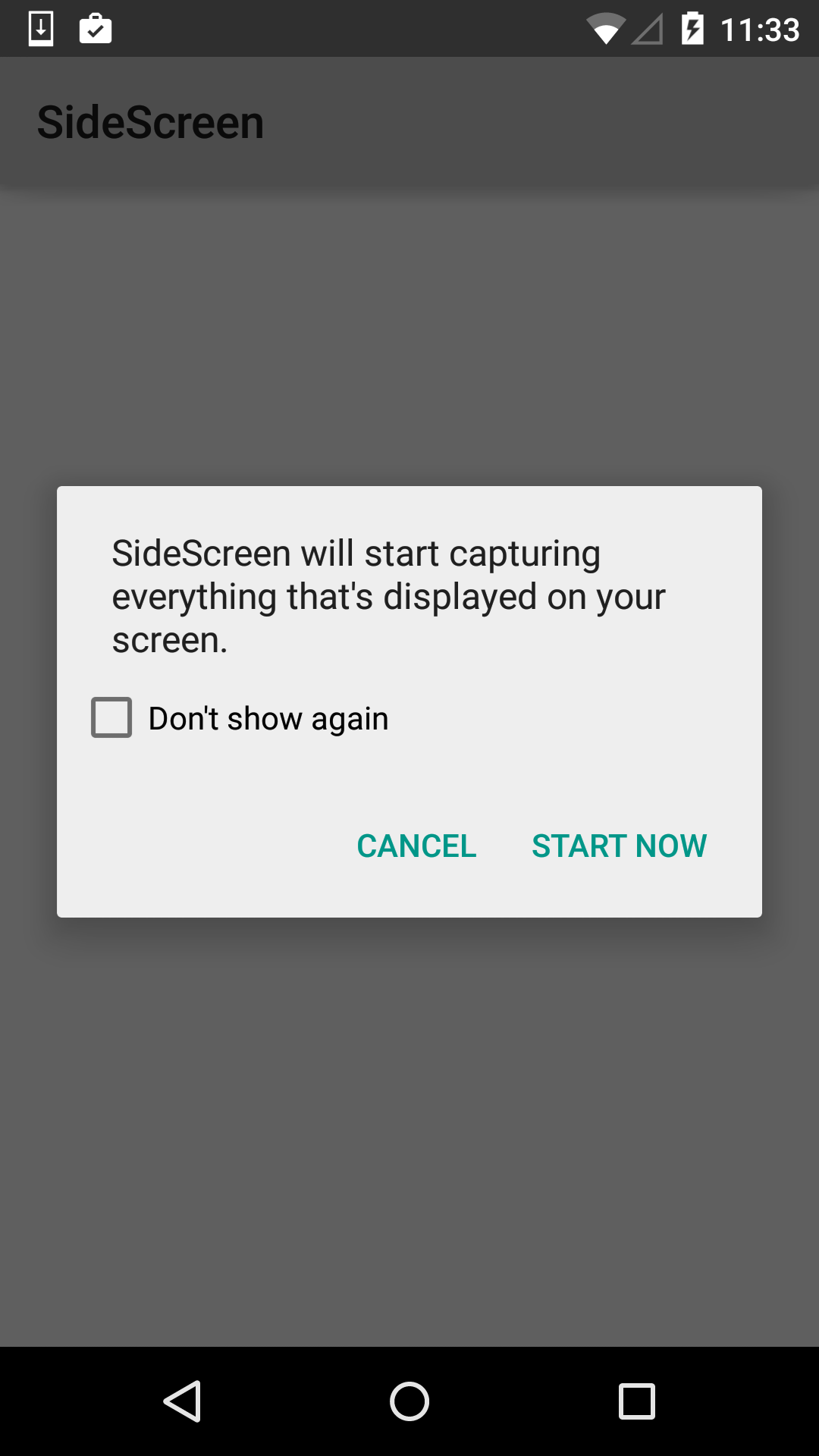
Fig:SideScreen is a 3rd Party Application on Google Play
Since a user may not understand the impact of its consent, mobile apps should proactive protect their sensitive screens from third party screen capturing and sharing. This is possible using the FLAG_SECURE option on any given screen. The following code shows an example:
protected void onCreate(Bundle savedInstanceState) {

super.onCreate(savedInstanceState);

        setContentView(R.layout.activity_main);

         getWindow().setFlags(LayoutParams.FLAG_SECURE,

                 LayoutParams.FLAG_SECURE)

…

…

}
However, if the developers want to protect all the screens of their applications from third party screen capturing and sharing, they need to use this flag in each of the Activities separately. There is no global means to set this flag for all the screens at once. But, one can design their applications in such a way that the FLAG_SECURE needs to be used only once. Below is the code snippet:
- Define a BaseActivity and set the FLAG_SECURE in that Activity :
public class BaseActivity extends Activity {

    @Override

    protected void onCreate(Bundle savedInstanceState) {

        super.onCreate(savedInstanceState);

        /**

         * approach 1: create a base activity and set the FLAG_SECURE in it,

         * Extend all other activities, Fragments from this activity

         */

        getWindow().setFlags(LayoutParams.FLAG_SECURE,

                LayoutParams.FLAG_SECURE);

    }
- Take this BaseActivity as superclass for all the other Activities.
public class LoginActivity extends BaseActivity

public class MainActivity extends BaseActivity
By doing so, when the onCreate() method of the super class is overrriden, the FLAG_SECURE automatically gets set for all the child activities.
- There might be cases where one wants to unset the FLAG_SECURE for some screens. In such cases, in child activity can use the below code:
@Override

    protected void onCreate(Bundle savedInstanceState) {

        super.onCreate(savedInstanceState);

        setContentView(R.layout.activity_main);

        /*

        clear flags: It can be used when user need to enable screen capturing in some applications

         */

        getWindow().clearFlags(WindowManager.LayoutParams.FLAG_SECURE);

    }
More information on FLAG_SECURE API can be found here: FLAG_SECURE
【转】ANDROID LOLLIPOP SCREEN CAPTURE AND SHARING的更多相关文章
- SPX Instant Screen Capture
Today I will recommend a NICE screen capture tool, which name is SPA Instant Screen Capture. http:// ...
- Android(Lollipop/5.0) Material Design(六) 使用图像
Material Design列 Android(Lollipop/5.0)Material Design(一) 简单介绍 Android(Lollipop/5.0)Material Design(二 ...
- ffmpeg 录屏 screen capture recorder
ffmpeg在Linux下用X11grab进行屏幕录像,在Windows下用DirectShow滤镜 首先需要安装一个软件,screen capture recorder 编译好的下载地址是: htt ...
- Android(Lollipop/5.0) Material Design(二) 入门指南
Material Design系列 Android(Lollipop/5.0)Material Design(一) 简介 Android(Lollipop/5.0)Material Design(二) ...
- Android(Lollipop/5.0) Material Design(一) 简单介绍
Material Design系列 Android(Lollipop/5.0)Material Design(一) 简单介绍 Android(Lollipop/5.0)Material Design( ...
- Android(Lollipop/5.0) Material Design(四) 创建列表和卡片
Material Design系列 Android(Lollipop/5.0)Material Design(一) 简单介绍 Android(Lollipop/5.0)Material Design( ...
- full page screen capture in js
full page screen capture in js html2canvas https://html2canvas.hertzen.com/ https://github.com/nikla ...
- Android Lollipop 5.0 经典新特性回顾
*Tamic 专注移动开发! 更多文章请关注 http://blog.csdn.net/sk719887916 虽然Android已到了7.0 ,但是我们还是不能忘怀视觉革命性改变的5.0,今天回顾下 ...
- Android(Lollipop/5.0) Material Design(一) 简介
官网地址:https://developer.android.com/intl/zh-tw/design/material/index.html 使用Material Design 需要api21,即 ...
随机推荐
- Caffe CuDNN版本与环境不同导致make错误
1.将./include/caffe/util/cudnn.hpp 换成最新版的caffe里的cudnn的实现,即相应的cudnn.hpp. 2.将./include/caffe/layers里的,所 ...
- 文件权限和访问控制列表ACL (1)
背景知识: 文件的权限主要针对三类对象进行定义 Owner: 属主u Group: 属组g Other: 其他o 每个文件针对每一类的访问者都设定了三种权限 r: Readable 读 w: Writ ...
- 推荐:实现RTSP/RTMP/HLS/HTTP协议的轻量级流媒体框架,支持大并发连接请求
推荐一个比较好用的流媒体服务开源代码: ZLMediaKit: 实现RTSP/RTMP/HLS/HTTP协议的轻量级流媒体框架,支持大并发连接请求 https://gitee.com/xiahcu/Z ...
- Windows下使用命令行编译Qt项目(解决DLL丢失问题)
一.前言 我之前用Qt做了个hello world,结果各种报错,一大堆DLL找不到,今天用命令行编译就通过了 二.准备工作 1.Visual Studio(有nmake就行) 2.Qt 3.把qma ...
- 【模式识别与机器学习】——3.5Fisher线性判别
---恢复内容开始--- 出发点 应用统计方法解决模式识别问题时,一再碰到的问题之一就是维数问题. 在低维空间里解析上或计算上行得通的方法,在高维空间里往往行不通. 因此,降低维数有时就会成为处理实际 ...
- Socket 模拟HTTP客户端请求
import java.io.IOException; import java.io.InputStream; import java.io.OutputStreamWriter; import ja ...
- JS学习第六天
匿名函数: 定义:function(参数列表){ 要执行的语句块: } 定义名(): 创建日期对象:Date var date=new Date(); alert(date); 不输入则是默认月,日 ...
- Linux expect用法介绍
1.expect是linux中一个交互命令,一般在 /usr/bin/expect路径下,如果该路径未加入到环境中需要先添加,其作用场景常用于交互执行输入指令 常用命令: expect 获取上一命令执 ...
- 聊聊MySQL常用的4种主从复制架构
目录 一主多从复制架构 多级复制架构 双主(Dual Master)复制架构 多源(Multi-Source)复制架构 如何优化主从延迟问题? 复制的4中常见架构有一主多从复制架构.多级复制架构.双主 ...
- JavaScript 基础三
遍历对象的属性 for...in 语句用于对数组或者对象的属性进行循环操作. for (变量 in 对象名字) { 在此执行代码 } 这个变量是自定义 符合命名规范 但是一般我们 都写为 k 或则 k ...