
WPF创建自定义控件并运用
此项目源码:https://github.com/lizhiqiang0204/WpfCustomControlLibrary1
首先创建自定义控件库项目

项目名称命名为:WpfCustomControlLibrary
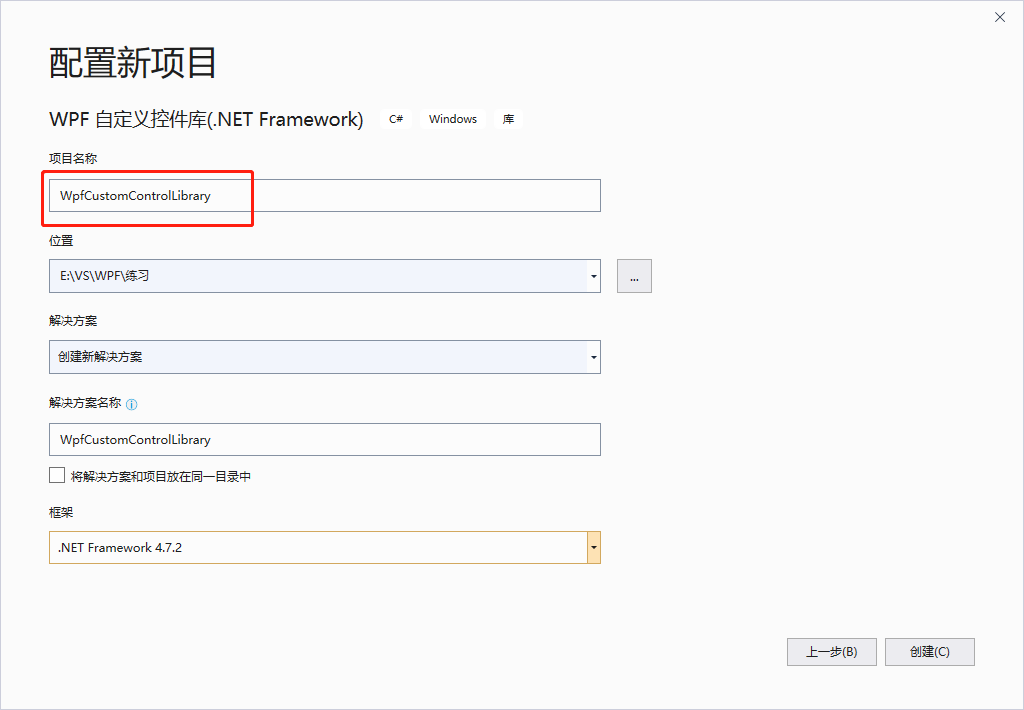
在CustomControl1.cs文件中添加新控件类BulletCheckBox
/// <summary>

    /// BulletCheckBox.xaml 的交互逻辑

    /// </summary>

    public class BulletCheckBox : CheckBox

    {

        public static readonly DependencyProperty TextProperty = DependencyProperty.Register(

            "Text", typeof(string), typeof(BulletCheckBox), new PropertyMetadata("Off"));

        /// <summary>

        /// 默认文本(未选中)

        /// </summary>

        public string Text

        {

            get { return (string)GetValue(TextProperty); }

            set { SetValue(TextProperty, value); }

        }

        public static readonly DependencyProperty CheckedTextProperty = DependencyProperty.Register(

            "CheckedText", typeof(string), typeof(BulletCheckBox), new PropertyMetadata("On"));

        /// <summary>

        /// 选中状态文本

        /// </summary>

        public string CheckedText

        {

            get { return (string)GetValue(CheckedTextProperty); }

            set { SetValue(CheckedTextProperty, value); }

        }

        public static readonly DependencyProperty CheckedForegroundProperty =

            DependencyProperty.Register("CheckedForeground", typeof(Brush), typeof(BulletCheckBox), new PropertyMetadata(Brushes.WhiteSmoke));

        /// <summary>

        /// 选中状态前景样式

        /// </summary>

        public Brush CheckedForeground

        {

            get { return (Brush)GetValue(CheckedForegroundProperty); }

            set { SetValue(CheckedForegroundProperty, value); }

        }

        public static readonly DependencyProperty CheckedBackgroundProperty =

            DependencyProperty.Register("CheckedBackground", typeof(Brush), typeof(BulletCheckBox), new PropertyMetadata(Brushes.LimeGreen));

        /// <summary>

        /// 选中状态背景色

        /// </summary>

        public Brush CheckedBackground

        {

            get { return (Brush)GetValue(CheckedBackgroundProperty); }

            set { SetValue(CheckedBackgroundProperty, value); }

        }

        static BulletCheckBox()

        {

            DefaultStyleKeyProperty.OverrideMetadata(typeof(BulletCheckBox), new FrameworkPropertyMetadata(typeof(BulletCheckBox)));

        }

    }
为BulletCheckBox这个控件增加样式
    <Style TargetType="{x:Type local:BulletCheckBox}">

        <Setter Property="Background" Value="#FF4A9E4A"></Setter>

        <Setter Property="Foreground" Value="#DDE8E1"></Setter>

        <Setter Property="CheckedForeground" Value="White"></Setter>

        <Setter Property="CheckedBackground" Value="#FF0CC50C"></Setter>

        <Setter Property="FontSize" Value=""></Setter>

        <Setter Property="Cursor" Value="Hand"></Setter>

        <Setter Property="Width" Value=""></Setter>

        <Setter Property="Height" Value=""></Setter>

        <Setter Property="Margin" Value=""></Setter>

        <Setter Property="Template">

            <Setter.Value>

                <!--控件模板-->

                <ControlTemplate TargetType="{x:Type local:BulletCheckBox}">

                    <Viewbox Stretch="Uniform"  VerticalAlignment="Center" HorizontalAlignment="Center">

                        <Border x:Name="border" Width="" Height="" Background="{TemplateBinding Background}" SnapsToDevicePixels="True"

                                Margin="{TemplateBinding Margin}" CornerRadius="">

                            <StackPanel Orientation="Horizontal">

                                <!--状态球-->

                                <Border x:Name="state" Width="" Height="" Margin="3,2,1,2" CornerRadius="" SnapsToDevicePixels="True"

                                    Background="{TemplateBinding Foreground}">

                                    <Border.RenderTransform>

                                        <TranslateTransform x:Name="transState" X=""></TranslateTransform>

                                    </Border.RenderTransform>

                                </Border>

                                <!--文本框-->

                                <TextBlock Width="" Foreground="{TemplateBinding Foreground}" x:Name="txt" Text="{TemplateBinding Text}" VerticalAlignment="Center" TextAlignment="Center">

                                    <TextBlock.RenderTransform>

                                        <TranslateTransform x:Name="transTxt" X=""></TranslateTransform>

                                    </TextBlock.RenderTransform>

                                </TextBlock>

                            </StackPanel>

                        </Border>

                    </Viewbox>

                    <!--触发器:设置选中状态符号-->

                    <ControlTemplate.Triggers>

                        <Trigger Property="IsChecked" Value="True">

                            <Setter Property="Text" Value="{Binding RelativeSource={RelativeSource Mode=TemplatedParent}, Path=CheckedText}" TargetName="txt"/>

                            <Setter Property="Background" Value="{Binding RelativeSource={RelativeSource Mode=TemplatedParent}, Path=CheckedForeground}" TargetName="state"/>

                            <Setter Property="Foreground" Value="{Binding RelativeSource={RelativeSource Mode=TemplatedParent}, Path=CheckedForeground}" TargetName="txt"/>

                            <Setter Property="Background" Value="{Binding RelativeSource={RelativeSource Mode=TemplatedParent}, Path=CheckedBackground}" TargetName="border"/>

                            <Trigger.EnterActions>

                                <BeginStoryboard>

                                    <Storyboard>

                                        <DoubleAnimation Storyboard.TargetName="transState" Storyboard.TargetProperty="X" To="" Duration="0:0:0.2" />

                                        <DoubleAnimation Storyboard.TargetName="transTxt" Storyboard.TargetProperty="X" To="-24" Duration="0:0:0.2" />

                                    </Storyboard>

                                </BeginStoryboard>

                            </Trigger.EnterActions>

                            <Trigger.ExitActions>

                                <BeginStoryboard>

                                    <Storyboard>

                                        <DoubleAnimation Storyboard.TargetName="transState" Storyboard.TargetProperty="X" To="" Duration="0:0:0.2" />

                                        <DoubleAnimation Storyboard.TargetName="transTxt" Storyboard.TargetProperty="X" To="" Duration="0:0:0.2" />

                                    </Storyboard>

                                </BeginStoryboard>

                            </Trigger.ExitActions>

                        </Trigger>

                        <Trigger Property="IsEnabled" Value="false">

                            <Setter Property="Opacity" Value="{StaticResource DisableOpacity}" TargetName="border"/>

                        </Trigger>

                    </ControlTemplate.Triggers>

                </ControlTemplate>

            </Setter.Value>

        </Setter>

    </Style>
编译项目得到DLL控件库文件

自定义控件库生成完后,就可以创建WPF应用程序来调用它了,右击解决方案->添加->新建项目->WPF应用
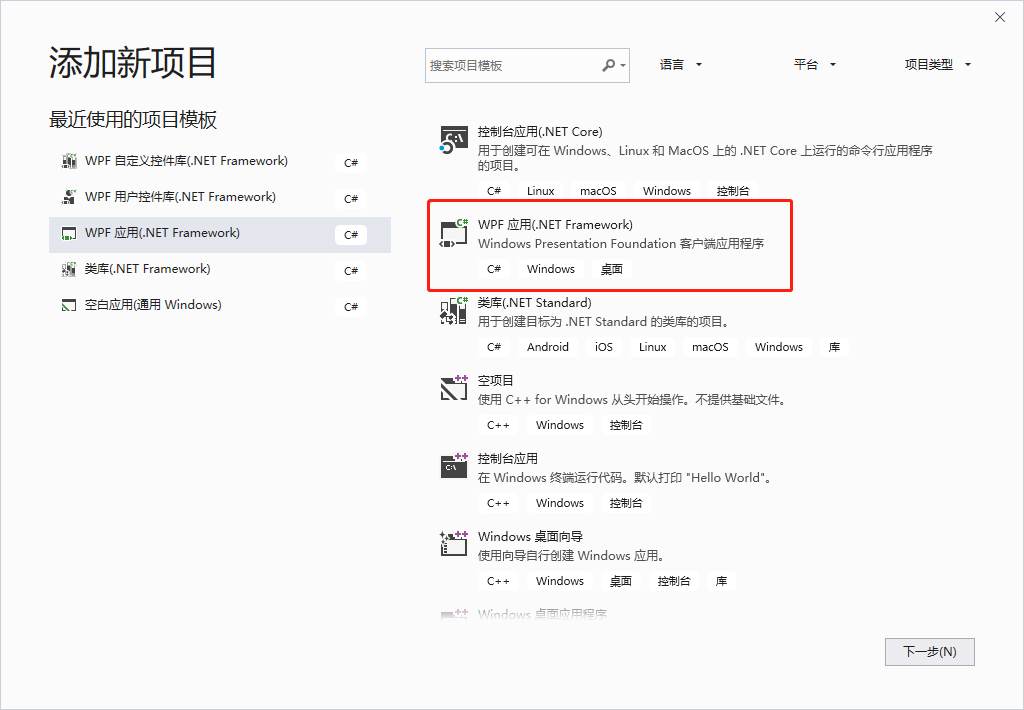
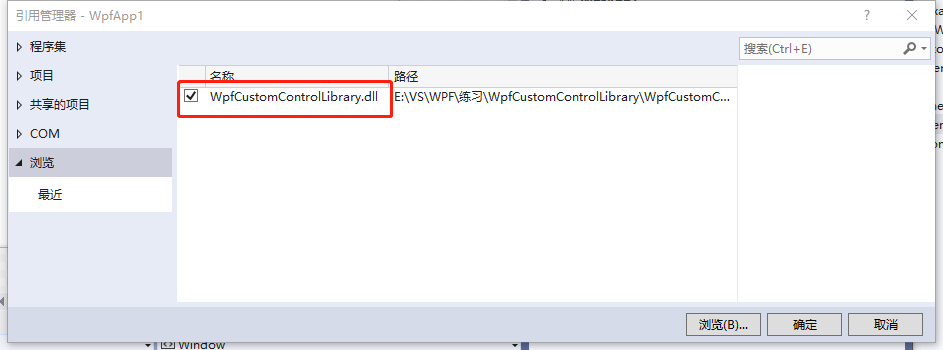
右击WpfApp1项目设为启动项目,右击该项目下的引用,添加引用

从浏览中找到我们刚才生成的DLL控件库文件
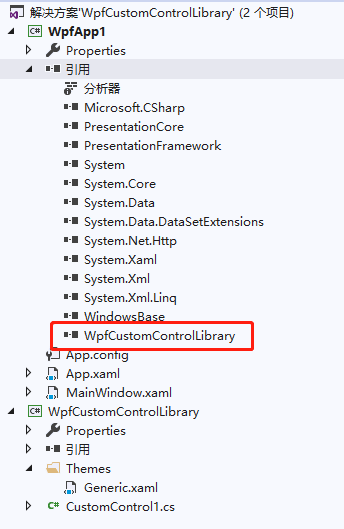
此时展开引用就可以看到刚才生成的控件库已经加载进来了
打开MainWindow.xaml,添加引用xmlns:MyNamespace="clr-namespace:WpfCustomControlLibrary;assembly=WpfCustomControlLibrary"
这句引用是在CustomControl1.cs文件中复制而来的,其中xmlns:MyNamespace是可以更改的
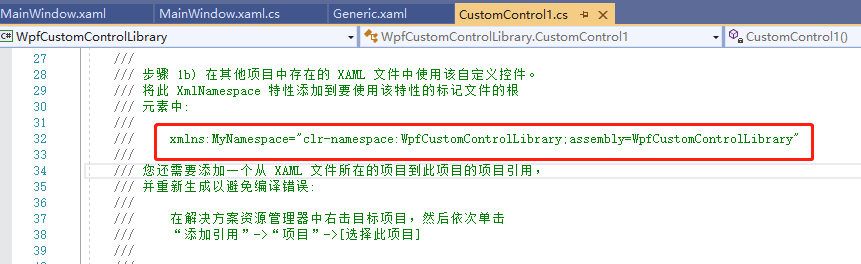
后台文件不用改动,整个MainWindow.xaml文件如下:
<Window x:Class="WpfApp1.MainWindow"

xmlns="http://schemas.microsoft.com/winfx/2006/xaml/presentation"

xmlns:x="http://schemas.microsoft.com/winfx/2006/xaml"

xmlns:d="http://schemas.microsoft.com/expression/blend/2008"

xmlns:mc="http://schemas.openxmlformats.org/markup-compatibility/2006"

xmlns:MyNamespace="clr-namespace:WpfCustomControlLibrary;assembly=WpfCustomControlLibrary"

xmlns:local="clr-namespace:WpfApp1"

mc:Ignorable="d"

Title="MainWindow" Height="" Width="">

<Grid>

<MyNamespace:BulletCheckBox Text="关闭" CheckedText="开启" IsChecked="True" Width="" Height="" />

</Grid>

</Window>
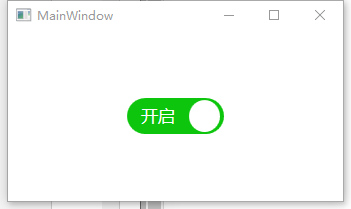
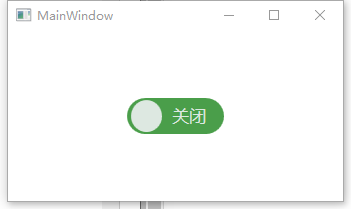
最后运行程序:
WPF创建自定义控件并运用的更多相关文章
- WPF 创建自定义控件及自定义事件
1 创建自定义控件及自定义事件 /// <summary> /// 演示用的自定义控件 /// </summary> public class ExtButton : Butt ...
- WPF设计自定义控件
在实际工作中,WPF提供的控件并不能完全满足不同的设计需求.这时,需要我们设计自定义控件. 这里LZ总结一些自己的思路,特性如下: Coupling UITemplate Behaviour Func ...
- [翻译]使用Swift在Xcode中创建自定义控件
使用Swift在Xcode中创建自定义控件 原文 IBDesignable and IBInspectable With IBDesignable and IBInspectable, develop ...
- 利用WPF创建含多种交互特性的无边框窗体
咳咳,标题一口气读下来确实有点累,让我先解释一下.另外文章底部有演示程序的下载. 本文介绍利用WPF创建一个含有以下特性的窗口: 有窗口阴影,比如QQ窗口外围只有几像素的阴影: 支持透明且无边框,为了 ...
- Android学习之基础知识五—创建自定义控件
下面是控件和布局的继承关系: 从上面我们看到: 1.所有控件都是直接或间接继承View,所有的布局都是直接或间接继承ViewGroup 2.View是Android中最基本的UI组件,各种组件其实就是 ...
- 在WPF中自定义控件
一, 不一定需要自定义控件在使用WPF以前,动辄使用自定义控件几乎成了惯性思维,比如需要一个带图片的按钮,但在WPF中此类任务却不需要如此大费周章,因为控件可以嵌套使用以及可以为控件外观打造一套新的样 ...
- 在WPF中自定义控件(3) CustomControl (上)
原文:在WPF中自定义控件(3) CustomControl (上) 在WPF中自定义控件(3) CustomControl (上) 周银辉 ...
- 在WPF中自定义控件(3) CustomControl (下)
原文:在WPF中自定义控件(3) CustomControl (下) 在WPF中自定义控件(3) CustomControl (下) ...
- 在WPF中自定义控件(1)
原文:在WPF中自定义控件(1) 在WPF中自定义控件(1):概述 周银辉一, 不一定需要自定 ...
随机推荐
- jquery源码分析(二)——架构设计
要学习一个库首先的理清它整体架构: 1.jQuery源码大致架构如下:(基于 jQuery 1.11 版本,共计8829行源码)(21,94) 定义了一些变量和函数jQu ...
- CodeForces - 274A - k-Multiple Free Set
先上题目 k-Multiple Free Set time limit per test 2 seconds memory limit per test 256 megabytes input sta ...
- python操作JIRA的库简单操作
因公司需要,我们开发的PRISM又需要和JIRA对接啦, 今天找了一个JIRA库撸了一发~~~ jira库地址: https://pypi.python.org/pypi/jira/1.0.3 简单操 ...
- 手动编译java的package问题,及演示继承的基本实现
不用IDE,而直接用命令编译JAVA包,仔细看了下,作一个记录. 以下的URL值得收藏. http://www.aiuxian.com/article/p-2115485.html http://ww ...
- 【ACM】hdu_1106_排序_201308071928
排序Time Limit: 2000/1000 MS (Java/Others) Memory Limit: 65536/32768 K (Java/Others)Total Submissio ...
- 【ACM】hdu_1095_A+BVII_201307261740
A+B for Input-Output Practice (VII)Time Limit: 2000/1000 MS (Java/Others) Memory Limit: 65536/327 ...
- nutch的定时增量爬取
译文来着: http://wiki.apache.org/nutch/Crawl 介绍(Introduction) 注意:脚本中没有直接使用Nutch的爬去命令(bin/nutch crawl或者是& ...
- HDU 4505
哈哈哈哈哈哈哈哈哈,省赛,一等奖,一定的一定的一定的一定的... #include <iostream> #include <cstdio> #include <cstr ...
- 神经网络入门游戏推荐BugBrain
今天看到一款神经网络入门游戏.BugBrain.在游戏中,你能够通过连接神经元.设置神经元阈值等建造虫子的大脑,让瓢虫.蠕虫.蚂蚁等完毕各种任务.下载下来玩了玩,难度真不是入门级的= =! 真心佩服作 ...
- Notepad++如何编译、运行Java
首先要让Notepad++编译和运行Java,前提是电脑里已经配置好了Java的环境(这里可以参考我博客里关于Java环境配置的那篇随笔). 在Notepad++上面的选项栏中找到 插件---> ...