
通过WSL在Windows下安装子Linux系统
一、开启开发者模式
步骤: -> 系统设置 -> 更新和安全 -> 针对开发人员 -> 选择开发者模式
点击后会自动安装环境
二、启用WSL
步骤: -> 系统设置 -> 应用 -> 右侧的程序和功能 -> 启动或关闭windows功能 -> 勾选适用于 Linux 的 Windows 子系统
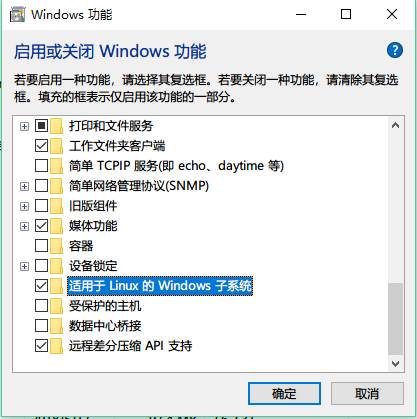
确定后,重启电脑,系统更新配置
三、安装 Linux 子系统
打开 Windows 商店,输入 Ubuntu 搜索,选择你自己想要的系统版本,我选择的是 Ubuntu 18.04。然后点击安装,第一次启动会进行初始化安装。

管理员控制台,属性,关闭使用旧版控制台
使用bash命令进入linux子系统
默认的子系统的路径:
C:\Users\qhong\AppData\Local\Packages\CanonicalGroupLimited.Ubuntu18.04onWindows_79rhkp1fndgsc\LocalState\rootfs
查看系统版本:
root@hongda:/# cat etc/os-release

NAME="Ubuntu"

VERSION="18.04 LTS (Bionic Beaver)"

ID=ubuntu

ID_LIKE=debian

PRETTY_NAME="Ubuntu 18.04 LTS"

VERSION_ID="18.04"

HOME_URL="https://www.ubuntu.com/"

SUPPORT_URL="https://help.ubuntu.com/"

BUG_REPORT_URL="https://bugs.launchpad.net/ubuntu/"

PRIVACY_POLICY_URL="https://www.ubuntu.com/legal/terms-and-policies/privacy-policy"

VERSION_CODENAME=bionic

UBUNTU_CODENAME=bionic
通过passwd设置密码:
root@hongda:/# passwd

Enter new UNIX password:

Retype new UNIX password:

passwd: password updated successfully
如果su进入root账户,密码错误,需要设置root账户的密码:
$ sudo passwd root

Enter new UNIX password:

//此时输入你的密码

Retype new UNIX password:

//再次输入,相同密码。

passwd: password updated successfully
更换ubuntu的数据源:
# .备份原来的数据源配置文件

cp /etc/apt/sources.list /etc/apt/sources.list_backup

# .编辑数据源配置文件

vi /etc/apt/sources.list
替换:
deb http://mirrors.aliyun.com/ubuntu/ trusty main restricted universe multiverse

deb http://mirrors.aliyun.com/ubuntu/ trusty-security main restricted universe multiverse

deb http://mirrors.aliyun.com/ubuntu/ trusty-updates main restricted universe multiverse

deb http://mirrors.aliyun.com/ubuntu/ trusty-proposed main restricted universe multiverse

deb http://mirrors.aliyun.com/ubuntu/ trusty-backports main restricted universe multiverse

deb https://mirrors.ustc.edu.cn/ubuntu/ xenial main restricted universe multiverse

deb https://mirrors.ustc.edu.cn/ubuntu/ xenial-updates main restricted universe multiverse

deb https://mirrors.ustc.edu.cn/ubuntu/ xenial-backports main restricted universe multiverse

deb https://mirrors.ustc.edu.cn/ubuntu/ xenial-security main restricted universe multiverse

deb-src http://mirrors.aliyun.com/ubuntu/ trusty main restricted universe multiverse

deb-src http://mirrors.aliyun.com/ubuntu/ trusty-security main restricted universe multiverse

deb-src http://mirrors.aliyun.com/ubuntu/ trusty-updates main restricted universe multiverse

deb-src http://mirrors.aliyun.com/ubuntu/ trusty-proposed main restricted universe multiverse

deb-src http://mirrors.aliyun.com/ubuntu/ trusty-backports main restricted universe multiverse
更新配置:
# .更新配置

apt-get update
参考:
https://www.jianshu.com/p/bc38ed12da1d
https://blog.csdn.net/sun___shy/article/details/80917092
https://www.cnblogs.com/mushroom/p/8969338.html
通过WSL在Windows下安装子Linux系统的更多相关文章
- windows下 安装Kali Linux到 U盘的方法
作者:玄魂工作室 \ 2016年10月20日 把Kali Linux安装到U盘好处很多,可以从U盘启动使用整个电脑的硬件资源, 可以随身携带,减少对自己电脑的影响. 今天要给大家讲的是如何在windo ...
- Windows下安装centOS7双系统总结
首先,按照网络教程,使用硬盘安装模式(失败): 一.使用分盘工具(easeUS Partion Master)分出一块未使用的空间,为安装centOS和保存镜像文件作准备. 二.将分出来的一部分空格, ...
- Windows 下安装 Ubuntu 双系统(更新)
Windows + Ubuntu 16.04 ---> 双系统 前言:本篇文章是对之前文章的更新,更新的主内容是把原来用手机拍摄的图片换成了虚拟机的截图,以及对磁盘划分的新的见解和一些使用感受, ...
- 如何在WIN7下安装虚拟机linux系统
需要支持多个平台的IT管理员经常会遇到如何在Windows 7计算机上安装Linux的问题.幸运的是有多种方法可供选择:双系统.Linux虚拟机和U盘引导. 当需要用到Windows 7和Linux时 ...
- Windows下安装Maven
上篇文章刚说到Linux下安装maven的过程,有时候为了适合在本地构建项目开发,然后上传到远程服务器执行,需要在本地构建maven项目,那么一般就是在Windows下构建maven项目并导入到我们的 ...
- windows下安装ubantu
首先声明我是一个linux大菜鸟,之所以学这个,一个是好玩,另外做DL的一些软件如Caffe要在这个平台上运行,所以没事就鼓捣鼓捣.linux是一种内核,市场上支持这种内核的操作系统有uban ...
- windows 下安装memcache拓展
Windows下安装memcached (linux 接下来会继续 学习) 以管理员身份进入CMD 模式,具体方法:C:/windows/system32 管理员身份打开cmd.exe memcach ...
- 【转】linux和windows下安装python集成开发环境及其python包
本系列分为两篇: 1.[转]windows和linux中搭建python集成开发环境IDE 2.[转]linux和windows下安装python集成开发环境及其python包 3.windows和l ...
- 转 windows下安装pycharm并连接Linux的python环境 以及 windows 下notepad ++编辑 linux 的文件
######sample 1:windows下安装pycharm并连接Linux的python环境 https://www.cnblogs.com/junxun/p/8287998.html wind ...
随机推荐
- 关于Python veriable scope 的一点疑问
在写程序中遇到了类似于以下代码的问题: #不会报错 a=1 def f(): print(a) f() #会报错 a=1 def f(): a+=1 f()
- 【Redis学习之七】Redis持久化
环境 虚拟机:VMware 10 Linux版本:CentOS-6.5-x86_64 客户端:Xshell4 FTP:Xftp4 jdk8 redis-2.8.18 什么是持久化? 将数据从掉电易失的 ...
- Vim for Windows --ctags
What is ctags? ctags -- Generate tag files for source code,which is a tool used for facilitating rea ...
- vue-cli项目npm run build后,index.html无法在浏览器打开
- javamail发送邮件及错误解决方法javax.mail.AuthenticationFailedException: failed to connect, no password specified?
javamail发送邮件及错误解决方法javax.mail.AuthenticationFailedException: failed to connect, no password specifie ...
- 案例:Redis在唯品会的大规模应用
目前在唯品会主要负责redis/hbase的运维和开发支持工作,也参与工具开发工作,本文是在Redis中国用户组给大家分享redis cluster的生产实践. 分享大纲 本次分享内容如下: 1.生产 ...
- amoeba_mysql 读写分离
环境 amoeba需要java环境,配置:略. MySQL主从配置:略. 基本架构 MySQL主:192.168.31.140 MySQL从:192.168.31.150 MySQL代理:192.16 ...
- Linux学习笔记之查看Linux版本信息
0x00 概述 这里所谓的Linux版本信息,包括Linux内核版本信息和Linux系统版本信息. 0x01 查看Linux内核版本信息 方法1:登陆Linux,在终端输入 cat /proc/ver ...
- Docker学习笔记之镜像与容器
0x00 概述 镜像和容器作为 Docker 里最基础的概念,我们很有必要了解 Docker 对它们的很多定义以及其他与它们有关的知识.在这一小节里,我们就专门针对镜像与容器两个概念展开,细致的梳理与 ...
- linux交换区使用过多导致的性能问题
近日,我们开发发现有一台配置相同的服务器跑的特别慢,相同数据量的情况下,其他服务器只要跑10分钟,这台服务器要跑50分钟,经确认,所有的应用层配置参数都相同.上去之后,发现该服务器swap使用比较多, ...