最近在做小程序的登录,需要同时获取用户手机号和头像昵称等信息,但是小程序又不支持单个接口同时获取两种数据,因此想到自定义一个弹窗,通过弹窗按钮触发获取手机号事件。记录一下。
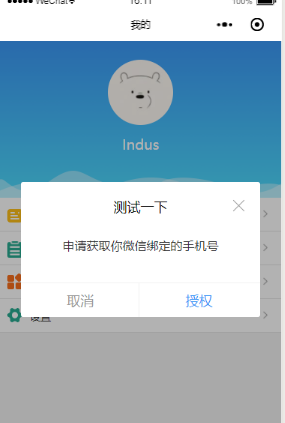
具体代码如下:
业务代码中:
在业务代码中引入dialog组件即可
<dialog visible="{{dialogVisible}}" showFooter="{{footerVisible}}" title="测试一下">
<view class='dialog-body' slot="dialog-body">
<view class='dialog-content'>申请获取你微信绑定的手机号</view>
<view class='dialog-footer' slot="dialog-footer">
<button class='cancel-btn' bindtap="close">取消</button>
<button open-type="getPhoneNumber" bindgetphonenumber="getPhoneNumber" class='confirm-btn'>授权</button>
</view>
</view>
</dialog>
dialog组件:
component下面新建dialog。注意是 component 不是 page ,因为要作为组件引入到页面中
dialog.wxml:
需要传入四个属性
visible:是否显示弹窗
title :标题
showClose:是否显示右上角关闭按钮
showFooter:是否显示底部按钮
<!--components/dialog/dialog.wxml-->
<view class='dialog-custom' wx:if="{{visible}}">
<view class='dialog-mask' bindtap="clickMask"></view>
<view class="dialog-main">
<view class="dialog-container">
<view class='dialog-container__title' wx:if="{{title.length>0}}">
<view class='title-label'>{{ title }}</view>
<view class='title-icon'>
<image wx:if="{{showClose}}" bindtap='close' src='/images/close-btn.png'></image>
</view>
</view>
<view class='dialog-container__body'>
<slot name="dialog-body"></slot>
</view>
<view class='dialog-container__footer' wx:if="{{showFooter}}">
<view class='dialog-container__footer__cancel' bindtap="close">取消</view>
<view class='dialog-container__footer__confirm' bindtap='confirm'>确定</view>
</view>
</view>
</view>
</view>
dialog.js
Component({
/**
* 组件的属性列表
*/
properties: {
visible: {
type: Boolean,
value: false
},
width: {
type: Number,
value: 85
},
position: {
type: String,
value: 'center'
},
title: {
type: String,
value: ''
},
showClose: {
type: Boolean,
value: true
},
showFooter: {
type: Boolean,
value: false
},
},
/**
* 组件的初始数据
*/
data: {
},
options:{
multipleSlots: true
},
/**
* 组件的方法列表
*/
methods: {
clickMask() {
this.setData({ visible: false });
},
close(){
this.setData({ visible: false });
},
cancel() {
this.setData({ visible: false });
this.triggerEvent('cancel');
},
confirm() {
this.setData({ visible: false });
this.triggerEvent('confirm');
}
}
})
dialog.json:声明是组件就行
{
"component": true,
"usingComponents": {}
}
dialog.wxss
css可以根据自己喜好的样式调整,注意mask遮罩层的z-index高一点,确保在最上层
/* components/dialog/dialog.wxss */
.dialog-custom {
width: 100vw;
height: 100%;
position: absolute;
left: 0;
top: 0;
z-index: 9999;
}
.dialog-mask {
position: fixed;
top: 0;
left: 0;
right: 0;
bottom: 0;
z-index: 10000;
width: 100vw;
height: 100%;
background: rgba(0, 0, 0, 0.3);
}
.dialog-main {
position: fixed;
z-index: 10001;
top: 50%;
left: 0;
right: 0;
width: 85vw;
height: auto;
margin: auto;
transform: translateY(-50%);
}
.dialog-container {
margin: 0 auto;
background: #fff;
z-index: 10001;
border-radius: 3px;
box-sizing: border-box;
padding: 40rpx;
}
.dialog-container__title {
width: 100%;
height: 50rpx;
line-height: 50rpx;
margin-bottom: 20rpx;
position: relative;
}
.dialog-container__title .title-label{
display: inline-block;
width: 100%;
height: 50rpx;
line-height: 50rpx;
font-size: 36rpx;
color: #000;
text-align: center;
}
.dialog-container__title .title-icon{
width: 34rpx;
height: 50rpx;
position: absolute;
top: 0;
right: 0;
}
.dialog-container__title .title-icon image{
width: 34rpx;
height: 34rpx;
}
.dialog-container__body {
padding-top: 10rpx;
font-size: 32rpx;
line-height: 50rpx;
}
.dialog-container__footer {
height: 76rpx;
line-height: 76rpx;
font-size: 32rpx;
text-align: center;
border-top: 1px solid #f1f1f1;
position: absolute;
bottom: 0;
left: 0;
right: 0;
}
.dialog-container__footer .dialog-container__footer__cancel {
width: 50%;
color: #999;
display: inline-block;
}
.dialog-container__footer .dialog-container__footer__cancel::after{
position: absolute;
right: 50%;
bottom: 0;
content: '';
width: 2rpx;
height: 76rpx;
background: #f1f1f1;
}
.dialog-container__footer .dialog-container__footer__confirm {
color: #3B98F7;
width: 50%;
display: inline-block;
text-align: center;
}
/* components/dialog/dialog.wxss */
.dialog-custom {
width: 100vw;
height: 100%;
position: absolute;
;
;
;
}
.dialog-mask {
position: fixed;
;
;
;
;
;
width: 100vw;
height: 100%;
, , , 0.3);
}
.dialog-main {
position: fixed;
;
top: 50%;
;
;
width: 85vw;
height: auto;
margin: auto;
transform: translateY(-50%);
}
.dialog-container {
auto;
background: #fff;
;
border-radius: 3px;
box-sizing: border-box;
rpx;
}
.dialog-container__title {
width: 100%;
rpx;
rpx;
rpx;
position: relative;
}
.dialog-container__title .title-label{
display: inline-block;
width: 100%;
rpx;
rpx;
rpx;
color: #000;
text-align: center;
}
.dialog-container__title .title-icon{
rpx;
rpx;
position: absolute;
;
;
}
.dialog-container__title .title-icon image{
rpx;
rpx;
}
.dialog-container__body {
rpx;
rpx;
rpx;
}
.dialog-container__footer {
rpx;
rpx;
rpx;
text-align: center;
border-top: 1px solid #f1f1f1;
position: absolute;
;
;
;
}
.dialog-container__footer .dialog-container__footer__cancel {
width: 50%;
color: #999;
display: inline-block;
}
.dialog-container__footer .dialog-container__footer__cancel::after{
position: absolute;
right: 50%;
;
content: '';
rpx;
rpx;
background: #f1f1f1;
}
.dialog-container__footer .dialog-container__footer__confirm {
color: #3B98F7;
width: 50%;
display: inline-block;
text-align: center;
}
- 微信小程序封装storage(含错误处理)
这次给你们安利的是微信小程序封装storage,先说下微信官方的 wx.getStorage({ key:"", success: function (res) { }, fail ...
- 微信小程序 修改(自定义) 单选/复选按钮样式 checkbox/radio样式自定义
参考文章: 微信小程序 修改(自定义) 单选/复选按钮样式 checkbox/radio样式自定义
- 微信小程序中自定义modal
微信小程序中自定义modal .wxml <modal hidden="{{hidden}}" title="这里是title" confirm-text ...
- 微信小程序之自定义toast弹窗
微信小程序里面的自带弹窗icon只有两种,success和loading.有时候用户输入错误的时候想加入一个提醒图标,也可以使用wx.showToast中的image来添加图片达到使用自定义图标的目的 ...
- 【微信小程序】自定义模态框实例
原文链接:https://mp.weixin.qq.com/s/23wPVFUGY-lsTiQBtUdhXA 1 概述 由于官方API提供的显示模态弹窗,只能简单地显示文字内容,不能对对话框内容进行自 ...
- 微信小程序之自定义select下拉选项框组件
知识点:组件,animation,获取当前点击元素的索引与内容 微信小程序中没有select下拉选项框,所以只有自定义.自定义的话,可以选择模板的方式,也可以选择组件的方式来创建. 这次我选择了组件, ...
- 微信小程序之自定义组件
在微信小程序项目中 肯定会存在很多功能和样式上相似的部分 面对这种情况 只是单单的ctrl+c ctrl+v 就显得很low了,而且也不便于后期维护那么这时候 使用微信小程序中的自定义组件功能就很合适 ...
- 微信小程序:自定义组件
为什么要学习自定义组件? 1.用上我自己的单词abc,我希望在页面中展示椭圆形的图片, 2.打开手机淘宝,假如现在要做一个企业级项目,里面有很多页面,首页存在导航模块,点击天猫,进入第二个页面,而第二 ...
- 微信小程序之自定义组件的应用
小程序支持自定义组件,下面是一个简单的购物车组件,实现的效果如图: 效果图 创建组件 在根目录创建components目录,然后创建计数组件 count 如图: 组件内容 <!--compone ...
随机推荐
- BZOJ1452 [JSOI2009]Count [2017年4月计划 树状数组02]
1452: [JSOI2009]Count Time Limit: 10 Sec Memory Limit: 64 MBSubmit: 2419 Solved: 1403[Submit][Stat ...
- 虚拟机安装redis
sudo pecl install redis 先代码里先phpinfo(); 看看php版本 有可能是7.2 sudo vim /etc/php/7.1/fpm/php.ini (注意 php ...
- PyCharm如何删除工程项目
1.在菜单中选择:file——>close project 2.选择需要删除的项目右上角的“×”号进行删除工程项目 3.找到工程项目的存放路径,删除对应的工程项目文件 通过上诉操作即可在pych ...
- Python数据分析与展示[第三周](pandas数据类型操作)
数据类型操作 如何改变Series/ DataFrame 对象 增加或重排:重新索引 删除:drop 重新索引 .reindex() reindex() 能够改变或重排Series和DataFrame ...
- 开源中国 ThinkPHP 领奖
开源中国 ThinkPHP 的领奖 周日早上早早就起来参考开源中国的活动. 由于今年竞争激烈 FastAdmin 没有上榜,但是没关系,因为这说明整个开源环境越来越好了,对于我们来说是利好. 因为 T ...
- window10下载安装jieba
下载安装jieba的过程如下: 1 下载jieba 2 将其解压到E:\python2,如图所示: 3 在桌面左下角搜索框中输入"运行",之后输入"cmd".再 ...
- c# 日期函数
DateTime dt = DateTime.Now;Label1.Text = dt.ToString();//2005-11-5 13:21:25Label2.Text = dt.ToFileTi ...
- 如何在 KiCad Eeschema 原理图中高亮网络
如何在 KiCad Eeschema 原理图中高亮网络 在 KiCad Pcbnew 中高度某个网络很方便,按着 Ctrl + 单击可以高度网络. 以为 Eeschema 也是一样的,按着 Ctrl ...
- 小爬爬4:12306自动登录&&pyppeteer基本使用
超级鹰(更简单的操作验证) - 超级鹰 - 注册:普通用户 - 登陆: - 创建一个软件(id) - 下载示例代码 1.12306自动登录 # Author: studybrother sun fro ...
- git 403
MacBook-Pro:~ easy$ git pull fatal: unable to access 'https://git.xx.com:40443/source/projectName/': ...
