
ubuntu14.04 LEMP(linux+nginx+mysql+php5)构建环境
Install LEMP (Linux, Nginx, MySQL and PHP) Stack on Ubuntu Linux 14.04 LTS

I'm a new Ubuntu Linux user. How do I install the LEMP stack on an Ubuntu Linux 14.04 LTS server using command line options to serve dynamic web apps?
As one of the most popular Linux distribution in the world, Ubuntu has released the latest version on April 17, 2014. The latest version is 14.04 with code name Trusty Tahr. Ubunt 14.04 is a LTS (Long Term Support) version. This means that Ubuntu 14.04 will be supported for the next 5 years from the release date. In this tutorial we will cover Nginx, MySQL and PHP installation on Ubuntu Linux v14.04.
| Tutorial details | |
|---|---|
| Difficulty | Easy (rss) |
| Root privileges | Yes |
| Requirements | Ubuntu |
| Estimated completion time | 15m |
What is new in Ubuntu 14.04 (Trusty Tahr) version?
You may see it on cyberciti.biz or visit the Ubuntu home page at ubuntu.com.
Nginx Installation
Nginx is one of the robust web server in Linux world. Nginx is a free, open source, high performance HTTP server and reverse proxy, as weell as an IMAP/POP3 proxy server. Now, we are going to install Nginx web server.
First, make sure system is upto date:
$ sudo apt-get update


$ sudo apt-get upgrade
#1 - Download and Install Nginx
The easiest way to download and install Nginx is using apt-get command. Here is the command:
$ sudo apt-get install nginx
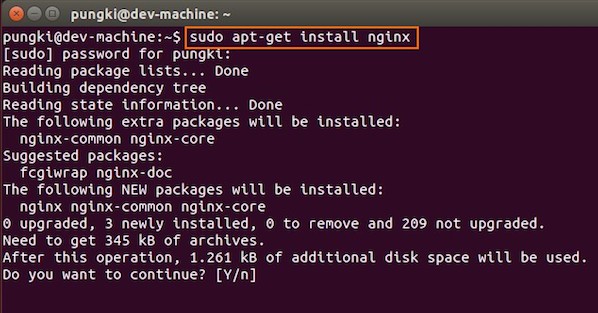
Fig.01: Download and Install Nginx on Ubuntu Linux
Just wait until installation is get done on the system.
#2 - Test Nginx
Once it get done, you can open your browser and type url http://localhost or http://your_ip_address to test it. If everything goes normal, you will see Nginx welcome page:
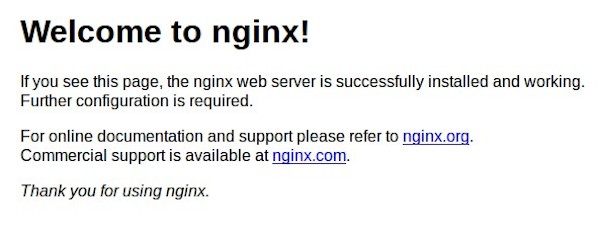
Fig.02: Welcome nginx page on Ubuntu Linux
MySQL Installation On Ubuntu
MySQL is one of the most powerful database management system in Linux world. Next, we are going to install it with PHP support.
#1 - Install MySQL and PHP support
Type the following command:
$ sudo apt-get install mysql-server php5-mysql
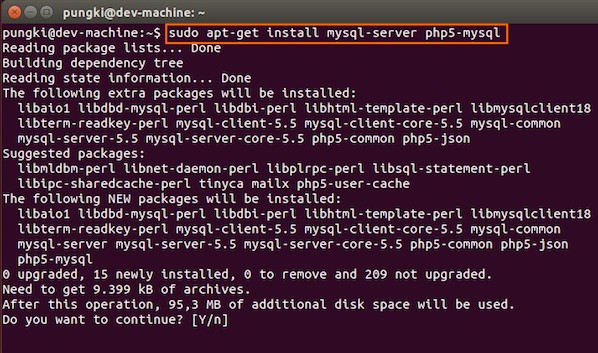
Fig.03: Ubuntu Linux Install MySQL to Manage Site Data with PHP
During the installation, MySQL will ask you to enter MySQL root password, other wise the installation will not continue. Type the password you want, then press OK to continue the installation.
#2 - Test MySQL
Once mysql installation finished, we can test it. Open your console and type the following command:
$ mysql -u root -p
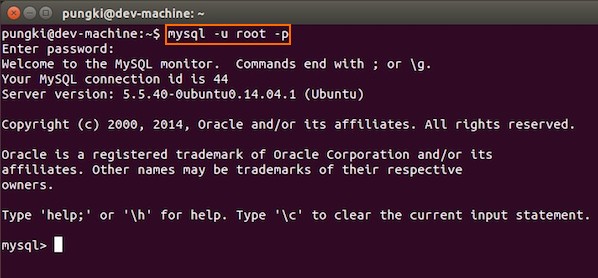
Fig.04: Ubuntu test Mysql installation
If you type your password correctly, the you will see the mysql prompt.
#3 - Securing access to MySQL
If we are going to use MySQL as a production database, we may want to secure it. MySQL provides a shell script to help us securing it. Just type the following command on your console:
$ sudo mysql_secure_installation
Here are the steps to do it.
1. Enter your root password
Enter your current root password to continue to the next step.
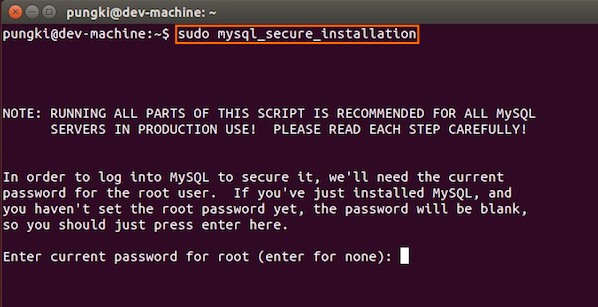
Fig.05: MySQL enter your root db password
2.Change the root password
If you want to change it, press Y. Otherwise, press N.
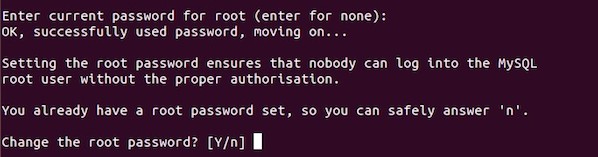
Fig.06: MySQL security
3.Remove anonymous user
It is recommended to remove anonymous user to mitigate risk who can log in into your database.

Fig.07: MySQL security
4.Disallow root login remotely
To make sure that no one remote your database as root from another machines, we need to disallow root login remotely.

Fig.08: MySQL security
5.Remove test database
Sometimes some MySQL installation will create a database named ëtestí for testing purpose. We can remove it if we donít use it.

Fig.09: MySQL security
6.Reload privilege tables
Then we need to reloading the privilege tables to ensure all changes made so far will take effect immediately.
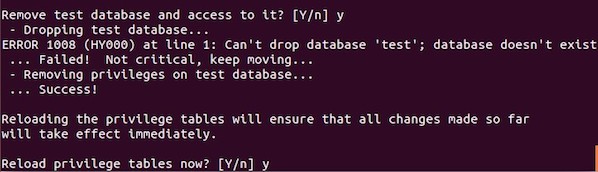
Fig.10: MySQL security
7.Done
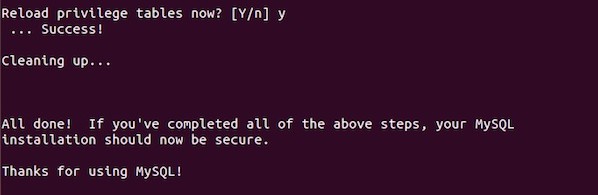
Fig.11: MySQL security
PHP Installation For Server Side Scripting
Since PHP is popular, a lot of websites is built using PHP language. As of January 2013, PHP was installed on more than 240 millions websites. Now we are going to install PHP on Ubuntu 14.04
#1 - Download and install PHP
As usual, we can download and install PHP using apt-get command. Just type the following command on your Ubuntu console or over the ssh based session:
$ sudo apt-get install php5-fpm
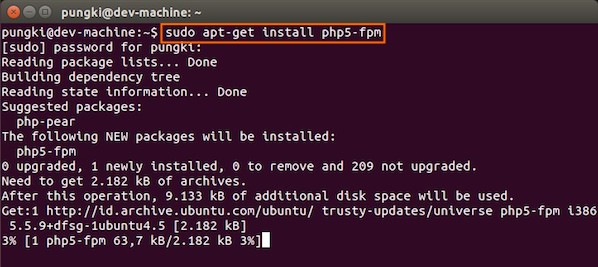
Fig.12: Install PHP for Server Side Processing on Ubuntu
And wait for the installation to complete.
Configure Nginx to work with PHP and MySQL Server on Ubuntu
Now we have all components installed. The next step is we need to configure Nginx with PHP and MySQL. Let's start to configure them.
#1 - Configure PHP5-FPM
PHP5-FPM configuration file is located at /etc/php5/fpm/php.ini. Open it with your text editor
$ sudo vi /etc/php5/fpm/php.ini
Change this parameter, from:
cgi.fix_pathinfo=1
to:
cgi.fix_pathinfo=0
Save and close the file and then restart php5-fpm service, type:
$ sudo service php5-fpm restart
#2 - Configure Nginx
Nginx configuration file is located at /etc/nginx/nginx.conf. But basically, we don't need to touch it. The configuration of nginx website is located in /etc/nginx/sites-available/default file.
Open it, and uncomment lines:
 location ~ \.php$ {

         fastcgi_split_path_info ^(.+\.php)(/.+)$;

 #       # NOTE: You should have "cgi.fix_pathinfo = 0;" in php.ini

 #

 #       # With php5-cgi alone:

 #        fastcgi_pass 127.0.0.1:9000;

 #       # With php5-fpm:

         fastcgi_pass unix:/var/run/php5-fpm.sock;

         fastcgi_index index.php;

         include fastcgi_params;

 }
Then restart the services.
$ sudo service nginx restart
Please make sure, on Ubuntu 14.04, we cannot use fastcgi_pass 127.0.0.1:9000. So make sure that the line is commented. Otherwise, on my machine, I got this error :
$ tail /var/log/nginx/error.log


2014/11/04 16:57:04 [emerg] 3216#0: "fastcgi_pass" directive is not allowed here in /etc/nginx/sites-enabled/default:59


2014/11/04 16:58:21 [emerg] 3256#0: "fastcgi_pass" directive is not allowed here in /etc/nginx/sites-enabled/default:59
On Ubuntu 14.04, I use the following line:
fastcgi_pass unix:/var/run/php5-fpm.sock
When I restart the Nginx and I still got the following error message:
2014/11/04 17:02:05 [emerg] 3295#0: "fastcgi_pass" directive is not allowed here in /etc/nginx/sites-enabled/default:61


2014/11/04 17:04:58 [emerg] 3410#0: "fastcgi_pass" directive is not allowed here in /etc/nginx/sites-enabled/default:61
Please make sure that you already uncomment this line:
location ~ \.php$ {
#3 - Configure MySQL
After the configuration section is done, now we need to test them to make sure that our configuration is working as required. On Ubuntu 14.04 the root document folder is located in /usr/share/nginx/html. So create a file called /usr/share/nginx/html/phpinfo.php with the following code:
- <span style="margin:0px; padding:0px; word-wrap:break-word; color:rgb(0,0,0)"><strong><?</strong></span> <a target="_blank" href="http://www.php.net/phpinfo" style="margin:0px; padding:0px; word-wrap:break-word; color:rgb(128,128,128); text-decoration:none"><span style="margin:0px; padding:0px; word-wrap:break-word; color:rgb(0,0,102)">phpinfo</span></a><span style="margin:0px; padding:0px; word-wrap:break-word; color:rgb(102,204,102)">(</span><span style="margin:0px; padding:0px; word-wrap:break-word; color:rgb(102,204,102)">)</span>; <span style="margin:0px; padding:0px; word-wrap:break-word; color:rgb(0,0,0)"><strong>?></strong></span>
After restarting PHP-FPM and Nginx, open the browser and browse to the php file, we got only a blank screen. No error message on the screen. No error message on PHP-FPM and Nginx log file.
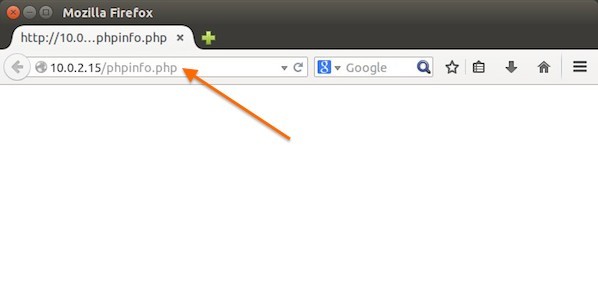
Then we changed /usr/share/nginx/html/phpinfo.php file code on the root document of Nginx, as follows:
- <span style="margin:0px; padding:0px; word-wrap:break-word; color:rgb(0,0,0)"><strong><?php</strong></span> <a target="_blank" href="http://www.php.net/phpinfo" style="margin:0px; padding:0px; word-wrap:break-word; color:rgb(128,128,128); text-decoration:none"><span style="margin:0px; padding:0px; word-wrap:break-word; color:rgb(0,0,102)">phpinfo</span></a><span style="margin:0px; padding:0px; word-wrap:break-word; color:rgb(102,204,102)">(</span><span style="margin:0px; padding:0px; word-wrap:break-word; color:rgb(102,204,102)">)</span>; <span style="margin:0px; padding:0px; word-wrap:break-word; color:rgb(0,0,0)"><strong>?></strong></span>
And then open the browser again and type url http://your_ip_address/phpinfo.php
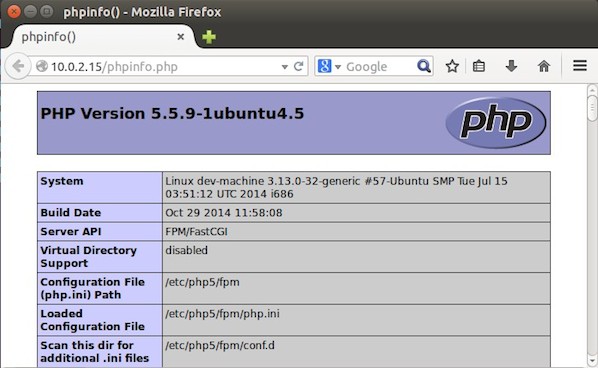
It seem that by default, we can not use short php-tag like this:
- <span style="margin:0px; padding:0px; word-wrap:break-word; color:rgb(0,0,0)"><strong><?</strong></span> ... your code ... <span style="margin:0px; padding:0px; word-wrap:break-word; color:rgb(0,0,0)"><strong>?></strong></span>
To enable short php tag, we need to change the value of short_open_tag parameter on php.ini file:
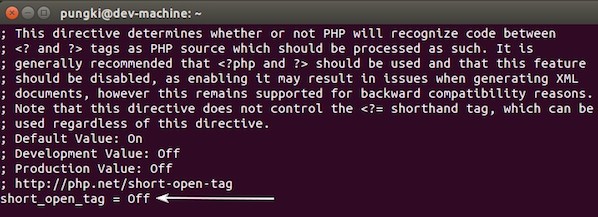
Change the value from Off to On. Then restart your php5-fpm :
sudo service php5-fpm restart
Then try again to test your phpinfo file. Next, we will see if the MySQL support is enabled or not. Scroll down the php configuration screen on your browser, if you see MySQL block there, then MySQL support already enabled.
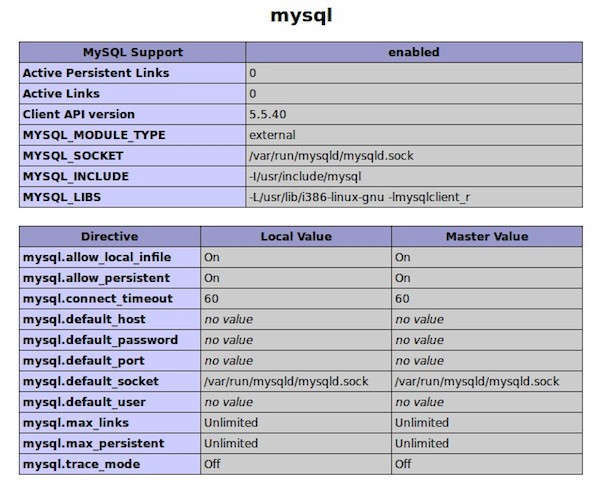
You are now ready to use Nginx, PHP5 and MySQL on Ubuntu server. I hope this quick article help anyone who wish to install Linux, Nginx, PHP and MySQL on Ubuntu 14.04.
ubuntu14.04 LEMP(linux+nginx+mysql+php5)构建环境的更多相关文章
- LNMP(linux+nginx+mysql+php)服务器环境配置【转载】
本文转载自 园友David_Tang的博客,如有侵权请联系本人及时删除,原文地址: http://www.cnblogs.com/mchina/archive/2012/05/17/2507102.h ...
- LNMP(linux+nginx+mysql+php)服务器环境配置
一.简介 Nginx是俄罗斯人编写的十分轻量级的HTTP服务器,Nginx,它的发音为 “engine X”, 是一个高性能的HTTP和反向代理服务器,同时也是一个IMAP/POP3/SMTP 代理服 ...
- 5.LNMP(Linux + Nginx + MySQL + PHP)环境安装
1.安装Nginx: yum install yum-priorities -y wget http://nginx.org/packages/centos/7/noarch/RPMS/nginx-r ...
- CentOS下安装LNMP(LINUX+NGINX+MYSQL+PHP)环境
一.安装Nginx最新版 首先查看是否有安装源包 yum list nginx (或yum info nginx) 如果没有则 vi /etc/yum.repos.d/nginx.repo #添加如 ...
- linux+nginx+mysql+php
LNMP(linux+nginx+mysql+php)服务器环境配置 一.简介 Nginx是俄罗斯人编写的十分轻量级的HTTP服务器,Nginx,它的发音为 “engine X”, 是一个高性能的 ...
- How To Install Linux & Nginx & MySQL & PHP (LEMP) stack on Raspberry Pi 3,Raspberry Pi 3,LEMP,Nginx,PHP, LEMP (not LNMP)
1. How To Install Linux & Nginx & MySQL & PHP (LEMP) stack on Raspberry Pi 3 R ...
- Linux Debian 7部署LEMP(Linux+Nginx+MySQL+PHP)网站环境
我们在玩VPS搭建网站环境的时候,都经常看到所谓的LAMP.LNMP.LEMP,LAMP, 其中的A代表APECHE WEB驱动环境,LNMP中的N代表NGINX驱动环境,只不过海外的叫法NGINX ...
- 阿里云服务器部署php的laravel项目,在阿里云买ECS 搭建 Linux+Nginx+Mysql+PHP环境的
在阿里云买ECS的时候选择自己习惯的镜像系统,我一般都是使用Linux Ubuntu,所以,以下的配置都是在Ubuntu 14.04稳定支持版的环境中搭建Linux+Nginx+Mysql+PHP环境 ...
- LNMP(Linux+Nginx+Mysql+PHP---源码)环境搭建
LNMP(Linux+Nginx+Mysql+PHP(Perl)) Linux:[root@dep5 mysql]# cat /etc/issueRed Hat Enterprise Linux Se ...
随机推荐
- HTML 防盗链 用src引用网上图片显示 403 Forbidden
比如 <img class="toto" src="http://img5.imgtn.bdimg.com/it/u=152658425,3125530872&am ...
- 小白经典CNN论文复现系列(一):LeNet1989
小白的经典CNN复现系列(一):LeNet-1989 之前的浙大AI作业的那个系列,因为后面的NLP的东西我最近大概是不会接触到,所以我们先换一个系列开始更新博客,就是现在这个经典的CNN复现啦(。・ ...
- HashMap的循环姿势你真的掌握了吗?
hashMap 应该是java程序员工作中用的比较多的一个键值对处理的数据的类型了.这种数据类型一般都会有增删查的方法,今天我们就来看看它的循环方法以前写过一篇关于ArrayList的循环效率问题&l ...
- 安装git之后,桌面出现蓝色问号的解决方法
安装了git之后,桌面的图标全部变成蓝色的问号. 把隐藏的文件全部显示,也没有在桌面找到.git的文件, 解决步骤: 1.把隐藏的文件全部显示: 工具-文件夹选项-查看在"隐藏文件和文件夹& ...
- 使用sqoop将mysql数据导入到hive中
首先准备工具环境:hadoop2.7+mysql5.7+sqoop1.4+hive3.1 准备一张数据库表: 接下来就可以操作了... 一.将MySQL数据导入到hdfs 首先我测试将zhaopin表 ...
- @Transactional注解失效的解决方案
一.前言 开发中我们经常使用 @Transactional注解来启用Spring事务管理,但是如果使用方法不当,会遇到注解不生效该事务回滚的地方却没有回滚的问题. 总结下一般是以下几个原因: @Tra ...
- Apache伪静态(Rewrite).htaccess文件详解
Htaccess(超文本访问)是一个简单的配置文件,它允许设计师,开发者和程序员通过它来改变Apache Web服务器的配置.这些功能包括用户重定向.URL重写(url rewrite,国内很多称为伪 ...
- Wi-Fi 6 与 5G 相比哪个更快?
随着 iPhone12 的发布,iOS 系统正式开始拥抱 5G,智能手机全面进入了 5G 时代.伴随着各大运营商的 5G 推广以及相关基站建设的如火如荼,5G 成了大家广泛讨论的热门词汇.这样热门的光 ...
- 【Java基础】Java9 新特性
Java9 新特性 模块化系统 Java 和相关生态在不断丰富的同时也越来越暴露出一些问题: Java 运行环境的膨胀和臃肿.每次 JVM 启动的时候,至少会 30-60MB 的内存加载,主要原因是 ...
- 剑指offer-查找数组中重复的数字
找出数组中重复的数字. 在一个长度为 n 的数组 nums 里的所有数字都在 0-n-1 的范围内.数组中某些数字是重复的,但不知道有几个数字重复了,也不知道每个数字重复了几次.请找出数组中任意一个重 ...