
Display Database Image using MS SQL Server 2008 Reporting Services
原文 Display Database Image using MS SQL Server 2008 Reporting Services
With the new release of MS SQL Server 2008 Reporting Services has introduced a new feature that will help report developers (Business Intelligence BI professionals) to display images stored in database tables.
Since Microsoft SQL Server Reporting Services is gaining power in covering the requirements of business intelligence developers day by day, it is gaining more acceptance from the BI professionals.
For building a Microsoft Reporting Services solution to display database image or display image from database, we will first create sql database image table and insert images into the sql database for populating table with sample data.
Of course you should either create a new MS Reporting Services solution or open an existing MS Reporting Services solution and add reporting services report to this solution.
Prepare SQL Database and Populate with Sample Images in order to use in Reporing Services Report
First of all by executing the below t-sql Create Table command sql database administrators can create the database table in which sql developers will store images or image files in binary format in avarbinary(max) data type column.
CREATE TABLE DBFiles (
 id int IDENTITY(1,1) NOT NULL,
 fname nvarchar(1000) NOT NULL,
 [file] varbinary(max)
)
Save Image in SQL Database in Binary Format
After we have created the sql database table to store the image files, now we can begin inserting images into the newly created sql database table.
You can also refer to SQL tutorial Save Image to Database Table in SQL Server for an other example.
INSERT INTO DBFiles(fname, [file])
SELECT 'Reporting-Services-2008-enriched-visualization-gadgets.jpg', * FROM OPENROWSET(
 BULK N'C:\Reporting-Services-2008-enriched-visualization-gadgets.jpg',
 SINGLE_BLOB
) rs;
INSERT INTO DBFiles(fname, [file])
SELECT 'what-is-new-with-SQL-Server-2008.jpg', * FROM OPENROWSET(
 BULK N'C:\what-is-new-with-SQL-Server-2008.jpg',
 SINGLE_BLOB
) rs;
You can download the sample image files photos I've taken during TechEd Developers 2007 related withMS SQL Server 2008 and MS SQL Server Reporting Services 2008 from the following links :
Reporting Services 2008 enriched visualization gadgets
What is new with SQL Server 2008
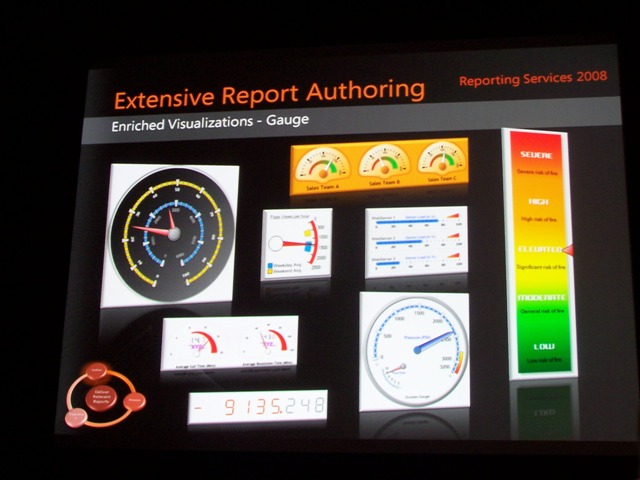
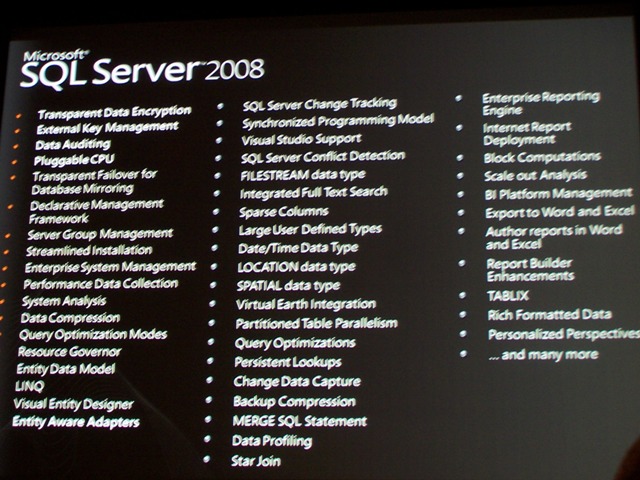
Let's see how images we have inserted into the sql table is seen when we execute a SELECT statement.
SELECT * FROM Files
Now we have created our sample sql table and populate the image table with sample image files.
We can now create our MS SQL Server Reporting Services 2008 report which will display the image files stored in the SQL Server database table.
Build SQL Reporting Services DataSet for Sample Report
First of all, we will create a dataset for reading data from SQL Server database image table.
We will use this dataset for databinding to reporting services table control and image control within the table cells for each row in the sql image table.
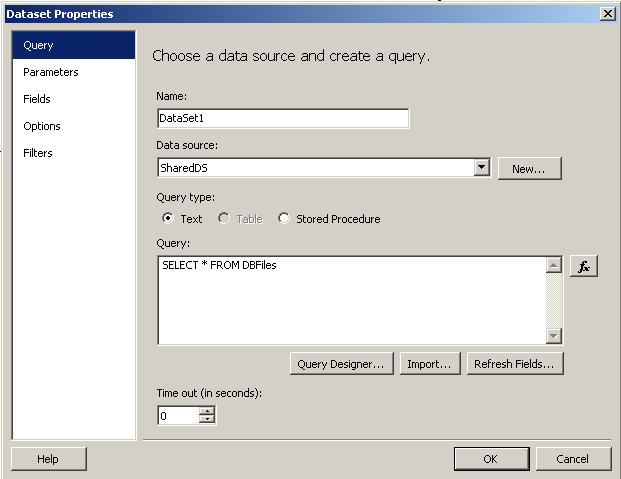
The sql query for the dataset is : SELECT * FROM DBFiles
This t-sql query will supply the sql data in binary format which we will display using Reporting Services.
Design Reporting Services Report in order to Display Database Image
After the dataset of the SQL Reporting Services report is prepared, now we can switch to the design view.
Place a table onto the Design surface of the SSSRS 2008 report.
Then set the DataSetName property of the new Tablix component to the dataset we have created for this sample report.
Then set field properties or the columns of the report design view tablix component as you wish.

Select the Reporting Services image component from the Toolbox and drag and drop into an emptytablix column.

This action will trigger the Reporting Services Image Properties Wizard.
You can later alter the properties of the image cell by a click on the image properties menu item on the context menu of the image cell.

Set the image properties as follows :
1) Set the image source as database, since we are selecting the image in binary format from database using reporting services dataset.
2) When database is chosen as the source of the image, you will select the field name as [file] field of the dataset in the Use this field dropdown list.
3) Also as the last step select the MIME type as image/jpeg (or which is approtiate for your case)
Resize Database Image and Size Properties of the SQL Database Image
You can also set the size properties of the database image and image component within the tablixcomponent by displaying the image properties and navigating to the Size tab.
There you can select one of the following size properties for display database images.
Original size
Fit to size
Fit proportional
Clip
I have selected fit proportional option which will resize image to fit inside the item while maintaining the aspect ratio.
Display Database Image on a SQL Server Reporting Services Report
After we have finished developing the MS SQL Server 2008 Reporting Services report, if you switch to the preview tab we can see the images stores in sql table on our sample SSRS report.

Display Database Image using MS SQL Server 2008 Reporting Services的更多相关文章
- SQL SERVER 2008 Reporting Services 的一些小问题集合
实验环境:服务器 Windows Server 2008 R2 Standard 64bit 数据库 SQL SERVER 2008 R2 Standard ...
- 实现SQL Server 2008 Reporting Services匿名访问报表有两种方法
一.通过修改SQL Server 2008的配置文件,去掉Windows的验证. 1.首先我们找到SQL安装目录下的两个Web.config配置文件,默认安装目录分别是(C:\Program File ...
- Set up JBPM5.4 Final Installer to use MS SQL Server 2008 using JTDS(转)
[-] A What I Am Going To Do B The Setup Steps C Lets Install it A. What I Am Going To Do B. The Se ...
- MS SQL SERVER 2008 使用OBJECT_ID判断临时表是否存在
MS SQL SERVER 2008 使用OBJECT_ID判断临时表是否存在 我们在写sql 脚本的时候经常会用到临时表,有时间也需要根据临时表是否存在做一些逻辑处理.还好sql server已经集 ...
- [翻译]初识SQL Server 2005 Reporting Services Part 3
原文:[翻译]初识SQL Server 2005 Reporting Services Part 3 这是关于SSRS文章中四部分的第三部分.Part 1提供了一个创建基本报表的递阶教程.Part 2 ...
- [翻译]初识SQL Server 2005 Reporting Services Part 4
原文:[翻译]初识SQL Server 2005 Reporting Services Part 4 这一篇是关于SQL Server 2005 Reporting Services四篇文章中最后一篇 ...
- [翻译]初识SQL Server 2005 Reporting Services Part 2
原文:[翻译]初识SQL Server 2005 Reporting Services Part 2 在Part 1文章中我们对SQL Server Reporting Services 2005(S ...
- [翻译]初识SQL Server 2005 Reporting Services Part 1
原文:[翻译]初识SQL Server 2005 Reporting Services Part 1 构建和部署基本报表 如果曾经存在一项工作使得“真正的”开发者给他的上司泡蘑菇,那就是构建报表.毕竟 ...
- 使用SQL Database Migration Wizard把SQL Server 2008迁移到Windows Azure SQL Database
本篇体验使用SQL Database Migration Wizard(SQLAzureMW)将SQL Server 2008数据库迁移到 Azure SQL Database.当然,SQLAzure ...
随机推荐
- 【迷你微信】基于MINA、Hibernate、Spring、Protobuf的即时聊天系统:3.技术简介之MinaFilter——LoggingFilter (转)
欢迎阅读我的开源项目<迷你微信>服务器与<迷你微信>客户端 LoggingFilter 接下来,使我们对Filter介绍的最后一个——LoggingFilter. 与Proto ...
- 【从翻译mos文章】rac数据库,HC_<SID>.dat其他文件Oracle_Home用例下。
rac数据库.HC_<SID>.dat其他文件Oracle_Home用例下. 参考原始: RAC database HC_<SID>.dat is used by instan ...
- UVA How Big Is It?
题目例如以下: How Big Is It? Ian's going to California, and he has to pack his things, including hiscolle ...
- iOS的图表显示的实现
在app通常有家居展览的照片,显示广告.或者头条新闻.通常网易新闻client 如图,红框框的位置就是一个典型的图展, 熟悉iOS的人肯定知道,这个是个UIScrollview,里面加几张图片就可以实 ...
- JList用法小结
JList用法小结 分类: JAVA技术2007-08-11 01:02 18485人阅读 评论(11) 收藏 举报 stringvectorclassjavaactionobject ...
- 怎样配置git ssh连接,怎样在GitHub上加入协作开发人员,怎样配置gitignore和怎样在GitHub上删除资源库.
**********1.在运行git push origin master指令时报例如以下错误: iluckysi@ILUCKYSI-PC /d/ilucky/message/code (master ...
- 【iOS开发-图层】自己定义图层的两种方式
想要自己定义图层,仅仅须要构建一个类继承CALayer方法 假设让自己定义图层初始化上面就有画好的图形.有两种办法 重写drawInContext方法 自己定义的图层以下的方法.然后必须自己定义的图层 ...
- 安卓培训第五天---上传文件SD卡
有关如何将文件上传到先说说SD卡: package com.example.lesson05_02; import java.io.File; import java.io.FileNotFoundE ...
- 1号店Interview小结
三大范式: 为了建立冗余较小.结构合理的数据库,设计数据库时必须遵循一定的规则.在关系型数据库中这种规则就称为范式.范式是符合某一种设计要求的总结.要想设计一个结构合理的关系型数据库,必须满足一定的范 ...
- Jedis连接
Jedis连接 到场api中的jedis.我们能够发现,jedis类提供了4个构造方法.都可用于连接: watermark/2/text/aHR0cDovL2Jsb2cuY3Nkbi5uZXQvc29 ...