
User Word Automation Services and Open XML SDK to generate word files in SharePoint2010
SharePoint 2010 has established a new service called “Word Automation Services” to operate word files. This service will be installed when install SharePoint 2010. It is useful for archive documents or convert word format in server. But we need initialize and configure this service on Central Administration or PowerShell.(How to set up Word Automation Services? see:http://msdn.microsoft.com/en-us/library/ee557330(v=office.14).aspx)
After initialized, SharePoint 2010 will setup a database named:”WordAutomationServices_XXXX”. We can find the service status in Central Administration->Application Management->Service Applications->Manage services on server:
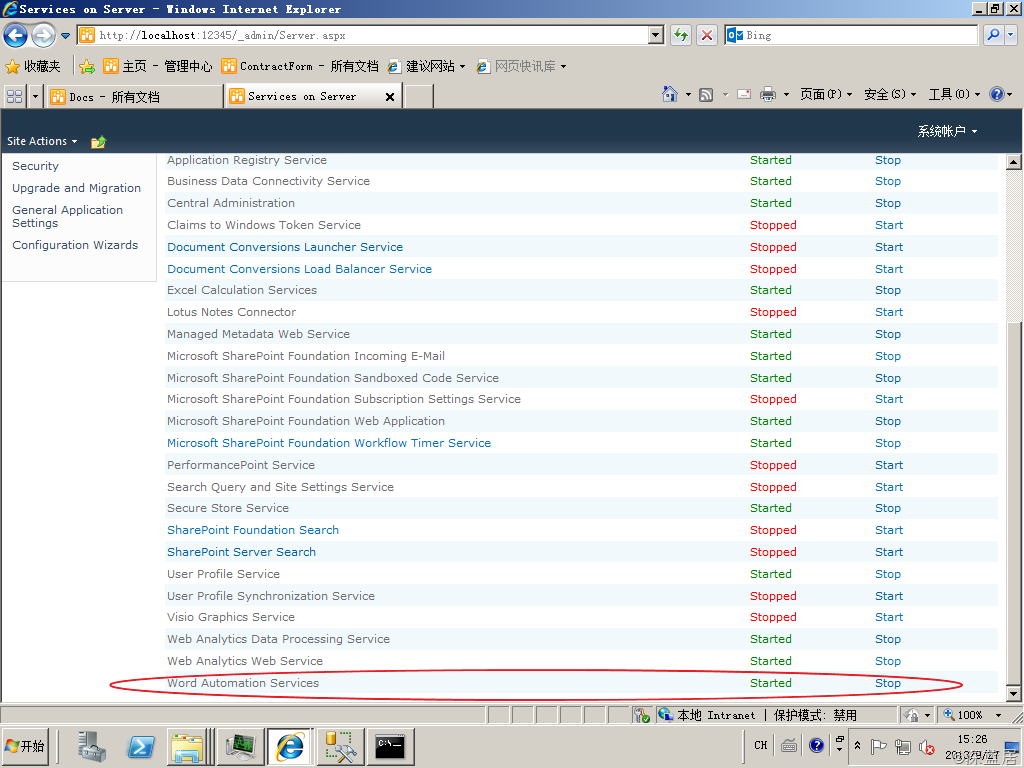
Make sure the service is started.
Call Word Automation Services
Next, we can use C# code to call the Word Automation Services. For example, this is a word file in Shared Documents, we need to convert the word file to pdf format and saved in another document library (named Docs), we can write code like this:
string siteUrl = "http://localhost";

string wordAutomationServiceName = "Word Automation Services";

using (SPSite spSite = new SPSite(siteUrl))

{

    ConversionJob job = new ConversionJob(wordAutomationServiceName);

    job.UserToken = spSite.UserToken;

    job.Settings.UpdateFields = true;

    job.Settings.OutputFormat = SaveFormat.PDF;

    job.AddFile(siteUrl + "/Shared%20Documents/Contract%20Management.docx",

        siteUrl + "/Docs/Contract%20Management.pdf");

    job.Start();

}
.csharpcode, .csharpcode pre
{
font-size: small;
color: black;
font-family: consolas, "Courier New", courier, monospace;
background-color: #ffffff;
/*white-space: pre;*/
}
.csharpcode pre { margin: 0em; }
.csharpcode .rem { color: #008000; }
.csharpcode .kwrd { color: #0000ff; }
.csharpcode .str { color: #006080; }
.csharpcode .op { color: #0000c0; }
.csharpcode .preproc { color: #cc6633; }
.csharpcode .asp { background-color: #ffff00; }
.csharpcode .html { color: #800000; }
.csharpcode .attr { color: #ff0000; }
.csharpcode .alt
{
background-color: #f4f4f4;
width: 100%;
margin: 0em;
}
.csharpcode .lnum { color: #606060; }
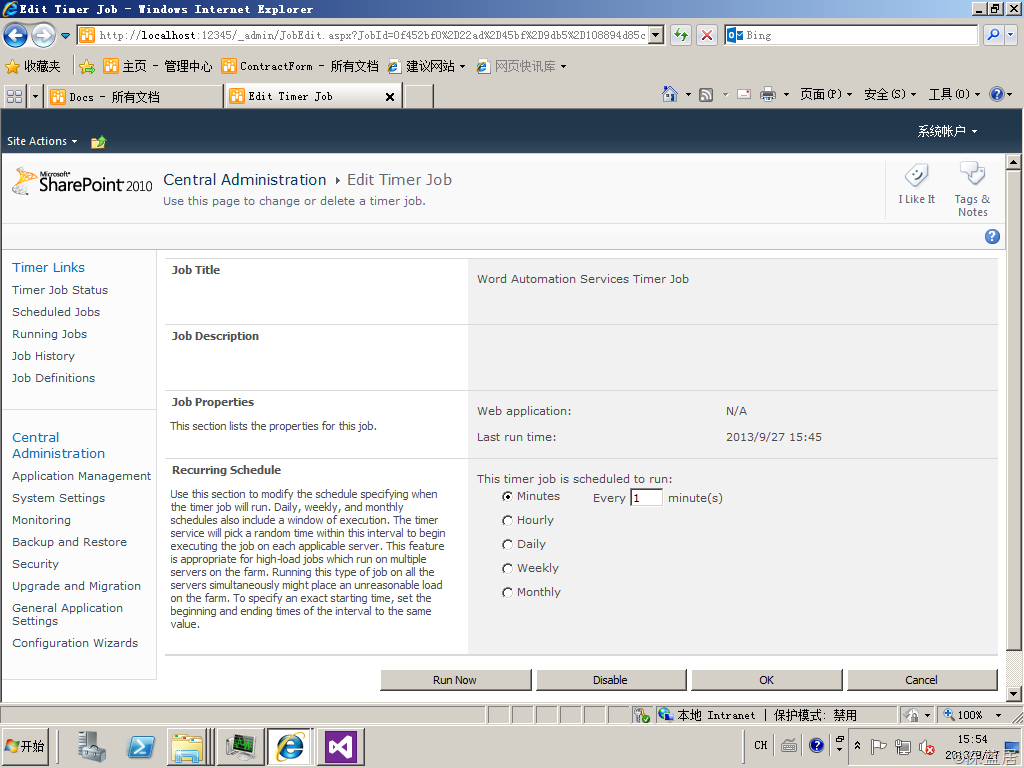
Note: Word Automation Services use a timer to process our job, so even we finished our process in code, we still cannot find the pdf file in document library. After a few minutes, the timer will complate our job, refresh the document library page we can see the pdf file. If we want to make the timer work frequently, we can go to Central Administration->Monitoring->Timer Jobs->Review job definitions, click the “Word Automation Services Timer Job”, change the “Recurring Schedule” value such as 1 minute. If we want to run the job immediately, we can click the "Run Now” button.
User Open XML SDK to generate word file
Open XML is a common standard format for Office files since Office 2007. We can use Open XML SDK to develop the application that combine the user define template and data (from database, SharePoint list, interface or other user input).
Open XML SDK is not contained in Visual Studio by default, so we must download the SDK from Microsoft.(Download address:http://www.microsoft.com/en-us/download/details.aspx?id=5124) After install the SDK, we can reference the component: DocumentFormat.OpenXml and WindowsBase.
In the code, we can read the template from disk or SharePoint document library. The template contains some special word than we will replace them by user data.
For example, there is a template, we need to fill the vender name, amount and date, so we can define the template like this:
|
Purchasing Contract Vender:$Vender, Description:bala bala~~~ Total Amount: $Amount Signature Date:$Today |
We save the template as a docx file in disk, and we can read the template by Open XML SDK and replace the words like this:
FileStream fs=new FileStream("Template.docx",FileMode.Open,FileAccess.Read);

byte[] byteArray = new byte[fs.Length];

fs.Read(byteArray, 0, (int)(fs.Length));

using (MemoryStream memStr = new MemoryStream())

{

    memStr.Write(byteArray, 0, byteArray.Length);

    using (WordprocessingDocument wordDoc = WordprocessingDocument.Open(memStr, true))

    {

        string docText = null;

        using (StreamReader sr = new StreamReader(wordDoc.MainDocumentPart.GetStream()))

        {

            docText = sr.ReadToEnd();

        }

        docText = docText.Replace("$Vender", "Microsoft");

        docText = docText.Replace("$Amount", "1234.56");

        docText = docText.Replace("$Today", DateTime.Today.ToShortDateString());

        using (StreamWriter sw = new StreamWriter(wordDoc.MainDocumentPart.GetStream(FileMode.Create)))

        {

            sw.Write(docText);

        }

}

Console.WriteLine("Saving");

//save new file from stream memStr...
.csharpcode, .csharpcode pre
{
font-size: small;
color: black;
font-family: consolas, "Courier New", courier, monospace;
background-color: #ffffff;
/*white-space: pre;*/
}
.csharpcode pre { margin: 0em; }
.csharpcode .rem { color: #008000; }
.csharpcode .kwrd { color: #0000ff; }
.csharpcode .str { color: #006080; }
.csharpcode .op { color: #0000c0; }
.csharpcode .preproc { color: #cc6633; }
.csharpcode .asp { background-color: #ffff00; }
.csharpcode .html { color: #800000; }
.csharpcode .attr { color: #ff0000; }
.csharpcode .alt
{
background-color: #f4f4f4;
width: 100%;
margin: 0em;
}
.csharpcode .lnum { color: #606060; }
Run this code, we can find the result document content like this:
.csharpcode, .csharpcode pre
{
font-size: small;
color: black;
font-family: consolas, "Courier New", courier, monospace;
background-color: #ffffff;
/*white-space: pre;*/
}
.csharpcode pre { margin: 0em; }
.csharpcode .rem { color: #008000; }
.csharpcode .kwrd { color: #0000ff; }
.csharpcode .str { color: #006080; }
.csharpcode .op { color: #0000c0; }
.csharpcode .preproc { color: #cc6633; }
.csharpcode .asp { background-color: #ffff00; }
.csharpcode .html { color: #800000; }
.csharpcode .attr { color: #ff0000; }
.csharpcode .alt
{
background-color: #f4f4f4;
width: 100%;
margin: 0em;
}
.csharpcode .lnum { color: #606060; }
|
Purchasing Contract Vender:Microsoft, Description:bala bala~~~ Total Amount: 1234.56 Signature Date:2013/9/27 |
Use both the Word Automation Services and Open XML SDK, we can generate the word document by template and user data, and convert the result as a pdf file and save to another document library.
This my example code:
string siteUrl = "http://localhost";

using (SPSite spSite = new SPSite(siteUrl))

{

    //Querying for Template.docx

    SPList list = spSite.RootWeb.GetList("http://localhost/Shared%20Documents");

    SPQuery query = new SPQuery();

    query.ViewFields = @"<FieldRef Name='FileLeafRef' />";

    query.Query =

        @"<Where>

<Eq>

<FieldRef Name='FileLeafRef' />

<Value Type='Text'>Template.docx</Value>

</Eq>

</Where>";

    SPListItemCollection collection = list.GetItems(query);

    if (collection.Count != 1)

    {

        Console.WriteLine("Test.docx not found");

        Environment.Exit(0);

    }

    Console.WriteLine("Opening");

    SPFile file = collection[0].File;

    byte[] byteArray = file.OpenBinary();

    using (MemoryStream memStr = new MemoryStream())

    {

        memStr.Write(byteArray, 0, byteArray.Length);

        using (WordprocessingDocument wordDoc = WordprocessingDocument.Open(memStr, true))

        {

            string docText = null;

            using (StreamReader sr = new StreamReader(wordDoc.MainDocumentPart.GetStream()))

            {

                docText = sr.ReadToEnd();

            }

            docText = docText.Replace("$Vender", "Microsoft");

            docText = docText.Replace("$Amount", "1234.56");

            docText = docText.Replace("$Today", DateTime.Today.ToShortDateString());

            using (StreamWriter sw = new StreamWriter(wordDoc.MainDocumentPart.GetStream(FileMode.Create)))

            {

                sw.Write(docText);

            }

        }

        Console.WriteLine("Saving");

        string newDocName = "MicrosoftContract.docx";

        file.ParentFolder.Files.Add(newDocName, memStr, true);

        Console.WriteLine("Starting conversion job");

        string wordAutomationServiceName = "Word Automation Services";

        ConversionJob job = new ConversionJob(wordAutomationServiceName);

        job.UserToken = spSite.UserToken;

        job.Settings.UpdateFields = true;

        job.Settings.OutputFormat = SaveFormat.PDF;

        job.AddFile(siteUrl + "/Shared%20Documents/"+newDocName,

            siteUrl + "/Docs/MicrosoftContract.pdf");

        job.Start();

    }

}
.csharpcode, .csharpcode pre
{
font-size: small;
color: black;
font-family: consolas, "Courier New", courier, monospace;
background-color: #ffffff;
/*white-space: pre;*/
}
.csharpcode pre { margin: 0em; }
.csharpcode .rem { color: #008000; }
.csharpcode .kwrd { color: #0000ff; }
.csharpcode .str { color: #006080; }
.csharpcode .op { color: #0000c0; }
.csharpcode .preproc { color: #cc6633; }
.csharpcode .asp { background-color: #ffff00; }
.csharpcode .html { color: #800000; }
.csharpcode .attr { color: #ff0000; }
.csharpcode .alt
{
background-color: #f4f4f4;
width: 100%;
margin: 0em;
}
.csharpcode .lnum { color: #606060; }
User Word Automation Services and Open XML SDK to generate word files in SharePoint2010的更多相关文章
- Csharp: create word file using Open XML SDK 2.5
using System; using System.Collections.Generic; using System.ComponentModel; using System.Data; usin ...
- Using XSLT and Open XML to Create a Word 2007 Document
Summary: Learn how to transform XML data into a Word 2007 document by starting with an existing docu ...
- Open Xml SDK Word模板开发最佳实践(Best Practice)
1.概述 由于前面的引文已经对Open Xml SDK做了一个简要的介绍. 这次来点实际的——Word模板操作. 从本质上来讲,本文的操作都是基于模板替换思想的,即,我们通过替换Word模板中指定元素 ...
- Embedding Documents in Word 2007 by Using the Open XML SDK 2.0 for Microsoft Office
Download the sample code This visual how-to article presents a solution that creates a Word 2007 doc ...
- SharePoint 2013 中的 PowerPoint Automation Services
简介 许多大型和小型企业都将其 Microsoft SharePoint Server 库用作 Microsoft PowerPoint 演示文稿的存储库.所有这些企业在 ...
- Open Xml SDK 引文
什么是Open Xml SDK? 什么是Open Xml? 首先,我们得知道,Open Xml为何物? 我们还是给她起个名字——就叫 “开放Xml”,以方便我们中文的阅读习惯.之所以起开放这个名字,因 ...
- 下载和编译 Open XML SDK
我们需要一些工具来开始 Open XML 的开发. 开发工具 推荐的开发工具是 Visual Studio 社区版. 开发工具:Visual Studio Community 2013 下载地址:ht ...
- Open XML SDK 在线编程黑客松
2015年2月10日-3月20日,开源社 成员 微软开放技术,GitCafe,极客学院联合举办" Open XML SDK 在线编程黑客松 ",为专注于开发提高生产力的应用及服务的 ...
- C# : 操作Word文件的API - (将C# source中的xml注释转换成word文档)
这篇博客将要讨论的是关于: 如何从C#的source以及注释, 生成一份Word格式的关于各个类,函数以及成员变量的说明文档. 他的大背景如下...... 最近的一个项目使用C#, 分N个模块, 在项 ...
随机推荐
- IIS 7.5 应用程序池预热模块组件
预热组件下载地址:下载地址 IIS预热模块配置界面插件:下载地址 Warm Up设定方式: (1) 应用程序池层级:只要有需要的应用程序池的Start Mode设定AlwaysRunning就可以 ( ...
- 孙鑫MFC学习笔记10:画图/贴图
1.SetPixel在指定点设置像素 2.虚线.点线宽度必须为1 3.CColorDialog创建颜色对话框 4.需要设置CC_RGBINIT标志才能设置颜色对话框的默认颜色 5.CC_FULLOPE ...
- Scalaz(19)- Monad: \/ - Monad 版本的 Either
scala标准库提供了一个Either类型,它可以说是Option的升级版.与Option相同,Either也有两种状态:Left和Right,分别对应Option的None和Some,不同的是Lef ...
- Bash中的任务(job)管理
本来不准备写这篇博客的,因为任务管理(job管理)非常非常常用,以至于觉得根本没有必要去写这样一个东西.但想了下,还是记录一下吧,也许有人会用到呢. 不知你是否碰到过这样的情况,当你兴致勃勃的打开VI ...
- Jquery实际应用,判断radio,selelct,checkbox是否选中及选中的值
jquery取radio单选按钮的值 $("input[name='items']:checked").val(); 另:判断radio是否选中并取得选中的值 如下所示: fun ...
- svg-高斯模糊+swiper伦播
<!DOCTYPE html> <html> <head> <meta charset="UTF-8"> <title> ...
- Lua-泛型for循环 pairs和ipairs的区别
先看一段简单的代码: local mytable = { , , aa = "abc", subtable = {}, , } --for循环1 print("for - ...
- Bootstrap左侧下拉三级菜单
在线实例 效果一 效果二 效果三 使用方法 <script src="/api/jq/BootstrapCaidan/js/metismenu.js"></scr ...
- HTML5 Canvas 实现的9个 Loading 效果
Sonic.js 是一个很小的 JavaScript 类,用于创建基于 HTML5 画布的加载图像.更强大的是 Sonic.js 还提供了基于现成的例子的创建工具,可以帮助你实现更多自定义的(Load ...
- eclipse提示:This tag and its children can be replaced by one <TextView/> and a compound drawable
今天在学习android开发的时候,写了这样的一段代码: <?xml version="1.0" encoding="utf-8"?> <Li ...