
Fedora 28 打印机配置 ( HP pro 1136M ,基于Windows 打印服务器使用 smb 协议)
Fedora 28 本身是没有打印服务的。我们需要安装下列软件:
- System-Config-Printer
- Common Unix Printing System - CUPS
- hplip.x86_64 : HP Linux Imaging and Printing Project
- hplip-3.18.6-plugin.run (其他版本, 安装的plugin 版本要和hplip 对应)
- samba
安装好后,启动cups 系统、samba 系统、配置好防火墙,然后打开 system-config-printer 软件就能进行添加打印机了。
安装:
安装系统配置GUI :
~ sudo yum install system-config-printer.x86_64

~ sudo yum install cups (本身 fedora 已经安装了 cups 打印系统)
安装 hplip 相关:
~ sudo yum install hplip hplip-gui
之后使用 hp-plugin 命令使用绝对路径安装: hplip-3.18.6-plugin.run (注意:不安装插件会导致插件安装失败, 此插件如果在线下载不成功)
也可以下载 hplip-xx.run , hplip-xx-plugin.run 来进行安装, 推荐使用 curl -O 命令下载,并 使用 chmod +x 添加执行权限。
chmod +x ./hplip-3.16.11.run
sudo ./hplip-3.16.11.run
安装samba:
~ sudo yum install samba
并进行修改配置如下(例子,可以单独修改):
# See smb.conf.example for a more detailed config file or

# read the smb.conf manpage.

# Run 'testparm' to verify the config is correct after

# you modified it.

[global]

        workgroup = WORKGROUP  # 重点,windows 打印服务器一般默认用户组是 workgroup

        security = user

        passdb backend = tdbsam

        printing = cups

        printcap name = cups

        load printers = yes

        cups options = raw

[homes]

        comment = Home Directories

        valid users = %S, %D%w%S

        browseable = No

        read only = No

        inherit acls = Yes

[printers]

        comment = All Printers

        path = /var/tmp

        printable = Yes

        create mask =

        browseable = yes

[print$]

        comment = Printer Drivers

        path = /var/lib/samba/drivers

        write list = @printadmin root

        force group = @printadmin

        create mask =

        directory mask =
添加防火墙规则:
sudo firewall-cmd --add-service samba

sudo firewall-cmd --permanent --add-service samba
~ sudo firewall-cmd --reload
启动 :
重新启动 samba 服务:
~ sudo systemctl enable {s,n}mb.service

~ sudo systemctl start {s,n}mb
重新启动 cups 服务:
~ sudo systemctl start cups
可以使用 systemctl status cups 命令来进行查看服务状态。
man cups :
NAME

       cups - a standards-based, open source printing system

DESCRIPTION

       CUPS  is  the  software  you use to print from applications like word processors, email readers, photo

       editors, and web browsers. It converts the page descriptions produced by your application (put a para\u2010

       graph here, draw a line there, and so forth) into something your printer can understand and then sends

       the information to the printer for printing.

       Now, since every printer manufacturer does things differently, printing can be very complicated.  CUPS

       does  its  best to hide this from you and your application so that you can concentrate on printing and

       less on how to print. Generally, the only time you need to know anything about your  printer  is  when

       you use it for the first time, and even then CUPS can often figure things out on its own.
添加打印机:
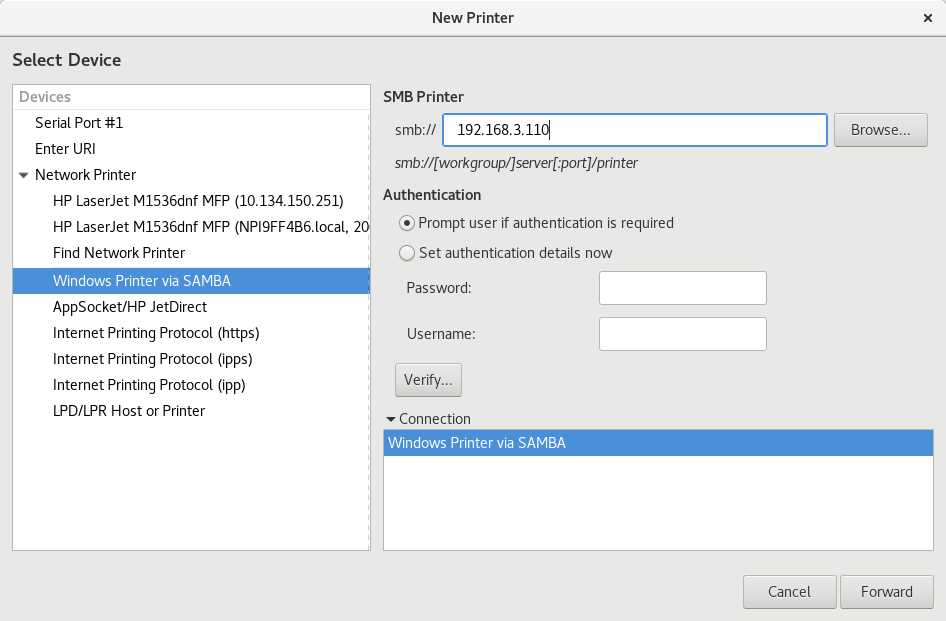
安装 cups 后,可以使用 cups web 服务( http://localhost:631/jobs/ )来添加 打印机。但是我们已经安装了 system-config-printer 我们可以使用此gui 界面来添加打印机。因为我们使用打印的服务器是windows
打印服务器,所以我们需要使用 smb 协议来进行访问网络打印机,输入凭据,选择驱动。具体的配置截图可以参照如下博客。最后添加打印机成功后,可以打印测试页来进行验证。如果没有成功,请参照系统报错,进行修改配置。最后祝你使用打印服务愉快!
保持更新,转载请注明出处。如果本文对你有所帮助,请点击右下角推荐给予支持。
参考链接:
https://blog.csdn.net/allan_bst/article/details/72026980
https://blog.csdn.net/gaoprincess/article/details/79591632
https://www.cnblogs.com/sztsian/p/3462170.html
http://www.mintos.org/hardware/hplip-skill.html
http://www.mintos.org/hardware/hplip-cupsext.html
Setting the printer: 2019.8.1
Fedora 28 打印机配置 ( HP pro 1136M ,基于Windows 打印服务器使用 smb 协议)的更多相关文章
- fedora 28/29 配置 C++ 环境
最近 使用C++ 开发 更换机器的时候,还要重新配置一下 gnu 工具链.于是简单进行了安装了一下: yum install gcc yum install gcc-c++ yum install g ...
- [图文] Fedora 28 使用 Virt-Manager 创建 KVM 虚拟机以及 配置 KVM 虚拟机
实验说明: 往后的许多实验都将以Linux平台下的 KVM虚拟机为主,所以不可少的就是 Virt-Manager 虚拟机管理器. 本章将对如何安装和使用Virt-Manager管理器进行讲解,并且会对 ...
- Fedora 28 系统基础配置以及常用软件安装方式
实验说明: 很多人说Linux很难用,很难上手,其实不然,倘若不玩游戏,其实很多发行版Linux都可以成为主力系统,就比如本章要讲的 Fedora 28.本章会从镜像来源.系统安装.基础配置和常用软件 ...
- fedora 28 , firewalld 防火墙控制,firewall-cmd 管理防火墙规则
今天,在使用fedora时,需要修改防火墙规则,一时间忘记了命令是什么,这里进行记录一下. 目前 fedora 28/ centos 7 使用 firewalld 作为防火墙软件:下面我就怎么简单管理 ...
- fedora 使用 vnc 远程 fedora 28 主机
问题重述: 最近环境中需要使用 fedora 28 来进行远程桌面,于是就重新配置了一下vnc 在这里面做一下记录. 过程: yum 安装: 工作机上安装 vncviewer 远程主机上安装: vnc ...
- Use Jupyter notebook on Fedora 28
生产环境使用 Fedora 28, 并且需要搭建一个 Jupyter 的notebook 方便使用,所搭建的Jupyter 支持单人远程 密码访问 1. 安装 安装 Jupyter , 出错 [roo ...
- [图文] Fedora 28 使用 Virt-Manager 制作并优化QCOW2镜像——Windows 10 1709
实验说明: 云计算的发展使得桌面上云,windows 10就必不可少,这一章就如何制作QCOW2镜像文件并优化进行说明. 实验环境: 宿主机系统 :Fedora 28 WorkStation 虚拟 ...
- 为什么基于Windows Server 2008 R2的网络负载均衡(NLB)配置的时候总会报错“主机不可访问”?
配置基于Windows的网络负载均衡是很容易的,操作也很简单,点点鼠标基本上就能完成,但是在进行节点(真实服务器)操作的过程中有时候会遇到一些主机不可访问的报错信息.这个又是为什么呢? Figure ...
- SAP打印机配置
SAP打印机配置 一.SAP打印原理 SAP的打印过程分两个步骤: 1.创建假脱机请求: 2.创建输出请求: 在点击打印按钮后,系统会提示创建假脱机请求后,你可以选择直接生成输出请求,或者手动生成输出 ...
随机推荐
- UFLDL 教程学习笔记(二)反向传导算法
UFLDL(Unsupervised Feature Learning and Deep Learning)Tutorial 是由 Stanford 大学的 Andrew Ng 教授及其团队编写的一套 ...
- 国外程序员整理的 C++ 资源大全 (zt)
关于 C++ 框架.库和资源的一些汇总列表,由 fffaraz 发起和维护. 内容包括:标准库.Web应用框架.人工智能.数据库.图片处理.机器学习.日志.代码分析等. 标准库 C++标准库,包括了S ...
- PIVOT 行列相转
先介绍一下英文释义: pivot 英 ['pɪvət] 美 ['pɪvət] n. 枢轴:中心点:旋转运动 vt. 以…为中心旋转:把…置于枢轴上 vi. 在枢轴上转动:随…转移 adj. 枢轴的: ...
- Extjs gridPanel可复制配置(转)
ExtJS默认是禁用了文本复制的功能,实际需求中可能需要能够复制,那么如何解决了,我在网上看到了许多解决办法,绝大部分都是从重写CSS样式或者重写gridView代码入手,我遇到这个问题的时候,我想作 ...
- docker化java web应用
一.简介 Docker是一个使用Go语言开发的开源的应用容器引擎,让开发者可以打包他们的应用以及依赖包到一个可移植的容器中,然后发布到任何流行的机器上.Docker的发展速度和火爆程度着实令人惊叹,一 ...
- SpringBoot(4) SpringBoot热部署
热部署,就是在应用正在运行的时候升级软件,却不需要重新启动应用. 使用springboot结合dev-tool工具,快速加载启动应用 官方地址:https://docs.spring.io/sprin ...
- log | logstash
log | logstash log logstash enter description here 1. 安装 1. 安装java java -version 检查java版本 没有安装则到or ...
- libtorch初体验
环境 Ubuntu -18.04.1, opencv3.4.0 , python 3.6, cmake 3.5.0, pytorch 1.0. pytorch官网下载对应版本:https://py ...
- ssh隧道的妙用
场景说明:A主机和B主机在同一个园区网,A主机可以出公网,B主机不可以出公网.渗透工程师已经拿下A主机控制权. 一.如何在外网访问到B主机 方案:ssh本地端口映射背景:当我们拿下A主机之后想和B主机 ...
- EXTJS4 Grid Filter 插件的使用 与后台数据解析------Extjs 查询筛选功能的实现
先汗一个,一个小功能又踢腾了一天.本来这个带Demo的,但是上面介绍的不是很详细.用的时候问题不大,主要问题在文件导入方面.以为这个插件的使用和其他的不一样. 1.首先是需要引入文件的位置:如图 需要 ...