
前端MVC Vue2学习总结(八)——Vue Router路由、Vuex状态管理、Element-UI
一、Vue Router路由
二、Vuex状态管理
三、Element-UI
Element-UI是饿了么前端团队推出的一款基于Vue.js 2.0 的桌面端UI框架,手机端有对应框架是 Mint UI 。
Element UI 是一套采用 Vue 2.0 作为基础框架实现的组件库,它面向企业级的后台应用,能够帮助你快速地搭建网站,极大地减少研发的人力与时间成本。
Element,一套为开发者、设计师和产品经理准备的基于 Vue 2.0 的桌面端组件库
官网:http://element.eleme.io/#/zh-CN(含帮助文档)
GitHub:https://github.com/ElemeFE/element

3.1、特点
一致性 Consistency
与现实生活一致:与现实生活的流程、逻辑保持一致,遵循用户习惯的语言和概念;
在界面中一致:所有的元素和结构需保持一致,比如:设计样式、图标和文本、元素的位置等。
反馈 Feedback
控制反馈:通过界面样式和交互动效让用户可以清晰的感知自己的操作;
页面反馈:操作后,通过页面元素的变化清晰地展现当前状态。
效率 Efficiency
简化流程:设计简洁直观的操作流程;
清晰明确:语言表达清晰且表意明确,让用户快速理解进而作出决策;
帮助用户识别:界面简单直白,让用户快速识别而非回忆,减少用户记忆负担。
可控 Controllability
用户决策:根据场景可给予用户操作建议或安全提示,但不能代替用户进行决策;
结果可控:用户可以自由的进行操作,包括撤销、回退和终止当前操作等。
3.2、 安装
3.2.1、npm安装
推荐使用 npm 的方式安装,它能更好地和 webpack 打包工具配合使用。
npm i element-ui -S
3.2.2、CDN
目前可以通过 unpkg.com/element-ui 获取到最新版本的资源,在页面上引入 js 和 css 文件即可开始使用。
<!-- 引入样式 -->

<link rel="stylesheet" href="https://unpkg.com/element-ui/lib/theme-chalk/index.css">

<!-- 引入组件库 -->

<script src="https://unpkg.com/element-ui/lib/index.js"></script>
我们建议使用 CDN 引入 Element 的用户在链接地址上锁定版本,以免将来 Element 升级时受到非兼容性更新的影响。锁定版本的方法请查看 unpkg.com。
3.2.3、Hello world
通过 CDN 的方式我们可以很容易地使用 Element 写出一个 Hello world 页面。
<!DOCTYPE html>

<html>

    <head>

        <meta charset="UTF-8">

        <!-- 引入样式 -->

        <link rel="stylesheet" href="https://unpkg.com/element-ui/lib/theme-chalk/index.css">

    </head>

    <body>

        <div id="app">

            <el-button @click="visible = true">按钮</el-button>

            <el-dialog :visible.sync="visible" title="Hello world">

                <p>欢迎使用 Element</p>

            </el-dialog>

        </div>

    </body>

    <!-- 先引入 Vue -->

    <script src="https://unpkg.com/vue/dist/vue.js"></script>

    <!-- 引入组件库 -->

    <script src="https://unpkg.com/element-ui/lib/index.js"></script>

    <script>

        new Vue({

            el: '#app',

            data: function() {

                return {

                    visible: false

                }

            }

        })

    </script>

</html>
运行结果:
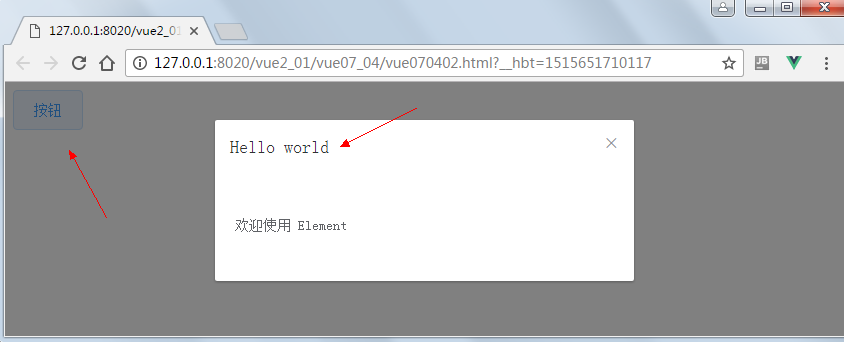
在线测试:https://jsfiddle.net/hzfpyvg6/14/
3.3、快速上手
本节将介绍如何在项目中使用 Element。
3.3.1、使用 Starter Kit
我们提供了通用的项目模板,你可以直接使用。对于 Laravel 用户,我们也准备了相应的模板,同样可以直接下载使用。
如果不希望使用我们提供的模板,请继续阅读。
3.3.2、使用 vue-cli
我们还可以使用 vue-cli 初始化项目,命令如下:
> npm i -g vue-cli

> mkdir my-project && cd my-project

> vue init webpack

> npm i && npm i element-ui
3.3.3、引入 Element
你可以引入整个 Element,或是根据需要仅引入部分组件。我们先介绍如何引入完整的 Element。
完整引入
在 main.js 中写入以下内容:
import Vue from 'vue'

import ElementUI from 'element-ui'

import 'element-ui/lib/theme-chalk/index.css'

import App from './App.vue'

Vue.use(ElementUI)

new Vue({

  el: '#app',

  render: h => h(App)

})
以上代码便完成了 Element 的引入。需要注意的是,样式文件需要单独引入。
按需引入
借助 babel-plugin-component,我们可以只引入需要的组件,以达到减小项目体积的目的。
首先,安装 babel-plugin-component:
npm install babel-plugin-component -D
然后,将 .babelrc 修改为:
{

  "presets": [

    ["es2015", { "modules": false }]

  ],

  "plugins": [["component", [

    {

      "libraryName": "element-ui",

      "styleLibraryName": "theme-chalk"

    }

  ]]]

}
接下来,如果你只希望引入部分组件,比如 Button 和 Select,那么需要在 main.js 中写入以下内容:
import Vue from 'vue'

import { Button, Select } from 'element-ui'

import App from './App.vue'

Vue.component(Button.name, Button)

Vue.component(Select.name, Select)

/* 或写为

 * Vue.use(Button)

 * Vue.use(Select)

 */

new Vue({

  el: '#app',

  render: h => h(App)

})
完整组件列表和引入方式(完整组件列表以 components.json 为准)
import Vue from 'vue'

import {

  Pagination,

  Dialog,

  Autocomplete,

  Dropdown,

  DropdownMenu,

  DropdownItem,

  Menu,

  Submenu,

  MenuItem,

  MenuItemGroup,

  Input,

  InputNumber,

  Radio,

  RadioGroup,

  RadioButton,

  Checkbox,

  CheckboxButton,

  CheckboxGroup,

  Switch,

  Select,

  Option,

  OptionGroup,

  Button,

  ButtonGroup,

  Table,

  TableColumn,

  DatePicker,

  TimeSelect,

  TimePicker,

  Popover,

  Tooltip,

  Breadcrumb,

  BreadcrumbItem,

  Form,

  FormItem,

  Tabs,

  TabPane,

  Tag,

  Tree,

  Alert,

  Slider,

  Icon,

  Row,

  Col,

  Upload,

  Progress,

  Badge,

  Card,

  Rate,

  Steps,

  Step,

  Carousel,

  CarouselItem,

  Collapse,

  CollapseItem,

  Cascader,

  ColorPicker,

  Transfer,

  Container,

  Header,

  Aside,

  Main,

  Footer,

  Loading,

  MessageBox,

  Message,

  Notification

} from 'element-ui'

Vue.use(Pagination)

Vue.use(Dialog)

Vue.use(Autocomplete)

Vue.use(Dropdown)

Vue.use(DropdownMenu)

Vue.use(DropdownItem)

Vue.use(Menu)

Vue.use(Submenu)

Vue.use(MenuItem)

Vue.use(MenuItemGroup)

Vue.use(Input)

Vue.use(InputNumber)

Vue.use(Radio)

Vue.use(RadioGroup)

Vue.use(RadioButton)

Vue.use(Checkbox)

Vue.use(CheckboxButton)

Vue.use(CheckboxGroup)

Vue.use(Switch)

Vue.use(Select)

Vue.use(Option)

Vue.use(OptionGroup)

Vue.use(Button)

Vue.use(ButtonGroup)

Vue.use(Table)

Vue.use(TableColumn)

Vue.use(DatePicker)

Vue.use(TimeSelect)

Vue.use(TimePicker)

Vue.use(Popover)

Vue.use(Tooltip)

Vue.use(Breadcrumb)

Vue.use(BreadcrumbItem)

Vue.use(Form)

Vue.use(FormItem)

Vue.use(Tabs)

Vue.use(TabPane)

Vue.use(Tag)

Vue.use(Tree)

Vue.use(Alert)

Vue.use(Slider)

Vue.use(Icon)

Vue.use(Row)

Vue.use(Col)

Vue.use(Upload)

Vue.use(Progress)

Vue.use(Badge)

Vue.use(Card)

Vue.use(Rate)

Vue.use(Steps)

Vue.use(Step)

Vue.use(Carousel)

Vue.use(CarouselItem)

Vue.use(Collapse)

Vue.use(CollapseItem)

Vue.use(Cascader)

Vue.use(ColorPicker)

Vue.use(Container)

Vue.use(Header)

Vue.use(Aside)

Vue.use(Main)

Vue.use(Footer)

Vue.use(Loading.directive)

Vue.prototype.$loading = Loading.service

Vue.prototype.$msgbox = MessageBox

Vue.prototype.$alert = MessageBox.alert

Vue.prototype.$confirm = MessageBox.confirm

Vue.prototype.$prompt = MessageBox.prompt

Vue.prototype.$notify = Notification

Vue.prototype.$message = Message
3.3.4、全局配置
在引入 Element 时,可以传入一个全局配置对象。该对象目前仅支持 size 字段,用于改变组件的默认尺寸。按照引入 Element 的方式,具体操作如下:
完整引入 Element:
import Vue from 'vue'

import Element from 'element-ui'

Vue.use(Element, { size: 'small' })
按需引入 Element:
import Vue from 'vue'

import { Button } from 'element-ui'

Vue.prototype.$ELEMENT = { size: 'small' }

Vue.use(Button)
按照以上设置,项目中所有拥有 size 属性的组件的默认尺寸均为 'small'。
3.3.5、开始使用
至此,一个基于 Vue 和 Element 的开发环境已经搭建完毕,现在就可以编写代码了。启动开发模式:
# 执行如下命令后访问 localhost:8086

npm run dev
编译:
npm run build
各个组件的使用方法请参阅它们各自的文档。
3.3.6、示例
修改app.vue组件:
<template>

  <div id="app">

    <img src="./assets/logo.png">

    <h1>{{ msg }}</h1>

    <el-button @click.native="startHacking">Let's do it</el-button>

    <div class="block">

    <span class="demonstration">显示默认颜色</span>

    <span class="wrapper">

    <el-button type="success">成功按钮</el-button>

    <el-button type="warning">警告按钮</el-button>

    <el-button type="danger">危险按钮</el-button>

    <el-button type="info">信息按钮</el-button>

    </span>

    </div>

    <br/>

    <div class="block">

      <span class="demonstration">hover 显示颜色</span>

    <span class="wrapper">

    <el-button :plain="true" type="success">成功按钮</el-button>

    <el-button :plain="true" type="warning">警告按钮</el-button>

    <el-button :plain="true" type="danger">危险按钮</el-button>

    <el-button :plain="true" type="info">信息按钮</el-button>

    </span>

    </div>

  </div>

</template>

<script>

export default {

  data () {

    return {

      msg: 'Use Vue 2.0 Today!'

    }

  },

  methods: {

    startHacking () {

      this.$notify({

        title: 'It Works',

        message: 'We have laid the groundwork for you. Now it\'s your time to build something epic!',

        duration: 6000

      })

    }

  }

}

</script>

<style>

body {

  font-family: Helvetica, sans-serif;

}

</style>
main.js如下:
// The Vue build version to load with the `import` command

// (runtime-only or standalone) has been set in webpack.base.conf with an alias.

import Vue from 'vue'

import ElementUI from 'element-ui'

import 'element-ui/lib/theme-chalk/index.css'

import App from './App'

Vue.config.productionTip = false

Vue.use(ElementUI)

/* eslint-disable no-new */

new Vue({

  el: '#app',

  template: '<App/>',

  components: { App }

})
运行:
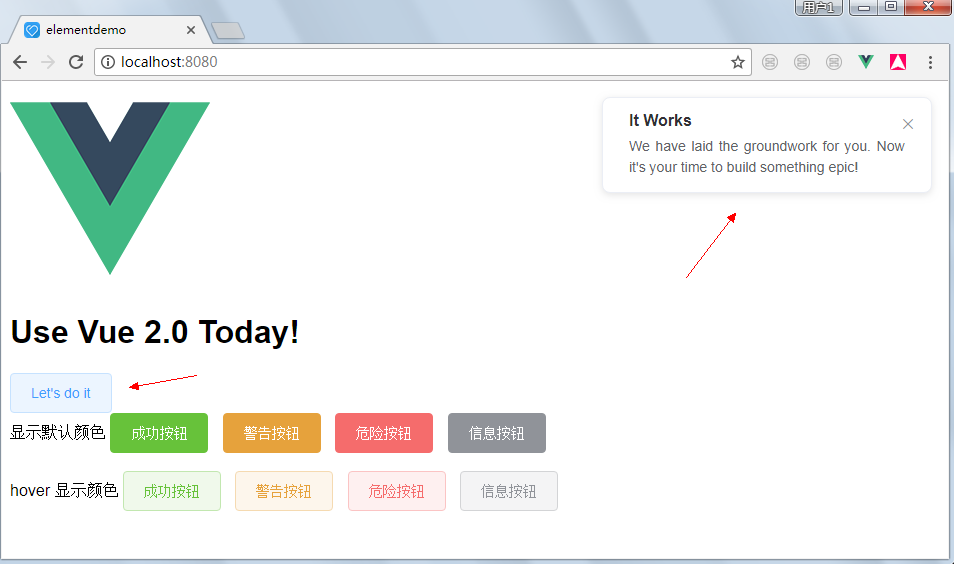
如果出现乱码则修改app.vue为utf-8的编码格式
四、Vue2常用资源
4.1、Mint UI(vue2移动端)
项目主页:http://mint-ui.github.io/#!/zh-cn
demo:http://elemefe.github.io/mint-ui/#/
github地址:https://github.com/ElemeFE/mint-ui
中文文档地址:http://mint-ui.github.io/docs/#!/zh-cn
4.2、iview
iView 配套的工作流:https://github.com/icarusion/vue-vueRouter-webpack
github地址:https://github.com/iview/iview
官网:https://www.iviewui.com/
4.3、vue-mui
官网:http://mui.yaobieting.com/
github地址:https://github.com/creatshare/vue-mui
4.4、radon-ui
中文文档:https://luojilab.github.io/radon-ui/#!/
github:https://github.com/luojilab/radon-ui
4.5、antd vue
中文文档:http://okoala.github.io/vue-antd/#!/components
github:https://github.com/okoala/vue-antd
4.6、weex
社区:http://www.weex.help/
官网:http://weex-project.io/cn/
github:https://github.com/alibaba/weex
中文文档:http://www.weex.help/topic/57792770eb60516a48db5485
4.7、element(饿了么后台)
官网:http://element.eleme.io/#/zh-CN
饿了么github:http://github.com/elemefe
4.8、N3
官网:https://n3-components.github.io/N3-components/
中文文档:https://n3-components.github.io/N3-components/component.html
英文文档:https://github.com/N3-components/N3-components
4.9、vuikit
github:https://github.com/vuikit/vuikit
英文文档:https://vuikit.js.org/#/
前端MVC Vue2学习总结(八)——Vue Router路由、Vuex状态管理、Element-UI的更多相关文章
- vue第十八单元(单向数据流 vuex状态管理)
第十八单元(单向数据流 vuex状态管理) #课程目标 1.理解什么是数据管理模式 2.什么是vuex 3.什么时候使用vuex 4.vuex安装及工作原理 5.vuex语法 #知识点 1.首先来看下 ...
- 前端MVC Vue2学习总结(九)——Vuex状态管理插件
一.概要 1.1.Vuex定义与注意事项 Vuex是为vue.js框架更好的管理状态而设计一个插件.Vuex 是一个专为 Vue.js 应用程序开发的状态管理模式.它采用集中式存储管理应用的所有组件的 ...
- 前端MVC Vue2学习总结(二)——Vue的实例、生命周期与Vue脚手架(vue-cli)
一.Vue的实例 1.1.创建一个 Vue 的实例 每个 Vue 应用都是通过 Vue 函数创建一个新的 Vue 实例开始的: var vm = new Vue({ // 选项 }) 虽然没有完全遵循 ...
- 前端MVC Vue2学习总结(八)——前端路由
路由是根据不同的 url 地址展示不同的内容或页面,早期的路由都是后端直接根据 url 来 reload 页面实现的,即后端控制路由. 后来页面越来越复杂,服务器压力越来越大,随着AJAX(异步刷新技 ...
- 前端MVC Vue2学习总结(一)——MVC与vue2概要、模板、数据绑定与综合示例
一.前端MVC概要 1.1.库与框架的区别 框架是一个软件的半成品,在全局范围内给了大的约束.库是工具,在单点上给我们提供功能.框架是依赖库的.Vue是框架而jQuery则是库. 1.2.AMD与CM ...
- 前端MVC Vue2学习总结(七)——ES6与Module模块化、Vue-cli脚手架搭建、开发、发布项目与综合示例
使用vue-cli可以规范项目,提高开发效率,但是使用vue-cli时需要一些ECMAScript6的知识,特别是ES6中的模块管理内容,本章先介绍ES6中的基础与模块化的内容再使用vue-cli开发 ...
- 前端MVC Vue2学习总结(四)——条件渲染、列表渲染、事件处理器
一.条件渲染 1.1.v-if 在字符串模板中,如 Handlebars ,我们得像这样写一个条件块: <!-- Handlebars 模板 --> {{#if ok}} <h1&g ...
- 前端MVC Vue2学习总结(五)——表单输入绑定、组件
一.表单输入绑定 1.1.基础用法 你可以用 v-model 指令在表单控件元素上创建双向数据绑定.它会根据控件类型自动选取正确的方法来更新元素.尽管有些神奇,但 v-model 本质上不过是语法糖, ...
- 前端MVC Vue2学习总结(六)——axios与跨域HTTP请求、Lodash工具库
一.axios Vue更新到2.0之后宣告不再对vue-resource更新,推荐使用axios,axios是一个用于客户端与服务器通信的组件,axios 是一个基于Promise 用于浏览器和 no ...
随机推荐
- 去掉手机端延迟300ms
手机端300ms延迟是由于在手机上可以双击可以放大缩小造成的,当初ios苹果的工程师们做了一些约定,应对 iPhone 这种小屏幕浏览桌面端站点的问题.这就是手机端300ms延迟的由来. 解决:我是用 ...
- Java集合:HashSet的源码分析
Java集合---HashSet的源码分析 一. HashSet概述: HashSet实现Set接口,由哈希表(实际上是一个HashMap实例)支持.它不保证set 的迭代顺序:特别是它不保证该 ...
- HTML5 添加新的标签 input属性
<!-- 新增 有语意标签 --> <nav></nav> <!-- 导航标签 --> <seclion></seclion> ...
- ReSharper 10.0.0.1 Ultimate 完美破解补丁使用方法
转自:http://www.leavescn.com/Page/Content.aspx?id=94 ReSharper 10.0.0.1 Ultimate 完美破解补丁使用方法,本资源来自互联网,感 ...
- Java学习过程
按照这个流程巩固自己学习的东西吧
- HTML+CSS实现页面豆腐块布局和图片居中
<!DOCTYPE html> <html> <head lang="en"> <meta http-equiv="Conten ...
- Jedis 操作 Redis 工具类
配置类 pom.xml pom.xml 里配置依赖 <dependency> <groupId>redis.clients</groupId> <artifa ...
- 报警系统:php输出头信息以方便脚本抓取信息[排查篇]
做监控系统时,需要对某个页面进行监控,可以通过很多方式进行报警,如:正常则输出一个规定的变量,错误时则不输出.但是还有一个更为方便的做法,就是当前错误时,直接使用header抛出信息,如: heade ...
- Shell-9--条件测试
- 机器学习技法笔记:15 Matrix Factorization
Roadmap Linear Network Hypothesis Basic Matrix Factorization Stochastic Gradient Descent Summary of ...