
【Python游戏编程01--初步认识pygame】
一、pygame简介
Pygame 是一组用来开发游戏软件的 Python 程序模块,基于 SDL 库的基础上开发。允许你在 Python 程序中创建功能丰富的游戏和多媒体程序,Pygame 是一个高可移植性的模块可以支持多个操作系统。用它来开发小游戏非常适合
二、pygame的使用
第一步是把pygame导入到Python程序中,
import pygame
然后需要引入pygame中所有常量
from pygame.locals import *
在经过初始化以后,我们就可以正常的使用pygame了
pygame.ini()
通常来说我们需要创建一个窗口,方便我们与程序就行交互,下面创建一个600 x 500的窗口
screen=pygame.display.set_mode((600,500))
1、打印字体
pygame支持使用pygame.font将文打印到窗口,要打印一个文本的话首先需要创建一个文本对象,即:创建字体,None:默认字体,60:字体大小
myfont = pygame.font.Font(None,60)
这个文本是个重量级的进程,比较耗费时间,常用的做法是先在内存中创建文本对象,然后将文本当做一个图像来渲染,即:创建一个可以使用screen.blit()绘制的平面
white= 255,255,255

blue = 0,0,200

textImage = myfont.render("hello Pygame",True,white)
textImage对象可以使用screen.blit()来绘制,上面的render函数第一个参数是文本,第二个参数是抗锯齿字体,第三个参数是一个颜色值(RGB值)
要绘制文本,通常的过程是清屏,绘制,刷新,即:进行绘制
screen.blit()需要两个参数,绘制的对象及其(左上角顶点)坐标
screen.fill(blue)

screen.blit(textImage,(100,100))

pygame.display.update()
如果此时运行程序的话,会出现一个窗口一闪而过,为了让他长时间显示,需要把他放入一个循环中
import pygame

from pygame.locals import *

import sys

white = 255,255,255

blue = 0,0,200

pygame.init()

screen = pygame.display.set_mode((600,400))

myfont = pygame.font.Font(None,60)

textImage = myfont.render("Hello World",True,white)

while True:

    for event in pygame.event.get():

        if event.type == pygame.QUIT:

            sys.exit()

    screen.fill(blue)

    screen.blit(textImage,(100,100))

    pygame.display.update()
执行结果:
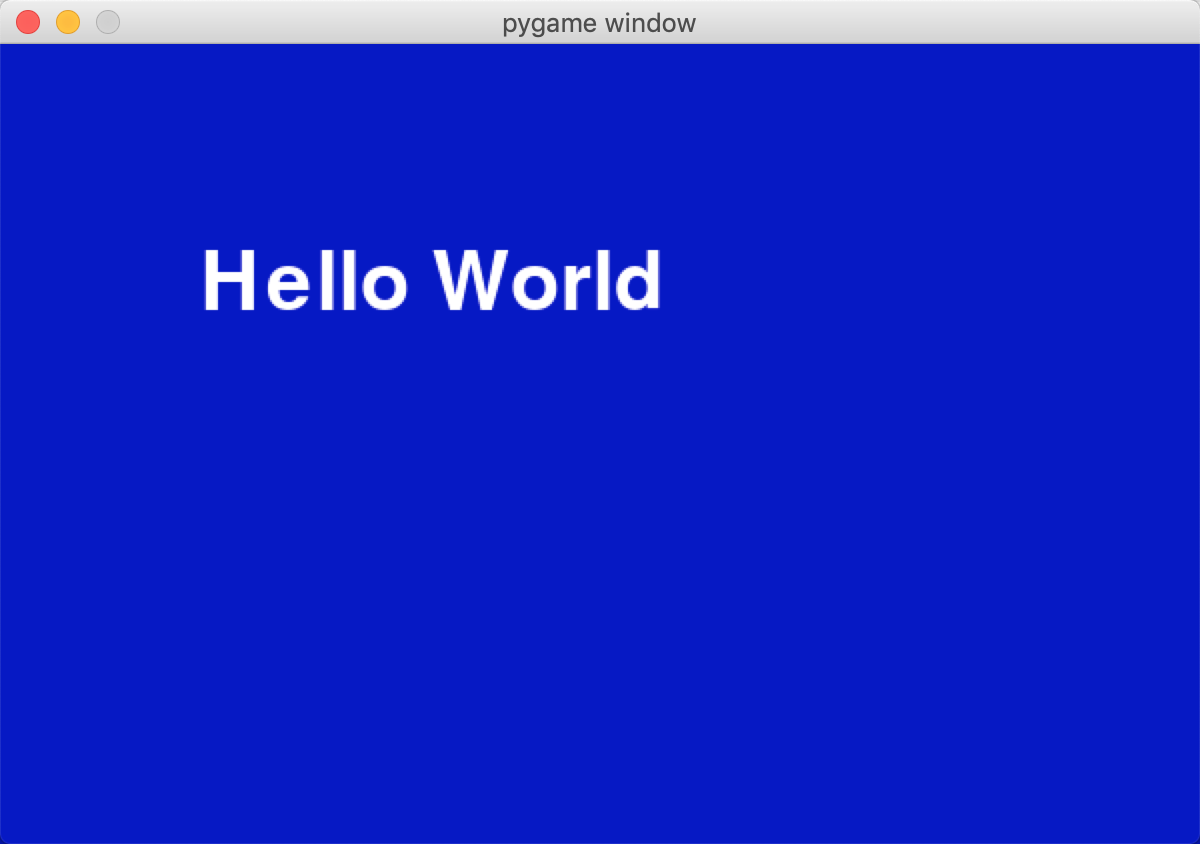
pygame除了能打印字体,仍然可以绘制各种图像
2、绘制一个圆形
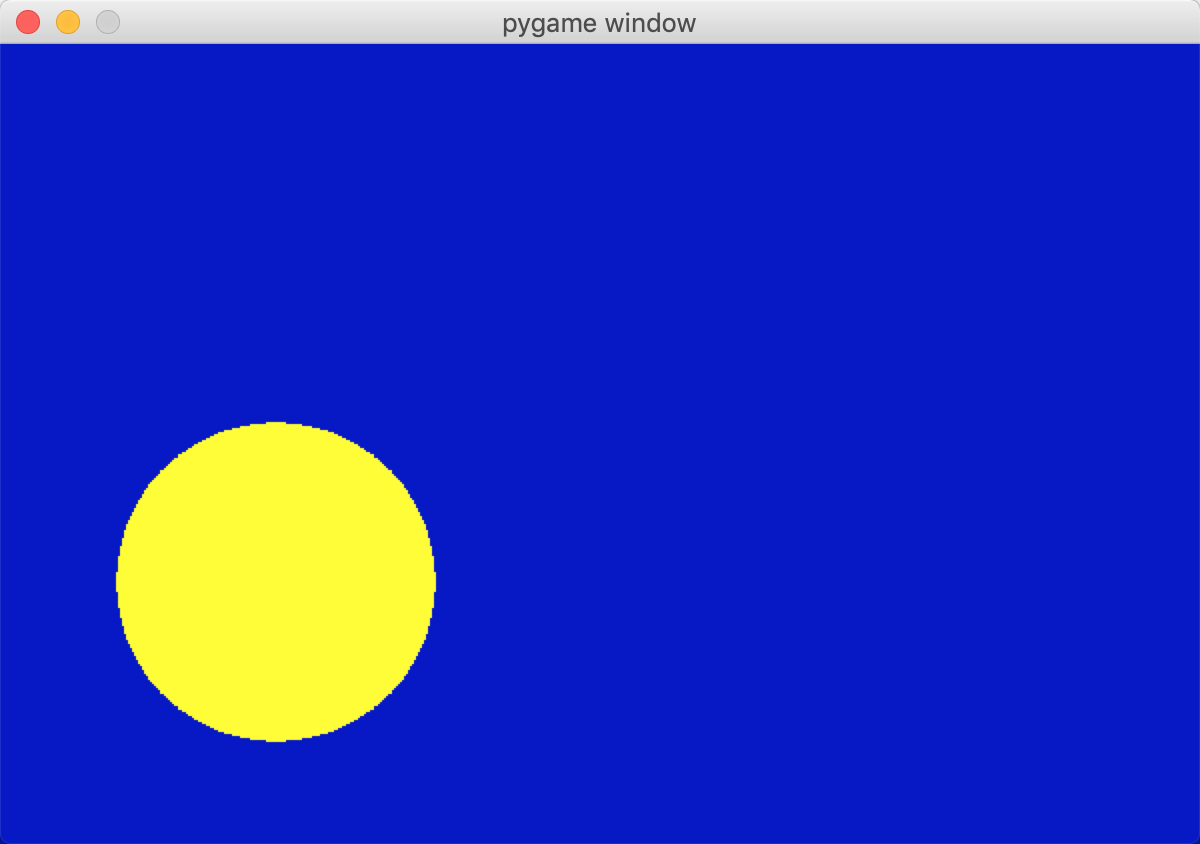
使用pygame.draw.cicle()方法,该方法需要传递圆的大小,颜色和参数
color (0,0,0)给定颜色
radius圆半径
position (0,0)给定圆心坐标
width线条宽度
import pygame,sys

pygame.init()

screen = pygame.display.set_mode((600,400))

#设置圆形的位置和移动的速度变量

pos_x = 300

pos_y = 250

vel_x = 2

vel_y = 1

while True:

    for event in pygame.event.get():

        if event.type == pygame.QUIT:

            sys.exit()

    screen.fill((0, 0, 200))

    #移动圆形

    pos_x += vel_x

    pos_y += vel_y

    #让圆形保持在窗口内

    if pos_x > 500 or pos_x < 0:

        vel_x = -vel_x

    if pos_y > 400 or pos_y <0:

        vel_y = -vel_y

    color = 255, 255, 0

    position = 300, 250

    radius = 80  # 半径

    width = 0

    pos = pos_x,pos_y

    #print(pos)

    pygame.draw.circle(screen,color,pos,radius,width)

    pygame.display.update()
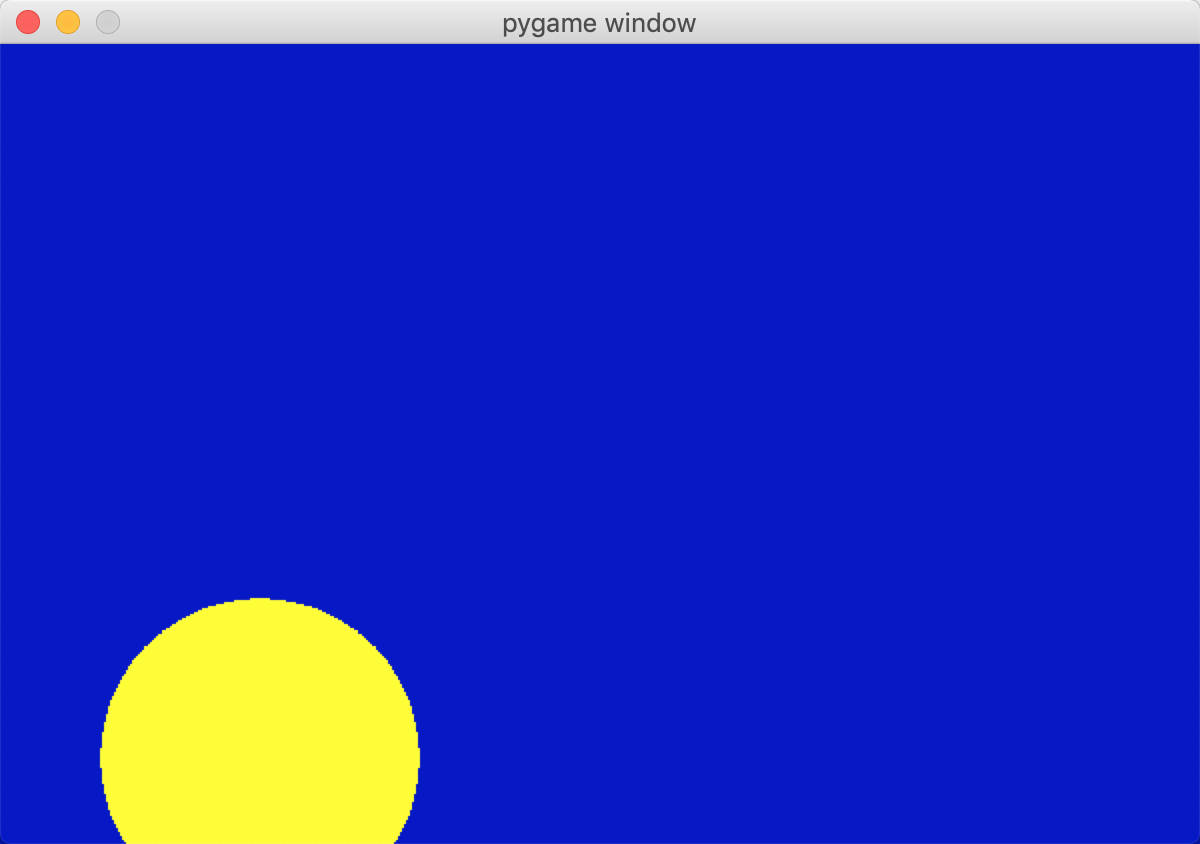
执行结果
3、绘制一个矩形
绘制一个可以移动的矩形,而非简单的显示在屏幕中间
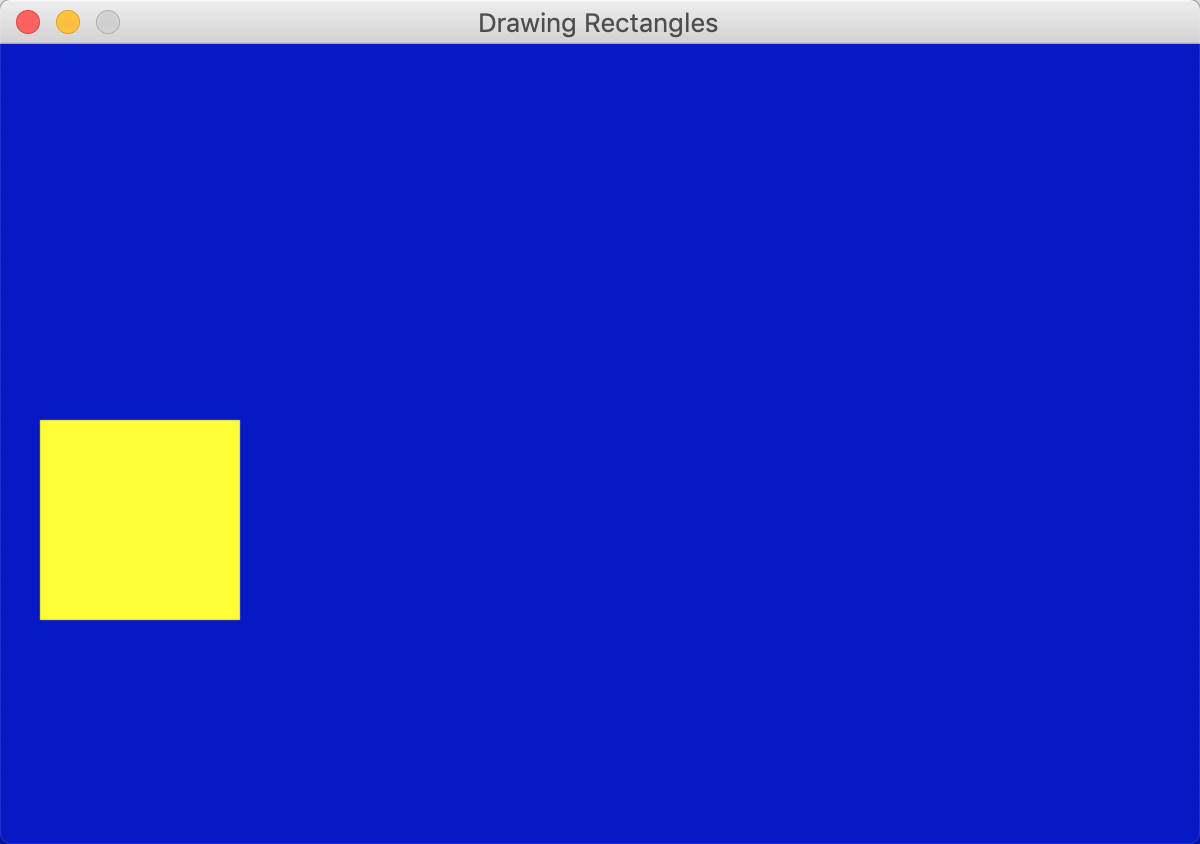
首先需要设置pos_x,pos_y两个变量来记录矩形的位置信息,然后在创建一堆速度变量(vel_x,vel_y),在while循环中不断变化矩形的位置,当矩形移动到屏幕边缘的时候,将速度变量取返,这样就可以产生碰撞的效果
position (pos_x,pos_y,100,100)给定左上角顶点的坐标、长和宽
from pygame.locals import *

import pygame

import sys

pygame.init()

screen = pygame.display.set_mode((600,400))

title = pygame.display.set_caption("Drawing Rectangles")

#记录矩形的位置信息,记录移动速度的位置信息

pos_x = 300

pos_y = 250

vel_x = 2

vel_y = 1

while True:

    for event in pygame.event.get():

        if event.type == pygame.QUIT:

            sys.exit()

    screen.fill((0,0,200))

    #移动矩形

    pos_x += vel_x

    pos_y += vel_y

    #使矩形保持在窗口内

    if pos_x > 500 or pos_x <0:

        vel_x = -vel_x

    if pos_y >400 or pos_y < 0:

        vel_y = -vel_y

    #绘制矩形

    color = 255,255,0

    width = 0

    pos = pos_x,pos_y,100,100

    pygame.draw.rect(screen,color,pos,width)

    pygame.display.update()
执行结果:

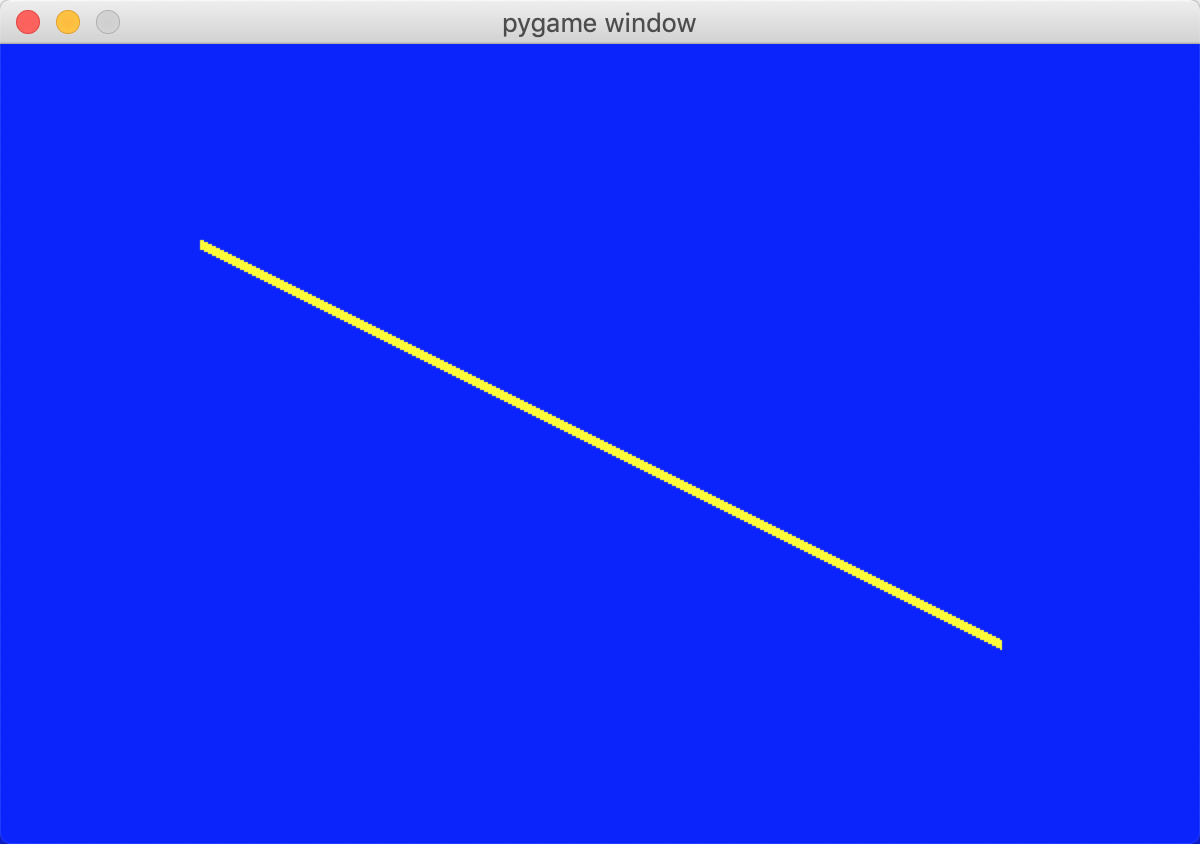
4、绘制线条
使用pygame.draw.line()方法,该方法需要传递起点和终点,还有线条的颜色和宽度
(0,0)(100,100)负责给定线段的两个端点
import pygame

import sys

pygame.init()

screen = pygame.display.set_mode((600,400))

while True:

    for event in pygame.event.get():

        if event.type == pygame.QUIT:

            sys.exit()

    screen.fill((0,0,255))

    color = 255,255,0

    width = 5

    pygame.draw.line(screen,color,(100,100),(500,300),width)

    pygame.display.update()
执行结果:
5、绘制弧形
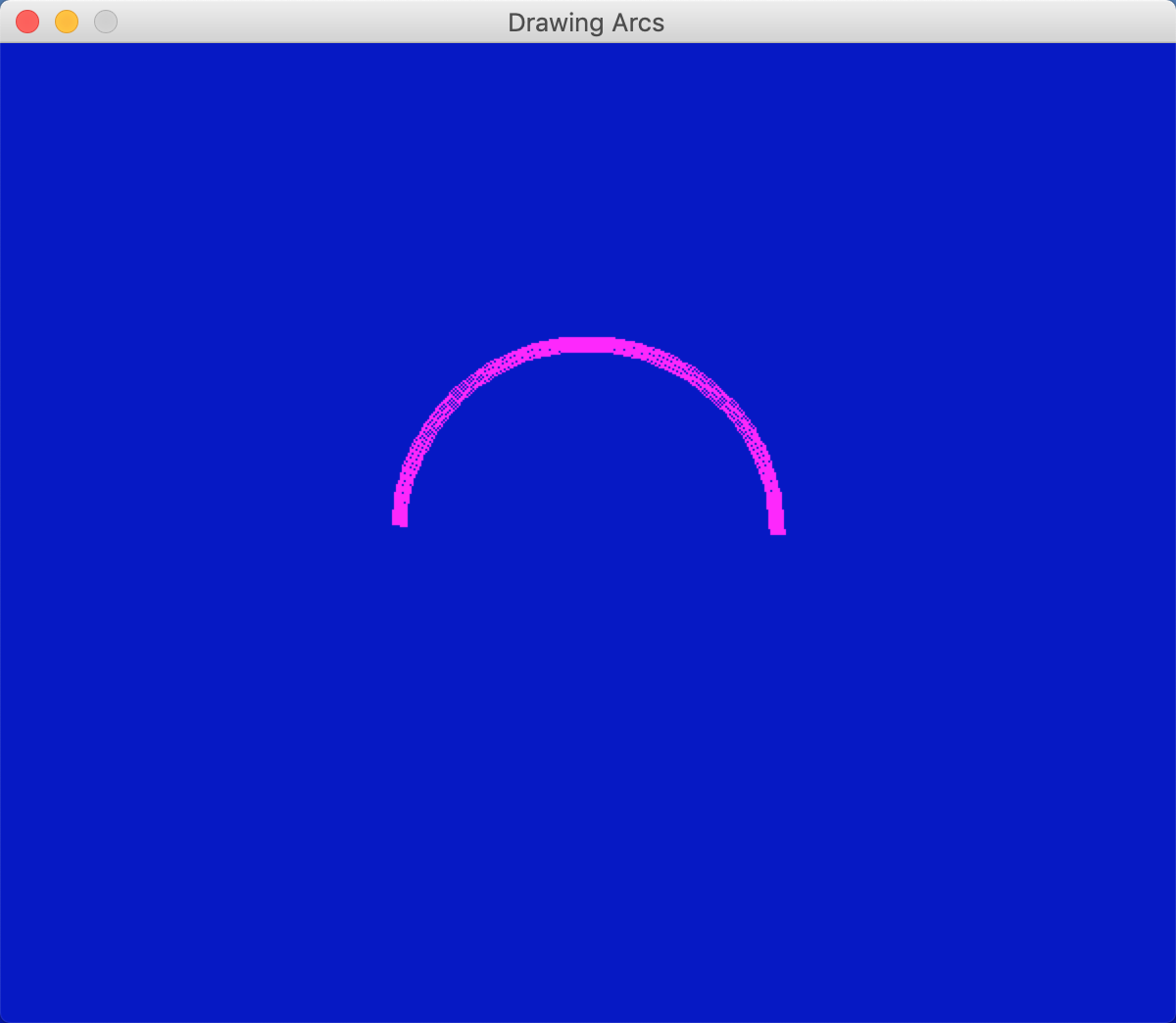
弧形是圆形的一部分,可以使用pygame.draw.arc方法绘制它,由于这个形状相对比较复杂,需要用到的知识比前面的知识要多
首先,需要一个矩形来表示弧形的边界(需提供矩形左上角的位置,宽度和高度)弧形就绘制在这个矩形当中
然后需要提供弧形的起始角度和结束角度,平常我们在生活中都是用度为单位衡量一个角度,但在几何三角形中,通常使用的单位是弧度
将角度转换成弧度的函数是math.redians()它包含在math库中,因此使用之前一定要引入math库
#x,y表示弧形所在的圆的圆心坐标,radius表示半径
start_angle起始角度 指向正右侧的半径开始逆时针旋转就是0到360
end_angle结束角度
import math

import pygame

from pygame.locals import *

import sys

pygame.init()

screen = pygame.display.set_mode((600,500))

title = pygame.display.set_caption("Drawing Arcs")

while True:

    for event in pygame.event.get():

        if event.type == pygame.QUIT:

            sys.exit()

    screen.fill((0,0,200))

    #绘制弧形

    color = 255,0,255

    position = 200,150,200,200

    start_angle = math.radians(0)

    stop_angle = math.radians(180)

    print(start_angle,stop_angle)

    width =8

    pygame.draw.arc(screen,color,position,start_angle,stop_angle,width)

    pygame.display.update()
执行结果:
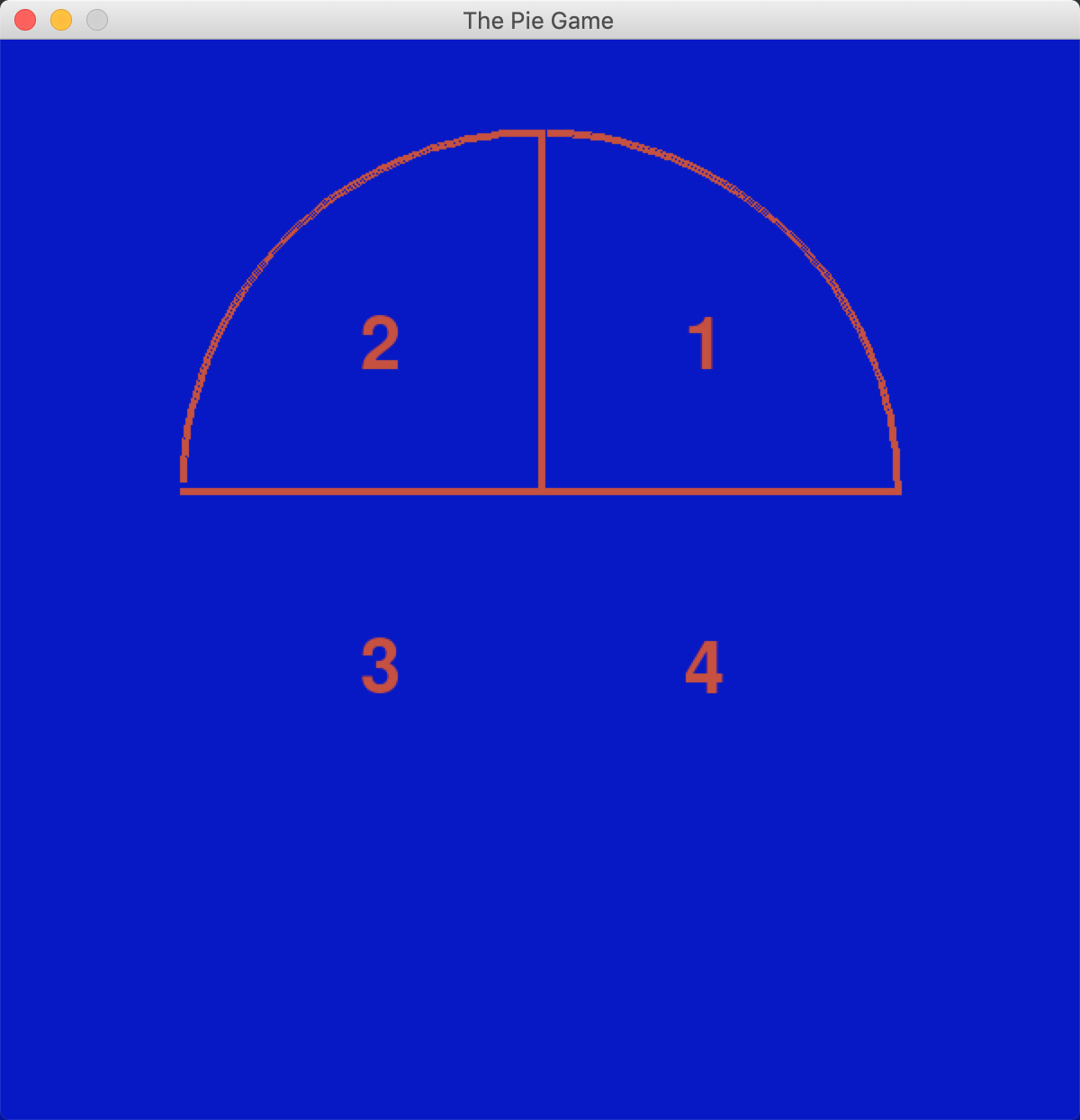
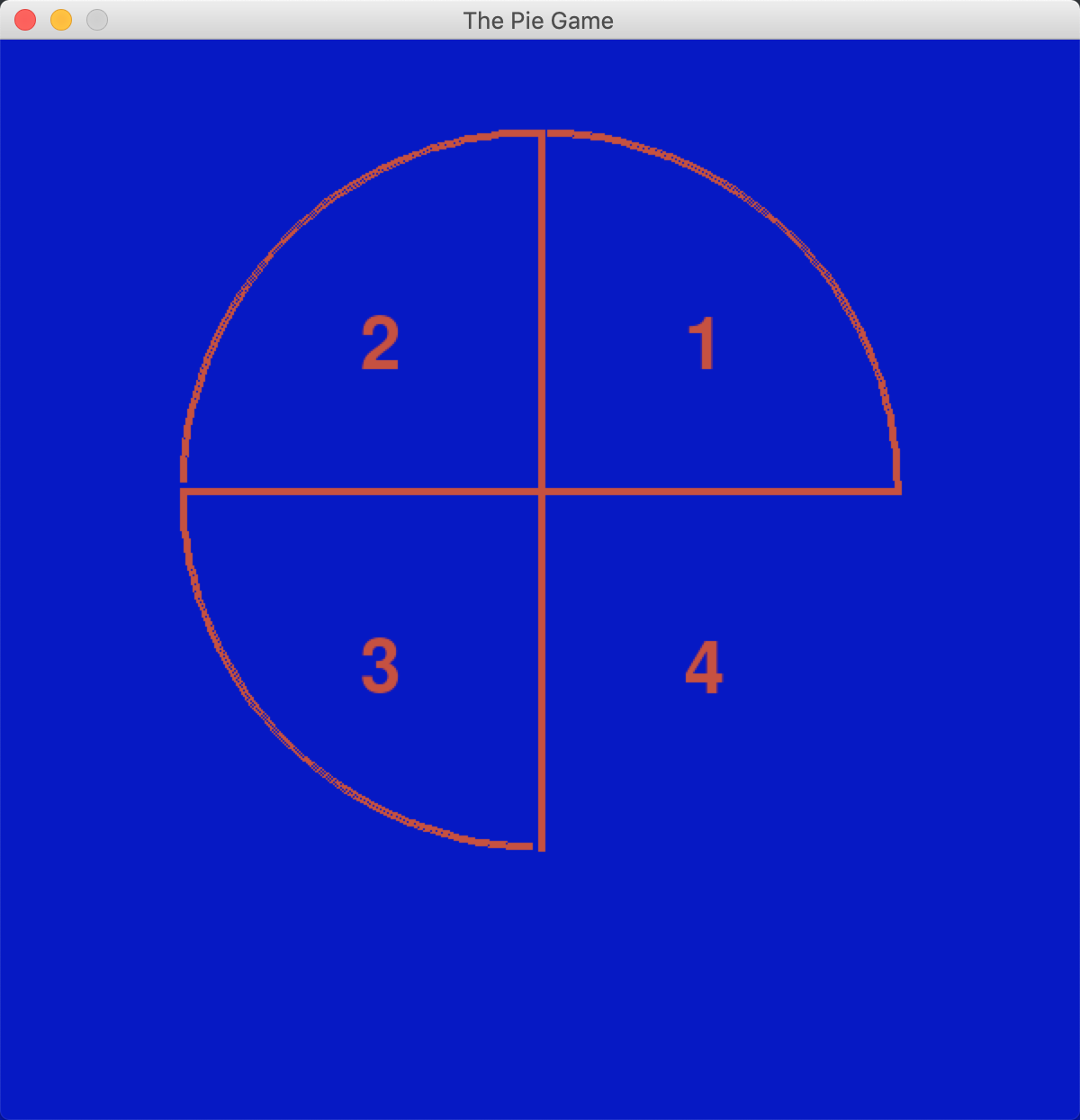
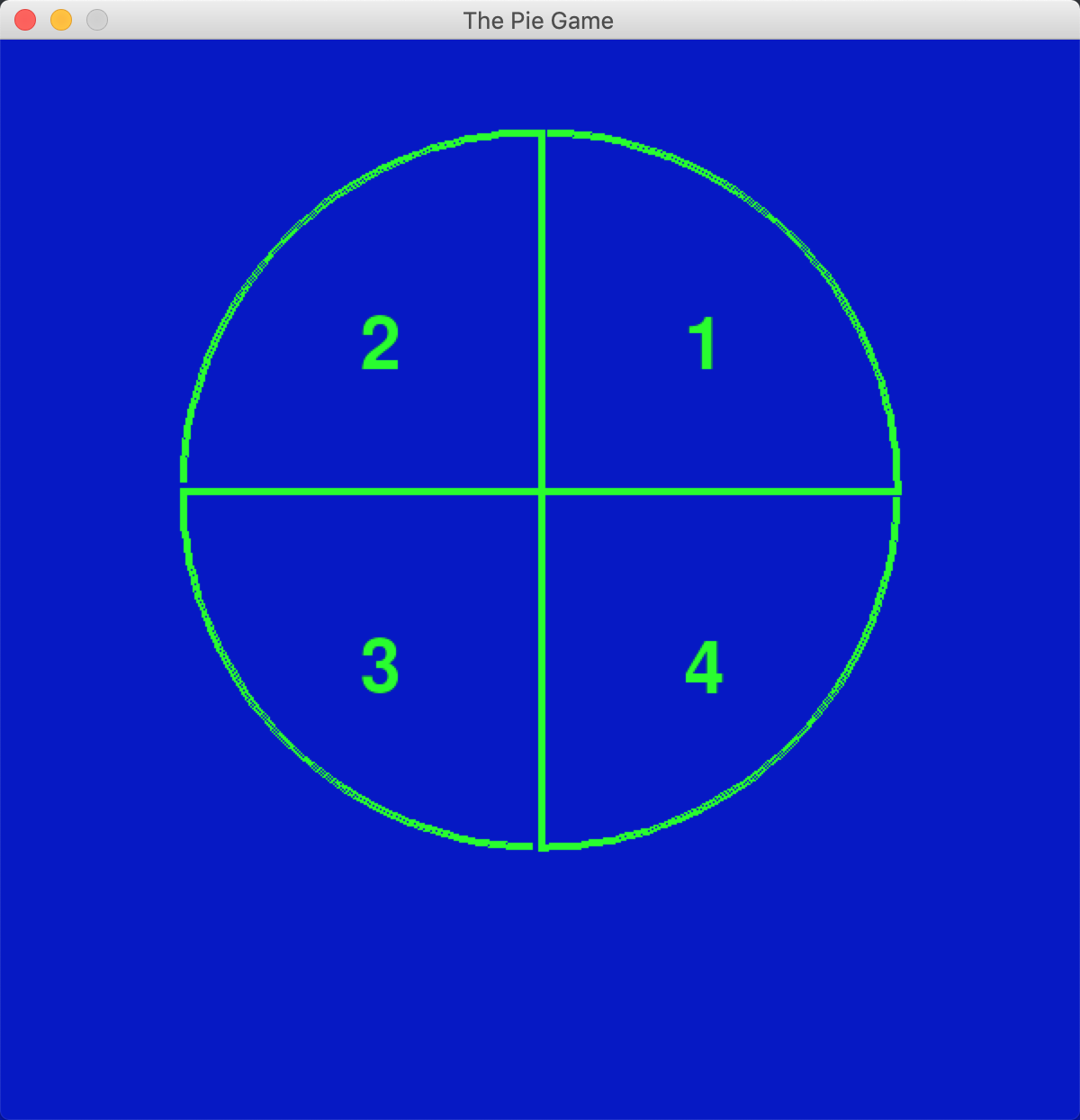
二、实践:绘制大饼游戏(当按下1,2,3,4相应的按钮时,就会在程序中绘制相应的饼块,当整个饼块绘制完成以后,颜色变成亮绿色)
import pygame

from pygame.locals import *

import math

import sys

pygame.init()

screen = pygame.display.set_mode((600,600))

title = pygame.display.set_caption("The Pie Game")

myfont = pygame.font.Font(None,60)

color = 200,80,60

width = 4

x = 300

y = 250

radius = 200

position = x-radius,y-radius,radius*2,radius*2

#设置按键1,2,3,4变量

piece1 = False

piece2 = False

piece3 = False

piece4 = False

while True:

    for event in pygame.event.get():

        if event.type == pygame.QUIT:

            sys.exit()

        elif event.type == KEYUP:

            if event.key == pygame.K_ESCAPE:

                sys.exit()

            elif event.key == pygame.K_1:

                piece1 = True

            elif event.key == pygame.K_2:

                piece2 = True

            elif event.key == pygame.K_3:

                piece3 = True

            elif event.key == pygame.K_4:

                piece4 = True

    #清屏

    screen.fill((0,0,200))

    #绘制4个数字

    textImage1 = myfont.render("",True,color)

    text1=screen.blit(textImage1,(x+radius/2-20,y-radius/2))

    #print("text1==",text1)

    textImage2 = myfont.render("",True,color)

    text2=screen.blit(textImage2,(x-radius/2,y-radius/2))

    #print("text2==", text2)

    textImage3 = myfont.render("",True,color)

    text3=screen.blit(textImage3,(x-radius/2,y+radius/2-20))

    #print("text3==", text3)

    textImage4 = myfont.render("",True,color)

    text4=screen.blit(textImage4,(x+radius/2-20,y+radius/2-20))

    #print("text4==", text4)

    #判断是否绘制饼

    if piece1:

        start_angle = math.radians(0)

        end_angle = math.radians(90)

        arc1=pygame.draw.arc(screen,color,position,start_angle,end_angle,width)

        print("arc1==",arc1)

        line1=pygame.draw.line(screen,color,(x,y),(x,y-radius),width)

        print("line1==",line1)

        line2=pygame.draw.line(screen,color,(x,y),(x+radius,y),width)

        print("line2==",line2)

    if piece2:

        start_angle = math.radians(90)

        end_angle = math.radians(180)

        pygame.draw.arc(screen,color,position,start_angle,end_angle,width)

        pygame.draw.line(screen,color,(x,y),(x,y-radius),width)

        pygame.draw.line(screen,color,(x,y),(x-radius,y),width)

    if piece3:

        start_angle = math.radians(180)

        end_angle = math.radians(270)

        pygame.draw.arc(screen,color,position,start_angle,end_angle,width)

        pygame.draw.line(screen,color,(x,y),(x-radius,y),width)

        pygame.draw.line(screen,color,(x,y),(x,y+radius),width)

    if piece4:

        start_angle = math.radians(270)

        end_angle = math.radians(360)

        pygame.draw.arc(screen,color,position,start_angle,end_angle,width)

        pygame.draw.line(screen,color,(x,y),(x,y+radius),width)

        pygame.draw.line(screen,color,(x,y),(x,y+radius),width)

    #是否4个饼都绘制完成

    if piece1 and piece2 and piece3 and piece4:

        color = 0,255,0

    pygame.display.update()
执行结果

三、绘制椭圆
采用pygame.draw.ellipse()函数
【Python游戏编程01--初步认识pygame】的更多相关文章
- Python游戏编程入门
<Python游戏编程入门>这些文章负责整理在这本书中的知识点.注意事项和课后习题的尝试实现.并且对每一个章节给出的最终实例进行分析和注释. 初识pygame:pie游戏pygame游戏库 ...
- python网络编程01 /C/S架构|B/S架构、网络通信原理、五层协议、七层协议简述、端口映射技术
python网络编程01 /C/S架构|B/S架构.网络通信原理.五层协议.七层协议简述.端口映射技术 目录 python网络编程01 /C/S架构|B/S架构.网络通信原理.五层协议.七层协议简述. ...
- 《Python游戏编程快速上手》|百度网盘免费下载|Python基础编程
<Python游戏编程快速上手>|百度网盘免费下载| 提取码:luy6 Python是一种高级程序设计语言,因其简洁.易读及可扩展性日渐成为程序设计领域备受推崇的语言. 本书通过编写一个个 ...
- Python游戏编程入门 中文pdf扫描版|网盘下载内附地址提取码|
Python是一种解释型.面向对象.动态数据类型的程序设计语言,在游戏开发领域,Python也得到越来越广泛的应用,并由此受到重视. 本书教授用Python开发精彩游戏所需的[]为重要的该你那.本书不 ...
- 分享《Python 游戏编程快速上手(第3版)》高清中文版PDF+高清英文版PDF+源代码
通过编写一个个小巧.有趣的游戏来学习Python,通过实例来解释编程的原理的方式.14个游戏程序和示例,介绍了Python基础知识.数据类型.函数.流程控制.程序调试.流程图设计.字符串操作.列表和字 ...
- 《Python游戏编程快速上手》——1.3 如何使用本书
本节书摘来自异步社区<Python游戏编程快速上手>一书中的第1章,第1.3节,作者[美] Al Sweigart(斯维加特),李强 译,更多章节内容可以访问云栖社区"异步社区& ...
- Python并发编程01 /操作系统发展史、多进程理论
Python并发编程01 /操作系统发展史.多进程理论 目录 Python并发编程01 /操作系统发展史.多进程理论 1. 操作系统 2. 进程理论 1. 操作系统 定义:管理控制协调计算机中硬件与软 ...
- 【python游戏编程之旅】第一篇---初识pygame
本系列博客介绍以python+pygame库进行小游戏的开发.有写的不对之处还望各位海涵. 一.pygame简介 Pygame 是一组用来开发游戏软件的 Python 程序模块,基于 SDL 库的基础 ...
- python编程学习--Pygame - Python游戏编程入门(0)---转载
原文地址:https://www.cnblogs.com/wuzhanpeng/p/4261015.html 引言 博客刚开,想把最近学习的东西记录下来,算是一种笔记.最近打算开始学习Python,因 ...
随机推荐
- UCloud 机房的网络搭建(计蒜客初赛第五场)
UCloud 刚刚建立一个新机房,近日正在进行网络搭建.机房内有 nn 台服务器和 mm 个分线器,整个机房只有一个网线出口.分线器的作用是将一根网线转换成多根网线.蒜头君也知道每个分线器输出的最大网 ...
- react 使用 react-loadable分包
文档 yarn add react-loadable 使用 import Loadable from "@/components/loadable"; const Home = L ...
- 向comboboxEdit中动态添加数据库中保存的用户自定义单位制的名称
if (radioGroup1.SelectedIndex == 2) { bool _Flag = true; sm.SetLciVisible(lciDelete, _Flag); sm.SetL ...
- SpringBoot--web版的ocr
这个项目主要是为了熟悉SpringBoot搭建web项目,及打war包,部署到tomcat中 先贴页面吧 页面很low 毕竟我只是菜鸟,该app程序功能已经写完了,上传图片到服务器,后台接口解析图片中 ...
- Java基础&面向对象(二)
(七)函数 1.数的定义:具有特定功能的一段小程序,也称为方法: 2.函数的特点: 3.函数的应用:结果.是否需要未知内容参与运算: 4.函数的重载:在同一个类中,允许存在一个以上的同名函数,只要它们 ...
- php 删除空格 和 回车
//删除空格 和 回车 function trimall($str){ $oldchar=array(""," ","\t","\ ...
- MOT上海站 | 卓越研发之路:微服务之路
微服务架构在带来灵活性.扩展性.可用性等优点的同时,其复杂性也给架构师们带来了很大的挑战.当你面对这些挑战一筹莫展时,不妨来参加由msup和微软联合推出的MOT线下沙龙活动吧,我们将给您答疑解惑. M ...
- C和C指针小记(十六)-动态内存分配
动态内存分配 1.1 为什么使用动态内存分配 直接声明数组的方式的缺点: 1) 声明数组必须指定长度限制.无法处理超过声明长度的数组. 2) 如果声明更大的常量来弥补第一个缺点,会造成更多的内存浪费. ...
- 去掉Tomcat的管理页面
一.去掉Tomcat的管理页面 一.方法一:如果要去掉默认该界面,可以重命名tomcat目录下的ROOT,并新建空文件夹命名为ROOT 1.刚打开tomcat,默认访问的是tomcat管理页面,比如X ...
- Tomcat服务安全加固
Tomcat服务默认启用了管理后台功能,使用该后台可直接上传 war 文件包对站点进行部署和管理.由于运维人员的疏忽,可能导致管理后台存在空口令或者弱口令的漏洞,使得黑客或者不法分子可以利用该漏洞直接 ...