
[转]Python in Visual Studio Code
本文转自:https://code.visualstudio.com/docs/languages/python
Working with Python in Visual Studio Code, using the Microsoft Python extension, is simple, fun, and productive. The extension makes VS Code an excellent IDE, and works on any operating system with a variety of Python interpreters. It leverages all of VS Code's power to provide auto complete and IntelliSense, linting, debugging, and unit testing, along with the ability to easily switch between Python environments, including virtual and conda environments.
This article provides only an overview of the different capabilities of the Python extension for VS Code. For a walkthrough of editing, running, and debugging code, use the button below.
Install Python and the Python extension
The tutorial guides you through installing Python and using the extension. You must install a Python interpreter yourself separately from the extension. For a quick install, use Python 3.6 from python.org and install the extension from the VS Code marketplace.
Once you have a version of Python installed, activate it using the Python: Select Interpreter command. If VS Code doesn't automatically locate the interpreter you're looking for, refer to Environments - Manually specify an interpreter.
You configure the Python extension through settings. See the Settings reference.
Run Python code
To experience Python, create a file (using the File Explorer) named hello.py and paste in the following code (assuming Python 3):
print("Hello World")
The Python extension then provides shortcuts to run Python code in the currently selected interpreter (Python: Select Interpreter in the Command Palette):
- In the text editor: right-click anywhere in the editor and select Run Python File in Terminal. If invoked on a selection, only that selection is run.
- In Explorer: right-click a Python file and select Run Python File in Terminal.
You can also use the Terminal: Create New Integrated Terminal command to create a terminal in which VS Code automatically activates the currently selected interpreter. See Environments below. The Python: Start REPL activates a terminal with the currently selected interpreter and then runs the Python REPL.
For a more specific walkthrough on running code, see the tutorial.
Autocomplete and IntelliSense
The Python extension supports code completion and IntelliSense using the currently selected interpreter. IntelliSense is a general term for a number of features, including intelligent code completion (in-context method and variable suggestions) across all your files and for built-in and third-party modules.
IntelliSense quickly shows methods, class members, and documentation as you type, and you can trigger completions at any time with Ctrl+Space. You can also hover over identifiers for more information about them.
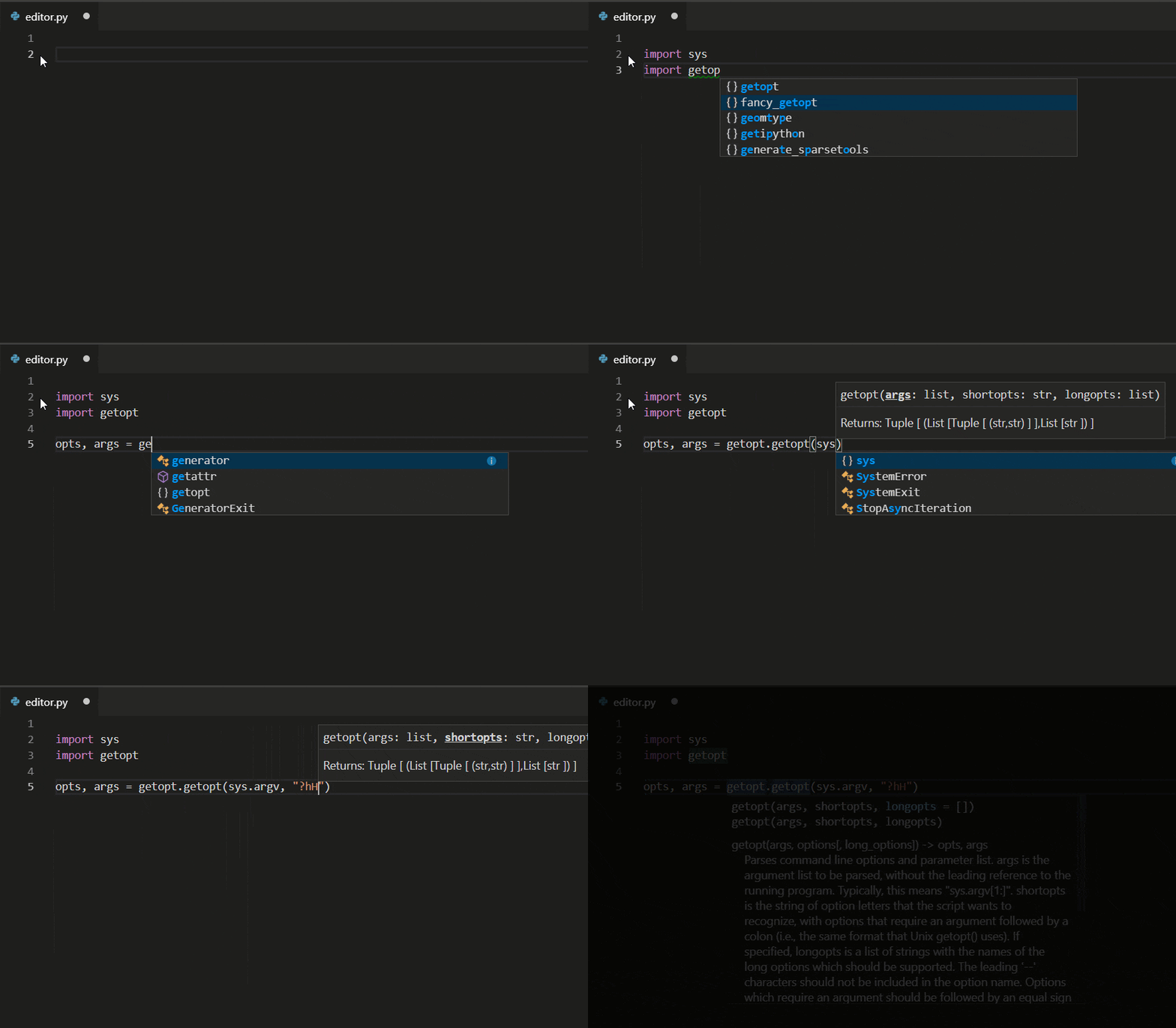
Tip: Check out the IntelliCode extension for VS Code (preview). IntelliCode provides a set of AI-assisted capabilities for IntelliSense in Python, such as inferring the most relevant auto-completions based on the current code context.
Linting
Linting analyzes your Python code for potential errors, making it easy to navigate to and correct different problems.
The Python extension can apply a number of different linters including Pylint, Pep8, Flake8, mypy, pydocstyle, prospector, and pylama. See Linting.
Debugging
No more print statement debugging! Set breakpoints, inspect data, and use the debug console as you run your program step by step. Debug a number of different types of Python applications, including multi-threaded, web, and remote applications.
For Python-specific details, including setting up your launch.json configuration and remote debugging, see Debugging. General VS Code debugging information is found in the debugging document. The Django and Flask tutorials also demonstrate debugging in the context of those web apps, including debugging Django page templates.
Snippets
Snippets take productivity to the next level. You can configure your own snippets and use snippets provided by an extension. Snippets appear in the same way as code completion Ctrl+Space. For specific examples with Python, see the Django and Flask tutorials.
Environments
The Python extension automatically detects Python interpreters that are installed in standard locations. It also detects conda environments as well as virtual environments in the workspace folder. See Configuring Python environments. You can also use the python.pythonPath setting to point to an interpreter anywhere on your computer.
The current environment is shown on the left side of the VS Code Status Bar:

The Status Bar also indicates if no interpreter is selected:

The selected environment is used for IntelliSense, auto-completions, linting, formatting, and any other language-related feature other than debugging. It is also activated when you use run Python in a terminal.
To change the current interpreter, which includes switching to conda or virtual environments, select the interpreter name on the Status Bar or use the Python: Select Interpreter command.
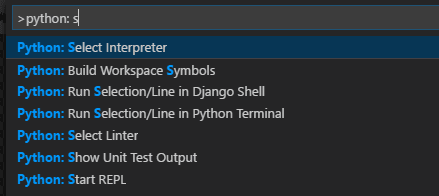
VS Code prompts you with a list of detected environments as well as any you've added manually to your user settings (see Configuring Python environments).
Installing packages
Packages are installed using the Terminal panel and commands like pip install <package_name>(Windows) and pip3 install <package_name> (macOS/Linux). VS Code installs that package into your project along with its dependencies. Examples are given in the Python tutorial as well as the Django and Flask tutorials.
Jupyter notebooks
If you open a Jupyter notebook file (.ipynb) in VS Code, the Python extension prompts you to import the notebook as a Python code file. The notebook's cells are delimited in the Python file with #%% comments, and the Python extension shows Run Cell or Run All Cells CodeLens. Selecting either CodeLens starts the Jupyter server and runs the cell(s) in the Python interactive window:
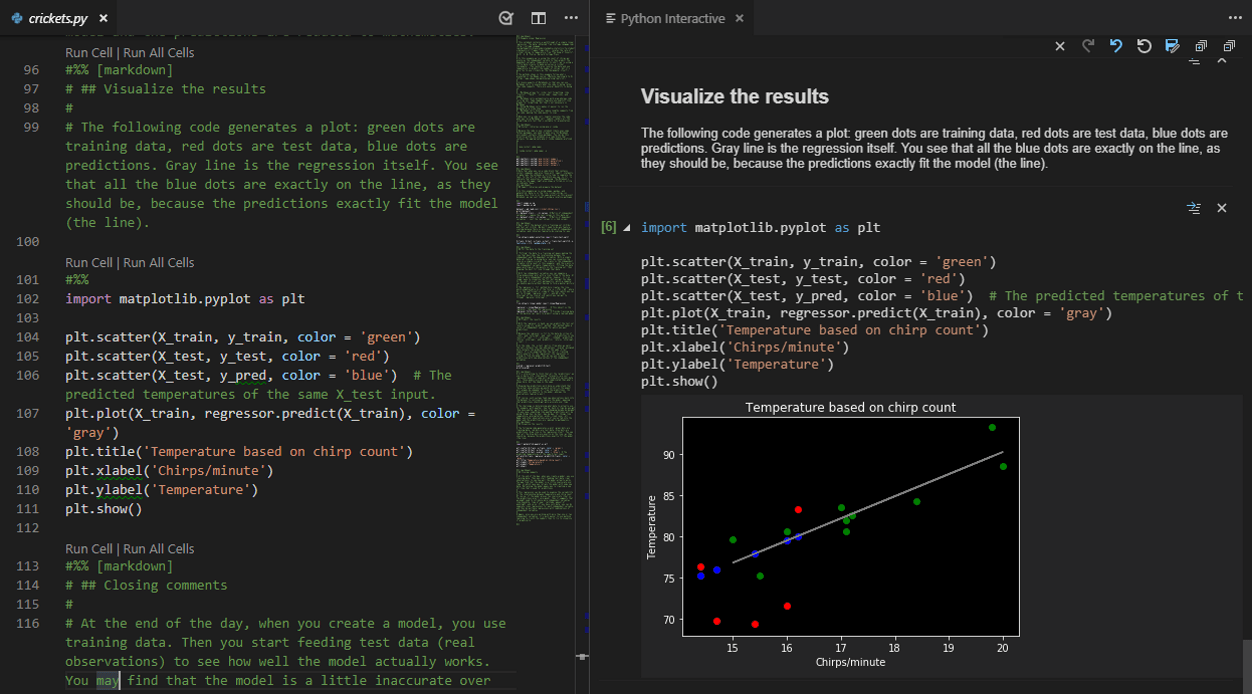
You can also connect to a remote Jupyter server for running the code.
Furthermore, importing a notebook into VS Code allows you to use all of VS Code's debugging capabilities. You can then save the notebook file and open it again as a notebook in Jupyter or upload to a service like Azure Notebooks.
For more information, see Jupyter support.
Unit testing
The Python extension supports unit testing with the unittest, pytest, and nose test frameworks.
To run unit tests, you enable one of the frameworks in settings. Each framework also has specific settings, such as arguments that identify paths and patterns for test discovery.
Once discovered, VS Code provides a variety of commands (on the Status Bar, the Command Palette, and elsewhere) to run and debug tests, including ability to run individual test files and individual methods.
Configuration
The Python extension provides a wide variety of settings for its various features. These are described on their relevant topics, such as Editing code, Linting, Debugging, and Unit Testing. The complete list is found in the Settings reference.
Other popular Python extensions
The Microsoft Python extension provides all of the features described previously in this article. Additional Python language support can be added to VS Code by installing other popular Python extensions. For Jupyter support, we recommend the "Jupyter" extension from Don Jayamanne.
- Open the Extensions view (Ctrl+Shift+X).
- Filter the extension list by typing 'python'.
The extensions shown above are dynamically queried. Click on an extension tile above to read the description and reviews to decide which extension is best for you. See more in the Marketplace.
Next steps
- Python Hello World tutorial - Get started with Python in VS Code.
- Editing Python - Learn about auto-completion, formatting, and refactoring for Python.
- Basic Editing - Learn about the powerful VS Code editor.
- Code Navigation - Move quickly through your source code.
- Django tutorial
- Flask tutorial
Was this documentation helpful?
[转]Python in Visual Studio Code的更多相关文章
- Python + Djang+ Visual Studio Code(VSCode)
使用 Visual Studio Code(VSCode)搭建简单的 Python + Django 开发环境 https://www.cnblogs.com/Dy1an/p/10130518.htm ...
- 【Python】Visual Studio Code 安装&&使用 hello python~~~~
1.安装Python 官网下载: https://www.python.org/downloads/ 选择版本下载 2.下载完毕后,点击安装. 3.看到页面,直接下一步,全部默认选项. 4.安装即 ...
- visual studio code——运行python
How to run Python in Visual Studio Code Getting Started with Python in VS Code python教程 vs code 安装py ...
- 如何用visual studio code更好的编写python
目录 1.先决条件 2.Visual Studio Code扩展安装Python 3.Visual Studio Code扩展安装Python for VSCode 4.Visual Studio C ...
- Visual Studio Code 安装美化合集
这是一个关于VSCode编辑器的各种配置. 你可以在这里找到VSCode 的各种操作,如果这里找不到,请移步官方文档C++ programming with Visual Studio Code以及各 ...
- visual studio code 里调试运行 Python代码
最近对微软的visual studio code 挺感兴趣的,微软的跨平台开发工具.轻量简洁. 版本迭代的也挺快的,截止16年8月2日已经1.3.1版本了,功能也愈加完善.(16年12月18日 已经, ...
- visual studio code 安装python扩展
Ctrl+P 调出控制台,在控制台里输入ext install python,点击第一个安装 如果出现: visual studio code connect ETIMEDOUT 191.238.17 ...
- Visual Studio Code 搭建Python开发环境
1.下载Python https://www.python.org/downloads/windows/ 选择一个版本,目前2.0的源码比较多,我下载的2.7.12 2.配置环境变量 3.Visual ...
- Visual Studio Code 写Python 代码
最近在博客园新闻里面看到微软发布的Visual Studio Code 挺好用的,现在在学习Python,查看官网发布的VSCode 是支持Python代码,自己试着安装用一下,下面是我的安装以及配置 ...
随机推荐
- OKHttp源码学习--HttpURLConnection HttpClient OKHttp Get and post Demo用法对比
1.HttpURLConnection public class HttpURLConnectionGetAndPost { private String urlAddress = "xxx ...
- JavaScript对象类型判断注意点
注意点 不要使用 new Number() . new Boolean() . new String() 创建包装对象:用 parseInt() 或 parseFloat() 来转换任意类型到numb ...
- Odoo开源智造IT经理人创业圆梦计划正式启动
概念定义 IT经理人创业圆梦计划是什么? 甲方IT经理人的行业背景 + 其他甲方需求及可靠信任的线索资源 = 自主创业圆梦计划 具体措施 甲方IT经理人的职业行业背景取得其他甲方需求线索及信任——通过 ...
- arcgis api 4.x for js 结合 react 入门开发系列"esri-loader"篇(附源码下载)
基于上篇的介绍,虽然有比较esri-loader.@arcgis/webpack-plugin,还是觉得有必要需要讲述一下“esri-loader”的开发模式,待大家体验后也会有更直观的感受.本篇文章 ...
- idea上maven使用心得(三)——用pom.xml添加jar包
下面是如何使用maven,maven在idea里面得结构应该是这样: scr底下是main,java是存放web的.java文件 resource目录一般是存放数据库连接数据的,或者存各种资源文件,音 ...
- Spring Aop源码分析
最近看了SpringAop的源码实现 大概记录一下aop的源码流程 创建一个最简单的一个测试类 package com.zcg.learn.Test; import org.aopalliance. ...
- 禁止WPS2019开机自启动
最近开机发现WPS总是自己启动,导致开机速度会慢5s左右,从网上找了很多办法都没用,包括运行+msconfig,启动项里面没有WPS:杀毒软件自启动管理里面也没有找到WPS,百度了一圈也没有找到任何有 ...
- 【js】项目中有关时间的问题
一.时间戳 简单讲,unix时间戳就是从1970-01-01开始所经过的秒数,什么时候获取时间戳,就是到那个时间点所经历的秒数. 二.JavaScript获取时间戳 根据时间戳的定义,可以使用java ...
- 两篇文章带你走入.NET Core 世界:CentOS+Kestrel+Ngnix 虚拟机先走一遍(一)
背景: 上一篇:ASP.Net Core on Linux (CentOS7)共享第三方依赖库部署 已经交待了背景,这篇就省下背景了. 折腾的过程分两步: 第一步是:本机跑虚拟机部署试一下: 第二步是 ...
- 页面结构化在 Android 上的尝试
本文来自于腾讯Bugly公众号(weixinBugly),未经作者同意,请勿转载,原文地址:https://mp.weixin.qq.com/s/M45DM5Ix7a2fmrsE8VPvxg 作者:b ...