
181102 Python环境搭建(安装Sublime Text3)
利用Pycharm来编写、执行python代码是一个不错的选择,Pycharm的安装的确也很方便。但是偶然看到别人用Sublime Text来编写、执行代码,觉得很酷。所以自己动手搭建环境。
1. 下载Sublime Text3--->win7系统,安装在C盘(wherever you like,你高兴就好。反正容量不大)C:\Program Files\Sublime Text 3(我的路径);
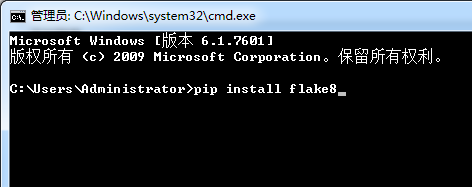
2. 打开cmd命令窗口,安装Flake8
pip install flake8
3. 下载Package Control(点击Clone download下的Download ZIPx下载)--->在以下路径解压:C:\Users\Administrator\AppData\Roaming\Sublime Text 3(这个路径很容易找:打开软件--首选项(Preferences--Browse Packages)--打开目录后往后退一步就OK了)
注意:不推荐通过Preferences下面的Packges Control来安装,后续会有各种问题。


4. 安装插件:
通过快捷键:Ctrl+shift+p打开插一个输入框--->输入install--->按Enter键(窗口左下角就会出现Loading repositories)--->Loading结束后优惠弹出一个输入框(如下图10%***的那个)--->再这个输入框中输入插件名称,再按Enter键就开始安装插件了。
需要安装的插件是:SublimeLinter,SublimeLinter-flake8,Anaconda,SoDaReloaded,Zen Tabs,SublimeREPL等(安装插件后,重启生效)


5. 设置
5.1 Preferences--->Settings--->User
 {

     "caret_style": "solid",

     "color_scheme": "Packages/Tomorrow Color Schemes/Tomorrow-Night.tmTheme",

     "draw_white_space": "all",

     "file_exclude_patterns":

     [

         "*.pyc",

         "*.pyo",

         "*.exe",

         "*.dll",

         "*.obj",

         "*.o",

         "*.a",

         "*.lib",

         "*.so",

         "*.dylib",

         "*.ncb",

         "*.sdf",

         "*.suo",

         "*.pdb",

         "*.idb",

         ".DS_Store",

         "*.class",

         "*.psd",

         "*.db",

         "*.sublime-workspace"

     ],

     "fold_buttons": false,

     "folder_exclude_patterns":

     [

         ".svn",

         ".git",

         ".hg",

         "CVS",

         "__pycache__"

     ],

     "font_face": "Ubuntu Mono",

     "font_options":

     [

         "directwrite",

         "subpixel_antialias",

         "no_bold",

         "no_italic"

     ],

     "font_size": 16,

     "highlight_line": "true",

     "highlight_modified_tabs": true,

     "ignored_packages":

     [

         "Vintage"

     ],

     "indent_guide_options":

     [

         "draw_active"

     ],

     "line_padding_bottom": 1,

     "line_padding_top": 2,

     "scroll_past_end": true,

     "shift_tab_unindent": true,

     "theme": "SoDaReloaded Dark.sublime-theme",

     "wide_caret": "true"

 }
5.2 Preferences--->Package Settings--->Package Control--->Setting User
 {

     "bootstrapped": true,

     "in_process_packages":

     [

     ],

     "installed_packages":

     [

         "Anaconda",

         "Package Control",

         "SideBarEnhancements",

         "SublimeLinter",

         "SublimeLinter-flake8",

         "SublimeREPL",

         "Theme - SoDaReloaded",

         "Tomorrow Color Schemes",

         "View In Browser",

         "Zen Tabs"

     ],

     "repositories":

     [

         "https://github.com/n1k0/SublimeHighlight/tree/python3",

         "https://github.com/n1k0/SublimeHighlight/tree/python3"

     ]

 }
5.3 Prefereces-->Package Settings-->SublimeLinter-->Settings
改两处:把Default替换成user;添加python执行文件的路径在paths中。


5.4 Preferences--->Package Settings--->Zen Tab--->Setting User
 {

     "open_tab_limit":5,

     "highlight_modified_tabs":true,

     "show_full_path":false

 }
5.5 Preferences--->Settings - Syntax Specific
 "tab_size": 4,

 "translate_tabs_to_spaces": true,

 "trim_trailing_white_space_on_save": true,

 "ensure_newline_at_eof_on_save": true,

 "rulers": [

 72,

 79

 ],

 "word_wrap": true,

 "wrap_width": 80
6. 设置执行程序的快捷键
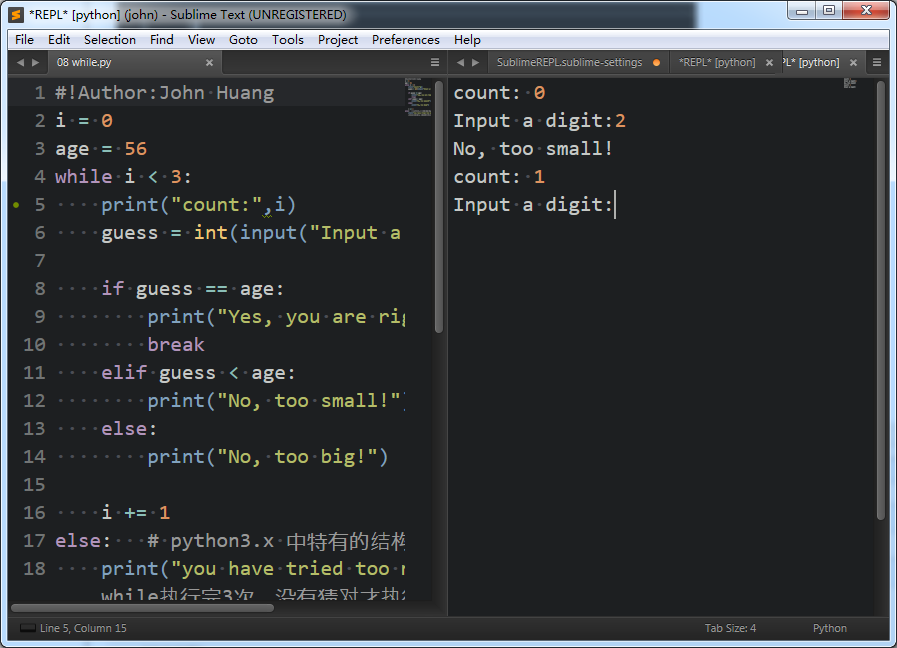
可以通过点击Tools-->SublimeREPL-->Python-->Python-RUN current file来执行代码,但是过于麻烦,我们可以设置快捷键F5来执行程序。
设置方法:Preferences-->Key Bindings,添加如下代码。设置好后,运行效果如下图:
 [

     {

         "keys":["f5"],

         "caption":"SublimeREPL:Pyhton - RUN current file",

         "command":"run_existing_window_command",

         "args":

         {

             "id":"repl_python_run",

             "file":"config\\python\\Main.sublime-menu"

         }

     }

 ]
本文参考:让你用sublime写出最完美的python代码--windows环境
181102 Python环境搭建(安装Sublime Text3)的更多相关文章
- 4.7 Sublime Text3 中配置 Python环境 --之上安装Sublime 3
返回总目录 目录: 1.展示效果: 2.缺优分析: 3.下载Sublime Text3 (一)展示效果: 1.能够交互式编写Python代码: 2.可以编写文件式Python代码: 3.能够自动补齐代 ...
- Python环境下的Sublime Text3无法使用input()函数
在Sublime Text3中写好Python程序,按Ctrl+B运行程序,在控制台中输入内容,回车,程序没有响应.最后求助网络,找到了解决办法. 一.安装插件SublimeREPL 按Ctrl+Sh ...
- 在windows环境下基于sublime text3的node.js开发环境搭建
首先安装sublime text3,百度一堆,自己找吧.理论上sublime text2应该也可以.我只能说一句:这个软件实在是太强悍了. 跨平台,丰富的插件体系,加上插件基本上就是一个强悍的ide了 ...
- Python 环境搭建(Win 安装以及Mac OS 安装)
千里之行始于足下,今天我们先来学习 Python 环境搭建. 注意:本系列教程基于 Python 3.X Python 环境搭建 Win 安装 打开 Python 官网 https://www.pyt ...
- 下载安装sublime text3,打包sublime text3便携版,激活sublime text3,配置sublime text3的php环境
下载安装sublime text3: http://www.sublimetext.com/3 安装就一直下一步 打包sublime text3便携版 : 参考http://segmentfa ...
- Python环境搭建和pycharm安装
Python环境搭建和pycharm安装 本人安装环境为Windows10系统,下载的Python版本为3.4社区版本,可参考 1.下载Python3.4版本 官网:https://www.pytho ...
- python环境搭建以及pycharm的安装
要实现python自动化,环境和IDE都是必须的.我选择的是python3.4.4版本以及pycharm社区版. 资源链接:https://pan.baidu.com/s/1hRqyRe3J ...
- python环境搭建、pycharm安装
一. 实验目标 (1) Python环境搭建 (2) 会pycharm安装和使用 (3) 了解python程序设计流程 二. 实验内容 1.勾选Add Python 3.7 ...
- python环境搭建以及jupyter notebook的安装和启动
一.Python 环境搭建 本章节我们将向大家介绍如何在本地搭建Python开发环境. Python可应用于多平台包括 Linux 和 Mac OS X. 你可以通过终端窗口输入 "pyth ...
随机推荐
- UTF-8字符C2A0引起的问题
今天遇到一个问题: 网页上的一段文字中有几个空格,把这段文字当作文件名称保存为一个windows系统下的文件后,文件名中本来是空格的地方变成了问号,另外一个C#程序打开这个文件,也提示找不到文件. 初 ...
- SpringSecurity在Springboot下使用的初步体验
SpringSecurity曾经在十年前非常火热,只要是做权限系统,当时几乎非用它不可,记得是在XML文件里一堆的配置.曾几何时,Shiro冒了出来,以其简洁和轻量的风格慢慢地捕获了众多码农的心,从此 ...
- .Net业务搭配实用技术栈(转)
前言 昨天有篇文章在讨论webform的设计思路,我已经四五年不用webform了,虽然它也提供了HttpModule和httphandle来处理请求,提供了一般处理程序ashx来简化处理流程,但 ...
- CSScript 使用纪要
CSScript 运行C#脚本的开源项目,在笔者简要使用过程中,遇到了一些问题,现简单记录. 1. CS0433 使用非基本类型 当遇到 CS0433错误,提示 type is defined mul ...
- OAuth 2.0详解
OAuth是一个关于授权(authorization)的开放网络标准,在全世界得到广泛应用,目前的版本是2.0版. 本文对OAuth 2.0的设计思路和运行流程,做一个简明通俗的解释,主要参考材料为R ...
- ubuntu16.4下使用QT修改系统时间
我也是在网上找的,自己随便改了一下六个lineEdit控件,每个控件输入日期时间,点击按钮触发函数可修改时间. 1 //一键修改系统时间 QString year = ui->lineEdit_ ...
- 【mongo】查询超时处理
使用no_cursor_timeout collection = self.db[tb_name] cols = collection.find(no_cursor_timeout=True) for ...
- 《剑指offer》二叉树的深度
本题来自<剑指offer> 反转链表 题目: 思路: C++ Code: Python Code: 总结:
- 修改MySQL的数据目录
环境:CentOS Linux release 7.1.1503 (Core) 1. 安装MYSQL wget http://dev.mysql.com/get/mysql-community-rel ...
- centos7 firewalld 开放端口
开通80端口 firewall-cmd --zone=public --add-port=80/tcp --permanent --zone #作用域 --add-port=80/tcp #添加端口, ...